How to fix
Microsoft Store error “This app will not work on your device”
on Windows
Resolve the Microsoft Store error "This app will not work on your device" in Windows 10 or 11 swiftly. Expert-tested solutions await!

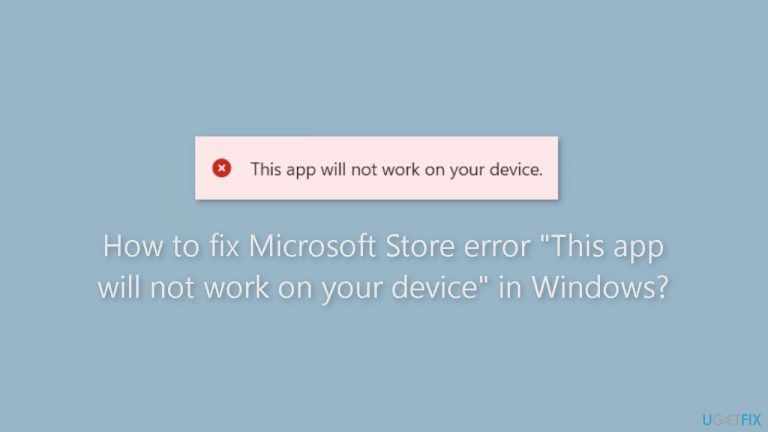
What causes How to fix Microsoft Store error “This app will not work on your device” in Windows?
- Outdated hardware
- Outdated software
- Incompatible system requirements
- App compatibility issues
- Corrupted files
Repairs Windows system files, removes malware, and restores a clean OS state — without reinstalling.
Hello. I tried to install an app from the Microsoft Store but I get the "This app will not work on your device" error. How do I fix this?
The Microsoft Store is an app store built into the Windows operating system that allows users to download and install various applications, games, and other content on their devices. It provides a centralized and secure platform for users to discover and install Microsoft-verified software, lowering the risk of downloading and installing malware or other security threats from untrustworthy sources.
Some users, however, may receive an error message in the Microsoft Store stating, "This app will not work on your device." This problem typically occurs when the app is incompatible with the user's device, which could be due to outdated hardware or software, incompatible system requirements, or other factors.
This problem can have a variety of consequences for users. For starters, it can prevent users from installing and using apps that they require or desire, limiting their productivity and enjoyment. Second, for users who are unfamiliar with the technical details of their device and the app they are attempting to install, it can be frustrating and confusing, resulting in a negative user experience.
Users can resolve this issue by updating their device drivers,[ref en-1] upgrading their operating system, checking for app compatibility with their devices, or contacting the app developer for support, depending on the specific cause of the problem. In this guide, you will find 9 steps that should help you fix "This app will not work on your device" Microsoft Store error.
Keep in mind that the manual troubleshooting process can be lengthy. You can also try using a maintenance tool like [d1] that can fix most system errors, BSODs,[ref en-2] corrupted files, registry[ref en-3] issues, or clear cookies and cache. Otherwise, follow the step-by-step instructions below.
Solution 1. Run Microsoft Store Apps Troubleshooter
- Open the Start menu.
- Click the gear-shaped icon to launch the Settings app.
- In the Settings app, click on the System tab.
- Click on Troubleshoot.
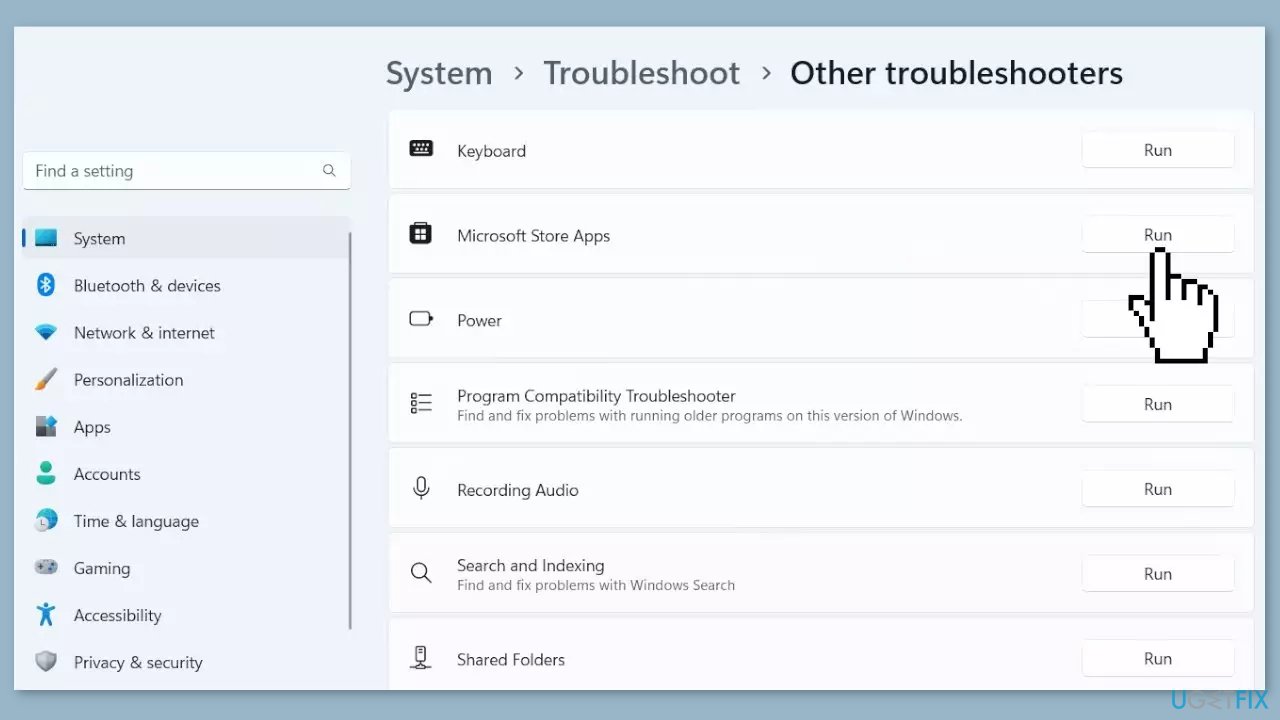
- Select Other troubleshooters.
- Look for Windows Store Apps and click the Run button next to it.
- Follow the on-screen prompts to run the troubleshooter.
Solution 2. Fix Corrupted System Files
Use Command Prompt commands to repair system file corruption:
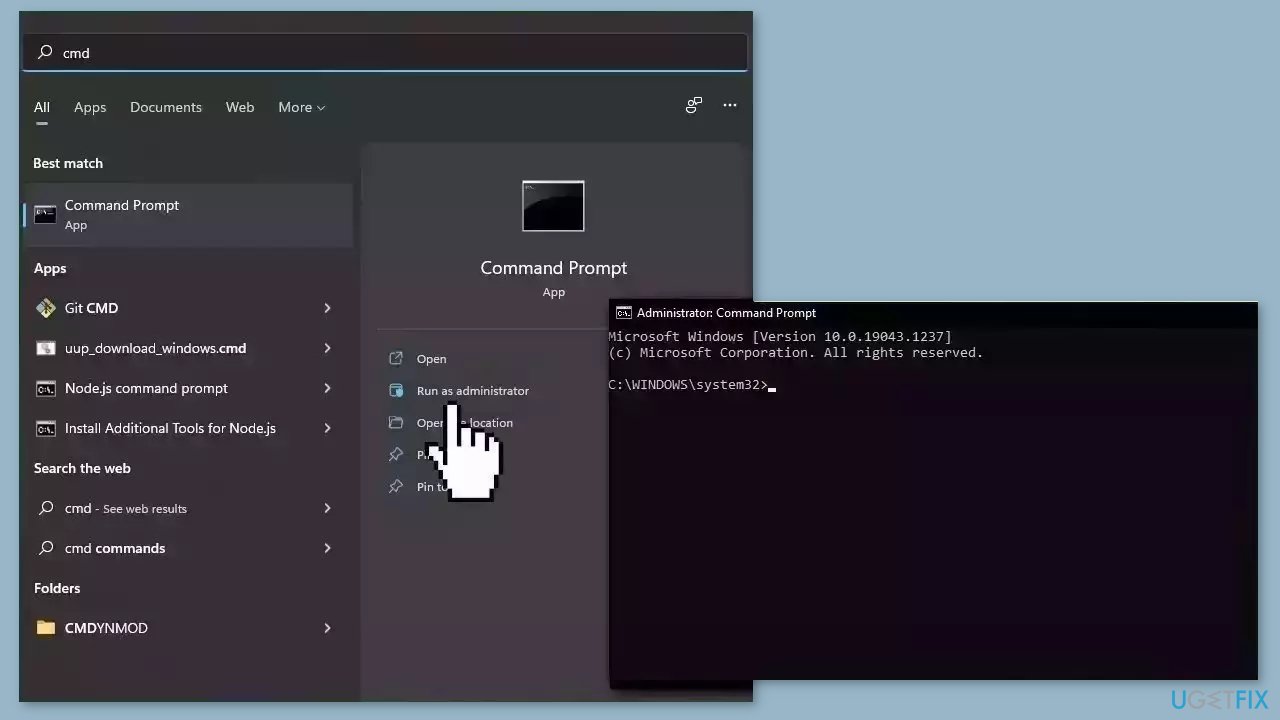
- Open Command Prompt as administrator
- Use the following command and press Enter:
sfc /scannow
- Reboot your system
- If SFC returned an error, then use the following command lines, pressing Enter after each:
DISM /Online /Cleanup-Image /CheckHealth
DISM /Online /Cleanup-Image /ScanHealth
DISM /Online /Cleanup-Image /RestoreHealth
Solution 3. Install Windows Updates
- Click Start and select Settings.
- Go to the Windows Update section.
- Click Check for updates and wait.
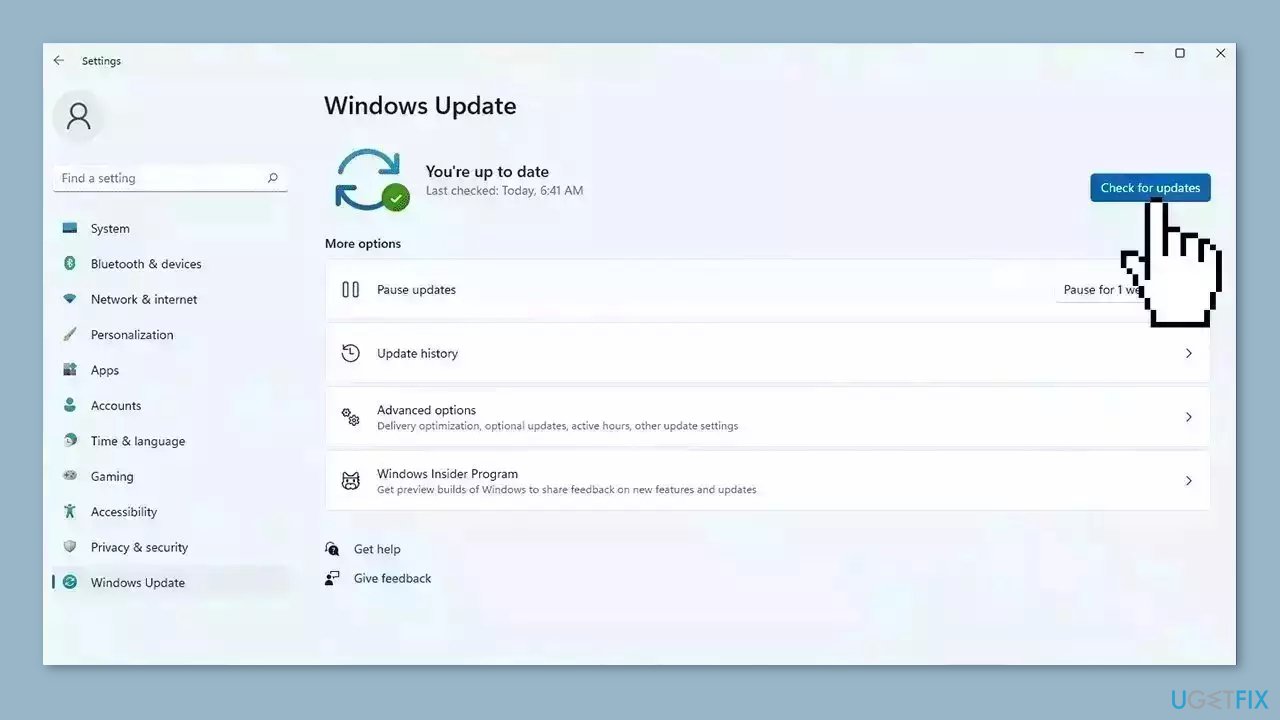
- Go to the Advanced options and install optional updates.
- Reboot your system.
Solution 4. Update Drivers
Outdated drivers could be the cause of this issue. In this case, you can fix it automatically by using [rev id="DriverFix"], which will scan your PC for missing and out-of-date device drivers. Or you can update them manually:
- Open Settings.
- Click on Update & Security.
- Click on Windows Update.
- Click the Check for updates button.
- Click the View optional updates option.
- Click the Driver updates tab.
- Select the driver you want to update.
- Click the Download and install button.
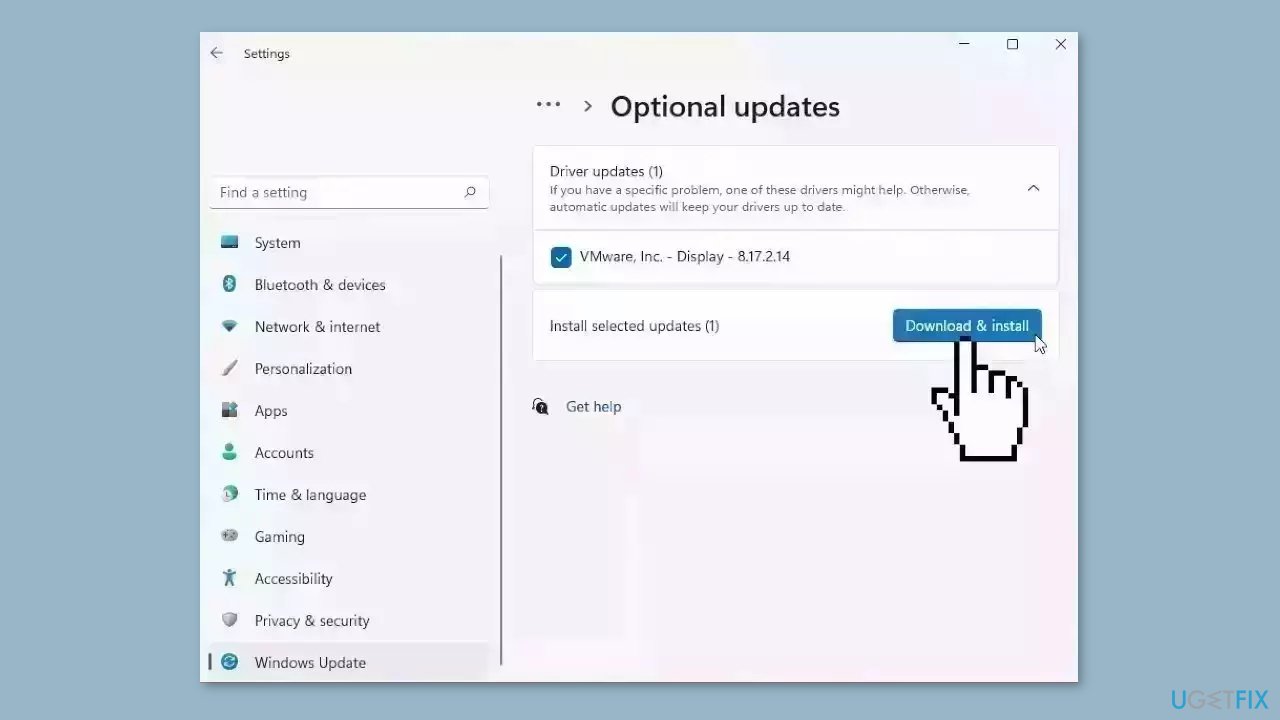
If the View optional updates link is not available after checking for updates, then Windows Update does not have any new drivers or any updates for other products at that particular time.
Solution 5. Update Microsoft Store
- Open the Store app.
- Click on the Library tab from the left-side pane.
- Click on the Get updates button.
- Press the Update all button to update all your Microsoft Store apps.
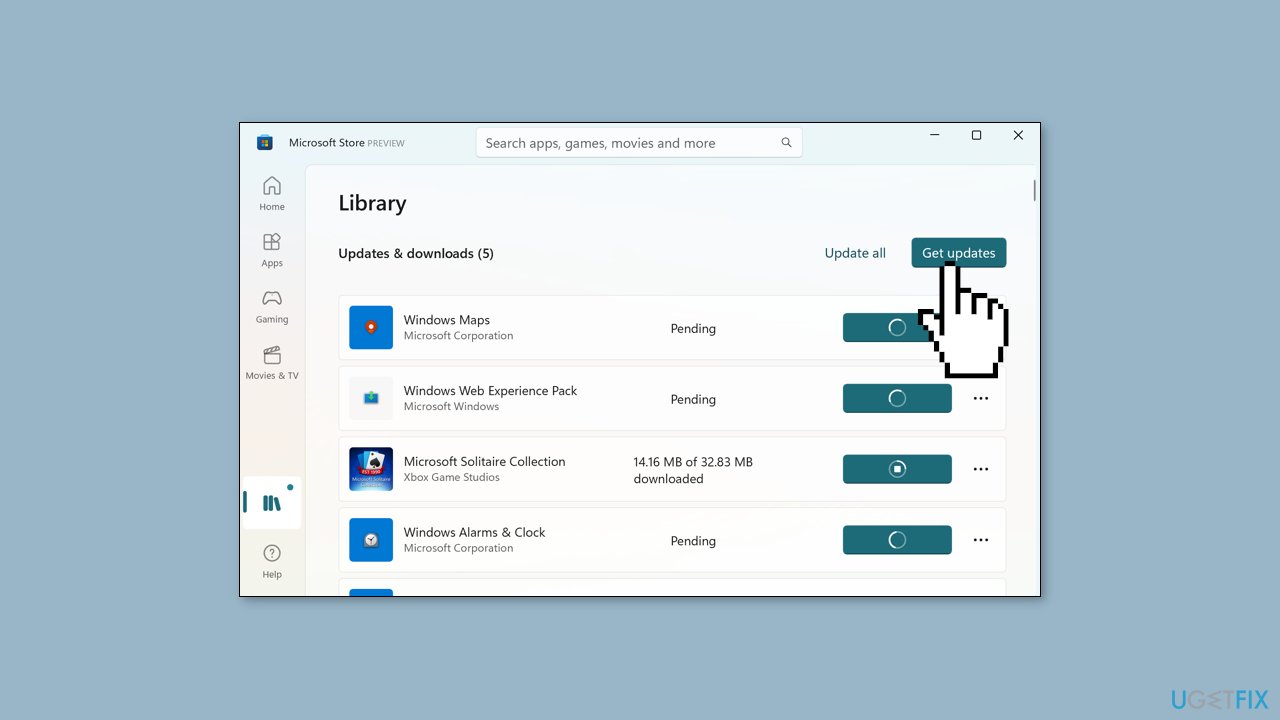
- Wait for the updates to complete.
- Restart your computer.
- Check if the error is fixed.
Solution 6. Enable Hyper-V
- Open Windows Search.
- Type Control Panel and press Enter to open it.
- Click on the Programs category.
- Click on the Turn Windows features on or off option.
- Tick the checkboxes associated with the Hyper-V, Virtual Machine Platform, and Windows Hypervisor Platform options.
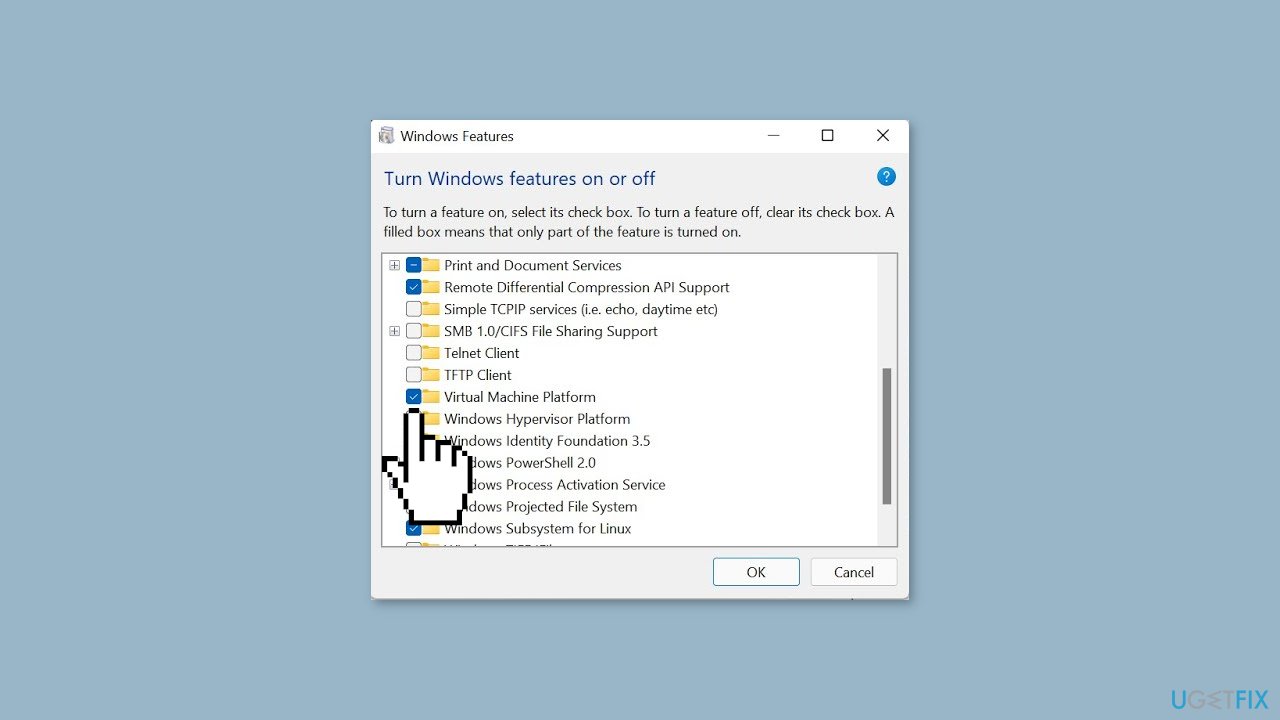
- Press the OK button to apply new settings.
- Wait for the changes to take effect.
- Reboot your computer.
Solution 7. Clear Microsoft Store Cache
Like most applications, Microsoft Store creates and stores cache data to enhance performance. However, if this cache becomes corrupt, you may experience various issues.
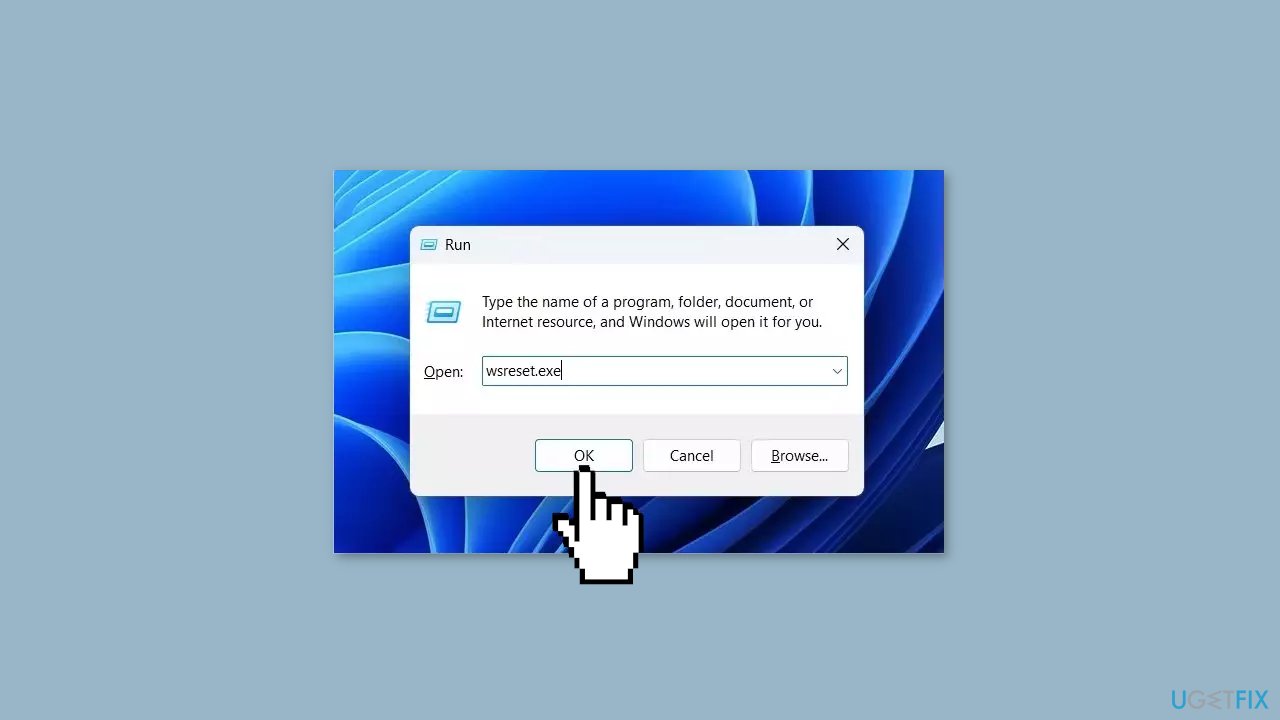
- Open the Run dialog box by pressing the Windows key + R.
- If the hotkeys don't work, you can use any other method to open the Run dialog box.
- In the search bar of the Run dialog box, type wsreset.exe.
- Click OK.
- A blank Command Prompt window will appear for a few seconds.
- Once the cache is cleared, Windows will close the Command Prompt window and automatically launch the Microsoft Store app.
Solution 8. Re-register the Microsoft Store
- Press the Windows key to open the Start Menu.
- Type Windows PowerShell in the search bar.
- Choose Run as administrator from the right pane.
- In the elevated PowerShell window, type the following command:
Get-AppXPackage *WindowsStore* -AllUsers | Foreach {Add-AppxPackage -DisableDevelopmentMode -Register “$($_.InstallLocation)\AppXManifest.xml”}
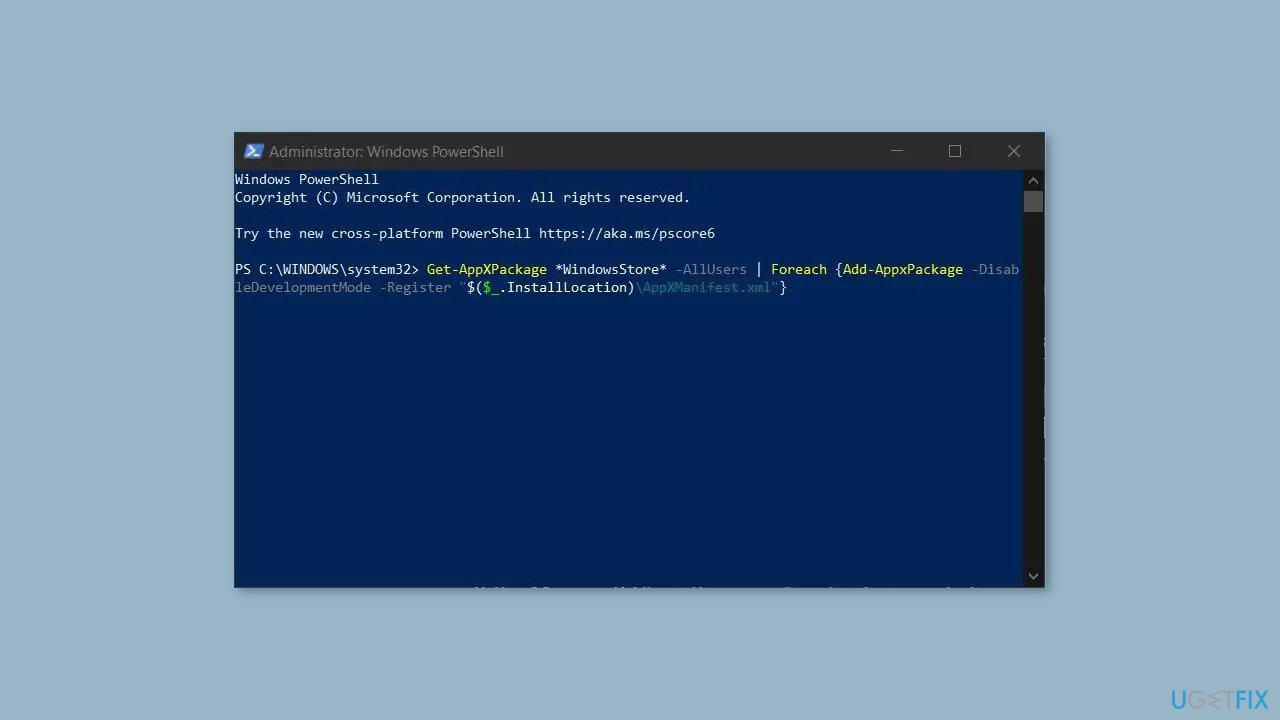
- Press Enter to run the command.
- Wait for the process to complete.
- Close the PowerShell window.
- Check if the Microsoft Store app is working properly now.
Solution 9. Restart the Application Identity Service
- Press the Windows key + R combination to open the Run dialog box.
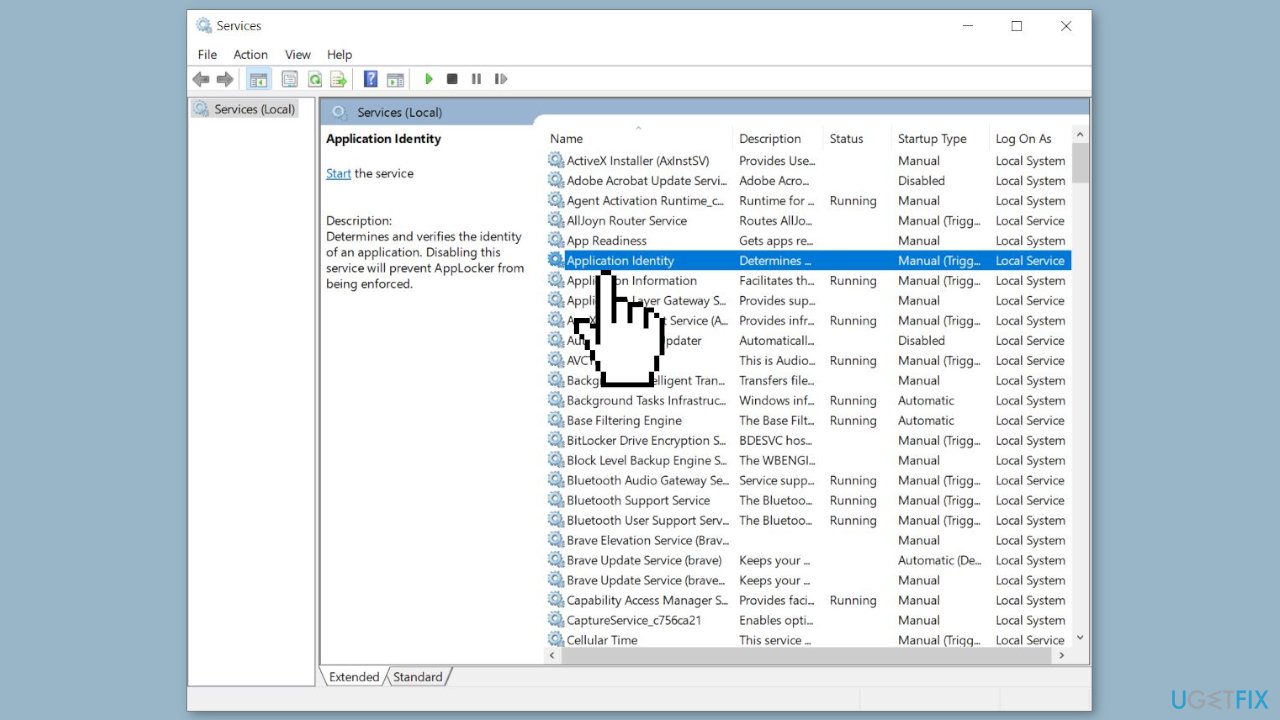
- Type services.msc in the Run dialog box and press Enter to open the Services app.
- Select the Application Identity service from the list.
- Click on the Start button. If it is already running, press the Restart button.
- Right-click on the Application Identity service.
- Select the Properties option from the context menu.
- Set the Startup type to Automatic in the Properties dialog box.
- Press the Apply button.
- Press the OK button to apply new settings.
Bottom line
To fix the Microsoft Store error 'This app will not work on your device', you can update your device drivers, upgrade your operating system, check for app compatibility, or contact the app developer for support. If these solutions do not resolve the issue, consider using a maintenance tool to fix system errors.
Frequently asked questions
First, check if your device meets the app's system requirements and ensure you have the latest Windows updates installed. If the issue persists, try resetting the Microsoft Store cache by running 'wsreset.exe' in the Run dialog.
Make sure your Windows 11 is fully updated and compatible with the app you are trying to install. If the problem continues, consider running the Windows Store Apps Troubleshooter from the Settings menu.
Yes, you can try reinstalling the app or checking its compatibility settings by right-clicking the app icon, selecting 'Properties', and adjusting the compatibility settings under the Compatibility tab.




Report an issue
What's wrong with this guide? We review every report and update or remove content.
Report received — thank you. We'll review and fix it.
You need a free account to submit a report.
Be the first to comment