How to fix
Sticky Notes not opening or working
on Windows
Resolve Sticky Notes issues on Windows 10 or 11 quickly and easily. Expert-tested solutions ensure your notes are back in action in no time!


What causes How to fix Sticky Notes not opening or working in Windows?
- Application not responding
- Internet connection issues
- Incompatible note-taking applications
- Corrupted application data
- Settings misconfiguration
Repairs Windows system files, removes malware, and restores a clean OS state — without reinstalling.
Hello. When I try to open the Sticky Notes app on my Windows computer it does not work like before. What could be the issue?
Sticky Notes is a note-taking and organization application included in the Windows operating system. The app is useful for quickly noting important information, making to-do lists, and keeping track of reminders. Sticky Notes is particularly useful for users who want to keep a digital copy of the Post-It notes they used to stick on their computer monitors or desktops.
Despite the benefits of the Sticky Notes app, some users may encounter problems with the app not opening or working properly. This can be inconvenient for users who rely on the app to manage their notes and reminders. When Sticky Notes fails to open or function correctly, it can have a number of consequences for users.
If users do not have access to their notes, they may miss important reminders or forget important tasks. Users may also be unable to create new notes or edit existing ones, limiting their productivity. Fortunately, there are several potential solutions to the issue of Sticky Notes not opening or working.
Users can try resetting or repairing the application, ensuring that their internet connection is operational, disabling other note-taking applications that may be incompatible with Sticky Notes, or reinstalling the application. Disabling the "Enable insights" feature in the application settings may also help to resolve the problem.
In this guide, you will find 6 steps that should help you fix problems with the Sticky Notes app. However, you can also try a repair tool like [d1]. It can fix most system errors, BSODs,[ref en-1] corrupted files, registry[ref en-2] issues, or clear cookies and cache[ref en-3] automatically. Otherwise, follow the step-by-step instructions below.
Backup your Sticky Notes
It is crucial to back up your notes before attempting any actions. Backing up the application data is important to ensure that you can reinstall the app, restore the backup, and continue working from where you left off in case something goes wrong.
- Open File Explorer.
- In the address bar, type in the following location and press Enter:
%LocalAppData%\Packages\Microsoft.MicrosoftStickyNotes_8wekyb3d8bbwe\LocalState
- Look for the file named plum.sqlite.
- Right-click on the file and select Copy.
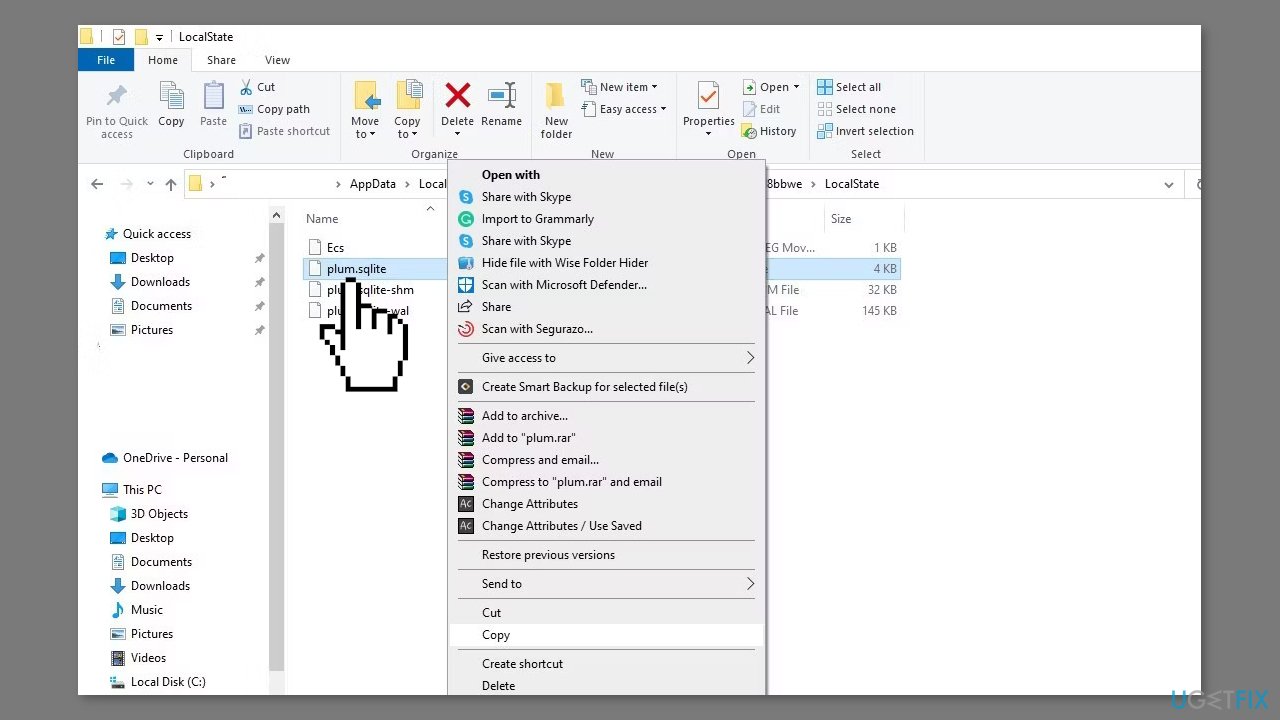
- Choose a safe location to store the copied file, such as an external hard drive or cloud storage.
- Right-click on the safe location and select Paste.
- To restore a backup, copy the backed-up plum.sqlite file from the safe location.
- Navigate back to the original location in File Explorer:
%LocalAppData%\Packages\Microsoft.MicrosoftStickyNotes_8wekyb3d8bbwe\LocalState
- Right-click on the original plum.sqlite file and select Paste to replace it with the backed-up file.
Method 1. Run the Microsoft Store Apps Troubleshooter
- Open the Start menu.
- Click the gear-shaped icon to launch the Settings app.
- In the Settings app, click on the System tab.
- Click on Troubleshoot.
- Select Other troubleshooters.
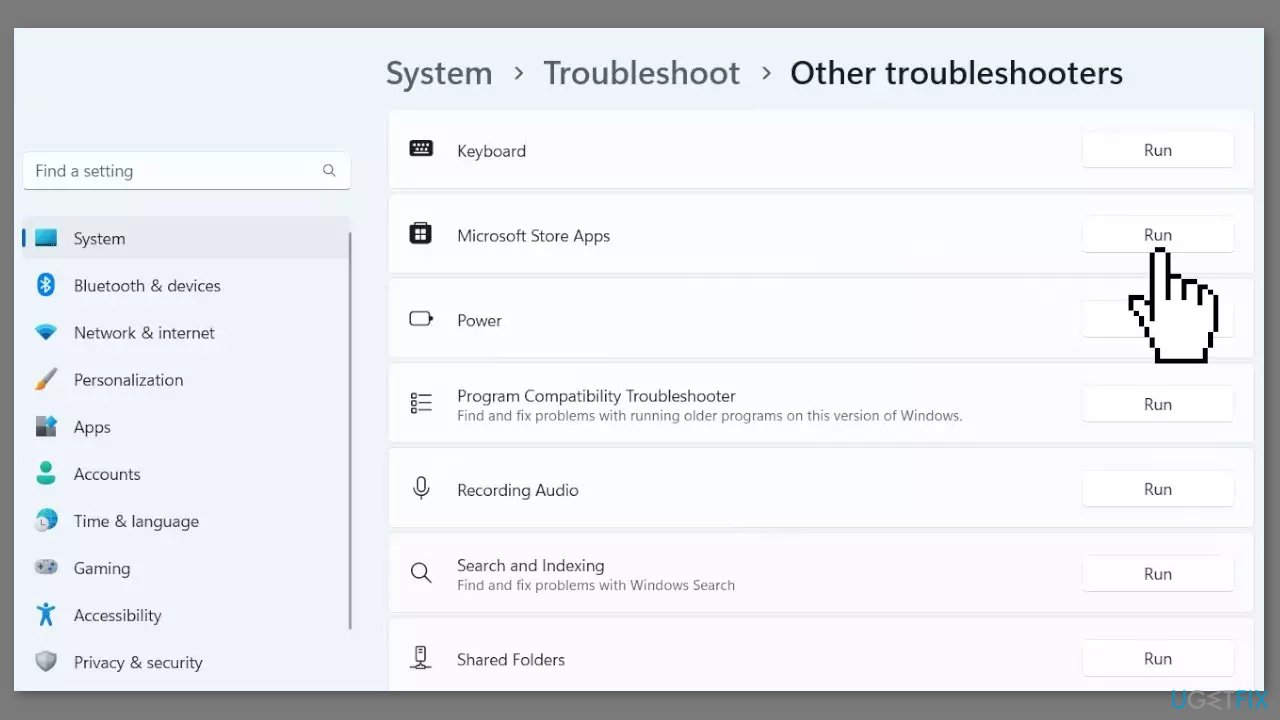
- Look for Windows Store Apps and click the Run button next to it.
- Follow the on-screen prompts to run the troubleshooter.
Method 2. Check Network Connection
Check that your internet connection is active before proceeding with troubleshooting. Although the Sticky Notes app can be used offline, it may take longer to load your notes. To avoid this, give the application enough time to load properly. A sync error message may appear in the top-right corner of the window if your internet connection is lost. Until your internet connection is restored, you will be unable to access previously synced notes or sync new ones.
Method 3. Disable other Note Apps
To avoid conflicts, it's best to temporarily disable any other note-taking applications that are running alongside Sticky Notes. If closing the extra apps or not having any others open doesn't help, significant repairs may be required. Before making any major changes, make a backup of your Sticky Notes data.
Method 4. Repair or Reset the App
- Right-click on the Windows Start button and select Settings from the menu.
- In the Settings window, click on Apps.
- Use the search bar to locate Sticky Notes.
- Select Sticky Notes from the search results.
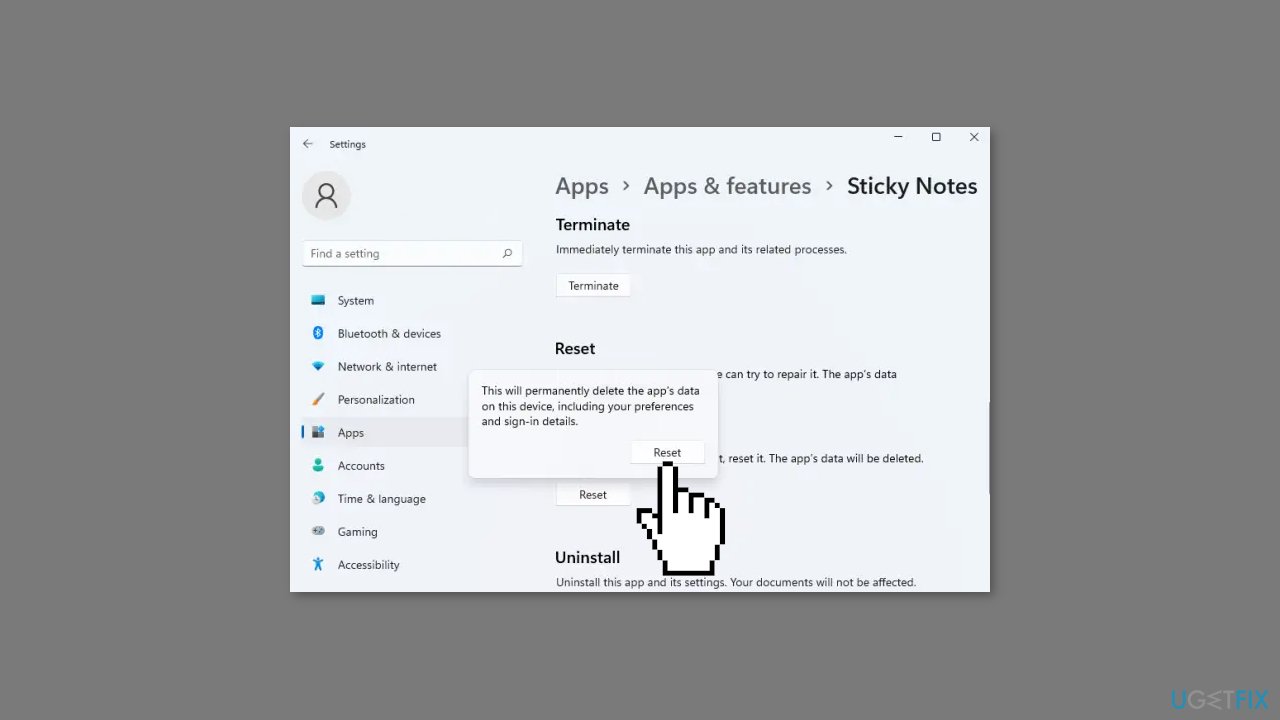
- Click on Advanced options.
- Click on Repair.
- If the app is still not opening or working, click the Reset button.
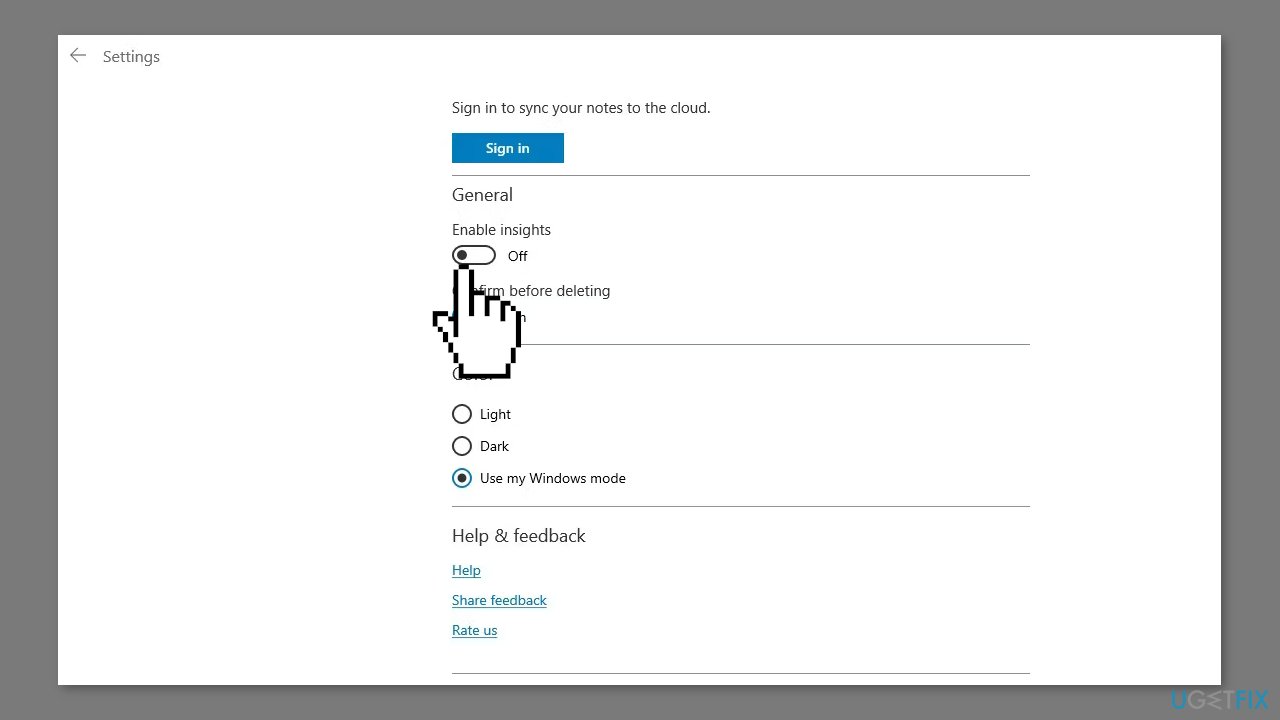
Method 5. Disable Insights
By enabling Sticky Notes insights, Cortana can access and utilize the information you input within the app. For instance, if you include a phone number in a note, Cortana may convert it to a clickable link for easy access. To avoid conflicts with the application, it's recommended to disable this feature. However, it can only be accessed if the app opens:
- Locate the Windows search bar and search for Sticky Notes.
- Click on Sticky Notes to open the application.
- Click on the gear icon (Settings) located in the top-right corner of the window.
- Under General settings, locate the Enable insights toggle.
- Switch off the Enable insights toggle.
Method 6. Reinstall Sticky Notes
- Open Settings.
- Click on Apps.
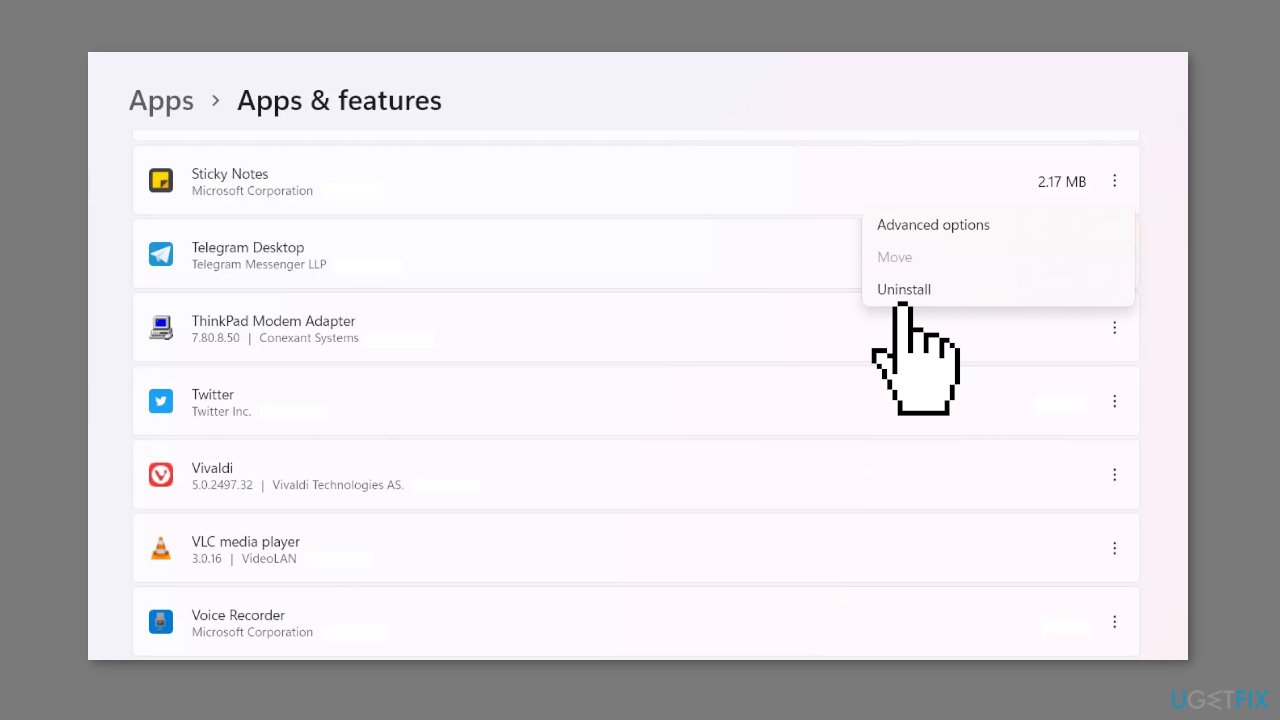
- Locate Sticky Notes in the list of installed apps and click on it.
- Click on Uninstall.
- After uninstalling, open the Microsoft Store.
- Use the search bar to find Sticky Notes.
- Click on Get to reinstall the application.
Bottom line
To fix Sticky Notes not opening or working, users can try resetting or repairing the application, ensuring their internet connection is stable, disabling incompatible note-taking applications, or reinstalling the app. Additionally, disabling the 'Enable insights' feature may help. If none of these solutions work, consider using a repair tool to address system errors.
Frequently asked questions
Try resetting the Sticky Notes app by going to Settings > Apps > Apps & features, finding Sticky Notes, and selecting 'Advanced options' to reset it.
Ensure you are signed in with the same Microsoft account on all devices and check the sync settings in the Sticky Notes app.
This issue can often be resolved by updating the app through the Microsoft Store or performing a repair from the Settings menu.




Report an issue
What's wrong with this guide? We review every report and update or remove content.
Report received — thank you. We'll review and fix it.
You need a free account to submit a report.
Be the first to comment