How to fix
Bluetooth speaker volume control not working
on Windows
Fix Bluetooth speaker volume control issues on Windows 10 and 11 effortlessly. Enjoy seamless sound adjustments, expertly tested for your convenience.

What causes How to fix Bluetooth speaker volume control not working in Windows?
- Outdated Bluetooth drivers
- Corrupted Bluetooth drivers
- Conflicting audio settings
- Windows 'Absolute Volume' feature
- Bluetooth speaker not reset
Repairs Windows system files, removes malware, and restores a clean OS state — without reinstalling.
Hello. I wanted to use my Bluetooth speakers with Windows but I can't change the volume. What should I do?
dIt can be a frustrating experience for users when the volume control for Bluetooth speaker stops working in Windows. This problem can occur for a variety of reasons, including outdated or corrupted Bluetooth drivers,[ref en-1] conflicting audio settings, or the Windows "Absolute Volume" feature.
The inability to adjust the volume on a Bluetooth speaker can have a variety of consequences for users. It can, for example, make it difficult to hear audio clearly, particularly if the volume is set too low or too high. This is especially problematic when users need to listen to audio at specific volume levels, such as during online meetings, video conferences, or while watching movies or playing games.
Furthermore, being unable to control the volume on a Bluetooth speaker can result in missed notifications or alarms, which can be inconvenient or even harmful in some cases. For example, if the volume on a Bluetooth speaker is set too low and a user misses an important phone call or message, it can result in missed opportunities or even danger.
Updating Bluetooth drivers, adjusting audio settings, disabling the "Absolute Volume" feature, and resetting the Bluetooth speaker are all possible solutions to the volume control issue on a Bluetooth speaker in Windows. This guide will walk you through 7 steps that should help you fix Bluetooth speaker volume control not working in Windows.
If you want to avoid a lengthy troubleshooting process, you can try a maintenance tool like [d1] that can fix most system errors, BSODs,[ref en-2] corrupted files, and registry[ref en-3] issues. Otherwise, follow the step-by-step instructions provided below.
Method 1. Run the Bluetooth Troubleshooter
- Click on the Windows Start button on the bottom left corner of the screen.
- Type Settings in the search bar and click on the Settings app that appears.
- In the Settings window, click on the System option.
- From the left sidebar, select Troubleshoot from the list of options.
- On the right side of the window, scroll down to find the Bluetooth option and click on it.
- Click on the Run the troubleshooter button.
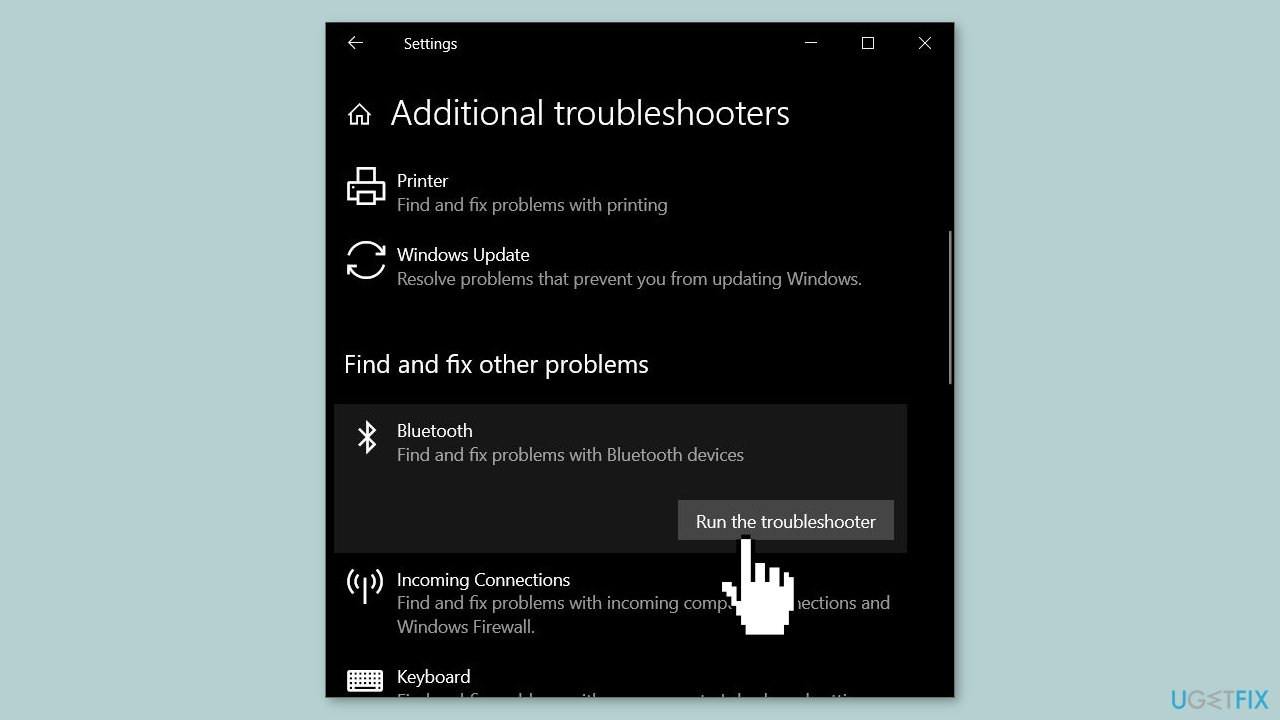
- The Bluetooth troubleshooter will now start scanning for any issues with Bluetooth on your computer.
- If the troubleshooter finds any issues, it will provide suggestions for resolving them. Follow the prompts to resolve the issue.
- Once the troubleshooting process is complete, close the troubleshooter window.
Method 2. Set the Bluetooth Speaker as Default Device
- Open the Control Panel.
- In the Control Panel search bar, type sound and press Enter.
- From the search results, click on the Sound option.
- In the Sound dialog box that appears, select the Playback tab.
- Right-click on your Bluetooth speaker from the list of available devices.
- From the context menu, select Set as Default Device.
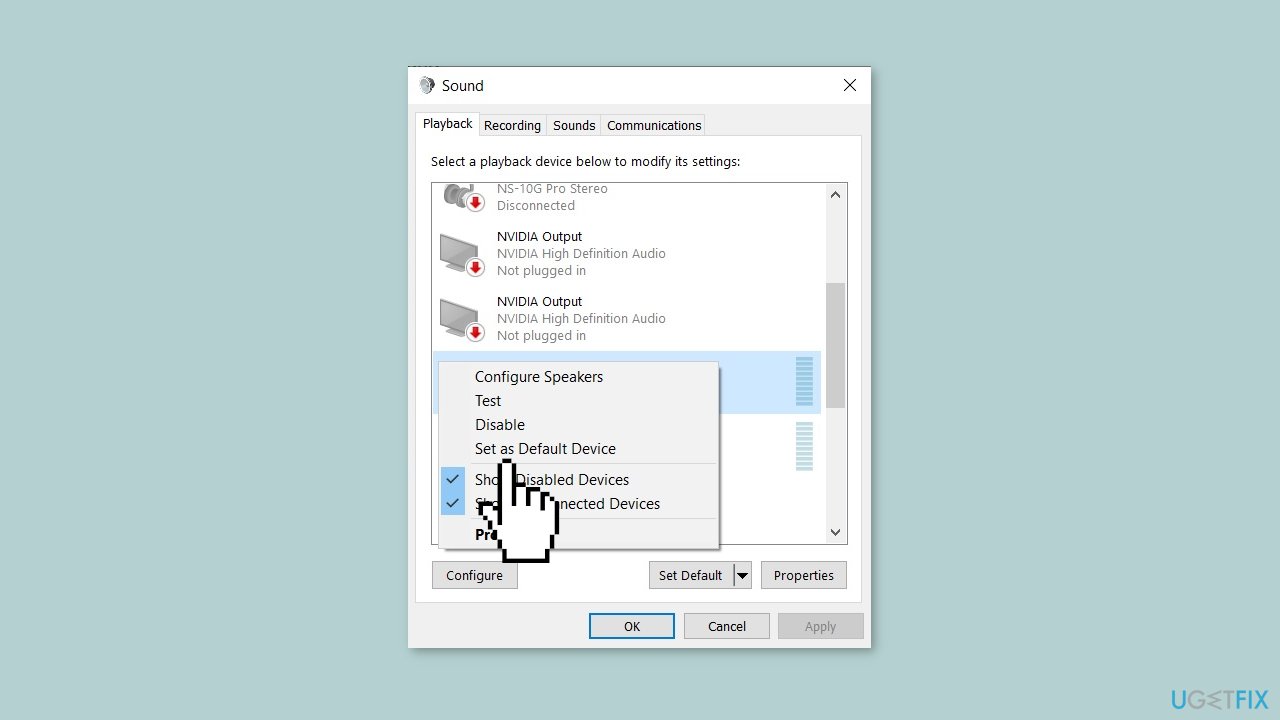
- Click Apply and then click OK.
Method 3. Roll Back or Reinstall Bluetooth Adapter
- Click on the Windows Start button on the bottom left corner of the screen.
- Type Device Manager in the search bar and click on the app that appears.
- In the Device Manager window, locate the Bluetooth category and expand it.
- Right-click on your Bluetooth adapter and select Properties from the context menu.
- In the Properties window, click on the Driver tab.
- Click on the Roll Back Driver button.
- Select a reason for rolling back the driver and click Yes to confirm the action.
- The previous driver version for the Bluetooth adapter will be installed.
- Once the rollback process is complete, close the Properties window and Device Manager.
If rolling back the driver did not resolve the problem, reinstall it:
- Open Device Manager, locate the Bluetooth category, and expand it.
- Right-click on your Bluetooth adapter and select Uninstall device from the context menu.
- Check the box that says Delete the driver software for this device and click Uninstall.
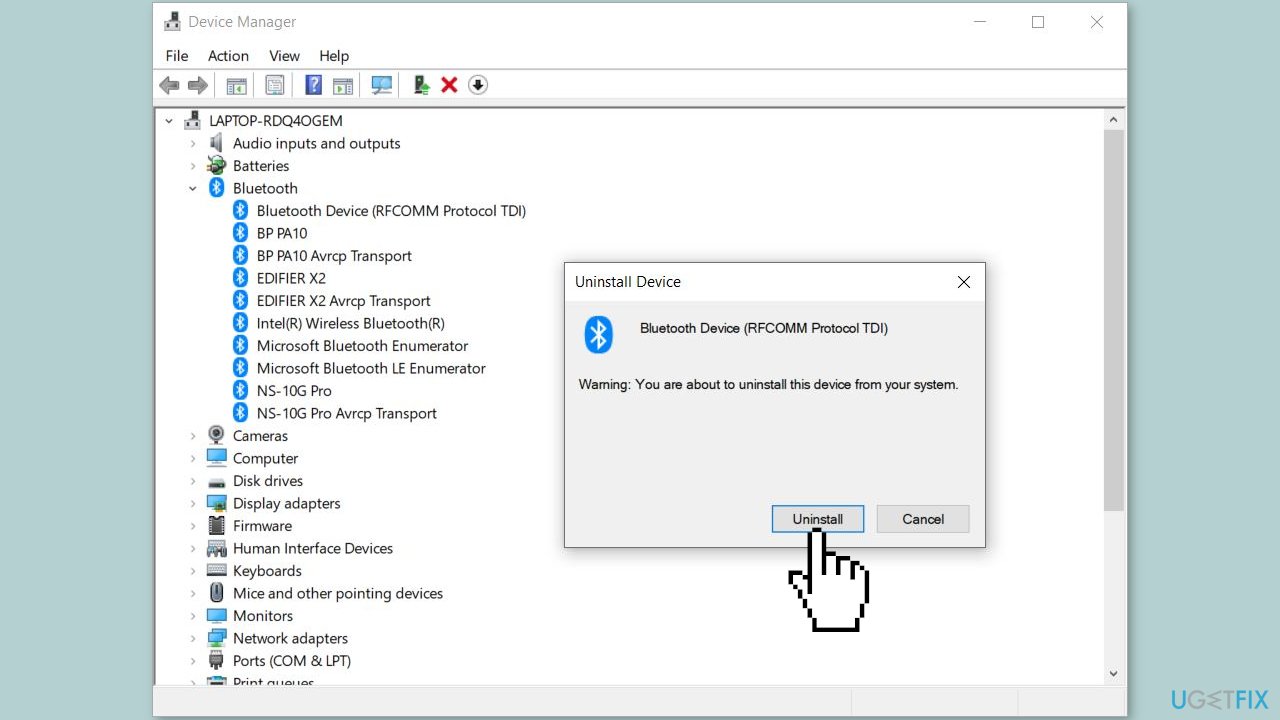
- Once the adapter is uninstalled, click on the Action menu at the top of the Device Manager window.
- Select Scan for hardware changes from the dropdown menu.
- Windows will now automatically detect the Bluetooth adapter and install the necessary drivers.
- Once the installation process is complete, check if the Bluetooth adapter is working correctly.
Method 4. Uninstall the most recent Windows update
- Click on the Windows Start button on the bottom left corner of the screen.
- Type Control Panel in the search bar and click on the app that appears.
- In the Control Panel window, click on the Programs option.
- Select Programs and Features from the list of options.
- From the left sidebar, click on the View installed updates link.
- Locate the most recent Windows update that you want to uninstall from the list of updates installed on your system.
- Click on the update to select it, and then click on the Uninstall button at the top of the list.
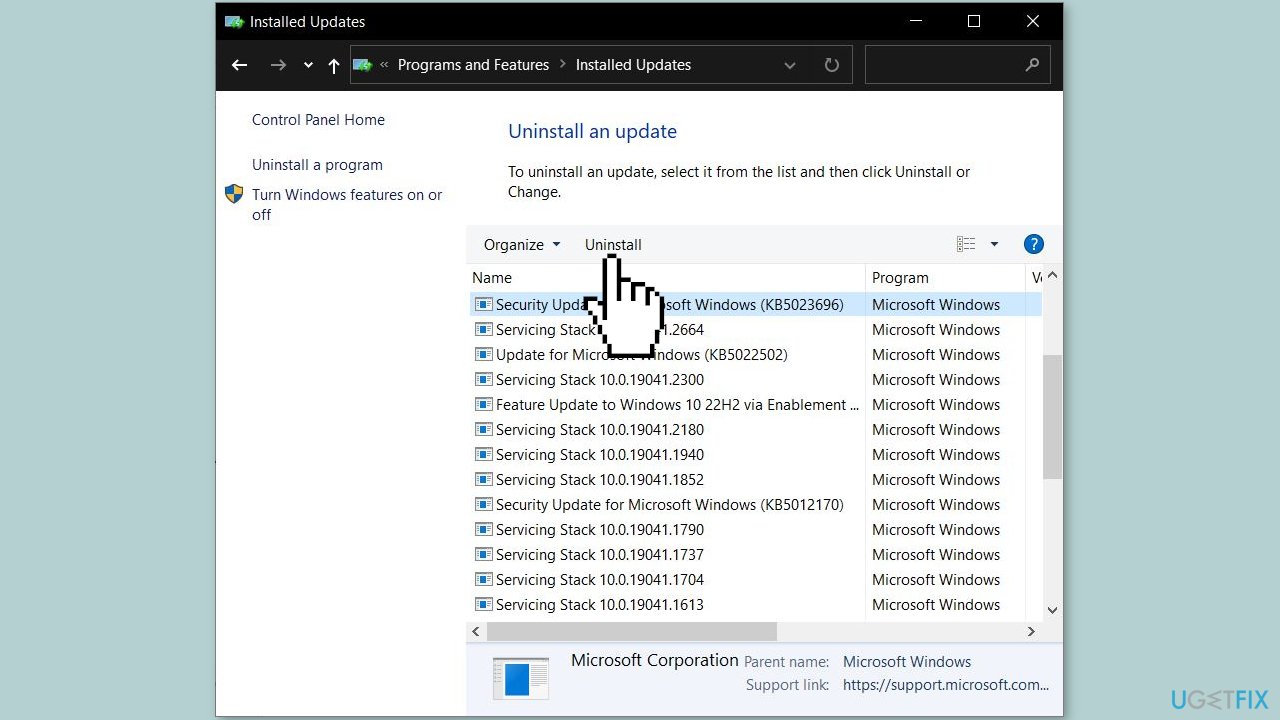
- Follow the prompts to complete the uninstallation process.
- Once the update is uninstalled, restart your computer.
Method 5. Reconnect the Bluetooth Speaker
- Open Settings on your Windows PC.
- Go to the Bluetooth & devices section.
- Select the Bluetooth device that you want to remove.
- Click on the Remove device option to remove the device from your system.
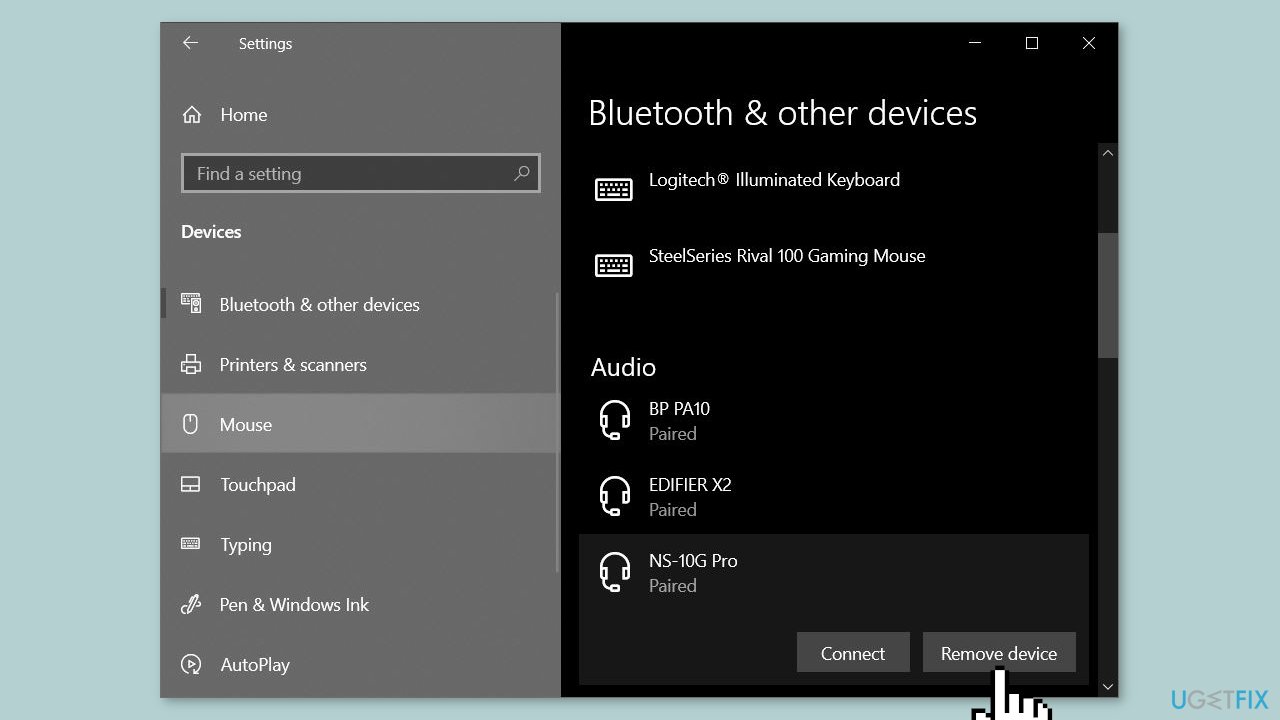
- Restart your computer to ensure that any residual files are removed.
- Add your Bluetooth device again by going to the Bluetooth & devices section.
- Click on the Add Bluetooth or other device option.
- Follow the on-screen instructions to pair and connect your Bluetooth device.
Method 6. Check the Bluetooth Support Service
- Open the Services app by pressing the Windows key + R to open the Run dialog box. Then, type services.msc and press Enter.
- Locate the Bluetooth Support Service from the list of services.
- Right-click on the service and select Start if it is stopped. If the service is already running, select Restart from the right-click context menu.
- Now, double-click on the Bluetooth Support Service to open its Properties.
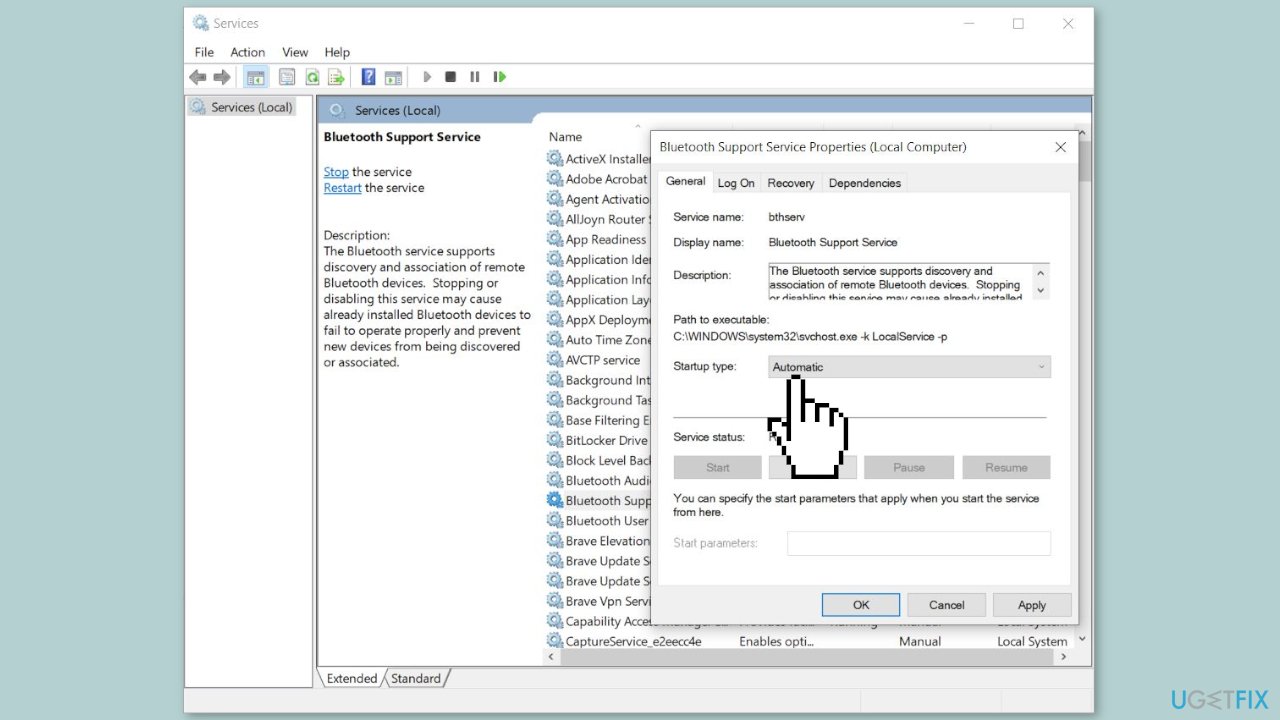
- Select the General tab from the top of the window.
- Set the Startup type to Automatic from the drop-down menu.
- Click Apply and then click OK to save the changes.
Method 7. Disable Absolute Volume
Absolute Volume is a Windows feature that gives users more control over the volume of their Bluetooth speakers or headphones. While useful, it can cause issues on some Bluetooth devices, making it impossible to adjust the volume for individual left and right channels. If you're experiencing problems with your Bluetooth device, disabling this feature can help.
- Press the Windows key + R to launch the Run dialog box.
- Type regedit.exe in the empty field of the box and press Enter to open the Registry Editor.
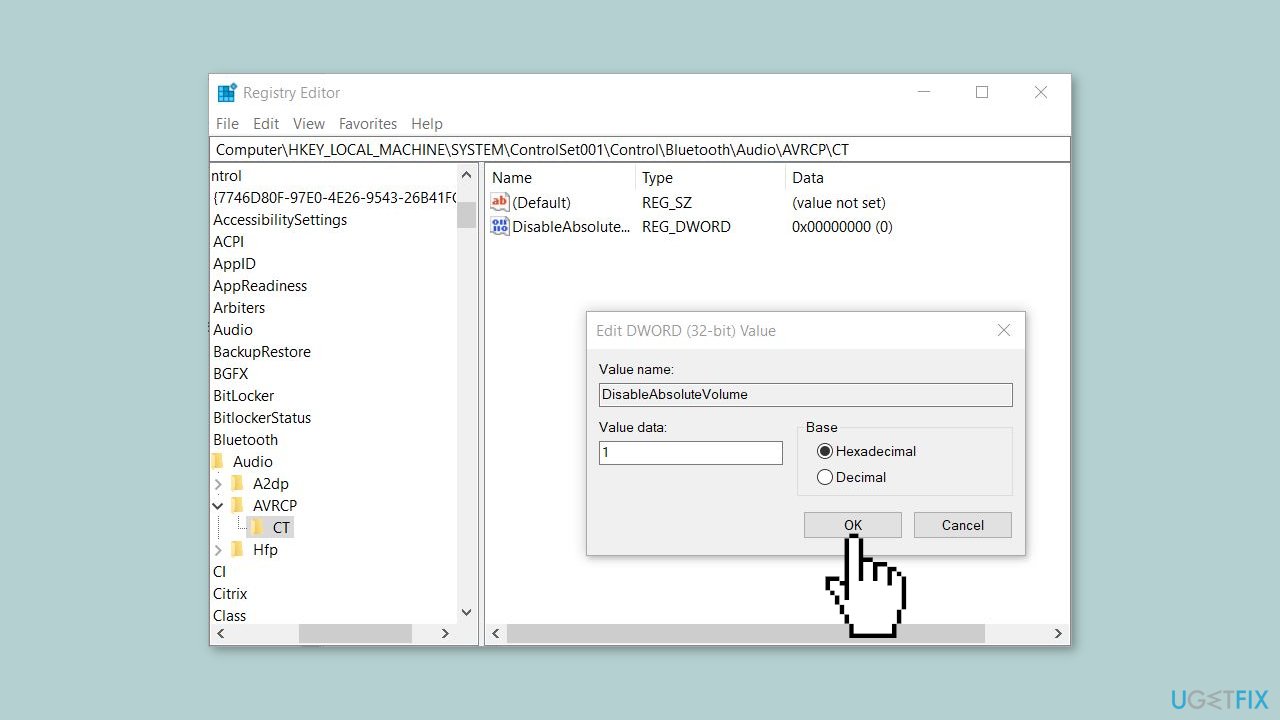
- Navigate to the following path address in the Registry Editor: HKEY_LOCAL_MACHINE\SYSTEM\ControlSet001\Control\Bluetooth\Audio\AVRCP\CT
- In the right pane, look for the entry called DisableAbsoluteVolume.
- If you cannot find this entry, you can create it. To do so, right-click the CT key and select New > DWORD (32-bit) Value. Assign this key the name DisableAbsoluteVolume.
- Double-click on the DisableAbsoluteVolume entry and set its value to 1. The default value is 0.
- Restart your system to apply the changes.
Bottom line
To fix the Bluetooth speaker volume control issue in Windows, you can update Bluetooth drivers, adjust audio settings, disable the 'Absolute Volume' feature, or reset the Bluetooth speaker. If these solutions do not resolve the problem, consider using a maintenance tool to fix system errors.
Frequently asked questions
This issue may occur due to outdated Bluetooth drivers or incorrect audio settings. Ensure your drivers are up-to-date and check the volume mixer settings in Windows 10.
To reset Bluetooth settings in Windows 11, go to Settings > Devices > Bluetooth & other devices, turn off Bluetooth, and then turn it back on. This can often resolve connectivity issues that affect volume control.
If the volume control remains unresponsive, try disconnecting and reconnecting the speaker or removing and re-adding it in the Bluetooth settings. Additionally, check for Windows updates that may fix related bugs.




Report an issue
What's wrong with this guide? We review every report and update or remove content.
Report received — thank you. We'll review and fix it.
You need a free account to submit a report.
Be the first to comment