How to fix
Windows Hello Remove PIN button grayed out
on Windows
Resolve the grayed-out Remove PIN button in Windows Hello on Windows 10 and 11 with these expert-tested tips. Fix it in minutes!

What causes How to fix Windows Hello Remove PIN button grayed out in Windows?
- Windows operating system is outdated
- Malware or viruses present on the system
- Hardware issues with the device
- Windows Hello feature needs resetting
Repairs Windows system files, removes malware, and restores a clean OS state — without reinstalling.
Hello. I wanted to remove my PIN but the option is grayed out in my Windows settings. What should I do?
Windows Hello[ref en-1] is a Windows security feature that enables users to sign in to their devices using biometric authentication methods such as facial recognition or fingerprint scanning. The PIN sign-in is one of the components of Windows Hello, and it is required even if users choose to use other biometric authentication methods. The PIN is an extra layer of security designed to make it more difficult for unauthorized users to gain access to a device.
However, some users have reported that the "Remove" button for the PIN sign-in in the Windows Settings app is grayed out. This problem may affect users who no longer want to use a PIN to access their devices. They may be unable to remove their PIN and must continue to use it, even if they prefer to use other methods of authentication.
Updating the Windows operating system, running a system scan for malware or viruses, checking for hardware issues with the device, or resetting the Windows Hello feature are all possible solutions to this problem. Before attempting to implement any of these solutions, users should seek detailed instructions or professional assistance.
In this guide, you will find 5 steps that should help you fix Windows Hello Remove PIN button grayed out in Windows. Remember, that you can also try using a maintenance tool like [d1] that can fix most system errors, BSODs,[ref en-2] corrupted files, and registry[ref en-3] issues. Otherwise, follow the step-by-step instructions below.
Solution 1. Install Windows Updates
- Click Start and select Settings.
- Go to the Windows Update section.
- Click Check for updates and wait.
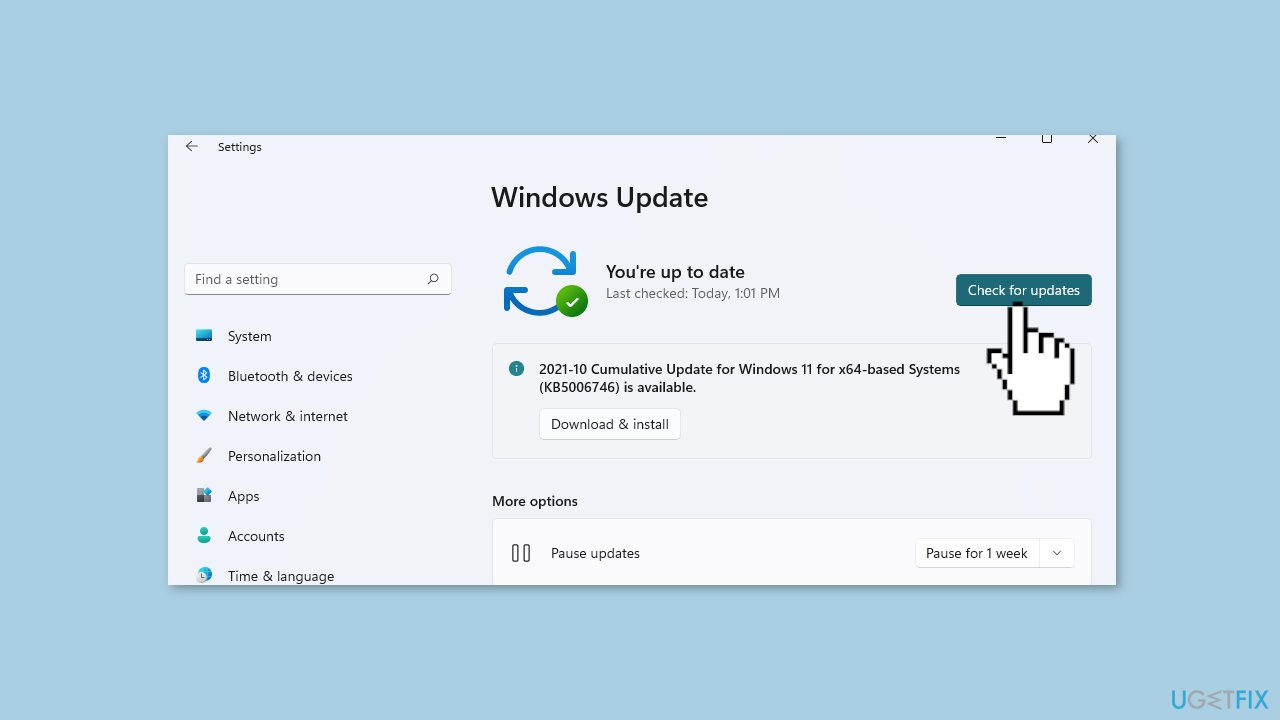
- Go to the Advanced options and install optional updates.
- Reboot your system.
Solution 2. Disable the Windows Hello
- Press the Windows key + I to open the Settings menu.
- In the left pane of the Settings window, locate and click on the Accounts tab.
- In the Accounts tab, click on the Sign-in options option.
- Scroll down to the Related settings section.
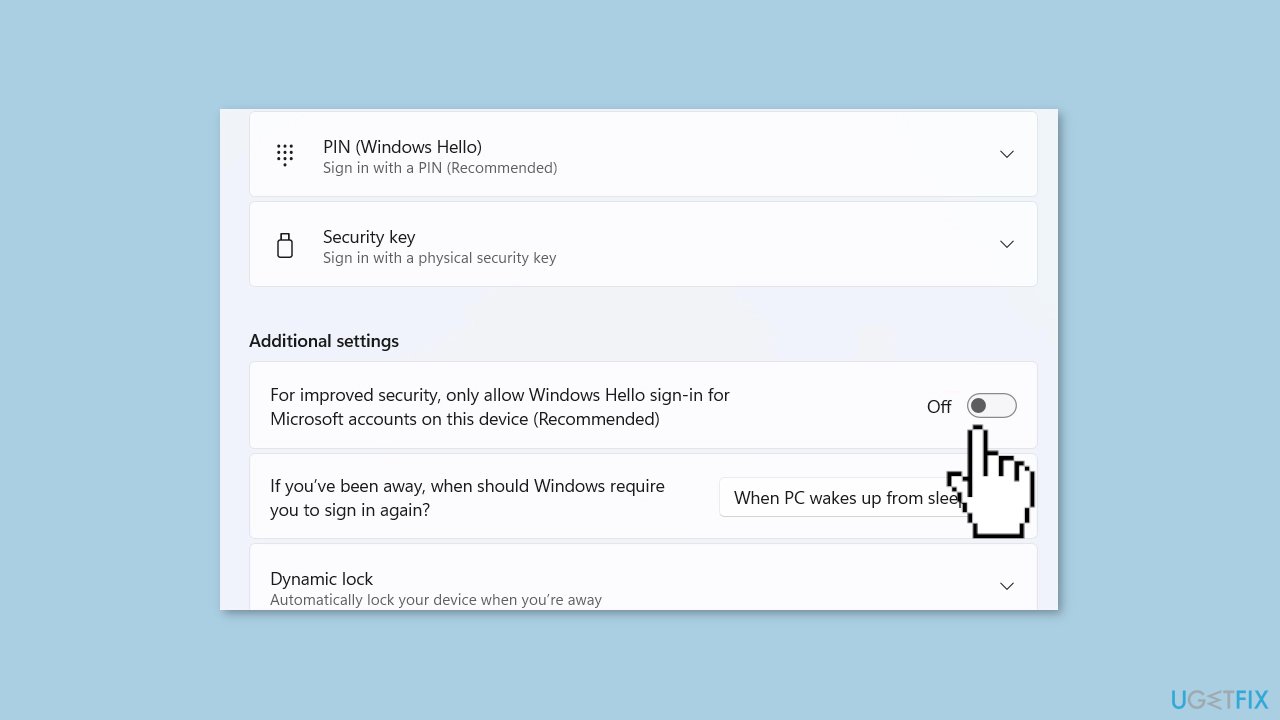
- Locate the option that reads For improved security, only allow Windows Hello sign-in for Microsoft account on this device (Recommended) and toggle the switch to Off.
- With the option disabled, you should now be able to remove your PIN.
Solution 3. Use the Forgot my PIN feature
- Press the Windows key + I to open the Settings menu.
- In the left pane of the Settings window, locate and click on the Accounts tab.
- In the Accounts tab, click on the Sign-in options option.
- Expand the PIN (Windows Hello) section.
- Click on I forgot my PIN next to Related links.
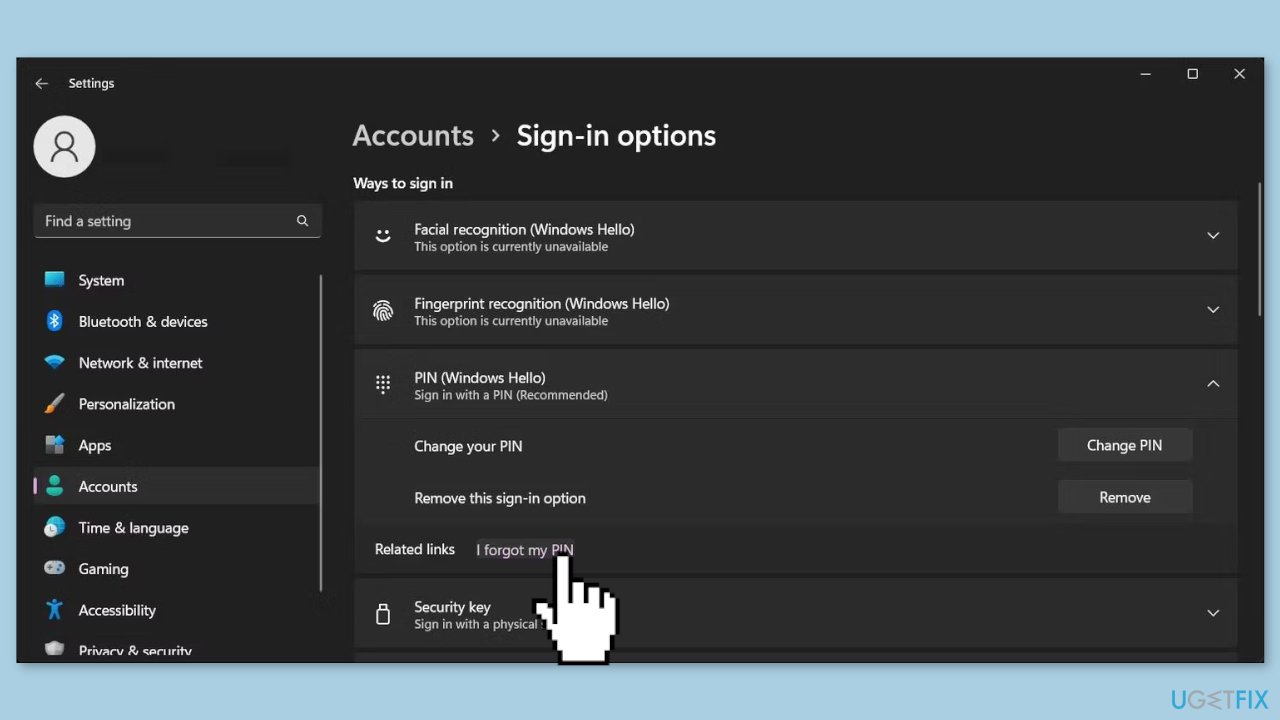
- When the confirmation dialog appears, click Continue.
- Enter your Microsoft account details to sign in.
- When the Set up a PIN dialog appears, click on Cancel.
- Next, click the Close button to exit the Your account requires a Windows Hello PIN dialog.
Solution 4. Disable Passwordless Login
- Click on the Start button.
- Select Settings from the menu.
- Click on the Accounts tab.
- Click on Your Info.
- Scroll down to the Related settings section and click on Accounts (Manage my account). This will open the Microsoft account security page online.
- Sign in to your Microsoft account.
- Open the Security tab.
- Click on Advanced security options.
- Scroll down to the Additional security section.
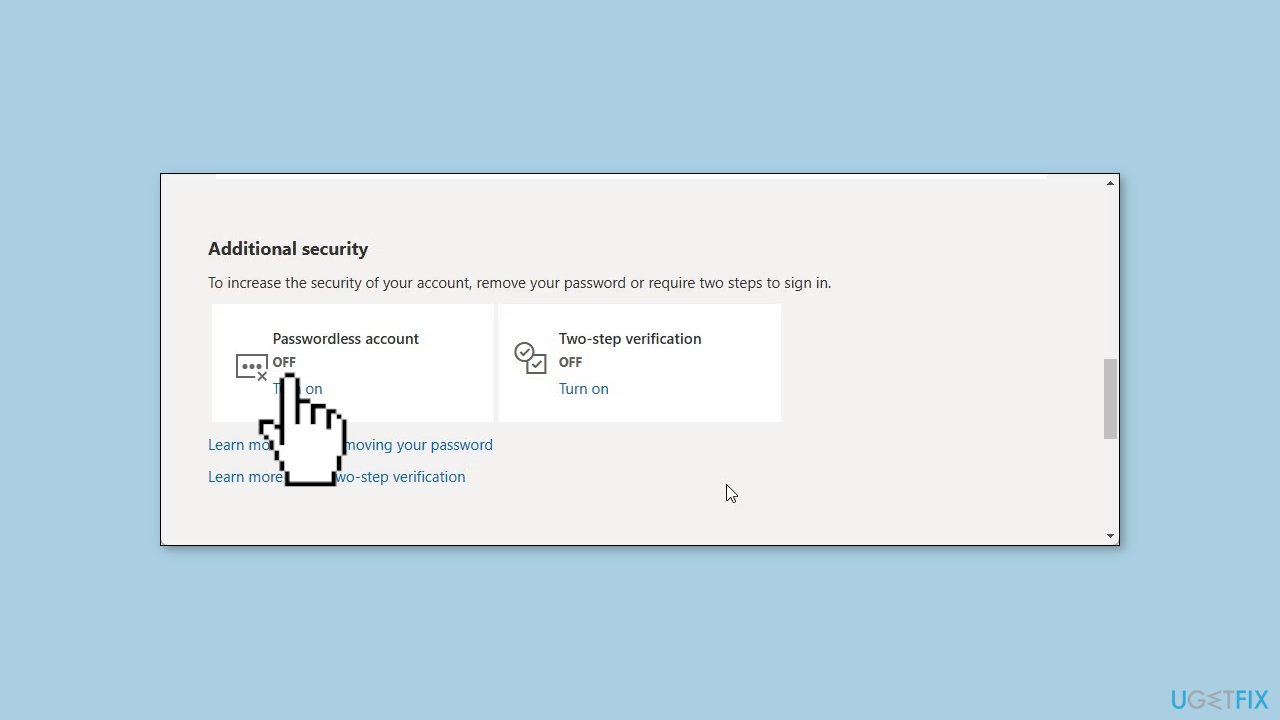
- Click on Turn Off for Passwordless account.
- Follow the on-screen instructions to disable the features.
- Once done, you should be able to use the Remove PIN option in Settings.
Solution 5. Repair Install Windows
- Visit the official Microsoft website to download Windows 11 or Windows 10 Installation Media
- Run the Media Creation Tool and select Create Installation Media for another PC.
- Select your USB drive.
- Let the Process complete of writing the Installation files to the USB drive.
- Click Finish.
- On the PC you wish to upgrade, Press Windows + E to open the File Explorer.
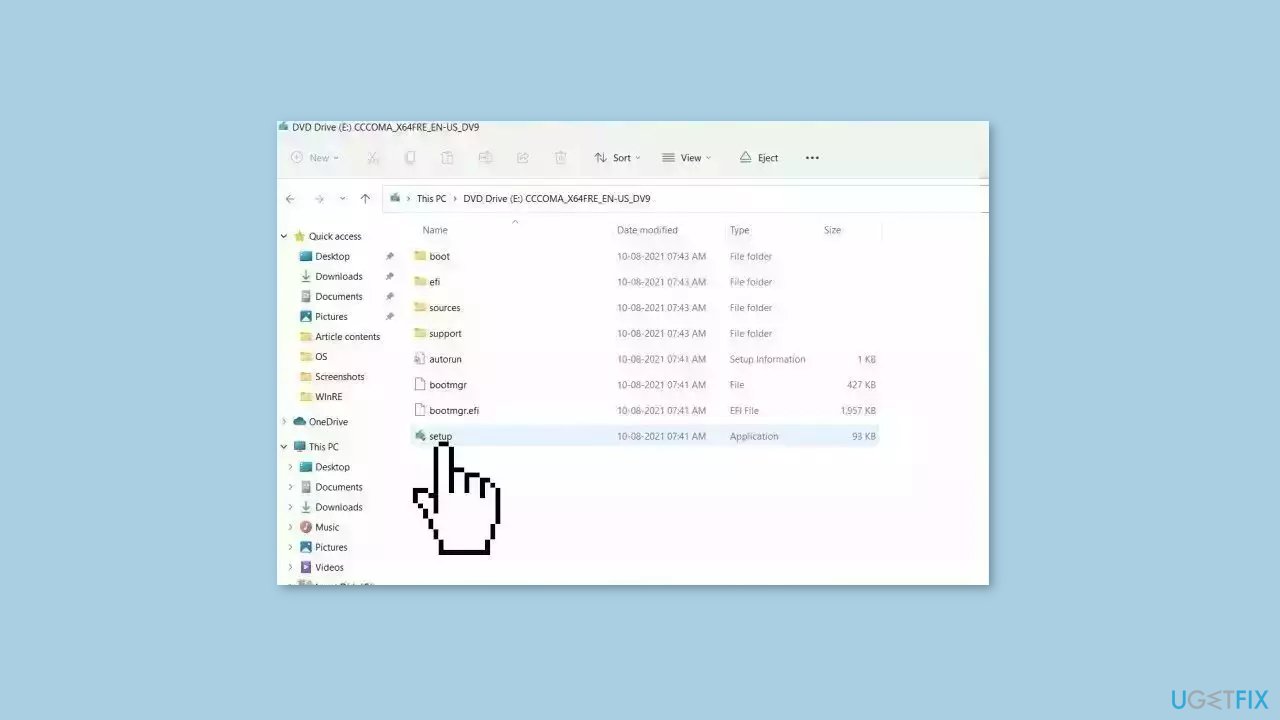
- Open the Removable drive and click Setup.exe.
- Accept the license terms on the next screen.
- Confirm the Upgrade options – Files, apps and Settings are kept.
- Click Install, and the upgrade should start.
Remove the PIN
If the troubleshooting was successful, here is how to reach the "Remove" option:
- Press the Windows key + I to open the Settings menu.
- Click on the Accounts tab.
- In the right pane, click on Sign-in options.
- Scroll down and click on PIN (Windows Hello).
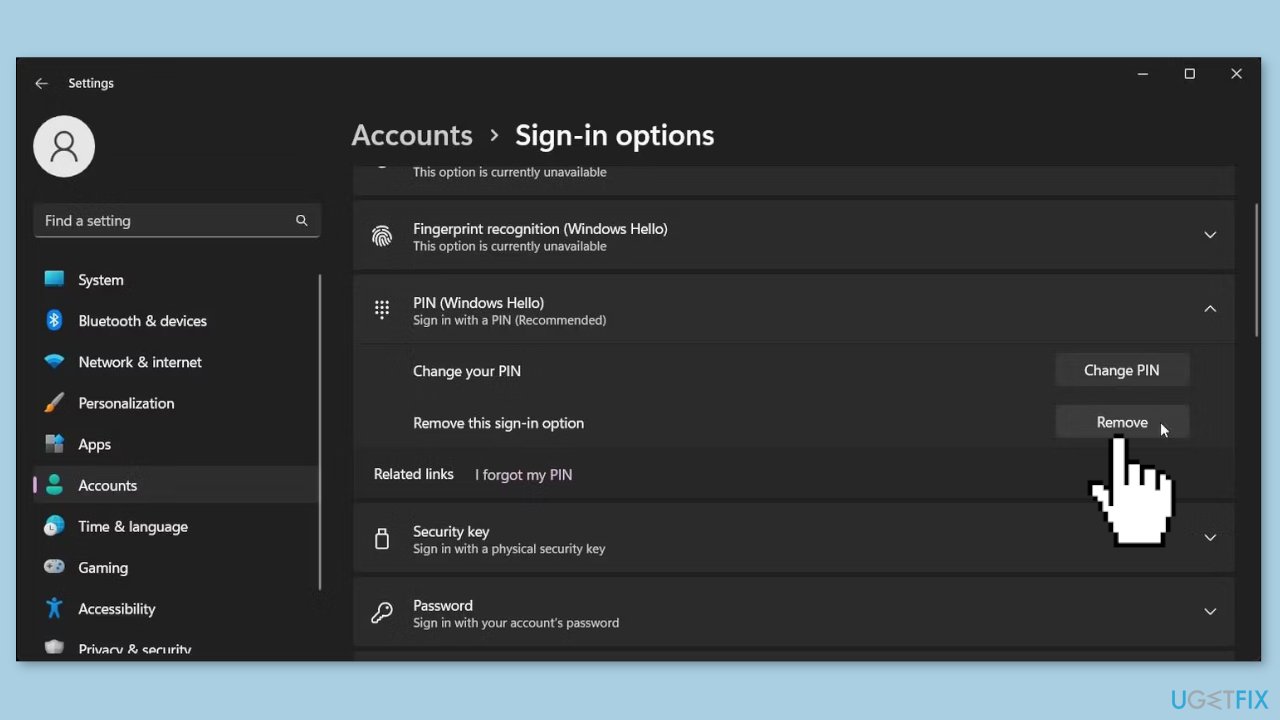
- Click on Remove and then click on Remove again to confirm the action.
- Enter your account password and click OK to remove the PIN.
Bottom line
To fix the grayed out Remove PIN button, users can install Windows updates, disable Windows Hello, run a system scan for malware, check for hardware issues, or reset the Windows Hello feature. If these solutions do not resolve the issue, seeking detailed instructions or professional assistance is recommended.
Frequently asked questions
The Remove PIN button may be grayed out if your account is linked to a Microsoft Account or if you have not set up a local account. Ensure that you are using a local account to enable the option to remove the PIN.
To enable the Remove PIN button, go to Settings > Accounts > Sign-in options, and ensure that you have a local account and meet the security requirements for Windows Hello.
If the option remains unavailable, try restarting your PC, updating Windows, or resetting your Windows Hello settings in the Sign-in options menu.




Report an issue
What's wrong with this guide? We review every report and update or remove content.
Report received — thank you. We'll review and fix it.
You need a free account to submit a report.
Be the first to comment