How to fix
“The following components are required to run this program” error
on Windows
Resolve "The following components are required to run this program" error on Windows 10 or 11 quickly and effectively. Expert-tested solutions await!


What causes How to fix “The following components are required to run this program” error in Windows?
- Outdated DirectX
- Missing DirectX
- Corrupt Microsoft Visual C++ Runtime
- Missing Microsoft Visual C++ Runtime
- Outdated Windows updates
Repairs Windows system files, removes malware, and restores a clean OS state — without reinstalling.
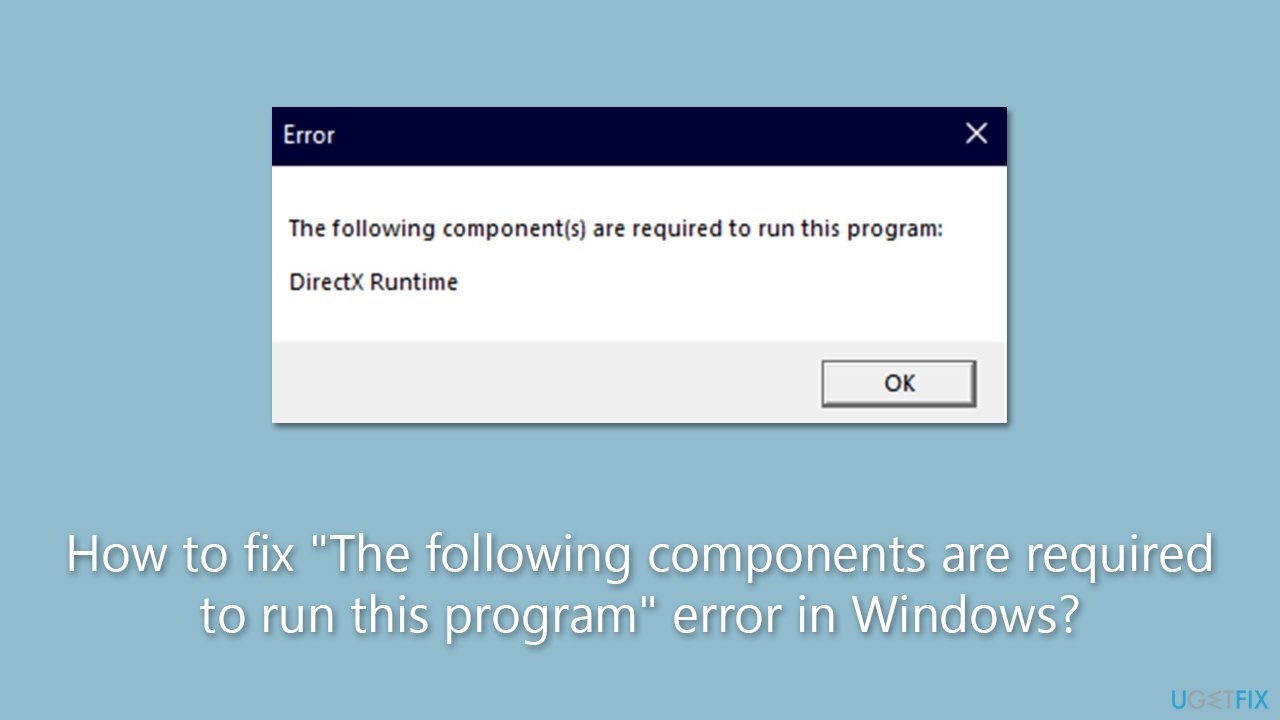
Hi, I was trying to play a game on Steam, but I keep getting the following error: "The following components are required to run this program DirectX runtime." Any advice on how to fix this?
"The following components are required to run this program" error is a common issue that Windows users encounter, especially when running games on their PCs. This error message appears when certain components, such as DirectX Runtime or Microsoft Visual C++ Runtime, are missing or outdated, preventing the program or game from running properly.
One of the main causes of this error is outdated or missing DirectX. DirectX is a collection of libraries that are responsible for rendering video game graphics on a PC by gaining direct access to the hardware, including the CPU and GPU. If DirectX is not updated or installed on Windows, it can trigger an error message.
Another possible cause is a corrupt or missing Microsoft runtime application. Just like DirectX, Microsoft Visual C++ Runtime is a collection of libraries that are required by Windows programs developed using Microsoft Visual Studio. If the Microsoft Visual C++ Runtime application is missing or corrupt, it can also result in an error message.
To resolve this error, users can take several steps. First, it's important to ensure that DirectX is updated to the latest version or installed if it's missing. Similarly, checking and updating Microsoft Visual C++ Runtime is also crucial. We provide several of the manual solutions below.
If you frequently encounter issues on your PC, including the "The following components are required to run this program" error, you may consider using a reliable repair tool [d1]. Such tools can help identify and fix various issues that may be affecting the performance and stability of their Windows system.
Fix 1. Install the latest Windows updates
One of the main components that are missing is DirectX from Microsoft. Usually, users have an outdated version or don't even have it installed. To install it, you need to implement all the Windows updates, especially if you haven't been installing them for a while.
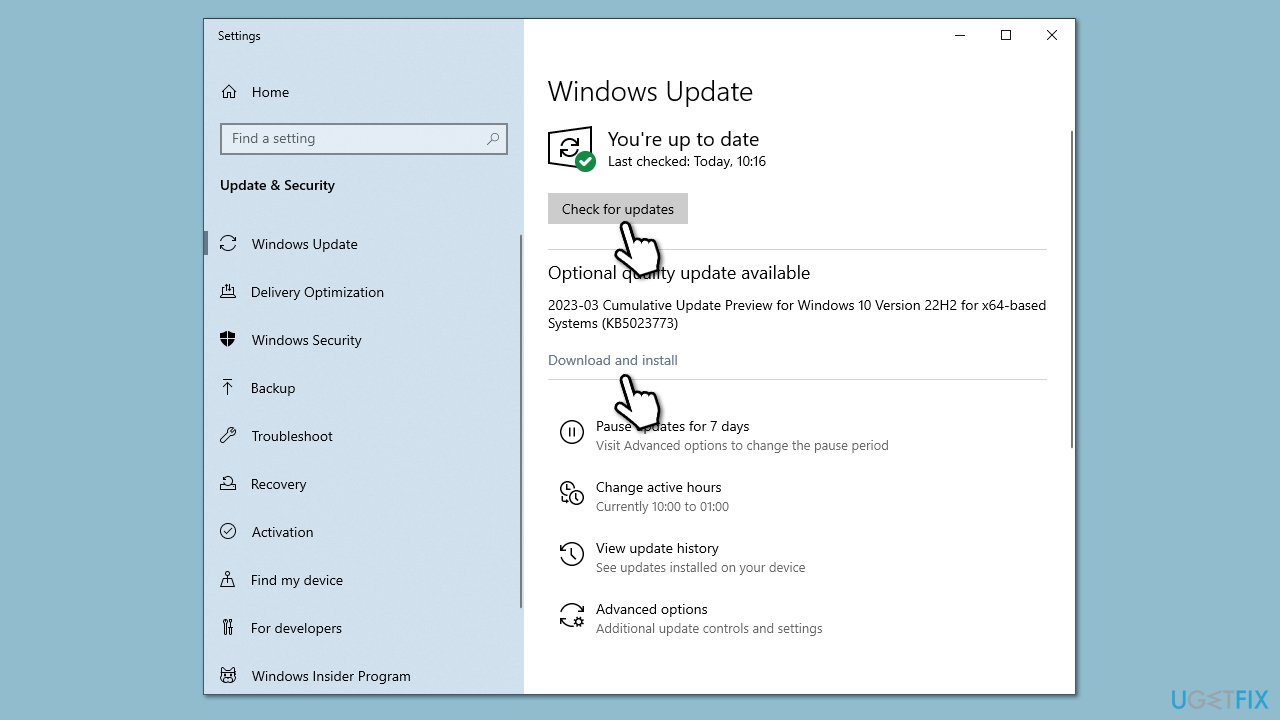
- Type Updates in the Windows search box and hit Enter.
- Click Check for Updates and wait till all the needed files are downloaded.
- If optional updates are available, install them too.
- When all is done, restart your system to implement the changes.
Fix 2. Check your system for corruption
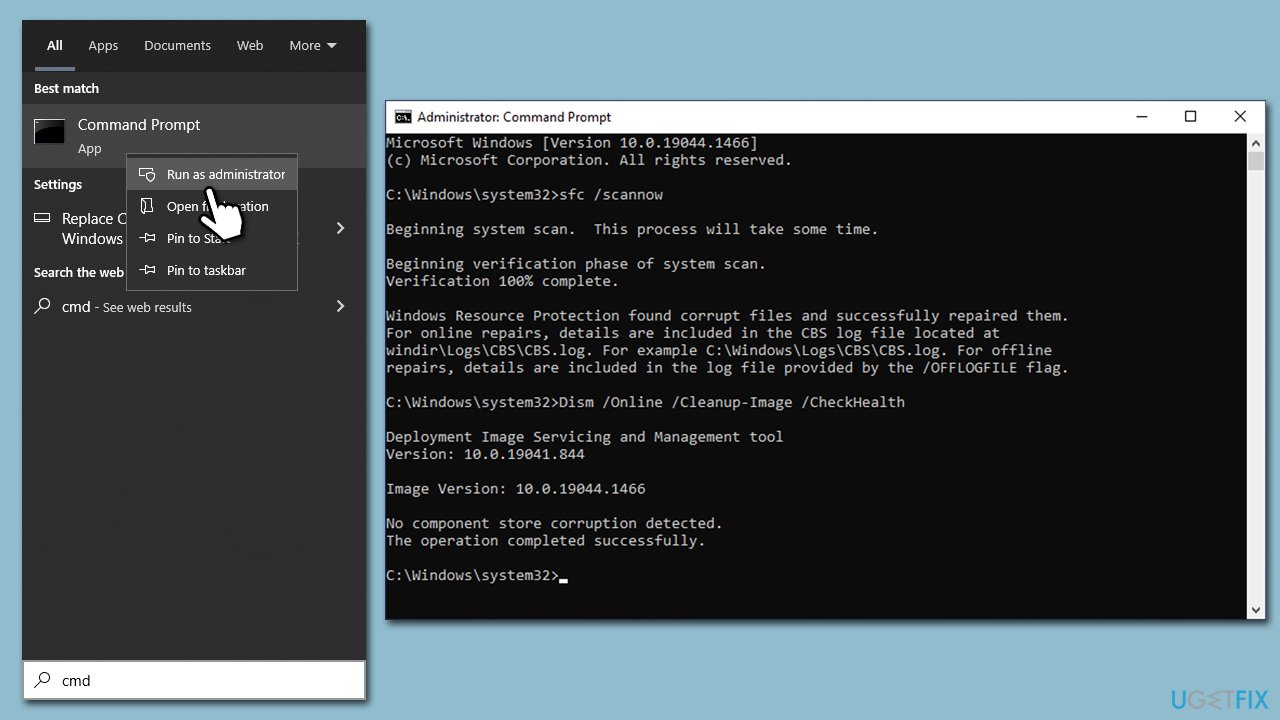
- Type in cmd in Windows search.
- Right-click the Command Prompt result and pick Run as administrator.
- User Account Control will ask whether you want to allow changes - click Yes.
- Type this command and press Enter:
sfc /scannow - Wait for the scan to finish.
- Then, use the following commands, pressing Enter after each:
Dism /Online /Cleanup-Image /CheckHealth
Dism /Online /Cleanup-Image /ScanHealth
Dism /Online /Cleanup-Image /RestoreHealth - Restart your PC.
Fix 3. Install DirectX legacy components
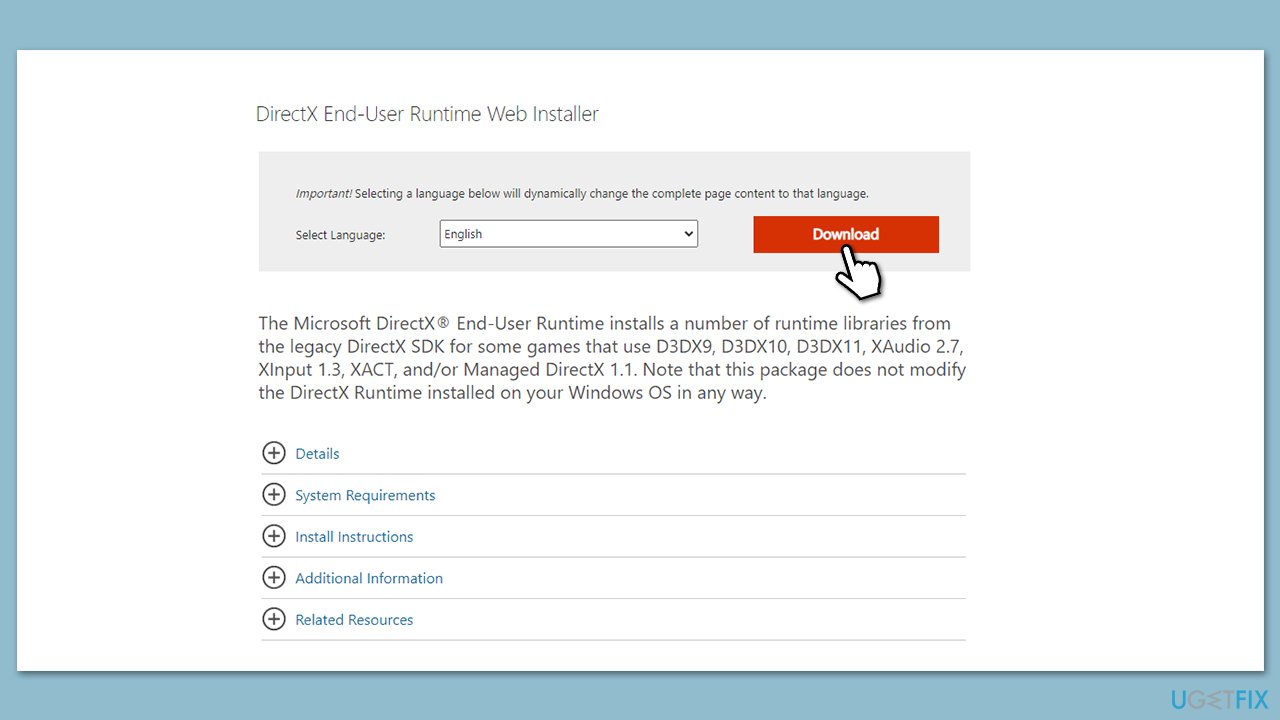
In some cases, the newest DirectX version is not what causes the "The following components are required to run this program" error. Some older games require components from older DirectX versions. To install them, you can download and install DirectX End-User Runtime, which would implement the legacy DirectX SDK.
- Open your browser and navigate to the official Microsoft website for DirectX End-User Runtime Web Installer.
- Select your language and click Download.
- When the installer downloads, click the dxwebsetup.exe file to run it.
- Follow the prompts and finalize the process. Restart your PC as necessary.
Fix 4. Install Visual C++
- Open Control Panel and go to Programs > Uninstall a program.
- Here, scroll down and check the list of the installed Visual C++ versions.
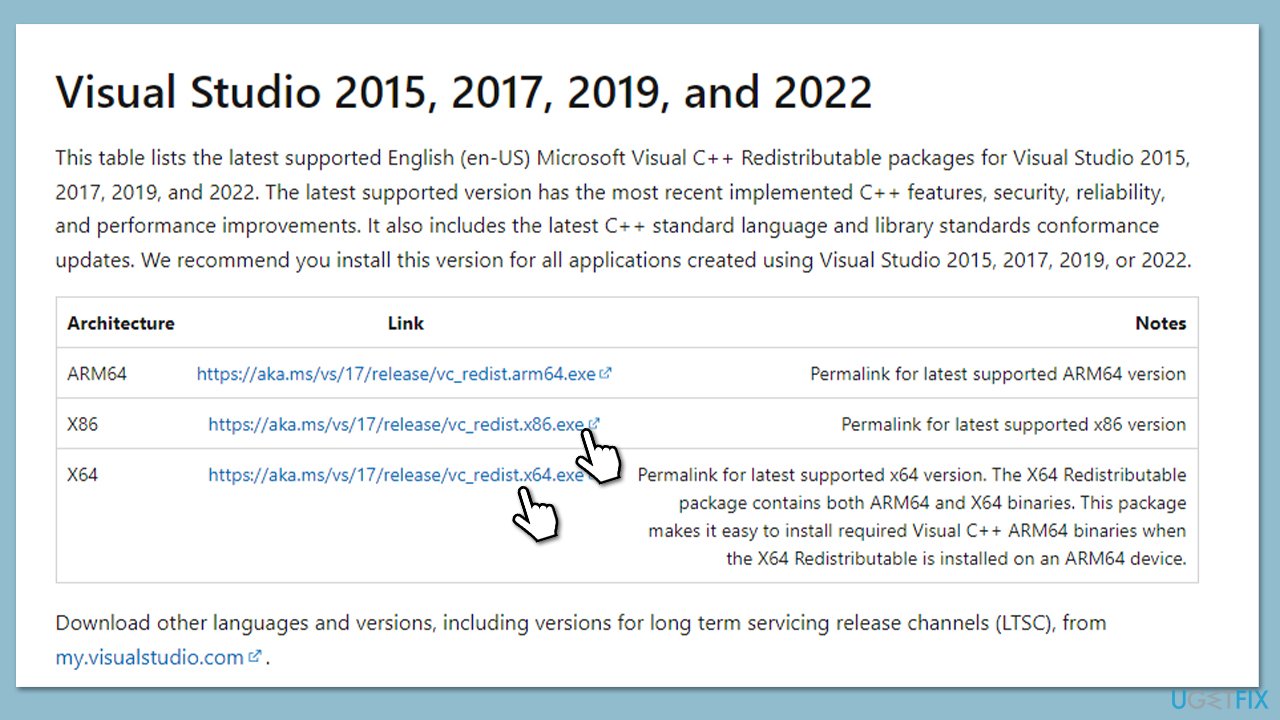
- Open your browser and navigate to the official Microsoft Visual C++ download page.
- Download and install all the missing versions (including the x84 and x64 versions) of Visual Studio.
- Once done, restart your system.
Fix 5. Reinstall the game
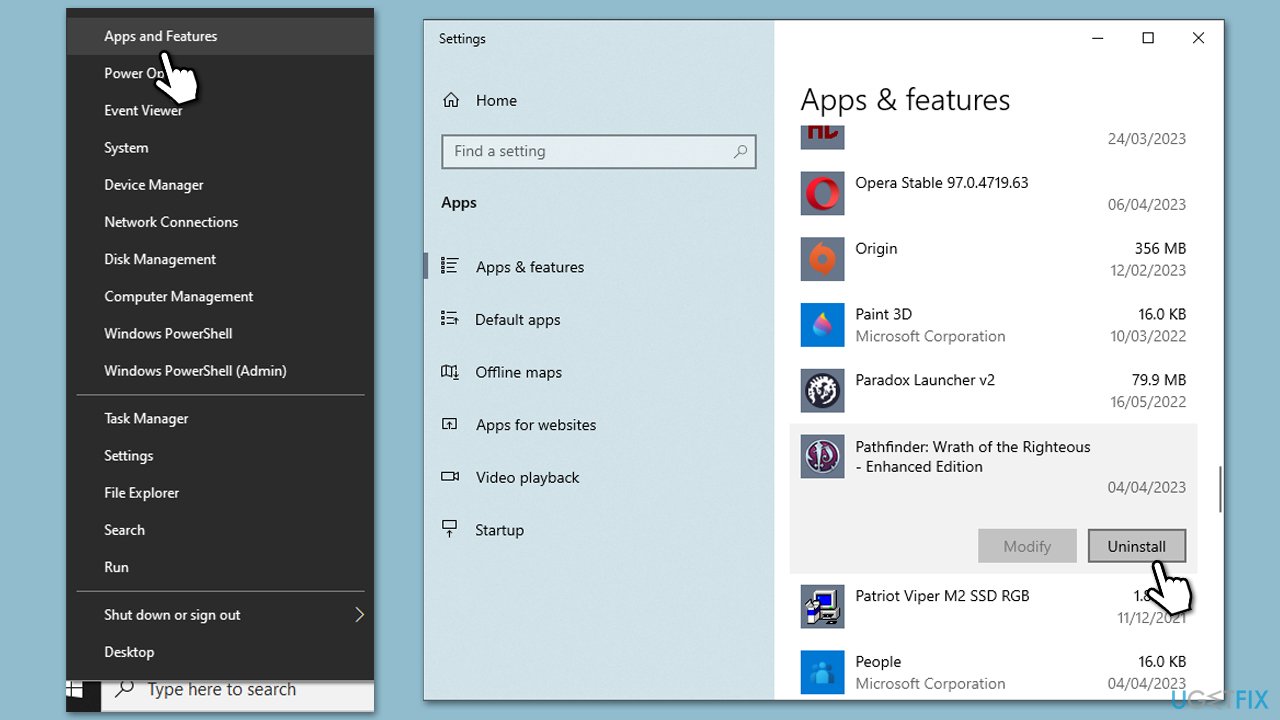
If none of the solutions worked, reinstalling the game that's producing the "The following components are required to run this program" error. You can do so in many different ways; for example, on Steam, you can right-click on the gram in your Library and select Manage > Uninstall. Alternatively, you can always remove it in Windows as follows:
- Right-click on Start and pick Apps and Features.
- Scroll down to find the game in question.
- Select it and click Uninstall.
- When the prompt shows up, click Uninstall again and follow the on-screen instructions.
- Once done, reboot your PC and reinstall the game.
Bottom line
To fix the error, ensure that DirectX is updated to the latest version and check for any missing or corrupt Microsoft Visual C++ Runtime installations. Additionally, installing the latest Windows updates can help resolve the issue. If none of these solutions work, consider using a reliable repair tool to identify and fix other potential problems.
Frequently asked questions
This error often arises due to missing Visual C++ Redistributables, .NET Framework versions, or outdated drivers required by the application in Windows 10.
You can visit the Microsoft website to download and install the latest Visual C++ Redistributables and .NET Framework for Windows 11 to resolve the issue.
If reinstalling the components does not help, try running the program in compatibility mode or check for Windows updates that might resolve underlying compatibility issues.




Report an issue
What's wrong with this guide? We review every report and update or remove content.
Report received — thank you. We'll review and fix it.
You need a free account to submit a report.
Be the first to comment