How to fix
Windows update error 0x8007001E
on Windows
Resolve Windows update error 0x8007001E quickly and efficiently. Get expert-tested solutions for Windows 10 and 11. Fixed in minutes!


What causes How to fix Windows update error 0x8007001E?
- Insufficient storage space on the OS drive
- Corrupted system files
- Software conflicts
- Failed Windows Update installations
- Random Blue Screen of Death (BSOD) crashes
Repairs Windows system files, removes malware, and restores a clean OS state — without reinstalling.
Hi, I have an issue with my Windows PC. I can't get it updated despite trying for several days - I keep receiving the error code 0x8007001e. Restarting the computer doesn't help. Any tips would be appreciated.
Microsoft regularly releases updates for its Windows operating system to provide bug fixes, security patches, and performance improvements. These updates are typically delivered through Windows Update, a built-in feature that allows users to download and install updates automatically or manually.
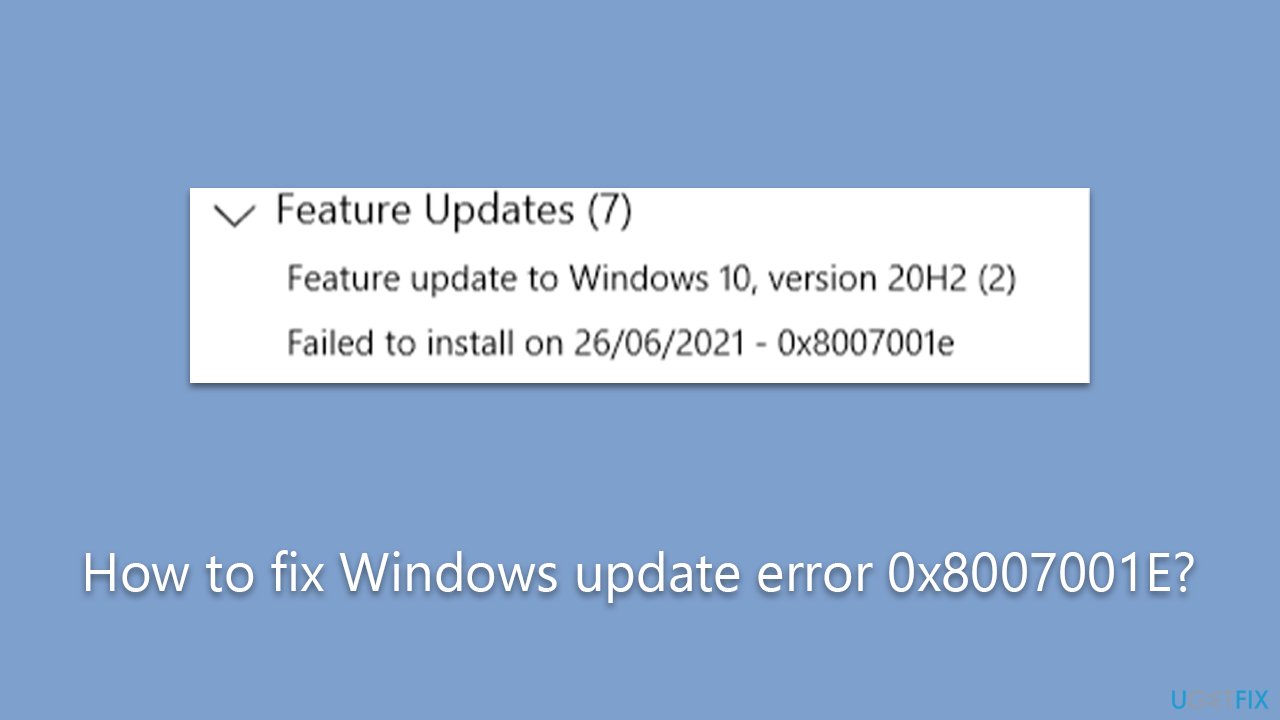
However, some users may encounter issues during the update process, such as the 0x8007001E error code. This error code is often associated with storage space or memory-related errors, but in reality, the cause of the issue may not be related to these factors.
One potential reason for the Windows Update Error 0x8007001E is insufficient storage space on the OS drive. If Windows doesn't have enough space to install the update or upgrade, it may result in this error. Another possible culprit could be a broken software component, such as corrupted system files, which can create false positives and trigger the error code.
Users who encounter this error may experience failed Windows Update installations or even random Blue Screen of Death (BSOD) crashes, leading to frustration and inconvenience. Resolving the issue may require troubleshooting steps such as freeing up storage space, repairing or replacing corrupted system files, or addressing any software conflicts that may be causing the false positive.
However, it's important to note that manually fixing Windows update errors can be complex and may require technical expertise. It's recommended to approach these troubleshooting steps with caution or seek assistance from a qualified technician. Alternatively, users can also consider using a reliable PC repair tool [d1] to automatically scan and fix Windows issues, including the 0x8007001E error, for a more efficient and convenient solution.
Fix 1. Perform Disk Cleanup
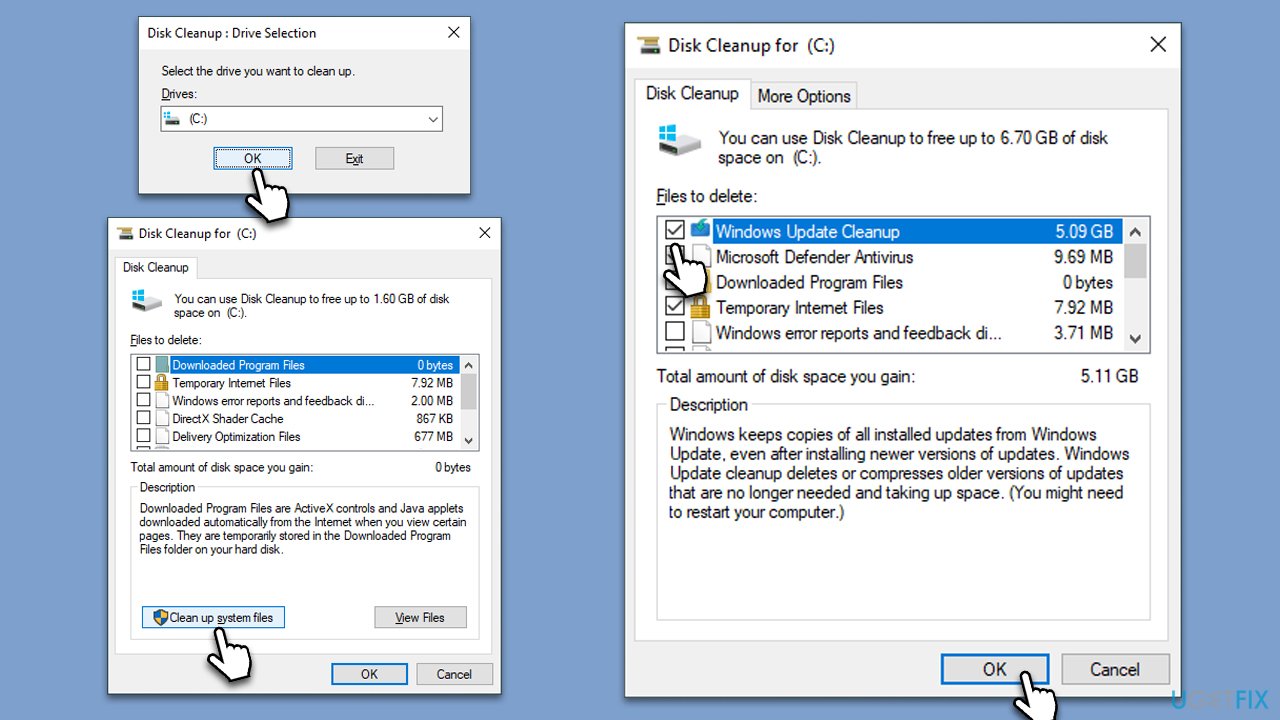
To ensure that the update can be installed successfully, your default drive should have enough space in it. To clean it, follow these steps:
- Open the Windows search bar and type Disk Cleanup. Press Enter to open the Disk Cleanup utility.
- In the Disk Cleanup window, click Clean up system files.
- Select the drive again and click OK.
- In the list of files that can be cleaned up, select the largest portions of data, such as Temporary Internet Files, Windows Update, Temporary Files, and others.
- Click OK to begin the cleanup process.
Fix 2. Repair system files
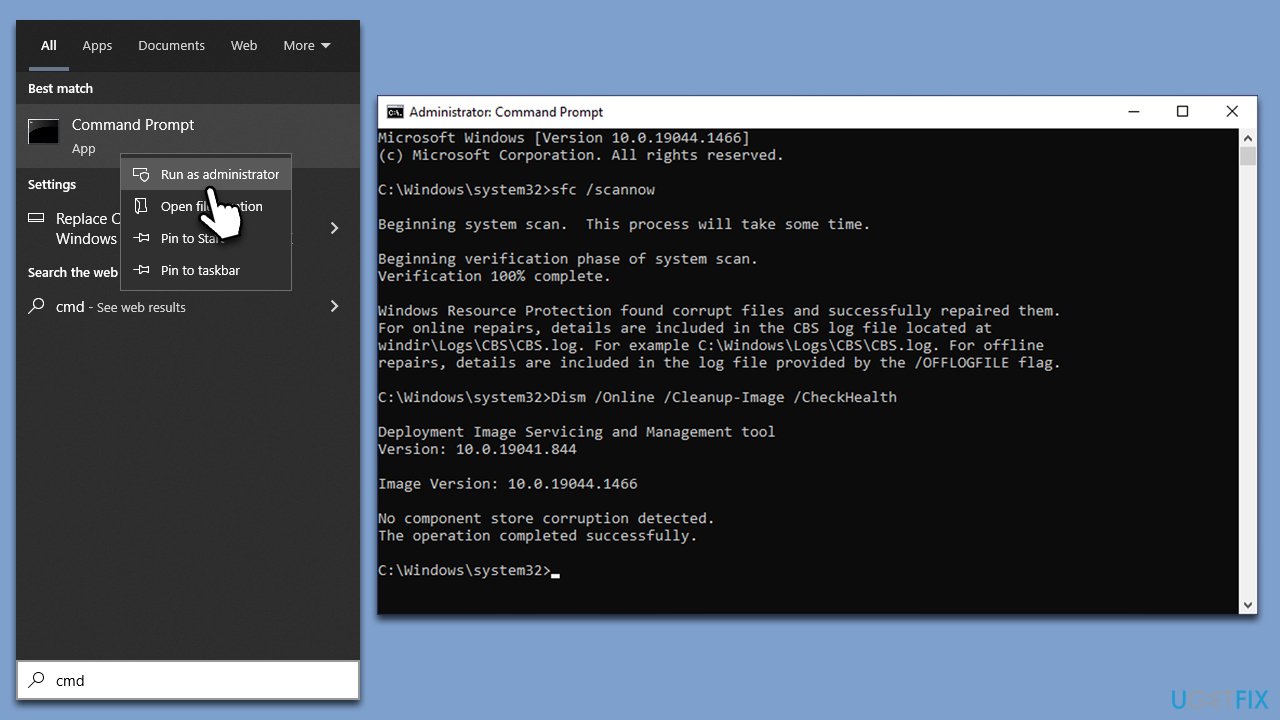
Corrupted system files are among the most common reasons for various errors, including Windows update errors. To repair them, follow these steps:
- Type cmd in Windows search.
- Right-click on Command Prompt and pick Run as administrator.
- User Account Control window will show up - click Yes when prompted.
- Then, copy and paste the following command, pressing Enter after:
sfc /scannow - Wait till the scan is finished. If Windows finds system file integrity violations, it will attempt to fix them. After this, use the set of the following commands, pressing Enter after each:
DISM /Online /Cleanup-Image /CheckHealth
DISM /Online /Cleanup-Image /ScanHealth
DISM /Online /Cleanup-Image /RestoreHealth - Close down Command Prompt and restart your PC.
Fix 3. Run the troubleshooter
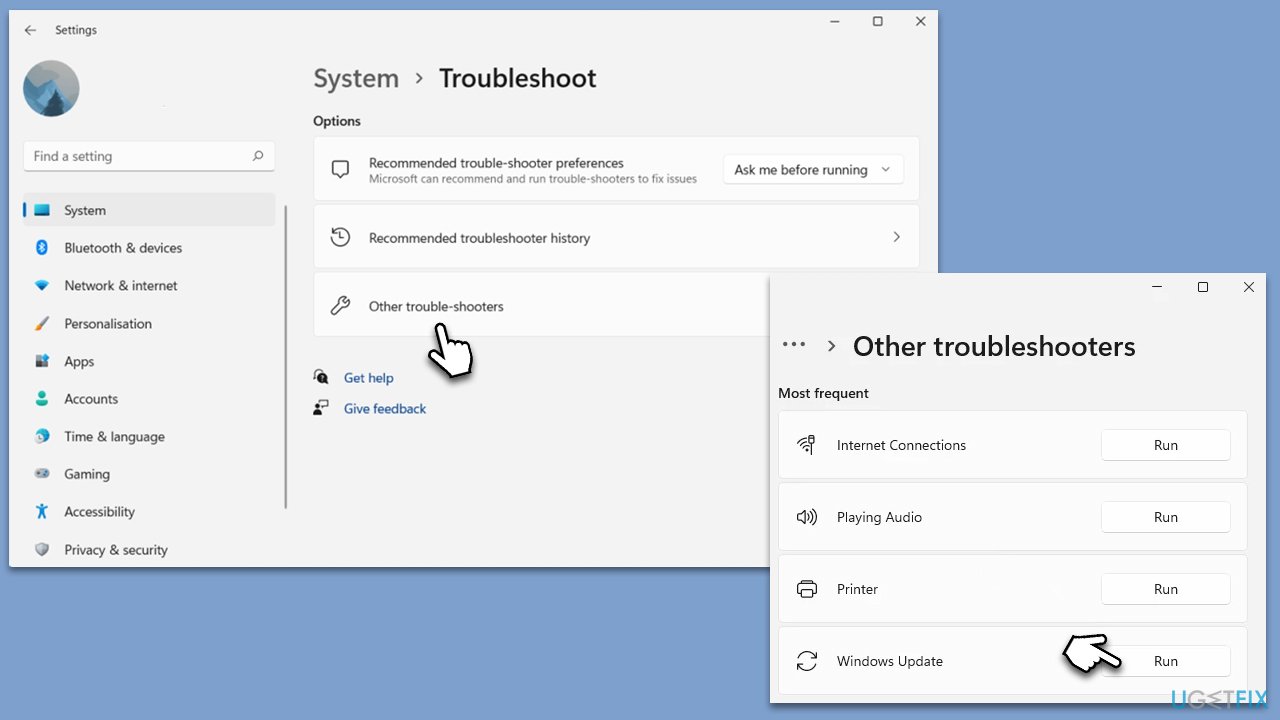
- Type Troubleshoot in Windows search and press Enter.
- Go to Additional troubleshooters/Other troubleshooters.
- Find Windows Update from the list and click Run the troubleshooter/Run.
- The troubleshooter will automatically scan your system for potential problems and display any issues it finds.
- If the troubleshooter finds any issues, it will provide recommended solutions.
- Follow the on-screen instructions to apply these recommended fixes.
Fix 4. Use System Restore
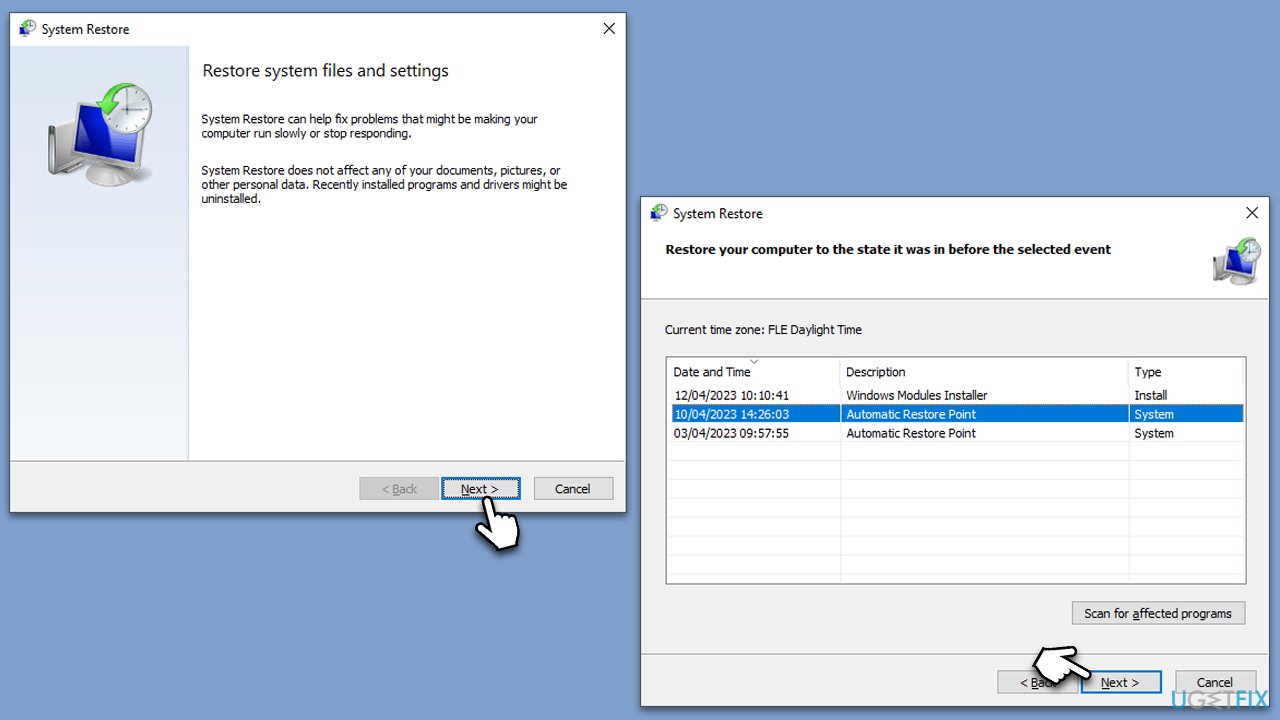
If you have the System Restore point set up on your device, you can try using it.
- Type in rstrui.exe in the Windows search bar and press Enter.
- In the new window, click Next.
- If available, mark the More restore points checkbox.
- Select the point in time when the issue did not exist and click Next.
- Finally, click Finish.
Fix 5. Reset Windows update components
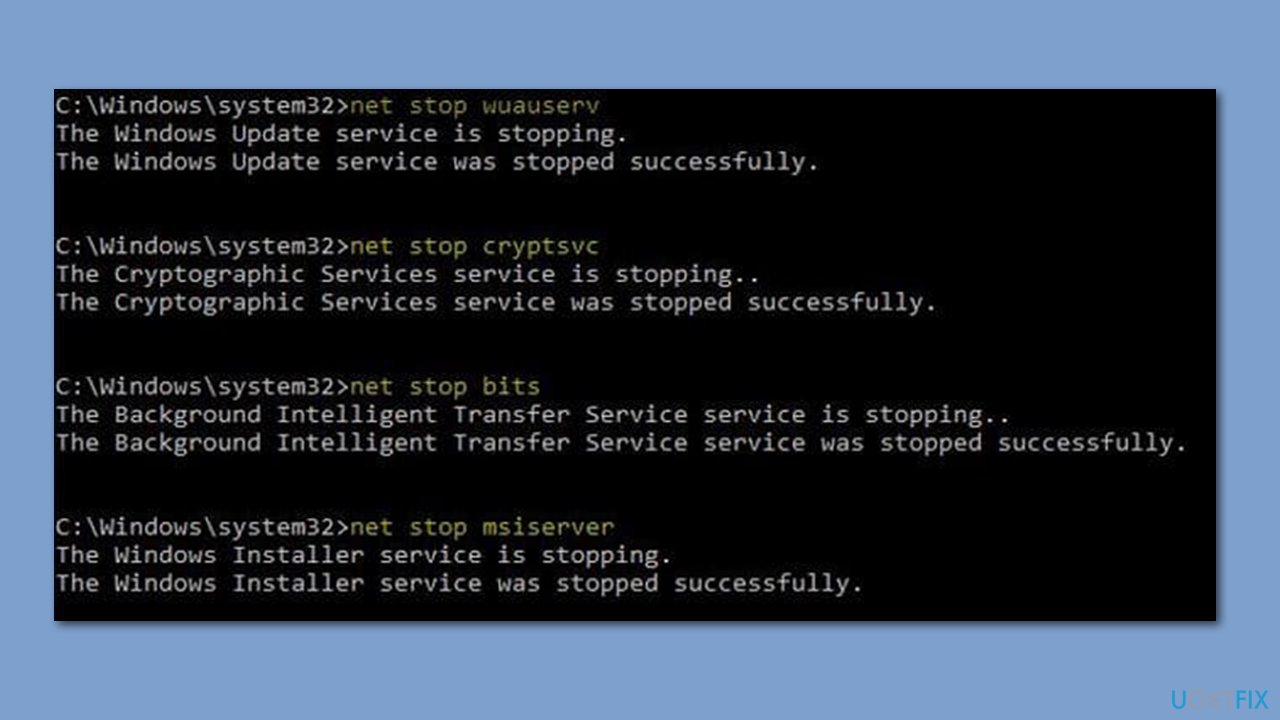
- Open Command Prompt as administrator.
- Copy and paste in the following commands, pressing Enter each time:
net stop wuauserv
net stop cryptSvc
net stop bits
net stop msiserver
ren C:\Windows\SoftwareDistribution SoftwareDistribution.old
ren C:\Windows\System32\catroot2 Catroot2.old
net start wuauserv
net start cryptSvc
net start bits
net start msiserver - Close down the Command Prompt and see if the problem is resolved.
Fix 6. Use Media Creation Tool
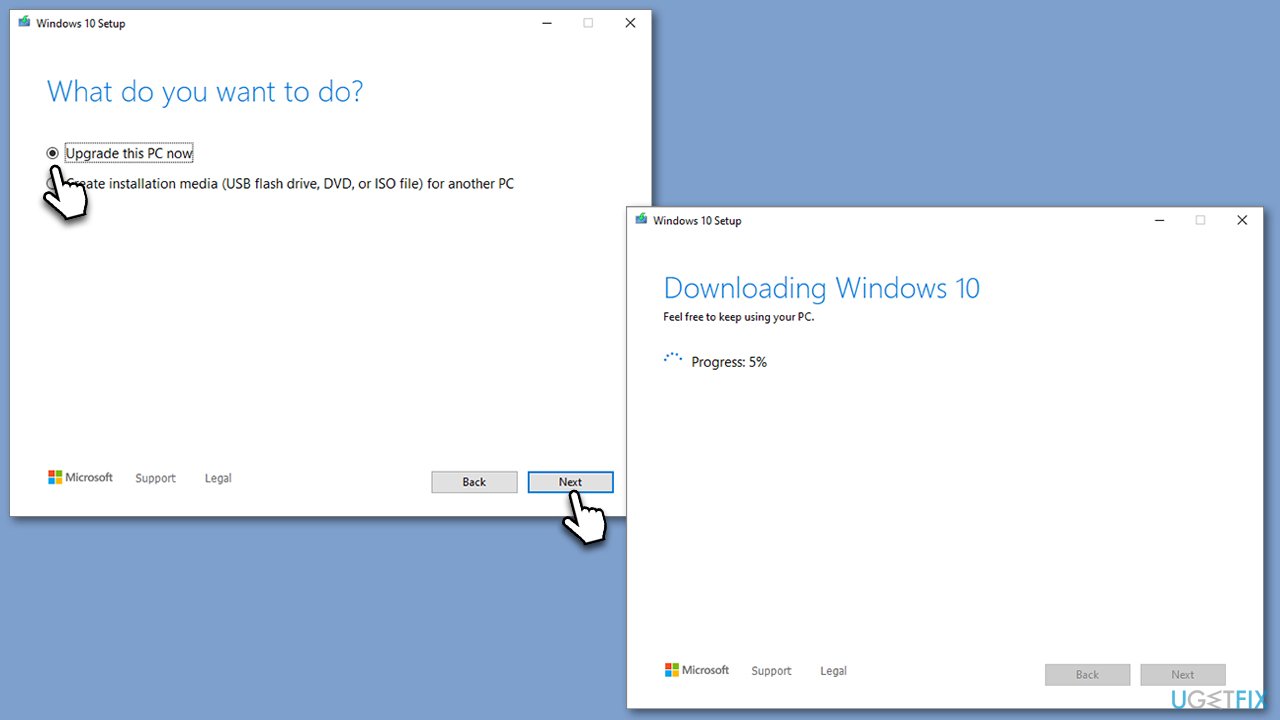
Many users have reported success when upgrading Windows using the Media Creation Tool. However, before proceeding with the upgrade, it is recommended to remove all unnecessary peripherals, except for the mouse and keyboard, and disable or uninstall any security software that may interfere with the installation process.
- Visit the official Microsoft website and download Windows 10 installation media (Windows 11 version).
- Double-click the installer and select Yes when UAC shows up.
- Agree to terms.
- Select Upgrade this PC now and select Next.
- Windows will now download all the necessary files – it might take a while.
- Agree to the terms once again and click Next.
- Before installing, make sure that you are happy with your choices (otherwise, you can click the Change what to keep option).
- Click Install to begin the upgrade process.
Bottom line
To resolve the Windows update error 0x8007001E, users can perform disk cleanup to free up storage space, repair or replace corrupted system files, and address any software conflicts. If these steps do not resolve the issue, it may be advisable to seek assistance from a qualified technician or use a reliable PC repair tool.
Frequently asked questions
This error typically occurs due to issues with the Windows Update components, corrupted system files, or insufficient disk space. Additionally, third-party software conflicts can also contribute to this error.
To fix this error, you can run the Windows Update Troubleshooter, clear the SoftwareDistribution folder, or perform a System File Check using the 'sfc /scannow' command in Command Prompt.
Yes, resetting the Windows Update components is a safe method to resolve error 0x8007001E, and it can help restore the update functionality on both Windows 10 and Windows 11.




Report an issue
What's wrong with this guide? We review every report and update or remove content.
Report received — thank you. We'll review and fix it.
You need a free account to submit a report.
Be the first to comment