How to fix
Modern Warfare Dev Error 6328
on Windows
Resolve Modern Warfare Dev Error 6328 on Windows 10 and 11 with expert-tested solutions for smooth gameplay. Fixed in minutes!

What causes How to fix Modern Warfare Dev Error 6328 in Windows?
- Conflicts between the EA app and Battle.net services
- Server and system outages
- DirectX version compatibility issues
- Graphics driver issues
Repairs Windows system files, removes malware, and restores a clean OS state — without reinstalling.
Hello. For the past few days, I keep getting Dev Error 6328 when trying to play Call of Duty: Modern Warfare. How can I fix this?
Call of Duty: Modern Warfare is a popular first-person shooter video game for Microsoft Windows, PlayStation 4, and Xbox One that was released in 2019. The game is a reboot of the original Modern Warfare series and the sixteenth installment in the Call of Duty series.
The game is a fan favorite among gamers due to its realistic gameplay, immersive storyline, and visually stunning graphics. It has a large fan base because of its engaging multiplayer mode, which allows players to compete against each other in a variety of game modes.
Dev Error 6328 is a common problem that players have encountered while playing Modern Warfare on Windows. This error can be caused by a number of factors, including conflicts between the EA app and Battle.net services, server and system outages, DirectX version compatibility issues, and graphics driver[ref en-1] issues.
Dev Error 6328 can cause the game to crash, preventing players from continuing to play. This problem can be aggravating for gamers, particularly those who have invested time and money in the game.
Possible solutions include updating the graphics driver, switching to DirectX 11, changing the game's priority in Task Manager, and closing all background services related to the EA app. However, depending on the specific cause, the steps to resolve the issue may differ, and users may need to seek additional assistance from official support channels.
In this guide, you will find 5 steps that should help you fix Modern Warfare Dev Error 6328 in Windows. If you experience Windows OS issues, you can try using a repair tool like [d1] that can fix most system errors, BSODs,[ref en-2] corrupted files, registry[ref en-3] issues, or clear cookies and cache. Otherwise, follow the step-by-step instructions below.
Solution 1. Restart your PC
One suggestion is to restart your Windows computer system and then launch Modern Warfare again. Additionally, it's worth checking if there is a server or system outage that might be causing the game to malfunction. This is important because sudden error 6328 messages can often be attributed to server or system outages.
Solution 2. Switch to DirectX 11
DirectX is a crucial collection of APIs that manages the visual components of software and games on Windows, Xbox, and mobile devices. Most modern video games support multiple versions of DirectX. Call of Duty: Modern Warfare works with both DirectX 11 and 12. Thus, the suggestion here is to switch to DirectX 11 since DirectX 12 is the default version.
Steam:
- Launch the Steam client and navigate to your game library.
- Right-click on the game you want to modify and select Properties from the drop-down menu.
- Click on the General tab and then select the Set Launch Options button.
- In the dialog box that appears, type -dxlevel 11.
- Click on the OK button to save your changes.
- Close the Properties window.
- Launch the game to see if the changes have been applied.
Battle.net:
- Launch the Battle.net client.
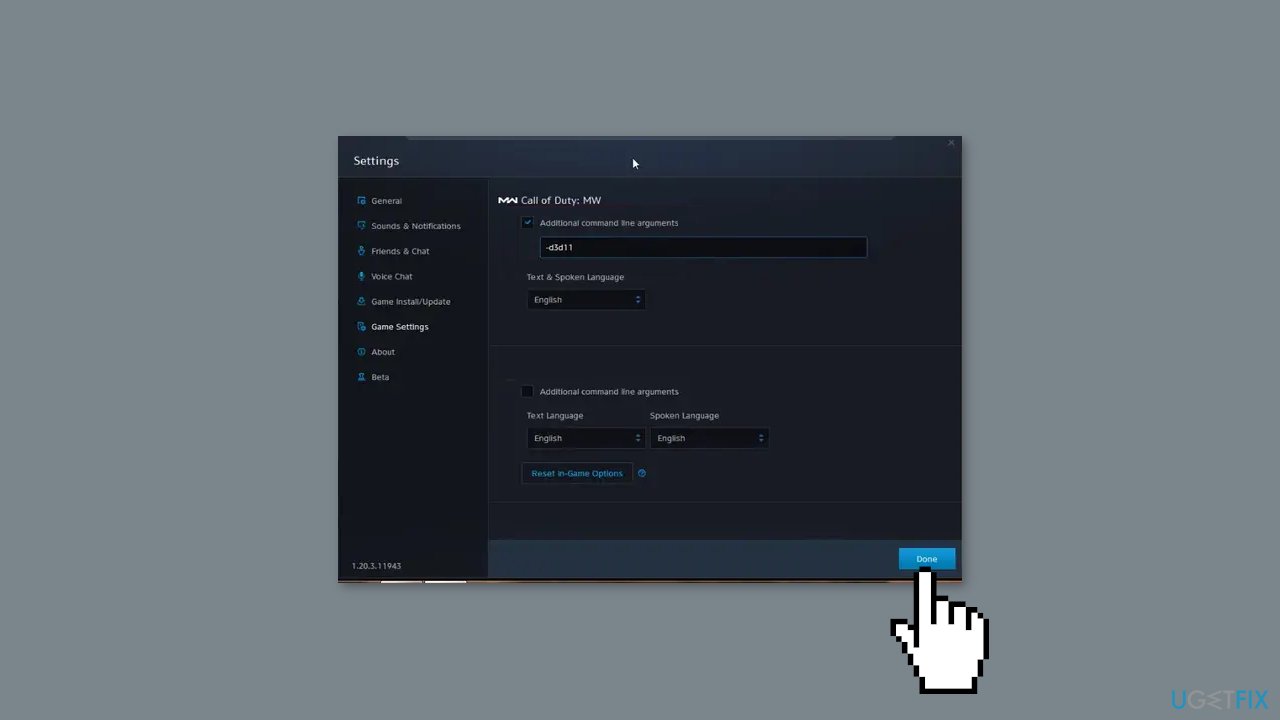
- Look for the Gear icon that is located next to Call of Duty: Modern Warfare and click on it.
- Select Game Settings.
- Find the checkbox next to Additional Command Line Arguments and check it.
- Type -d3d11 inside the command line box.
- Click on the Done button.
- Restart the client.
- Check if the error is still occurring.
Solution 3. Change Priority Settings
- Open Task Manager by pressing Ctrl + Shift + Esc on your keyboard.
- Click on the Details tab.
- Right-click on the Modern Warfare executable file.
- From the context menu, select Set Priority.
- A list of options will appear.
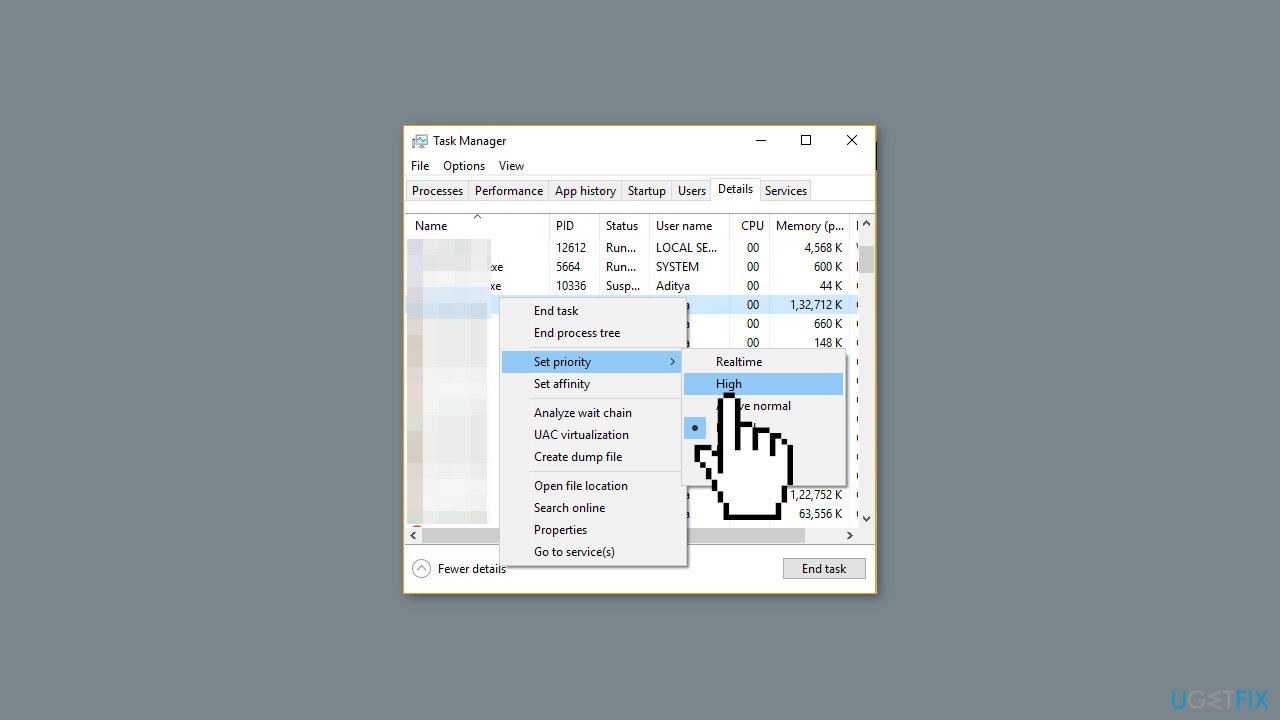
- Select the High option, and avoid selecting any other option.
- Click on Change Priority to confirm your decision.
Solution 4. Close EA-related Processes
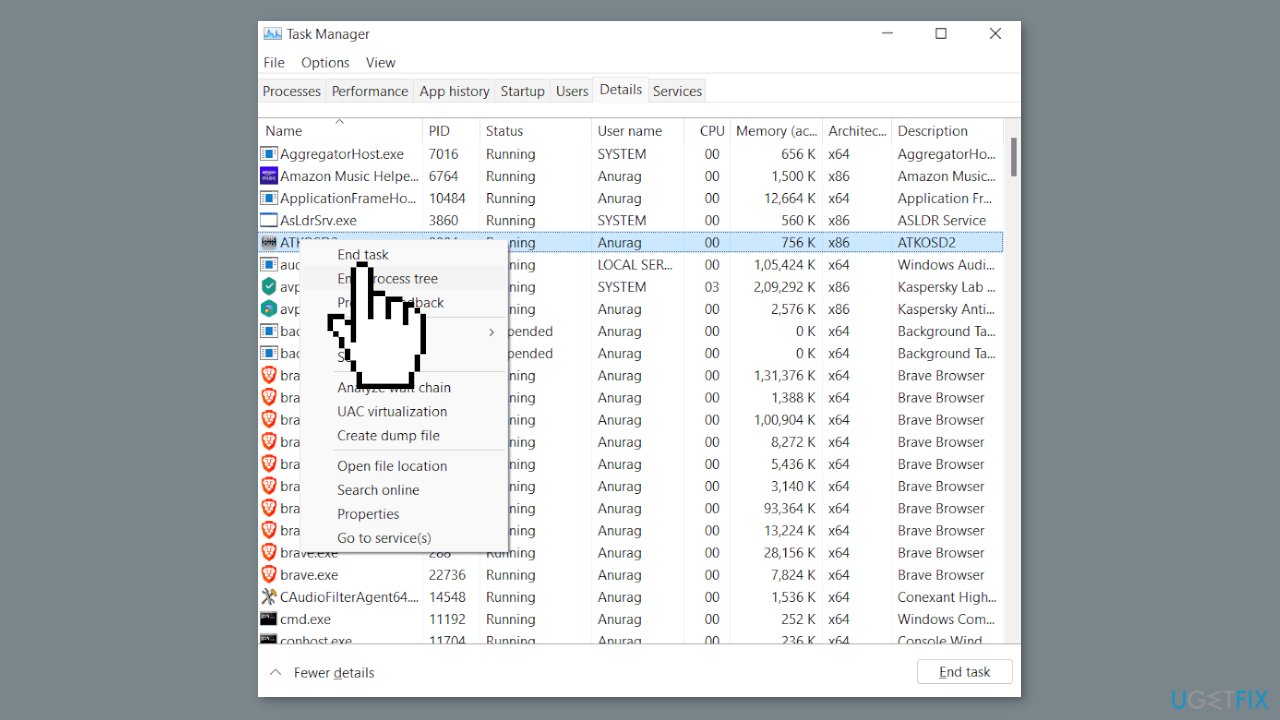
To resolve Dev Error 6328, it may be necessary to close all background services related to the EA app since this error can result from a conflict between the EA app and Battle.net services.
- Open the Task Manager by pressing Ctrl + Shift + Esc.
- Go to the Processes tab and right-click on the EA app icon.
- Select the End Task option from the context menu.
- Next, switch to the Startup tab.
- Right-click on the EA app and choose Disable.
- From now on, the EA app will not start automatically after a system boot.
Solution 5. Update Graphics Driver
Outdated drivers could be the cause of this issue. In this case, you can fix it automatically by using [rev id="DriverFix"], which will scan your PC for missing and out-of-date device drivers. Or you can update them manually:
- Open Settings.
- Click on Update & Security.
- Click on Windows Update.
- Click the Check for updates button.
- Click the View optional updates option.
- Click the Driver updates tab.
- Select the driver you want to update.
- Click the Download and install button.
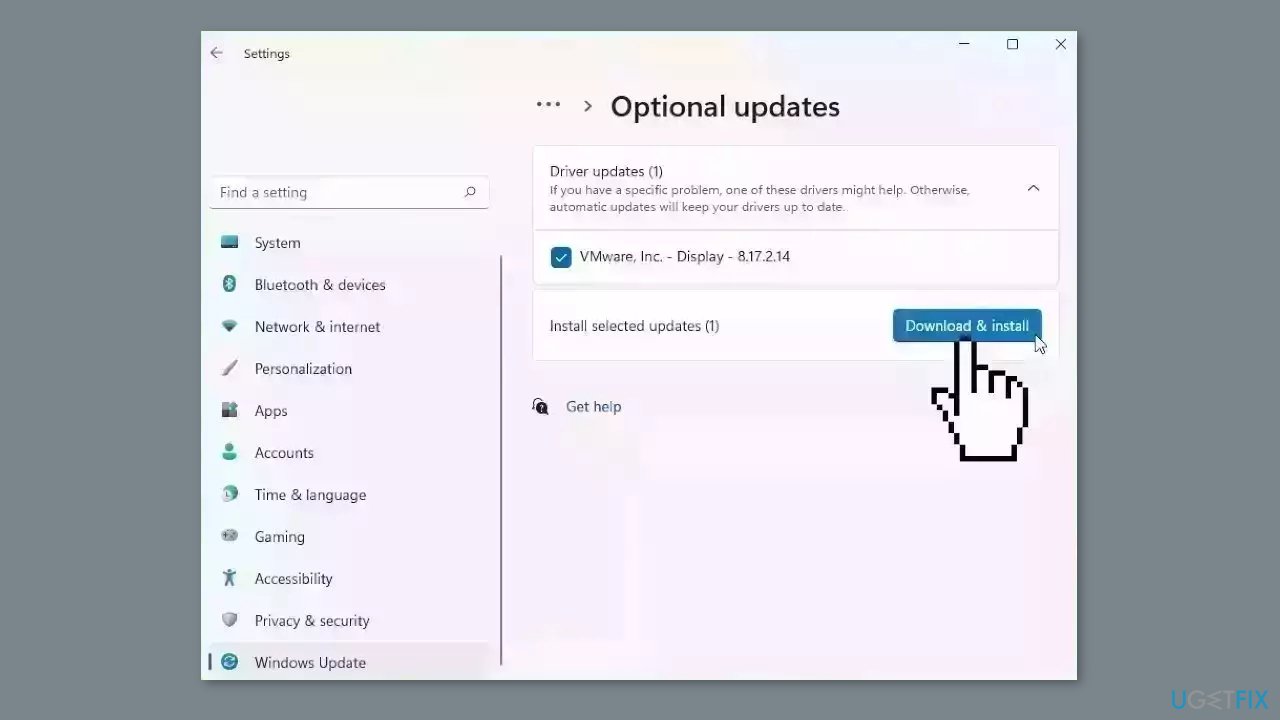
If the View optional updates link is not available after checking for updates, then Windows Update does not have any new drivers or any updates for other products at that particular time.
Bottom line
To fix Modern Warfare Dev Error 6328, you can try updating your graphics driver, switching to DirectX 11, changing the game's priority in Task Manager, and closing all background services related to the EA app. If these solutions do not resolve the issue, consider seeking additional assistance from official support channels.
Frequently asked questions
Dev Error 6328 is often caused by corrupted game files, outdated graphics drivers, or network connectivity issues on Windows 10 and Windows 11.
You can verify the game files by using the Battle.net client or Steam, which will check for any missing or corrupted files and replace them automatically.
If updating your graphics drivers doesn't fix the issue, try resetting your network settings or reinstalling the game on Windows 10 or Windows 11.




Report an issue
What's wrong with this guide? We review every report and update or remove content.
Report received — thank you. We'll review and fix it.
You need a free account to submit a report.
Be the first to comment