How to fix
“You’ve been signed in with a temporary profile” error
on Windows
Resolve the "You’ve been signed in with a temporary profile" error on Windows 10/11 quickly and effectively. Expert-tested solutions included!

What causes How to fix “You’ve been signed in with a temporary profile” error in Windows?
- User profile becomes corrupted
- User profile is damaged
- Recent system change or update
- Malware or virus infections
Repairs Windows system files, removes malware, and restores a clean OS state — without reinstalling.
Hello. When I signed into Windows I saw a message that says "You’ve been signed in with a temporary profile". How do I sign in to my actual profile again?
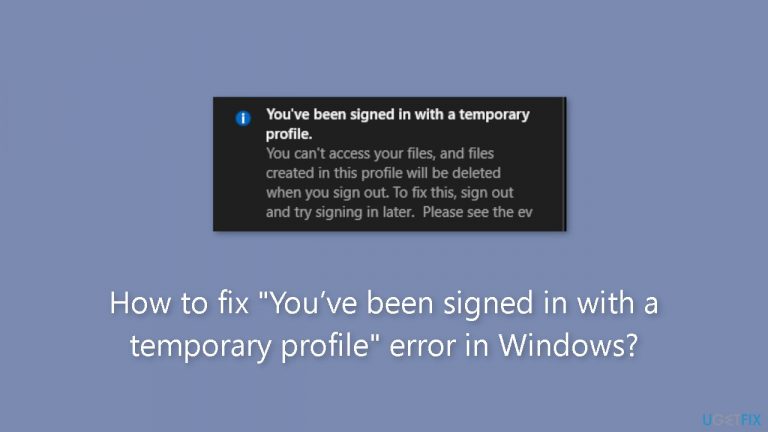
In Windows, the "You've been signed in with a temporary profile" error is a common problem that occurs when the user's profile becomes corrupted or damaged. Instead of using the standard user profile, Windows uses a temporary profile to log the user in. When this occurs, the user may receive the error message:
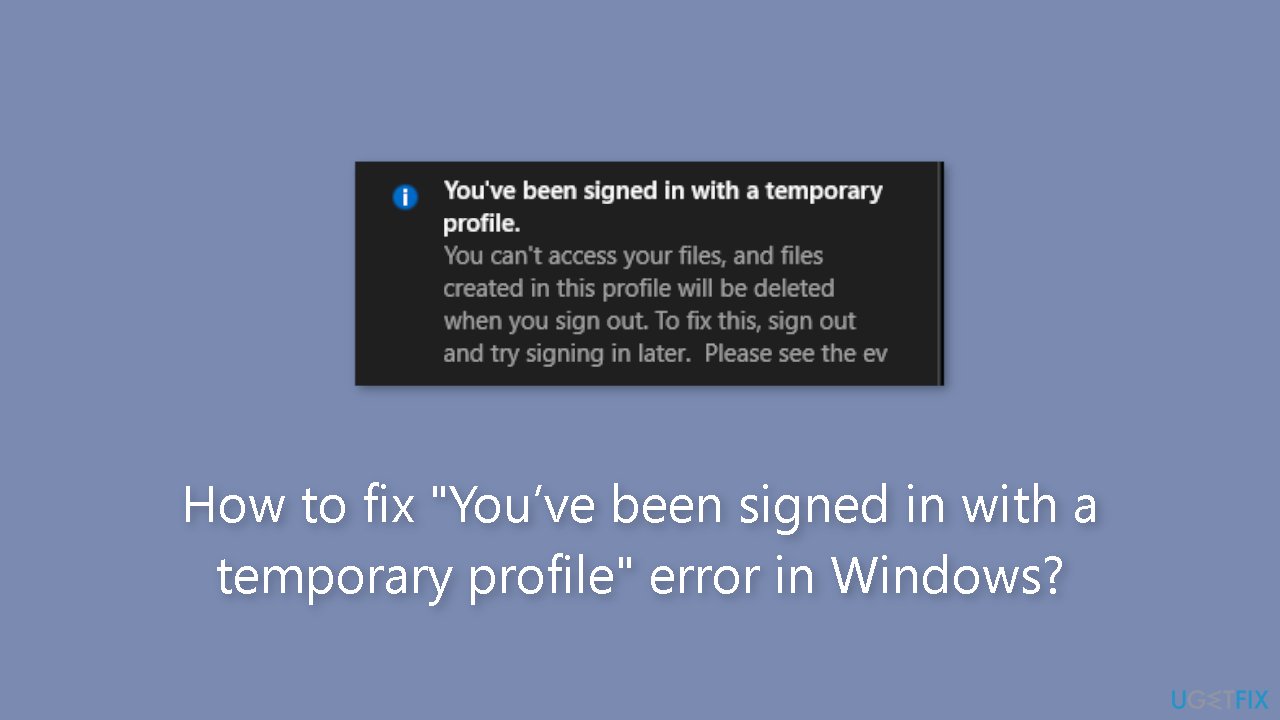
You've been signed in with a temporary profile. You can't access your files, and files created in this profile will be deleted when you sign out. To fix this, sign out and try signing in later. Please see the event log for more details or contact your system administrator.
This error message can be aggravating for users who rely heavily on their computers for work or play. It can cause inconvenience and even data loss because the user is unable to access their files and documents, and any files or documents created in the temporary profile are deleted when the user logs out.
There are several possible solutions that the user can try to resolve this issue. The first step is to restart the computer and re-enter the correct credentials. If that doesn't work, the user can run a virus scan to ensure that no malware or virus infections are causing the problem.
If neither of these solutions work, the user can use System Restore to restore the system to a previous point in time. This can be useful if the problem was caused by a recent system change or update. Finally, if none of these solutions work, the user can create a new user account and transfer data from the old one to the new one.
This can be a time-consuming process, but in some cases, it may be the only option. This guide will walk you through 4 steps that should help you resolve this problem. You can also try using an automatic system repair tool like [d1] that can fix most system errors, BSODs,[ref en-1] corrupted files, registry[ref en-2] issues, or clear cookies and cache.[ref en-3] Otherwise, follow the step-by-step instructions below.
Method 1. Fix Corrupted System Files
Use Command Prompt commands to repair system file corruption:
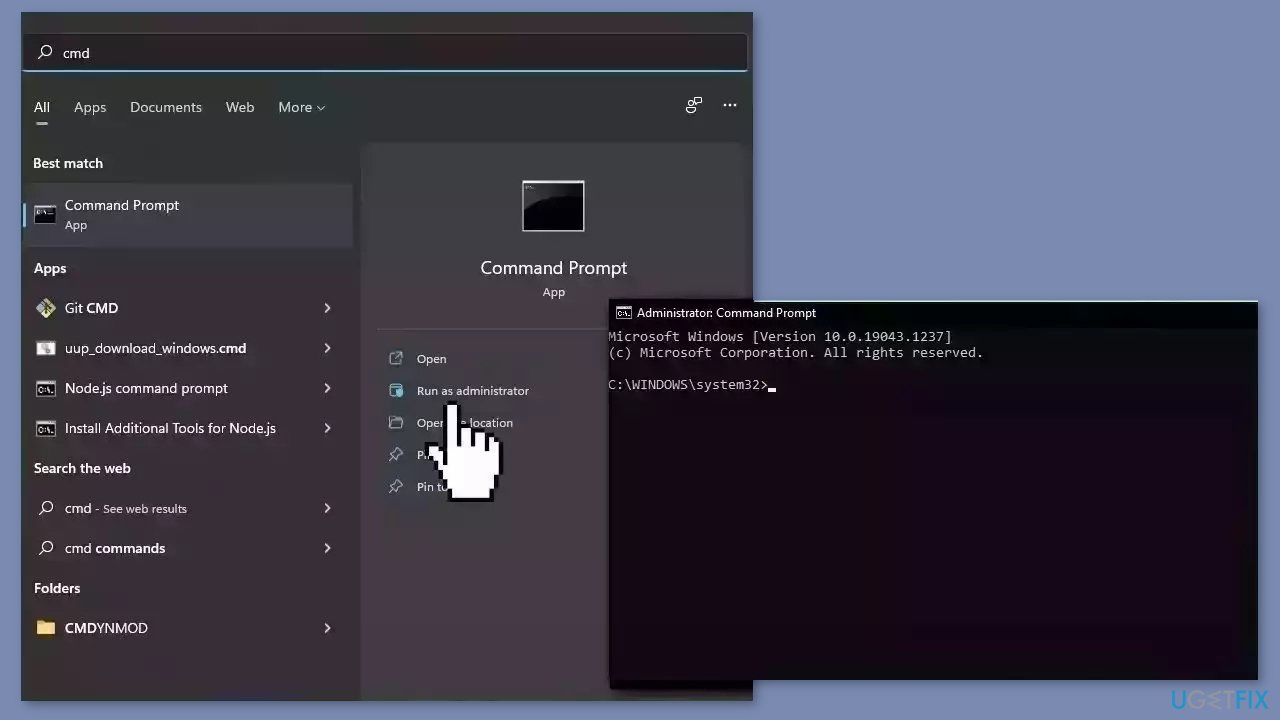
- Open Command Prompt as administrator
- Use the following command and press Enter:
sfc /scannow
- Reboot your system
- If SFC returned an error, then use the following command lines, pressing Enter after each:
DISM /Online /Cleanup-Image /CheckHealth
DISM /Online /Cleanup-Image /ScanHealth
DISM /Online /Cleanup-Image /RestoreHealth
Method 2. Use System Restore
System Restore is a feature in Microsoft Windows that allows users to revert their computer's state to a previous point in time. This can be helpful if you have made changes to your system that are causing problems.
- Press the Windows key + R on your keyboard to open the Run box.
- Type SystemPropertiesProtection and press Enter.
- Go to the System Protection tab.
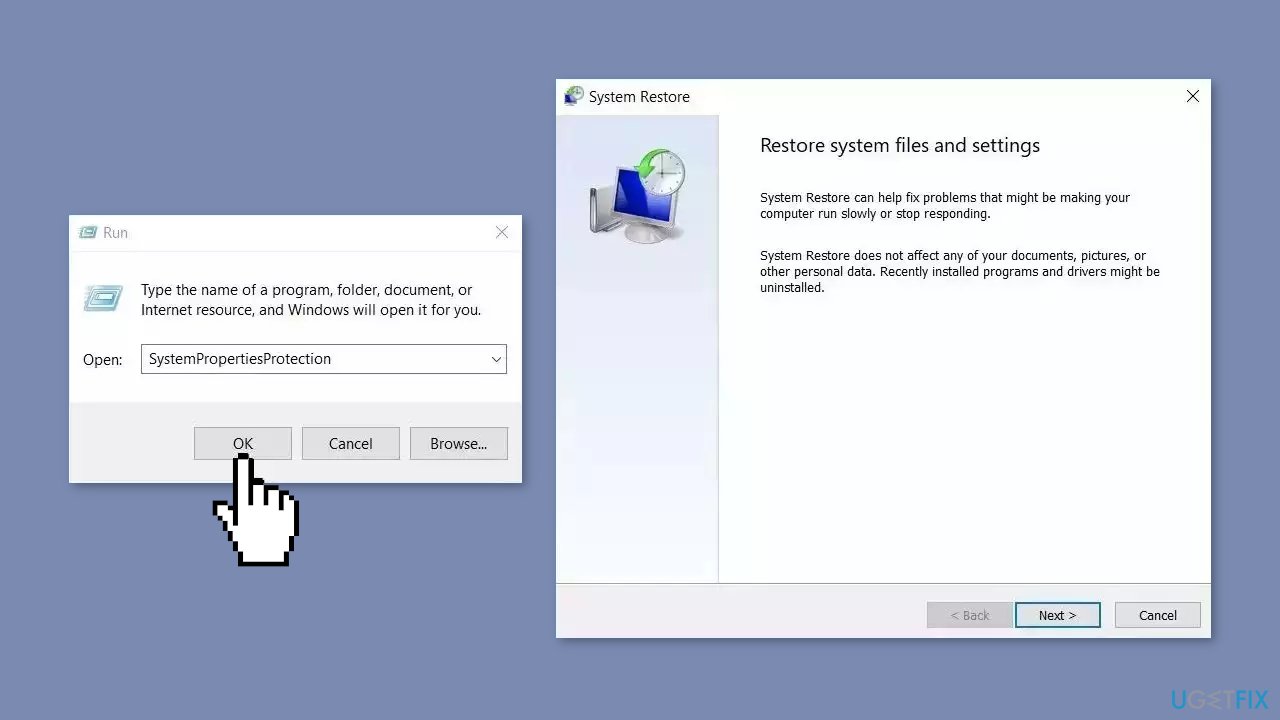
- You will see the System Restore… button. Click it to run System Restore.
- Follow the prompts until you can select a restore point.
- Select the one you want (ideally before the issue started occurring) and go ahead with the process.
Method 3. Modify the Registry
- Press the Windows key + X combination.
- Select Command Prompt (Admin) from the context menu that appears.
- Type wmic useraccount where name='USERNAME' get sid in the Command Prompt window, and replace USERNAME with your actual account username.
- Press Enter to run the command.
- Note down the output of the command in a separate Notepad file.
- Press the Windows key + R.
- Type regedit in the Run dialog box and press Enter to open the Registry Editor.
- Navigate to the following registry key:
HKEY_LOCAL_MACHINE\SOFTWARE\Microsoft\Windows NT\CurrentVersion\ProfileList
- Under ProfileList, you will find the SID specific to a user's profile.
- Using the SID noted in a previous step, find the correct SID of your profile.
- You will find two SIDs with the same name, one with the .bak extension and the other without it.
- Select the SID which doesn’t have the .bak extension.
- In the right window pane, double-click on ProfileImagePath string.
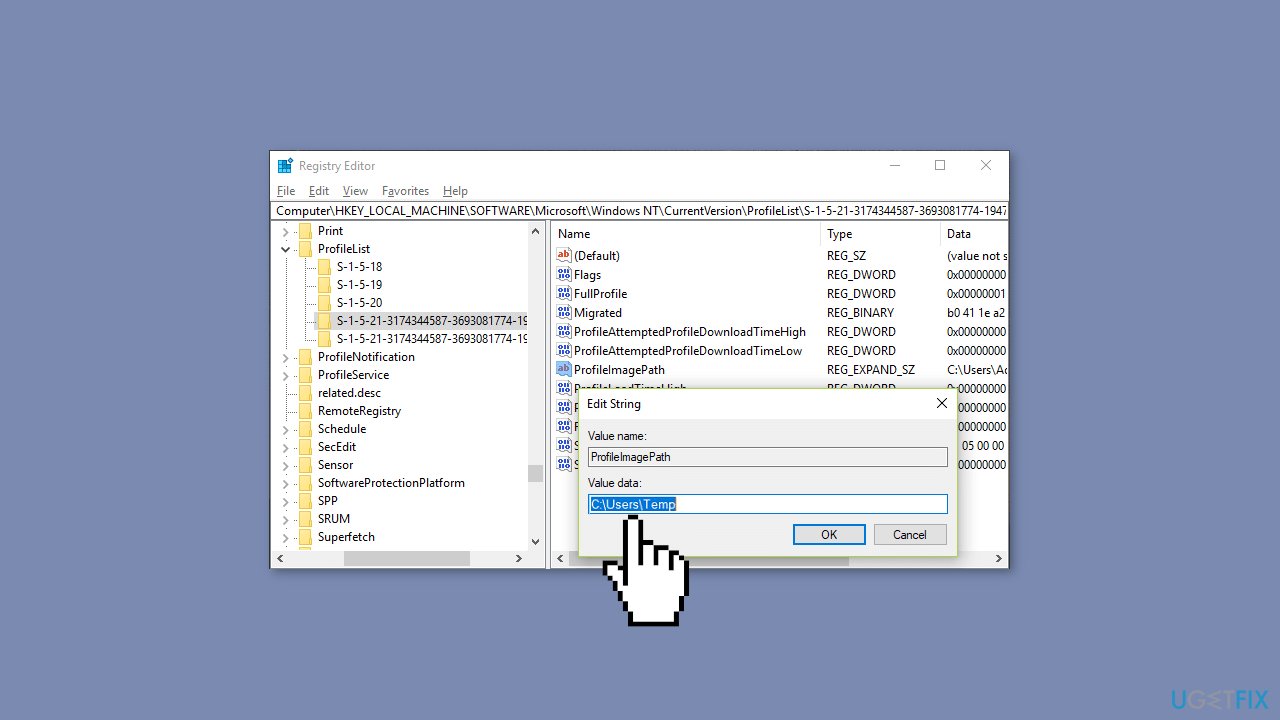
- In the value data path, it would direct to C:\Users\temp.
- Right-click on the SID that doesn’t have .bak extension and select Delete.
- Select the SID with the ".bak" extension.
- Double-click on ProfileImagePath string.
- Change its value to C:\Users\YOUR_USERNAME", and replace "YOUR_USERNAME" with your actual account username.
- Right-click on the SID with the .bak extension and select Rename.
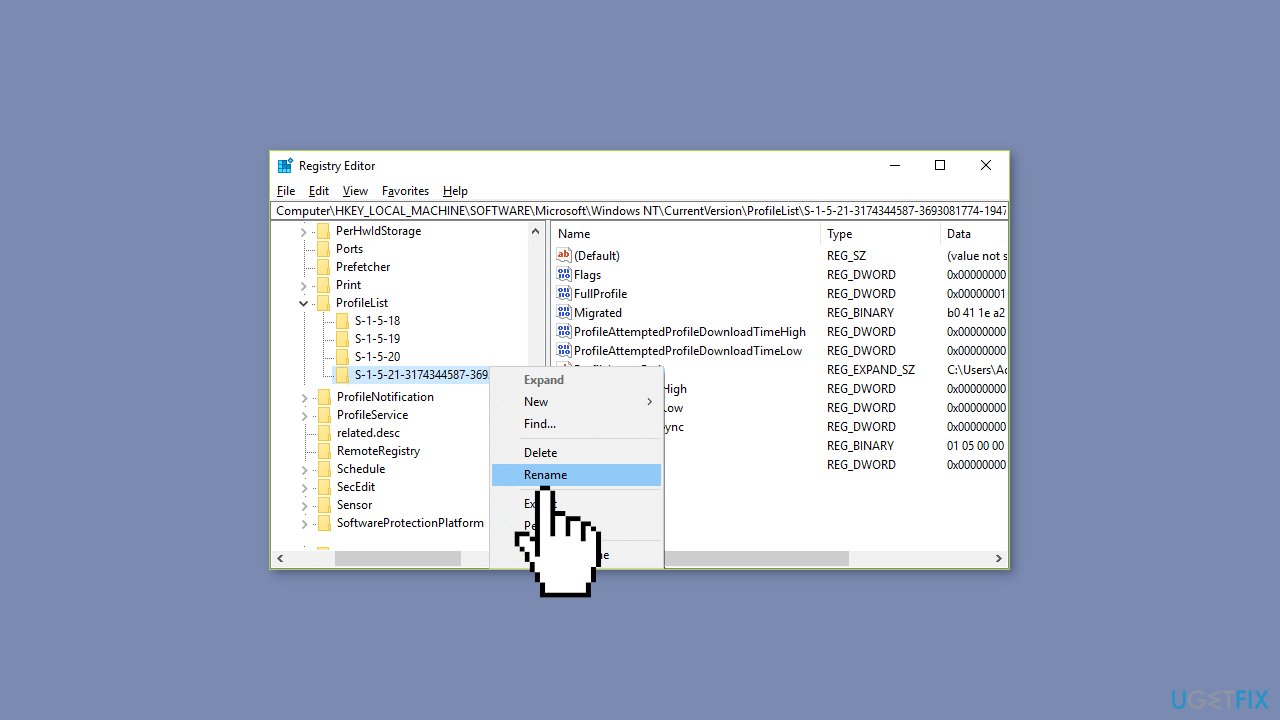
- Remove the .bak extension from the SID name and hit Enter.
- Close Registry Editor.
- Reboot your PC to save changes.
Method 4. Create a New User Account
- Click on the Start icon in the Taskbar.
- Select the Settings option.
- Choose the Accounts option in the left pane.
- In the right pane, select Family & other users.
- Click on Add account.
- Choose I don't have this person's sign-in information.
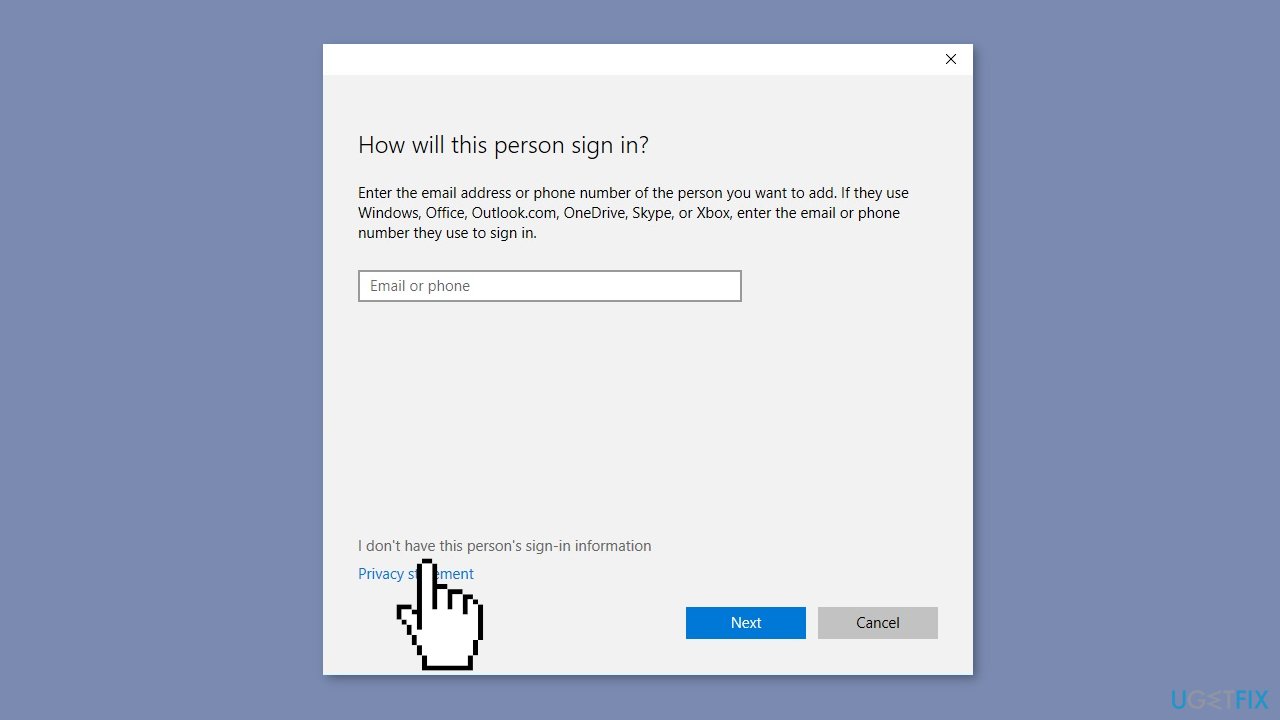
- Select Add a user without a Microsoft account.
- Enter a username, password, and password hint.
- Click the Next button.
- Go to Start > Settings > Accounts > Family & other users again.
- Choose the account name of the new account.
- Click the Change account type button.
- Select the Administrator option under Account type.
- Click OK.
- Log into the new Microsoft account.
- Launch File Explorer.
- Click the C: drive.
- Select USERS.
- Choose the old account.
- Finally, copy the contents into your folder of the new account.
Bottom line
To fix the 'You’ve been signed in with a temporary profile' error, you can restart the computer and re-enter your credentials, run a virus scan, or use System Restore to revert to a previous state. If these solutions do not resolve the issue, consider creating a new user account and transferring your data.
Frequently asked questions
This error typically occurs due to issues with the user profile service, corrupted user profiles, or problems with the registry settings in Windows 10.
You can restore your original user profile by accessing the registry editor, locating the corrupted profile, and making necessary changes, or by creating a new user account and transferring your data.
A quick fix includes restarting your PC in Safe Mode and then restarting again in normal mode, which can sometimes resolve the temporary profile issue.




Report an issue
What's wrong with this guide? We review every report and update or remove content.
Report received — thank you. We'll review and fix it.
You need a free account to submit a report.
Be the first to comment