How to fix
Glide2x.dll missing or not found error
on Windows
Resolve the glide2x.dll missing error on Windows 10 or 11 quickly and easily. Expert-tested solutions ensure your system runs smoothly, fixed in minutes.

What causes How to fix glide2x.dll missing or not found error in Windows?
- The file may have been deleted or moved from its original location on the system.
- The application may be looking for the glide2x.dll file in the wrong directory.
- The file may be corrupt or damaged due to a virus or other system issue.
- The application may not be compatible with the version of the Glide API installed on the system.
Repairs Windows system files, removes malware, and restores a clean OS state — without reinstalling.
Hi, I launched my PC and received an error saying that glide2x.dll is missing from Windows. Any tips on this would be appreciated.
Dynamic Link Libraries, or DLLs for short, are essential components of the Windows operating system. They are libraries of code that can be shared across multiple applications, allowing developers to create complex programs without having to write all the code from scratch. When an application needs to use a particular DLL, it loads the library into memory and calls the functions it needs.
One such DLL is the glide2x.dll library. This file is part of the Glide API, a programming interface created by 3dfx Interactive, a company that specializes in graphics accelerators. It was widely used in the late 1990s and early 2000s to create high-performance 3D graphics in games and other applications. The glide2x.dll library provides functions that allow programs to communicate with 3dfx hardware and access its advanced features.
However, users may encounter the "glide2x.dll missing or not found" error when trying to run an application that requires the Glide API. This error message indicates that the program cannot find the glide2x.dll file on the system. There are several reasons why this error may occur:
- The file may have been deleted or moved from its original location on the system.
- The application may be looking for the glide2x.dll file in the wrong directory.
- The file may be corrupt or damaged due to a virus or other system issue.
- The application may not be compatible with the version of the Glide API installed on the system.
To fix the "glide2x.dll missing or not found" error, users can try several solutions. First, they can try reinstalling the application that is causing the error. If that doesn't work, they can try downloading and installing the latest version of the Glide API from the manufacturer's website. Users can also try running a virus scan to check for any malware causing the issue.
Below, you will find step-by-step instructions on how to fix the error, although we recommend employing [d1] to find any underlying issues in Windows and fix them automatically.
Fix 1. Check the integrity of game files
In most cases, users receive the glide2x.dll missing or not found error whenever they attempt to play a game that is trying to load the file but fails for some reason. If the error occurs when playing a particular game, we recommend using the built-in feature on a gaming platform to resolve the issue.
Steam
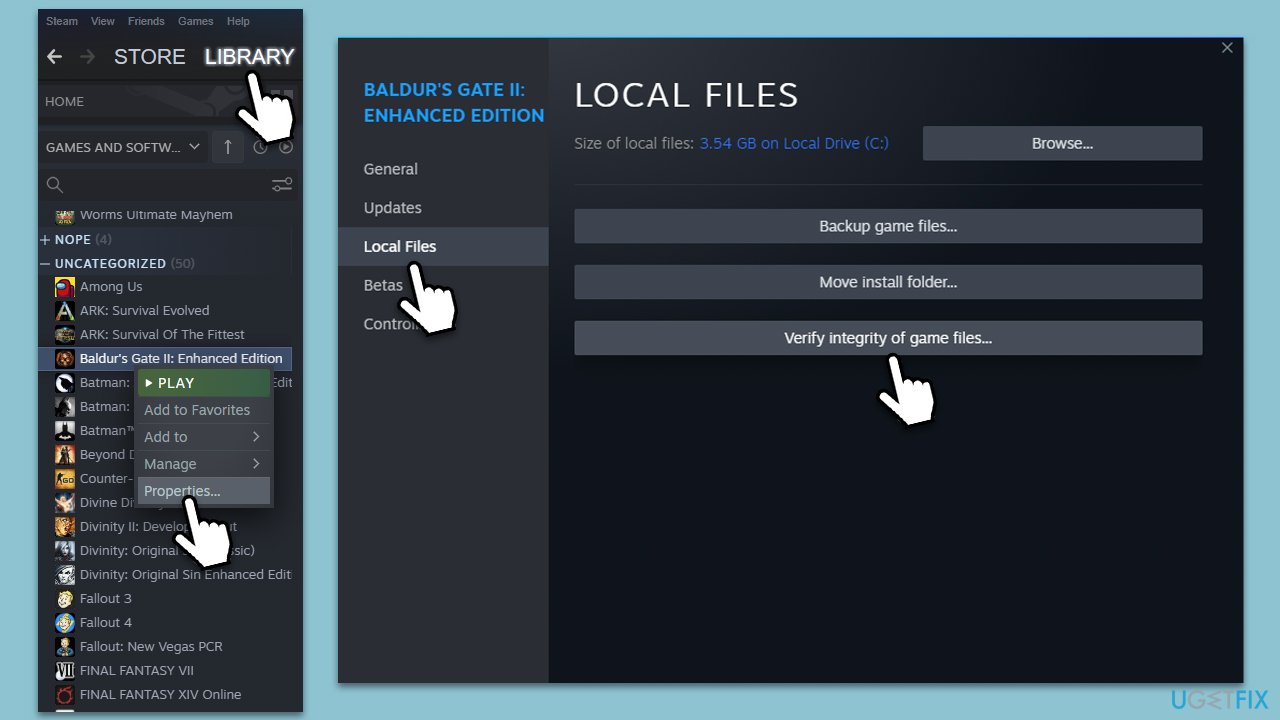
- Go to your Library.
- Right-click on the problematic game and pick Properties.
- Go to Local Files and select Verify integrity of game files.
- Wait till the scan is finished and attempt to launch the game again.
Epic Games
- Go to your game Library.
- Click on the three dots next to the game.
- Select Verify.
GOG
- Go to the Owned Games section.
- Right-click on the game and select Manage installation > Verify/Repair.
- Wait for the verification to be complete.
Fix 2. Reinstall the affected app
In some cases, reinstalling a particular game may reinstate the missing file and fix the error. There are several ways you can do this - through a gaming platform like Steam or simply using Windows' built-in uninstaller.
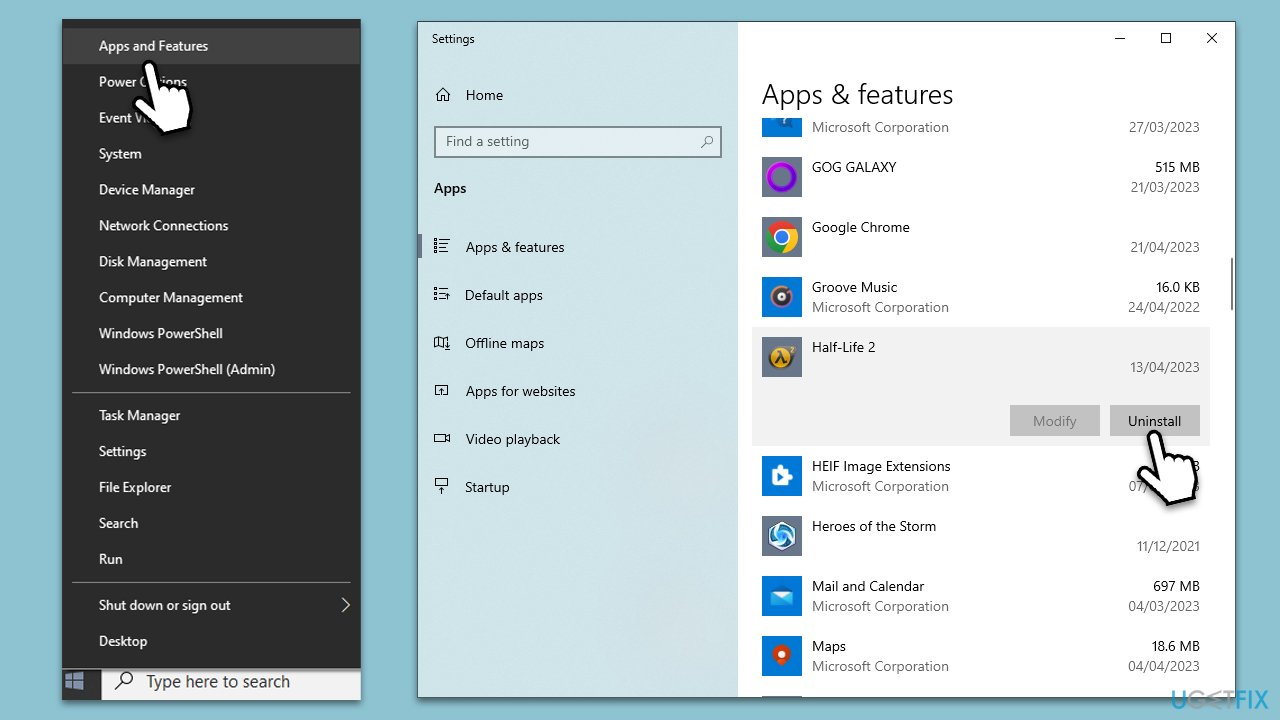
- Right-click on Start and pick Apps and Features.
- Scroll down to find the application that's causing the error.
- Click Uninstall and then confirm with Uninstall.
- Follow the prompts to finish the process.
Fix 3. Reinstall the graphics card driver
- Right-click on Start and select Device Manager.
- Expand the Display adapters section.
- Right-click on your graphics card and select Uninstall device.
- Tick the Delete the driver software for this device checkmark and click Uninstall.
- Reboot your computer.
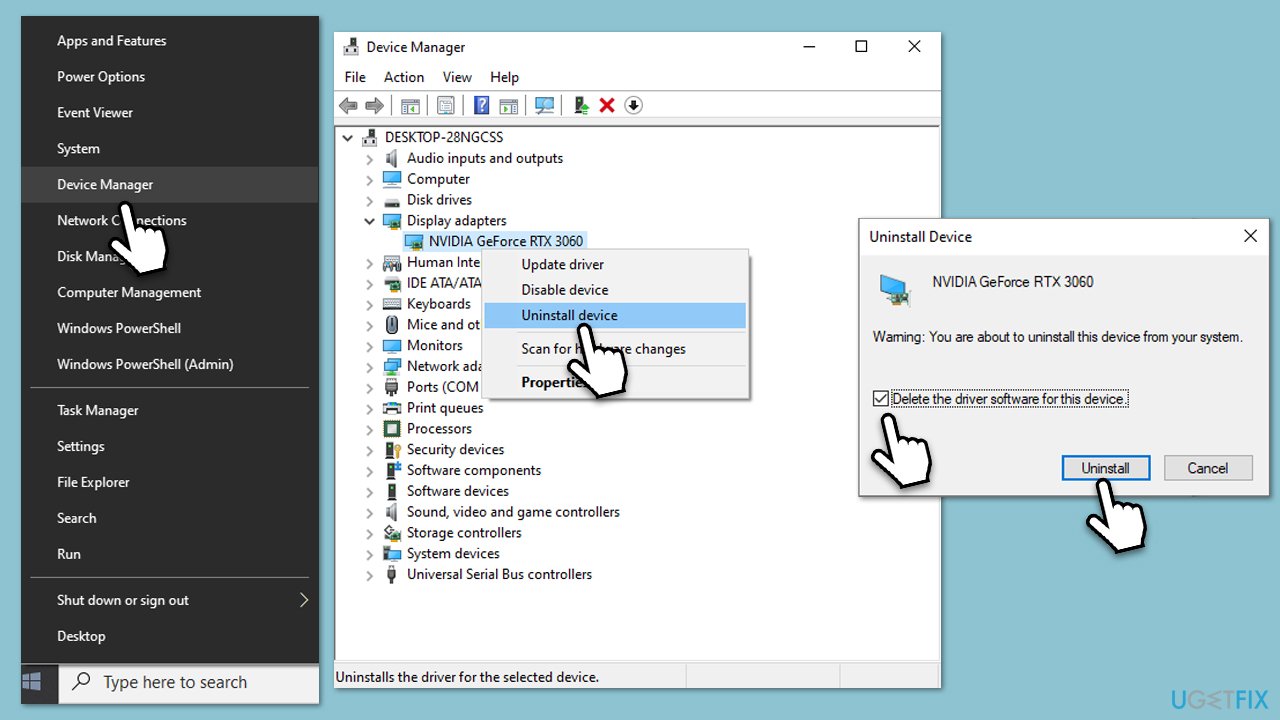
Afterward, it is recommended to install up-to-date GPU drivers, which can be achieved through either the official website of your GPU manufacturer or by opting for a faster alternative like an automatic driver updater tool such as [rev id="DriverFix"].
Fix 4. Check for corrupted files
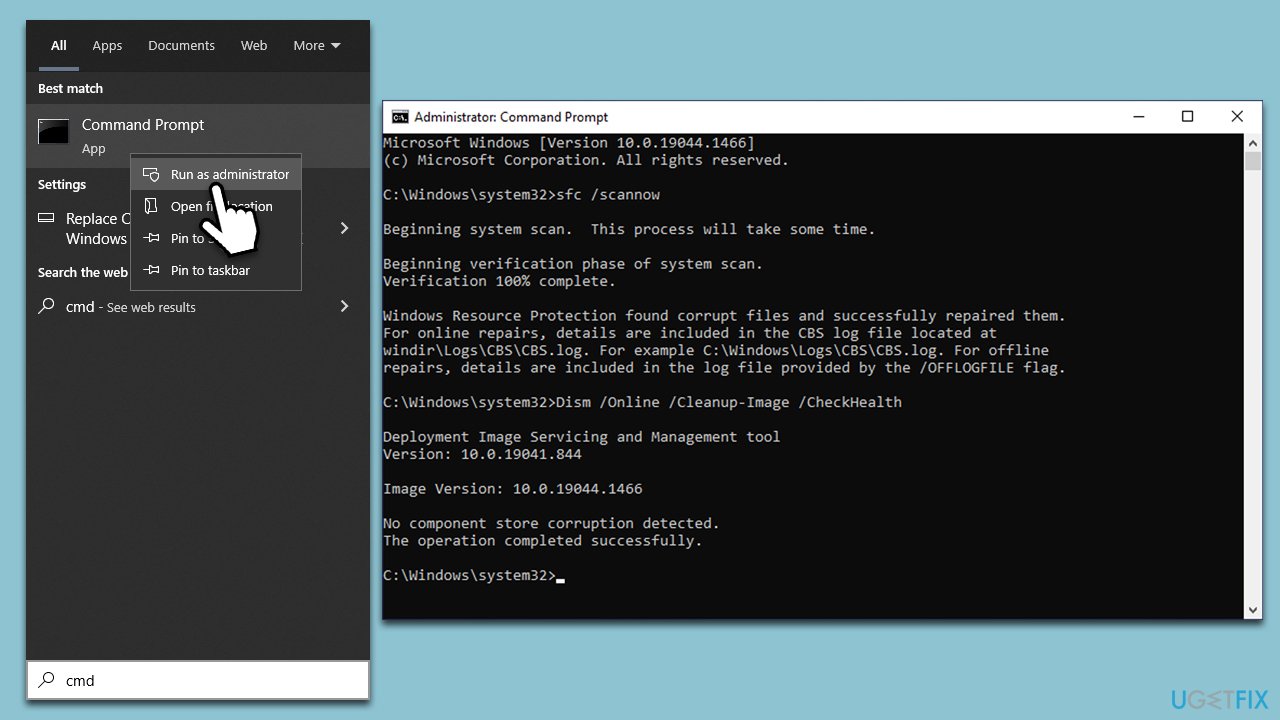
- Type cmd in Windows search.
- Right-click on Command Prompt and pick Run as administrator.
- When User Account Control (UAC) asks you whether you want to allow changes, click Yes.
- Use the following command and press Enter:
sfc /scannow - When the scan is complete, you should also run the following commands to repair Windows image files:
DISM /Online /Cleanup-Image /CheckHealth
DISM /Online /Cleanup-Image /ScanHealth
DISM /Online /Cleanup-Image /RestoreHealth - Restart your system.
Fix 5. Reregister the file
- Open Command Prompt as administrator, as previously explained.
- Copy and paste the following commands, pressing Enter after each:
regsvr32 /u glide2x.dll
regsvr32 glide2x.dll - Close down the Command Prompt and restart the PC.
Bottom line
To fix the 'glide2x.dll missing or not found' error, users can try reinstalling the application, downloading and installing the latest version of the Glide API, or running a virus scan to check for malware. If none of these solutions work, further troubleshooting may be necessary.
Frequently asked questions
The glide2x.dll missing error in Windows 10 can be caused by corrupted system files, improper installation of software, or conflicts with other programs. Ensuring that your system is up to date and reinstalling the affected application can often resolve this issue.
To manually download and replace glide2x.dll in Windows 11, find a reliable source for the file, download it, and then place it in the appropriate system directory, typically C:\Windows\System32. After replacing the file, restart your computer to see if the error is resolved.
Yes, you can use system repair tools like the Windows SFC (System File Checker) or DISM (Deployment Imaging Service and Management Tool) to automatically fix the glide2x.dll error in Windows. Running these tools can help restore missing or corrupted system files.




Report an issue
What's wrong with this guide? We review every report and update or remove content.
Report received — thank you. We'll review and fix it.
You need a free account to submit a report.
Be the first to comment