How to fix
“User Name or Password is Incorrect” error
on Windows
Resolve the “User Name or Password is Incorrect” error on Windows 10 or 11 effortlessly. Restore access with expert-tested solutions and zero traces left.

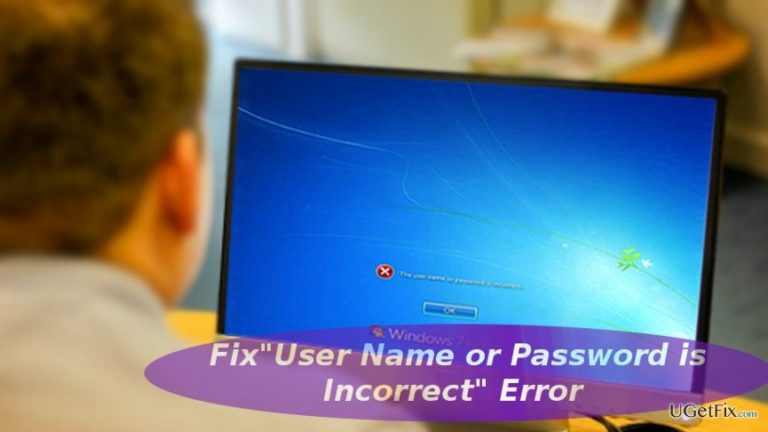
What causes How to Fix “User Name or Password is Incorrect” error on Windows?
- Technical issues while upgrading to a new edition
- Multiple user accounts causing access issues
- Windows temporal bug or error
- Incorrect password entry due to keyboard issues
Repairs Windows system files, removes malware, and restores a clean OS state — without reinstalling.
Hi. I’ve been struggling to find a solution to this Windows error. Sometimes when I turn on the computer, in the log-in screen “User Name or Password is Incorrect” error message pops up even I haven’t typed in the password. In other cases, when the log-in box shows up, I enter the code, and then the message appears, though the password is really correct. In such cases, only 4 or 5th attempt to sign-in works. Any suggestions?
“User Name or Password is Incorrect” error is a common issue for users of both, older and newer versions of Windows OS users. In spite of subsequent and often updates, Windows 10 users might also struggle with this phenomenon. Depending on the device and technical specifications of installed operating system, several causes might have triggered this error. Thus, depending on the origin of the cause, there are different solutions as well. Such error often occurs when users switch from older version to the latest one. Technical issues while upgrading to a new edition might have resulted in this issue. Furthermore, there are several versions of “User Name or Password is Incorrect” error. Some users report being able to access only a certain MS account if there are multiple users. In other cases, users are deprived of user account options. If you are able to access one account, log in and disable passwords. If you enter the password and then the screen reverts to “welcome” window but then quickly reverts “incorrect name or password,” you might solve the issue by restarting the device as it may be caused by Windows temporal bug or error. Here are several options you might try: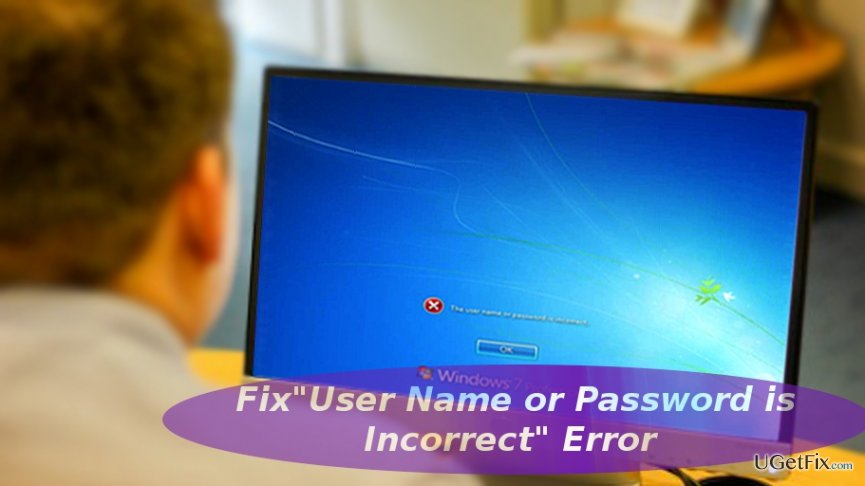
Option 1. Disable local account password
If you are to sign in as administrator, use the access to disable password requirement option.
- Once you sign in, click on the Start button and type netplwiz. Choose User Accounts settings.
- Untick the box which says Users must enter a username and password to use this computer. Enable the modifications by choosing Apply and OK.
- Reboot the computer.
- If several people are using the computer, perform the above steps and restart the computer. After that opt for Sign-in options which can be accessed via the Startup. Then, you can manage the sign-in options according to users’ needs.
Option 2. Take out the PC battery (for laptops)
In case you are using a laptop device, taking out the battery and inserting it again might solve the issue. After you take out the battery, press and hold the power button for approximately 30 seconds. Then insert it again, boot the device. In some cases, restarting the computer several times solves the issue.
Option 3. Maintain PC protection from virtual threats
In some cases, external threats meddle with the system files resulting in system errors. You should check your computer for any malicious files. For that purpose, [d1] might come in handy.
Bottom line
To fix the 'User Name or Password is Incorrect' error, you can disable the local account password, restart your device, or ensure correct password entry. If these solutions do not resolve the issue, further troubleshooting may be necessary.
Frequently asked questions
First, ensure that the Caps Lock is turned off and that you're entering the correct credentials. If the issue persists, try resetting your password using the password reset option on the login screen.
Yes, this error can also occur on Windows 11 due to incorrect credentials or issues with your user account. You can resolve it by verifying your password or using the recovery options available.
After changing your Microsoft account password, make sure to log in with the new password on Windows 10 or Windows 11. If you're still facing issues, try signing in to your Microsoft account online to ensure the change was successful.




Report an issue
What's wrong with this guide? We review every report and update or remove content.
Report received — thank you. We'll review and fix it.
You need a free account to submit a report.
Be the first to comment