How to fix
0x80048823 error
on Windows
Troubleshoot the 0x80048823 error in Windows 10 and 11 easily. Follow our expert-tested guide for quick fixes and regain full functionality today!


What causes How to fix 0x80048823 error in Windows?
- Unstable internet connection
- Incorrect Microsoft Account login credentials
- Weak internet speed
- Cache and cookies issues
- Microsoft Store app malfunction
Repairs Windows system files, removes malware, and restores a clean OS state — without reinstalling.
Hello. When I try to log into Office 365 in Windows, I receive the 0x80048823 error. Is there a way to fix this?
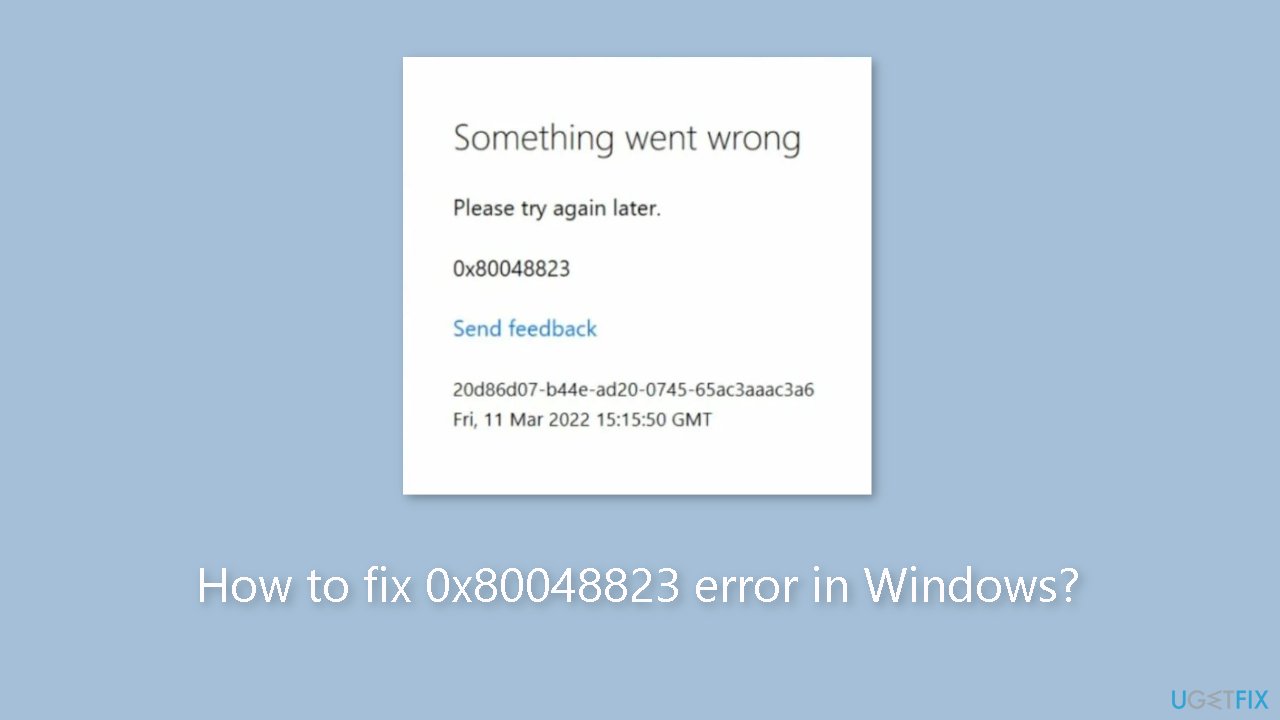
When attempting to log into Microsoft Store or Microsoft Office 365, Windows users frequently encounter the 0x80048823 error. The error message, "Something went wrong, Please try again later. 0x80048823" usually indicates that there is a problem with the login process.
A number of factors can contribute to the error. An unstable internet connection is one of the most common causes. If the internet connection is weak or unstable, the login process may fail to complete successfully. Furthermore, the error could be caused by incorrect Microsoft Account login credentials.
This issue may have an impact on users by preventing them from accessing the Microsoft Store and Microsoft Office 365, causing significant disruption to their work or personal activities.
The 0x80048823 error has several possible solutions. Users can attempt to troubleshoot their internet connection, verify that they are using the correct Microsoft Account login credentials, or clear their cache and cookies. If none of these methods work, users can try resetting the Microsoft Store app or reinstalling Office 365.
In this guide, you will find steps on how to fix this error both with the Microsoft Store and Office 365. Keep in mind that the manual troubleshooting process can be lengthy. Instead, you can try using a maintenance tool like [d1] that can fix most system errors, BSODs,[ref en-1] corrupted files, registry[ref en-2] issues, or clear cookies and cache[ref en-3] automatically. Otherwise, follow the step-by-step instructions below.
Fix 0x80048823 error in Microsoft Store
Solution 1. Check Network Connection
If you're encountering the error code 0x80048823 in the Microsoft Store, it's possible that your internet connection is slow or unstable. To check if this is the case, running a speed test can be helpful. If the test results show that your internet speed is below the level you're paying for, try restarting your modem and router. If the issue persists, consider contacting your service provider for further assistance.
Solution 2. Reset Microsoft Store Cache
Like most applications, Microsoft Store creates and stores cache data to enhance performance. However, if this cache becomes corrupt, you may experience various issues.
- Open the Run dialog box by pressing the Windows key + R.
- If the hotkeys don't work, you can use any other method to open the Run dialog box.
- In the search bar of the Run dialog box, type wsreset.exe
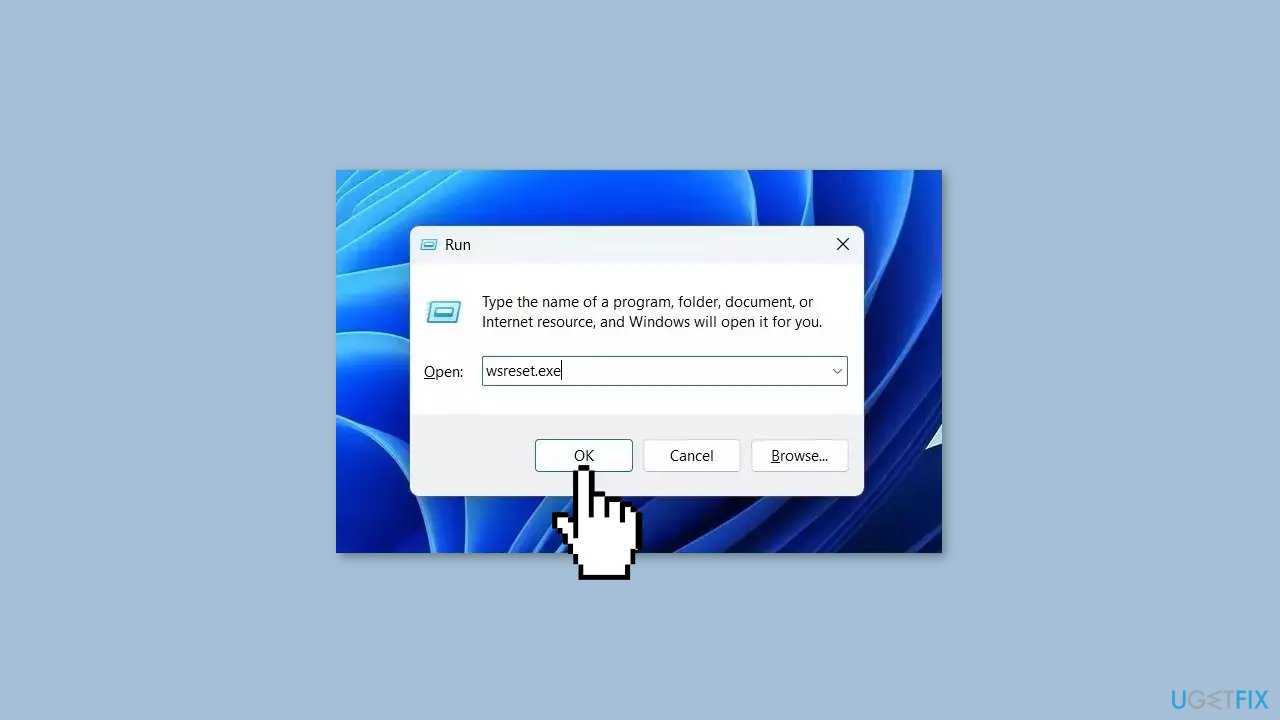
- Click OK.
- A blank Command Prompt window will appear for a few seconds.
- Once the cache is cleared, Windows will close the Command Prompt window and automatically launch the Microsoft Store app.
Solution 4. Adjust Date and Time
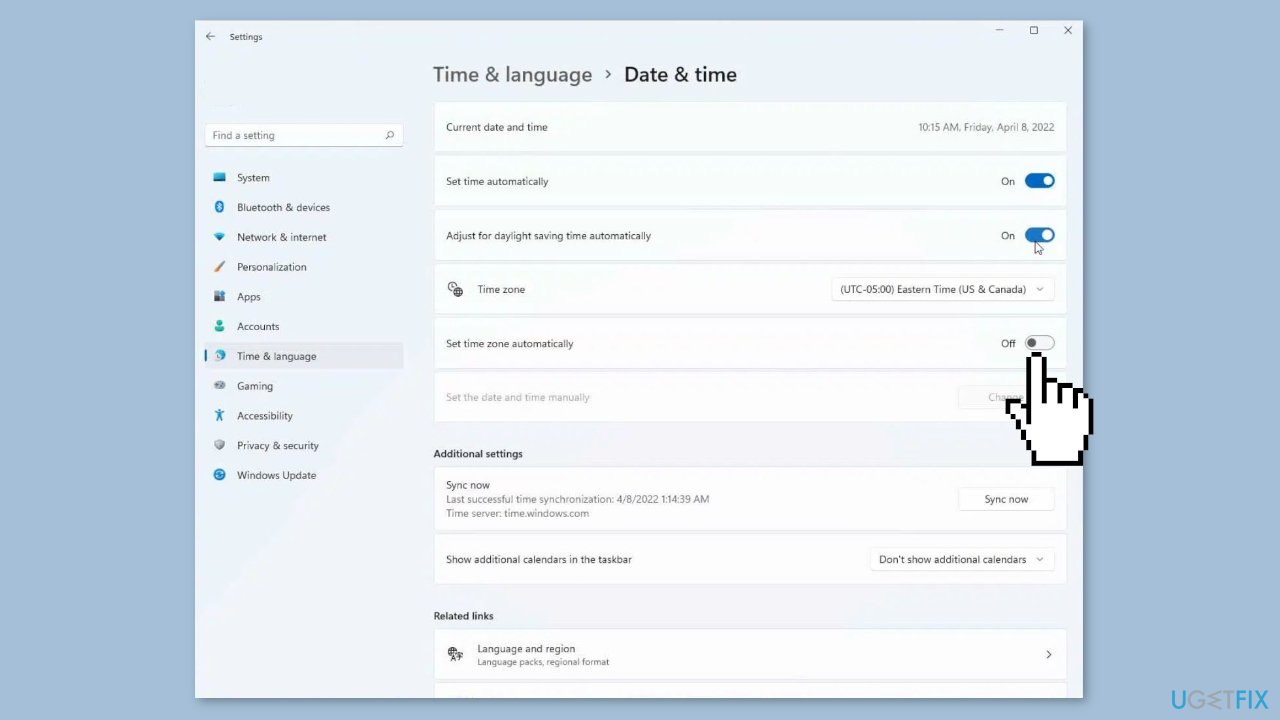
- Press the Windows key + I on your keyboard to open the Settings app.
- Click on Time & language.
- Click on Date and Time.
- Toggle the switches for Set time automatically and Set time zone automatically to the On position.
Solution 5. Repair or Reset the Microsoft Store
- Press the Windows key + I on your keyboard to open the Settings app.
- Click on Apps.
- Click on the Installed Apps tab.
- Search for Microsoft Store in the list of installed apps.
- Click on the three dots beside Microsoft Store.
- Select Advanced options from the drop-down menu.
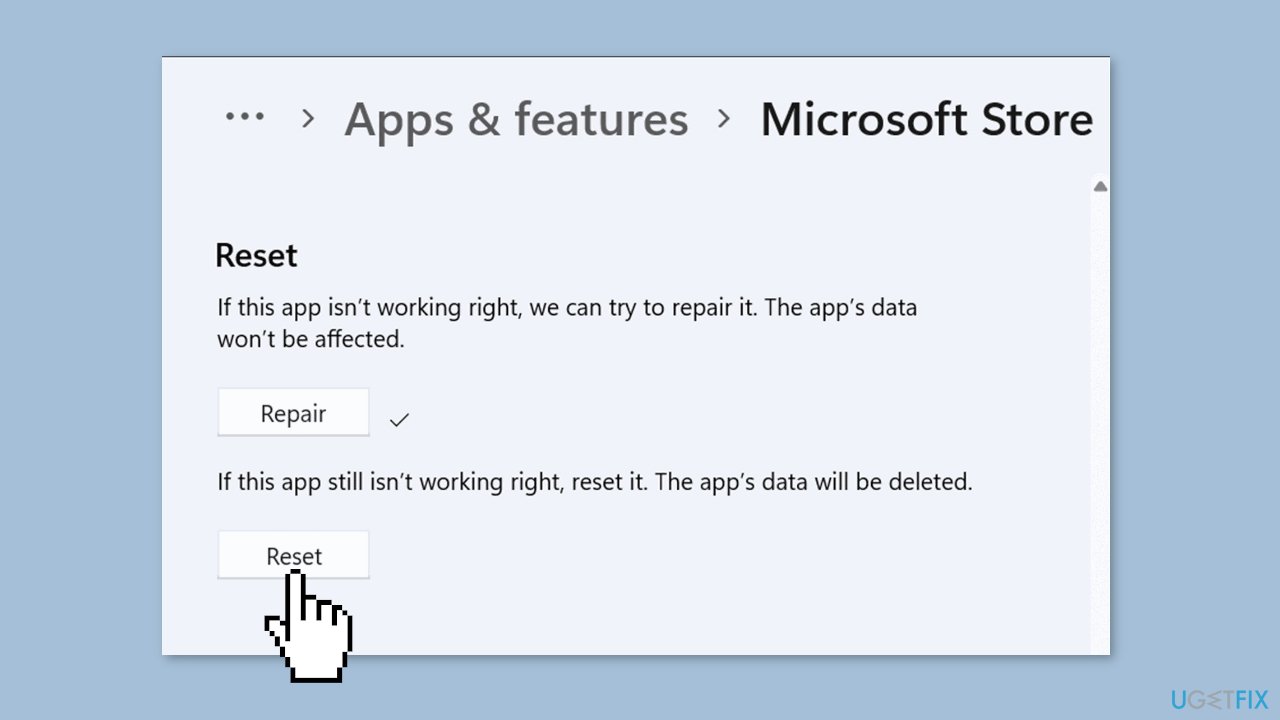
- Scroll down to the Repair/Reset section.
- Click on Repair.
- If repairing does not fix the issue, press Reset.
Fix 0x80048823 error in Office 365
Solution 1. Check Microsoft Servers
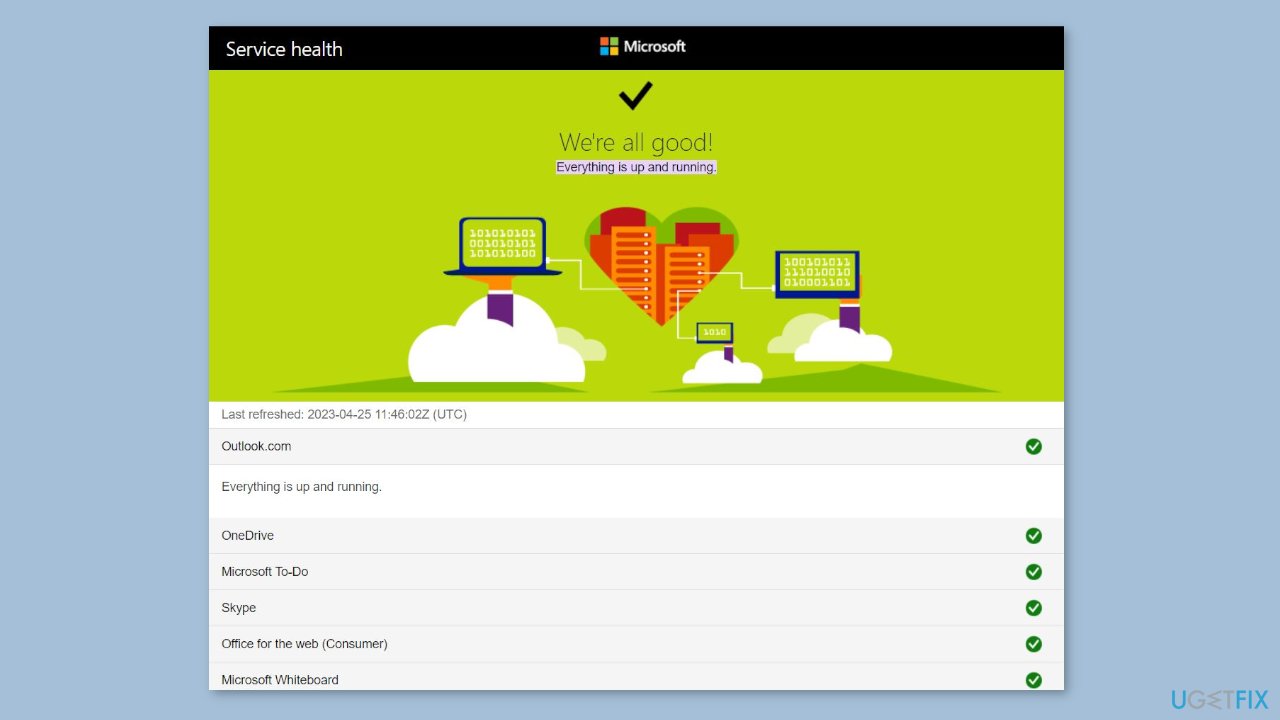
- Verify the status of Microsoft's servers, as they may be undergoing maintenance. You can do this by visiting the Microsoft Server status page. Alternatively, you can follow @MSFT365Status on Twitter for updates on any ongoing maintenance.
- Check the status of your Office 365 subscription. If it's not active, you may need to renew your subscription before using the service. You can check your account status by logging into the Microsoft Account page.
Solution 2. Enable Administrator Access
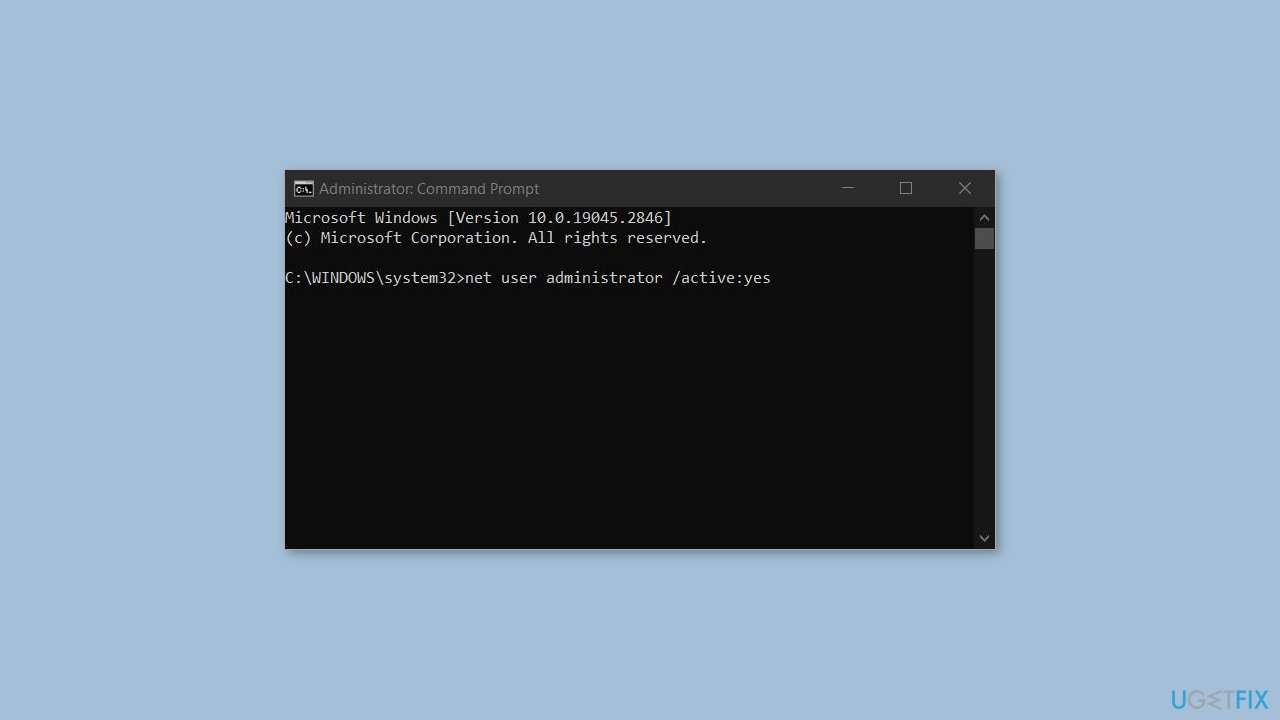
- Click on the Start menu button and type Command Prompt.
- Right-click on Command Prompt and select Run as administrator.
- When prompted with the User Account Control (UAC) dialog, click Yes to continue.
- In the Command Prompt window, type net user administrator /active:yes.
- Press the Enter key to execute the command.
Solution 3. Disable VPN and Proxy Server
- Right-click on the Start icon or press the Windows key + X to open the Power User menu.
- Select Settings from the list.
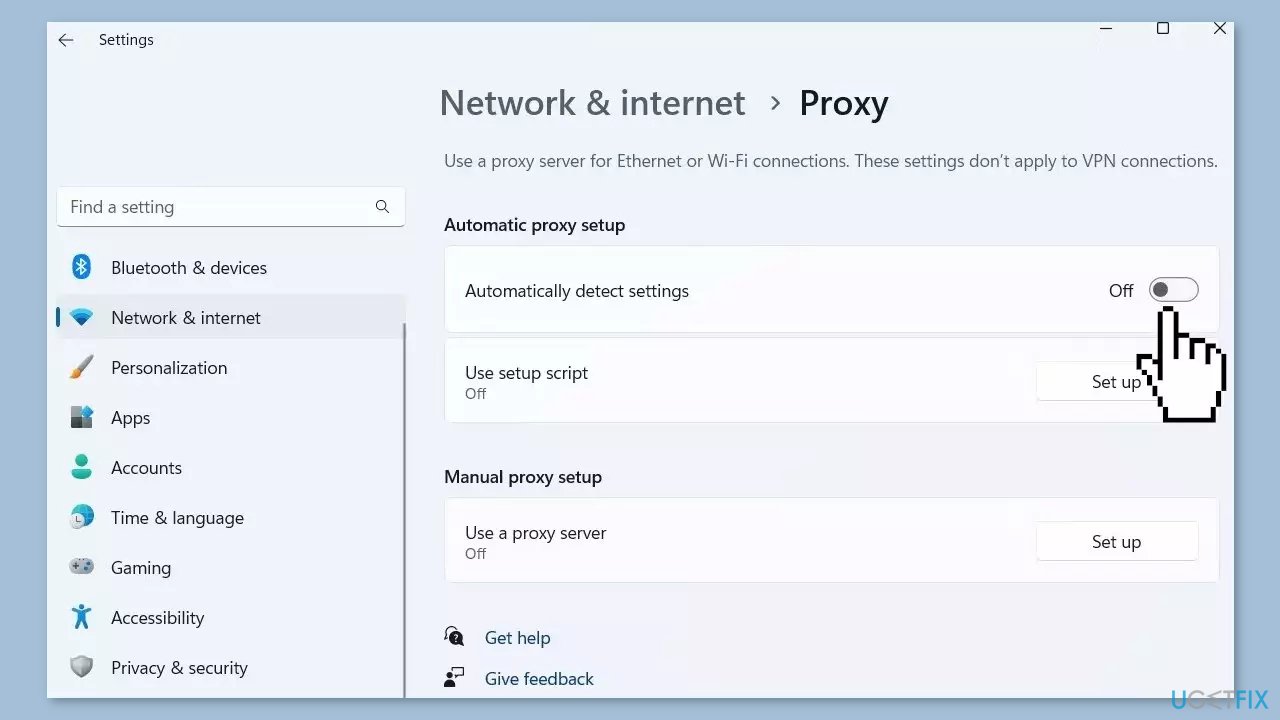
- In the Settings app, select the Network & internet tab from the left pane.
- Click on Proxy.
- Disable the Automatically detect settings and Use a proxy server options.
- Once you have disabled them, check to see if the issue has been resolved.
Solution 4. Try Clean Boot
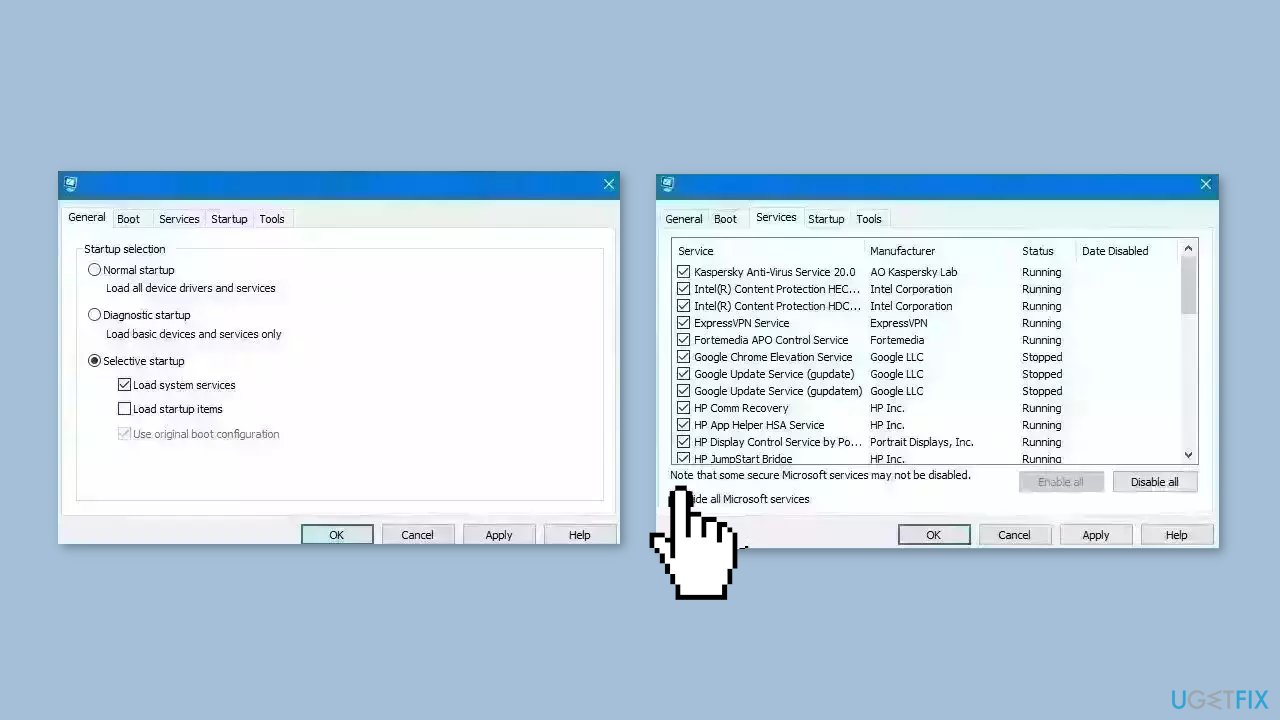
- Open the Search menu, type in system configuration, and press Enter.
- Under the Services tab, tick the Hide all Microsoft services box.
- Click on Disable all button.
- Head over to the Startup tab and click on Open Task Manager.
- Select a third-party program and click on Disable at the top.
- Repeat this step to disable all third-party apps and programs.
- Restart your PC to enter the clean boot state and see if the issue persists.
- If the issue disappeared in the clean boot state, then you can be certain that a third-party app is causing it.
- Go through all recently installed apps or programs and remove them one by one.
Bottom line
To fix the 0x80048823 error, users can troubleshoot their internet connection, verify their Microsoft Account login credentials, clear cache and cookies, reset the Microsoft Store app, or reinstall Office 365. If none of these methods work, consider using a maintenance tool to resolve system errors automatically.
Frequently asked questions
The 0x80048823 error typically indicates an issue with your Microsoft account or the Windows Store, preventing you from signing in or accessing certain features.
To fix the 0x80048823 error in Windows 11, try resetting your Microsoft account credentials and ensuring your date and time settings are correct.
Yes, in Windows 10, you can troubleshoot the 0x80048823 error by running the Windows Store Apps troubleshooter and checking for any pending updates.




Report an issue
What's wrong with this guide? We review every report and update or remove content.
Report received — thank you. We'll review and fix it.
You need a free account to submit a report.
Be the first to comment