How to fix
PDFs opening in Chrome instead of Adobe Reader
on Windows
Resolve the issue of PDFs opening in Chrome instead of Adobe Reader on Windows 10 and 11 effortlessly. Expert-tested solutions await!

What causes How to fix PDFs opening in Chrome instead of Adobe Reader?
- Chrome is set as the default PDF reader
- Acrobat Chrome extension is present
- Adobe Reader is not installed
- Chrome's PDF settings are enabled
- Only available app to open PDFs is Chrome
Repairs Windows system files, removes malware, and restores a clean OS state — without reinstalling.
Hi, I just reinstalled my Windows, and I've noticed that all my PDFs are opening in Chrome instead of Acrobat Reader. Any tips on how to fix this?
PDFs, or Portable Document Format files, are a widely used format for sharing and exchanging documents due to their ability to preserve the original formatting, fonts, and layout of the document. Adobe Acrobat Reader is the most commonly used application for opening PDF files. It is free software that enables users to view, print, and annotate PDF files.
However, some users experience a problem where PDFs open in Chrome instead of Adobe Acrobat Reader. Several factors can contribute to this issue, including Chrome being the default PDF reader on the system, the presence of the Acrobat Chrome extension on the browser, Adobe Reader not being installed or accessible on the computer, or Chrome's PDF settings overriding other applications' permissions.
When Chrome is set as the default PDF reader, any PDF file opened in the browser will bypass Adobe Acrobat Reader. Similarly, the presence of the Acrobat Chrome extension can prompt the system to use the extension instead of the Adobe Acrobat DC application.
If Adobe Reader is not installed on the system, the file will be directed to the only available app that can open it, which could be Chrome. Additionally, if Chrome's PDF settings are enabled, the browser's integrated viewer will be used by default, overriding other application permissions.
To resolve this issue, users can change the default PDF reader in their system settings to Adobe Acrobat Reader, ensuring that Adobe Reader is installed on the computer, disabling Chrome's settings, or uninstalling the Acrobat Chrome extension from the browser. By taking these steps, users can ensure that their files open in Adobe Acrobat Reader rather than Chrome, allowing them to utilize its advanced features for working with PDF files.
Solution 1. Change the default app in Windows settings
First, you should try setting the default app for opening PDF files in Windows settings. Follow these steps:
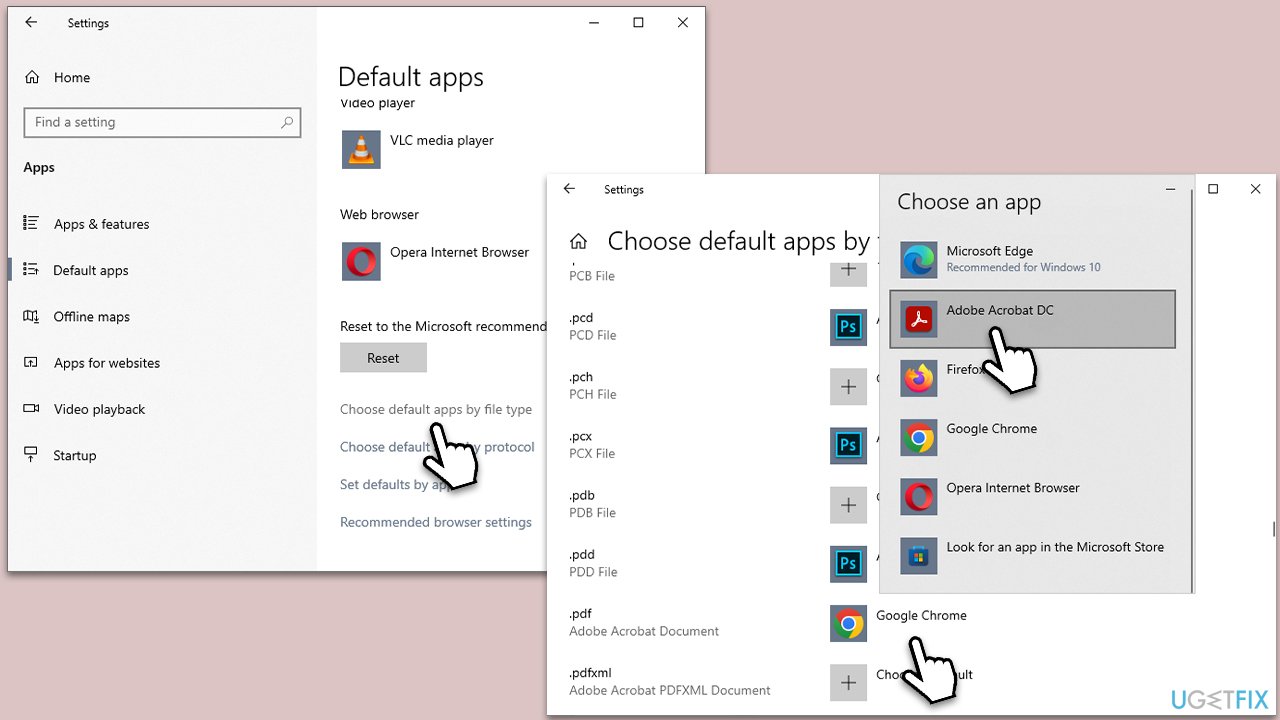
- Click on Start and pick Settings.
- Go to Apps and then pick the Default apps section.
- Click Choose default apps by file type.
- Scroll down to find ".pdf" - you should see the Chrome icon there.
- Click on it and select Adobe Acrobat Reader.
- Close down settings and see if the issue is fixed.
Solution 2. Select to always use Adobe Reader
Let's tweak some more settings in Windows:
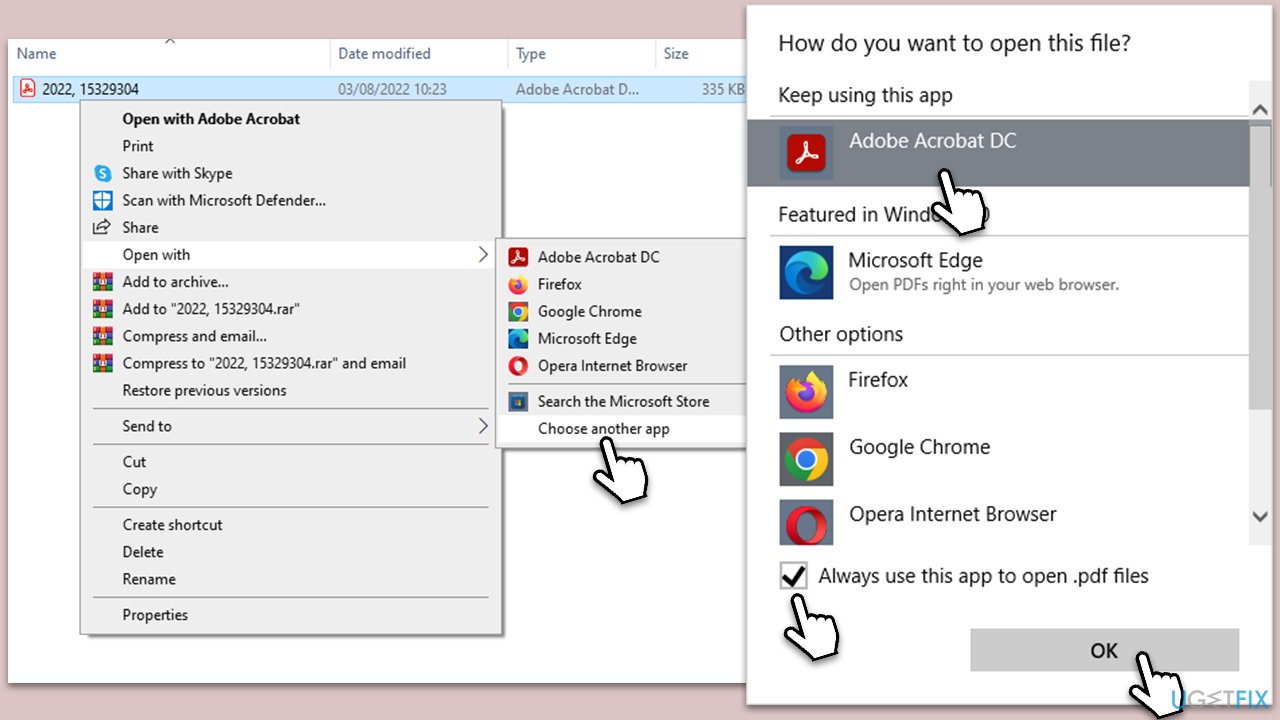
- Right-click on any PDF located on your PC and select Open with > Choose another app.
- Here, select Adobe Acrobat Reader and click Always use this app to open .pdf files
- Click OK.
Solution 3. Disable Adobe Reader add-on
This option might not be applicable to everyone, but in some cases, users might have an add-on that results in PDFs opening in Chrome instead of Adobe.
- Click on Start and click Adobe Acrobat.
- Click Edit and select Preferences.
- In the left pane, select Internet.
- On the right side, click Internet Settings.
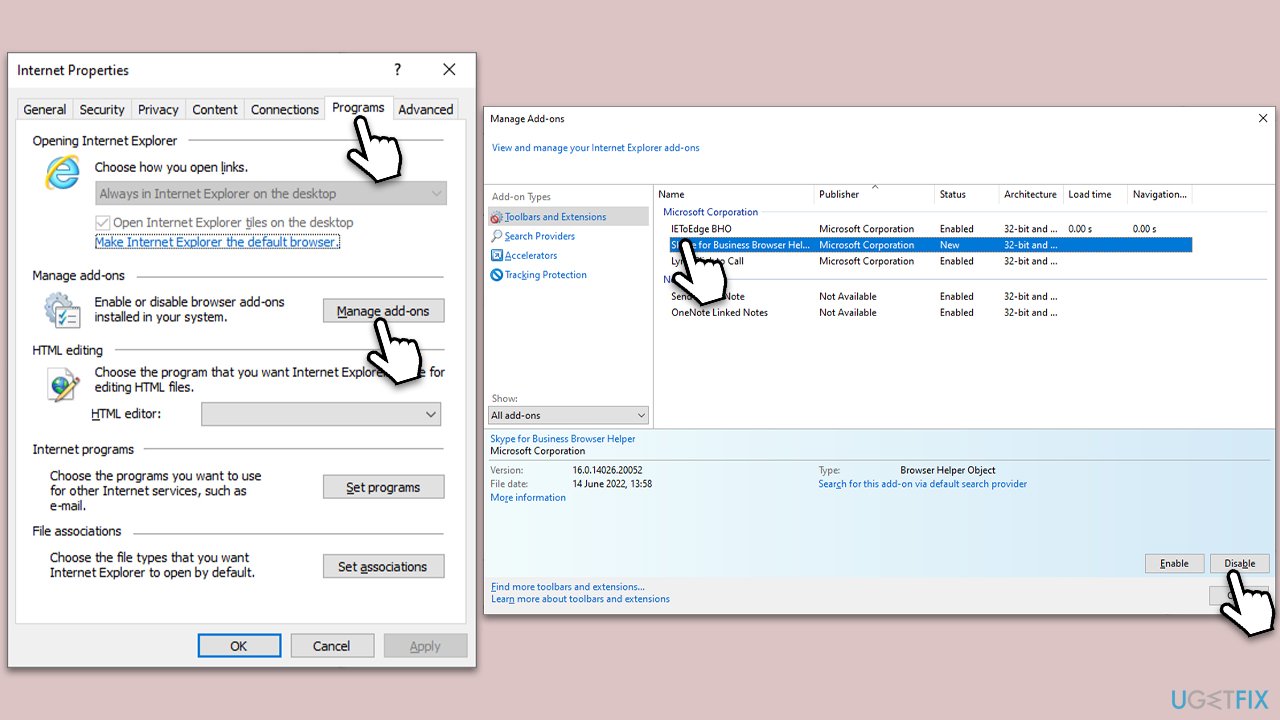
- Go to the Programs tab and click Manage add-ons.
- Select Adobe Reader and click Disable.
Solution 4. Disable the extension in Chrome
If you have an extension installed on your Chrome browser, you should disable it:
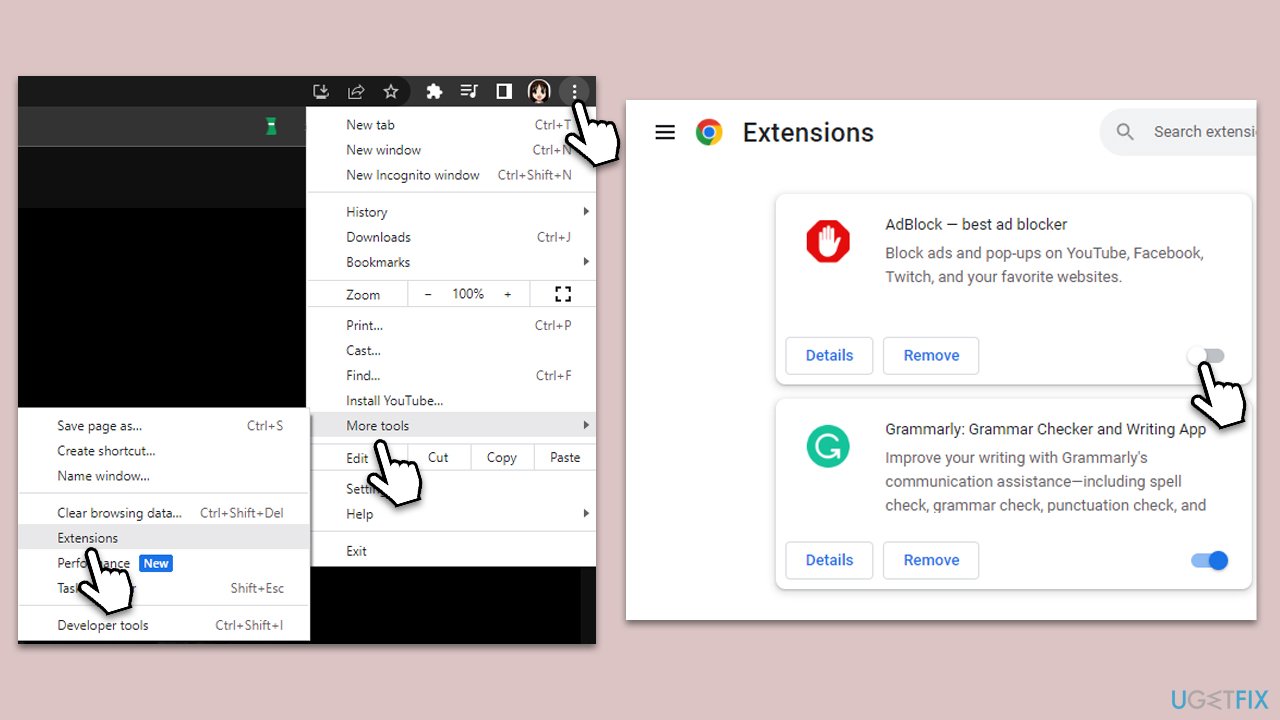
- Open your browser and click on Three vertical dots to open settings.
- Select More tools > Extensions.
- Here, find the PDF Reader extension and click on the switch to disable it.
- Note that this applies to any other extensions that are designed to open/edit PDF files.
Bottom line
To fix the issue of PDFs opening in Chrome instead of Adobe Reader, users can change the default PDF reader in Windows settings, ensure Adobe Reader is installed, disable Chrome's PDF settings, or uninstall the Acrobat Chrome extension. If none of these solutions work, further troubleshooting may be necessary.
Frequently asked questions
Right-click on any PDF file, select 'Open with,' then choose 'Choose another app.' Select Adobe Reader, check the box for 'Always use this app to open .pdf files,' and click 'OK.'
Make sure Chrome is not set to handle PDFs by going to Chrome's settings, searching for 'PDF,' and turning off the 'Download PDF files instead of automatically opening them in Chrome' option.
Yes, go to 'Settings,' then 'Apps,' and click on 'Default apps.' Scroll down and click on 'Reset' under 'Reset to the Microsoft recommended defaults' to restore file associations.




Report an issue
What's wrong with this guide? We review every report and update or remove content.
Report received — thank you. We'll review and fix it.
You need a free account to submit a report.
Be the first to comment