How to fix
Star Wars Jedi: Survivor frame drops and other performance issues on PC
on Windows
Resolve frame drops and boost performance in Star Wars Jedi: Survivor on Windows 10 and 11. Expert-tested tips for smooth gameplay, fixed in minutes.

What causes How to fix Star Wars Jedi: Survivor frame drops and other performance issues on PC?
- Outdated graphics drivers
- Low system specifications
- In-game settings
- Corrupted game files
Repairs Windows system files, removes malware, and restores a clean OS state — without reinstalling.
Hello. I just installed Star Wars Jedi: Survivor but the game keeps lagging and freezing. Is there a way to fix this? Other games work fine on my Windows PC. Any suggestions would be appreciated.
Star Wars Jedi: Survivor is an action-packed game that follows the story of Jedi Knight Cal Kestis, who is on the run from the Galactic Empire. The game features intense battles and exploration of different worlds, making it an exciting experience for gamers.
Some users, however, have reported frame drops and other performance issues while playing the game on their PC. These problems can have a significant impact on the gaming experience, causing lag, stuttering, and freezing, making it difficult to enjoy the game.
Frame drops can occur for a variety of reasons, including outdated graphics drivers,[ref en-1] low system specifications, and in-game settings. Users can try updating their graphics drivers, optimizing their in-game settings, and verifying the game files to ensure that all game files are intact and not corrupted to resolve the issue.
To have a smooth and enjoyable gaming experience, these performance issues must be resolved. As a result, users can try the 8 solutions in this guide to resolve the issue and improve the game's performance. Keep in mind that manual troubleshooting can be time-consuming.
Instead, you can try using a maintenance tool like [d1] that can fix most system errors, BSODs,[ref en-2] corrupted files, and registry[ref en-3] issues, Otherwise, follow the step-by-step instructions below.
Solution 1. Change DPI Settings
- Launch the Steam client.
- Go to Library.
- Right-click on STAR WARS Jedi Survivor.
- Go to Manage.
- Click on Browse local files.
- The game installed folder will open on File Explorer.
- Scroll down the page until you find the STAR WARS Jedi Survivor.exe application file.
- Right-click on this file.
- Click on Properties.
- Click on the Compatibility tab.
- Click on Change High DPI Settings.
- Checkmark the Override high DPI scaling behaviour. Scaling performed by: Application checkbox.
- Click on OK and Apply.
- Try rerunning the game.
Solution 2. Disable Fullscreen Optimizations
- Launch the Steam client.
- Go to Library.
- Right-click on STAR WARS Jedi Survivor.
- Go to Manage.
- Click on Browse local files.
- The game installed folder will open on File Explorer.
- Scroll down the page until you find the STAR WARS Jedi Survivor.exe application file.
- Right-click on this file.
- Click on Properties.
- Click on the Compatibility tab.
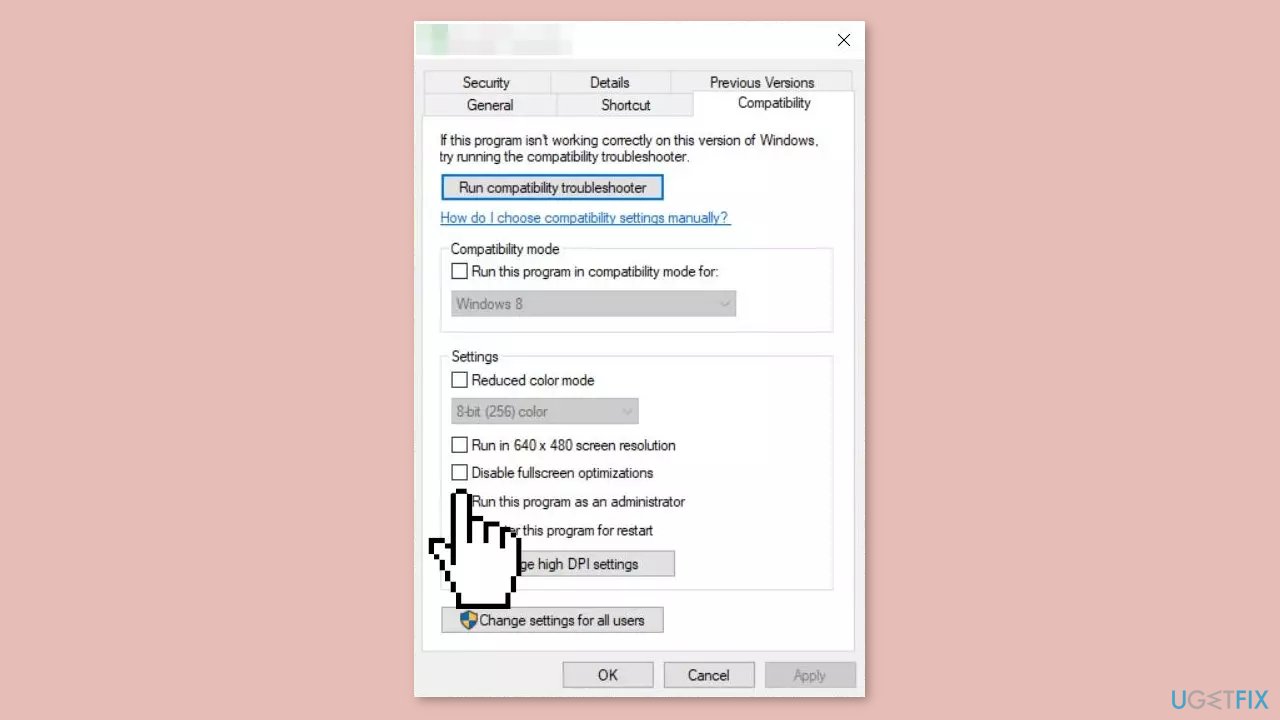
- Disable Fullscreen Optimizations by checking the box next to it.
- Click on Apply and OK to save changes.
Solution 3. Update Graphics Driver
- Right-click on the Start Menu to open up the Quick Access Menu.
- Click on Device Manager from the list.
- Double-click on the Display adapters category to expand the list.
- Right-click on the dedicated graphics card name.
- Select Update driver.
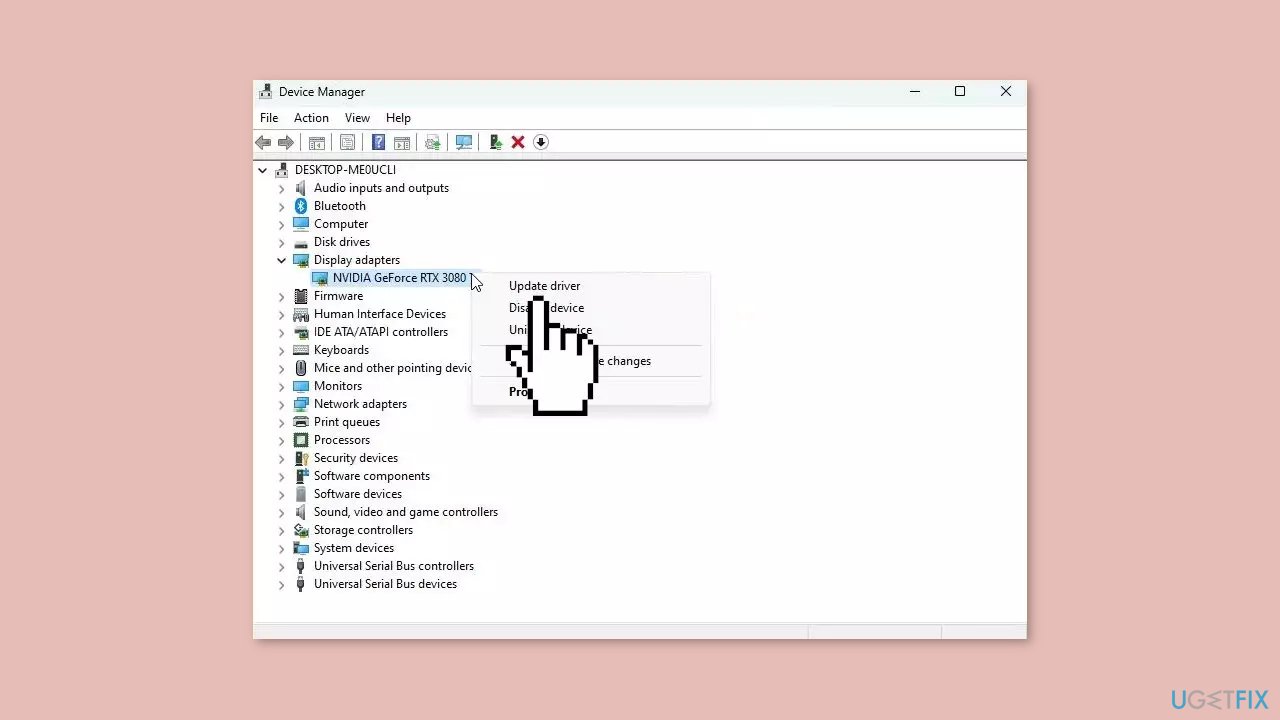
- Choose Search automatically for drivers.
- If an update is available, it will automatically download and install the latest version.
- Once done, make sure to reboot your computer to apply the changes.
You can also use a dedicated utility like [rev id="DriverFix"] that can find the best drivers for your machine and install them automatically.
Solution 4. Run the Game as an Administrator
- Right-click on the STAR WARS Jedi Survivor exe shortcut file on your PC.
- Select Properties.
- Click on the Compatibility tab.
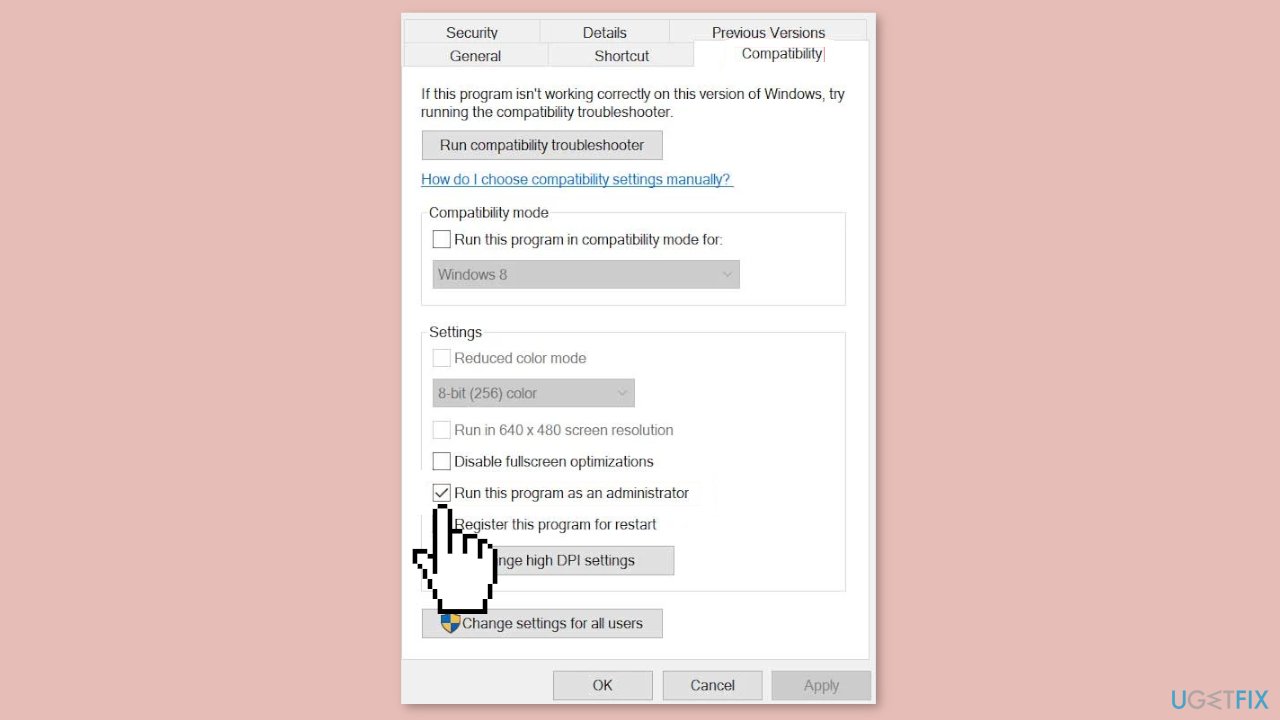
- Check the Run this program as an administrator checkbox.
- Click on Apply and OK to save changes.
Solution 5. Change Power Options
- Click on the Start Menu.
- Type Control Panel and click on it from the search result.
- Go to Hardware and Sound.
- Select Power Options.
- Click on High Performance to select it.
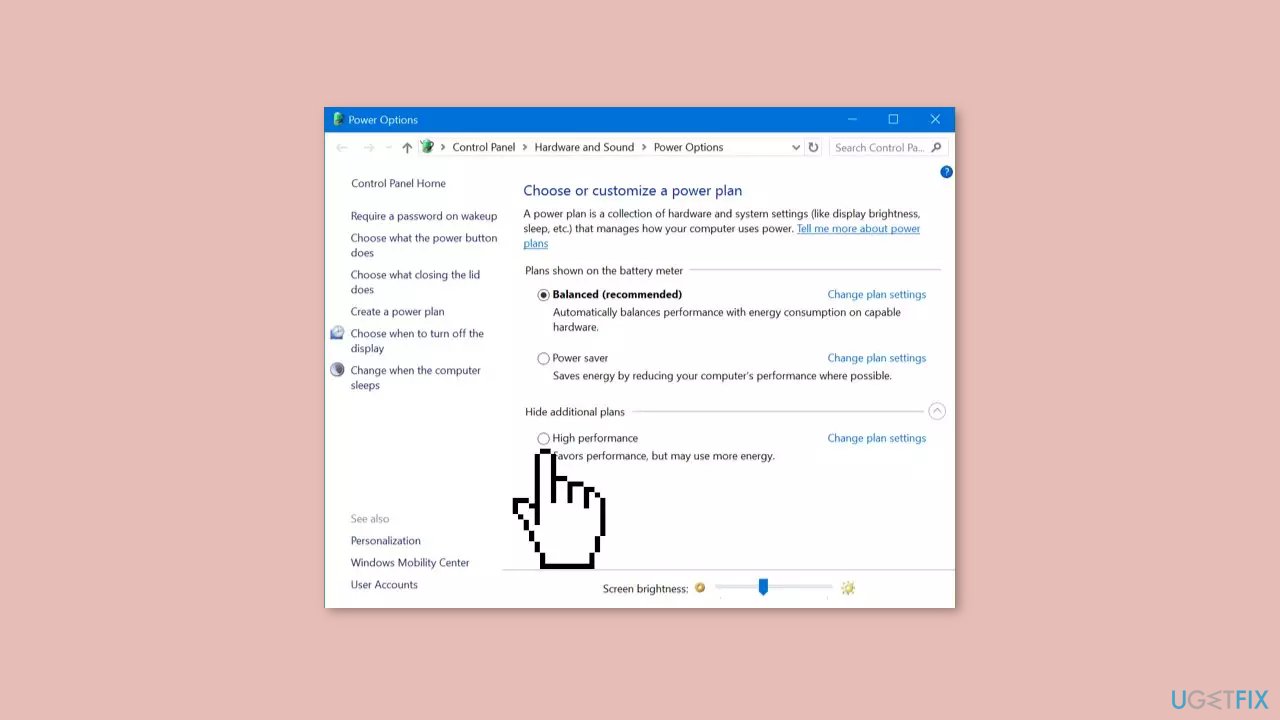
- Close the window.
- Fully shut down your computer.
- Wait until your computer is fully turned off.
- Power on your computer again.
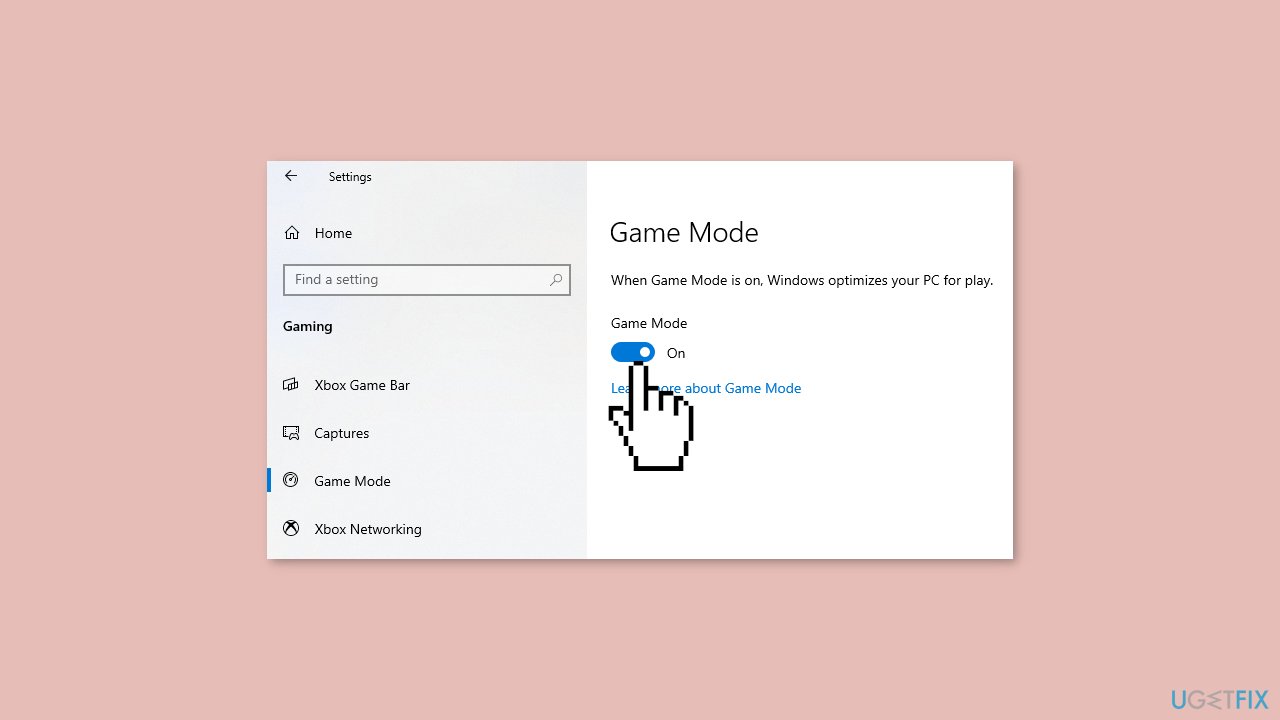
Solution 6. Enable Game Mode
- Press the Windows key + I to open Windows Settings.
- Click on Gaming.
- Open the Game Mode option.
- Make sure to enable the Game Mode toggle.
Solution 7. Adjust In-Game Graphics Settings
- Launch the Steam or Epic Games Launcher on your PC.
- Open the STAR WARS Jedi Survivor game.
- Once you are in the gameplay, press the Escape key to go back to the main menu.
- Click on Options.
- Go to Video.
- Under the Basic tab, set Display Mode to Windowed or Fullscreen.
- Set the display resolution to the recommended resolution supported by your monitor or display device.
- Try turning off the Vertical Sync (V-Sync) option or vice versa to cross-check the performance.
- Head over to the Advanced tab.
- Select Medium or High or Ultra High to Choose Preset depending on the PC specification.
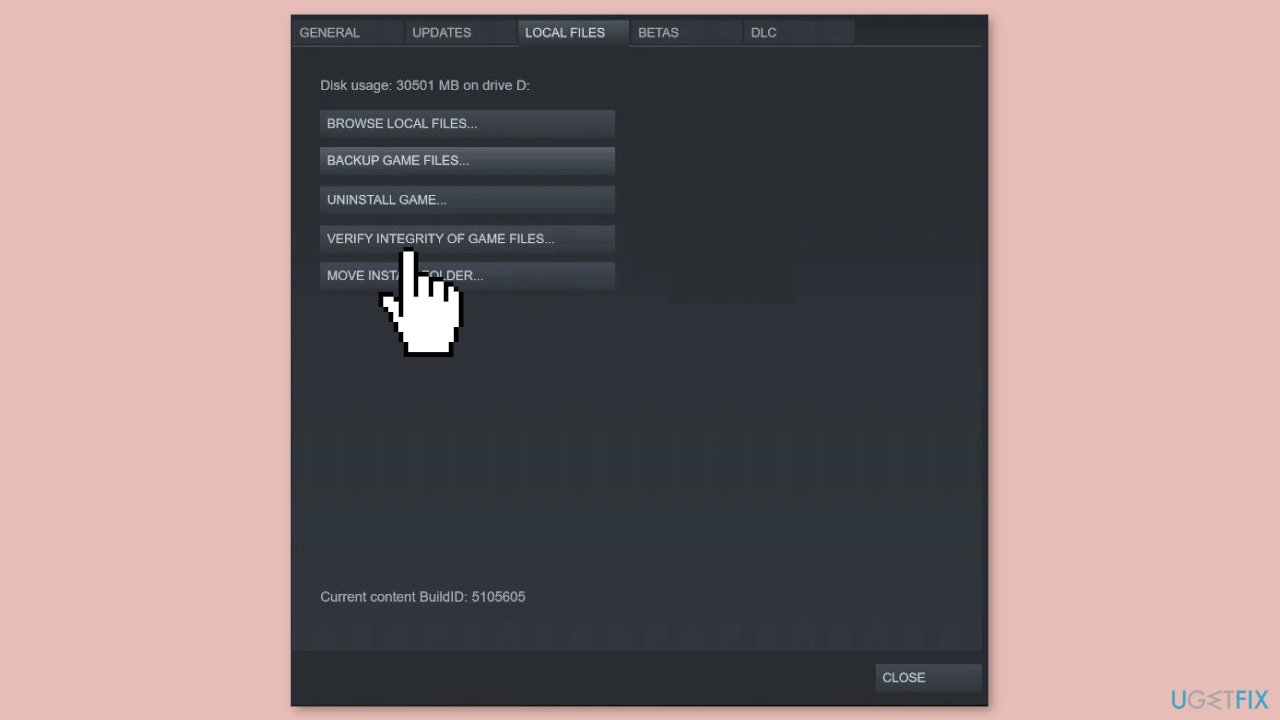
Solution 8. Verify Integrity of Game Files
Steam:
- Launch the Steam client and click on the Library tab.
- Right-click on the STAR WARS Jedi Survivor game from the list of installed games.
- Select Properties from the drop-down menu and go to the Local Files tab.
- Click on the Verify Integrity of Game Files button.
- Wait for the process to complete and then restart your computer.
Epic Games Launcher:
- Open the Epic Games Launcher and click on the Library tab.
- Click on the three-dots icon next to STAR WARS Jedi Survivor.
- Click on Verify, and the launcher will start verifying the game files.
- Wait for the process to complete and restart the launcher.
EA Client:
- Launch the EA App on your computer and sign in to your EA Account.
- Click on the My Collection tab to access your game library.
- Locate the STAR WARS Jedi Survivor game and right-click on it.
- From the context menu that appears, select Repair or Verify.
- The EA App will begin the verification process, which checks for any missing or corrupted game files.
- Once the process is complete, the app will automatically download and replace any problematic files.
- After verification, launch the STAR WARS Jedi Survivor game and enjoy a seamless gaming experience.
Bottom line
To resolve frame drops and performance issues in Star Wars Jedi: Survivor, users can update their graphics drivers, optimize in-game settings, and verify the integrity of game files. If these solutions do not work, consider using a maintenance tool to fix system errors or follow additional troubleshooting steps.
Frequently asked questions
Common causes include outdated graphics drivers, insufficient system resources, and high in-game settings that exceed your PC's capabilities.
You can optimize performance by lowering the in-game graphics settings, updating your graphics drivers, and ensuring that no background applications are consuming resources.
Yes, you can adjust the Power Options to 'High performance' and disable Game Mode to potentially enhance the game's performance on your Windows PC.




Report an issue
What's wrong with this guide? We review every report and update or remove content.
Report received — thank you. We'll review and fix it.
You need a free account to submit a report.
Be the first to comment