How to fix
Windows update error 0x800f0816
on Windows
Resolve Windows update error 0x800f0816 quickly and easily. Follow our expert-tested solutions for Windows 10 and Windows 11. Fixed in minutes!

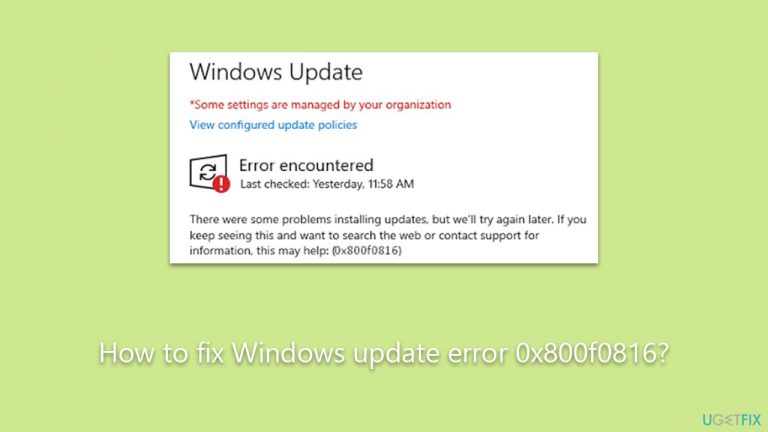
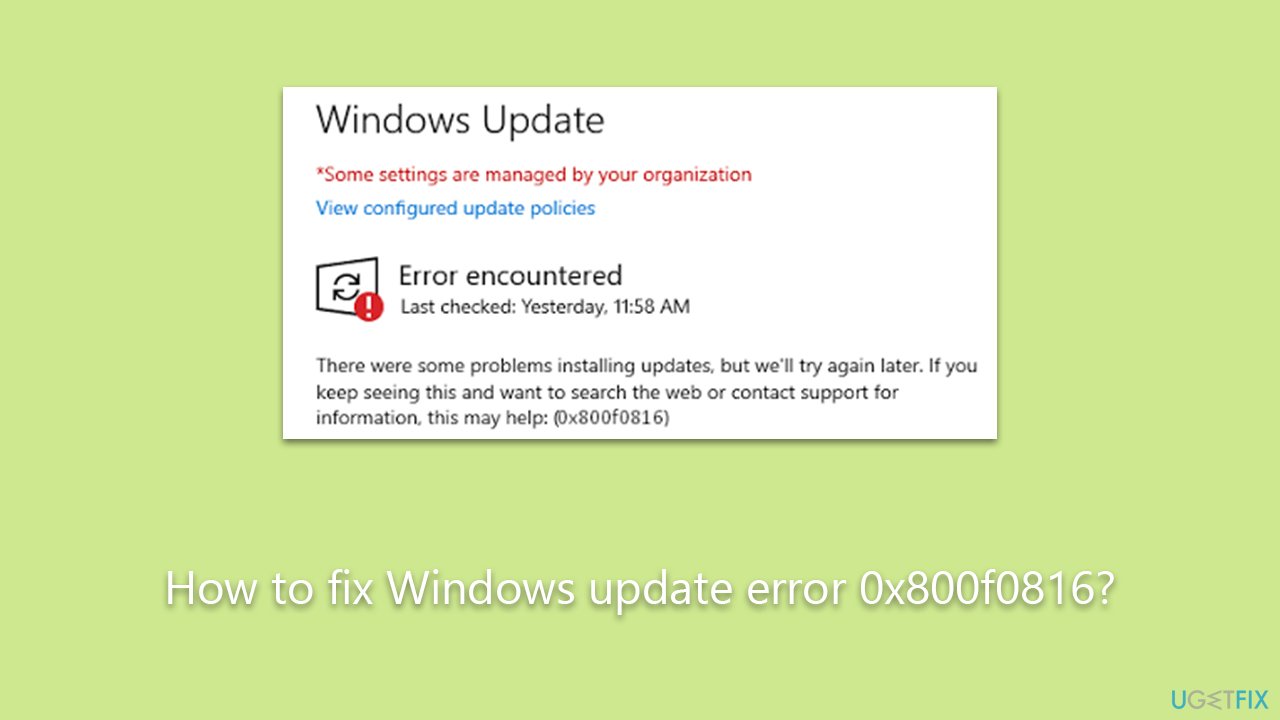
What causes How to fix Windows update error 0x800f0816?
- Issues with Windows Update Components
- Corrupted system files
- Presence of malware or malicious software
- Incomplete or failed previous update
Repairs Windows system files, removes malware, and restores a clean OS state — without reinstalling.
Hi, I was trying to install the recent Windows updates, but I keep getting the 0x800f0816 error. Can you provide me with any advice on what I should do, please?
The Microsoft Windows operating system, known for its user-friendly interface and extensive capabilities, is not without its share of technical glitches. One common problem that users may encounter is the Windows Update Error 0x800f0816. This error typically occurs during system updates, preventing users from successfully installing the latest Windows updates.
The Windows Update Error 0x800f0816 is primarily linked to issues with the Windows Update Components. These components are a set of services and libraries that facilitate the downloading and installation of Windows updates. When these components malfunction, it often results in error codes such as 0x800f0816.
Moreover, this error can also be a result of corrupted system files. Every operating system has essential files that ensure its smooth operation. If these files get damaged, they may interfere with various system functions, including Windows updates. In the case of error 0x800f0816, some corrupted system files may be interfering with the updating process, leading to this problem.
Sometimes, this error can be triggered by the presence of malware or other malicious software on your computer. Malware can manipulate system settings, damage files, and generally disrupt the normal operation of your system. If malware has targeted your Windows Update Components or the associated system files, it may be causing the Windows Update error.
Another aspect to consider is the possibility of an incomplete or failed previous update. In some instances, if an earlier Windows update was not installed correctly or was interrupted, it can lead to residual issues that interfere with subsequent updates. This scenario might be the culprit behind the 0x800f0816 error showing up on your system.
Remember, while the Windows Update Error 0x800f0816 can be a frustrating problem, it's generally not an insurmountable issue. The easiest way to solve it, though, is by scanning the system with PC repair software [d1], which can quickly and easily repair damaged system files.
Quick checks
- If you haven't done so yet, restart your computer and try updating again.
- Check your time and date - make sure it is set correctly.
- Temporarily disable third-party security software/firewall, as well as VPN software, and try updating again.
- Scan your system for malware.
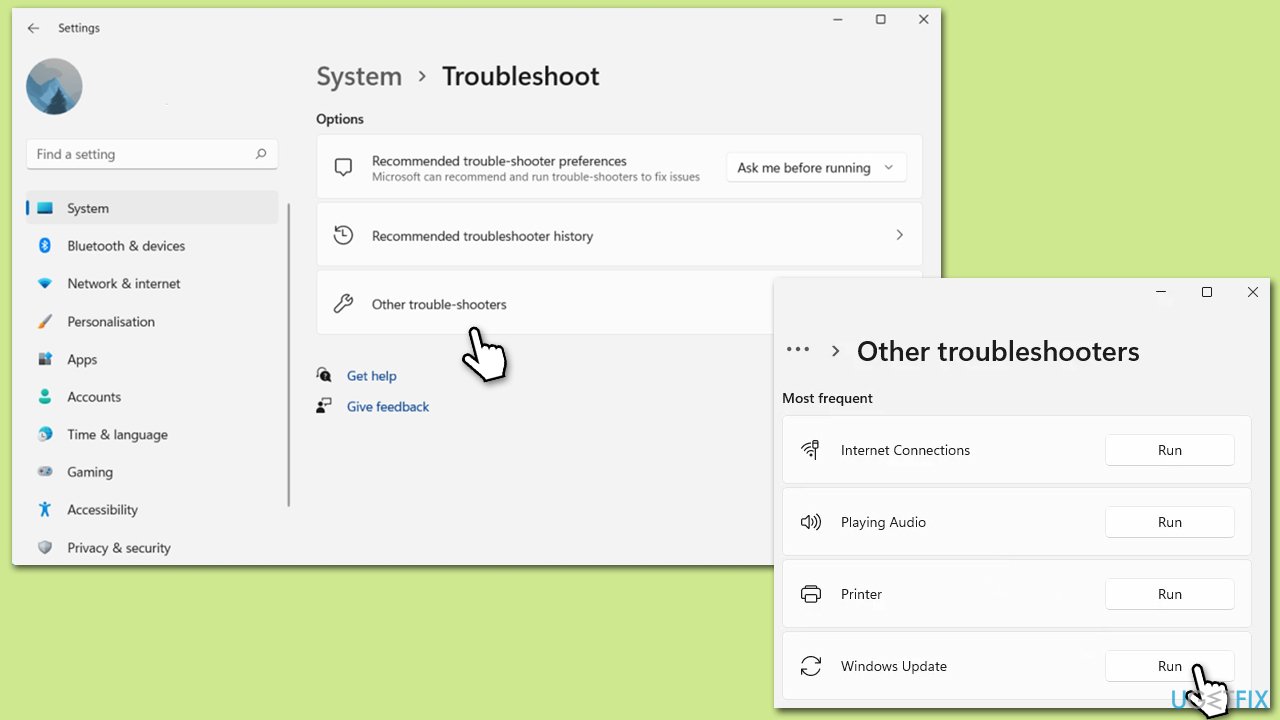
Fix 1. Run Windows Update troubleshooter
We always recommend our users start with built-in troubleshooters when Windows updates fail.
- Type Troubleshoot in Windows search and press Enter.
- Select Additional troubleshooters/Other troubleshooters.
- Find Windows Update from the list.
- Click it and select Run the troubleshooter/Run.
- Restart your computer when the update process is finished.
Fix 2. Repair corrupted files
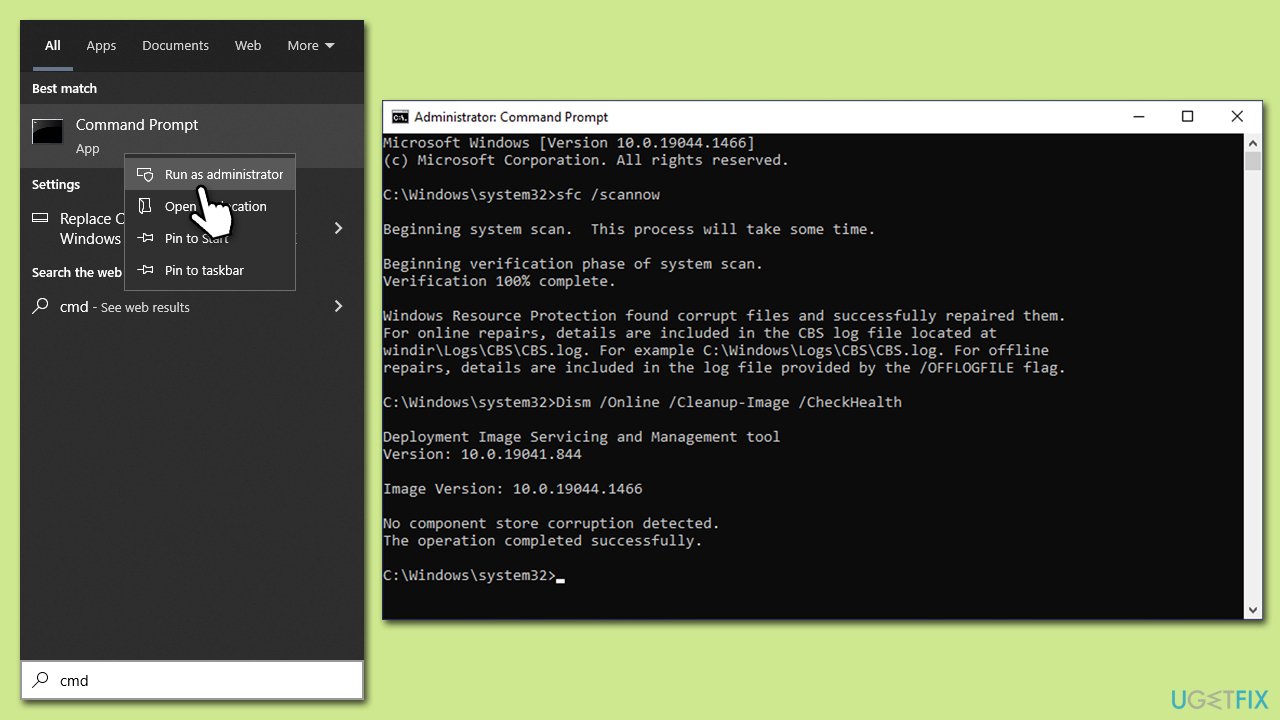
To make sure that system files aren't damaged, run the following commands in elevated Command Prompt. Windows will attempt to fix the damage automatically:
- Type cmd in Windows search
- Right-click on Command Prompt and select Run as administrator
- When the User Account Control window pops up, click Yes
- Use the following command and press Enter:
sfc /scannow - After the SFC scan is complete, use the following commands, pressing Enter after each:
DISM /Online /Cleanup-Image /CheckHealth
DISM /Online /Cleanup-Image /ScanHealth
DISM /Online /Cleanup-Image /RestoreHealth - Restart your device.
Fix 3. Check services
The update process relies on background services functioning correctly. Should any of these services encounter issues or contain bugs, the update may not be successful. If the services are operational, attempting to restart them could be a viable solution.
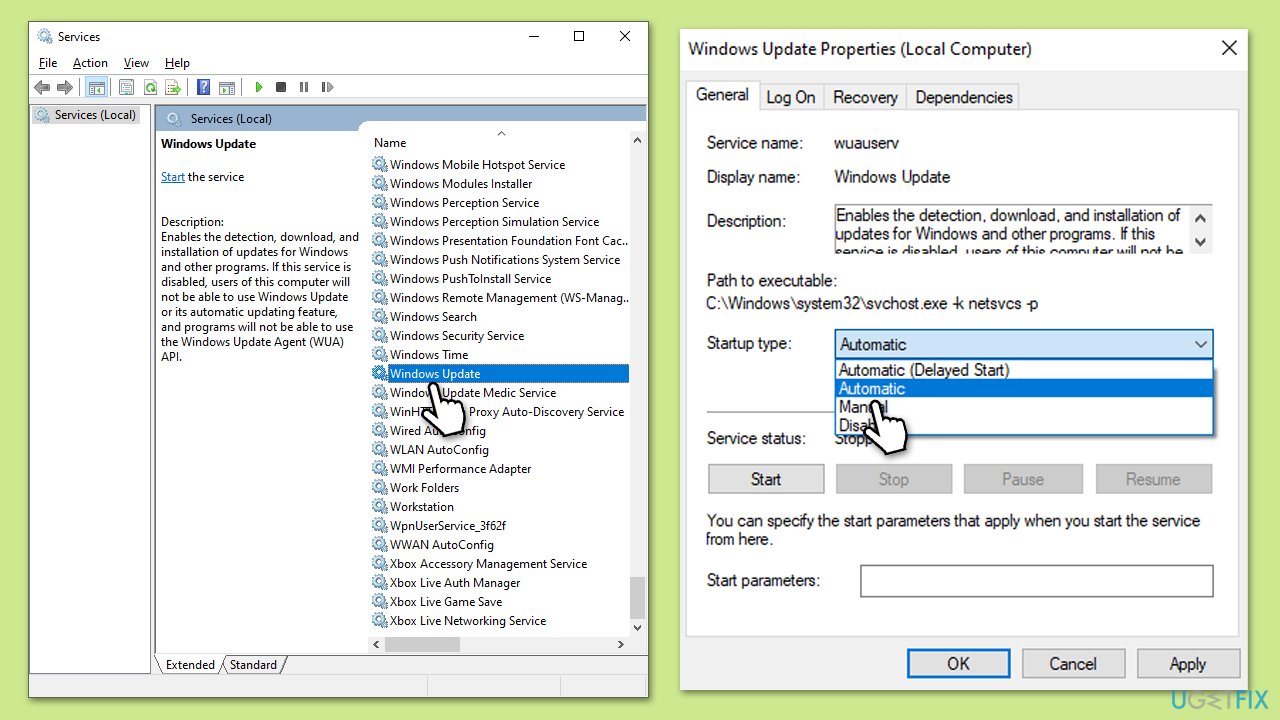
- Type in Services in Windows search and press Enter.
- Scroll down to locate the Windows update service.
- If it is already running, right-click and select Restart.
- If the service is not running, double-click it to open Properties.
- Under Startup type, pick Automatic from the drop-down menu.
- Click Start, Apply, and OK.
- Now perform the same steps with the following services:
Background Intelligent Transfer Service (BITS)
Cryptographic Services
Windows Installer Service
Trusted Installer Service.
Fix 4. Reset Windows update components
If enabling relevant processes did not help, you can try resetting Windows update components as follows:
- Open Command Prompt as administrator.
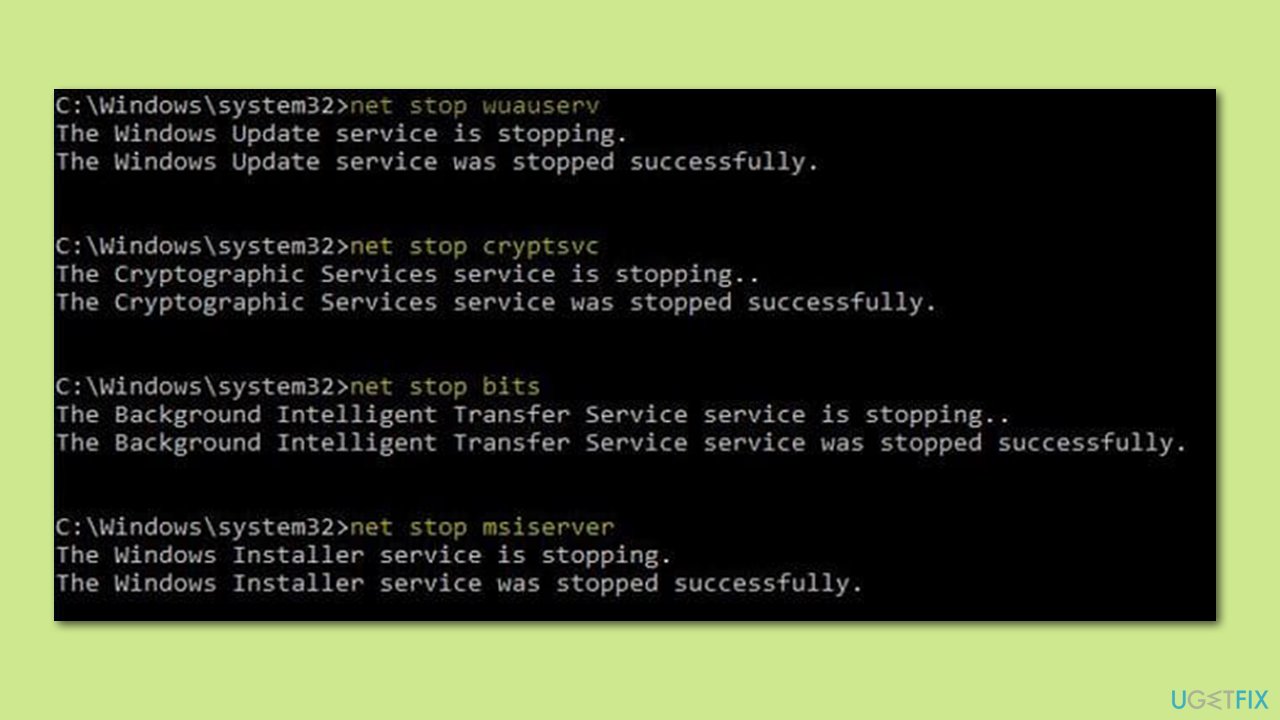
- Type the following commands one by one in Command Prompt and press Enter after each:
net stop wuauserv
net stop cryptSvc
net stop bits
net stop msiserver
Ren C:\Windows\SoftwareDistribution SoftwareDistribution.old
Ren C:\Windows\System32\catroot2 Catroot2.old - When these commands are executed, the last thing to do is to re-enable relevant services:
net start wuauserv
net start cryptSvc
net start bits
net start msiserver - Reboot your system.
Fix 5. Install manually
- Type in Update in Windows search and press Enter.
- Click View Update History on the right side of the window.
- From the list of updates, note the KB number of the one that failed to be installed.
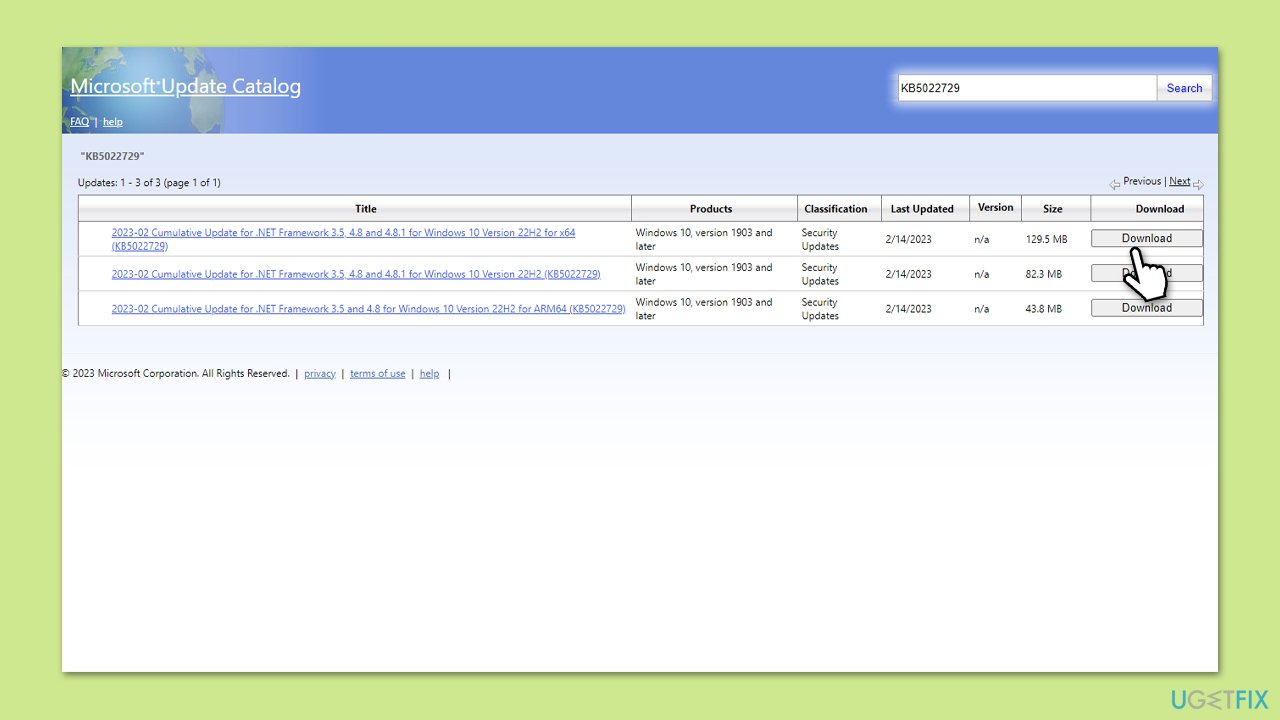
- Go to Microsoft Update Catalog.
- Here, type in the KB number and click Search.
- Pick the version that is compatible with your operating system (ignore updates for the server) and click Download.
- Proceed with on-screen instructions and restart Windows once done.
Fix 6. Use Media Creation Tool
Before proceeding, uninstall third-party anti-malware and disconnect all unnecessary devices, such as printers or cameras.
- Visit the official Microsoft website and download Windows 10 installation media (Windows 11 version).
- Double-click the installer and select Yes when UAC shows up.
- Agree to terms.
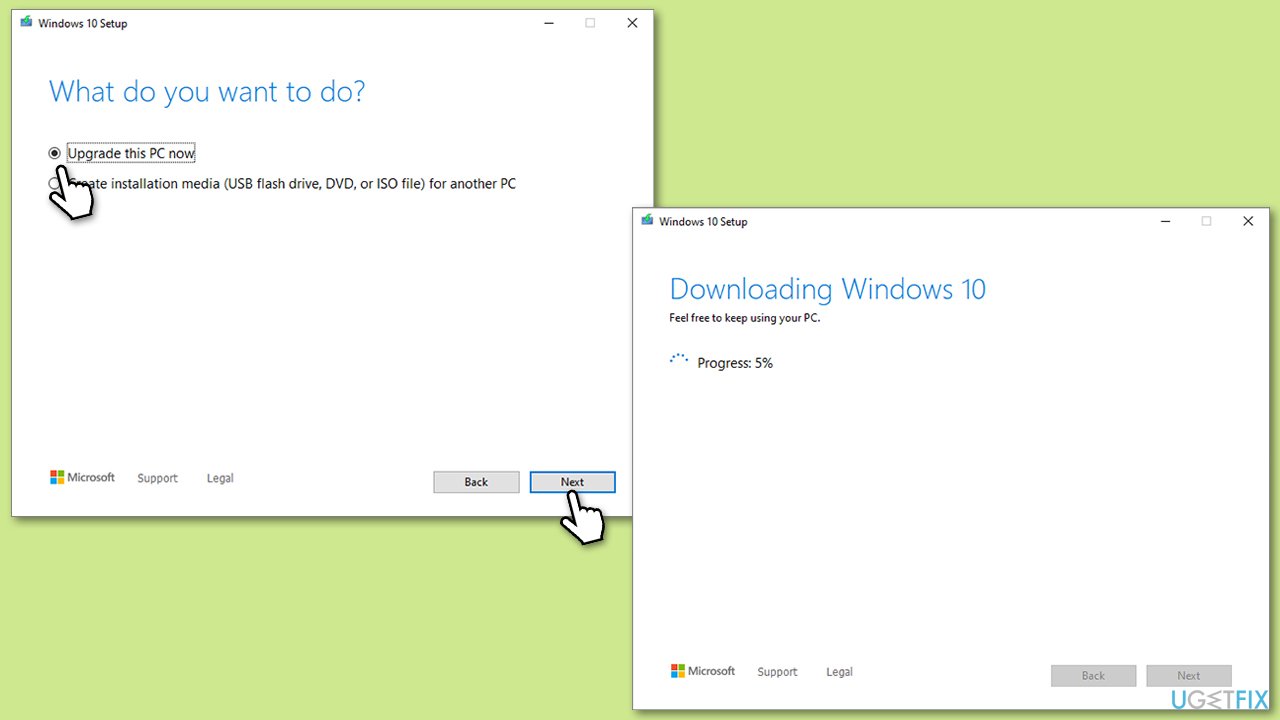
- Select Upgrade this PC now and click Next.
- Windows will start downloading the needed files.
- Agree to the terms once again and click Next.
- Before installing, make sure that you are happy with your choices (otherwise, you can click the Change what to keep option).
- Finally, click Install to begin the upgrade process.
Bottom line
To fix the Windows Update error 0x800f0816, you can scan your system with PC repair software to repair damaged system files. Additionally, ensure that your previous updates were installed correctly. If these solutions do not work, consider seeking further technical assistance.
Frequently asked questions
The error code 0x800f0816 typically indicates that there is a problem with the Windows Update service or that certain required files are missing or corrupted during the update process.
To resolve the 0x800f0816 error on Windows 11, you can try running the Windows Update Troubleshooter and performing a System File Check using the command 'sfc /scannow' in the Command Prompt.
Yes, in Windows 10, you can use the DISM tool with the command 'DISM /Online /Cleanup-Image /RestoreHealth' to repair the Windows image, which may help fix the 0x800f0816 error.




Report an issue
What's wrong with this guide? We review every report and update or remove content.
Report received — thank you. We'll review and fix it.
You need a free account to submit a report.
Be the first to comment