How to fix
Srv2.sys Blue Screen error
on Windows
Resolve the Srv2.sys Blue Screen error on Windows 10 and 11 with our expert-tested solutions. Get your PC back on track—fixed in minutes!

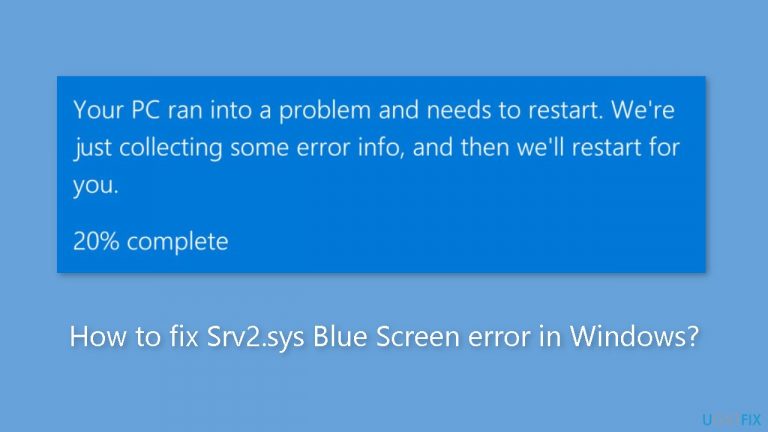
What causes How to fix Srv2.sys Blue Screen error in Windows?
- Corrupted srv2.sys driver
- Damaged system files
- Outdated drivers
- Missing Windows updates
- Malware infection
Repairs Windows system files, removes malware, and restores a clean OS state — without reinstalling.
Hello. Today my Windows PC crashed with a Srv2.sys Blue Screen error. What may cause it and how do I fix this issue?
A Blue Screen of Death (BSOD)[ref en-1] is a critical system error that causes the computer to crash and display a blue screen with an error message in Microsoft Windows operating systems. A variety of factors, including software and hardware issues, can cause the BSOD.
The srv2.sys Blue Screen of Death error occurs when the srv2.sys driver,[ref en-2] which is part of the Windows Server operating system, becomes corrupted or damaged. Because this driver is in charge of handling file and printer-sharing services, it has the potential to disrupt the entire network if it fails.
The system will crash if the srv2.sys BSOD error occurs, and the computer will display a blue screen with an error message indicating the problem. Typically, the message will include an error code that can be used to help diagnose the problem.
BSOD errors can be frustrating and inconvenient because they can result in data loss and system instability. They can also indicate more serious problems with the computer's hardware or software, which may necessitate the assistance of a professional.
To fix the srv2.sys BSOD error, users can try several possible solutions, including updating drivers and software, performing a system restore, or running a virus scan. In this guide, you will find 6 steps that should help you fix Srv2.sys Blue Screen error in Windows. Follow the step-by-step instructions below.
Method 1. Fix Corrupted System Files
Use Command Prompt commands to repair system file corruption:
- Open Command Prompt as administrator
- Use the following command and press Enter:
sfc /scannow
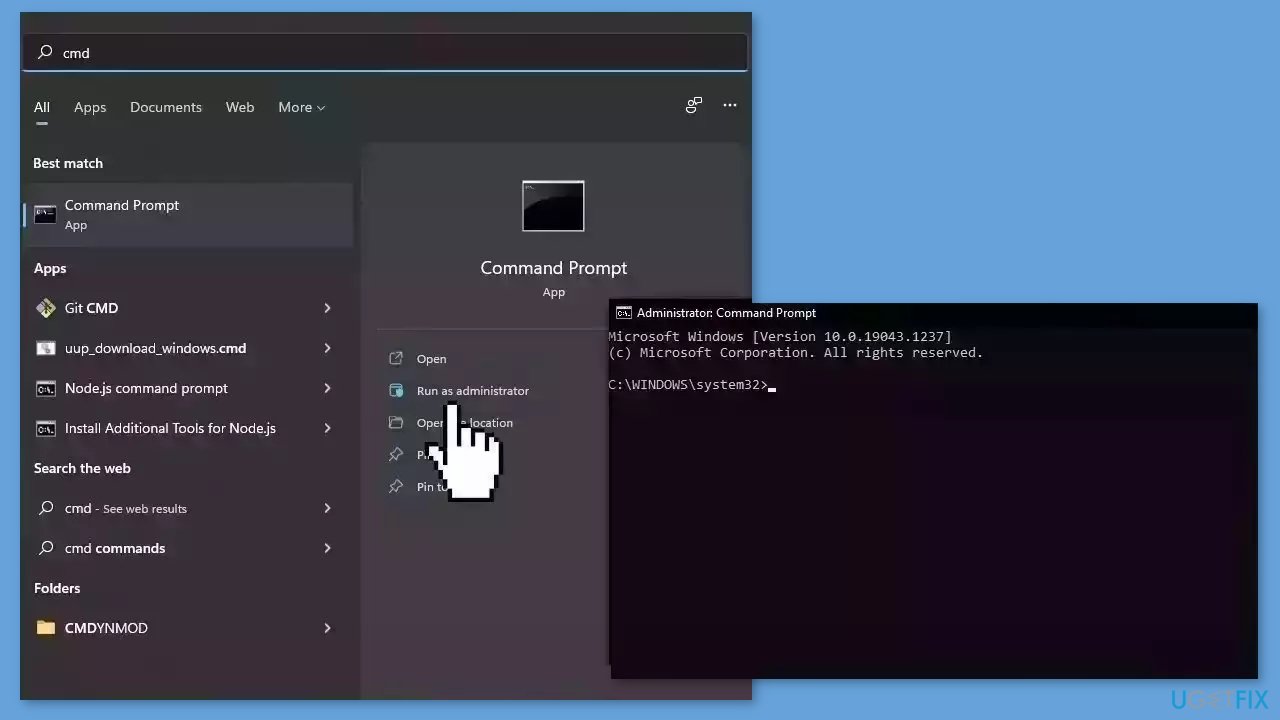
- Reboot your system
- If SFC returned an error, then use the following command lines, pressing Enter after each:
DISM /Online /Cleanup-Image /CheckHealth
DISM /Online /Cleanup-Image /ScanHealth
DISM /Online /Cleanup-Image /RestoreHealth
Method 2. Install Windows Updates
- Press the Windows key + R to open the Run box
- Type ms-settings:windowsupdate in the text box and press Enter
- Click the Check for updates button
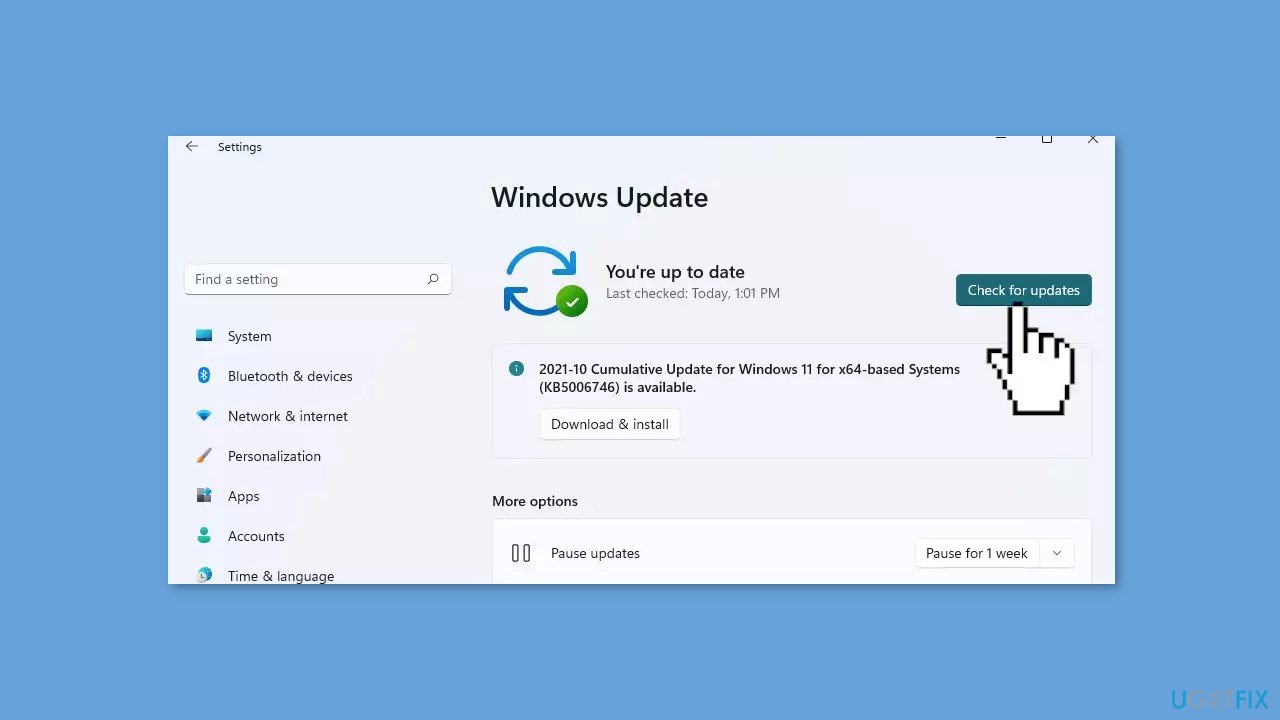
- If a new update is available, click the Download & Install all button.
- Restart your computer after the process is finished and check to see if the problem is fixed
Method 3. Update Drivers
Outdated drivers could be the cause of the error. In this case, you can fix it automatically by using [rev id="DriverFix"], which will scan your PC for missing and out-of-date device drivers. Or you can update them manually:
- Open Settings.
- Click on Update & Security.
- Click on Windows Update.
- Click the Check for updates button.
- Click the View optional updates option.
- Click the Driver updates tab.
- Select the driver you want to update.
- Click the Download and install button.
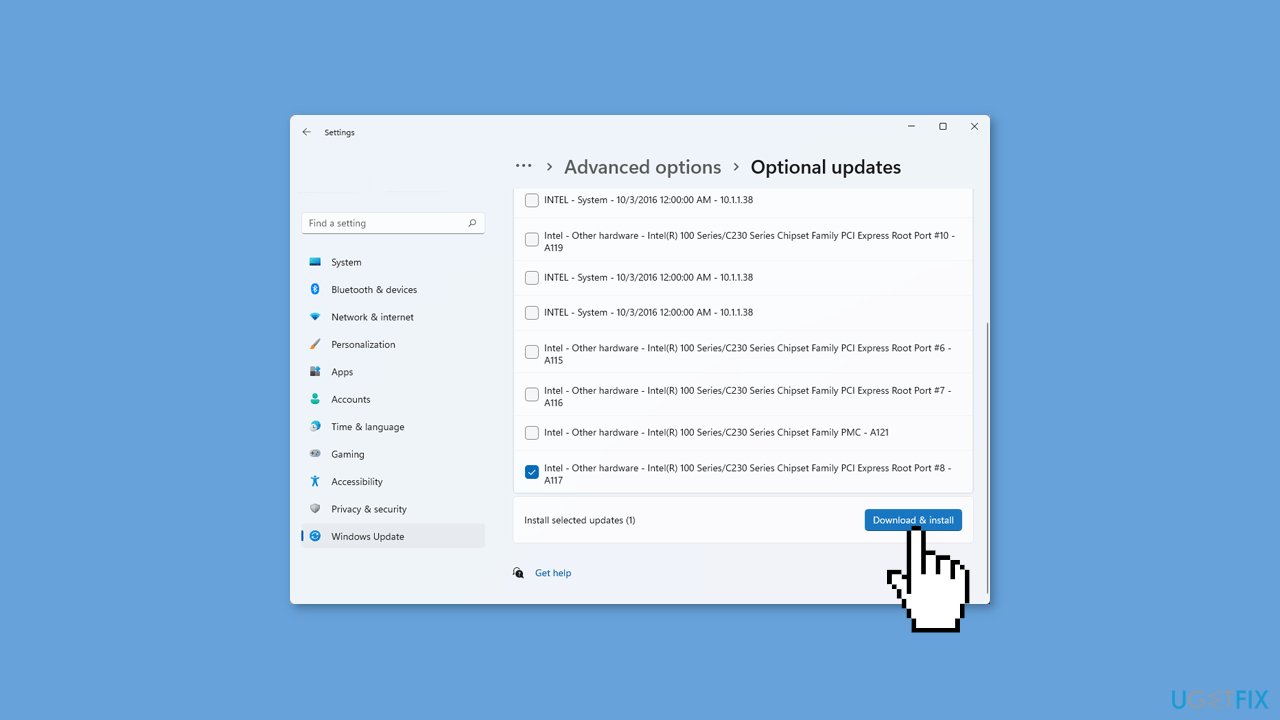
If the View optional updates link is not available after checking for updates, then Windows Update does not have any new drivers or any updates for other products at that particular time.
Method 4. Run System Restore
System Restore is a feature in Microsoft Windows that allows users to revert their computer's state to a previous point in time. This can be helpful if you have made changes to your system that are causing problems.
- Press the Windows key + R on your keyboard to open the Run box.
- Type SystemPropertiesProtection and press Enter.
- Go to the System Protection tab.
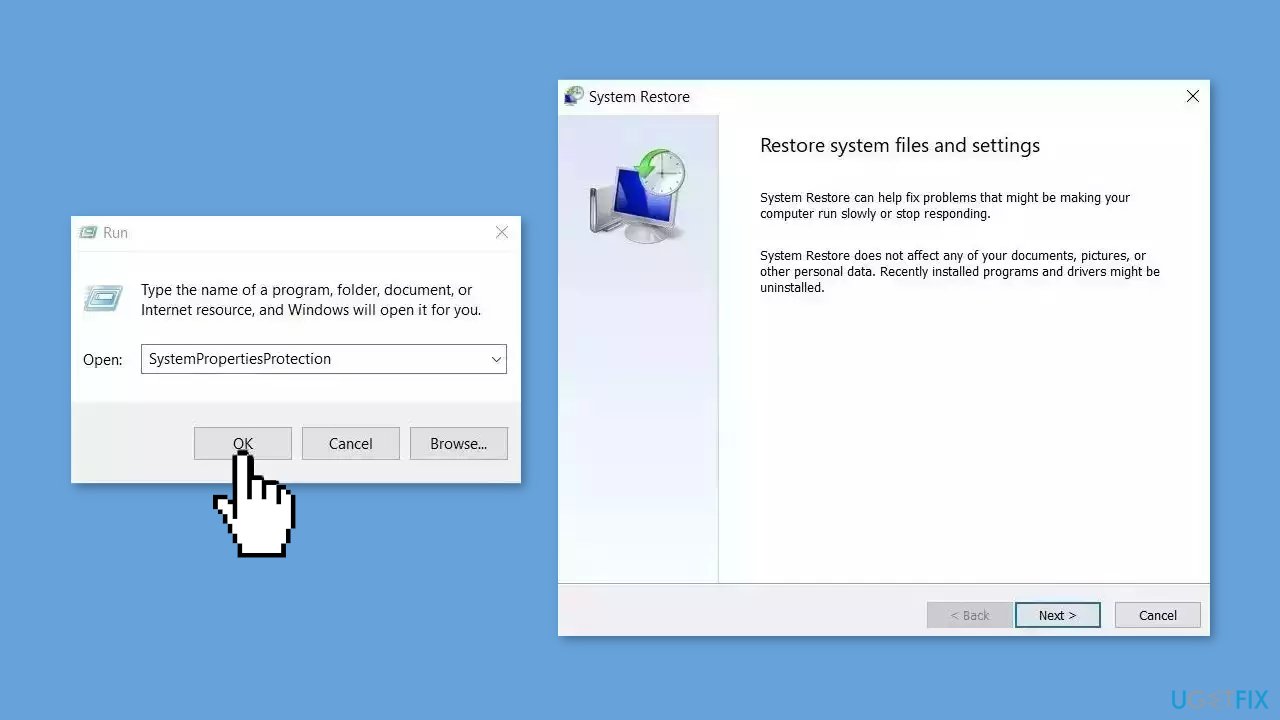
- You will see the System Restore… button. Click it to run System Restore.
- Follow the prompts until you can select a restore point.
- Select the one you want (ideally before the issue started occurring) and go ahead with the process.
Method 5. Run a System Repair Tool
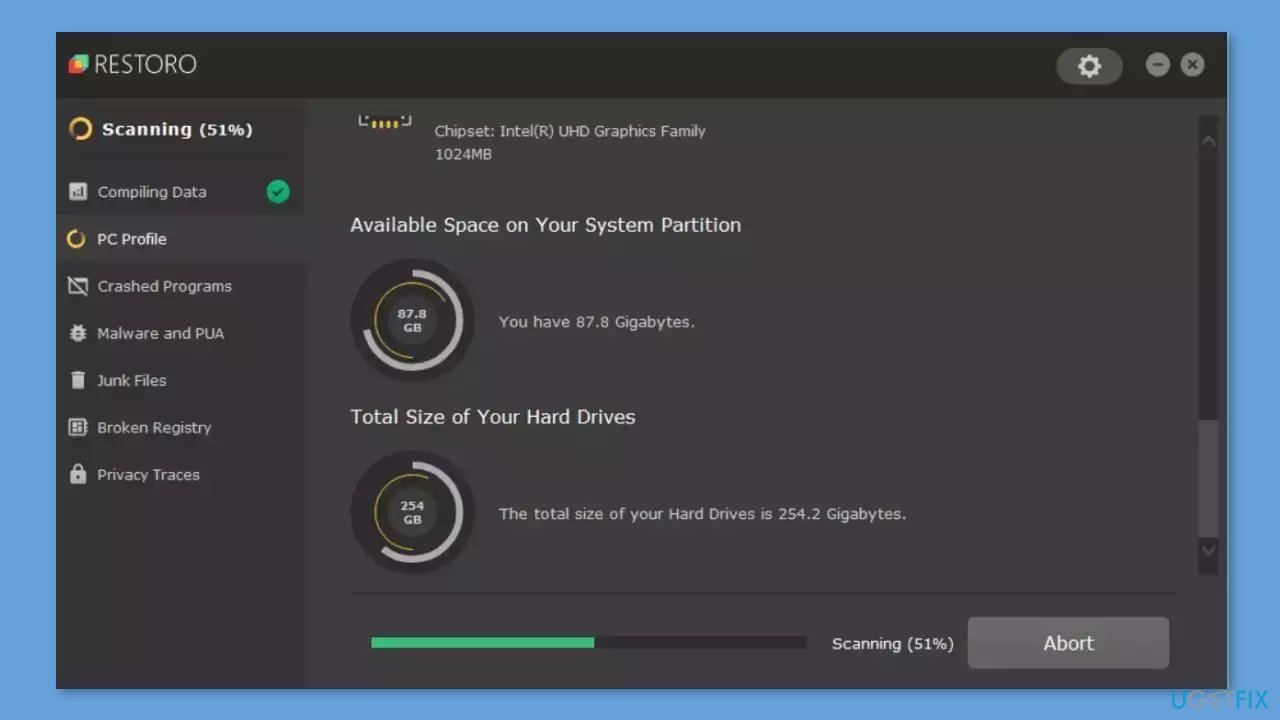
[d1] is a tool that is designed to diagnose and fix problems with a computer's operating system. It can effectively troubleshoot and repair system errors, BSODs, corrupted files, registry[ref en-3] issues, and other problems that can cause a computer to perform poorly or become unresponsive. Additionally, it can automatically clear cookies and cache which are often the cause of many malfunctions.
To identify and repair problems, the tool performs a scan of the system and replaces or repairs any damaged or corrupted files and other issues that it finds. While many users have reported that it is effective at fixing certain types of computer problems, it is important to note that it is not a guaranteed solution and may not work for all issues.
Method 6. Repair Install Windows
- Visit the official Microsoft website to download Windows 11 or Windows 10 Installation Media
- Run the Media Creation Tool and select Create Installation Media for another PC.
- Select your USB drive.
- Let the Process complete of writing the Installation files to the USB drive.
- Click Finish.
- On the PC you wish to upgrade, Press Windows + E to open the File Explorer.
- Open the Removable drive and click Setup.exe.
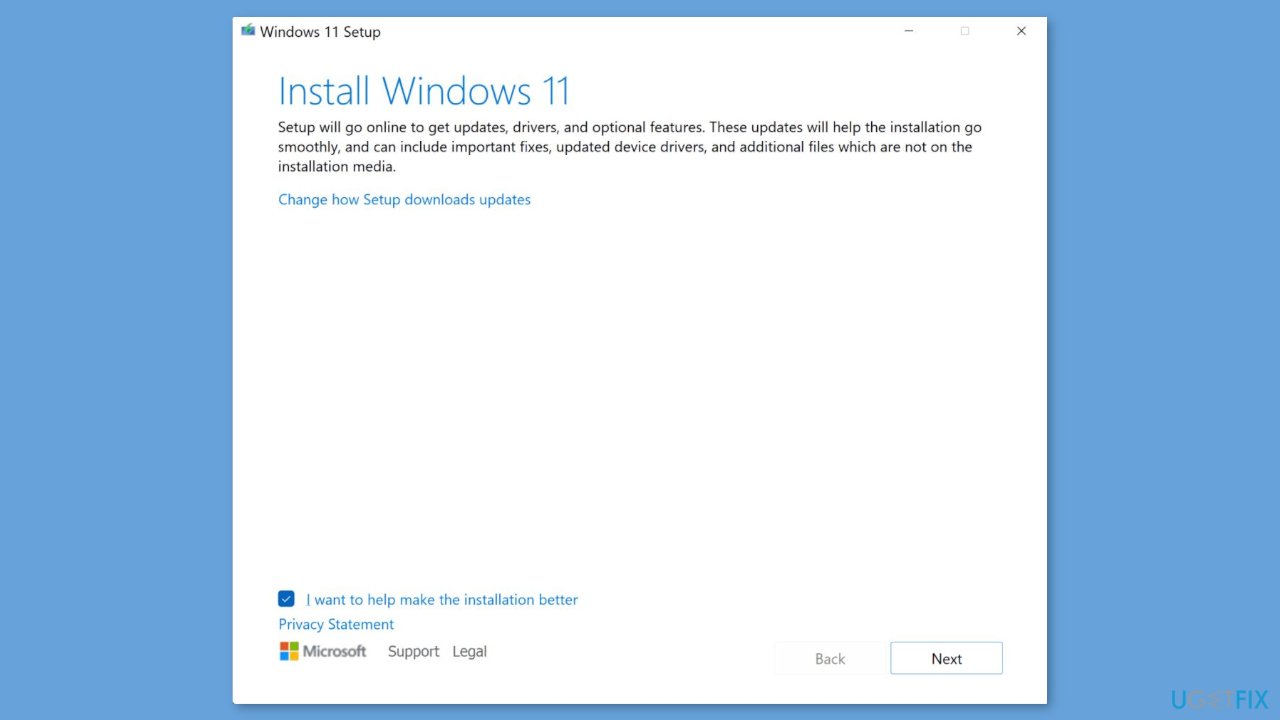
- Accept the license terms on the next screen.
- Confirm the Upgrade options – Files, apps and Settings are kept.
- Click Install, and the upgrade should start.
Bottom line
To fix the Srv2.sys Blue Screen error, users can repair corrupted system files using Command Prompt, install Windows updates, perform a system restore, or run a virus scan. If these solutions do not resolve the issue, it may be necessary to seek professional assistance.
Frequently asked questions
The Srv2.sys Blue Screen error is often caused by corrupted system files, outdated drivers, or issues with network configurations in Windows 10 or 11.
To troubleshoot the Srv2.sys error on Windows 11, you can run the System File Checker tool and update your network drivers to ensure they are compatible.
Disabling the Srv2.sys file is not recommended as it can lead to further system instability; instead, focus on repairing corrupted files and updating drivers in Windows 10 or 11.




Report an issue
What's wrong with this guide? We review every report and update or remove content.
Report received — thank you. We'll review and fix it.
You need a free account to submit a report.
Be the first to comment