How to fix
Microsoft Store error 0x80073d23
on Windows
Resolve Microsoft Store error 0x80073d23 quickly on Windows 10 and 11. Follow our expert-tested solutions to get your apps back in action!


What causes How to fix Microsoft Store error 0x80073d23 in Windows?
- Conflict between the app's package and existing app data
- Corrupted system files
- Issues with the Windows operating system
- Problems with the Microsoft Store cache
- Outdated Windows version
Repairs Windows system files, removes malware, and restores a clean OS state — without reinstalling.
Hello. When I try to install apps from the Microsoft Store I receive the 0x80073d23 error. How can I fix this?
Microsoft Store is a digital distribution platform where Windows users can download and buy apps, games, and multimedia content. It comes pre-installed on Windows and allows users to easily discover and install new software. However, while using the Microsoft Store, users may encounter various error codes, one of which is error code 0x80073d23.
This error occurs when users attempt to install, update, or launch a Microsoft Store app. It indicates that the installation process failed due to a conflict between the app's package and the computer's existing app data. This error may have an impact on users by preventing them from downloading or updating apps from the Microsoft Store, which can be inconvenient, especially if the app is critical for work or personal use.
It could also indicate a problem with the Windows operating system, which could lead to additional problems. Users can try several solutions to resolve the error code 0x80073d23, such as running the Windows Store Apps troubleshooter, resetting the Microsoft Store cache, repairing system files, updating Windows, and so on.
However, depending on the cause of the problem, the solutions may differ. In this guide, you will find 6 steps that should help you fix Microsoft Store error 0x80073d23. Keep in mind, that the manual troubleshooting process can be lengthy. Instead, you can try using a maintenance tool like [d1] that can fix most system errors, BSODs,[ref en-1] corrupted files, registry[ref en-2] issues, or clear cookies and cache.[ref en-3]
Solution 1. Run Microsoft Store Apps Troubleshooter
- Open the Start menu.
- Click the gear-shaped icon to launch the Settings app.
- In the Settings app, click on the System tab.
- Click on Troubleshoot.
- Select Other troubleshooters.
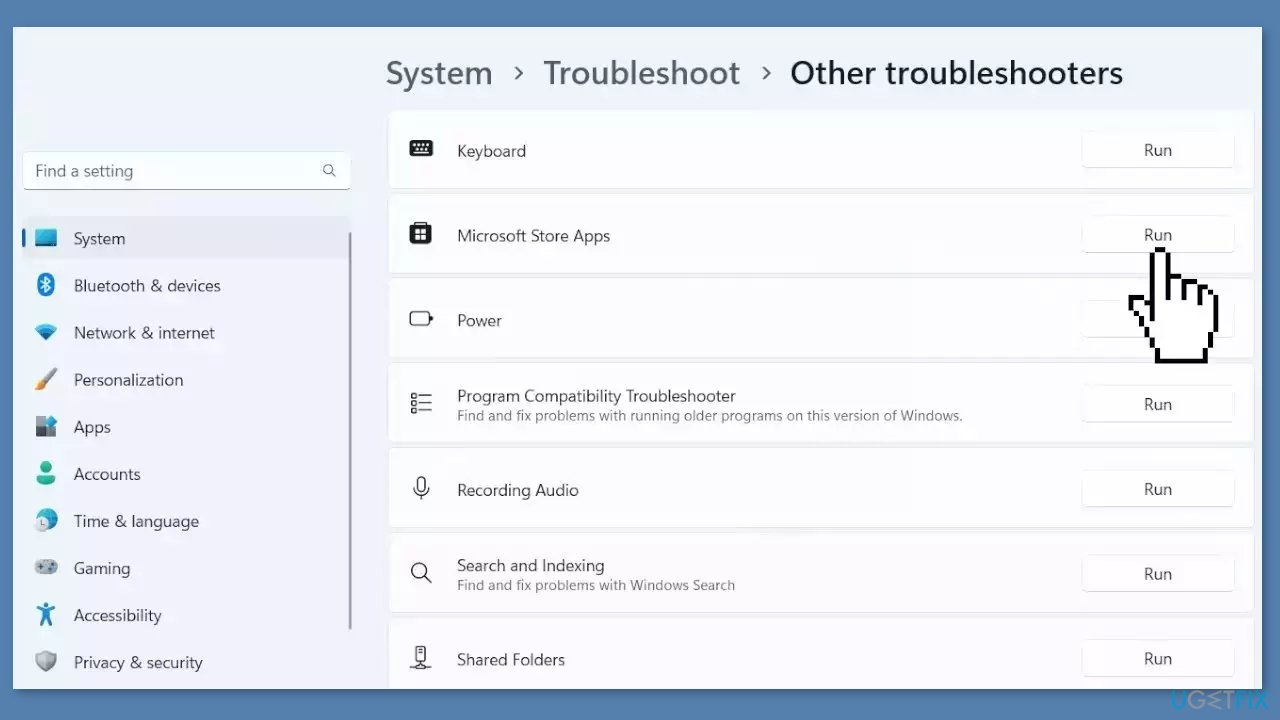
- Look for Windows Store Apps and click the Run button next to it.
- Follow the on-screen prompts to run the troubleshooter.
Solution 2. Fix Corrupted System Files
Use Command Prompt commands to repair system file corruption:
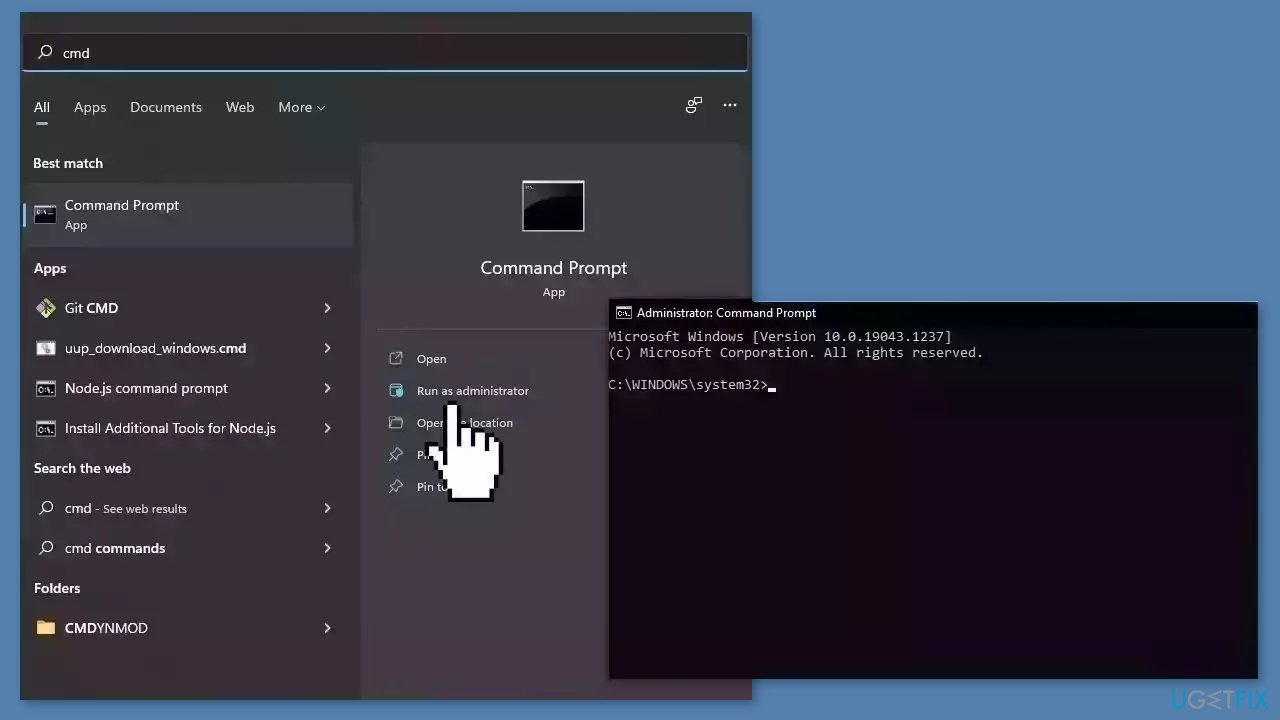
- Open Command Prompt as administrator
- Use the following command and press Enter:
sfc /scannow
- Reboot your system
- If SFC returned an error, then use the following command lines, pressing Enter after each:
DISM /Online /Cleanup-Image /CheckHealth
DISM /Online /Cleanup-Image /ScanHealth
DISM /Online /Cleanup-Image /RestoreHealth
Solution 3. Reset Network
- Press the Windows key + I to launch the Settings window.
- Click on the Network & internet option from the left sidebar.
- From the right section, click on Advanced network settings.
- Under the More settings section, click on the Network reset option.
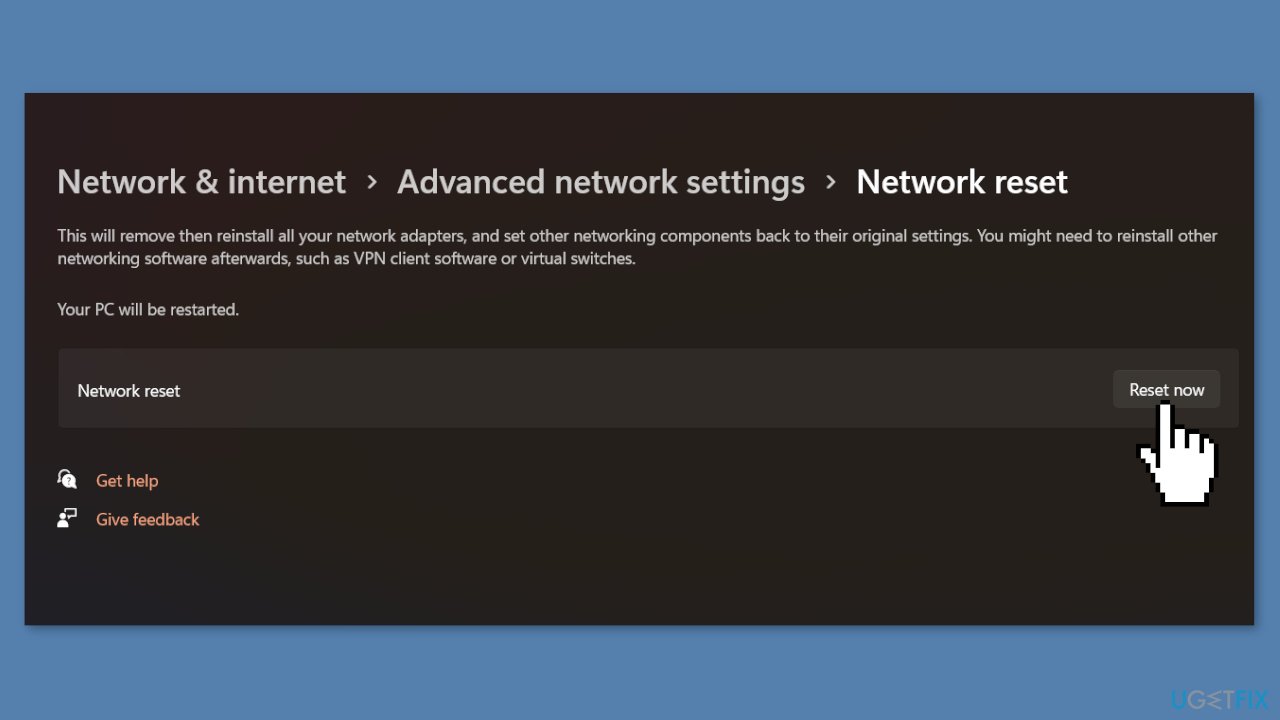
- Click the Reset now button to reset the network settings.
- Confirm the action by selecting Yes on the confirmation pop-up window.
- Restart your Windows PC to complete the network reset process.
Solution 4. Clear Microsoft Store Cache
Like most applications, Microsoft Store creates and stores cache data to enhance performance. However, if this cache becomes corrupt, you may experience various issues.
- Open the Run dialog box by pressing the Windows key + R.
- If the hotkeys don't work, you can use any other method to open the Run dialog box.
- In the search bar of the Run dialog box, type wsreset.exe.
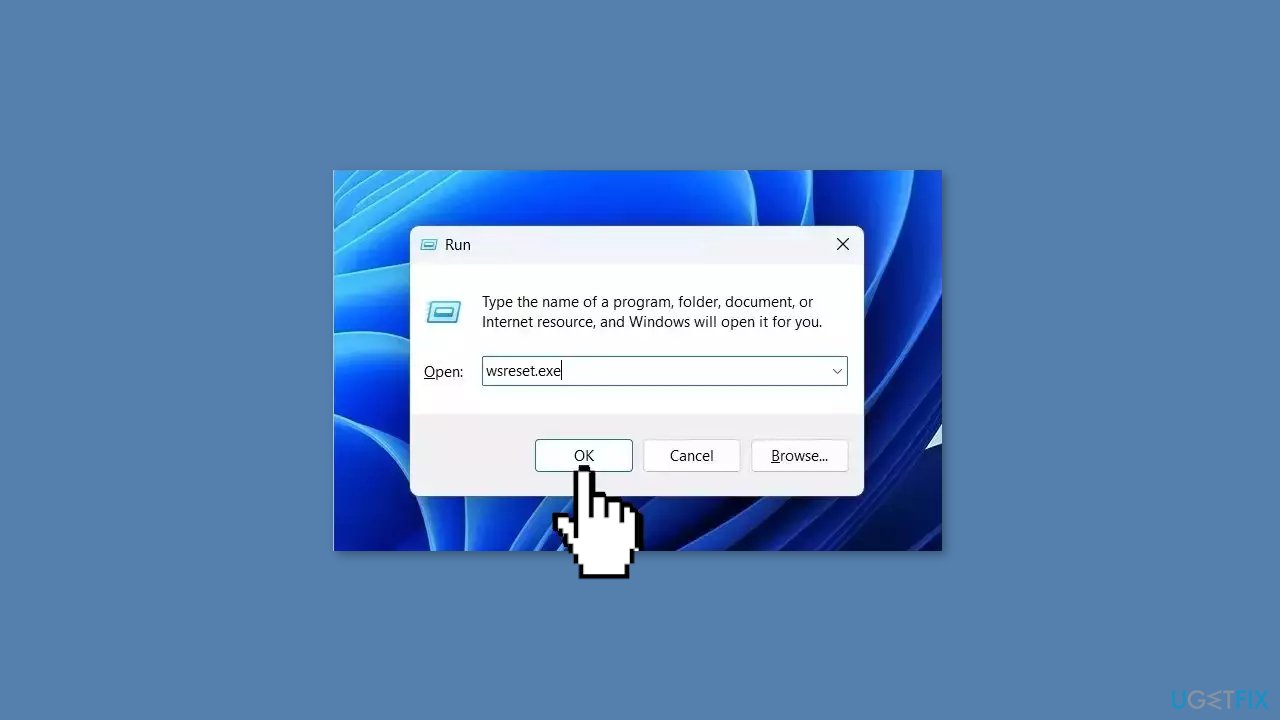
- Click OK.
- A blank Command Prompt window will appear for a few seconds.
- Once the cache is cleared, Windows will close the Command Prompt window and automatically launch the Microsoft Store app.
Solution 5. Re-register the App Packages
- Press the Windows key to open the Start Menu.
- Type Windows PowerShell in the search bar.
- Choose Run as administrator from the right pane.
- In the elevated PowerShell window, type the following command:
Get-AppXPackage -AllUsers | Foreach {Add-AppxPackage -DisableDevelopmentMode -Register "$($_.InstallLocation)\AppXManifest.xml"}
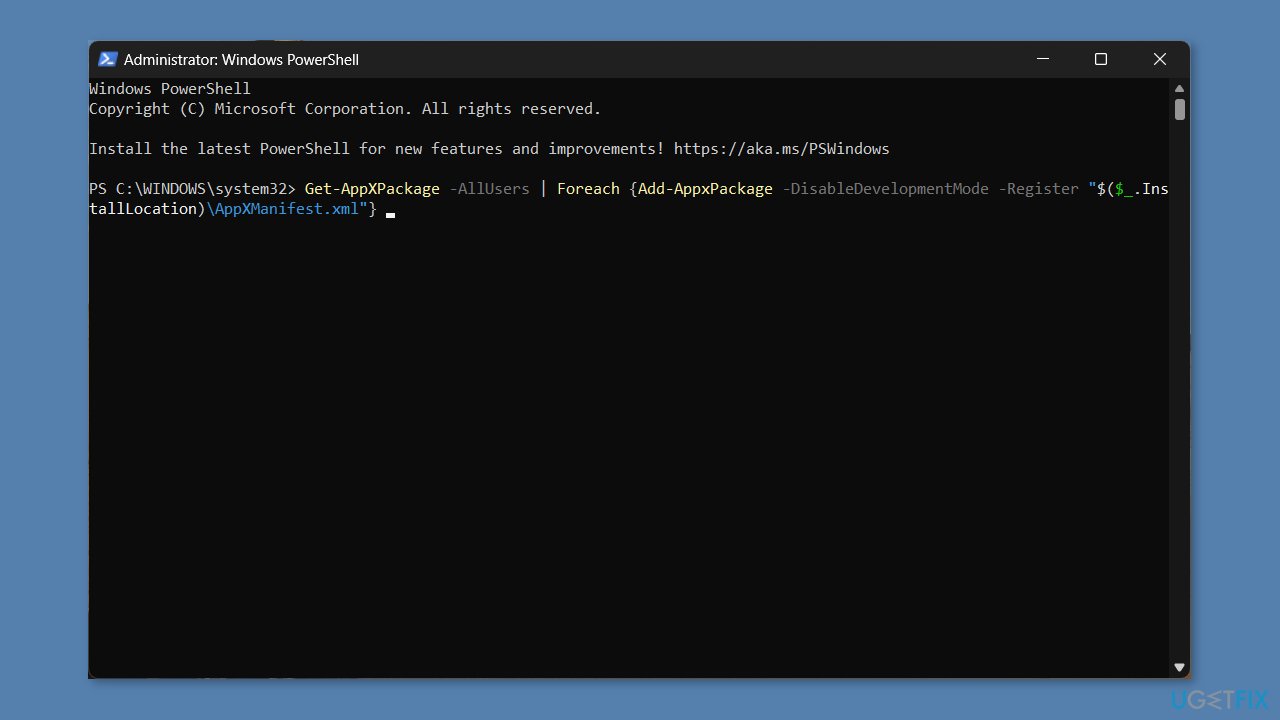
- Press Enter to run the command.
- Wait for the process to complete.
- Close the PowerShell window.
- Check if the Microsoft Store app is working properly now.
Solution 6. Restart Xbox Services
- Use the Windows key + R to launch the Run dialog box.
- Type services.msc in the Run box and click OK.
- Scroll down the Services window and locate Xbox Accessory Management Service.
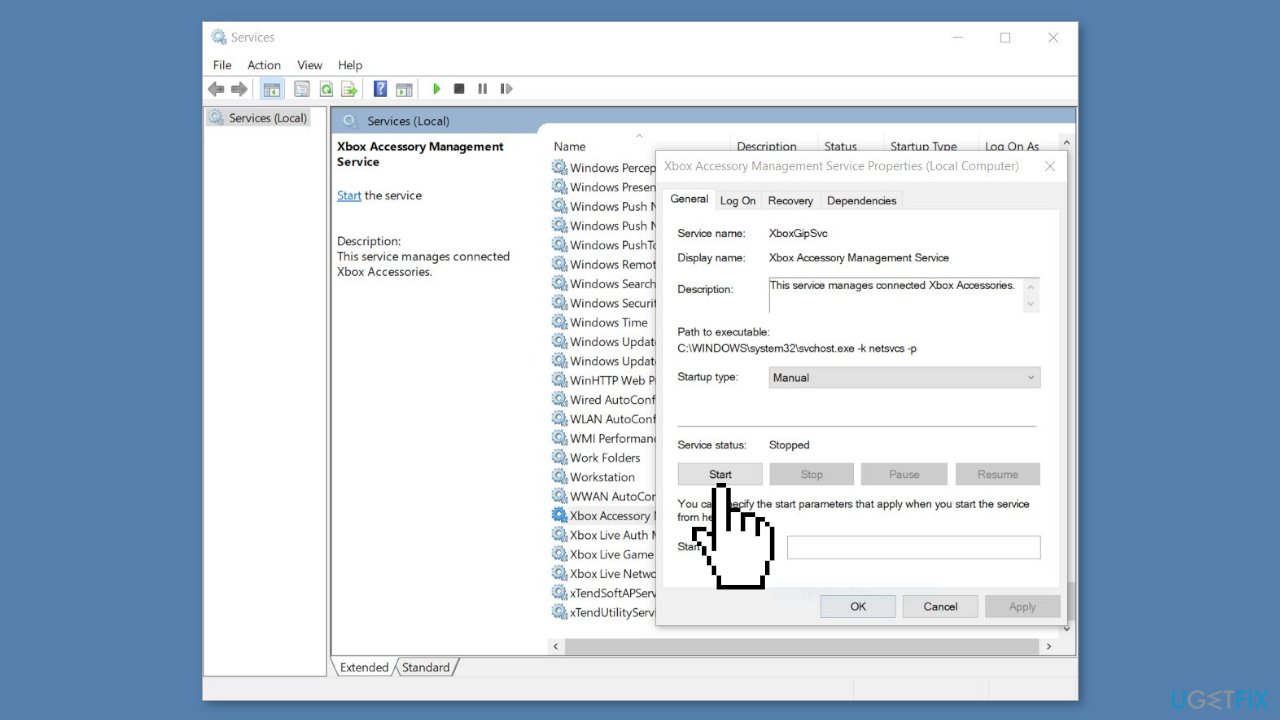
- Right-click on the Xbox Accessory Management Service and select Properties.
- If the Service status is Stopped, click on the Start button to start the service.
- Click OK to save the changes.
- Repeat the same process for Xbox Live Auth Manager, Xbox Live Game Save, and Xbox Live Networking Service.
- Exit the Services window.
- Try to install the app from the Microsoft Store again.
Bottom line
To fix Microsoft Store error 0x80073d23, users can run the Microsoft Store Apps troubleshooter, repair corrupted system files using Command Prompt, and reset the Microsoft Store cache. If these solutions do not resolve the issue, consider using a maintenance tool or seeking further assistance.
Frequently asked questions
This error often occurs due to corrupted system files, issues with Windows Update components, or problems with the Microsoft Store app itself.
You can reset the Microsoft Store by opening the Settings app, navigating to Apps > Apps & features, finding Microsoft Store, and selecting 'Advanced options' to reset it.
Yes, you can use the Command Prompt to run commands like 'wsreset.exe' or 'sfc /scannow' to repair system files and reset the Microsoft Store.




Report an issue
What's wrong with this guide? We review every report and update or remove content.
Report received — thank you. We'll review and fix it.
You need a free account to submit a report.
Be the first to comment