How to fix
“Windows was unable to complete the format” error
on Windows
Resolve the "Windows was unable to complete the format" error quickly and efficiently on Windows 10 or 11 with our expert-tested solutions. Fixed in min…


What causes How to fix “Windows was unable to complete the format” error?
- Bad sectors on the drive
- Write protection on the drive
- Viruses or malware affecting the file system
- Drive not properly connected or recognized by the operating system
Repairs Windows system files, removes malware, and restores a clean OS state — without reinstalling.
Hi, I was trying to make erase my USB drive, and I received an error "Windows was unable to complete the format." How do I fix this?
Formatting a storage device, such as an external SSD or USB drive, is a critical function performed by operating systems like Windows. The process prepares the drive for use by erasing all data and setting up a file system that dictates how data should be stored and retrieved. Formatting a drive not only helps in organizing data in an efficient manner but also serves as an important step to troubleshoot errors, remove viruses, or repurpose old drives.
However, at times, while trying to format a drive, Windows users may encounter an error message stating, "Windows was unable to complete the format." This error implies that the operating system was unsuccessful in setting up a new file system on the drive, rendering it unusable.
Several reasons can cause this error. One of the most common is the presence of bad sectors on the drive. These are areas on the disk that are physically damaged, making it impossible for Windows to write new information.
The "Windows was unable to complete the format" error could also occur due to write protection, a feature designed to prevent data from being changed or deleted. If a drive is write-protected, Windows cannot format it since the process involves erasing and writing new data.
Viruses and malware may also cause the "Windows was unable to complete the format" error. These malicious programs can alter or corrupt the existing file system, preventing Windows from formatting the drive successfully.
Lastly, the drive might not be properly connected or recognized by the operating system. If Windows cannot properly communicate with the drive, it won't be able to perform the formatting.
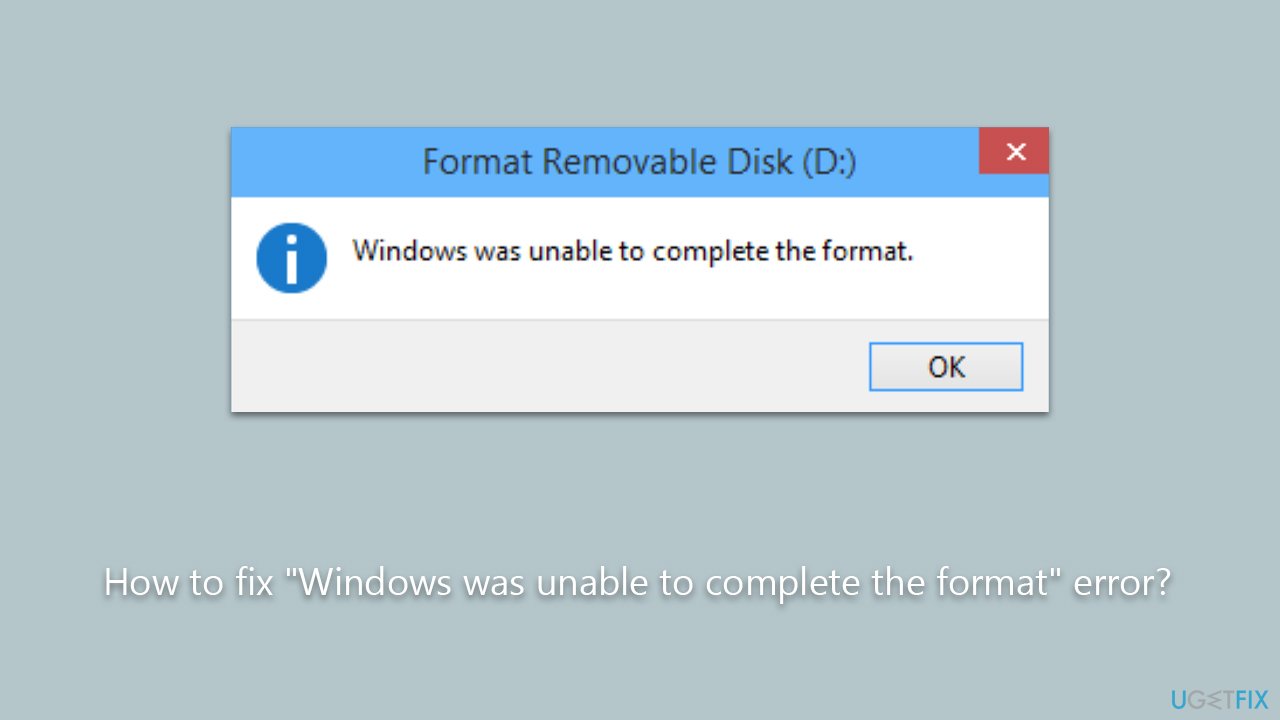
Below you will find several methods that should help you fix the "Windows was unable to complete the format" error when trying to format a certain drive. We also recommend running a scan with an automatic PC repair tool [d1], which can determine underlying Windows issues are repair them automatically.
Fix 1. Check the drive for bad sectors
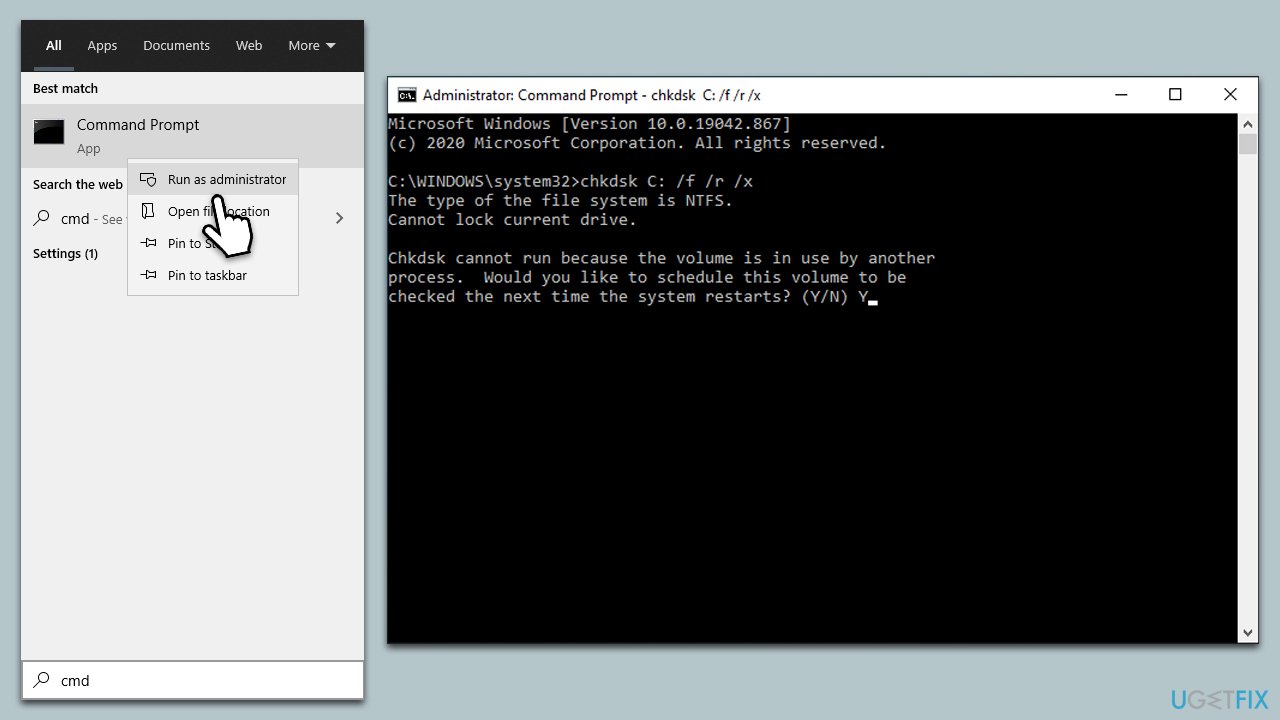
First and foremost, the hardware you are trying to format might be malfunctioning, i.e., have bad sectors in it. Bad sectors are portions of a storage device, such as a hard drive, SSD, or USB drive, that have become inaccessible or unwriteable due to physical damage or software corruption. When a sector becomes bad, the data stored in that sector may be lost, and new data cannot be written into it. Windows can attempt to repair this damage as follows:
- Type in cmd to search for Command Prompt.
- Right-click on Command Prompt and select Run as administrator.
- When User Account Control shows up, click Yes.
- In the Command Prompt window, type the following (replace X with the disk number of your USB drive):
chkdsk X: /f /r /x - Hit Enter.
- If an error shows up, type Y and press Enter.
- The chkdsk tool will now scan your USB drive for bad sectors and attempt to repair them if found.
- Wait for the process to complete. It may take a while, depending on the size of your USB drive.
Fix 2. Scan the device for malware
Malware infections could cause the "Windows was unable to complete the format" error, thus we recommend making sure that the device you are trying to format is not infected. You can use any reputable third-party security software, although you can also opt for a free Microsoft Security Scanner or Windows Defender.
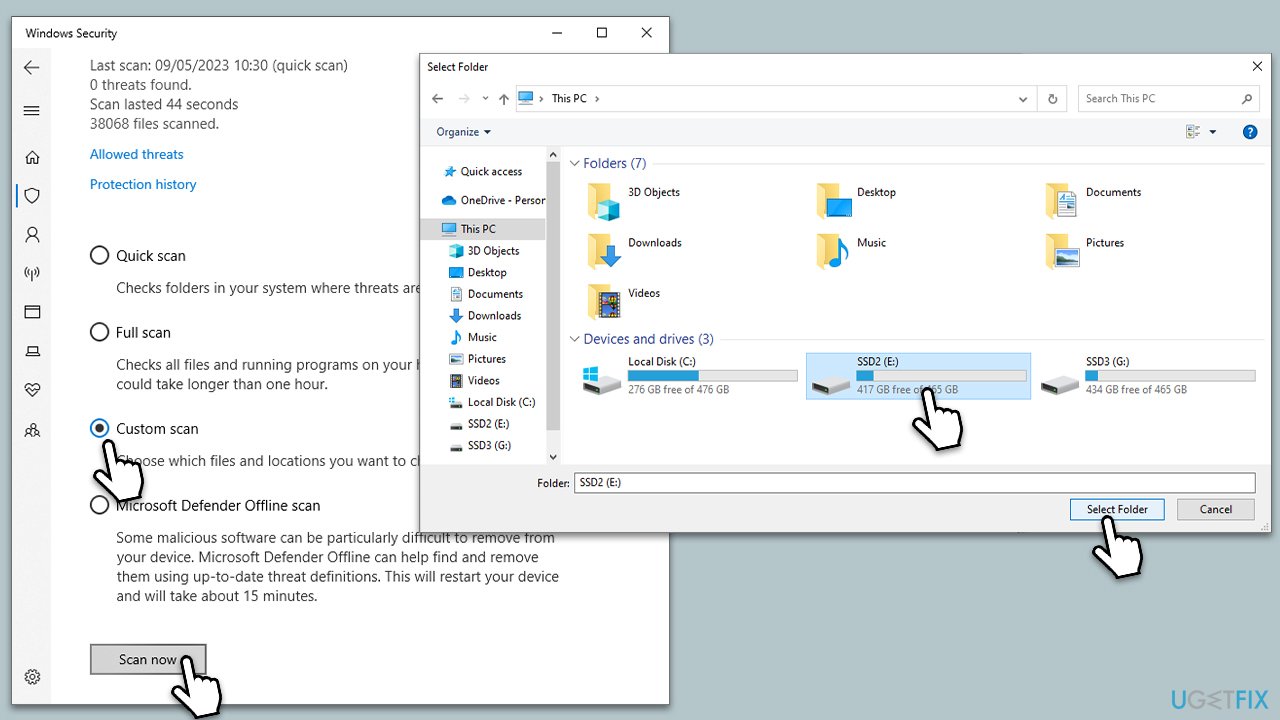
- Type Windows Security in the Windows search bar and hit Enter.
- Select Virus & threat protection.
- Pick Scan options.
- Choose Custom Scan and click Scan now.
- Then, select the connected drive and pick Select Folder.
- The scan will begin immediately.
Fix 3. Use Command Prompt to force the format
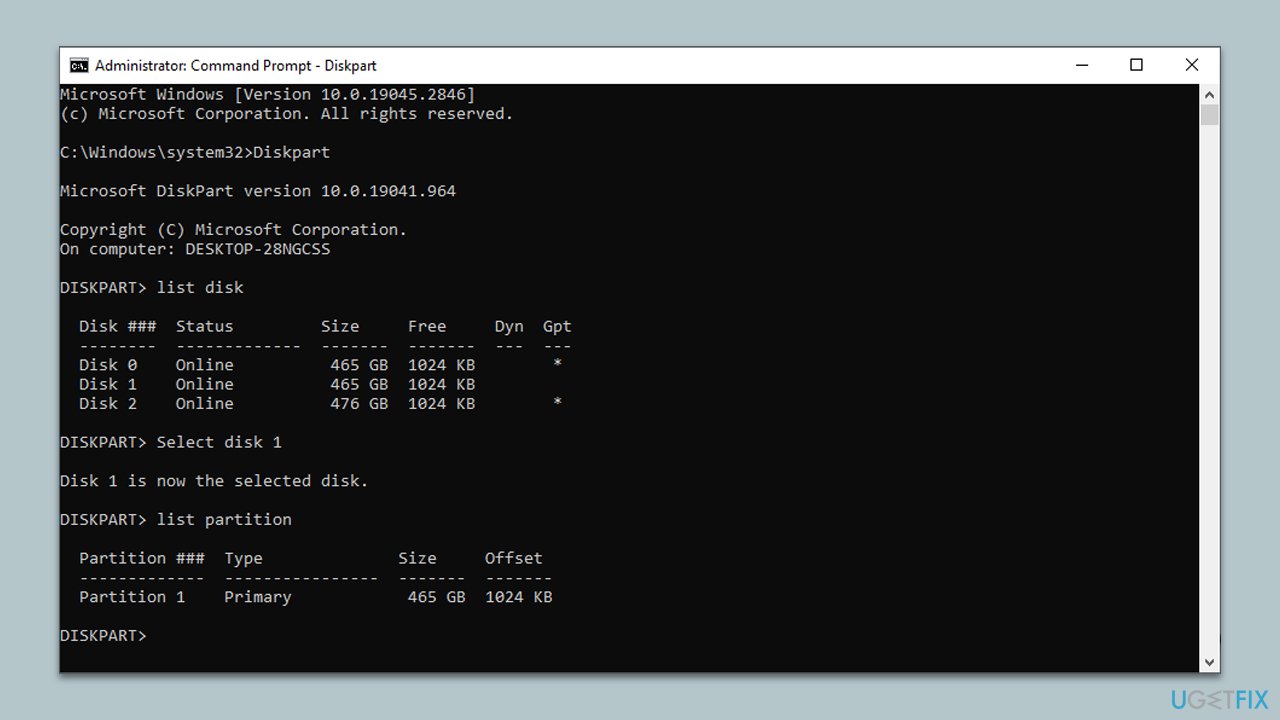
You can attempt a forced format using Command Prompt. Follow these steps:
- Open Command Prompt as administrator.
- Below you will find the set of commands you need to use. Copy them and paste one at a time, and don't forget to replace X with your drive:
Diskpart
list disk
Select disk X
list partition
select partition X
format fs=fat32 - Type assign and press Enter. This command assigns a drive letter to the USB drive, making it visible in File Explorer.
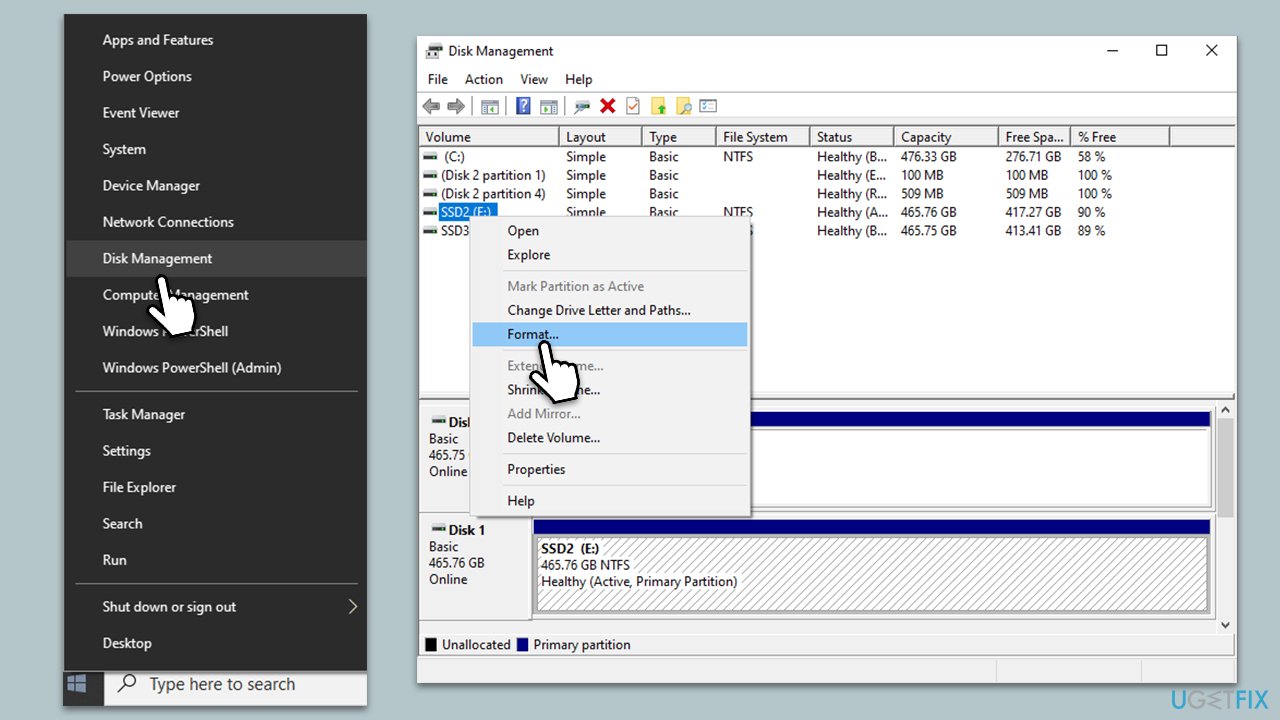
Fix 4. Use Disk Management to format the drive
- Press Win + X keys together on your keyboard and select Disk Management.
- Identify the drive you want to format by its size and label.
- Right-click on the drive and select Format from the dropdown menu.
- In the Format dialog box, you can choose the File system (NTFS, FAT32, exFAT), Allocation unit size, and type in a Volume label if desired.
- Make sure the "Perform a quick format" checkbox is selected if you want a quick format. Uncheck it for a full format.
- Click OK, then confirm by clicking OK again in the warning box that appears.
- Wait for the format to complete. The time it takes will depend on the drive size and whether you choose a quick or full format.
Bottom line
To fix the 'Windows was unable to complete the format' error, you can try methods such as checking for bad sectors, removing write protection, scanning for viruses, or ensuring the drive is properly connected. If none of these solutions work, consider using an automatic PC repair tool for further assistance.
Frequently asked questions
This error can occur due to issues with the disk itself, such as bad sectors or corruption, or if the drive is write-protected. Additionally, it may be caused by improper formatting methods or incompatible file systems.
To fix this error, you can try using Disk Management to reformat the drive or utilize Command Prompt with diskpart commands to clean and format the disk. Ensure that the drive is not physically damaged or write-protected.
Yes, using reputable third-party disk management tools can help resolve the formatting issue safely, but always ensure to back up important data beforehand. Be cautious and choose trusted software to avoid further complications.




Report an issue
What's wrong with this guide? We review every report and update or remove content.
Report received — thank you. We'll review and fix it.
You need a free account to submit a report.
Be the first to comment