How to fix
Printing error 0x00000bcb
on Windows
Resolve printing error 0x00000bcb in Windows 10 and 11 effortlessly. Get your printer working again with expert-tested solutions for quick fixes!


What causes How to fix printing error 0x00000bcb in Windows?
- Driver issues
- Incorrect settings
- Complications with the printer spooler service
- Network connection problems
- Printer not properly shared
Repairs Windows system files, removes malware, and restores a clean OS state — without reinstalling.
I keep getting the error 0x00000bcb ("Windows cannot connect to printer") whenever I attempt to connect to the shared printer. Any tips on how to deal with this?
Printers are an indispensable piece of hardware in both domestic and commercial environments, simplifying the task of generating physical copies of documents, photographs, and various other digital content. They allow users to produce hard copies of important files, preserve cherished memories, and create tangible materials for business or personal use. Their utility extends beyond convenience, fostering efficient work processes and aiding in crucial documentation needs.
In a networked environment, shared printers are a common setup. This system allows multiple computers on the same network to utilize a single printer, thereby promoting resource optimization and cost reduction. Users can send print jobs from their respective systems to the shared printer, which queues the jobs and completes them in order. This setup not only saves the expense of equipping every workstation with a dedicated printer but also eases collaborative tasks among the team members.
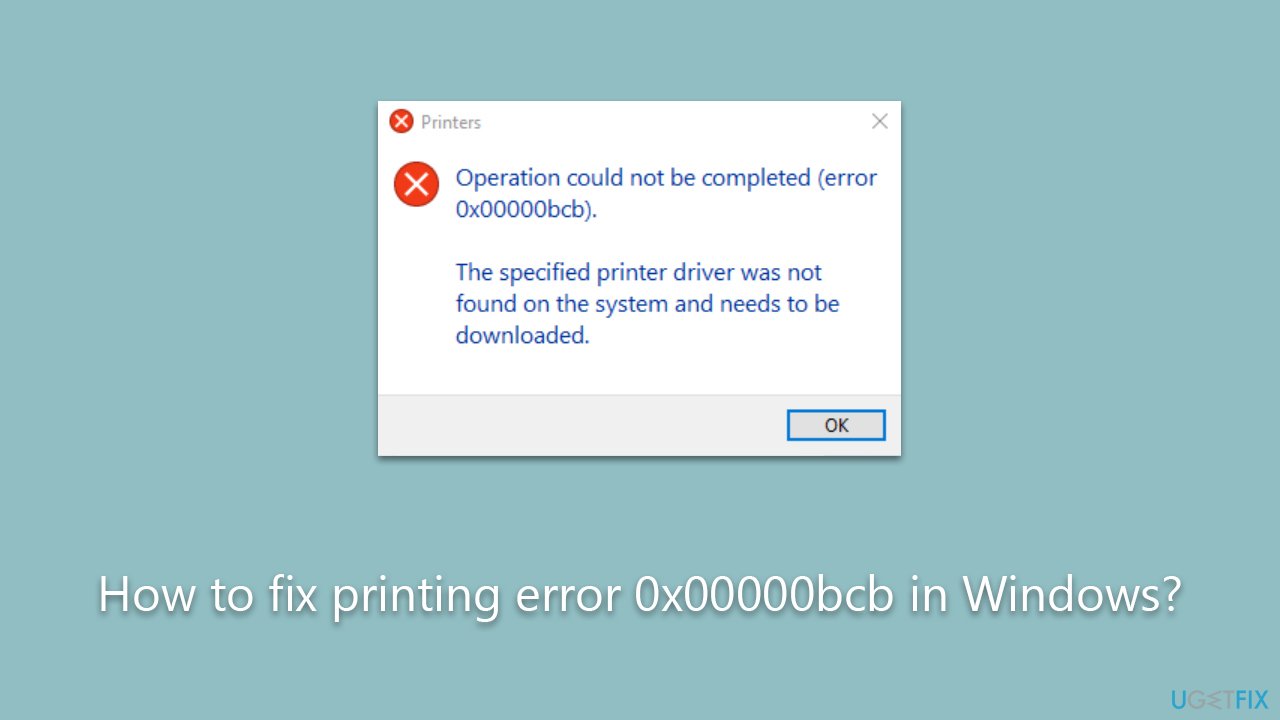
However, as with any technology, issues might arise, one of which is the error 0x00000bcb. This error message indicates that "Windows cannot connect to the printer." Generally, it emerges when users attempt to add a network printer to a Windows PC. It can be attributed to various factors including, but not limited to, driver issues, incorrect settings, or complications with the printer spooler service.
When the error 0x00000bcb is encountered, there are several potential fixes. Checking and updating printer drivers, resetting the printer spooler service, or modifying the printer's port settings are common solutions. It's also advisable to verify the network connection and ensure the printer is properly shared and accessible. However, the exact resolution may vary depending on the specific circumstances surrounding the error.
In addressing these technical issues, tools like the [d1] PC repair tool can be incredibly useful. This comprehensive software utility specializes in diagnosing and rectifying a broad range of PC problems, including connectivity issues, system errors, and much more.
Method 1. Run Printer troubleshooter
We recommend starting with the built-in troubleshooter:
- Type in Troubleshoot in Windows search and hit Enter.
- Go to Additional Troubleshooters/Other troubleshooters.
- Pick a Printer option and click Run the troubleshooter/Run.
- Wait till the scan is finished, and then apply the suggested fixes.
- Restart your system.
Method 2. Update Printer Drivers
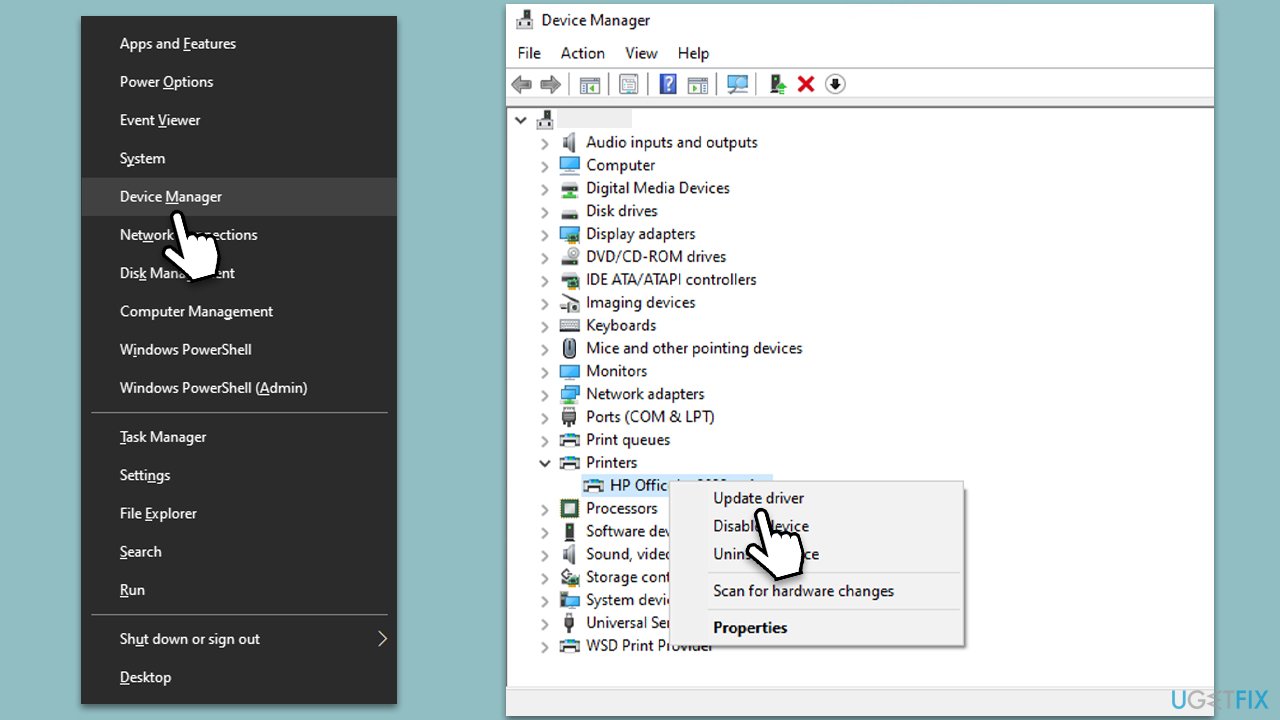
- Press Win + X and select Device Manager from the list.
- Expand the Printers or Print queues category.
- Right-click on your printer and select Update driver.
- Choose Search automatically for updated driver software and let Windows find the best driver for your printer.
- Restart your PC and try to connect to the printer again.
Windows might not always find the correct driver for your device. Therefore, you should either download it from your device manufacturer's website or employ automatic tools such as [rev id="DriverFix"].
Method 3. Restart the Printer Spooler service
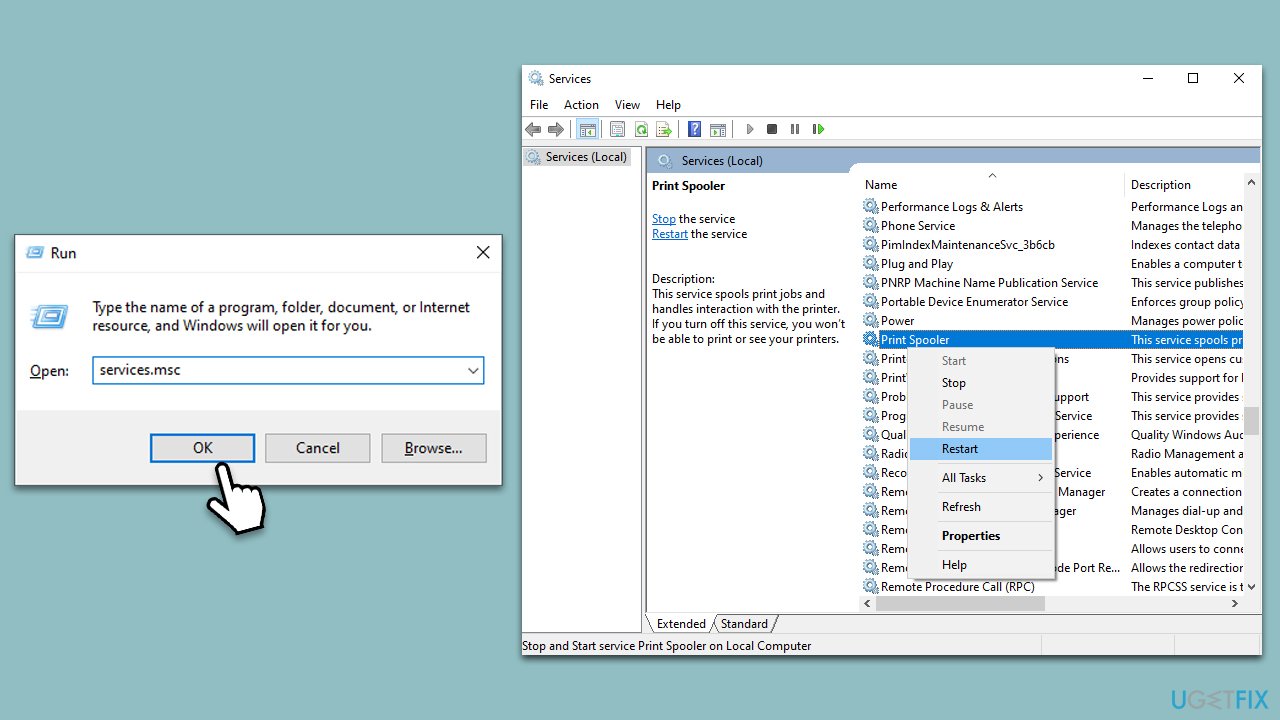
- Press Win + R, type services.msc, and press Enter.
- Scroll down and locate the Printer Spooler service.
- Right-click on it and select Restart.
- Try to connect to the printer again after the service restarts.
Method 4. Modify the Printer Port settings
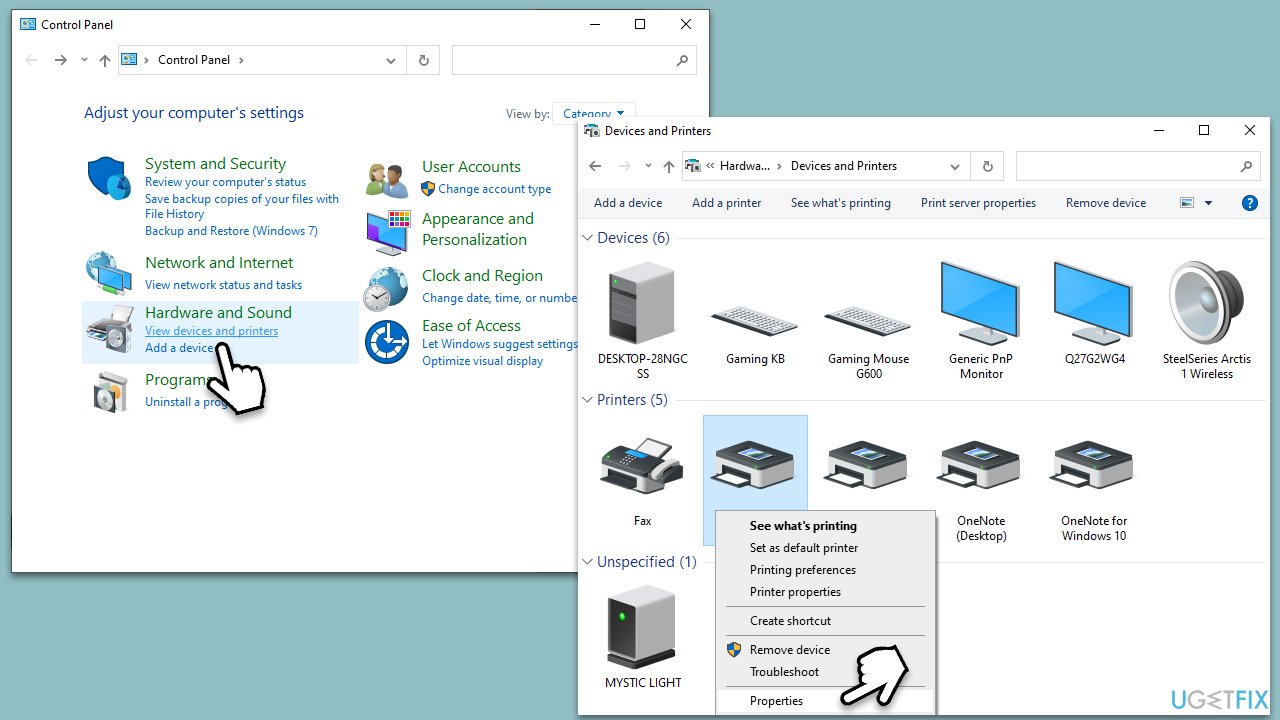
- Open Control Panel and select Devices and Printers.
- Right-click on your printer and select Printer Properties.
- Go to the Ports tab, click on Add Port, select Local Port, and then click on New Port.
- Type the address of the printer in the following format: \\ComputerName\PrinterName
- Click OK and try to connect again.
Method 5. Check the network connection
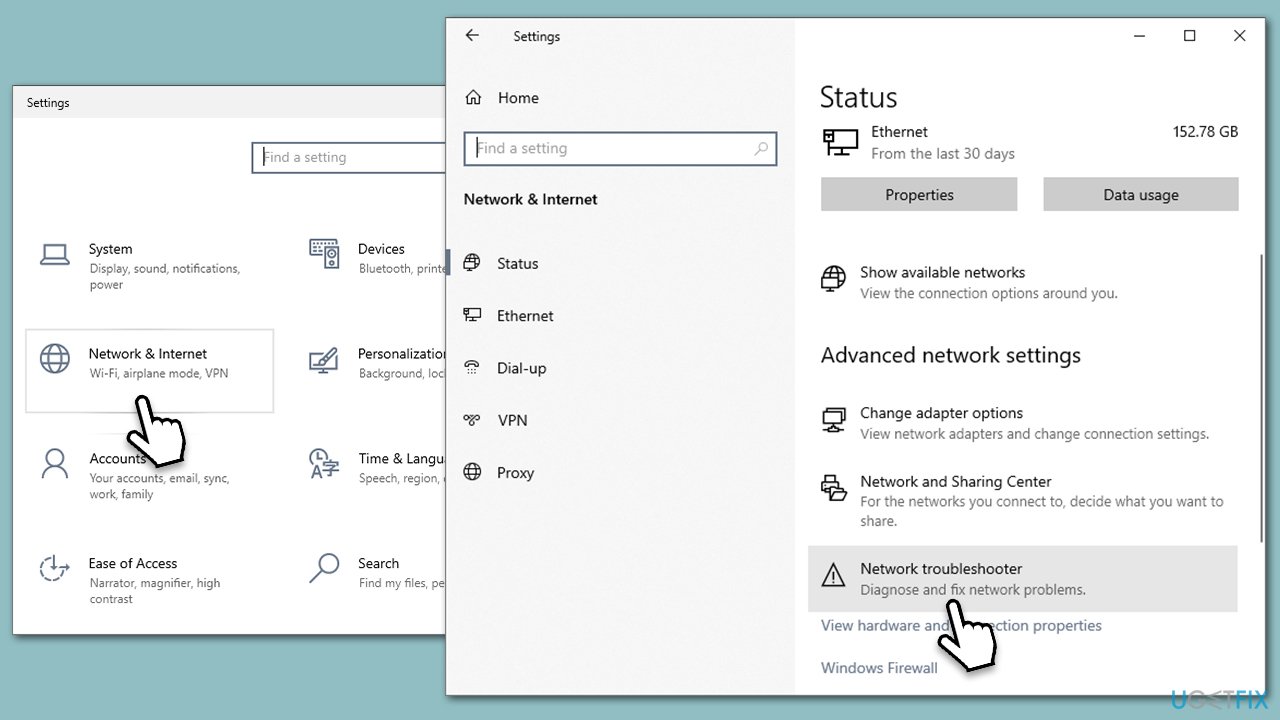
First and foremost, make sure your computer is connected to the same network as the printer. Next, you should run a network troubleshooter if you're unsure about the connection. Here's how:
- Press Win + X and pick Settings.
- Go to Network & Internet section.
- On the right side, find the Advanced network settings section.
- Click Network troubleshooter - Windows will begin to check your networked devices.
- When done, apply all the recommendations. You might have to restart your system.
Method 6. Ensure the printer is properly shared
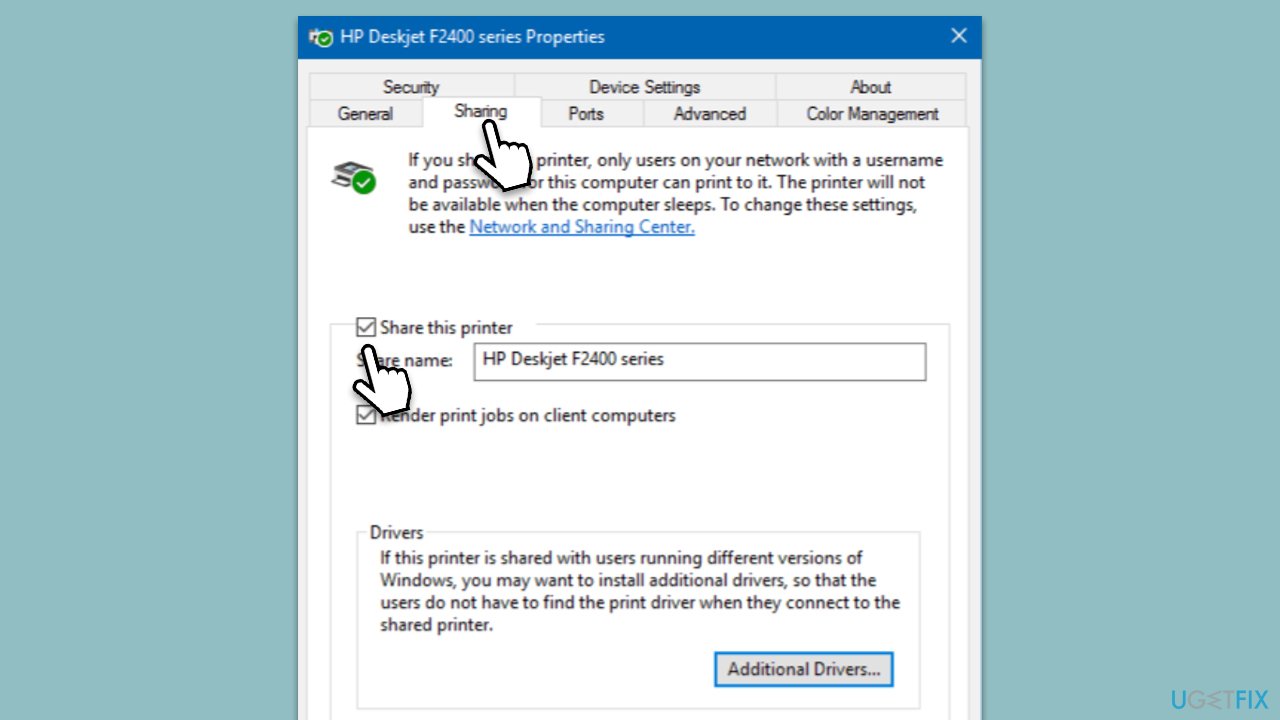
- Go to the computer where the printer is physically connected.
- Open Control Panel, and go to Devices and Printers.
- Right-click on the printer, select Printer Properties and then click on the Sharing tab.
- Ensure the Share this printer box is checked.
Bottom line
To fix the printing error 0x00000bcb, you can check and update printer drivers, reset the printer spooler service, and modify the printer's port settings. Additionally, ensure that the network connection is stable and that the printer is properly shared. If none of these solutions work, consider using a PC repair tool for further diagnosis.
Frequently asked questions
The printing error 0x00000bcb typically occurs due to corrupted printer drivers, incomplete Windows updates, or communication issues between the printer and the computer.
To resolve the 0x00000bcb error on Windows 11, try reinstalling the printer drivers, running the Printer Troubleshooter, or resetting the print spooler service.
Yes, a quick fix for the 0x00000bcb printing error in Windows 10 includes clearing the print queue and ensuring that the printer is set as the default device.




Report an issue
What's wrong with this guide? We review every report and update or remove content.
Report received — thank you. We'll review and fix it.
You need a free account to submit a report.
Be the first to comment