How to fix
Microsoft Store error 0x80070483
on Windows
Resolve Microsoft Store error 0x80070483 on Windows 10 or 11 effortlessly with our expert-tested tips. Get your apps back up and running in minutes!

What causes How to fix Microsoft Store error 0x80070483?
- Corrupted cache files
- Damaged or outdated cache
- Corrupted Store installation
- System-related problems
Repairs Windows system files, removes malware, and restores a clean OS state — without reinstalling.
Hi. There's something wrong with my Microsoft Store. I could not open it for a while, so I ran the troubleshooter and received an error 0x80070483. Now, I can't open Microsoft Store as well as apps downloaded through it. Please advise.
Microsoft Store is a one-stop digital platform that provides Windows users with access to a wide range of apps, games, and other software. This built-in platform simplifies the downloading and installation process, keeping everything in one place and ensuring users have the latest updates for their applications. However, like any other software, the Microsoft Store is not immune to issues and malfunctions.
One common problem users may encounter is the error code 0x80070483, which typically appears when trying to open the Microsoft Store, launch apps downloaded from it, or when attempting to troubleshoot related issues. This error can prevent users from downloading, updating, or even accessing their apps, resulting in a frustrating experience.
The primary cause of the 0x80070483 error is often corrupted cache files. Cache files are temporary data stored by the Microsoft Store to enhance its performance, but they can become damaged or outdated, leading to various issues, including error 0x80070483. However, other factors may also contribute to the occurrence of this error, such as a corrupted Store installation or other system-related problems.
To fix the 0x80070483 error, it is crucial to first identify its underlying cause. In many cases, clearing the Microsoft Store cache can resolve the issue. Users can do this by running the "wsreset.exe" command in the Command Prompt or by manually deleting the cache files from the appropriate folder. If this does not resolve the issue, users may need to repair or reset the Microsoft Store using the "Apps & Features" settings or even perform a full system repair.
In some cases, using a reliable PC repair tool like [d1] can help address the error 0x80070483 more efficiently. These tools are designed to scan, diagnose, and repair various system issues, including those related to the Microsoft Store.
Fix 1. Clear Store cache
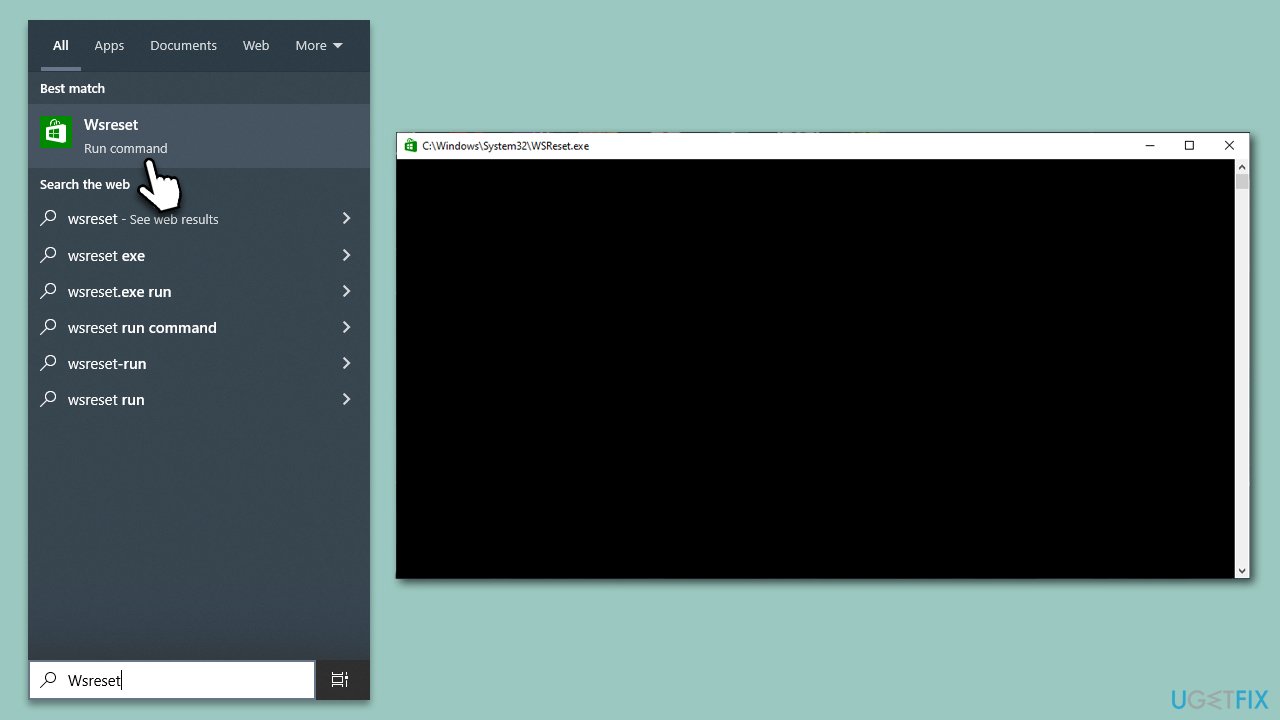
Bugged cache files are among the most common reasons for Microsoft Store errors. To address this, please follow these steps:
- In Windows search, type wsreset.exe and press Enter
- Wait till a black window shows up – do not close it
- Once it's gone, Microsoft Store should restart
- Try using the Store again.
Fix 2. Repair corrupted system files
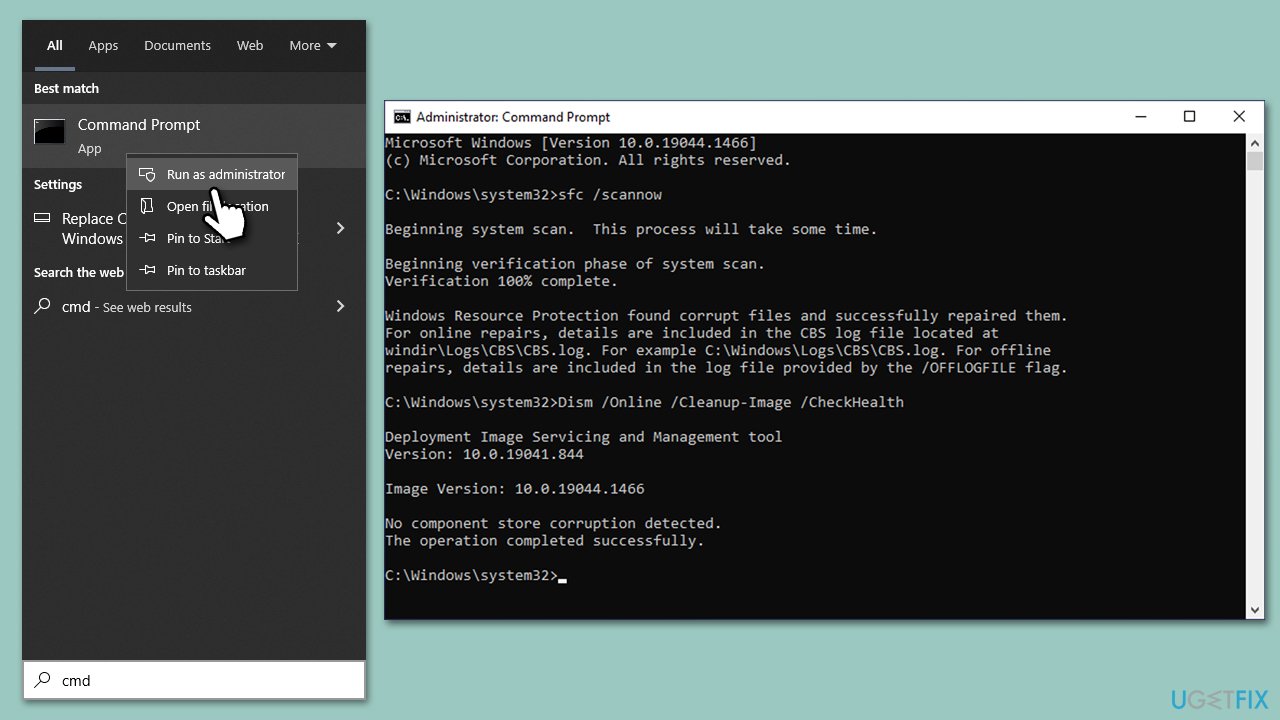
Corrupted system files can also cause various issues. You can repair them by running commands via elevated Command Prompt:
- Type in cmd in Windows search.
- Right-click the Command Prompt result and pick Run as administrator.
- User Account Control will ask whether you want to allow changes - click Yes.
- Type this command and press Enter:
sfc /scannow - Wait for the scan to finish.
- Then, use the following commands, pressing Enter after each:
Dism /Online /Cleanup-Image /CheckHealth
Dism /Online /Cleanup-Image /ScanHealth
Dism /Online /Cleanup-Image /RestoreHealth - Restart your PC.
Fix 3. Remove junk files
To get rid of previous Windows update files and other temp files, run the Disk Cleanup utility:
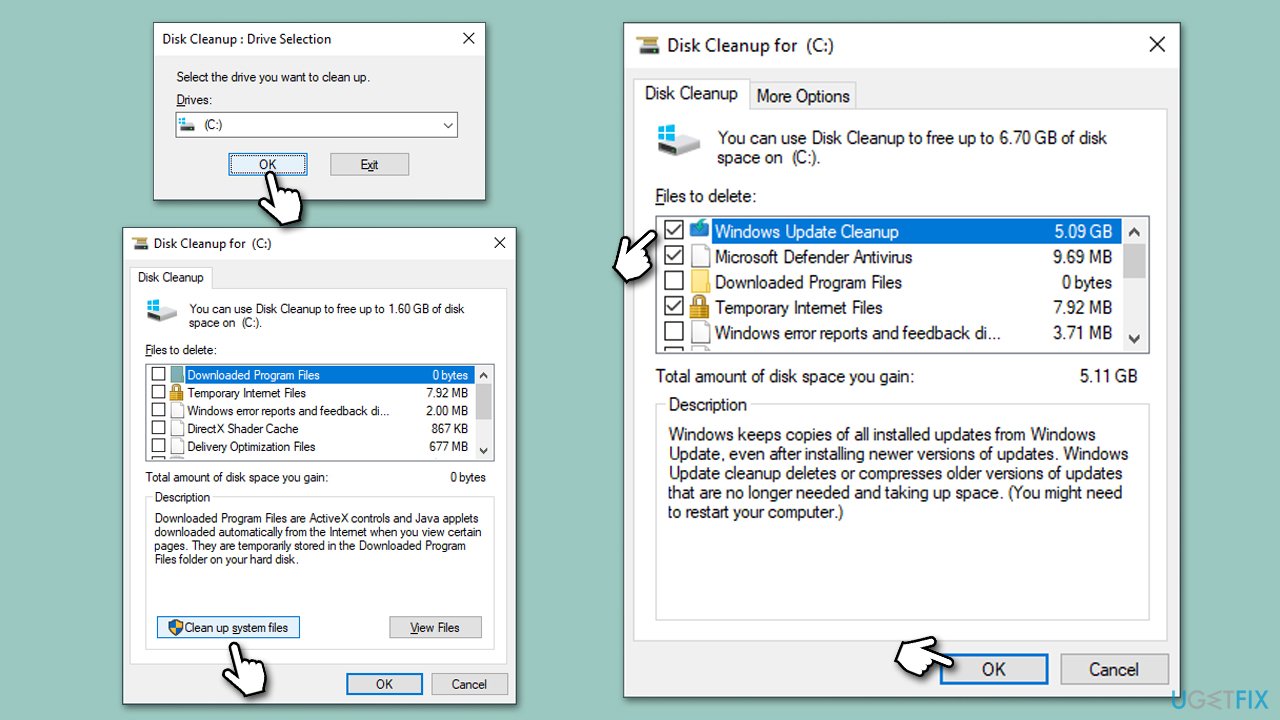
- Open the Windows search bar and type Disk Cleanup. Press Enter to open the Disk Cleanup utility.
- In the Disk Cleanup window, select the drive where your Windows operating system is installed (usually drive C:) and click OK.
- Click Clean up system files to start the scan.
- Select the drive again and click OK.
- In the list of files that can be cleaned up, select the largest portions of data, such as Temporary Internet Files, Windows Update, Temporary Files, and others.
- Click OK to begin the cleanup process.
Fix 4. Run the troubleshooter
Troubleshooters are built-in tools that can help users to resolve issues, including those affecting Microsoft Store. Follow these steps:
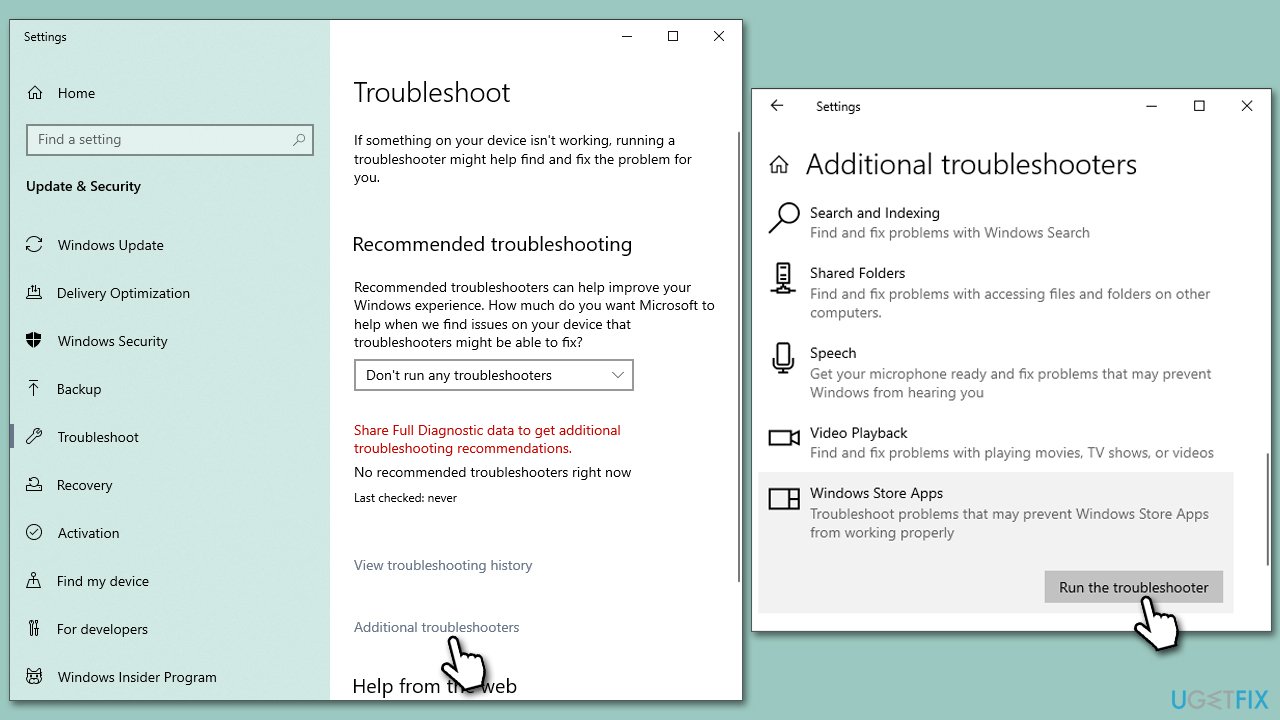
- In Windows search, type in troubleshoot and press Enter (you can also go to Start > Settings > System > Troubleshoot).
- Pick Other troubleshooters (in Windows 10, pick Additional troubleshooters).
- Scroll down to locate the Windows Store Apps and click Run.
- Wait until the scan is finished, apply the changes, and try using the app again.
Fix 5. Repair or reset the app
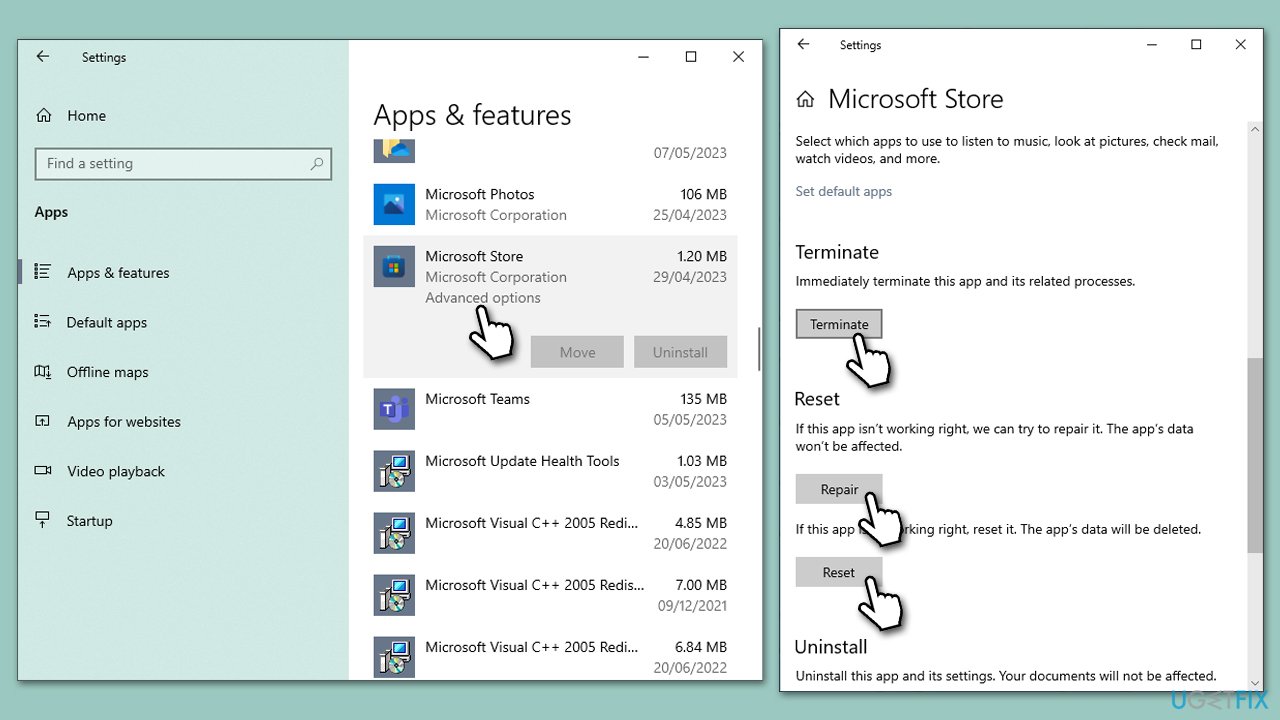
- Press the Windows key + I key to open up the Settings application on your system.
- In the Settings window, click on the Apps section, which will show you a list of all installed applications.
- Scroll down to find the Microsoft Store.
- Once you locate Microsoft Store, click on it and then select Advanced options.
- Here, you'll see the Reset section, where you can choose between the Repair and Reset options.
- The Repair option fixes issues without affecting your apps or data. Click on Repair, wait for the process to complete, and then restart your system.
- Alternatively, the Reset option reverts the Microsoft Store to its default state and removes data associated with it. Click on Reset, confirm the prompt, wait for the process, and then restart your system.
- After restarting, open Microsoft Store to see if the issue has been resolved.
Fix 6. Re-register Microsoft Store
If resetting the Microsoft Store doesn't work, you may need to use Windows PowerShell to re-register the Microsoft Store.
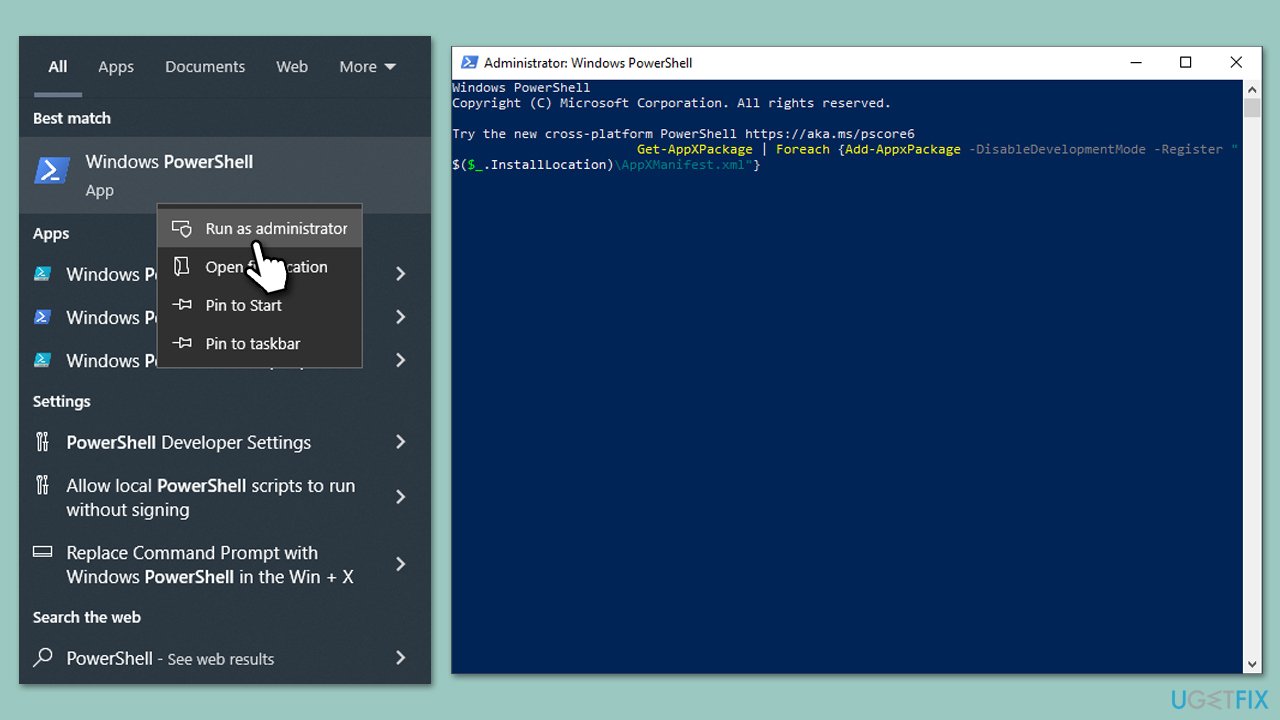
- Type PowerShell in Windows search.
- Right-click on the result and select Run as administrator.
- When UAC shows up, click Yes.
- Use the following command and press Enter:
Get-AppXPackage *WindowsStore* -AllUsers | Foreach {Add-AppxPackage -DisableDevelopmentMode -Register "$($_.InstallLocation)\AppXManifest.xml"} - When done, restart your PC.
Fix 7. Perform in-place upgrade
You can use a special Microsoft tool to resolve various system issues. Before proceeding, it's essential to confirm that you've uninstalled any third-party security applications and detached all non-essential peripherals, such as USB drives and printers, from your device.
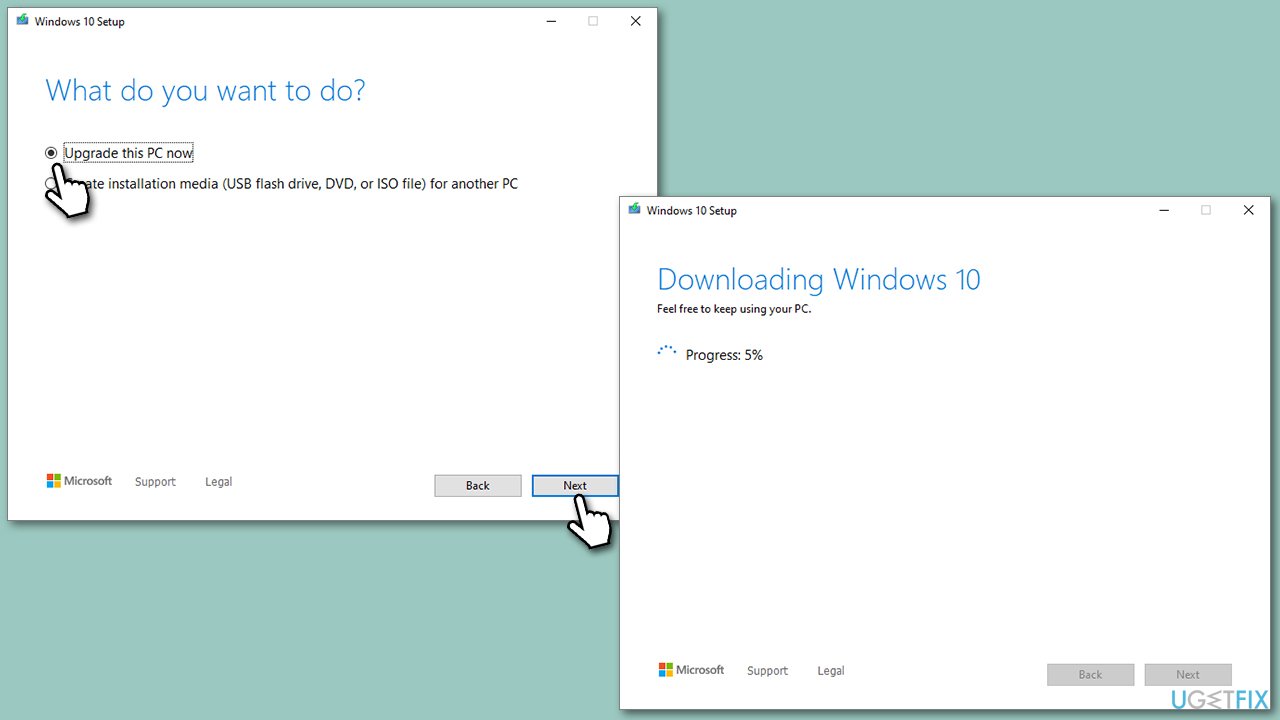
- Visit the official Microsoft website and download Windows 10 installation media (Windows 11 version).
- Double-click the installer, select Yes when UAC shows up, and agree to the terms.
- Select Upgrade this PC now and click Next.
- Windows will start downloading the needed files.
- Agree to the terms once again and click Next.
- Before installing, ensure you are happy with your choices (otherwise, you can click the Change what to keep option).
- Finally, click Install to begin the upgrade process.
Bottom line
To fix the error 0x80070483, users can start by clearing the Microsoft Store cache using the 'wsreset.exe' command or by manually deleting cache files. If the issue persists, repairing or resetting the Microsoft Store through the 'Apps & Features' settings may help. If none of these solutions work, consider using a reliable PC repair tool to address the error more efficiently.
Frequently asked questions
The error code 0x80070483 typically indicates a problem with the Microsoft Store app or its related services, preventing you from downloading or updating apps.
To fix the error, try resetting the Microsoft Store cache by running 'wsreset.exe' in the Run dialog, or consider reinstalling the Microsoft Store app through PowerShell.
Ensure that your Windows 10 is up to date, and check your internet connection and date/time settings, as incorrect configurations can lead to this error.




Report an issue
What's wrong with this guide? We review every report and update or remove content.
Report received — thank you. We'll review and fix it.
You need a free account to submit a report.
Be the first to comment