How to fix
“This WiFi uses an older security standard” error
on Windows
Resolve the "This WiFi uses an older security standard" error on Windows 10 and 11 with our expert-tested solutions. Fixed in minutes!


What causes How to fix “This WiFi uses an older security standard” error in Windows?
- Outdated authentication protocols such as WEP or TKIP
- Security flaws associated with WEP and TKIP
- Limited compatibility with modern Wi-Fi networks
- Incompatibility between PC's authentication capabilities and network security requirements
- Potential exposure to security threats
Repairs Windows system files, removes malware, and restores a clean OS state — without reinstalling.
Hello. When I try to connect to my Wi-Fi on my Windows PC, I receive the "This WiFi uses an older security standard" error message. What should I do?
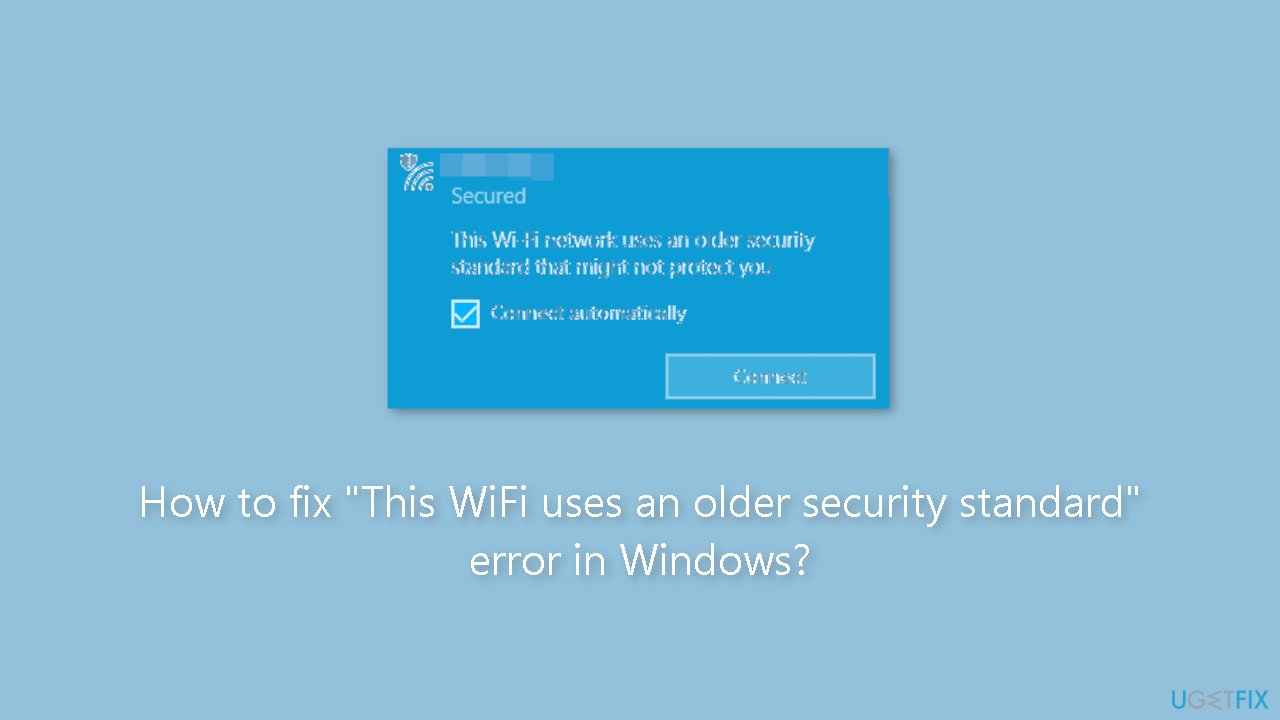
When attempting to connect to a WiFi network, the "This WiFi uses an older security standard" error in Windows indicates that the PC is using outdated authentication protocols, specifically WEP (Wired Equivalent Privacy)[ref en-1] or TKIP (Temporal Key Integrity Protocol). The full error message displayed to users is as follows:
This Wi-Fi network uses an older security standard that's being phased out. We recommend connecting to a different network.
This problem may have a variety of consequences for users. For starters, it introduces security flaws because both WEP and TKIP are known to have serious weaknesses. Users are more vulnerable to unauthorized access, data breaches, and privacy compromises when they rely on outdated authentication protocols.[ref en-2] Users are exposed to potential security threats if they continue to connect to networks with outdated security standards.
Second, the PC's compatibility with modern Wi-Fi networks may be limited. As newer networks prioritize stronger security measures, WEP and TKIP authentication protocols may no longer be supported. As a result of the incompatibility between their PC's authentication capabilities and the network's security requirements, users may encounter difficulties connecting to such networks or experience slow and unreliable connections.
There are a number of potential solutions to this problem. To begin, users can follow the advice in the error message and connect to a different network that adheres to modern security standards. Users can ensure a safer and more secure connection by selecting networks with stronger encryption protocols. Another possible solution is to update the Wi-Fi adapter drivers on the PC. Users can address compatibility issues and potentially gain support for newer security protocols by installing the most recent drivers provided by the manufacturer.
In some cases, upgrading the WiFi hardware may be required. If the current WiFi adapter or router does not support the most recent encryption protocols, purchasing a newer model with enhanced security features becomes a viable option. Upgrading the hardware ensures compatibility with networks that place a higher priority on security.
This guide will walk you through 2 steps that should help you resolve the "This WiFi uses an older security standard" error. Step-by-step instructions are provided below.
Solution 1. Change WLAN Security to WPA2
- Press the Windows key + R keyboard shortcut.
- In the Run dialog box, type cmd and click OK.
- The Command Prompt window will open. Type ipconfig and press Enter.
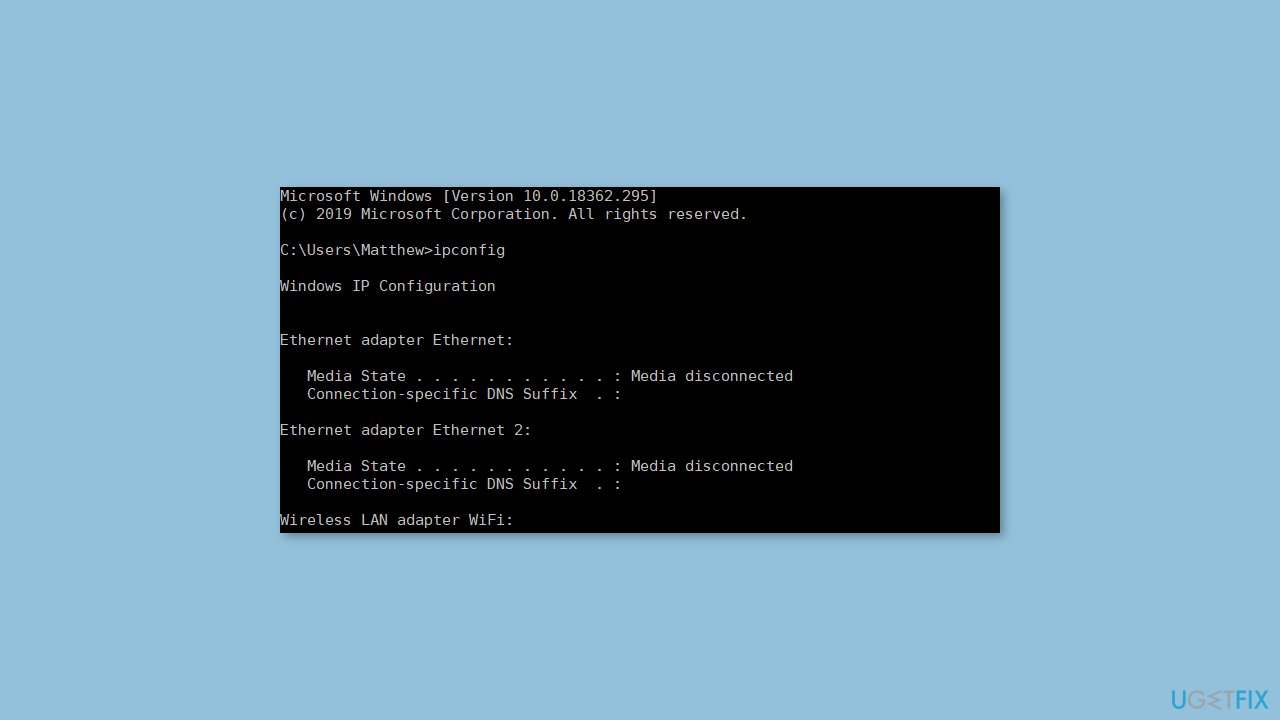
- Note down the Default Gateway number.
- Open a web browser and paste the Default Gateway number in the URL bar by pressing Ctrl + V.
- Press Enter to access the router's admin page.
- Enter the required login details to log in to the router admin page.
- Check the router's instruction manual or the router's rating plate for the login details.
- Look for a tab that includes Wi-Fi security settings on the router admin page.
- Keep in mind that router admin pages may vary in their user interface.
- Select a WPA2 or AES option from the Security Mode drop-down menu.
- Choose a Save or Apply option to apply the selected security mode.
Solution 2. Buy a new Router
If you are using old WiFi adapters, you may not be able to use AES Encryption because it is not supported on those devices. In such cases, you have two choices: continue to connect to WiFi networks that use an older security standard, or consider purchasing a new WiFi adapter that supports the most recent encryption protocols.
When you connect to a Not Secure WiFi network, your connected devices can still access the internet. However, when you go to the WiFi settings page, you will notice a not-secured symbol next to the name of the WiFi network. This symbol indicates that the network does not have adequate encryption to protect your data.
While it is possible to continue using your old routers, we strongly recommend purchasing a new WiFi adapter. This recommendation is made because older routers frequently do not provide adequate data encryption, leaving your personal information vulnerable to potential security risks.
Furthermore, Microsoft has stated that it will no longer support security features such as WEP and TKIP. As a result, upgrading to newer and more secure protocols is highly recommended to ensure the security of your wireless network.
Bottom line
To fix the 'This WiFi uses an older security standard' error, users can connect to a different network that uses modern security standards or update their Wi-Fi adapter drivers. If these solutions do not resolve the issue, upgrading the Wi-Fi hardware may be necessary.
Frequently asked questions
This error indicates that your WiFi network is using outdated security protocols, such as WEP or WPA, which are less secure. Windows 10 and Windows 11 block connections to these networks to protect your device.
To fix this error, access your router settings and update the WiFi security protocol to WPA2 or WPA3. After changing the settings, reconnect your Windows 10 or Windows 11 device to the network.
Yes, updating the security standard may require you to reconnect your devices with the new password if you've changed it. Ensure all your devices support the new security protocol for uninterrupted connectivity.




Report an issue
What's wrong with this guide? We review every report and update or remove content.
Report received — thank you. We'll review and fix it.
You need a free account to submit a report.
Be the first to comment