How to fix
Microsoft Defender error 0x80004004
on Windows
Resolve Microsoft Defender error 0x80004004 in Windows 10 or 11 easily with our expert-tested solutions. Get back to secure browsing, fixed in minutes!

What causes How to fix Microsoft Defender error 0x80004004 in Windows?
- Problem with Microsoft Defender's functionality
- Issues when launching the application
- Problems during updates
- Errors while performing a scan
- Corrupted system files
- Conflicting third-party antivirus software
Repairs Windows system files, removes malware, and restores a clean OS state — without reinstalling.
Hello. I tried to run a virus scan with Microsoft Defender on Windows but I received the 0x80004004 error. Is there a way to fix it?
Microsoft Defender, also known as Windows Defender,[ref en-1] is an antivirus and security software built into the Windows operating system. It protects the system in real-time from viruses, malware, and other potential threats. The Microsoft Defender error code 0x80004004 occurs when there is a problem with the Microsoft Defender tool's functionality. This error can occur when attempting to launch the application, updating it, or performing a scan.
This error can have a significant impact on users because it jeopardizes Microsoft Defender's ability to effectively protect the system. Without the antivirus tool, the system is vulnerable to a variety of security threats, including malware infections, data breaches, and unauthorized access to personal information.
There are several possible solutions to the Microsoft Defender error code 0x80004004. In general, some common methods for resolving this error include updating Windows, performing a full system scan, ensuring the most recent version of Microsoft Defender is installed, checking for conflicting third-party antivirus software, and performing system file checks to identify and repair any corrupted system files.
In this guide, you will find 5 steps that should help you fix Microsoft Defender error 0x80004004 in Windows. You can also try a maintenance tool like [d1] that can fix most system errors, BSODs,[ref en-2] corrupted files, and registry[ref en-3] issues. Otherwise, follow the step-by-step instructions below.
Method 1. Fix Corrupted System Files
Use Command Prompt commands to repair system file corruption:
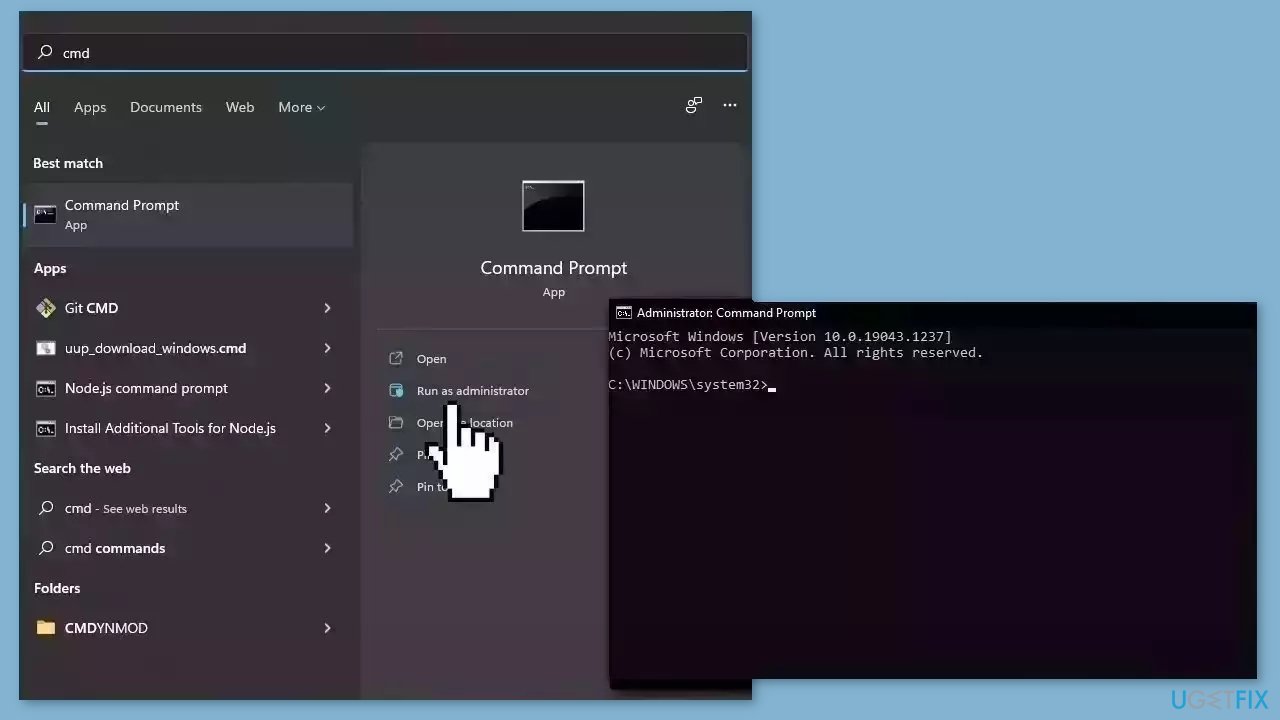
- Open Command Prompt as administrator
- Use the following command and press Enter:
sfc /scannow
- Reboot your system
- If SFC returned an error, then use the following command lines, pressing Enter after each:
DISM /Online /Cleanup-Image /CheckHealth
DISM /Online /Cleanup-Image /ScanHealth
DISM /Online /Cleanup-Image /RestoreHealth
Method 2. Restart Microsoft Defender Services
- Press the Windows key + R to open the Run dialog.
- Type services.msc in the Run dialog and press Enter.
- In the Services window, locate Microsoft Defender Advanced Threat Protection.
- Right-click on Microsoft Defender Advanced Threat Protection.
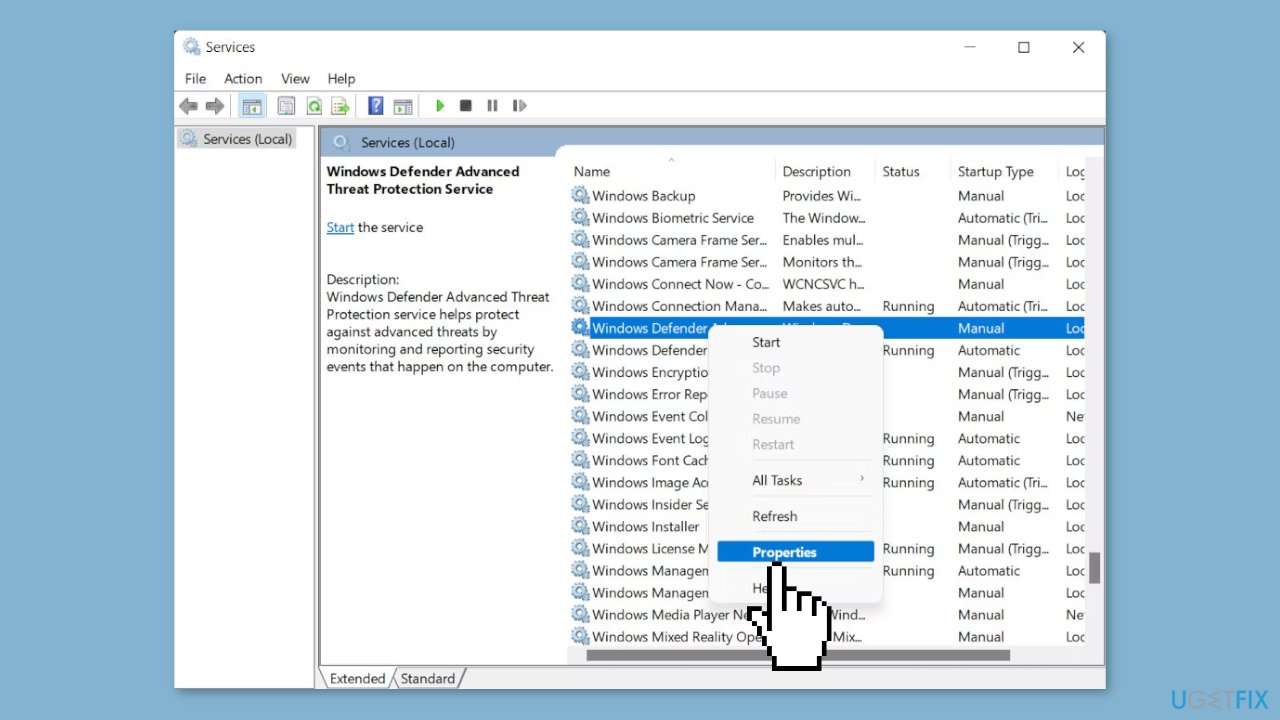
- Choose Properties from the context menu.
- If the service is stopped, click on the Start button. If it is already running, click on the Stop button, wait for a few seconds, and then click Start.
- Make sure the Startup type is set to Automatic.
- Click Apply and then click OK to save the changes.
Method 3. Uninstall Third-Party Antivirus
It's likely that you're already aware that two antivirus programs cannot effectively operate on the same system simultaneously. Each security tool is made up of numerous files that are installed in different locations throughout the system. As a result, if one antivirus program is not uninstalled properly, it may cause issues with the installation or operation of another program, which could lead to system errors like the Windows Defender update error 0x80004004.
If you've previously used a different antivirus program, it's important to check for any remaining files or components. To do this, you can use a specific antivirus removal tool that can typically be found on the official website of the software you previously used.
Method 4. Install Windows Updates
- Press the Windows key + R to open the Run box.
- Type ms-settings:windowsupdate in the text box and press Enter.
- Click the Check for updates button.
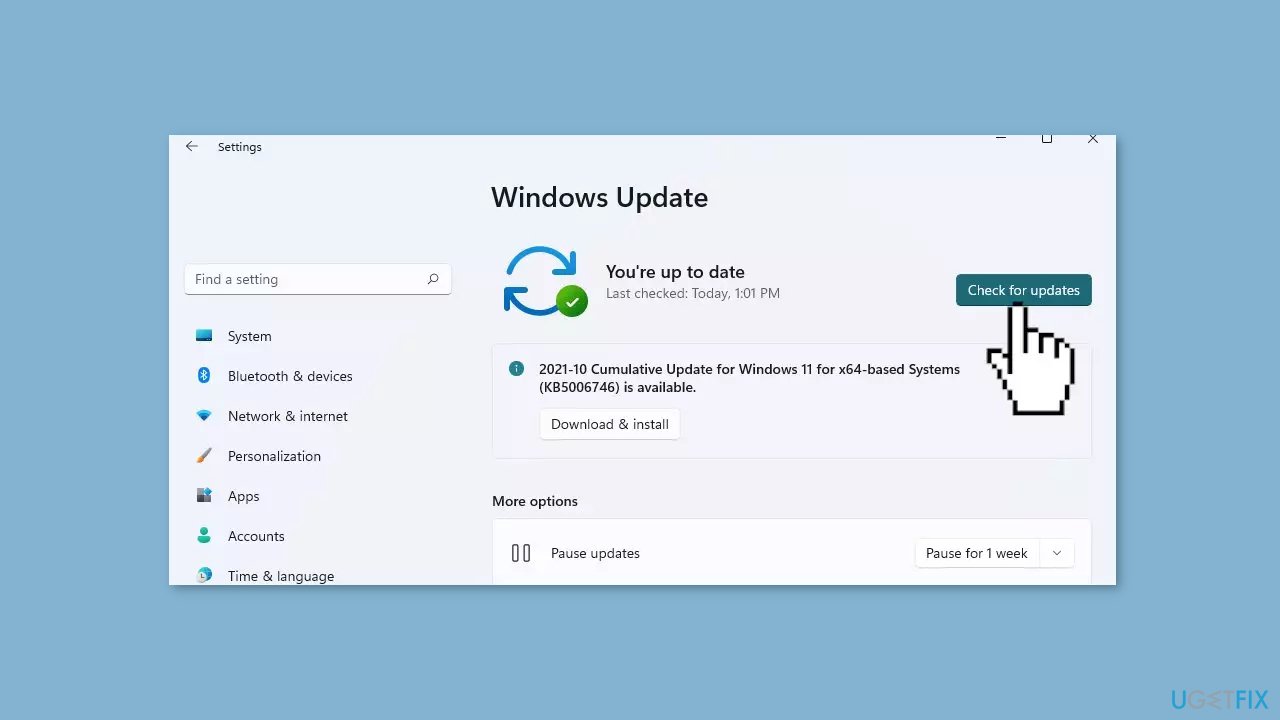
- If a new update is available, click the Download & Install all button.
- Restart your computer after the process is finished and check to see if the problem is fixed.
Method 5. Check for Windows Defender Updates
- Press the Windows key + I on your keyboard to quickly open the Settings app.
- Go to the Update & Security section.
- In the left pane, select Windows Defender.
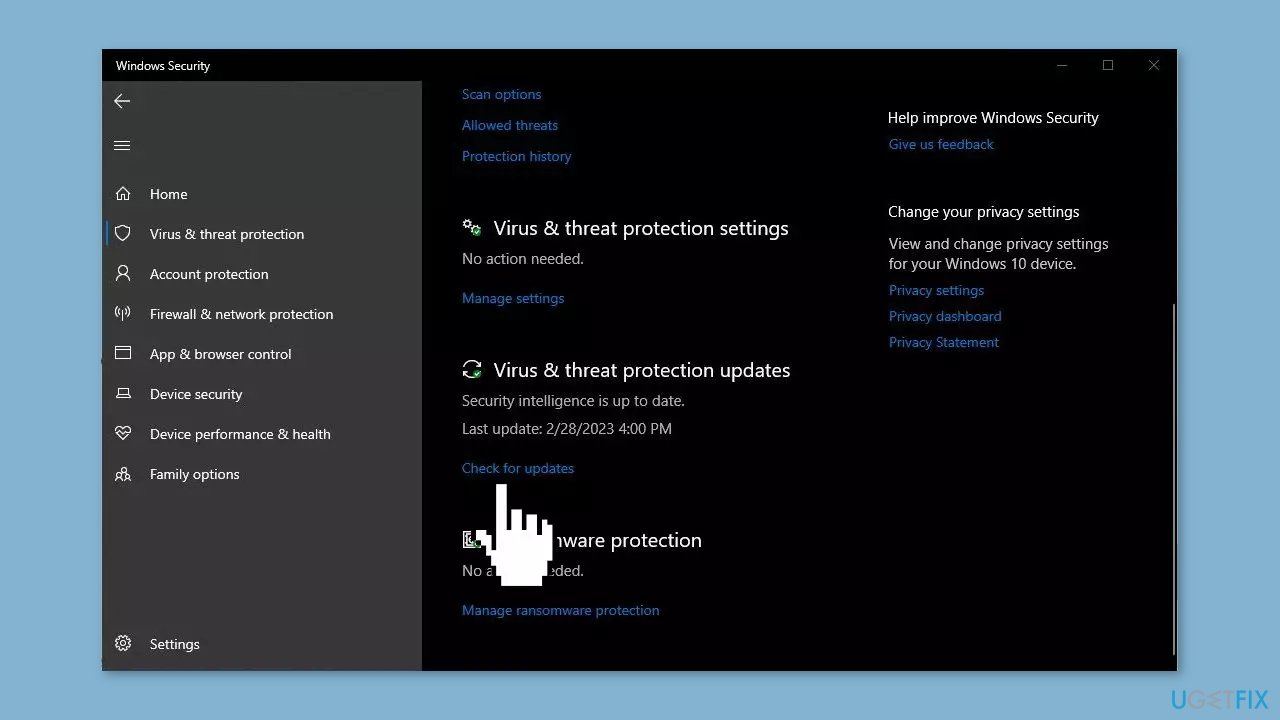
- Click on the Open Windows Defender Security Center button.
- In the Windows Defender Security Center, go to the Virus & threat protection section.
- Now, click on Protection updates.
- Click on the Check for updates button.
Bottom line
To fix the Microsoft Defender error 0x80004004, you can try repairing corrupted system files using Command Prompt, restarting Microsoft Defender services, updating Windows, and ensuring you have the latest version of Microsoft Defender installed. If these methods do not resolve the issue, consider using a maintenance tool to address system errors.
Frequently asked questions
The error 0x80004004 typically indicates that there is a problem with the Microsoft Defender service or a conflict with another security application. This error can prevent real-time protection from functioning properly.
To fix error 0x80004004 in Windows 11, try resetting Microsoft Defender by going to Settings > Privacy & security > Windows Security > Virus & threat protection, and then selecting 'Manage settings' to toggle options off and on again.
In Windows 10, you can resolve the 0x80004004 error by running the Windows Security Troubleshooter, which can be found in Settings > Update & Security > Troubleshoot, and then following the prompts to diagnose and fix issues.




Report an issue
What's wrong with this guide? We review every report and update or remove content.
Report received — thank you. We'll review and fix it.
You need a free account to submit a report.
Be the first to comment