How to fix
“System error 6118 has occurred” in Command Prompt
on Windows
Resolve the "System error 6118" in Windows 10 and 11 effortlessly using Command Prompt. Quick fixes with expert-tested solutions await you!


What causes How to fix “System error 6118 has occurred” in Command Prompt?
- Misconfigured firewall settings
- Improper network settings or services
- Disabled Computer Browser Service
- Incorrect network protocols
- Incorrect network adapter settings
Repairs Windows system files, removes malware, and restores a clean OS state — without reinstalling.
I tried to view all my devices on the network via Command Prompt via "net view" command, but I received an error that read, "System error 6118 has occurred." Anything I could do to resolve it?
In the landscape of network administration, the "net view" command in Command Prompt is an indispensable tool. This simple command provides a list of computers and resources shared on a network, helping admins monitor and manage network activities. Using it, one can get an overview of network resources, diagnose problems, and perform other networking tasks more efficiently.
The "net view" command works by querying the Server Message Block (SMB) protocol, which allows sharing of resources like files or printers over a network. Once executed, it communicates with the master browser, the computer responsible for collecting and distributing the list of devices connected to the network.
However, like any other computer process, the "net view" command is not immune to errors. One error that network administrators occasionally encounter is "System error 6118 has occurred." This error signifies that the command could not fetch a list of servers from the master browser.
Several factors can contribute to this issue. One major cause is misconfigured firewall settings. Firewalls are designed to control the network traffic for the system's security. However, incorrect firewall configurations can unintentionally block essential network services, thereby causing the 6118 error when "net view" is run.
Another potential cause is improper network settings or services. This might include misconfigured network protocols or incorrect network adapter settings. In other cases, the error might be due to a disabled Computer Browser Service, which plays a critical role in maintaining an updated list of devices on the network.
To resolve the error, users should check their firewall settings to ensure "net view" and other related services are not being blocked. Additionally, they can verify network settings or services, ensuring that they are configured correctly.
Below you will find several tips that should help you to fix "System error 6118 has occurred" in Command Prompt. We also recommend scanning the device with a powerful PC repair tool [d1], which can quickly find underlying Windows issues and fix them automatically for you.
Fix 1. Try alternative commands
If you are getting an error when trying to find a list of devices connected to your network, you can try an alternative command instead. Follow these steps:
- Type cmd in Windows search.
- Right-click on Command Prompt and select Run as administrator.
- In the new window, copy and paste these commands (replace computername with actual name):
Get-SmbShare -Name “computername”
Get-SmbShare -Name “computername” | Format-List
Get-SmbShare -Name “computername” | Format-List -Property * - You should see the list of your devices.
Fix 2. Enable responsible services
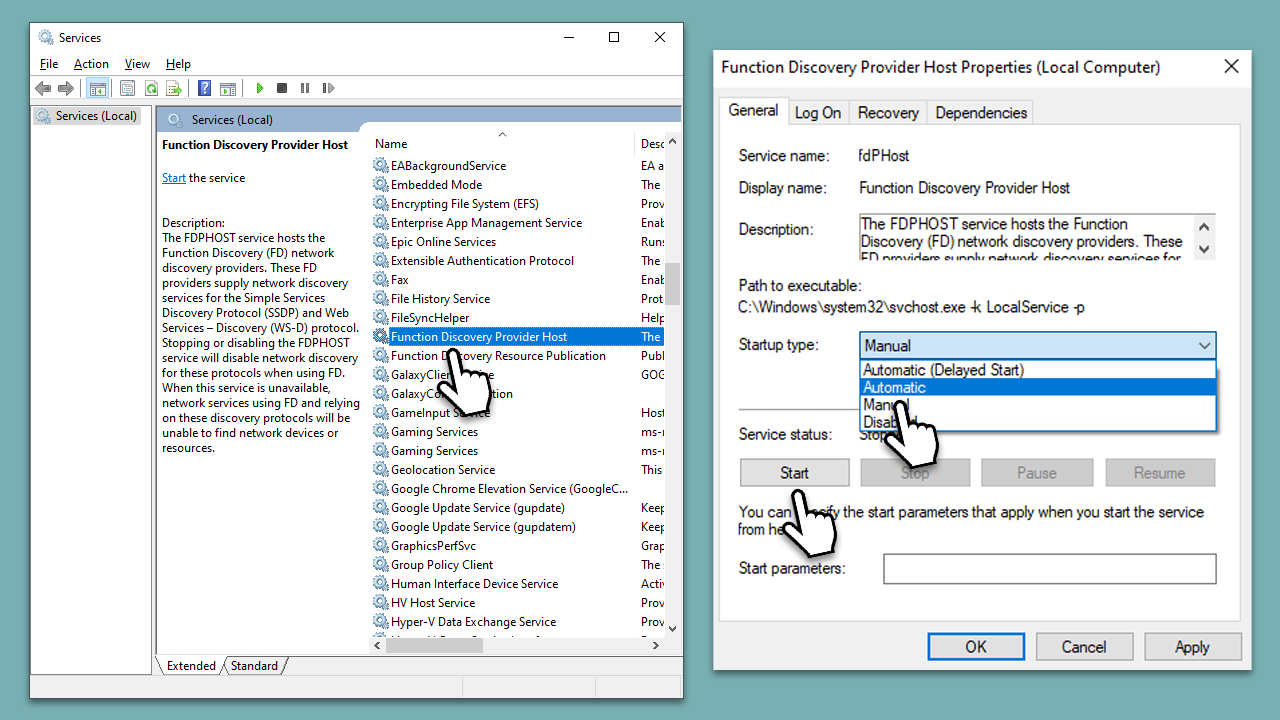
- Type Services in Windows search and press Enter.
- In the window, scroll down to Computer Browser Service.
- Double-click the service to open Properties.
- In the Properties window, check the Startup type section - select Automatic from the drop-down menu.
- Click Start, Apply, and OK.
- Now locate the Function Discovery Provider Host Service and perform the same steps.
Fix 3. Configure network settings
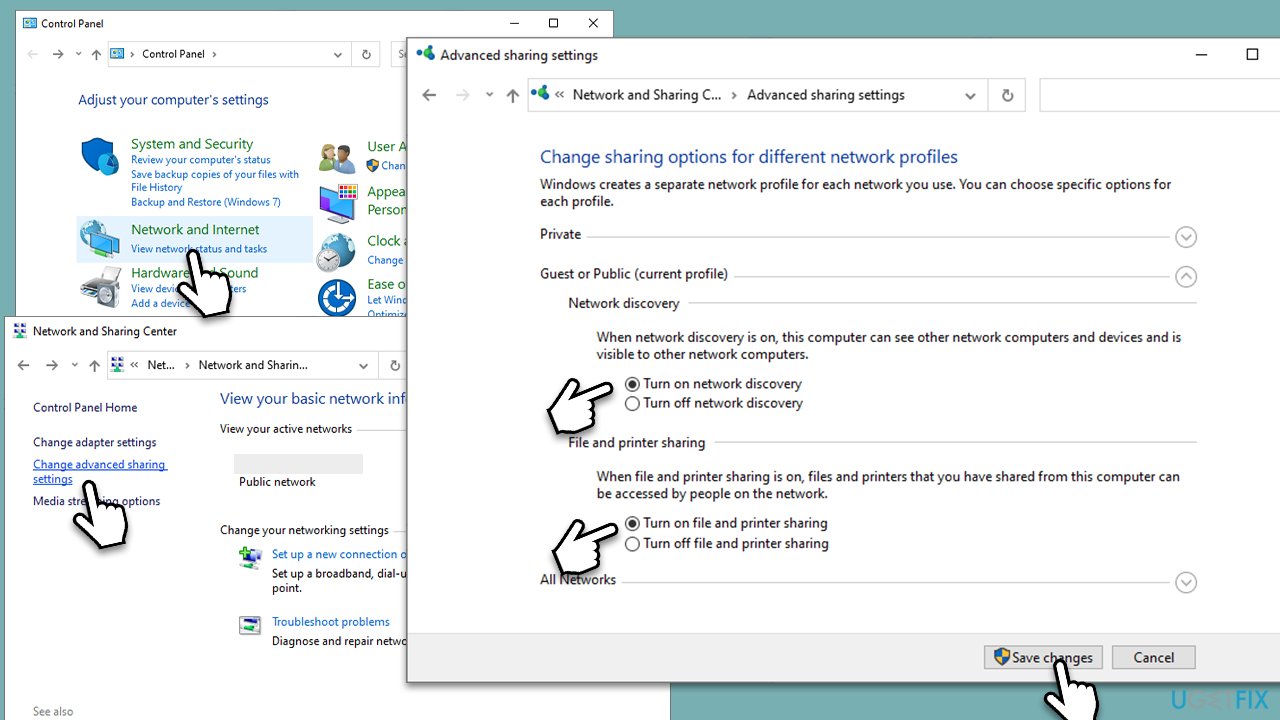
- Type Control Panel in Windows search and press Enter.
- Under Network and Internet, click View network status and tasks.
- On the left side, select Change advanced sharing settings.
- Here, make sure that Network discovery and other available settings are enabled for private and public networks.
- Click Save changes.
Fix 4. Enable SMB
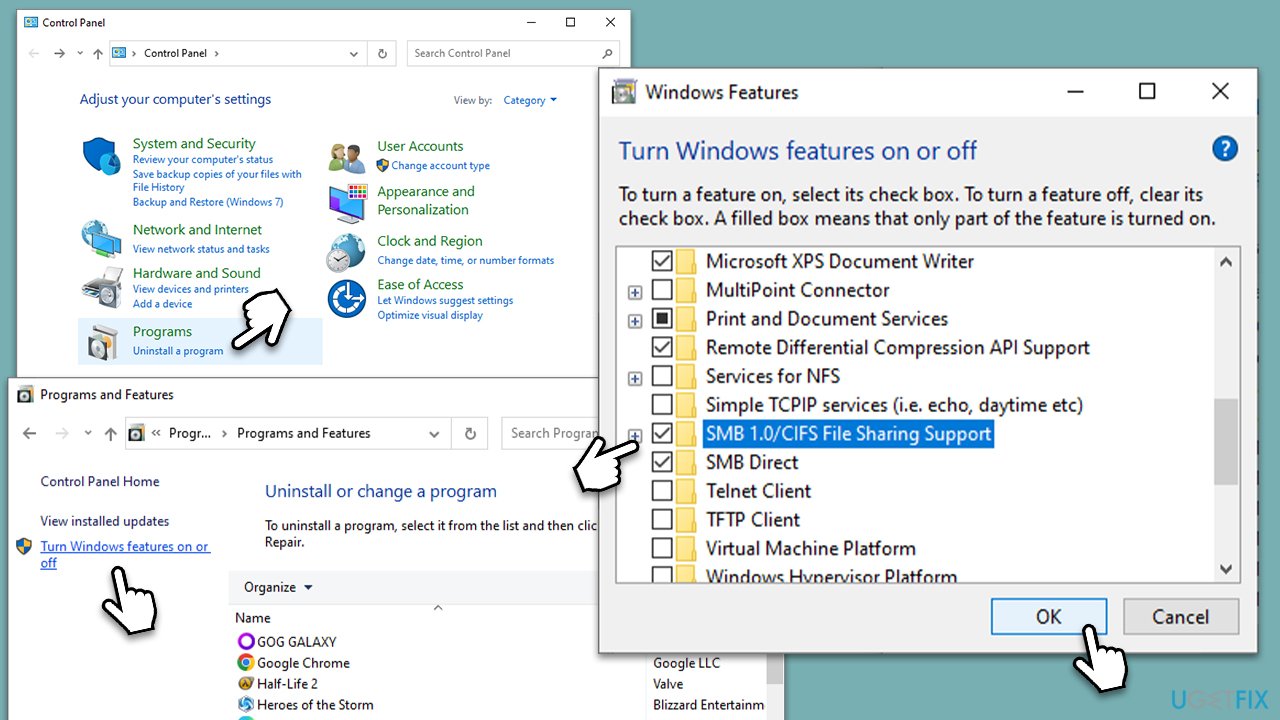
- Type Control Panel in Windows search and press Enter.
- Under Programs, select Uninstall a program.
- On the left side, click Turn Windows features on or off.
- Scroll down to SMB 1.0/ CIFS File Sharing Support and tick the checkbox.
- Click OK.
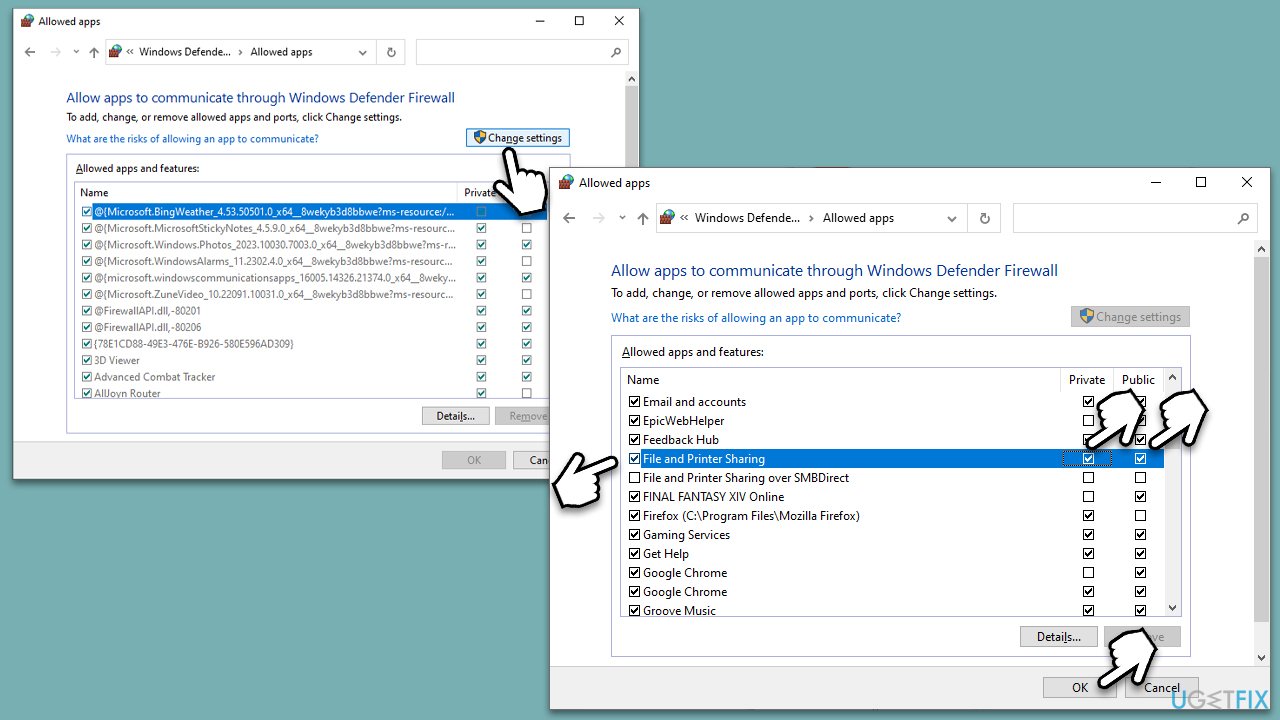
Fix 5. Check Firewall settings
- In Windows search, type in Allow an app through Windows Firewall and press Enter.
- Click Change settings to unlock the list of the allowed apps.
- Scroll down and find File and Printer Sharing - tick the checkboxes for Private and Public options.
- Now find Network Discovery and enable it on Private and Public as well.
- Click OK.
Fix 6. Reset internet
- Open Command Prompt as administrator.
- Copy and paste in following commands, pressing Enter after each:
ipconfig /release
ipconfig /flushdns
ipconfig /renew
netsh winsock reset
netsh interface ipv4 reset
netsh interface ipv6 reset
netsh winsock reset catalog
netsh int ipv4 reset reset.log
netsh int ipv6 reset reset.log
netsh advfirewall reset - Restart your system when done.
Bottom line
To resolve 'System error 6118 has occurred', users should check their firewall settings to ensure that the 'net view' command is not being blocked. Additionally, verifying network settings and ensuring that the Computer Browser Service is enabled can help. If these steps do not resolve the issue, further troubleshooting may be necessary.
Frequently asked questions
This error indicates that the computer cannot find the network path specified, often due to network discovery being turned off or issues with the network settings.
Go to Settings > Network & Internet > Status > Network and Sharing Center, then click on 'Change advanced sharing settings' and enable 'Turn on network discovery'.
You can run the command 'net view' to check if the network resources are visible and help diagnose any connectivity issues related to the error.




Report an issue
What's wrong with this guide? We review every report and update or remove content.
Report received — thank you. We'll review and fix it.
You need a free account to submit a report.
Be the first to comment