How to fix
“Windows could not start the Crypkey License service on Local Computer” error
on Windows
Resolve the “Windows could not start the Crypkey License service” error on Windows 10/11 effortlessly. Expert-tested solutions await to fix it in minutes.

What causes How to fix “Windows could not start the Crypkey License service on Local Computer” error?
- Mismatch between the image path and executable path of CrypKey software
- Executable file not related to Windows systems
- Corrupted crypserv.exe file
- File consuming a lot of CPU memory usage
- File potentially disguising malware
Repairs Windows system files, removes malware, and restores a clean OS state — without reinstalling.
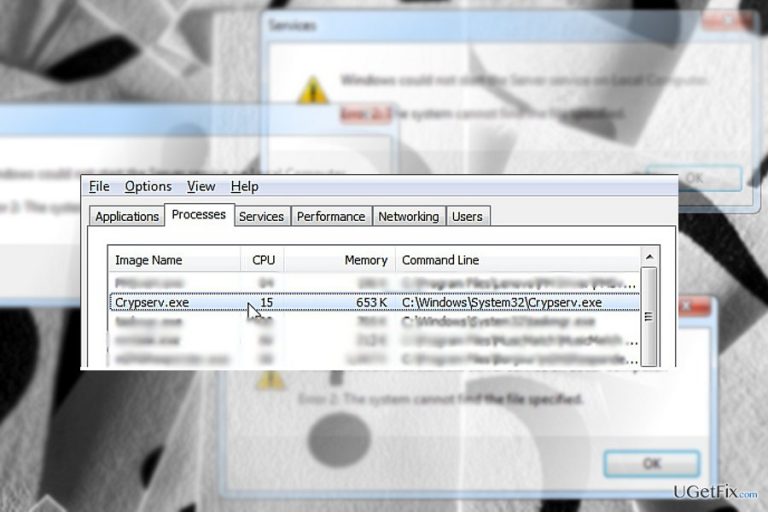
When I want to install a new application, the error message pops up “Windows could not start the Crypkey License service on Local Computer.” I also find crypserv.exe file running in the Task Manager. Some say it is a legitimate file, others claim it to be a virus. Your opinion?
"Windows could not start the Crypkey License service on Local Computer.
Error 2: the system cannot find the file specified" error occur due to different reasons. Firstly, a mismatch between the image path and executable patch of CrypKey software might trigger this problem. Originally, CrypKey refers to the company located in Canada. It specializes in producing encryption services for licensing programs and copyright prevention. Though the executable file is not related to Windows systems, its executable file may be found at C:\WINDOWS\SYSTEM32\crypserv.exe. The file runs at startup, and in most cases, it is significant for launching supported programs, e.g. Iconics Scada software. However, there are also cases when users report the odd behavior of this file. Some users noticed its relation with w32/Dyfuca.l malware. It is not common for hackers to disguise malware under the executable files of well-known and legitimate programs. In this case, identifying the origin of the malware may not be an easy task. Likewise, it would be better to scan the file with anti-malware tools to determine whether the file is legitimate or corrupted one.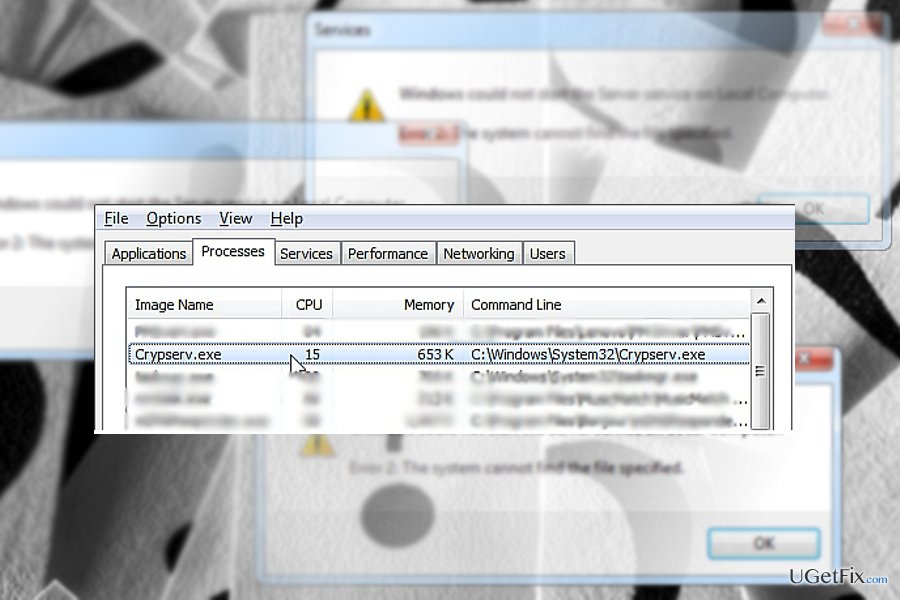
Option 1. Run security scan with malware elimination tool
If you notice that crypserv.exe file consumes a lot of CPU memory usage, it is likely that the file serves as a disguise for malware. In addition, if you regularly scan the device, you may notice that during its proess, more PUPs or elaborate threats sneak into the device. If the file is corrupted, it functions as a rootkit facilitating the infiltration of a more elaborate infection. Clean the device with [rev id=”Reimage”].
Option 2. Check the image path location
- In order to check the path of the executable file, open Task Manager. You can do it by clicking ESC+SHIFT+CTRL. When it opens, find Crypserv.exe file and right-click on it. Choose “Open file location.”
- Next, you should find out whether the image path file is the same.
- Launch Registry Editor. Click Windows+R and type regedit. Press Enter.
- Once Registry Editors opens, find the following location: HKEY_LOCAL_MACHINE \ SYSTEM \ CurrentControlSet \ services \ {Crypkey License}.
- Enter Crypkey License folder and locate file ImagePath. If the path is different, you may try changing its value. Right click on the file and choose Modify. Then, you will be able to change the value.
- Without corrupting your registry files more, you may want to use [rev id=”RegCure Pro”] or other registry repair tools. After changing the value, you may also attempt to reinstall the application. Find Crypkey program in the list of system applications and uninstall it.
Option 3. Disable the task from running at startup
Check whether disabling crypserv.exe from running right after Window launches solve the problem.
- Click Windows+R, type cmd, and press Enter. In the newly opened window, type schtasks /Change [/S <system> [/U <username> [/P [<password>]]]]
/TN <taskname> /DISABLE - Click Enter and wait for the command to end.
- You may be asked to reboot the computer.
- If you notice that disabling file has caused more system problems to appear, you may enable the task again by changing the part of the above-shown entry from Disable to Enable.
Bottom line
To fix the error, you can run a security scan with a malware elimination tool and check the image path location of the executable file. If these solutions do not resolve the issue, consider further investigation or seeking professional assistance.
Frequently asked questions
The error is often caused by corrupted system files, missing dependencies, or issues with the service configuration itself.
To start the Crypkey License service manually, open the Run dialog, type 'services.msc', find the Crypkey License service, right-click it, and select 'Start'.
Yes, reinstalling the Crypkey software can resolve the issue by restoring necessary files and configurations that may have been corrupted.




Report an issue
What's wrong with this guide? We review every report and update or remove content.
Report received — thank you. We'll review and fix it.
You need a free account to submit a report.
Be the first to comment