How to fix
“Windows cannot determine the settings for this device” (Code 34) error
on Windows
Resolve the "Windows cannot determine the settings for this device" error in Windows 10 or 11 quickly and efficiently. Expert-tested solutions await!


What causes How to fix “Windows cannot determine the settings for this device” (Code 34) error in Windows?
- Outdated device drivers
- Corrupt device drivers
- Incompatible device drivers
- Hardware conflicts
- Physically damaged COM port
Repairs Windows system files, removes malware, and restores a clean OS state — without reinstalling.
I got a message that my Com port 1 is not working. In the device manager, the message says, "Windows cannot determine the settings for this device" (Code 34). This must mean something - how do I fix this?
In computing, one may occasionally encounter an error that disrupts the normal functioning of their computer. "Windows cannot determine the settings for this device. Consult the documentation that came with this device and use the Resource tab to set the configuration. (Code 34)" is one such error that often leads to confusion and frustration among Windows users. This error is particularly prevalent when there is an issue with the computer's COM port.
A COM port, short for a communication port, is a channel on the computer through which data can be transmitted and received. It serves as an interface between the computer and other devices or computers. It's a critical system component as it plays a key role in ensuring effective communication, especially with peripheral devices.
When you encounter the Code 34 error, it implies that Windows is unable to determine the settings for a specific device connected to your computer via the COM port. This generally happens when there are hardware or software discrepancies related to the COM port, such as incorrect device drivers, hardware conflicts, or potentially a physically damaged port.
In most instances, the leading cause of this error is outdated, corrupt, or incompatible device drivers. The device drivers act as a bridge between the hardware and the operating system. When these drivers are not functioning properly, it can lead to this frustrating error. Another reason can be hardware conflicts. Conflicts arise when two devices try to use the same resources, causing the "Windows cannot determine the settings for this device" (Code 34) error.
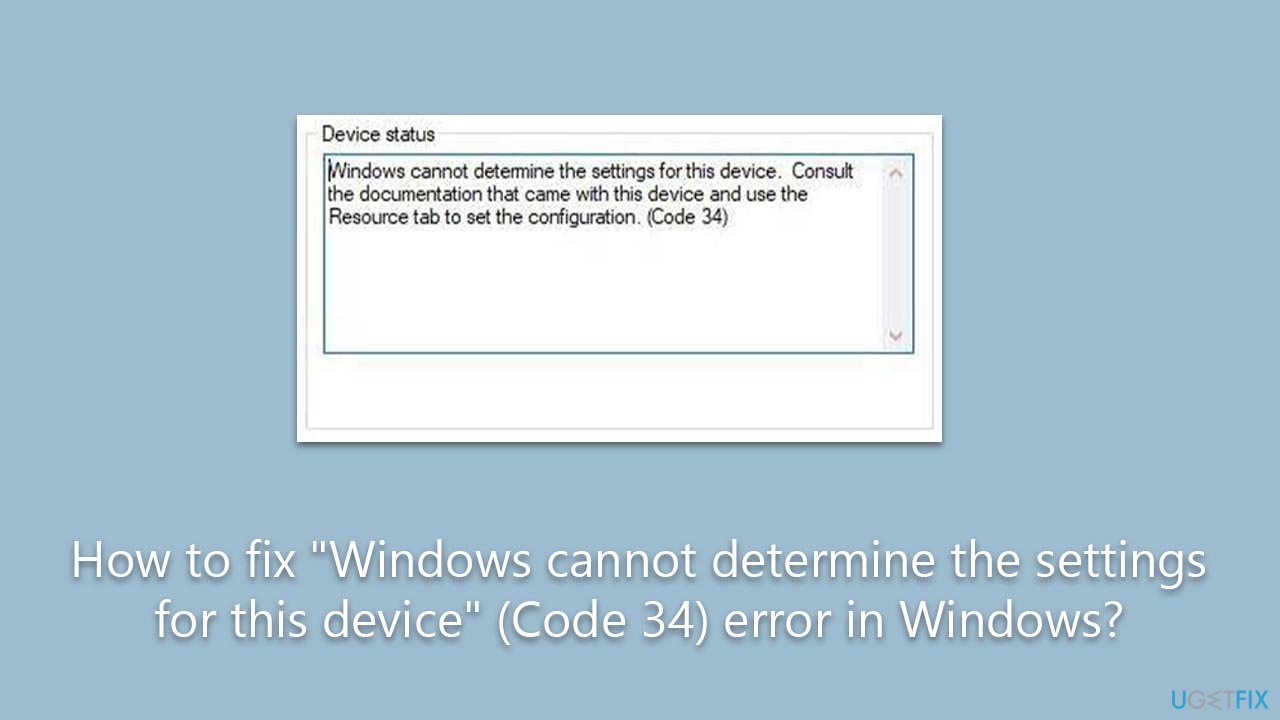
So, how can we mitigate this issue? A logical starting point is to update your device drivers. Regular updates ensure the proper functionality of the device drivers, thereby minimizing the risk of such errors. You can also use the Device Manager in Windows to change the resources assigned to the device and resolve any potential conflicts. Changing when the device goes to sleep can also resolve this issue.
Below you will find several ways you can fix the "Windows cannot determine the settings for this device" (Code 34) error. Before you proceed with manual solutions, we recommend trying a powerful PC repair tool [d1].
Method 1. Unplug and restart
Let's start with easy solutions first, and this is something you should definitely try, as the error might arise due to a simple bug. Thus, follow these steps:
- Unplug every device you have connected via the USB or other connections, for example, printers, scanners, phones, etc.
- Shut down your computer and disconnect the keyboard and mouse as well.
- Wait for a few minutes and start your PC.
- Connect all your devices and see if the error is gone. If Code 34 is still present, proceed with the other solutions below.
Method 2. Manually install the problematic device
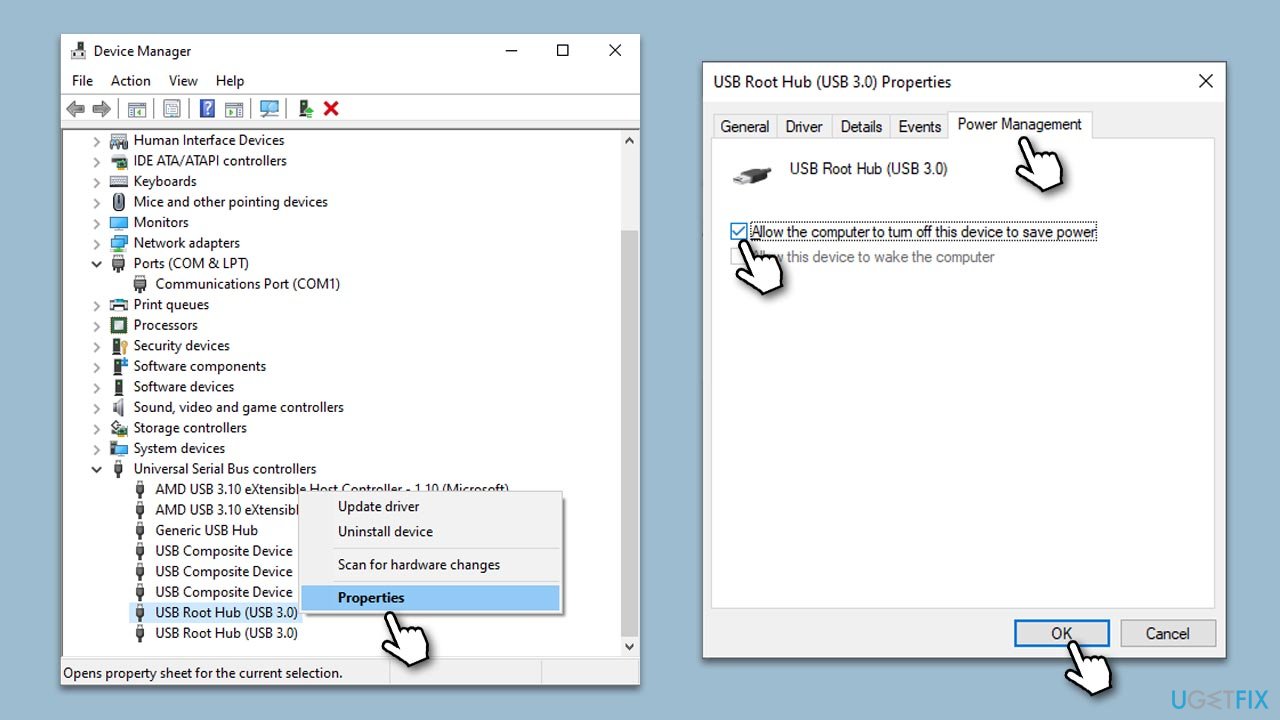
- Right-click on Start and pick Device Manager.
- Expand the Universal Serial Bus Controllers section.
- Right-click on USB Root Hub 3.0 and select Properties. If you have two or more of these, repeat this process.
- Navigate to the Power Management tab and make sure the Allow the computer to turn off this device to save power option is ticked. Click OK.
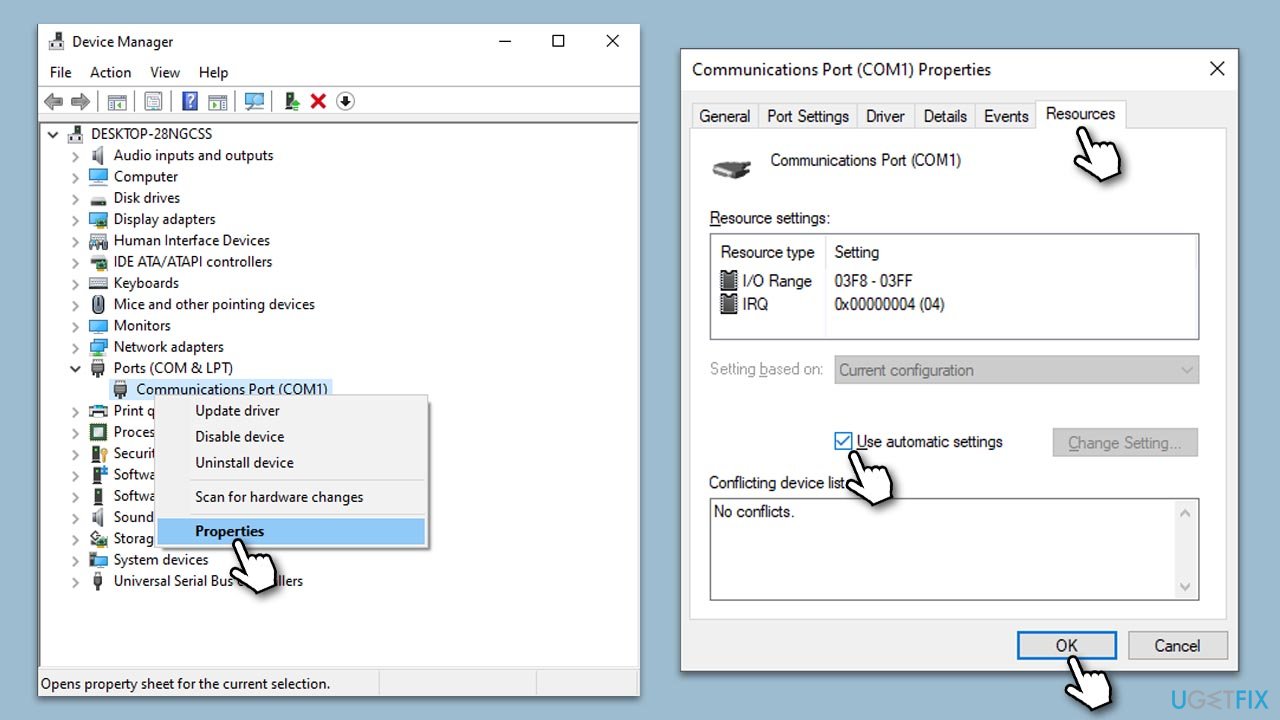
- Next, expand the Ports (COM & LPT) section in the Device Manager.
- Right-click on the malfunctioning device and select Properties.
- Go to the Resources tab and mark the Use automatic settings checkbox.
- If this option is grayed out, refer to other solutions.
Method 3. Update drivers
Having the latest drivers installed on your device can resolve malfunctions. You can update your drivers in several ways - if you want the quickest solution, we recommend [rev id="DriverFix"]. Alternatively, you can download the latest driver from your device manufacturer's website or employ the Windows update feature:
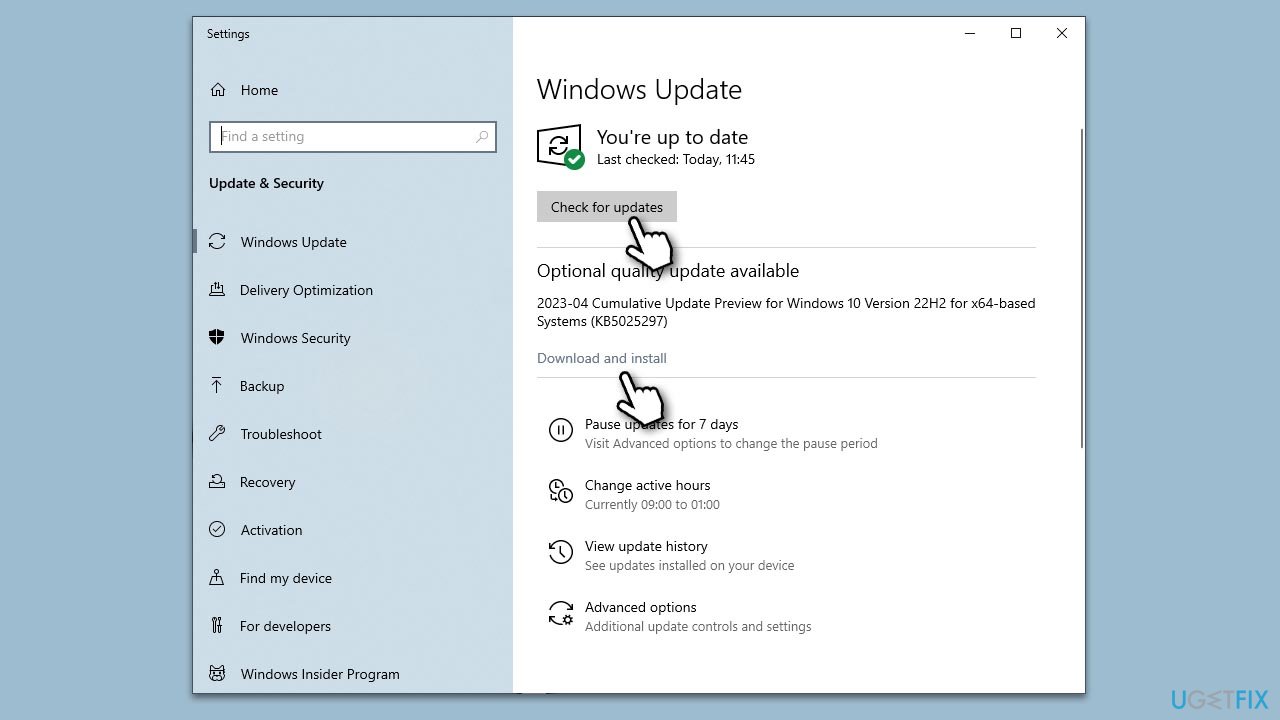
- Type Updates in Windows search and press Enter.
- Here, click Check for updates, and Windows will check if there are new updates available.
- If optional updates are available, install them too.
- Once done, restart your computer and see if your problem is resolved.
Method 4. Reinstall drivers
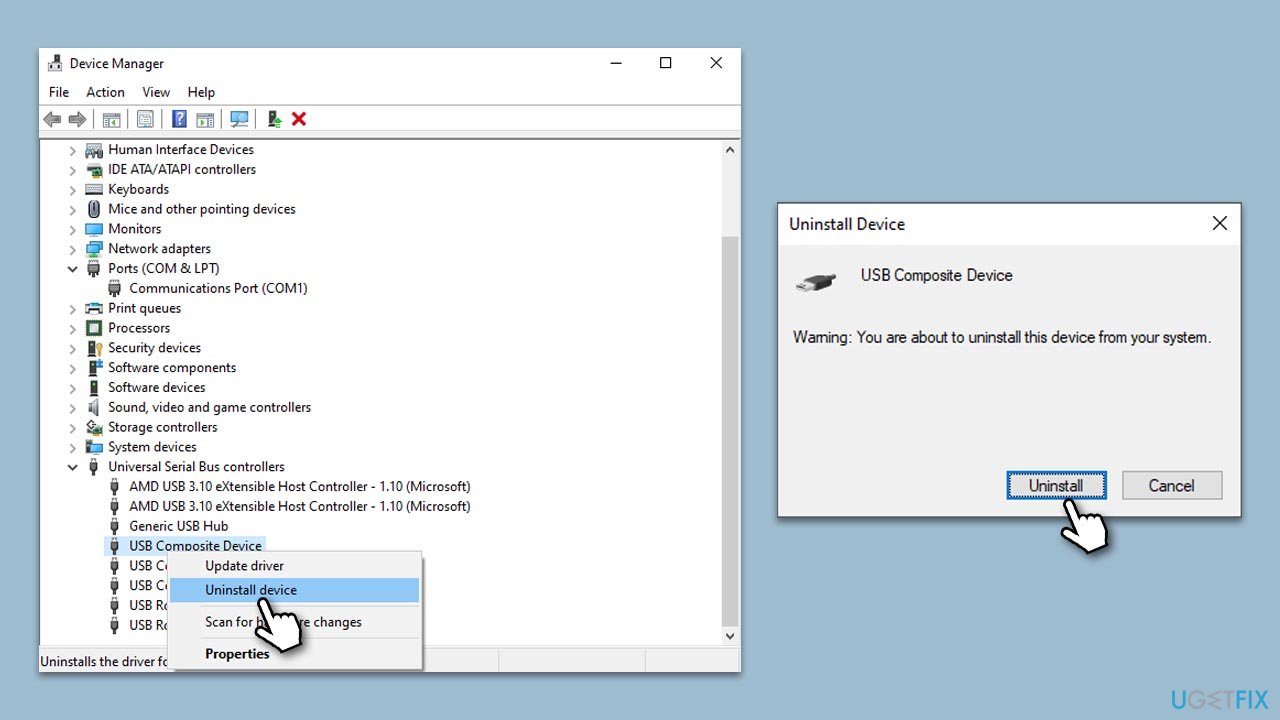
- Open Device Manager again.
- Expand Universal Serial Bus controllers.
- Right-click on the device with a yellow exclamation mark and select Uninstall device.
- When prompted, agree to uninstall.
- Follow the on-screen instructions and restart your device.
- After that, use one of the methods explained in the previous step to install the latest driver software.
Bottom line
To fix the 'Windows cannot determine the settings for this device' (Code 34) error, start by updating your device drivers to ensure they are functioning properly. Additionally, check for any hardware conflicts that may be causing the issue. If these solutions do not work, consider consulting the device documentation or seeking professional assistance.
Frequently asked questions
This error typically occurs due to corrupted device drivers or incorrect device configurations in Windows 10. It can also arise from hardware issues or conflicts with other devices.
You can update drivers by right-clicking the Start button, selecting Device Manager, locating the problematic device, right-clicking it, and choosing 'Update driver.' Follow the prompts to search automatically for updated driver software.
Yes, you can often resolve the Code 34 error by performing a driver rollback, uninstalling and reinstalling the device, or using the built-in troubleshooter in Windows 10.




Report an issue
What's wrong with this guide? We review every report and update or remove content.
Report received — thank you. We'll review and fix it.
You need a free account to submit a report.
Be the first to comment