How to fix
USB Ports not working
on Windows
Resolve USB port issues on Windows 10 or Windows 11 easily with our expert-tested solutions. Get your devices working in minutes, with zero traces left.

What causes How to fix USB Ports not working in Windows?
- Faulty device drivers
- Software conflicts
- Incorrect USB power settings
- Hardware component failure
- Improper device connection
Repairs Windows system files, removes malware, and restores a clean OS state — without reinstalling.
Hello. The USB ports of my Windows PC have stopped working. Is there a way to fix this?
USB ports are essential components of a computer system because they allow users to connect a variety of devices and peripherals. They facilitate data transfer, device charging, and add to the system's functionality. However, when USB ports in Windows stop working, it can have a significant impact on users.
The consequences of ineffective USB ports can be both frustrating and disruptive. Users rely heavily on USB connectivity for tasks such as file transfer between their computer and external storage devices such as USB drives or external hard drives. This inability blocks critical backup, file sharing, and data synchronization processes.
Furthermore, faulty USB ports prevent the use of peripherals and accessories such as printers, scanners, webcams, or external keyboards and mice. This restricts the computer's functionality and may impair productivity. USB ports are also frequently used to charge smartphones, tablets, and other mobile devices.
When the ports stop working, users may have difficulty charging their devices. Additionally, some devices require USB connections in order to perform firmware updates or driver installations. Users may find it difficult to keep their devices up to date with the latest software enhancements due to faulty USB ports.
It is critical to address USB port issues as soon as possible in order to restore full functionality and avoid prolonged inconvenience. Updating or reinstalling device drivers,[ref en-1] checking for software conflicts, performing system troubleshooting and diagnostics, resetting USB power settings, and, in extreme cases, repairing or replacing hardware components are all possible solutions for USB port issues.
In this guide, you will find 4 steps that should help you fix USB Ports not working in Windows. You may also run a maintenance tool like [d1] that can fix most system errors, BSODs,[ref en-2] corrupted files, and registry[ref en-3] issues. Otherwise, follow the step-by-step instructions below.
Method 1. Restart your PC
Ensure that you have correctly inserted your unidentified USB device into the suspicious USB port. Proceed to restart your computer. After the operating system has finished rebooting, it should recognize the USB device. In the event that it fails to do so, it is advisable to examine the device within the Windows device manager.
Method 2. Reinstall the Driver
- Right-click Start and select Device Manager.
- Browse the list for Universal Serial Bus controllers.
- Expand the Universal Serial Bus controllers category.
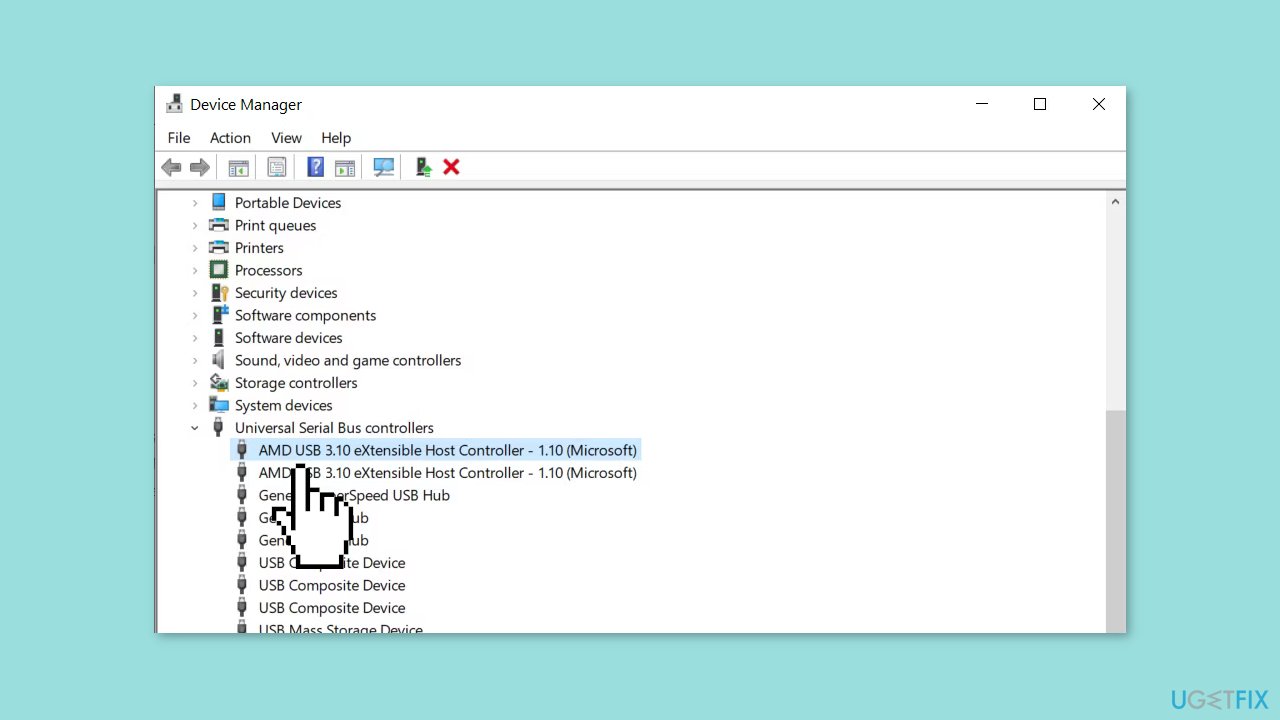
- Look for the USB Host Controller.
- Right-click on the USB Host Controller and select Uninstall.
- Restart your computer.
- If no USB Host Controller is listed, click on the Scan for hardware changes option on the toolbar.
Method 3. Modify Power Settings
- Click Start and enter Control Panel.
- Select the corresponding result to open the Control Panel.
- Go to Hardware and Sound and then click on Power Options.
- Find the selected power plan and click on Change plan settings followed by Change advanced power settings.
- Look for USB Settings and expand it to find USB Selective Suspend Setting.
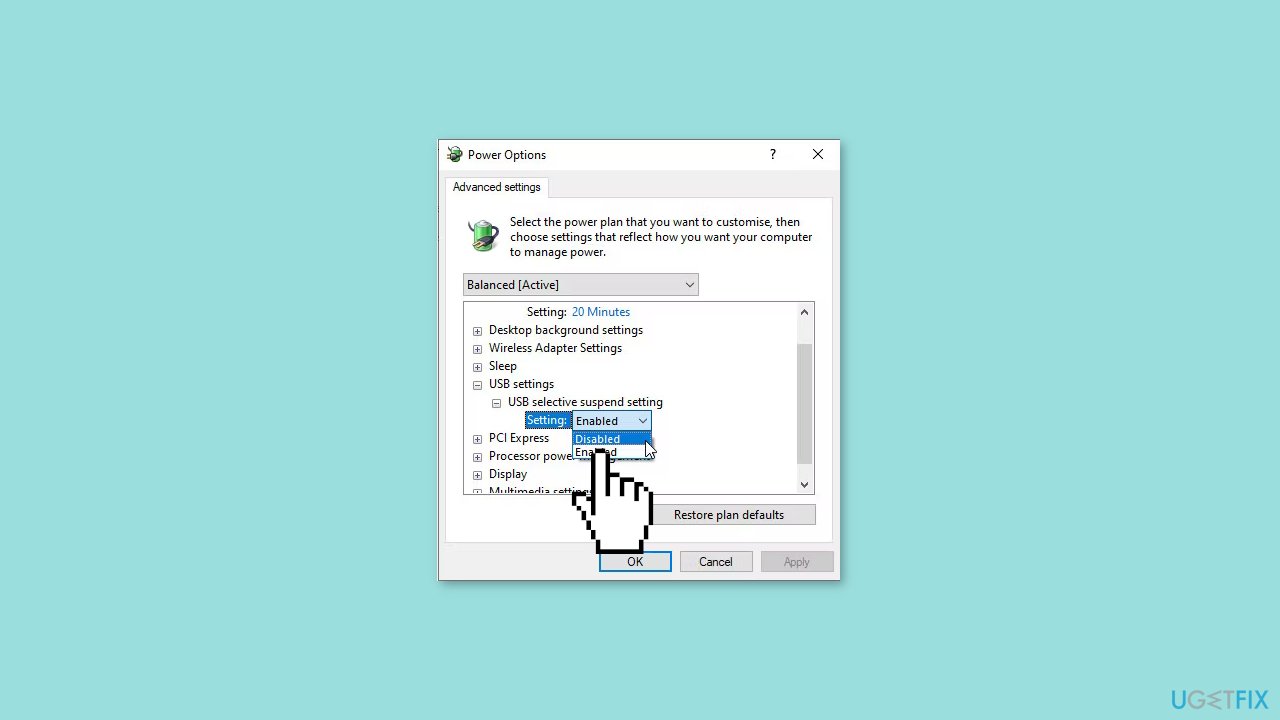
- Change the drop-down menu to Disabled.
- Click Apply and then OK to confirm the changes.
- Finally, reboot your PC to ensure that the modified settings are applied.
Method 4. Reset the BIOS/UEFI Settings
- Press the Windows key + I to open the Settings menu.
- Click on System and then select Recovery.
- Next to the Advanced startup option, click on Restart now.
- While your computer is restarting in Advanced startup mode, you will be able to choose your boot options.
- On the screen that appears, navigate to Troubleshoot and then select Advanced options.
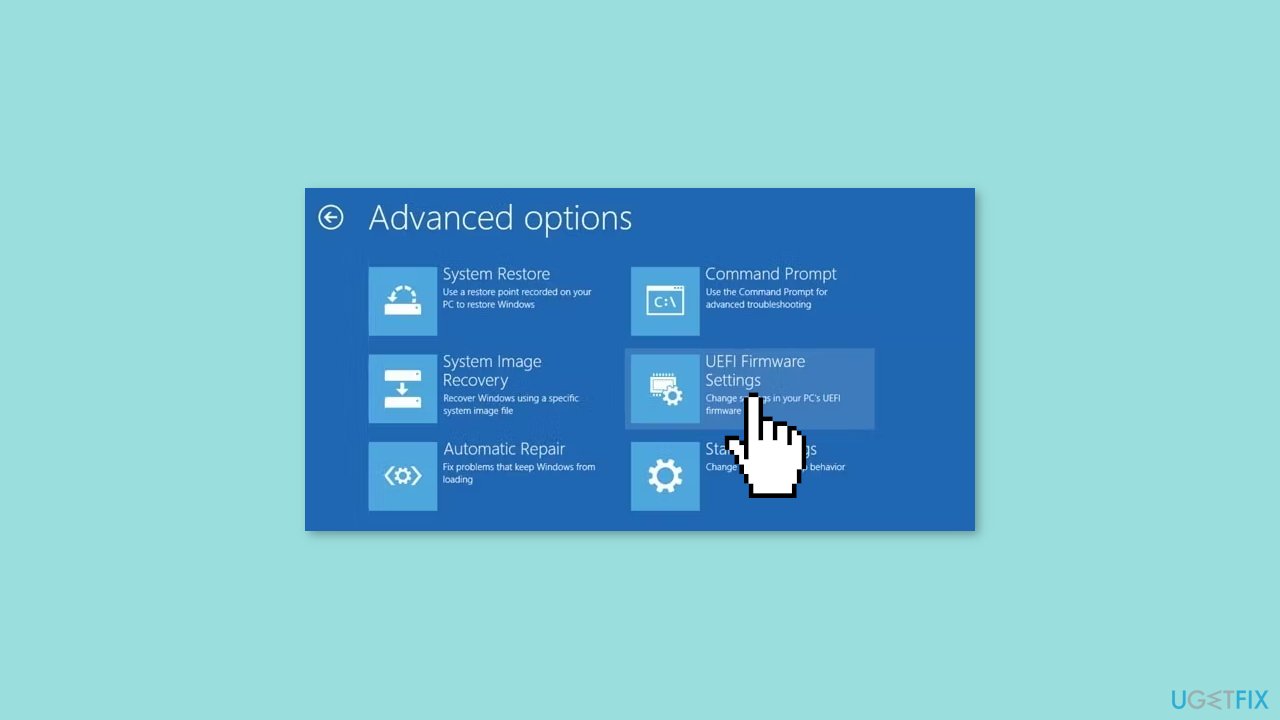
- Choose UEFI Firmware Settings and click on Restart.
- This will boot your computer directly into Windows UEFI BIOS.
- Look for the option to reset settings.
Bottom line
To fix USB ports not working in Windows, you can restart your PC, update or reinstall device drivers, check for software conflicts, and reset USB power settings. If these steps do not resolve the issue, consider performing system troubleshooting or replacing hardware components.
Frequently asked questions
First, try unplugging and replugging the device, then check Device Manager for any driver issues. If that doesn't work, consider running the Hardware and Devices troubleshooter in Windows 10.
You can reset the USB ports by uninstalling the USB controllers in Device Manager and then restarting your PC, which will automatically reinstall them. Additionally, make sure Windows 11 is up to date to ensure compatibility with USB devices.
Yes, Windows may turn off USB ports to save power; you can check this by going to Device Manager, right-clicking on each USB Root Hub, selecting Properties, and disabling the power management option.




Report an issue
What's wrong with this guide? We review every report and update or remove content.
Report received — thank you. We'll review and fix it.
You need a free account to submit a report.
Be the first to comment