How to fix
“Unable to retrieve settings” GeForce Experience error
on Windows
Resolve the "Unable to retrieve settings" error in GeForce Experience on Windows 10 and 11 quickly and easily. Expert-tested solutions await!


What causes How to fix “Unable to retrieve settings” GeForce Experience error in Windows?
- Network connectivity issues
- Problems with the connection between GeForce Experience and NVIDIA servers
- Corrupted software cache
- Outdated GeForce Experience version
- User permissions not set correctly
Repairs Windows system files, removes malware, and restores a clean OS state — without reinstalling.
Hello. I can’t optimize my games on Windows because I receive the "Unable to retrieve settings" GeForce Experience error. How do I fix this?
NVIDIA GeForce Experience[ref en-1] is a software application created by NVIDIA that is intended to improve the overall gaming experience for users who own NVIDIA graphics cards. It includes functions and features such as automatic driver updates, game optimization settings, game streaming, and video recording.
The "Unable to retrieve settings" error in GeForce Experience occurs when the software is unable to fetch or retrieve the user's settings on Windows systems. When users receive the "Unable to retrieve settings" error, it can have a number of consequences. For starters, it may prevent users from accessing and modifying their preferred GeForce Experience settings, such as game optimization profiles, driver updates, and other personalized configurations.
This may limit their ability to optimize their gaming experience or fully utilize the software's features. Furthermore, this error may indicate an underlying problem with the connection between GeForce Experience and NVIDIA servers or the software's cache, potentially affecting the application's overall stability and performance. It may also cause annoyance and frustration for users who rely on GeForce Experience to manage their NVIDIA graphics card and gaming-related settings.
Several potential solutions for the "Unable to retrieve settings" error can be investigated, including checking for network connectivity issues, clearing the software's cache, reinstalling or updating GeForce Experience, and contacting NVIDIA's official channels. It is important to note, however, that the specific troubleshooting steps may differ depending on the user's system configuration and the root cause of the error.
In this guide, you will find 7 steps that should help you fix "Unable to retrieve settings" error. However, you may also try a maintenance tool like [d1] that can fix most system errors, BSODs,[ref en-2] corrupted files, and registry[ref en-3] issues. Otherwise, follow the step-by-step instructions below.
Solution 1. Run GeForce Experience as Administrator
- Open the Windows search tool.
- Type GeForce Experience in the search bar.
- Locate the search result for GeForce Experience.
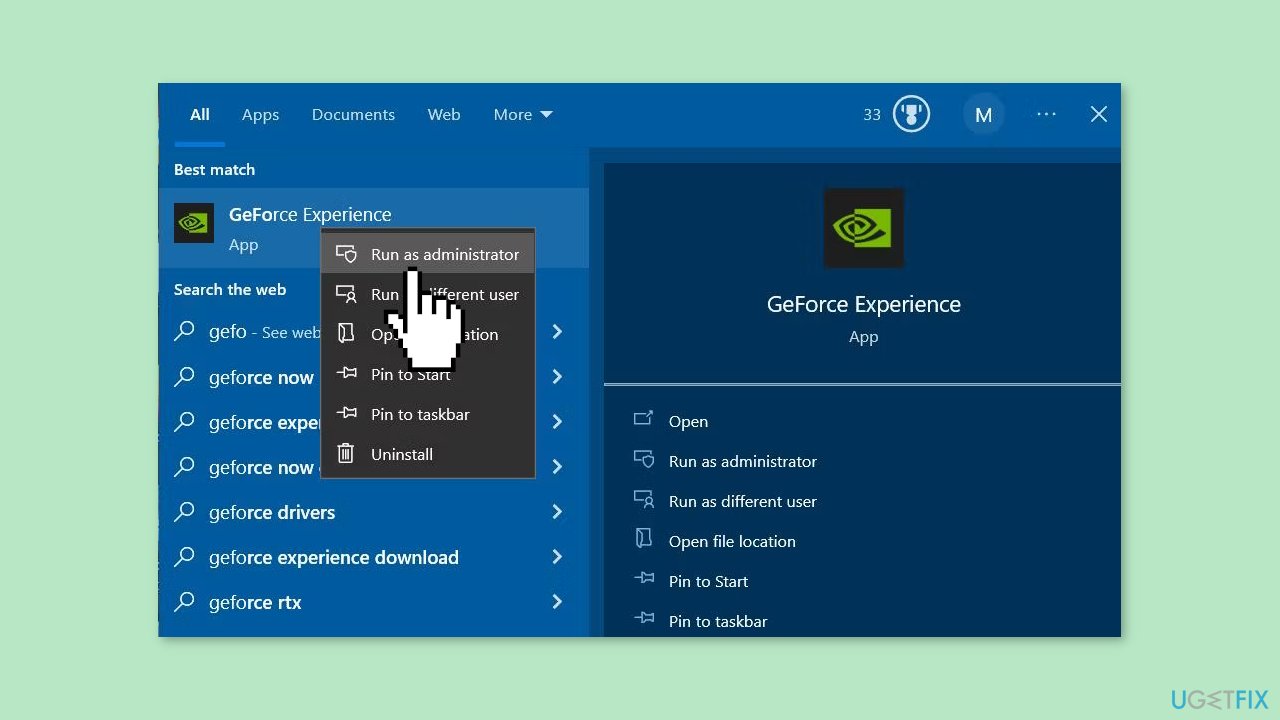
- Right-click on the GeForce Experience search result.
- From the context menu that appears, select Run as administrator.
Solution 2. Remove Scan Locations
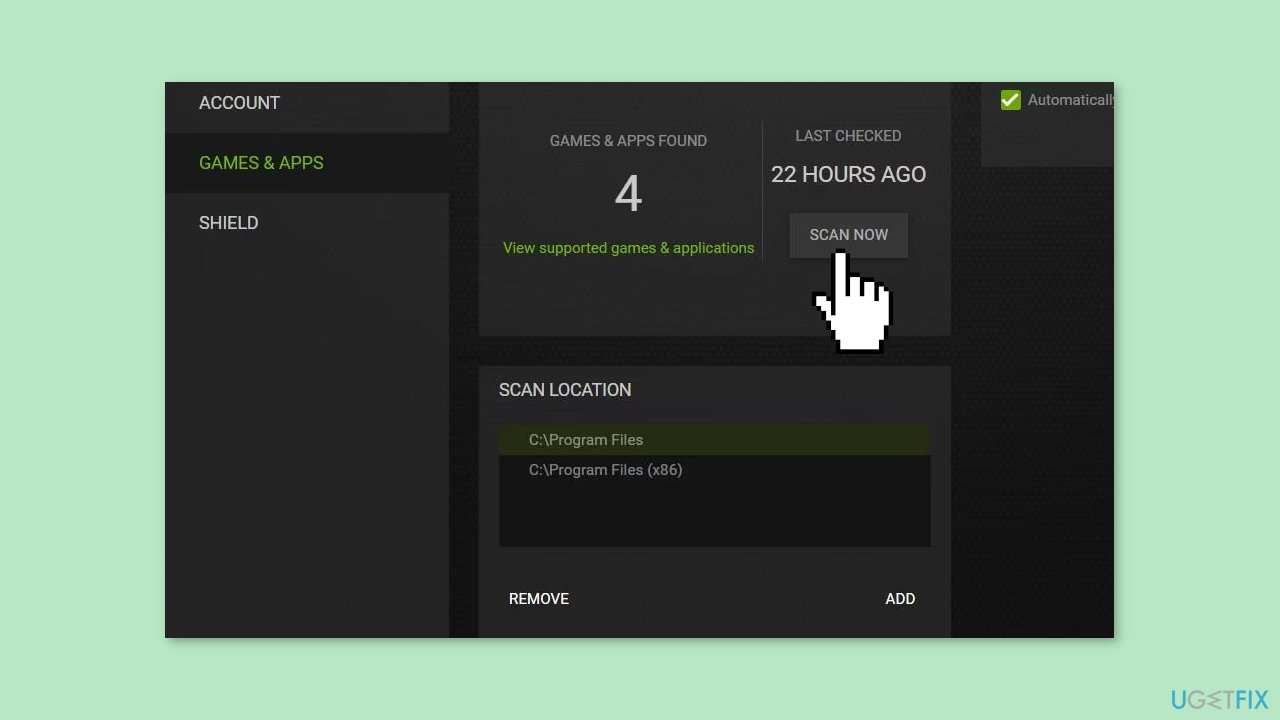
- Open the GeForce Experience window.
- Locate and click on the Settings button next to your user account name.
- In the Settings menu, navigate to the Games & Apps tab.
- Choose a scan location and click on the Remove button.
- Repeat the previous step for all the scan locations that are displayed.
- Finally, press the Scan Now button to initiate a rescan.
Solution 3. Delete the CefCache Folder
- Close GeForce Experience if it is running. You can do this by right-clicking on its icon in the taskbar or system tray and selecting Close or Exit.
- Open File Explorer by pressing the Windows key + E.
- In the folder address bar of File Explorer, enter the following path:
C:\Users<user folder>\AppData\Local\NVIDIA Corporation\NVIDIA GeForce Experience
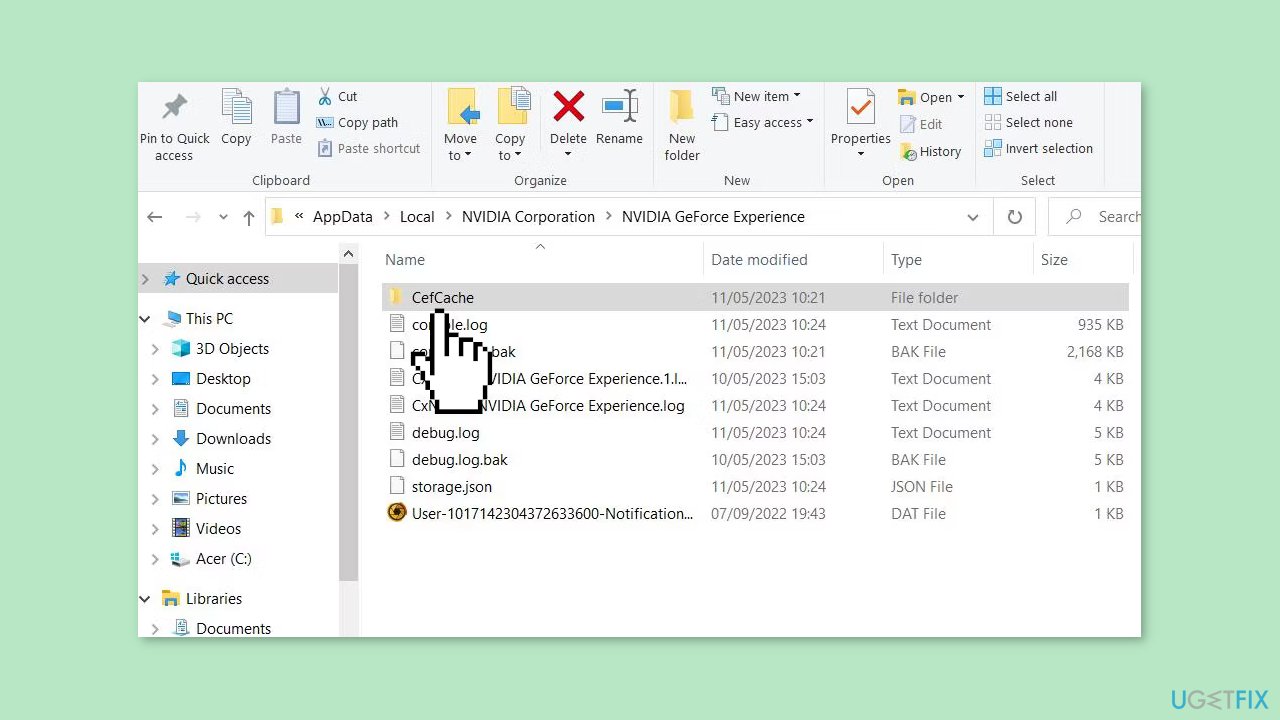
- Locate and right-click on the CefCache folder, then select Delete to remove it.
- Launch the GeForce Experience software.
- Enter your GeForce Experience account details again and click on Log In.
Solution 4. Restore Default NVIDIA 3D Settings
- Right-click on the NVIDIA logo located in the system tray area.
- From the context menu that appears, select Control Panel.
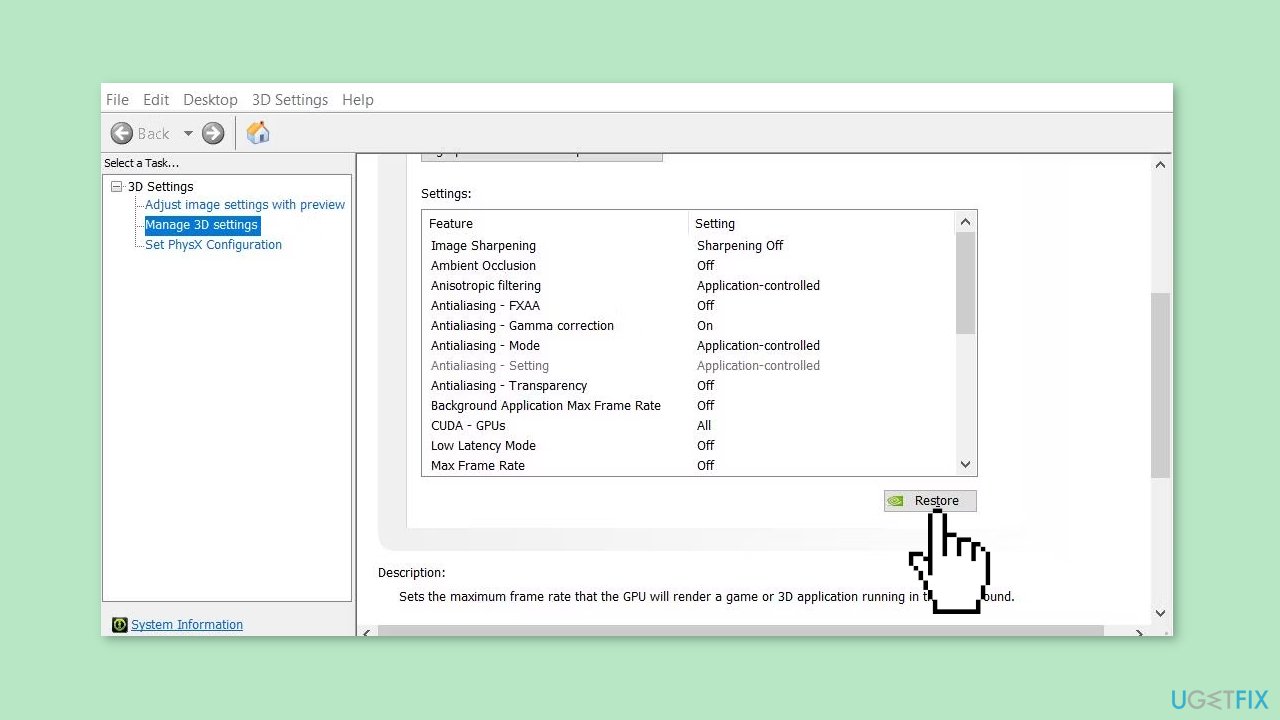
- Inside the NVIDIA Control Panel, choose Manage 3D settings.
- In the Manage 3D settings window, navigate to the Global Settings tab.
- Click on the Restore button.
- Confirm the action by selecting Yes when prompted to reset the settings.
Solution 5. Delete the Steam User Data
- Press the Windows key + X.
- From the menu that appears, select the File Explorer shortcut.
- In the File Explorer window, locate the address bar.
- Enter the following folder path in the address bar:
C:\Program Files\Steam\userdata
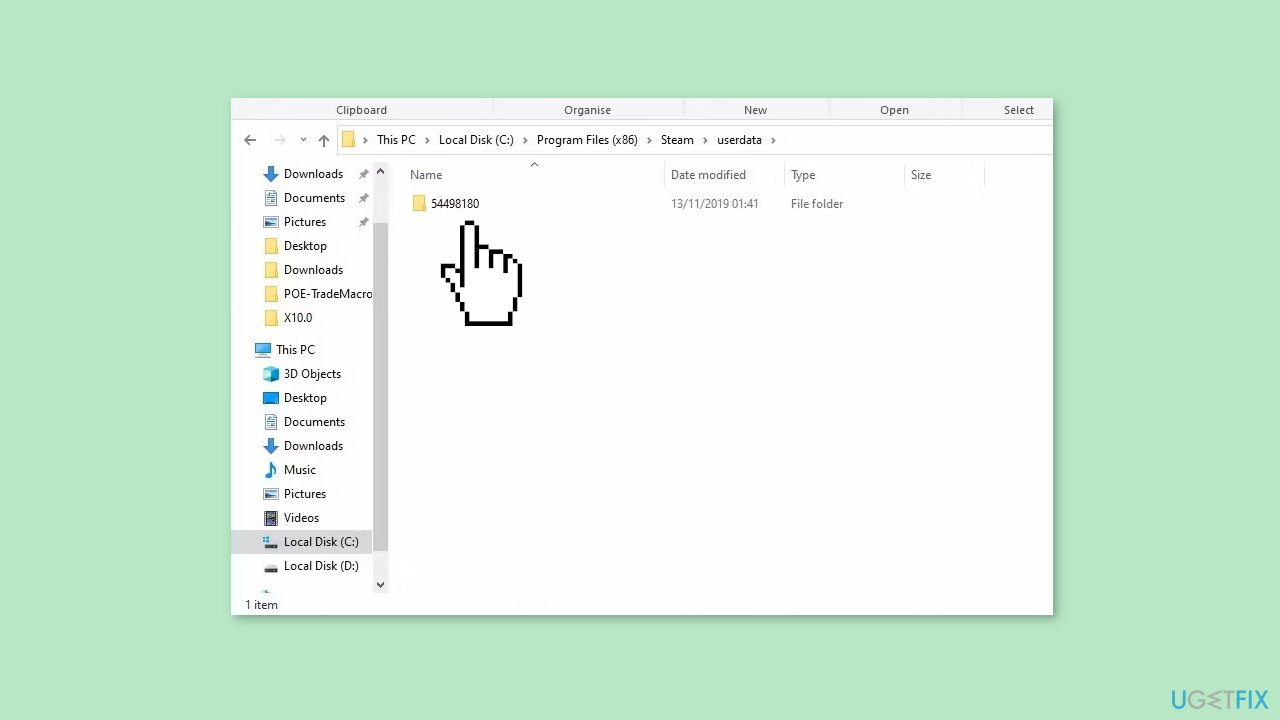
- Find a subfolder within the userdata folder that does not have any numbers in its name.
- Right-click on that subfolder and select Delete.
- Repeat the previous step to delete all other subfolders within userdata that have non-numeric titles, such as anonymous, etc.
Solution 6. Delete Temporary Data
- Click on the Start button located on your taskbar.
- From the menu that appears, click on Settings.
- In the Settings window, select the System tab.
- Choose Storage from the options.
- On the Storage page, locate and click on Temporary files to open the cleaner tool.
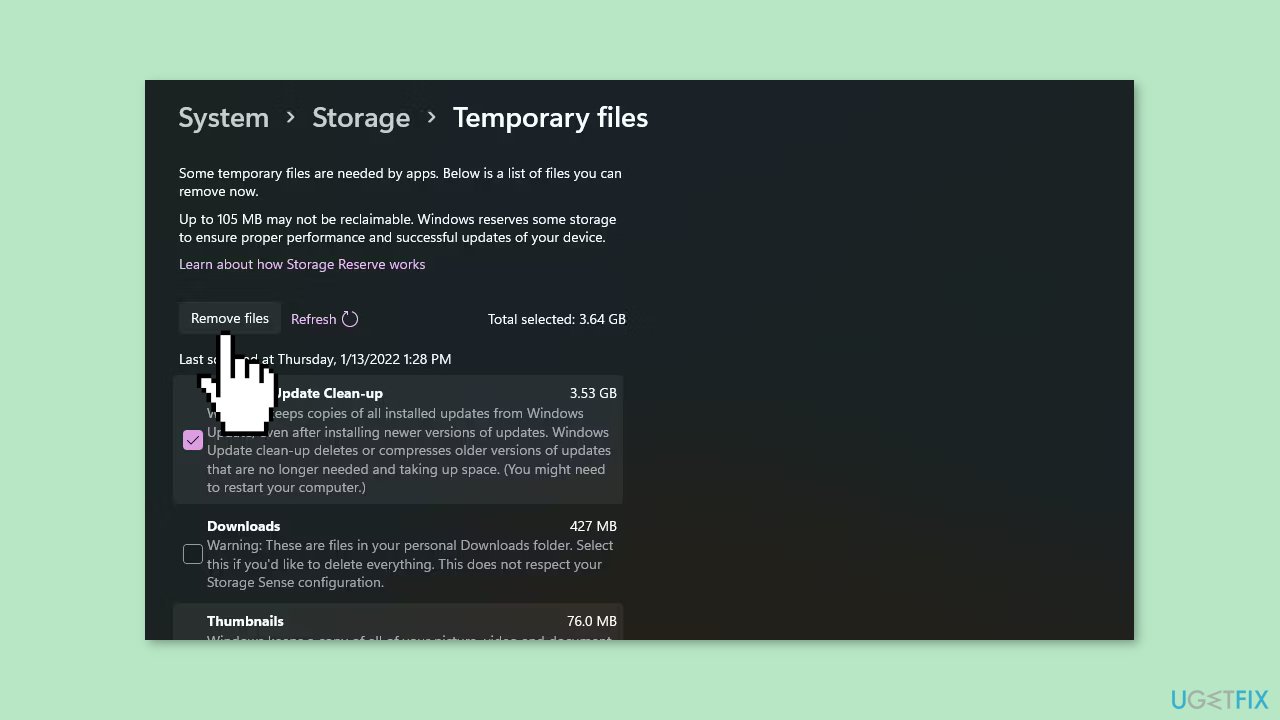
- In the cleaner tool, you will see various checkboxes for different types of temporary files.
- To free up the most disk space, select all the checkboxes for temporary files.
- If you want to prioritize freeing up space, you can specifically select the Windows Update Clean-up option, which can remove gigabytes of files.
- Once you have made your selection, click on the Remove files button to initiate the cleanup process.
Solution 7. Reinstall GeForce Experience
- Right-click on the Start button located on the taskbar.
- From the Power User's menu that appears, select the Run shortcut.
- In the Run dialog box, type appwiz.cpl.
- Click on the OK button to open the Programs and Features window.
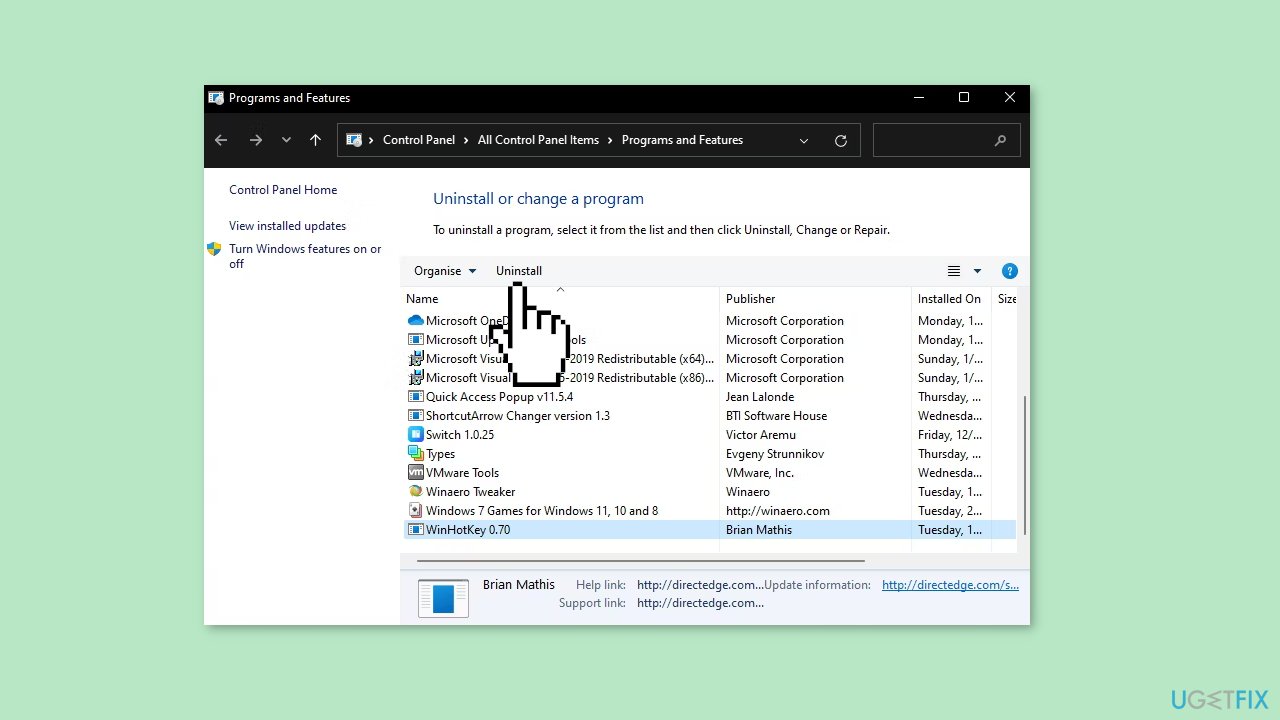
- Locate the software package you want to remove from the list.
- Click on the Uninstall button.
- If any confirmation dialog boxes appear, select Yes to proceed with the uninstallation.
- The software's uninstaller wizard may open. Follow the instructions in the wizard to select the desired uninstall options.
Bottom line
To fix the 'Unable to retrieve settings' error, you can try running GeForce Experience as an administrator, clearing the software's cache, or reinstalling the application. If these solutions do not resolve the issue, consider using a maintenance tool or contacting NVIDIA's official support for further assistance.
Frequently asked questions
This error typically occurs due to corrupted settings files, outdated GPU drivers, or issues with the GeForce Experience application itself.
You can update your GPU drivers by visiting the NVIDIA website or using the GeForce Experience application, ensuring you have the latest version compatible with Windows 10 or Windows 11.
To reset GeForce Experience settings, navigate to the app's settings, log out of your account, and then log back in, or you can try reinstalling the application.




Report an issue
What's wrong with this guide? We review every report and update or remove content.
Report received — thank you. We'll review and fix it.
You need a free account to submit a report.
Be the first to comment