How to fix
Windows zooming in and out
on Windows
Resolve Windows 10 or 11 zoom issues effortlessly with our expert-tested solutions. Get your display back to normal in minutes!

What causes How to fix Windows zooming in and out?
- Stuck keys on the keyboard
- Problematic drivers for the mouse
- Problematic drivers for the touchpad
- Outdated software and drivers for mice and keyboards
- Activated Pinch Zoom feature
Repairs Windows system files, removes malware, and restores a clean OS state — without reinstalling.
Hello. The screen of my Windows PC keeps zooming in and out randomly. What could cause this?
For Windows users, the issue of the screen randomly zooming in and out can be frustrating and inconvenient. It can disrupt their workflow, make it difficult to read or navigate content, and have an overall negative impact on productivity.
The issue can manifest itself in a variety of ways. Some users notice the zooming behavior when they place their finger near the touchpad, while others notice it even when the scroll feature in the Control Panel is disabled. This implies that the problem could be caused by a variety of factors.
Stuck keys on the keyboard, such as the Ctrl button, or problematic drivers for the mouse, touchpad, and keyboard can all contribute to the screen zooming in and out unexpectedly. Additionally, activating the Pinch Zoom feature or having outdated software and drivers for mice and keyboards can cause this problem.
Users can consider several potential solutions to the problem. These may include hardware troubleshooting, such as checking for stuck keys or updating drivers. Disabling the Pinch Zoom feature and making sure all software and drivers are up to date can also help to resolve the problem.
In this guide, you will find 6 steps that should help you fix Windows zooming in and out randomly. Keep in mind, that if you want to avoid a lengthy troubleshooting process, you can try a system repair tool like [d1]. It can fix most system errors, BSODs,[ref en-1] corrupted files, and registry[ref en-2] issues automatically. Otherwise, follow the step-by-step instructions below.
Method 1. Reconnect the Mouse
Please unplug your mouse from the computer and then reconnect it. This action may help resolve any problems related to drivers or connections.
Method 2. Restart your PC
To potentially resolve any bugs or issues that require automatic repair during startup, consider disconnecting all peripherals from your computer and then restarting it.
Method 3. Disable Pinch Zoom
- Press the Windows key + R and type Control, then press Enter. This will open the Windows Control Panel.
- Navigate and locate Mouse. A new Mouse Properties window will pop up.
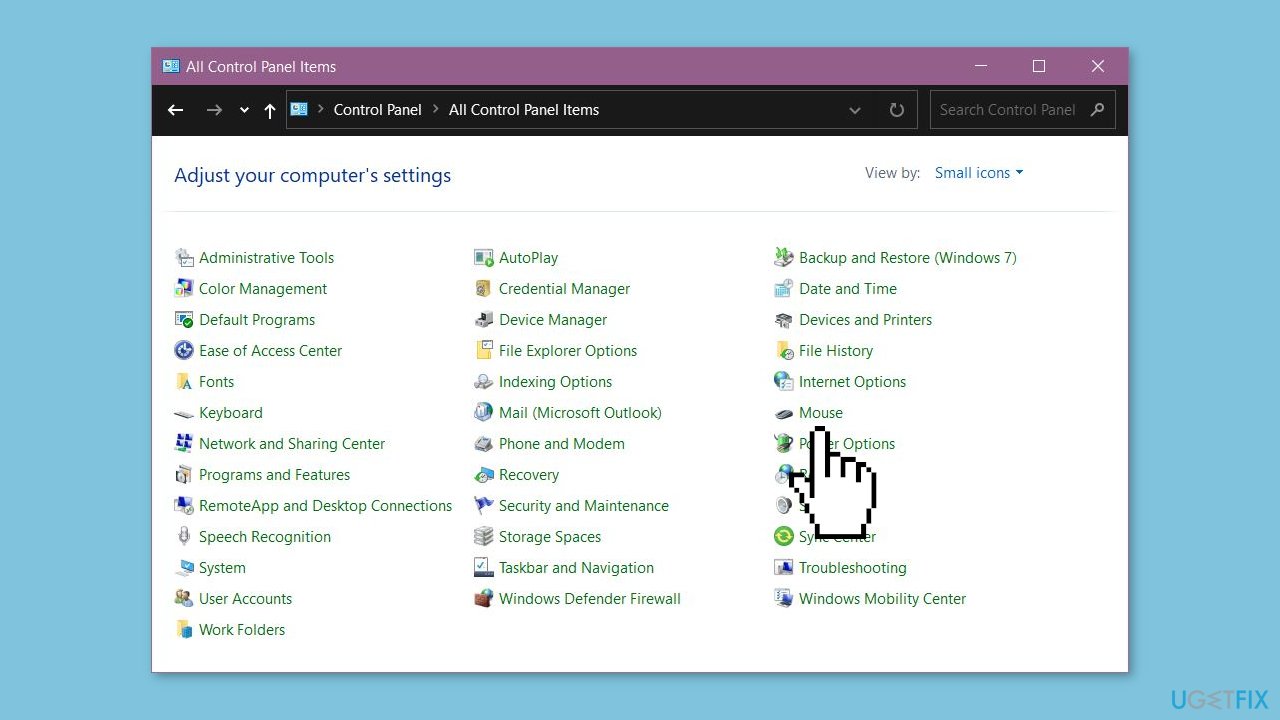
- On the top bar, select Device Settings at the far right side.
- Click on your touchpad control from the list and select Settings.
- A Properties for Synaptics TouchPad window will pop up.
- Locate Pinch Zoom and uncheck it.
- Click Apply and then OK to complete the process.
Method 4. Run the Hardware and Devices Troubleshooter
- Launch the Command Prompt on your computer.
- Type or copy and paste the following command: msdt.exe -id DeviceDiagnostic.
- Press Enter to execute the command.
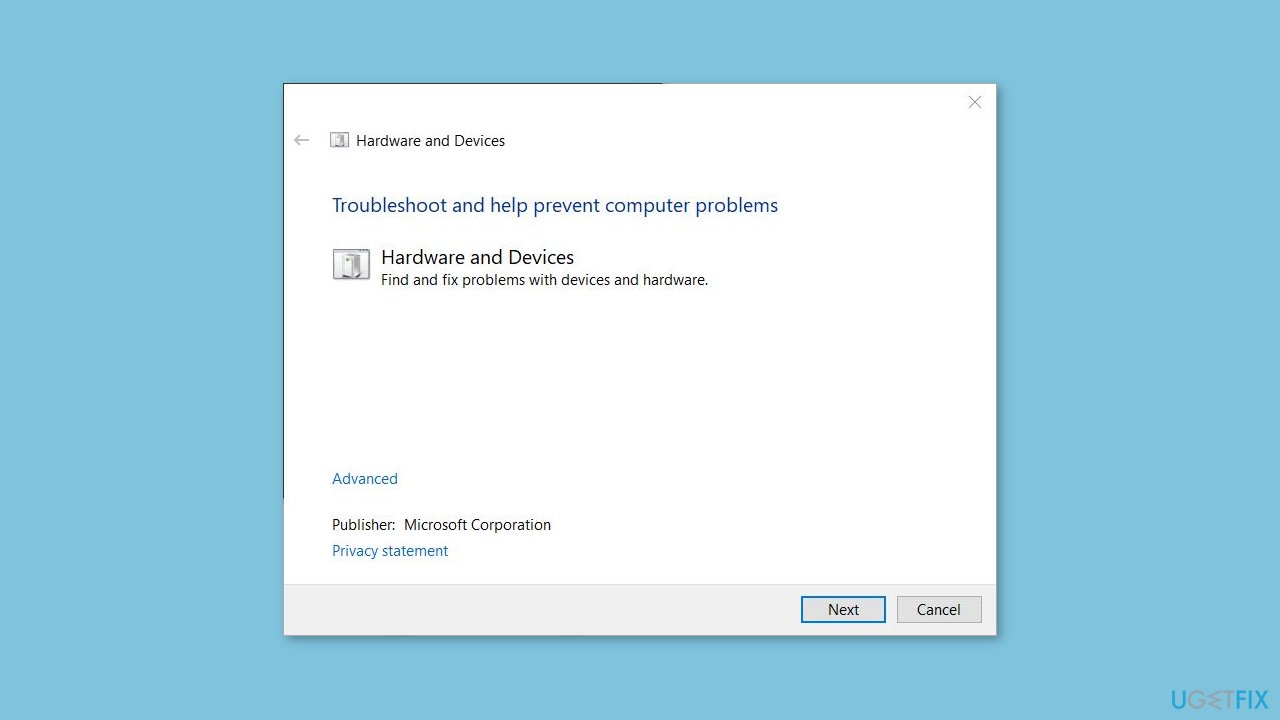
- The troubleshooter will be invoked and start diagnosing device-related issues on your computer.
Method 5. Run the Keyboard Troubleshooter
- Right-click on the Start menu in Windows to open a context menu.
- From the context menu, select Settings to launch the Settings app.
- Scroll down on the right side of the Settings app until you find the Troubleshoot tab. Click on it.
- In the Troubleshoot settings, click on the Additional troubleshooters tab.
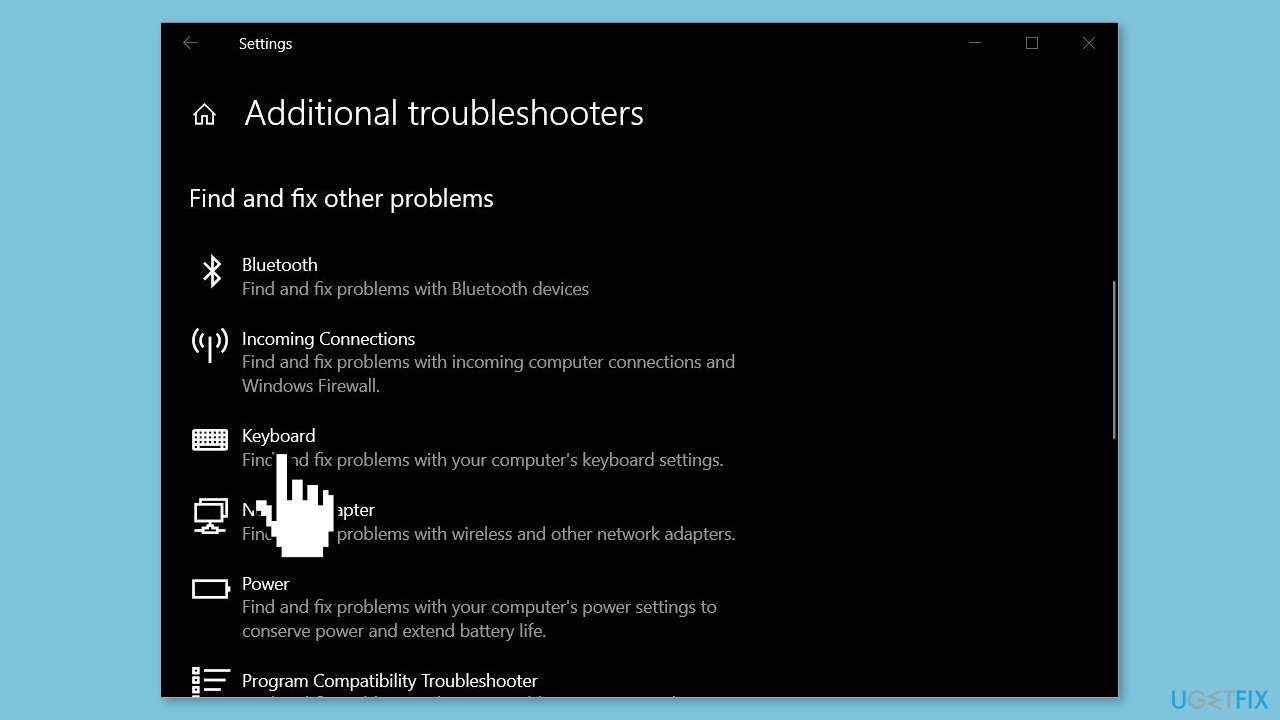
- You will see a list of available troubleshooters for Windows. Locate the Keyboard troubleshooter.
- To launch the Keyboard troubleshooter, click on the Run button next to the Keyboard troubleshooter.
Method 6. Reinstall the Touchpad, Mouse, and Keyboard Drivers
- Open the Device Manager on your computer.
- Locate the following categories: Mice and other pointing devices, Keyboards, and Human Interface Devices.
- Expand each of these categories.
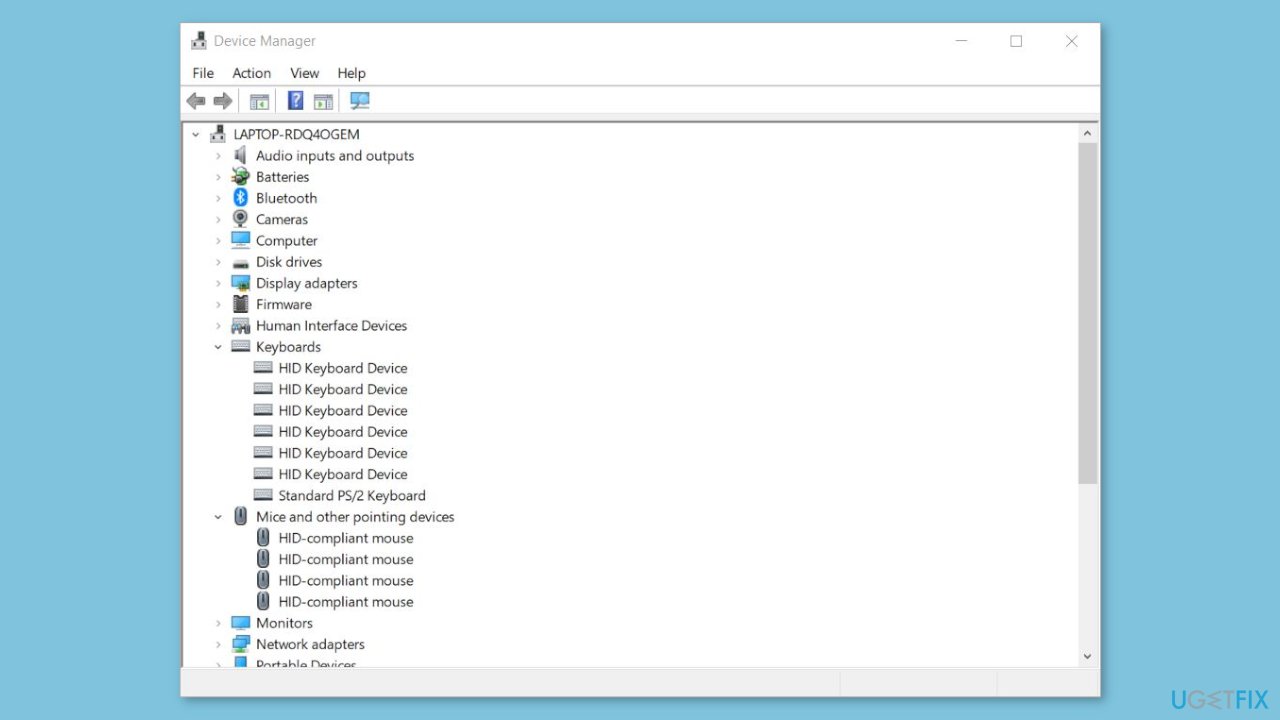
- Right-click on each driver within these categories and select Uninstall.
- Once you have uninstalled the drivers, restart your PC. Windows will automatically install the latest drivers for the devices you uninstalled.
- If you prefer, you can also uninstall the drivers and then reinstall the latest version from your manufacturer's website.
- To download touchpad drivers specifically, you can directly visit the Synaptics website.
You can also use a dedicated utility, like [rev id="DriverFix"] that can find the best drivers for your machine and install them automatically.
Bottom line
To fix the issue of Windows zooming in and out, users can try reconnecting the mouse, restarting their PC, and disabling the Pinch Zoom feature. If these methods do not resolve the problem, consider using a system repair tool to address potential system errors.
Frequently asked questions
You can adjust the zoom settings by going to Settings > Ease of Access > Magnifier and turning it off if it's enabled. Additionally, check your mouse settings to ensure that the zoom feature isn't mistakenly triggered.
Try disabling any touch gestures that might cause zooming by going to Settings > Devices > Touchpad and adjusting the settings. Also, ensure that your graphics drivers are updated to prevent such glitches.
Yes, check your video player settings to disable any zoom options, and ensure that the display scaling in Windows 10 or Windows 11 is set to 100% under Settings > System > Display.




Report an issue
What's wrong with this guide? We review every report and update or remove content.
Report received — thank you. We'll review and fix it.
You need a free account to submit a report.
Be the first to comment