How to fix
Microsoft Store error 0xc03F300D
on Windows
Resolve Microsoft Store error 0xc03F300D on Windows 10 and 11 effortlessly with our expert-tested solutions. Fix it in minutes and enjoy seamless downlo…

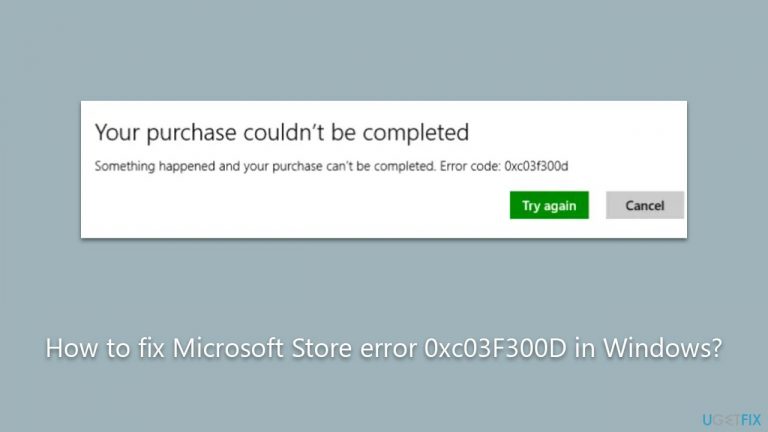
What causes How to fix Microsoft Store error 0xc03F300D in Windows?
- Certain necessary services not running properly
- Bugged Store cache
- Corrupted system files
- Disabled or disrupted background services
Repairs Windows system files, removes malware, and restores a clean OS state — without reinstalling.
Hi, every time I attempt to download or purchase any app on Microsoft Store, I receive an error 0xc03F300D. I don't know what causes it, but I've never experienced anything like this before.
Microsoft Store is an integral component of the Windows 10 and Windows 11 operating systems, serving as a centralized hub where users can discover, download, purchase, and update a wide range of applications, from productivity software to games. It not only simplifies the process of obtaining and managing apps but also ensures that downloaded content is safe and compatible with your device.
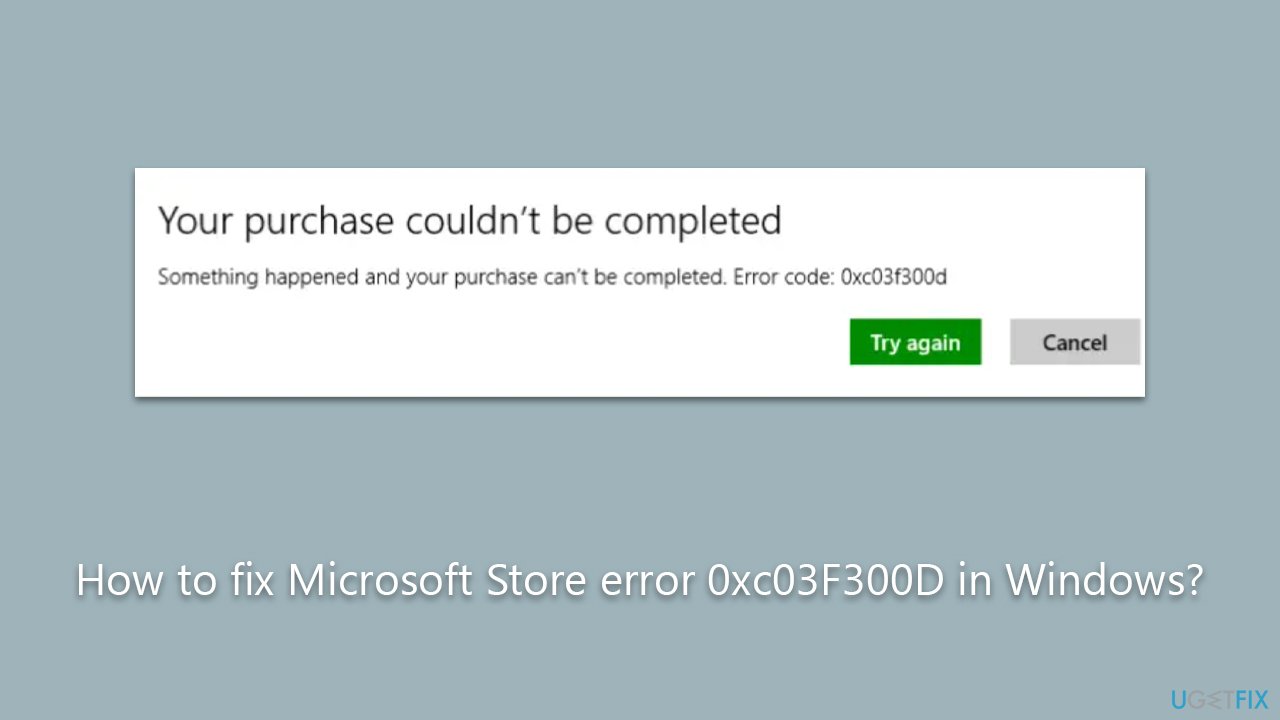
However, like any digital platform, the Microsoft Store is not immune to issues. Users sometimes encounter errors when they attempt to download, purchase, or update applications. One such error is 0xc03F300D. This error can be particularly vexing because it doesn't provide a clear indication of its cause, leaving users scrambling to resolve the issue.
The main cause of the Microsoft Store error 0xc03F300D is typically related to certain necessary services not running properly. The Microsoft Store relies on various background services to function correctly, and if these services are disabled, disrupted, or malfunctioning, the store might not work as expected and throw error 0xc03F300D.
However, there could also be other underlying issues at play. A bugged Store cache is one potential culprit. The Microsoft Store, like many applications, uses a cache to store temporary data. If this cache becomes corrupt or otherwise problematic, it might cause the Store to malfunction. Similarly, corrupted system files could be at fault. The Store relies on a wide variety of system files to operate, and if any of these become damaged or corrupted, they might trigger error 0xc03F300D.
While manually troubleshooting and resolving these issues is possible, it can be a complex and time-consuming process, especially for users not familiar with the inner workings of Windows. To simplify this process, users might consider using a PC repair tool like [d1]. This software can help identify and resolve underlying Windows issues automatically, potentially fixing the Microsoft Store error 0xc03F300D and other related problems more quickly and easily.
1. Run the troubleshooter
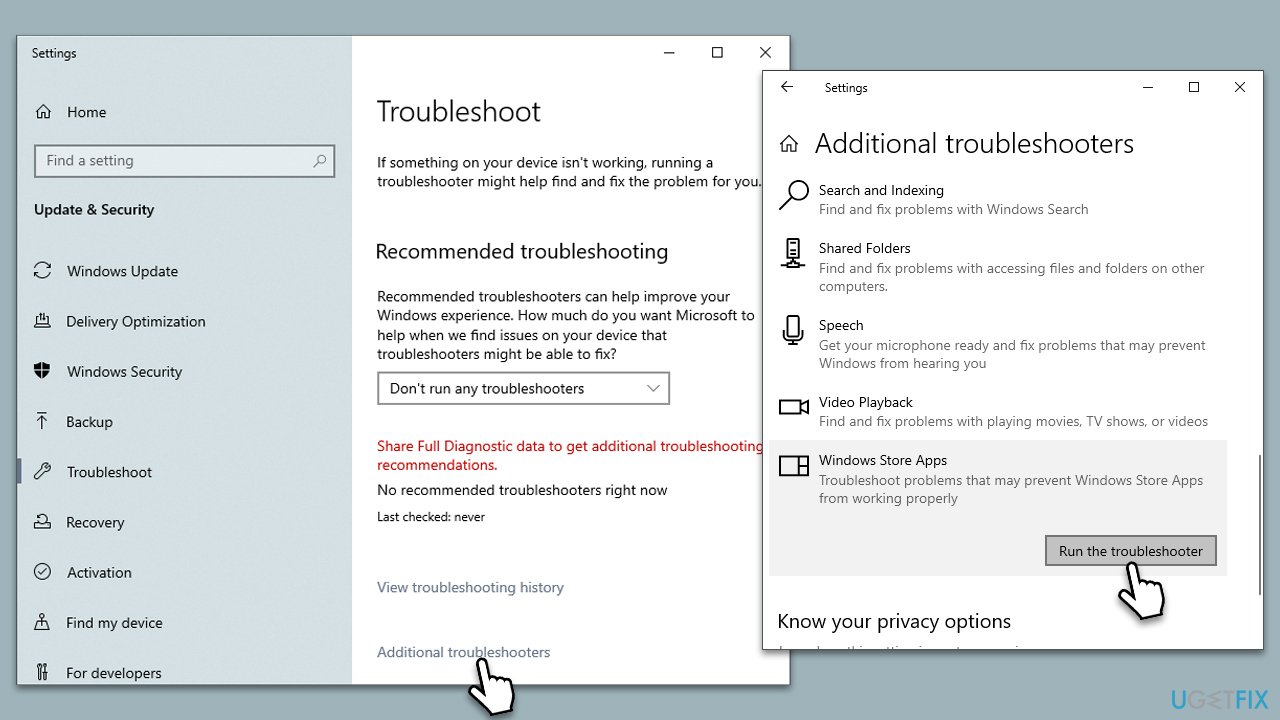
Windows Store Apps Troubleshooter is a built-in utility in Windows that automatically detects and attempts to resolve issues preventing Microsoft Store apps from working properly. To run it, follow these steps:
- Type troubleshoot into the Windows search bar, then press Enter.
- In the options that appear, select Additional troubleshooters or Other troubleshooters (depending on your Windows version).
- Scroll through the list until you locate Windows Store Apps, then click on Run the troubleshooter/Run.
- Wait as the process runs to completion, then apply any recommended changes to resolve the issue.
2. Check relevant services
Many people managed to fix the 0xc03F300D error after they made sure that Windows update and Windows Firewall services were set to the automatic startup option.
- Type Services in Windows search and hit Enter.
- In the new window, scroll down to find the Windows Update service.
- Double-click it to open Properties.
- Under the Startup type, select Automatic from the drop-down menu.
- Click Start, Apply, and OK.
- Repeat these steps with Windows Firewall service.
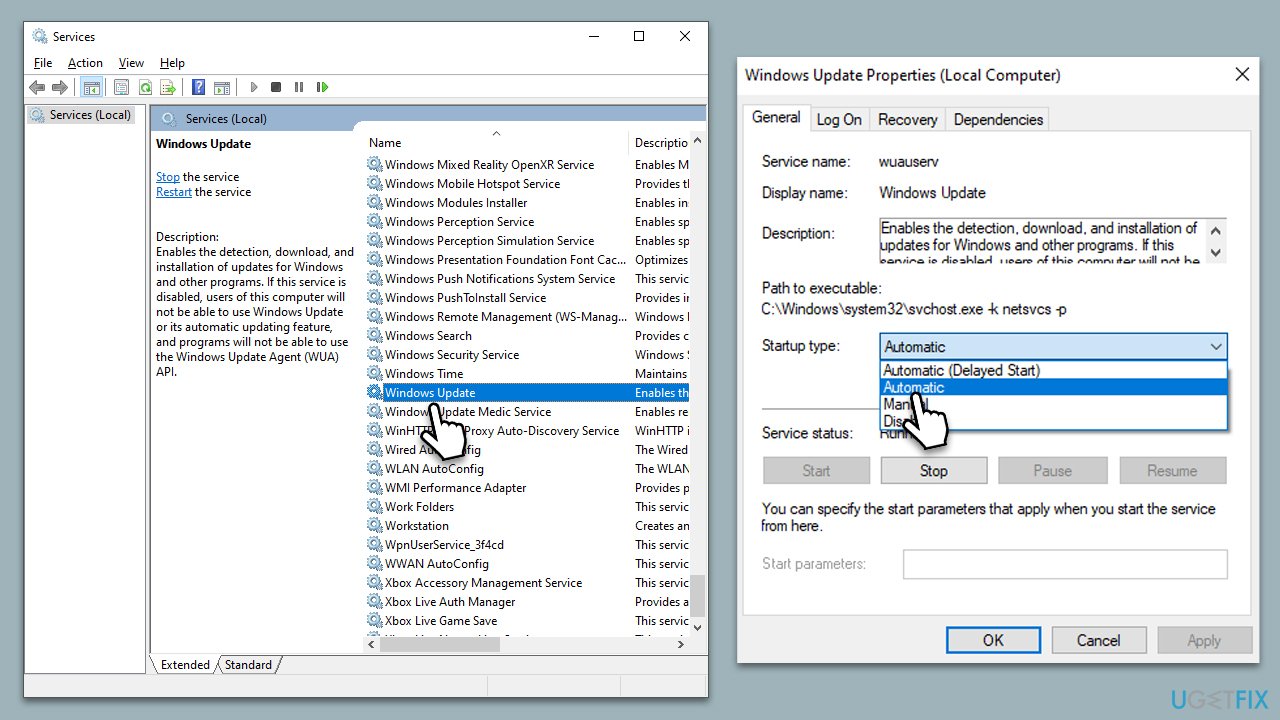
In case any of these services are already running, right-click and select Restart.
3. Repair corrupted system files
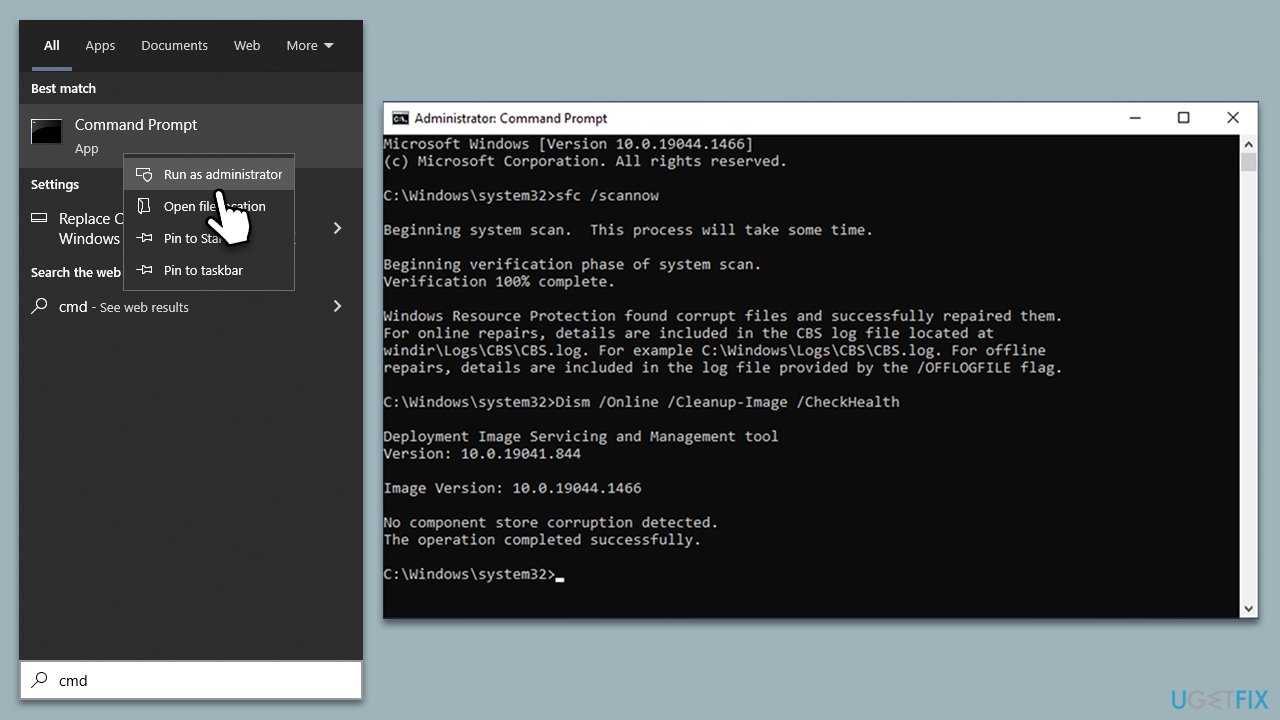
- Type cmd in Windows search.
- Right-click on Command Prompt and select Run as administrator.
- User Account Control should pop up – click Yes.
- Type this command and press Enter:
sfc /scannow - Wait for the scan to finish.
- As soon as the scan finishes, Windows will report whether integrity violations were found and if they could be fixed. Regardless of the outcome, use these commands next, pressing Enter after each:
Dism /Online /Cleanup-Image /CheckHealth
Dism /Online /Cleanup-Image /ScanHealth
Dism /Online /Cleanup-Image /RestoreHealth - Close down the Command Prompt and restart your device.
4. Reset Microsoft Store cache
As mentioned, bugged cache files could cause Windows Store errors. Clearing it may help - here's how:
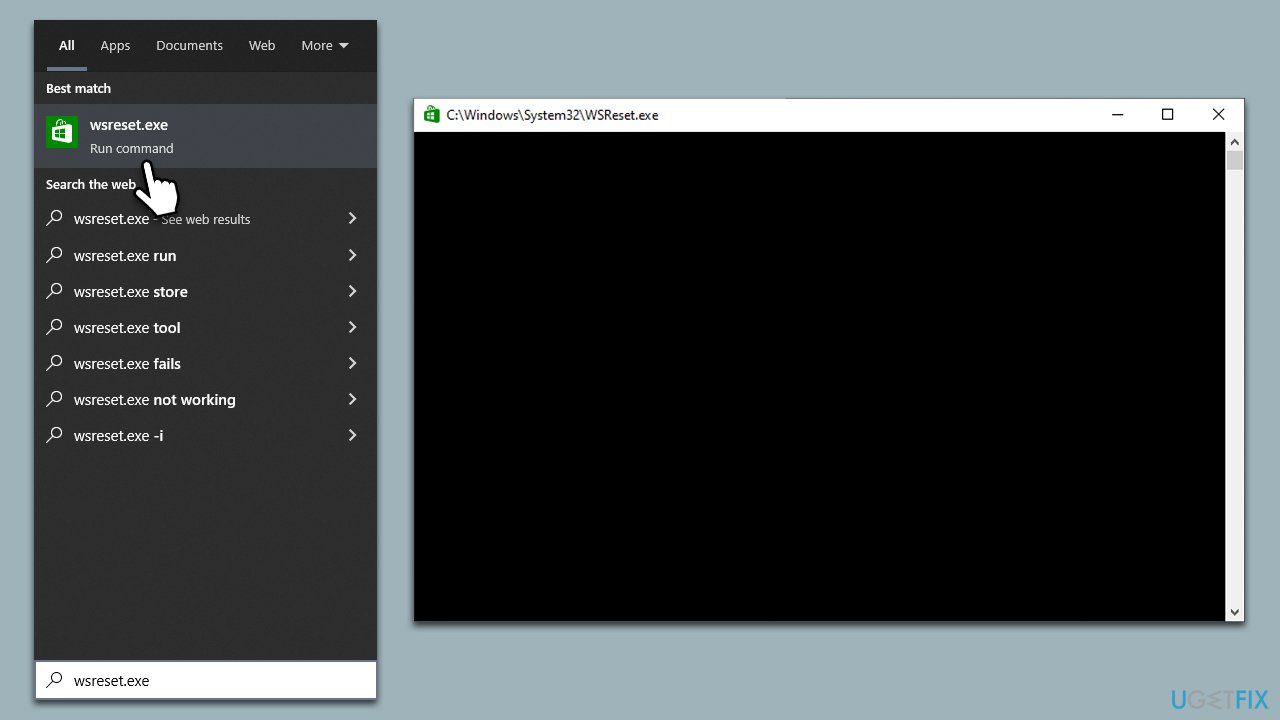
- In Windows search, type wsreset.exe and press Enter.
- Wait till a black window shows up – do not interact with it or close it.
- Once it's gone, Microsoft Store should restart.
- Try downloading apps once again.
5. Install all Windows updates
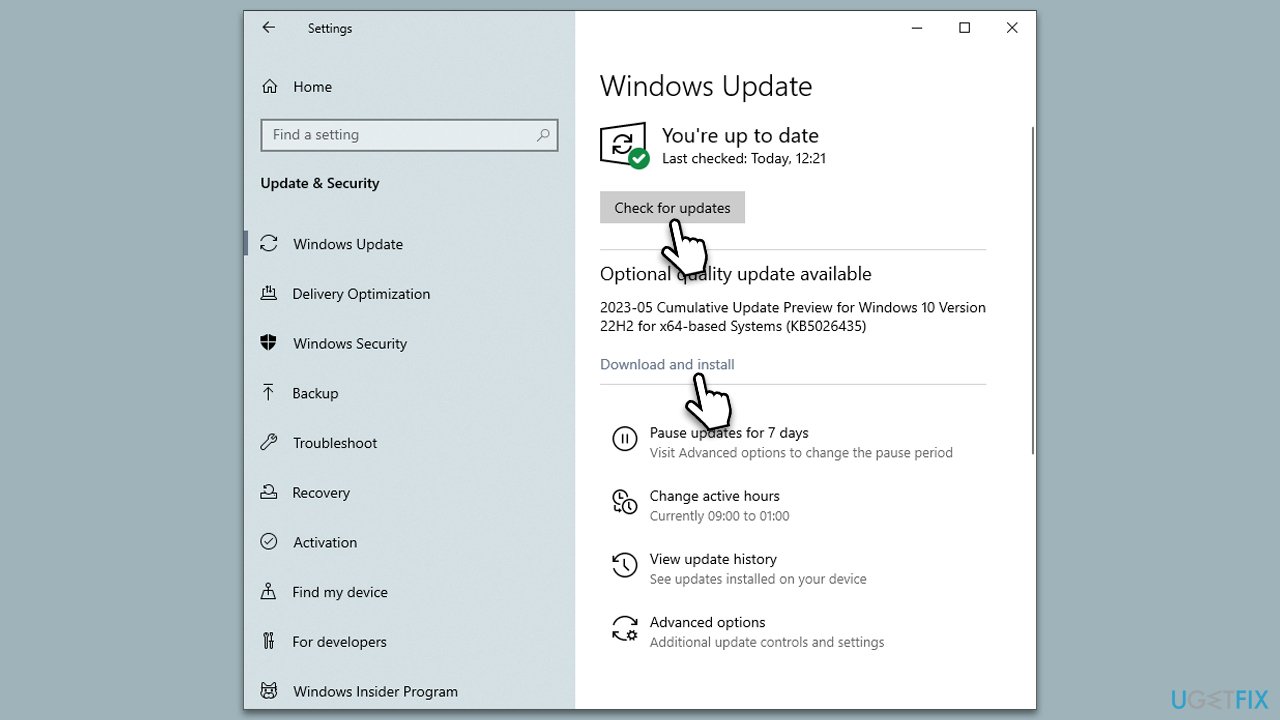
- Type Update in Windows search and press Enter.
- On the right side of the window, click Check for Updates.
- Wait till all the files are downloaded and installed.
- Install all the optional updates as well.
- Restart your device when done.
6. Repair or reset Microsoft Store
If resetting the Store cache did not work, resetting the app may help.
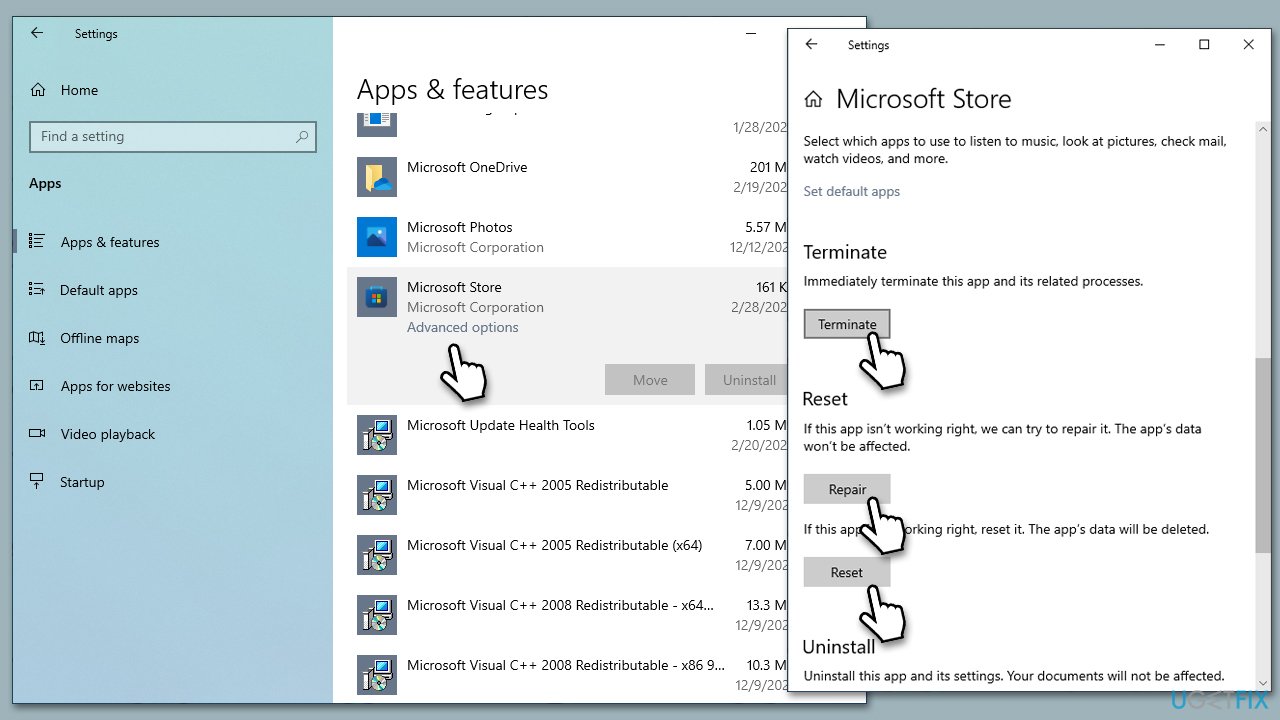
- Right-click on Start and pick Apps & Features.
- Scroll down to locate Microsoft Store and click Advanced options.
- Click Terminate and Repair.
- If that does not help, try the Reset option instead.
Bottom line
To fix the Microsoft Store error 0xc03F300D, users can try restarting necessary services, clearing the Store cache, and repairing corrupted system files. If these solutions do not resolve the issue, consider using a PC repair tool to automatically identify and fix underlying problems.
Frequently asked questions
The error 0xc03F300D typically indicates issues with the Microsoft Store app or problems with the Microsoft account signed into your device.
You can reset the Microsoft Store by opening Settings, navigating to Apps, selecting Microsoft Store, and clicking on 'Advanced options' followed by 'Reset'.
Yes, you can open PowerShell as an administrator and run the command 'wsreset.exe' to clear the Microsoft Store cache, which may resolve the error.




Report an issue
What's wrong with this guide? We review every report and update or remove content.
Report received — thank you. We'll review and fix it.
You need a free account to submit a report.
Be the first to comment