How to fix
Igdkmd32.sys BSOD
on Windows
Resolve the Igdkmd32.sys BSOD error on Windows 10 and 11 effortlessly with our expert-tested solutions. Get back to smooth computing in minutes!


What causes How to Fix Igdkmd32.sys BSOD on Windows ?
- Driver failure
- Missing driver updates
- Conflicts with Windows 10 32-bit system
- Issues with graphics content viewing
- System slowdowns or freezes
Repairs Windows system files, removes malware, and restores a clean OS state — without reinstalling.
I get a lock screen with an error igdkmd32.sys every day. It seems that it occurs when I click on images both stored on my PC and available on the Internet. Some videos also trigger igdkmd32.sys BSOD. I have never fixed my PC by myself. However, I got tired of taking it to a friend or a technician each time, so I would like to try fixing igdkmd32.sys error by myself. Is it difficult?
Igdkmd32.sys is one of the critical Windows OS files, which cannot be removed, misplaced or modified under any circumstances. It is responsible for maintaining a smooth interaction between hardware and software. Igdkmd32.sys error occurs in a BSOD (Blue Screen of Death) form and occurs on computers running Windows 32-bit OS version. If you are using a Windows 64-bit version, you may encounter the igdkmd64.sys error respectively. Typically, the error shows up when trying to view a video, a picture or another graphic content. The BSOD is also known as VIDEO_TDR_FAILURE and indicates the problems with the graphics driver. Due to the driver’s failure or missing updates, it may be conflicting with the Windows 10 32-bit system; therefore, preventing a PC user from viewing respective content. Besides, the Igdkmd32.sys BSOD may also trigger system’s slowdowns or freezes, which is why it may be difficult to use the system. Luckily, the fixes of this problem are not difficult. First of all, it is advisable to update/reinstall your graphics driver. In some rare cases, people fixed the Igdkmd32.sys error by installing all available Windows 10 updates. If these methods won’t help, the last solution would be to use a System Restore Point if you have created one before the error occurred.
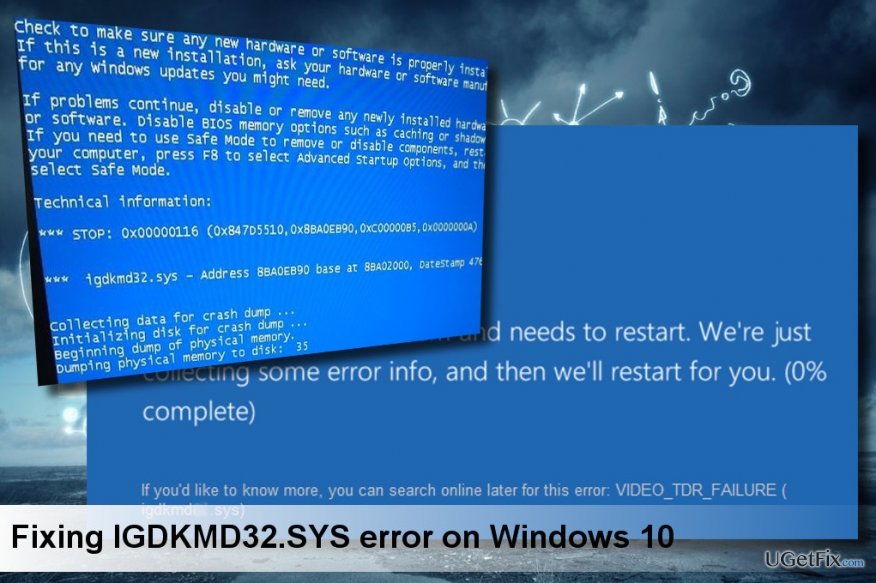
Fixing Igdkmd32.sys Error on Windows 10:
Method 1. Update Intel HD graphics driver
- Right-click on the “Windows key” and select “Device Manager.”
- Expand “Display adapters” by double clicking the option.
- Right-click on the Intel HD Graphics Driver and select Update Driver Software.
- If updating the graphics driver did not help, right-click on the Intel HD Graphics Driver and select “Uninstall.”
- Then click on “Action” tab at the top of the screen and select “Scan for hardware changes.”
- The system should automatically detect and install the missing driver. If, for some reason, the driver is not found, navigate to the manufacturer’s website and install it manually.
- Finally, reboot your PC.
Method 2. Install Windows Updates
- Press "Windows key + I" to open "Settings."
- Select "Updates & Security" and open "Windows Updates."
- Click "Check for Updates" option and wait until the system scans for updates.
- When the updates are ready, click Run the Updates.
- To execute all changes, reboot your PC.
Method 3. Use a System Restore Point
If you have created a System Restore Point before the Igdkmd32.sys error emerged, you can fix this issue by enabling the latest System Restore Point.
- Hold the Power button to turn off your PC and then restart the system.
- Before Windows logo shows up, press "F8" to boot into "Safe Mode."
- Then right-click on "Windows key" and open "Control Panel."
- Navigate to the "All Control Panel Items" and select "Recovery."
- Select "Configure System Restore," click on "System Restore," and press "Next."
- Select the latest system restore point and click "Next."
- Finally, reboot your PC.
If, after all, the Igdkmd32.sys error occurs, then it might be that the system is infected with a malicious virus. Therefore, perform a complete system scan with a powerful anti-malware. We would recommend using [d1].
Bottom line
To fix the Igdkmd32.sys BSOD error, you can update or reinstall your Intel HD graphics driver and install all available Windows 10 updates. If these methods do not resolve the issue, consider using a System Restore Point if one was created prior to the error.
Frequently asked questions
The Igdkmd32.sys BSOD error is typically caused by issues with Intel graphics drivers, incorrect system configurations, or hardware incompatibility. Updating or reinstalling the graphics drivers often resolves this issue.
To fix the Igdkmd32.sys BSOD error on Windows 11, you should boot into Safe Mode and update your graphics drivers through Device Manager, or use the Windows Recovery Environment to perform a system restore.
Yes, to prevent the Igdkmd32.sys BSOD on Windows 10, ensure that your system's graphics drivers are always up to date and consider disabling any overclocking settings that may affect system stability.




Report an issue
What's wrong with this guide? We review every report and update or remove content.
Report received — thank you. We'll review and fix it.
You need a free account to submit a report.
Be the first to comment