How to fix
0x80070425 error
on Windows
Resolve the 0x80070425 error on Windows 10 and 11 effortlessly. Get expert-tested solutions and regain full functionality today! Fixed in minutes.


What causes How to fix 0x80070425 error in Windows?
- Credential Manager service not running
- Credential Manager service has encountered a bug
- Corrupted system files
- Insufficient permissions
- Issues with the Mail app
Repairs Windows system files, removes malware, and restores a clean OS state — without reinstalling.
Hi, I can't seem to add my email account to the Mail app because of the 0x80070425 error. The message says, "Something went wrong... we're sorry, but we weren't able to do that." Any tips on how to resolve this?
The 0x80070425 error in Windows can occur when users try to perform certain tasks, most commonly while attempting to add an account via the Mail app. The Windows Mail app is a native application preinstalled in all Windows OS versions, which consolidates different mail accounts into one convenient place. It supports a variety of email protocols and services like Outlook.com, Yahoo Mail, Gmail, and other POP and IMAP accounts. The interface is straightforward, allowing users to receive, read, compose, and send emails across their connected accounts.
When the 0x80070425 error occurs, users are typically presented with the message, "Something went wrong... we're sorry, but we weren't able to do that." This can be frustrating, as the problem can interrupt standard workflows, making it harder for individuals to manage their email communication.
Interestingly, users might also experience the 0x80070425 error when they attempt to access the Credential Manager in Windows, which is a built-in utility used to store credentials like usernames and passwords. If the Credential Manager is grayed out and users are greeted with a message saying, "The service cannot accept messages at this time," then they are facing the same 0x80070425 error, but in a different context.
The main reason behind this error is usually related to the Credential Manager service. It might be that the service isn't running as it should or has encountered a bug that's preventing it from functioning correctly. One of the solutions to this issue could be to restart the Credential Manager service or set it to run automatically. This action prompts the service to restart, potentially rectifying any minor glitches that are causing the problem.
However, the 0x80070425 error can also be caused by other factors such as corrupted system files or insufficient permissions. These issues might require more advanced solutions, like running a system file check, updating drivers, or modifying user permissions.
Despite these complexities, users can still navigate this problem effectively. Employing a PC repair tool like [d1] can assist in diagnosing and resolving the error swiftly. This tool provides a quick and comprehensive scan of the system, identifying the cause of the error and offering potential solutions.
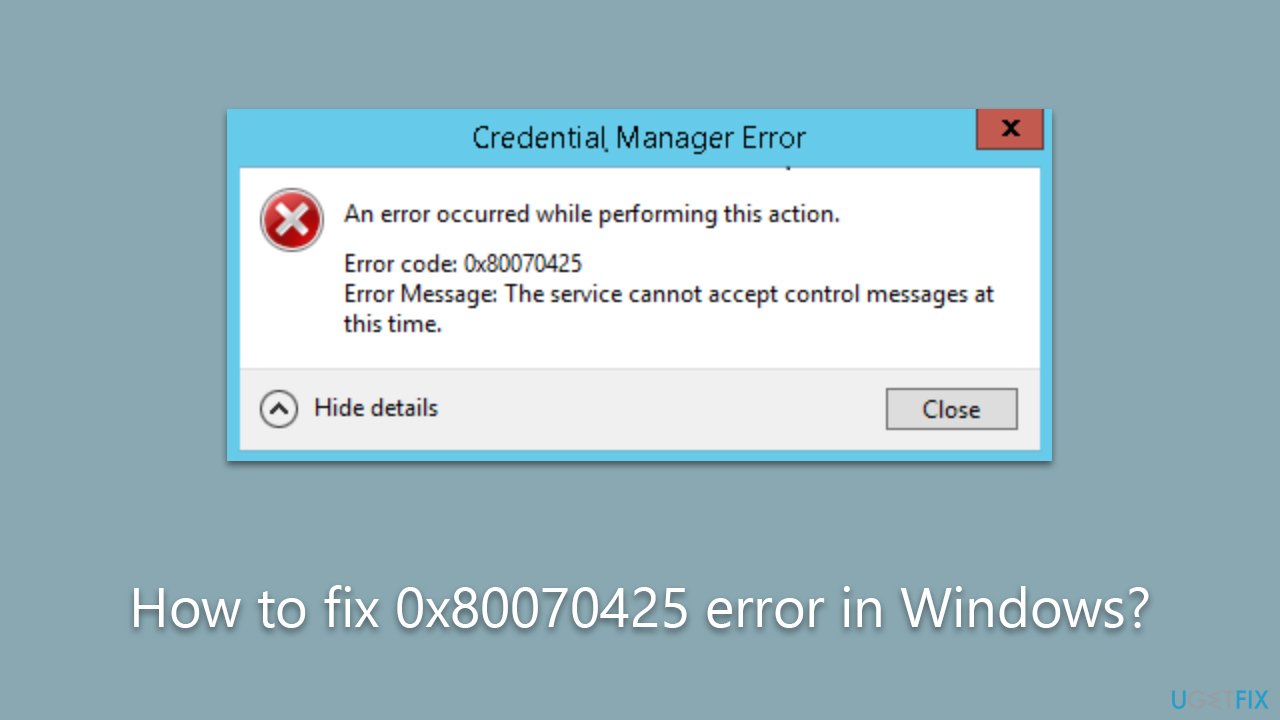
1. Set the Credential Manager service to automatic
When the Credential Manager service is not running, users can face various challenges, including difficulty logging into websites and applications that depend on it for password storage, leading to disrupted access to key services. In addition, users may be unable to store new credentials, encounter system errors, or even face an inability to open the Credential Manager itself, which is one of the more common reasons for 0x80070425 to arise.
- Press the Windows key + R on your keyboard to open the Run dialog box.
- Type services.msc and press Enter. This will open the Services window.
- Scroll down the list of services until you find Credential Manager.
- Right-click on Credential Manager and choose Properties from the context menu.
- In the Properties dialog, you'll see a Startup type dropdown menu. Click on it and select Automatic. This ensures the Credential Manager service starts each time Windows boots up.
- Below the Startup type, you'll see Service status. If it's currently Stopped, click on the Start button to manually start the service.
- Click Apply and then OK to save your changes.
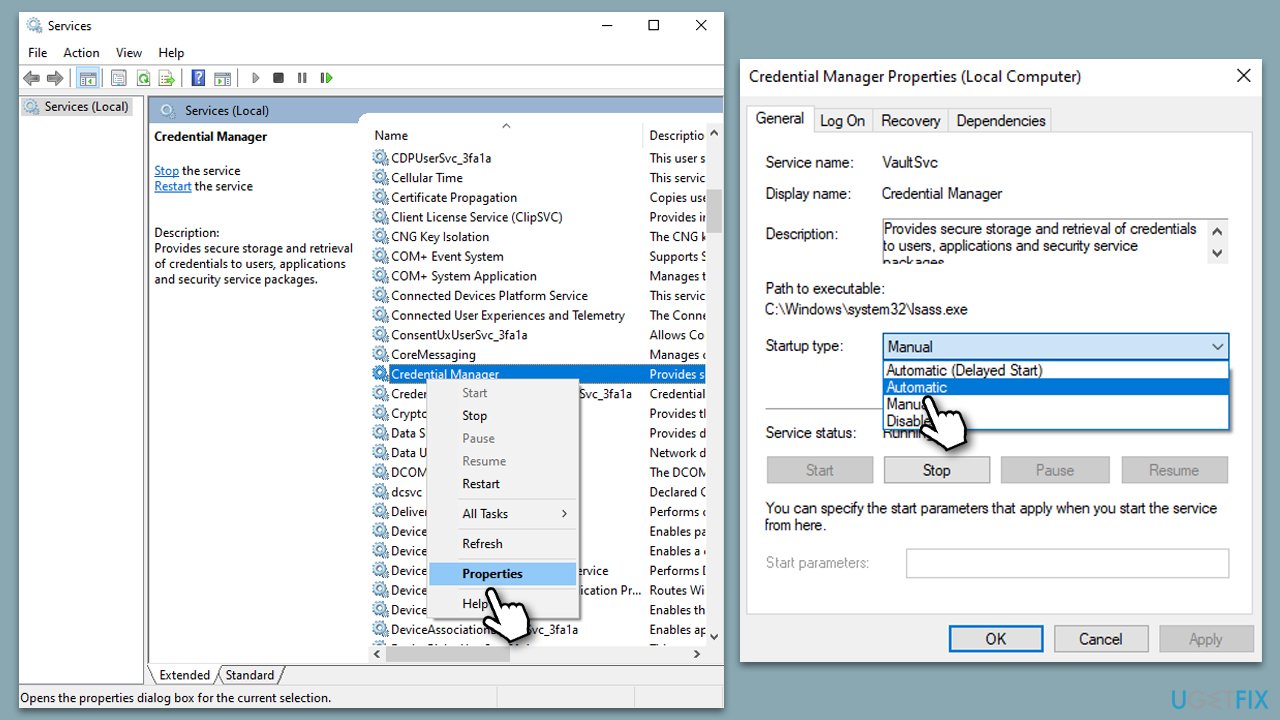
If the service repeatedly stops or fails to start, you might be dealing with a more serious system issue, such as corrupted system files, in which case further troubleshooting or system repair may be necessary.
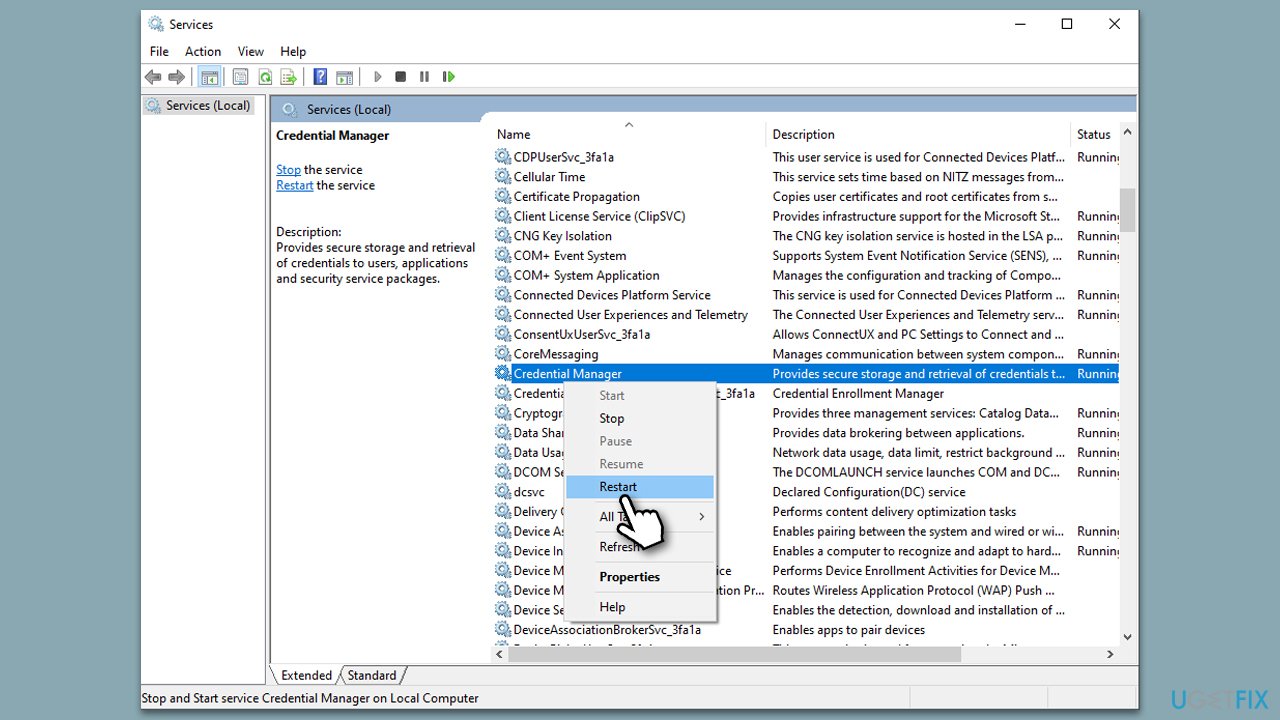
2. Restart the Credential Manager service
In some cases, restarting the Credential Manager service can also resolve the issue.
- Open the Services window once again.
- Scroll down to Credential Manager.
- Right-click on the service and select Restart.
- In a few seconds, the service will be restarted.
- Try adding your email to the Mail app or launching the Credential Manager once again.
3. Run SFC and DISM
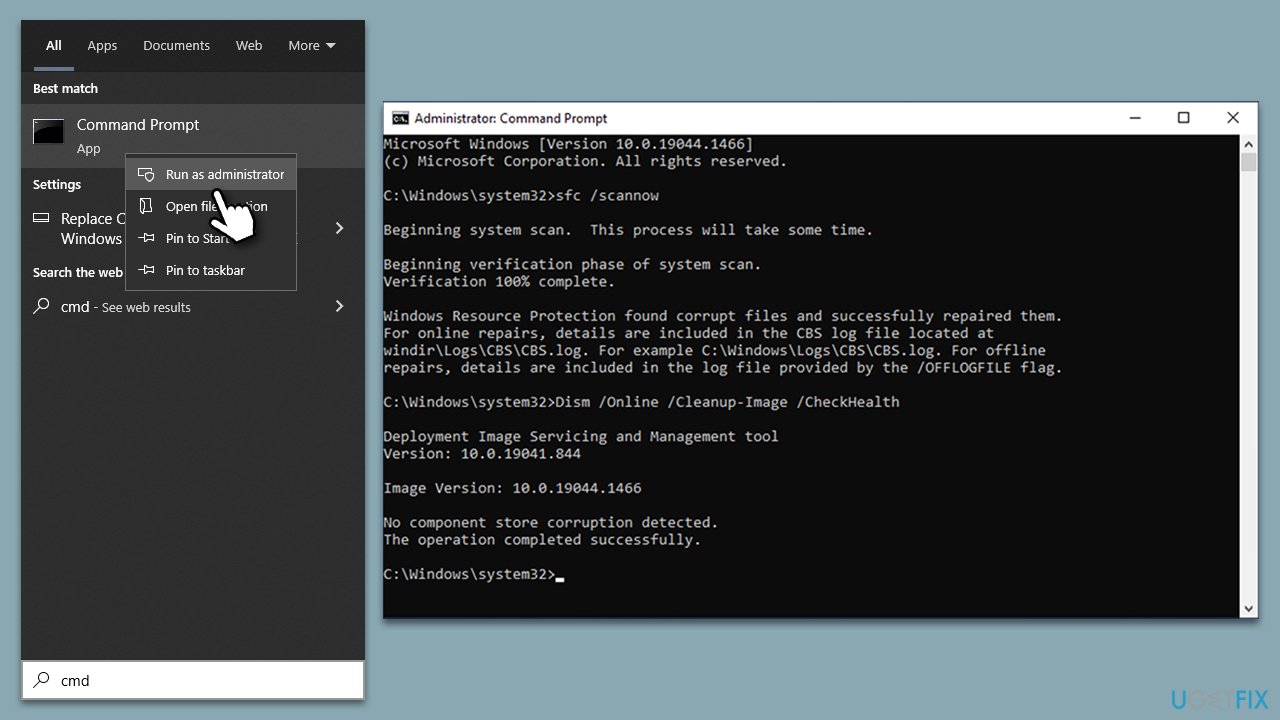
0x80070425 error could also be caused by corrupted or damaged system files. You can resolve this by running commands via the elevated Command Prompt:
- Type cmd in Windows search.
- Right-click on Command Prompt result and select Run as administrator.
- Paste the following command into the new window:
sfc /scannow - Press Enter and wait till the scan is finished
- Once done, run this set of commands, pressing Enter after each:
DISM /Online /Cleanup-Image /CheckHealth
DISM /Online /Cleanup-Image /ScanHealth
DISM /Online /Cleanup-Image /RestoreHealth - Restart your device.
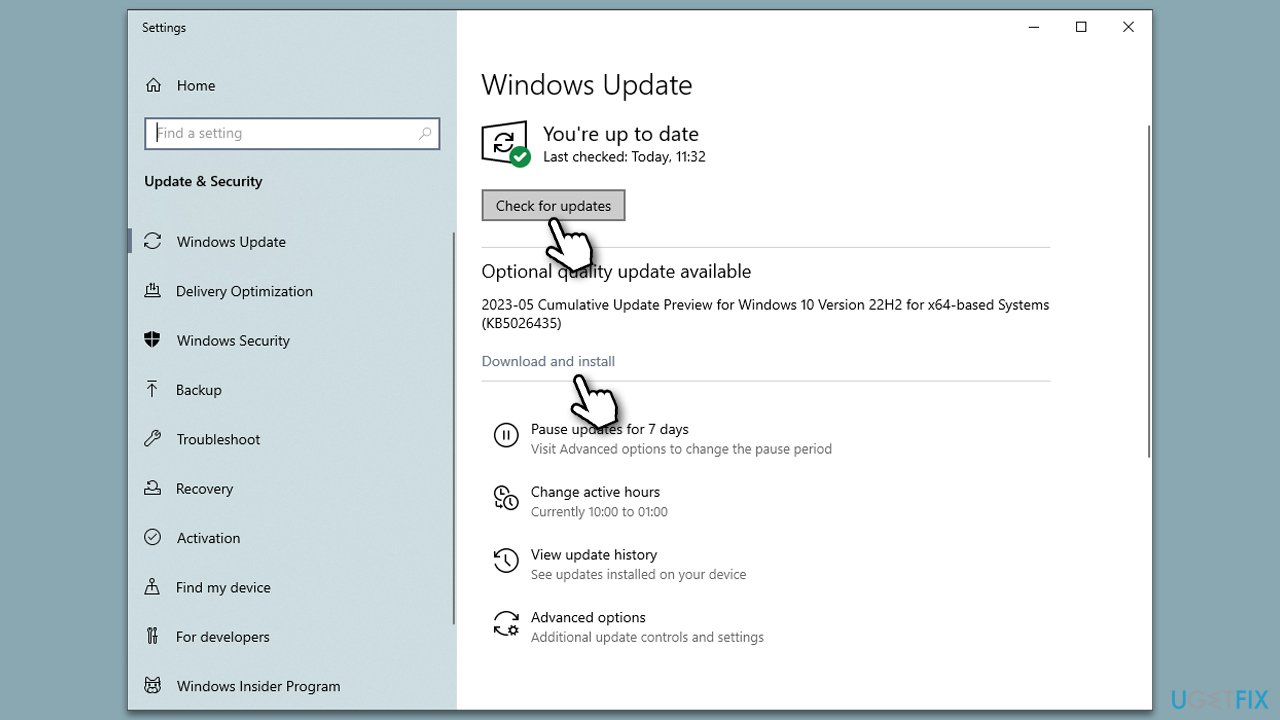
4. Install all the available updates
In some cases, bugs in Windows may occur. Microsoft ships out updates regularly in the event known as Patch Tuesday. If you have been neglecting updates, make sure you install them:
- Type updates in Windows search and press Enter.
- In the new window, click Check for updates and wait.
- If optional updates are available, make sure you install them too.
- When everything is done, restart your machine.
5. Take ownership of the credential folder
- Press Win + R on your keyboard to open the Run dialog.
- Type %appdata% in the run box and press Enter.
- Navigate to the following location (make sure Hidden files are visible):
C:\Users\USERNAME\AppData\Roaming\Microsoft\Credentials - Right-click on the Credentials folder and select Properties.
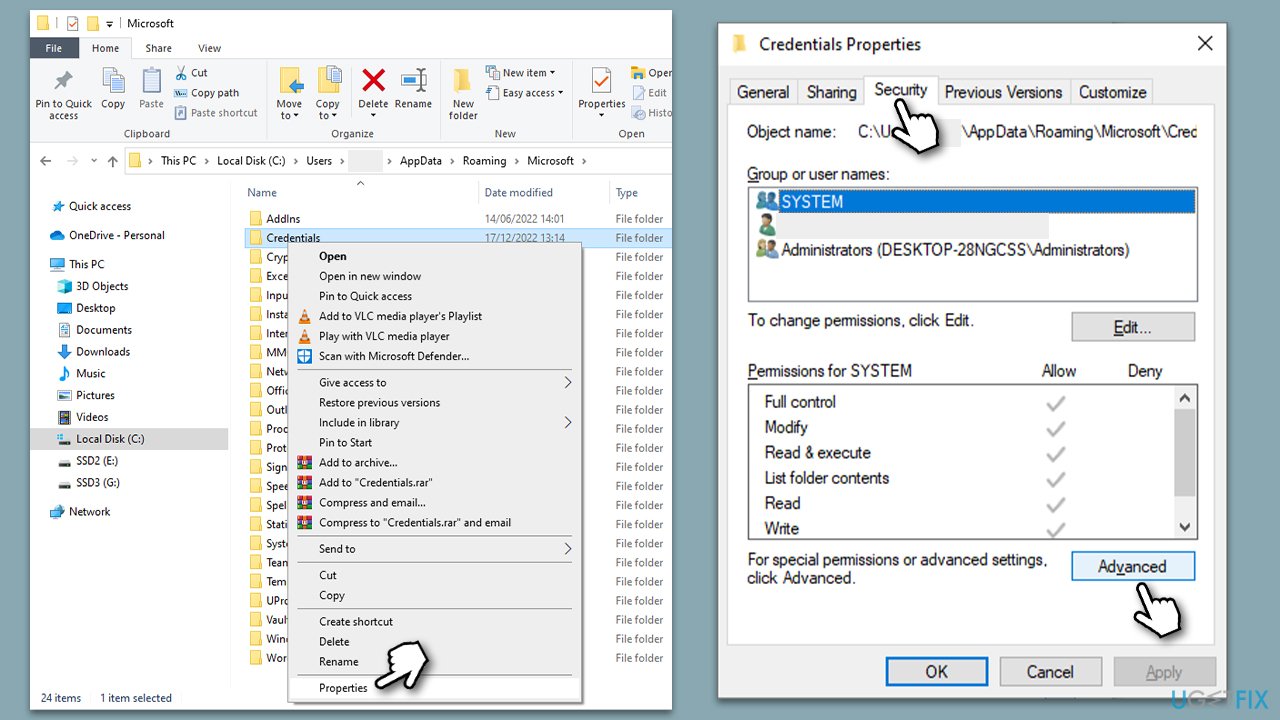
- Navigate to the Security tab and click Advanced.
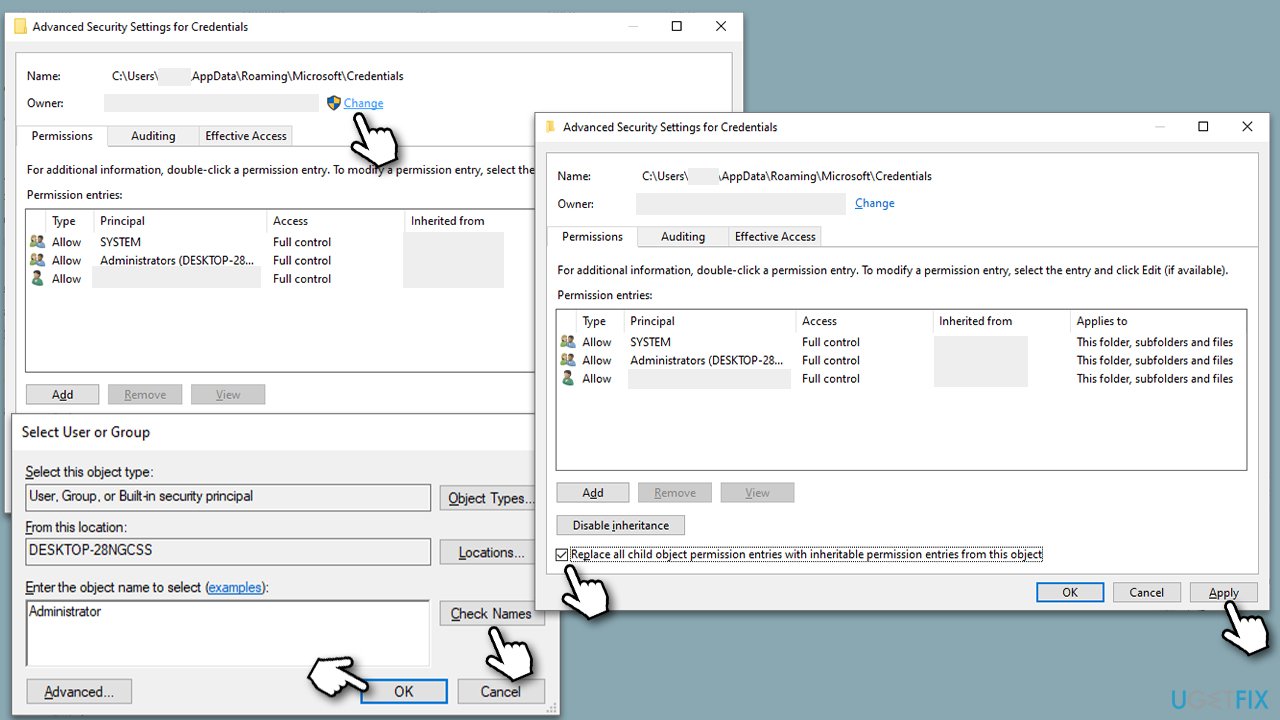
- Under Owner, click Change.
- Type in your username (or administrator if you are using an administrator account), click Check names and click OK.
- Next, mark the Replace all child object permission entries within inheritable permission entries from this object checkbox and click Apply, then OK.
- In the Credential folder Properties, click OK.
Bottom line
To resolve the 0x80070425 error, you can try restarting the Credential Manager service, running a system file check, updating drivers, or modifying user permissions. If these solutions do not work, consider seeking further assistance or exploring additional troubleshooting methods.
Frequently asked questions
The 0x80070425 error typically indicates that a service is not running or has been disabled, preventing certain features from functioning properly on your Windows system.
You can fix the 0x80070425 error by opening the Services app, finding the relevant service, right-clicking it, and selecting 'Restart' to ensure it is running correctly.
Yes, you can run the built-in Windows Troubleshooter by navigating to Settings > Update & Security > Troubleshoot, which can help identify and resolve the 0x80070425 error automatically.




Report an issue
What's wrong with this guide? We review every report and update or remove content.
Report received — thank you. We'll review and fix it.
You need a free account to submit a report.
Be the first to comment