How to fix
Xbox app error 0x87e00196
on Windows
Resolve Xbox app error 0x87e00196 in Windows 10 or 11 with our easy fixes. Get back to gaming fast—expert-tested solutions included!


What causes How to fix Xbox app error 0x87e00196 in Windows?
- Outdated Xbox app
- Issues with Xbox Live services
- Corrupted Gaming Services app
- Missing Windows updates
- Problems with Microsoft Store Apps
Repairs Windows system files, removes malware, and restores a clean OS state — without reinstalling.
Hello. I cannot launch any games on the Xbox app in Windows because I receive the 0x87e00196 error. How do I fix this?
When attempting to install, run, or update an Xbox Game Pass game via the Xbox app, Windows users frequently encounter the error code 0x87e00196. The Xbox app for Windows allows users to access and manage their Xbox Game Pass subscription, connect with friends, and access a variety of gaming features and services. When users encounter this error, however, they are unable to carry out these actions smoothly.
This error can have a significant impact on users because it prevents them from directly installing, running, or updating Xbox Game Pass games through the Xbox app. Instead, they are repeatedly redirected to the Microsoft Store Gaming Services page, which disrupts their gaming experience and makes efficient game management difficult. It can be inconvenient for users who rely on the Xbox app to access and play their favorite games.
Users can try a few troubleshooting steps to see if they can resolve this issue. Checking for Xbox app updates, verifying the status of Xbox Live services, resetting the Xbox app, reinstalling the Gaming Services app, or contacting Xbox support for further assistance are all possible options.
In this guide, you will find 6 steps that should help you fix Xbox app error 0x87e00196. Keep in mind, that the manual troubleshooting process may be lengthy. You can use a maintenance tool like [d1] that can fix most system errors, BSODs,[ref en-1] corrupted files, registry[ref en-2] issues, or clear cookies and cache.[ref en-3] Otherwise, follow the step-by-step instructions below.
Solution 1. Install Windows Updates
- Click Start and select Settings
- Go to the Windows Update section
- Click Check for updates and wait
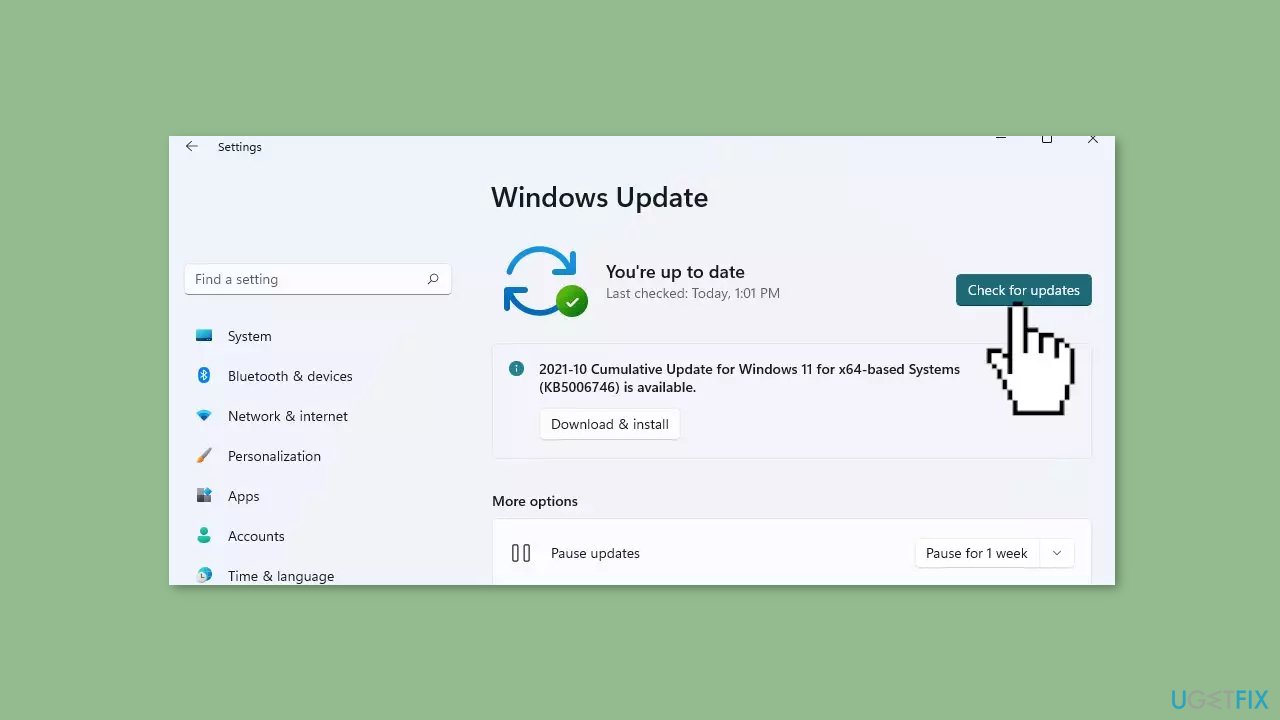
- Go to the Advanced options and install optional updates
- Reboot your system.
Solution 2. Run the Microsoft Store Apps Troubleshooter
- Press the Windows key + I to open Windows Settings
- Select the System section and scroll down until you see Troubleshoot and click on it
- Click on Other troubleshooters to see more troubleshooters available on your computer
- Scroll down at the bottom until you see Microsoft Store Apps
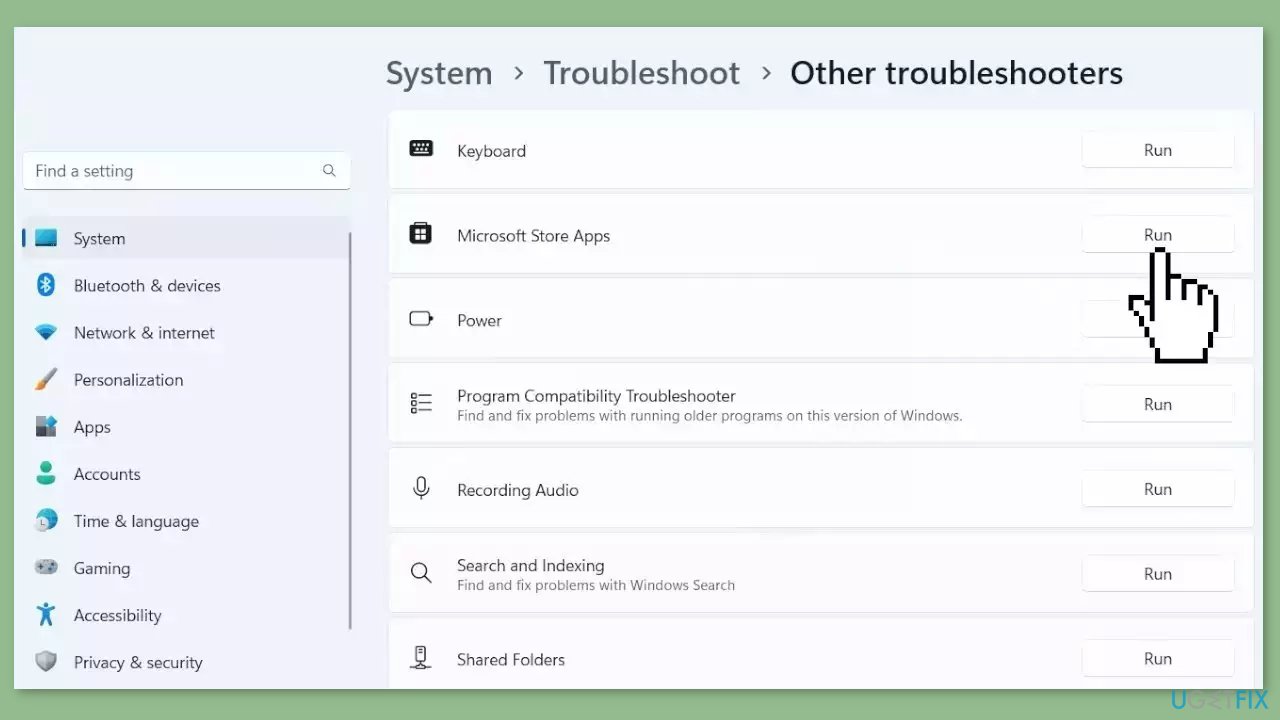
- Click on Run to start the troubleshooting process
- Wait until the process is complete
Solution 3. Repair or Reset the Xbox App
If the problem you're experiencing with the Xbox app is due to corruption, you can try repairing the app to fix the issue. To do this:
- Open the Settings app by pressing the Windows key + I, and go to the Apps tab.
- Select the Installed apps option, and then find the Xbox app in the list.
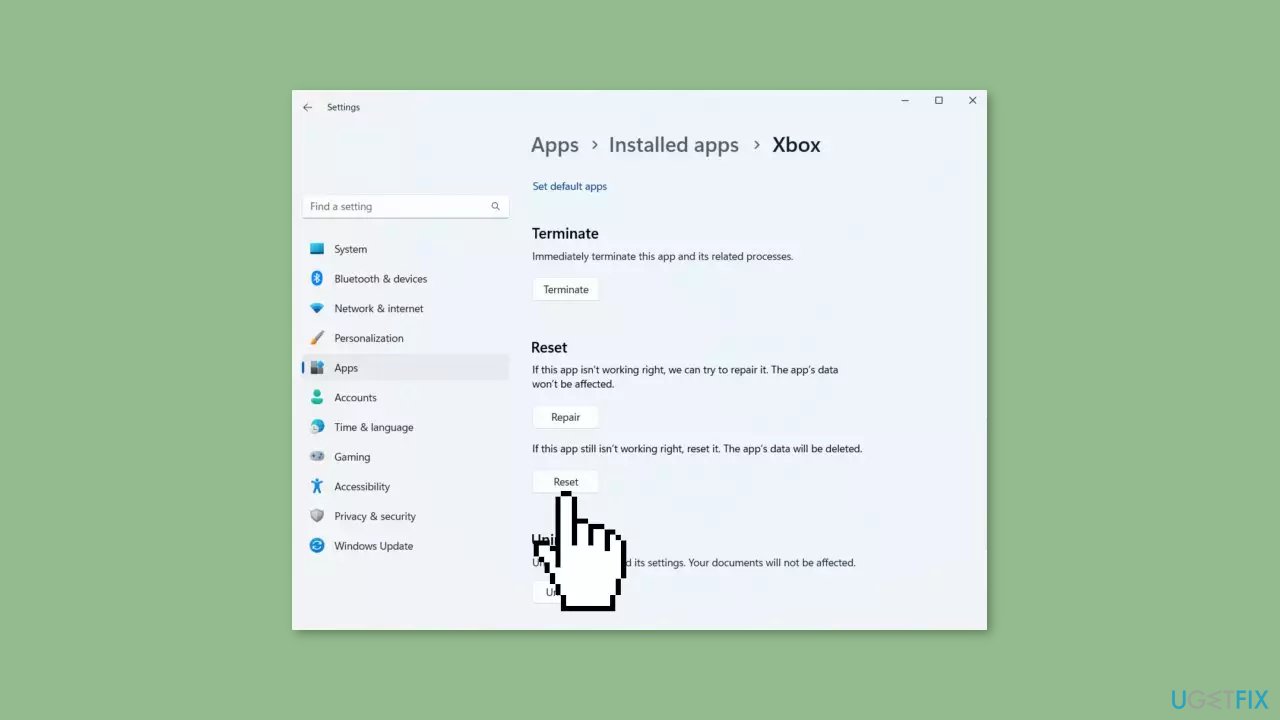
- Click the three-dot menu button, and then choose Advanced options.
- Scroll down to the Reset section, and click the Repair button.
- Once the repair process is finished, reopen the app and see if the problem has been resolved.
If repairing the app doesn't help, you can try resetting it to its original state and settings:
- Follow the first three steps above to access the Advanced options for the Xbox app.
- Instead of clicking the Repair button, click the Reset button and follow the prompts to reset the app.
- Reopen the app and see if the problem has been fixed.
Solution 4. Clear Microsoft Store Cache
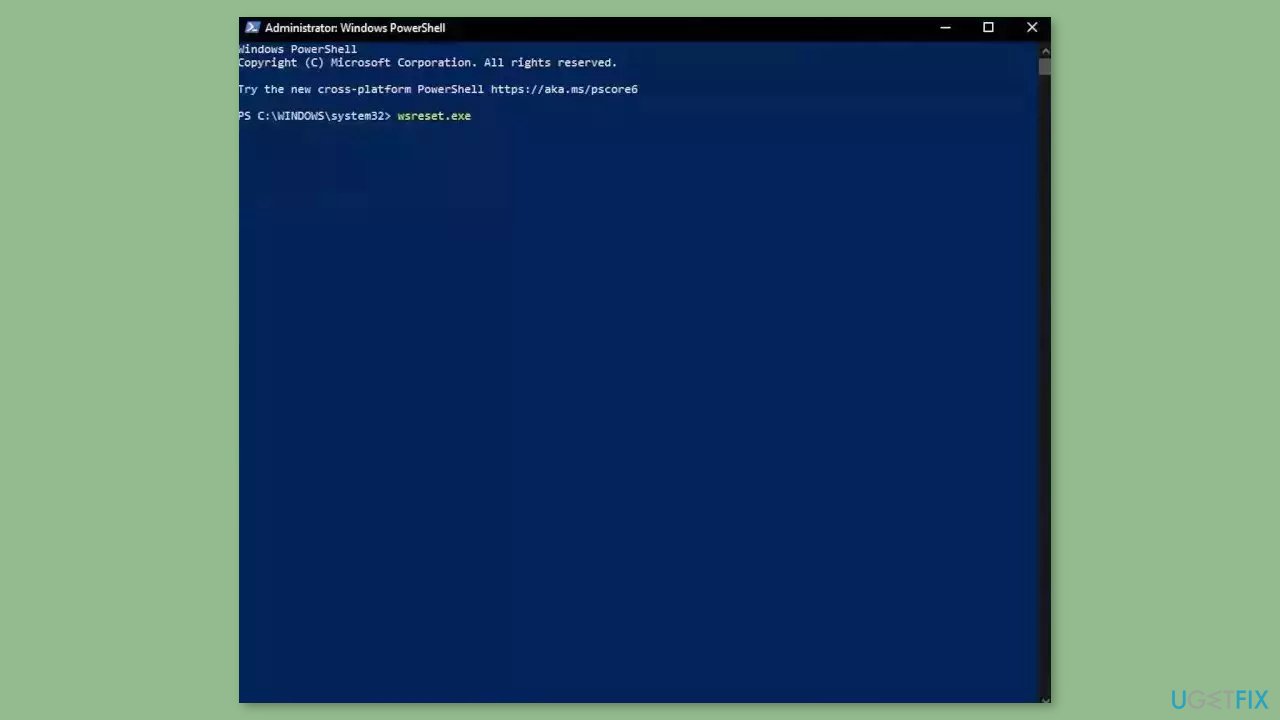
- Open the Windows Powershell from the search bar by typing powershell.
- Right-click on the search result and select Run as Administrator.
- If a UAC opens, hit Yes to provide your consent.
- Type WSReset.exe and hit Enter.
Solution 5. Check Xbox Services
- Press the Windows button.
- Type Services in the search bar.
- From the list of results, right-click on Services App.
- Select Run as administrator.
- Scroll to the bottom of the Services window.
- Locate the following services:
IP Helper
Xbox Live Auth Manager
Xbox Live Game Save
Xbox Live Networking Service
Gaming Services
- Right-click over the service.
- Select Properties.
- In the Properties window, find the Startup type section.
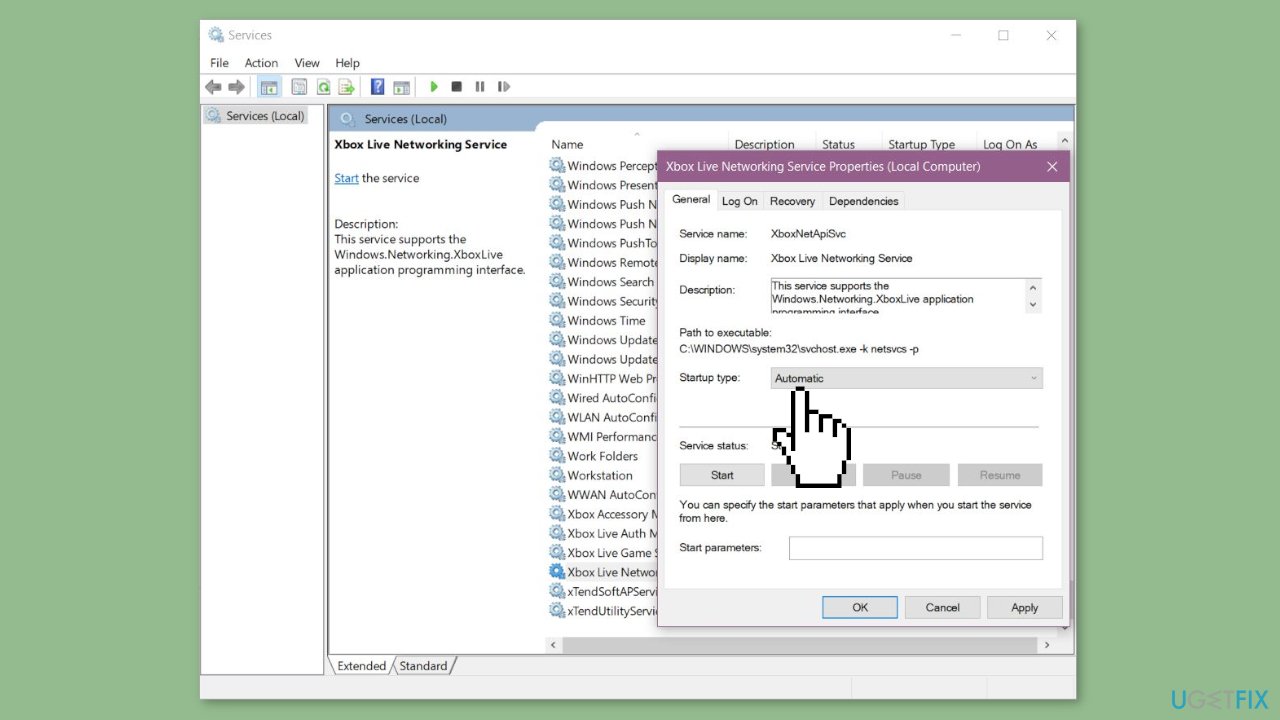
- Ensure that it is set to Automatic. If not, change it to Automatic.
- If the service isn't started, click on Start to start the service.
- Restart your PC.
- Try again after the restart.
Solution 6. Reinstall the Gaming Services Package
- Click on the taskbar search icon.
- Type Windows PowerShell.
- Select the Windows PowerShell option that appears on top of the search results.
- Right-click on the PowerShell option.
- Select Run as administrator.
- Click on Yes in the User Account Control dialogue box.
- In the PowerShell window, enter the following command:
Get-AppxPackage gamingservices -allusers | remove-appxpackage -allusers
- Press the Enter key.
- This command will uninstall the Gaming Services app and remove its registry keys from your Windows PC.
- In the same PowerShell window, enter the following command:
start ms-windows-store://pdp/?productid=9MWPM2CQNLHN
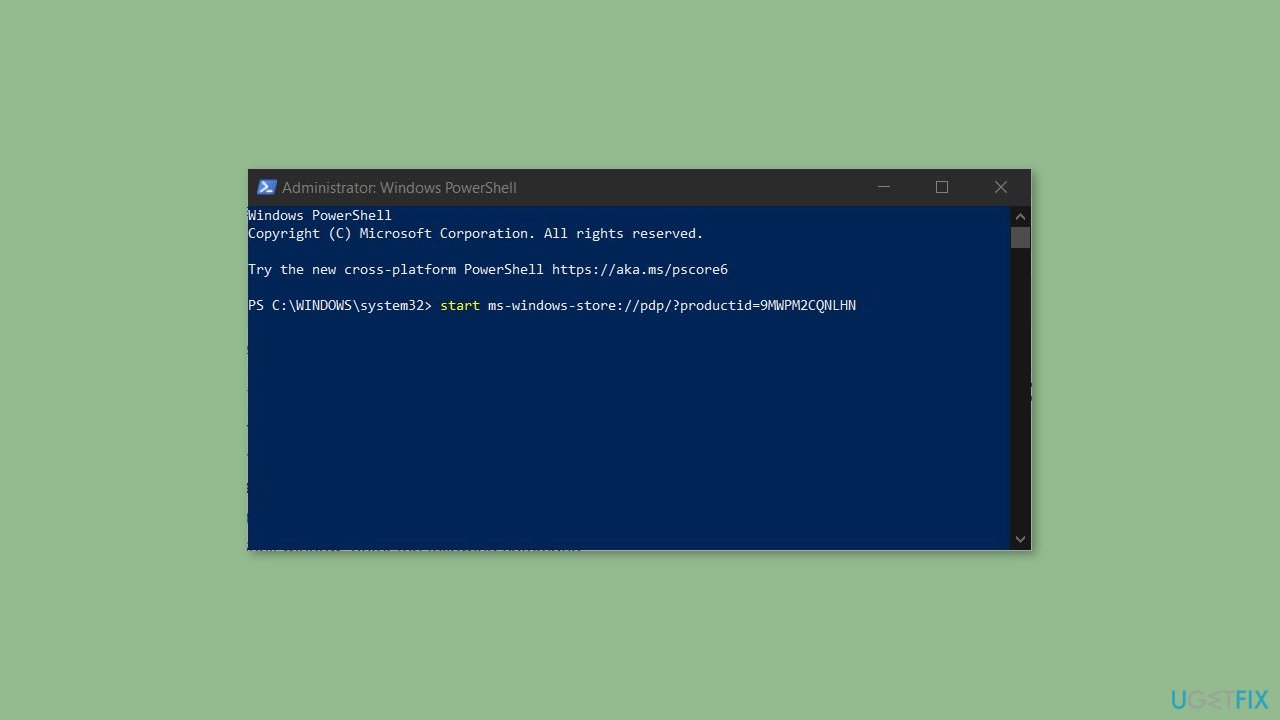
- Press the Enter key.
- This will take you to the Gaming Services app page in the Microsoft Store.
- Click on the Install button.
- Click on Yes in the User Account Control dialogue box that appears.
- Once the Gaming Services app is installed, try installing, launching, or uninstalling the Xbox Game Pass game again.
Bottom line
To resolve the Xbox app error 0x87e00196, users can try installing Windows updates, running the Microsoft Store Apps troubleshooter, resetting the Xbox app, or reinstalling the Gaming Services app. If these steps do not work, contacting Xbox support for further assistance is recommended.
Frequently asked questions
The error 0x87e00196 typically indicates a problem with the Xbox app's connection to Xbox Live services or issues with the app itself on Windows 10 or Windows 11.
To fix this error on Windows 11, try resetting the Xbox app through Settings > Apps > Apps & features, then locate the Xbox app and select 'Advanced options' to reset it.
Yes, you can clear the Xbox app cache by navigating to Settings > Apps > Apps & features, selecting the Xbox app, and using the 'Repair' option, which can help resolve error 0x87e00196.




Report an issue
What's wrong with this guide? We review every report and update or remove content.
Report received — thank you. We'll review and fix it.
You need a free account to submit a report.
Be the first to comment