How to fix
OneNote Sync error 0xe0000024 bdf5h
on Windows
Resolve OneNote sync error 0xe0000024 in Windows 10 or 11 effortlessly. Enjoy seamless note-taking with expert-tested solutions. Fixed in minutes!

What causes How to fix OneNote Sync error 0xe0000024 bdf5h in Windows?
- Out-of-date version of the OneNote application
- Incorrect account credentials
- Device synchronization issues
- Data inconsistencies across platforms
- Potential corrupted files or registry issues
Repairs Windows system files, removes malware, and restores a clean OS state — without reinstalling.
Hello. When I try to sync OneNote I get the 0xe0000024 bdf5h error code. Is there a way to fix this?
When attempting to sync their OneNote notebooks across different platforms on Windows, users may encounter the OneNote sync error 0xe0000024 bdf5h. This error is frequently attributed to the use of an out-of-date version of the OneNote application.
Microsoft OneNote is a digital note-taking application. It enables users to create, organize, and share notes across platforms such as Windows, Mac, iOS, and Android. OneNote makes it simple to store and access information, collaborate with others, and synchronize notes across platforms.
Users' productivity and ability to access up-to-date information can suffer when they encounter the OneNote sync error 0xe0000024 bdf5h. This problem prevents device synchronization, which means that changes made on one device may not be reflected on other platforms. This can result in data inconsistencies, data loss, and difficulties collaborating with others who rely on synced notebooks.
One possible solution for the OneNote sync error 0xe0000024 bdf5h is to ensure that the OneNote application is updated to the most recent version. This can be accomplished by checking the app for updates or downloading the most recent version from the Microsoft website. Another possible solution is to double-check the account credentials and make sure they are properly configured.
In this guide, you will find 4 steps that should help you fix OneNote Sync error 0xe0000024 bdf5h. You can also try using a maintenance tool like [d1] that can fix most system errors, BSODs,[ref en-1] corrupted files, and registry[ref en-2] issues. Otherwise, follow the step-by-step instructions below.
Method 1. Create the SkyDriveAuthenticationProvider Key
- Press the Windows key + R to open the Run dialog box.
- Type regedit in the Run dialog box.
- Click the OK button.
- Navigate to the path below in the left pane, depending on your PC architecture:
For 32-bit: HKEY_LOCAL_MACHINE\SOFTWARE\Wow6432Node\Microsoft\Office\16.0\Common\Internet
For 64-bit: HKEY_LOCAL_MACHINE\SOFTWARE\Microsoft\Office\16.0\Common\Internet
Note: Replace "16.0" with the appropriate version number if you have a newer version of Microsoft Office.
- Right-click on the empty space in the right pane.
- Select New > String Value.
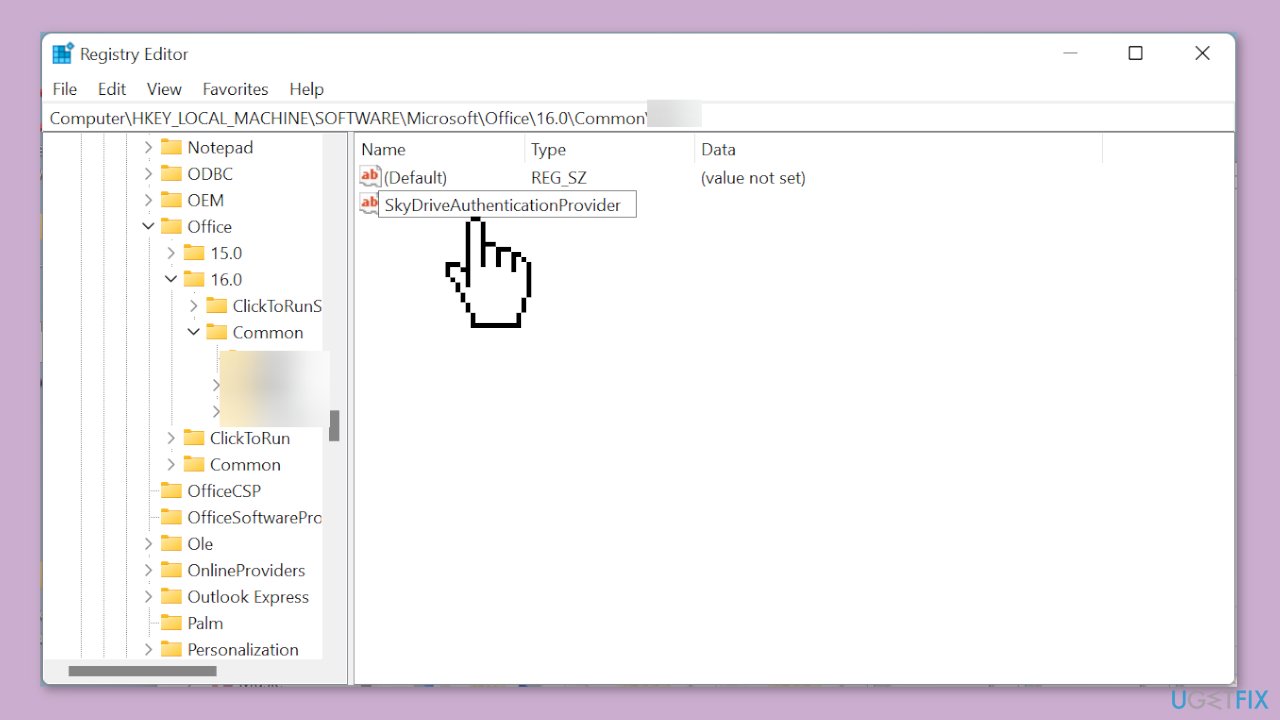
- Enter SkyDriveAuthenticationProvider as the name of the created string.
- Double-click on the newly created string to open its properties.
- Set the Value data to idcrldisable.
- Click the OK button.
Method 2. Update OneNote
- Launch the OneNote app.
- Click the File option at the top of the app.
- In the left pane, select the Account option.
- Under the Office Updates section, select Update Options.
- Finally, click the Update Now option to download and install the latest updates.
Method 3. Reset OneNote and OneDrive
- Press the Windows key + I to open the Settings app.
- In the Settings app, select Apps in the left pane.
- Select the Apps & features option.
- Locate the OneNote app and click on the three vertical dots before it.
- From the options that appear, select Advanced options.
- Click the Reset button.
- Go back to the Apps & features page.
- Locate Microsoft OneDrive and click on the three vertical dots before it.
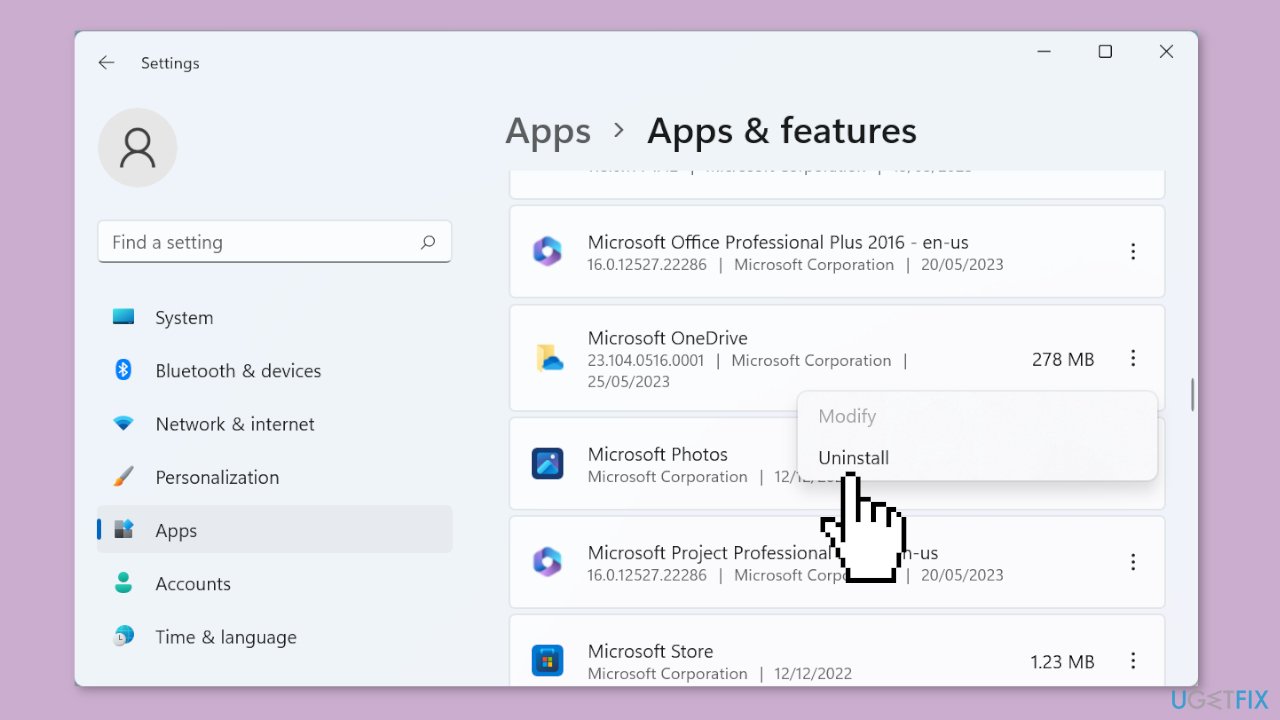
- From the options that appear, select Uninstall.
- Restart your PC.
Method 4. Clear Generic Credentials
- Press the Windows key.
- Type credential in the search bar.
- Click on Credential Manager in the search results.
- In Credential Manager, select the Windows credentials tab.
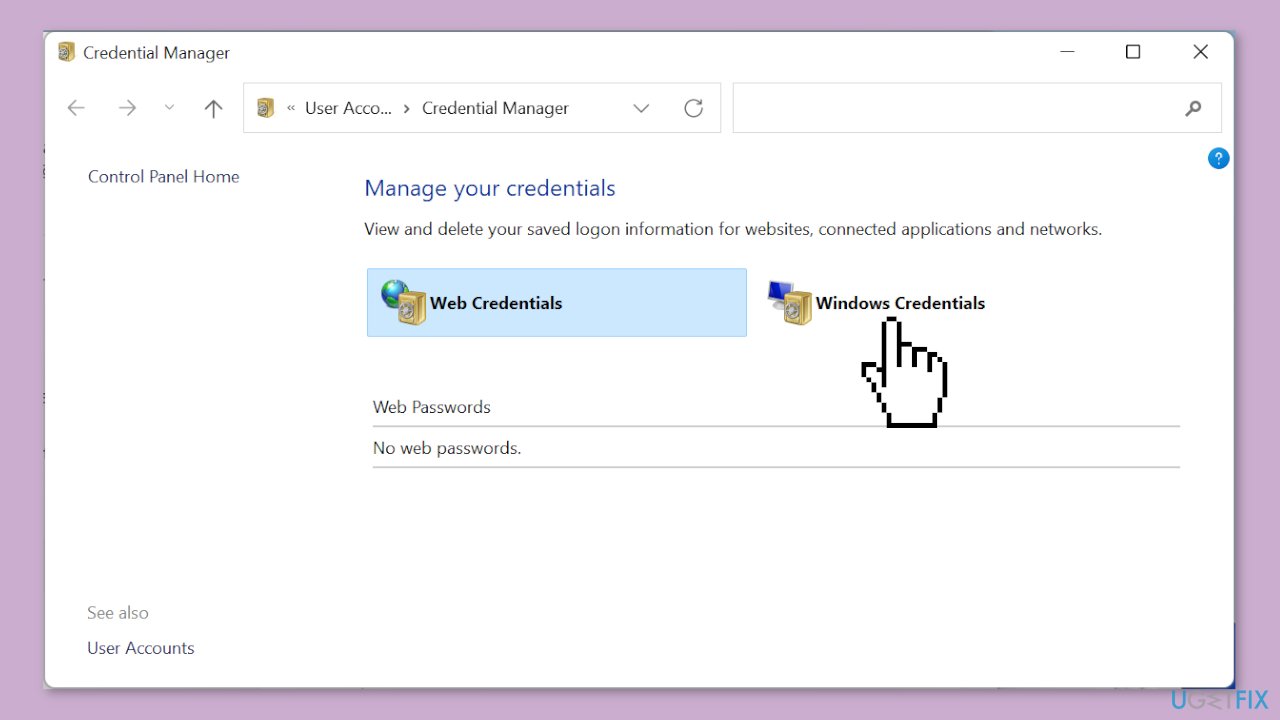
- Scroll down to the Generic credentials list.
- Click the arrow before OneDrive Cached Credential to expand it.
- Finally, click the Remove button to delete it.
Bottom line
To fix the OneNote sync error 0xe0000024 bdf5h, ensure that the OneNote application is updated to the latest version and verify your account credentials. If the issue persists, you can follow the step-by-step instructions provided or use a maintenance tool to address system errors.
Frequently asked questions
The OneNote Sync error 0xe0000024 bdf5h typically indicates a problem with syncing your notes, often due to issues with your account settings or network connection.
To fix this error on Windows 11, try signing out and back into your Microsoft account within OneNote, and ensure your internet connection is stable.
Yes, in Windows 10, ensure that your privacy settings allow OneNote to access the internet, and check if any firewall settings are blocking the application.




Report an issue
What's wrong with this guide? We review every report and update or remove content.
Report received — thank you. We'll review and fix it.
You need a free account to submit a report.
Be the first to comment