How to fix
Trustedinstaller.exe high CPU usage
on Windows
Discover effective solutions to fix TrustedInstaller.exe high CPU usage in Windows 10 and 11. Get expert-tested tips for lasting performance improvements.

What causes How to fix Trustedinstaller.exe high CPU usage in Windows?
- Problems with recent Windows updates
- Potential corruption in system files
- Software conflicts
- Issues with the Windows Module Installer service
Repairs Windows system files, removes malware, and restores a clean OS state — without reinstalling.
I have an issue where my PC works extremely slowly, to the point that it became a pain to browse the web on my browser. I checked the Task Manager, and I've noticed that trustedinstaller.exe is taking up to 100% of CPU. It drops sometimes but it is mostly on the higher end. Please help. I can't use my computer this way.
High CPU usage can be a perplexing issue for Windows users, often resulting in a noticeable slowdown of system operations. One particular aspect of this phenomenon involves a Windows process known as TrustedInstaller.
TrustedInstaller, in its core function, is a built-in Windows system component that operates in the background. It plays a critical role in managing the installation, modification, and removal of Windows updates and optional system components. As a component of the Windows Module Installer service, it also oversees the modification of Windows system files and directories, ensuring system integrity and security.
However, at times, TrustedInstaller.exe may exhibit unusually high CPU usage, causing your computer to run slower than normal. This surge in CPU usage usually happens when TrustedInstaller is actively installing updates or when it's making changes to system files, which can be a resource-intensive process.
However, persistent high CPU usage by TrustedInstaller.exe could be a sign of certain complications. It could hint at problems with recent Windows updates, potential corruption in system files, software conflicts, or, sometimes, issues with the Windows Module Installer service itself.
It's important to handle such situations carefully, as improper meddling with system processes can lead to system instability or errors. This seemingly complex issue can often be resolved with careful troubleshooting.
For those experiencing persistent high CPU usage due to TrustedInstaller, a step-by-step guide is provided below the article. This guide will take you through different methods that can help resolve the issue while ensuring the integrity and stability of your Windows operating system. Before proceeding, we recommend an automatic approach using a powerful PC repair tool [d1].
Fix 1. Install all available Windows updates
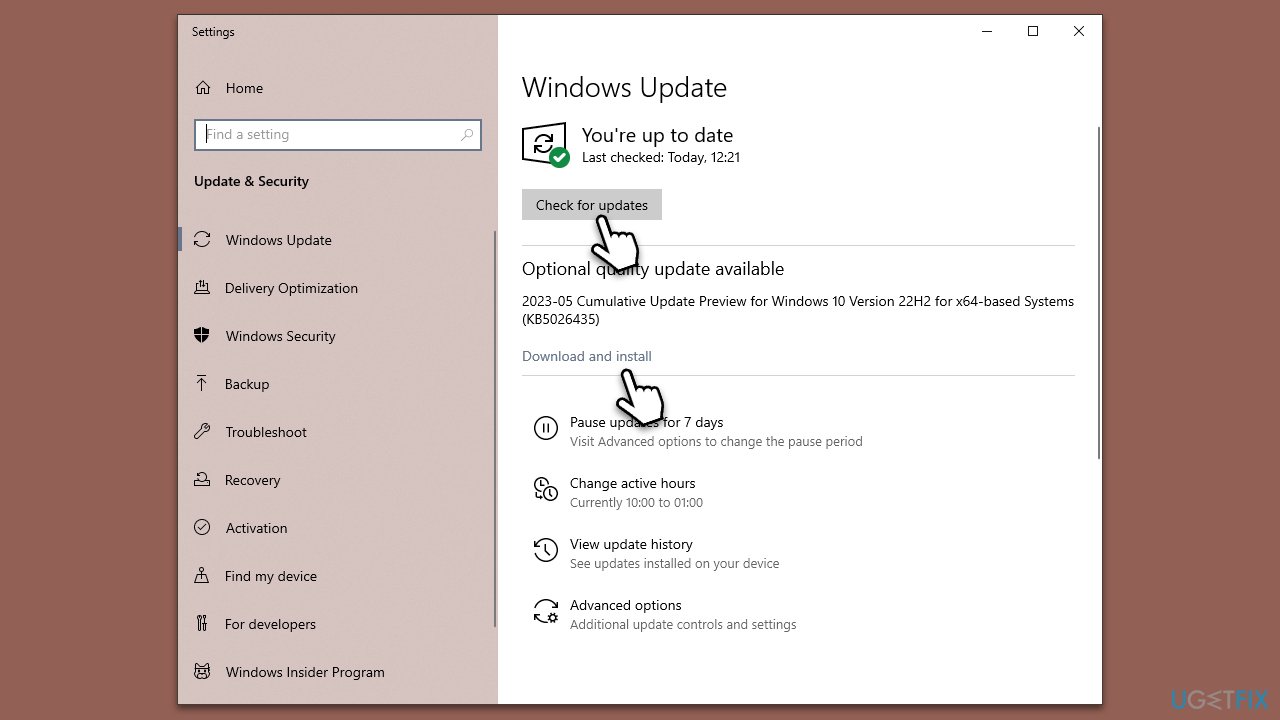
If there are pending updates, TrustedInstaller might be consuming resources trying to process them. Additionally, some updates may contain patches for known bugs causing high CPU usage or improvements to the system, making it more efficient and reducing CPU usage.
- Type Updates in Windows search and press Enter.
- Here, click Check for updates, and Windows will check if there are new updates available.
- If optional packages are offered, install them too.
- Once done, restart your PC.
Fix 2. Set Windows Module Installer service to automatically start or disable it
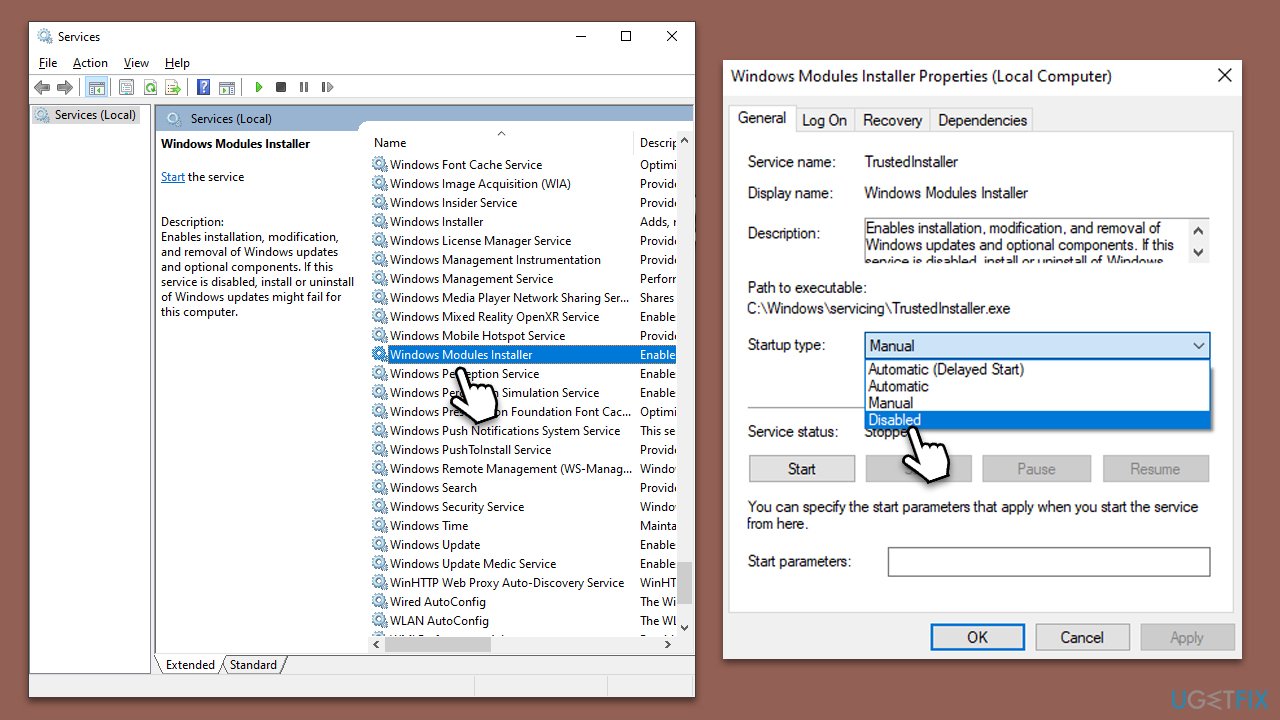
Some users managed to fix the issue by either restarting or disabling Windows Module Installer Service.
- Type Services in Windows search and press Enter.
- In the Services window, scroll down and find Windows Module Installer service.
- Right-click on it and select Restart.
- If that does not help, you could disable the service.
- Double-click on the service to open its Properties.
- Under the Startup type, select Disabled from the drop-down menu.
- Click Stop and OK.
Important note
While disabling the Windows Module Installer service can reduce CPU usage, it's not a recommended solution. This service is crucial for managing Windows updates. Disabling it would prevent these updates, potentially leading to security risks and outdated system files. Therefore, it's more beneficial to explore other troubleshooting methods before resorting to this temporary fix.
Fix 3. Try Clean Boot
A Clean Boot in Windows might resolve high CPU usage issues linked to TrustedInstaller. It starts Windows with minimum drivers and startup programs, avoiding potential software conflicts. If CPU usage drops after a Clean Boot, it suggests a third-party software might be the culprit. This method aids in isolating the issue and identifying the problematic software.
- Press Win + R, type msconfig, and hit Enter.
- Go to the Services tab and tick the Hide all Microsoft services checkbox.
- Select Disable all.
- Go to the Startup tab and click Open Task Manager.
- Here, right-click on each of the non-Windows entries and select Disable.
- Close down the Task Manager.
- Go to the Boot tab and tick the Safe boot option.
- Restart your device.
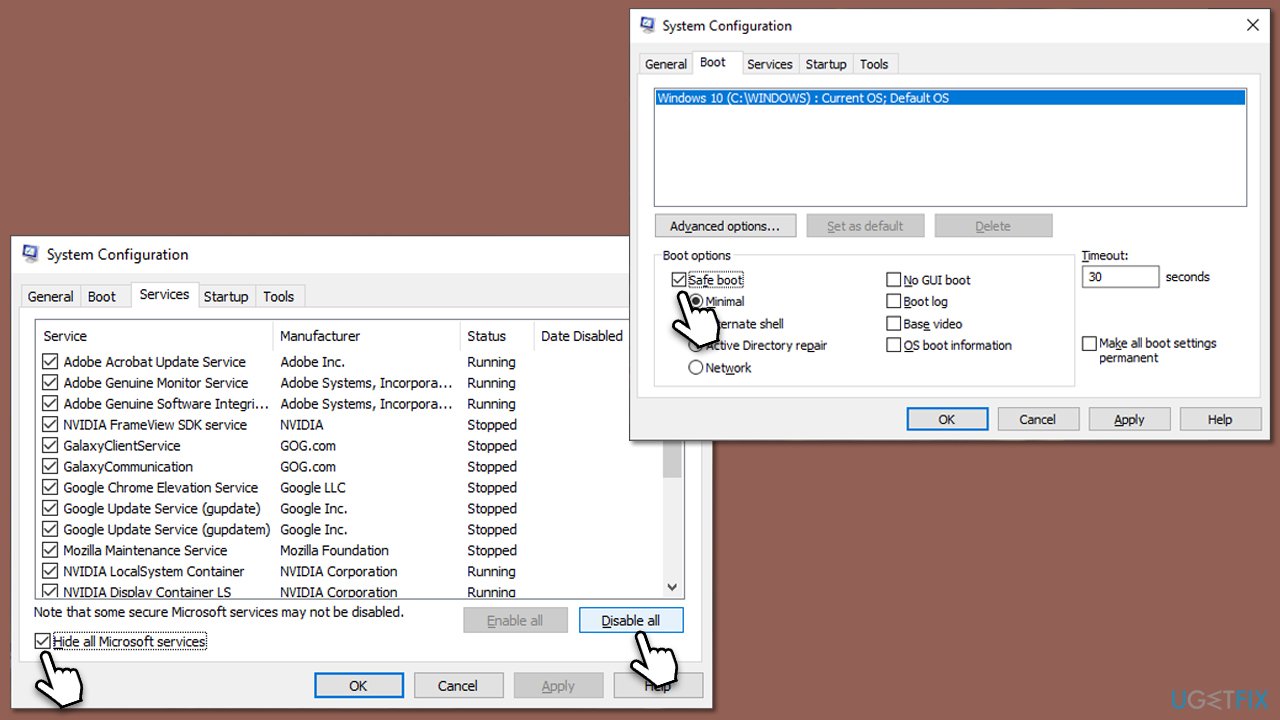
If the problem does not occur in a Clean boot environment, it means that third-party software is the culprit. To resolve this, you need to identify the app and either uninstall, update, or contact the app's support to help you with this issue. The easiest way is to disable half of the services each time and check whether the resource usage spikes. If it remains low, then the enabled services aren't causing the issue. Repeat the process with the next set of services.
Fix 4. Repair corrupted system files
- Type cmd in Windows search.
- Right-click on the Command Prompt result and select Run as administrator.
- User Account Control will ask whether you want to allow changes - click Yes.
- Next, copy and paste the following command and press Enter:
sfc /scannow - When the scan is complete, run the these commands as well:
dism /online /cleanup-image /scanhealth
dism /online /cleanup-image /checkhealth
dism /online /cleanup-image /restorehealth - Restart your system.
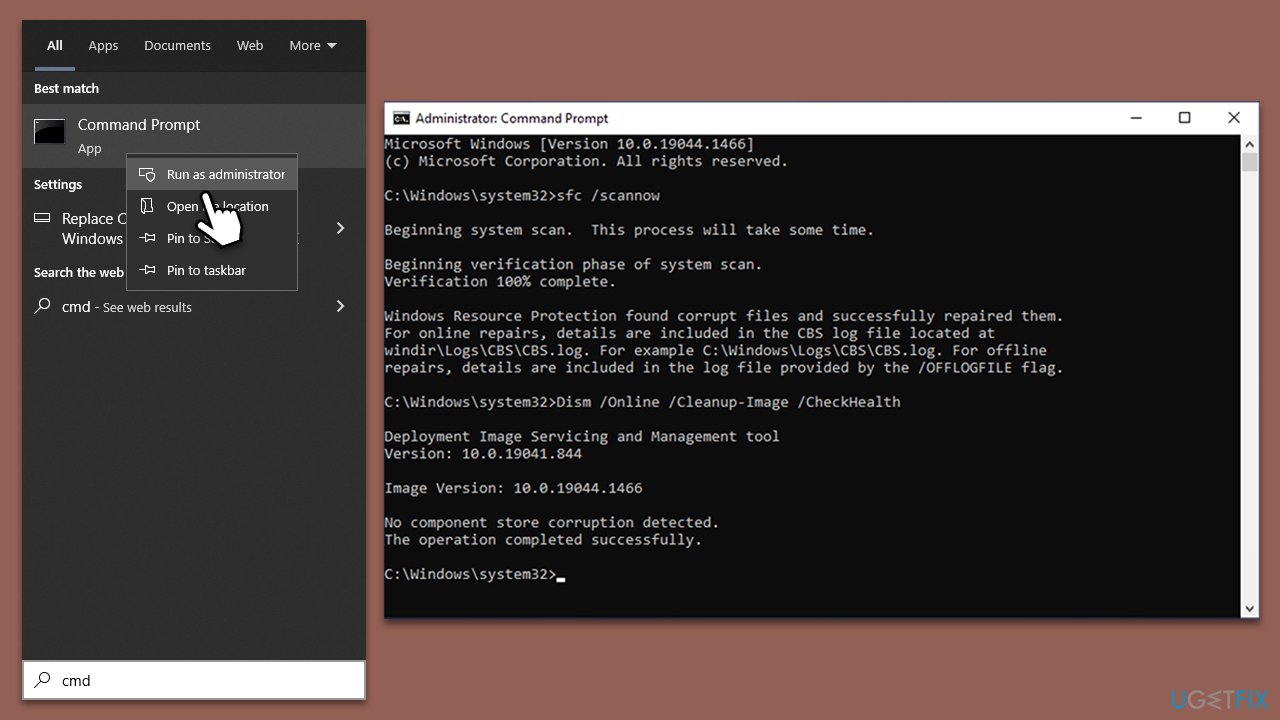
Note: if you get an error executing the last command, add /Source:C:\RepairSource\Windows /LimitAccess to it and try again.
Fix 5. Check for malware
Occasionally, exe files could get infected by or replaced with malware. To make sure this is not the case, you should scan your computer for infections - you can do that with the help of a trusted third-party anti-malware program or employ free tools from Microsoft - Microsoft Security Scanner or Windows Defender.
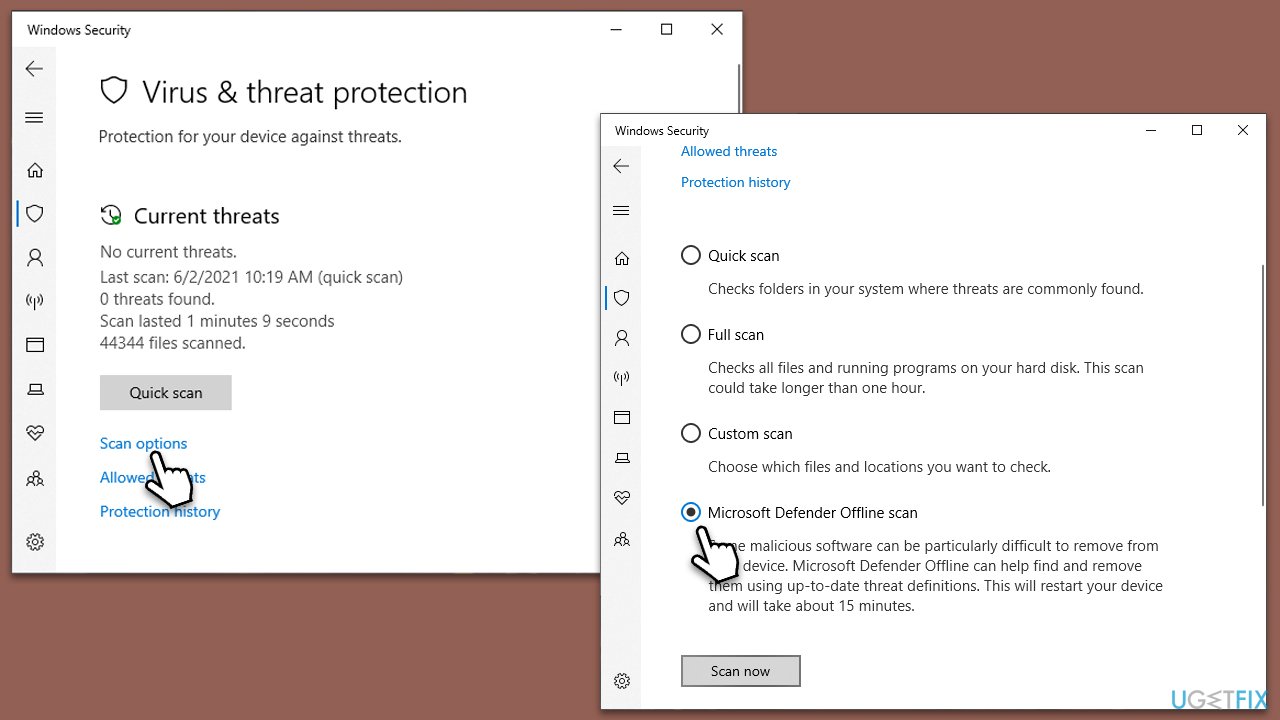
- Type Windows Security in the Windows search bar and hit Enter.
- Select Virus & threat protection.
- Pick Scan options.
- Choose Microsoft Defender Offline scan and click Scan now
- Your computer will immediately reboot and begin a deep scan.
Fix 6 Reset Windows update components
- Open Command Prompt with administrative privileges.
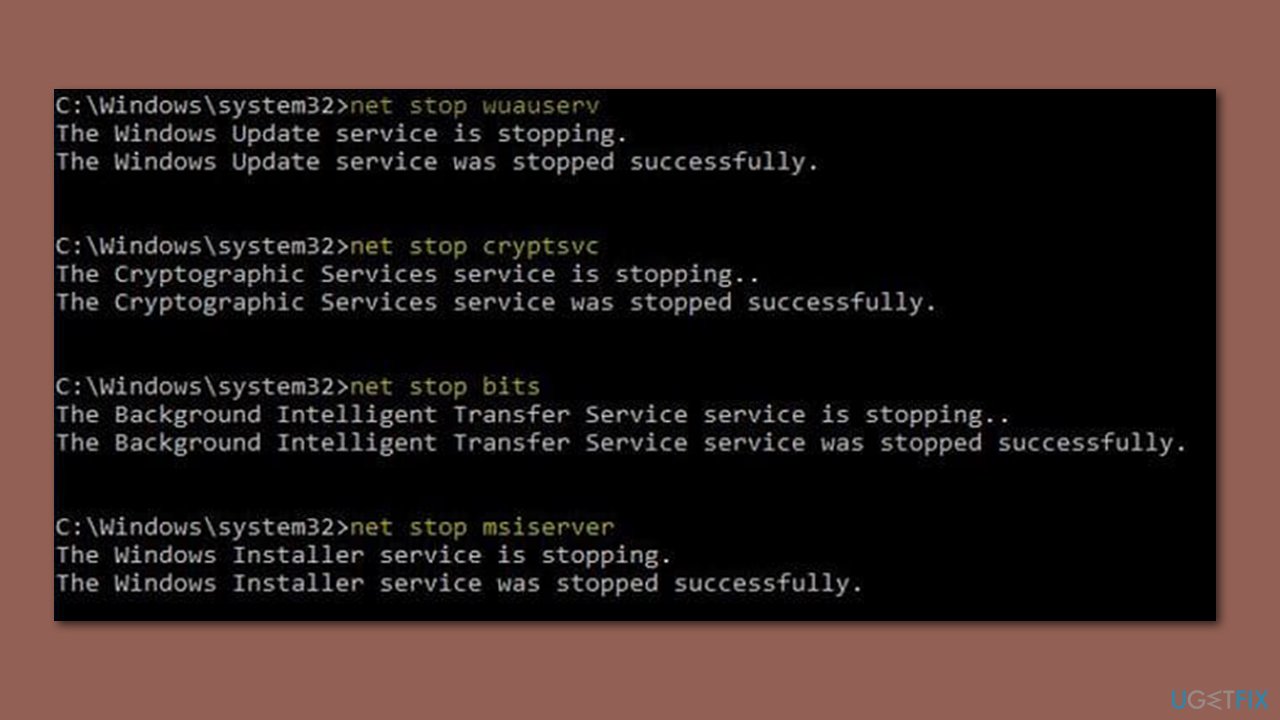
- Type the following commands one by one in Command Prompt and press Enter after each command :
net stop wuauserv
net stop cryptSvc
net stop bits
net stop msiserver
Ren C:\Windows\SoftwareDistribution SoftwareDistribution.old
Ren C:\Windows\System32\catroot2 Catroot2.old - Once these commands are executed, the last thing to do is to re-enable relevant services. Use these commands:
net start wuauserv
net start cryptSvc
net start bits
net start msiserver - Reboot your computer once done.
Bottom line
To resolve high CPU usage by TrustedInstaller.exe, you can install all available Windows updates, check for system file corruption, and troubleshoot software conflicts. If these methods do not work, consider using a powerful PC repair tool for further assistance.
Frequently asked questions
High CPU usage by Trustedinstaller.exe is typically caused by Windows Update processes or system file checks running in the background. This can occur during updates or when the system is scanning for corrupt files.
You can try pausing Windows Update temporarily or running the Windows Update Troubleshooter to resolve the issue. Additionally, ensuring your system is fully updated may help prevent repeated high CPU usage.
While you can end the Trustedinstaller.exe process, it is not recommended as it may interrupt ongoing system updates or repairs. It is better to wait for the process to complete or troubleshoot the underlying cause.




Report an issue
What's wrong with this guide? We review every report and update or remove content.
Report received — thank you. We'll review and fix it.
You need a free account to submit a report.
Be the first to comment