How to fix
File://tmp/error.html error in Google Chrome
on Windows
Resolve the File://tmp/error.html issue in Google Chrome on Windows 10 or 11 effortlessly with our expert-tested solutions. Fixed in minutes!

What causes How to fix File://tmp/error.html error in Google Chrome?
- Browser cache is corrupted
- Problematic extensions are enabled
- Chrome is not updated
- Security settings are misconfigured
Repairs Windows system files, removes malware, and restores a clean OS state — without reinstalling.
Hello. Google Chrome does not load websites and I get the File://tmp/error.html error. Is there a way to fix this?
The "file://tmp/error.html" error message in Google Chrome indicates that the browser is having trouble loading a local file or website. Users may see a blank page or receive an error message indicating that Chrome is unable to open the requested file or website when this error occurs.
This problem can have a variety of consequences for users. For starters, it can prevent users from accessing specific local files or websites. If users rely on these files for work, personal use, or other purposes, this can be a problem. Second, users who are unable to understand why the file or website is not loading properly may become confused and frustrated. Furthermore, for people who rely heavily on Chrome for their daily tasks, this error can disrupt productivity and degrade the browsing experience.
Resolving the "file://tmp/error.html" error usually entails determining the source of the problem. While no specific instructions are provided, some possible solutions include clearing the browser cache, disabling problematic extensions, checking for updates, and adjusting Chrome's security settings.
In this guide, you will find 5 steps that should help you fix file://tmp/error.html error in Google Chrome. You can also try a maintenance tool like [d1] that can fix most system errors, BSODs,[ref en-1] corrupted files, registry[ref en-2] issues, or clear cookies and cache.[ref en-3] Otherwise, follow the step-by-step instructions below.
Solution 1. Clear Browsing Cache
- Open the Chrome Browser.
- Click on the three-dot menu located in the top-right corner.
- In the drop-down menu, select Settings.
- On the left sidebar, click on Privacy and Security.
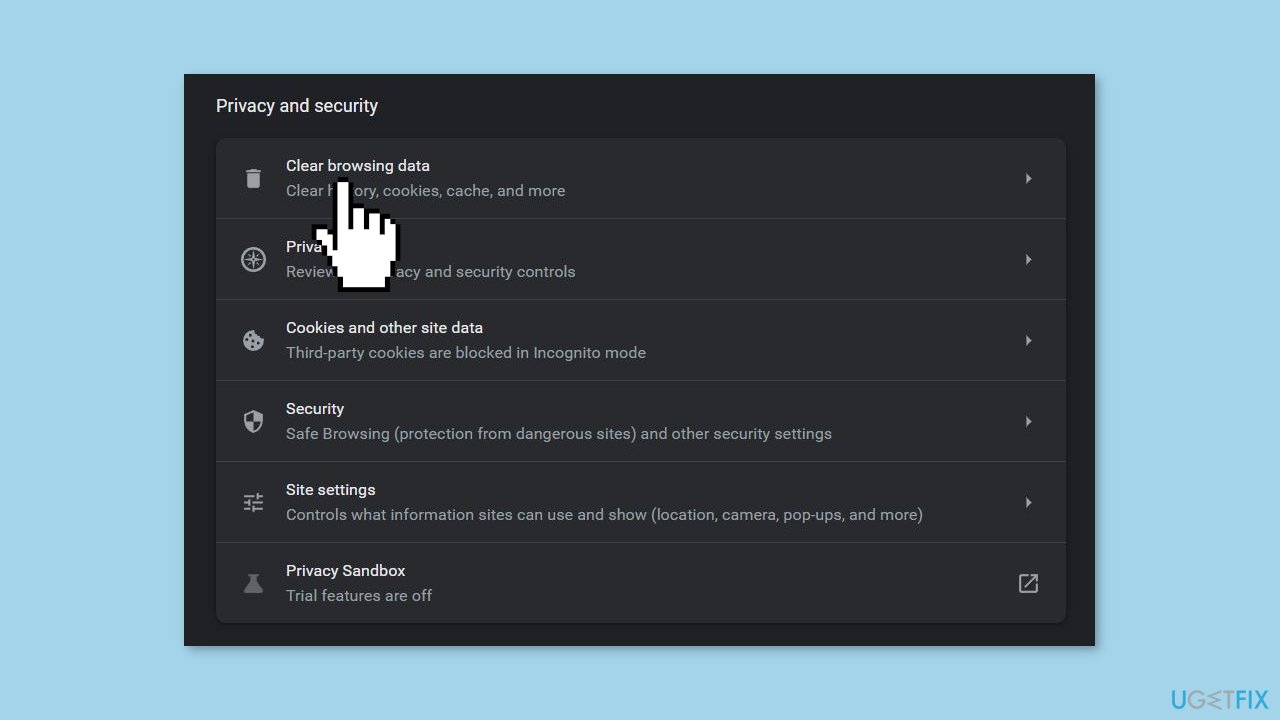
- Under the Privacy and Security setting, click on Clear Browsing Data.
- Choose a time frame, preferably selecting All time.
- Check the box next to Cached Images and files.
- Finally, click on the Clear data button to remove the cached files.
Solution 2. Disable Chrome Extensions
- Open Google Chrome.
- Enter chrome://extensions/ in the address bar and press Enter.
- Disable all the extensions by toggling the switch next to each extension.
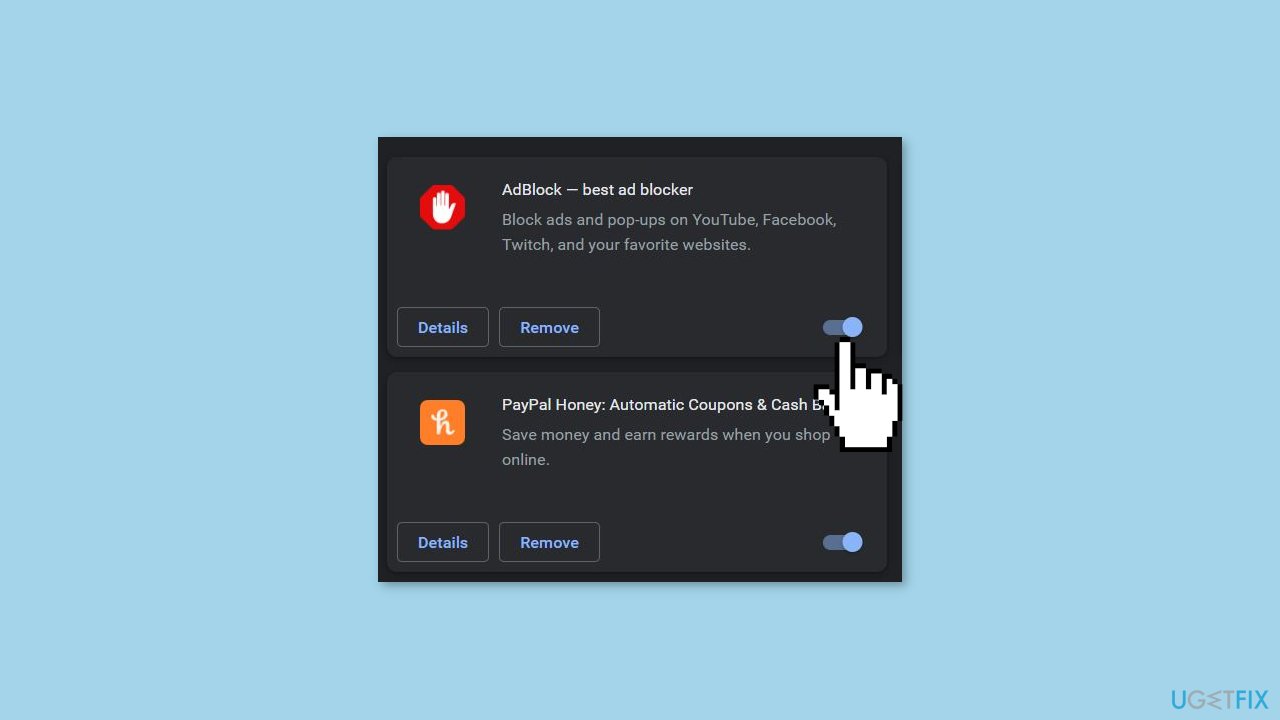
- Restart Chrome.
- Check if the error is resolved.
Solution 3. Reset Chrome Settings
- Open Chrome.
- In the top-right corner of Chrome's UI, click on the three-dots.
- From the drop-down menu, select Settings.
- In the left sidebar, click on the Reset settings option.
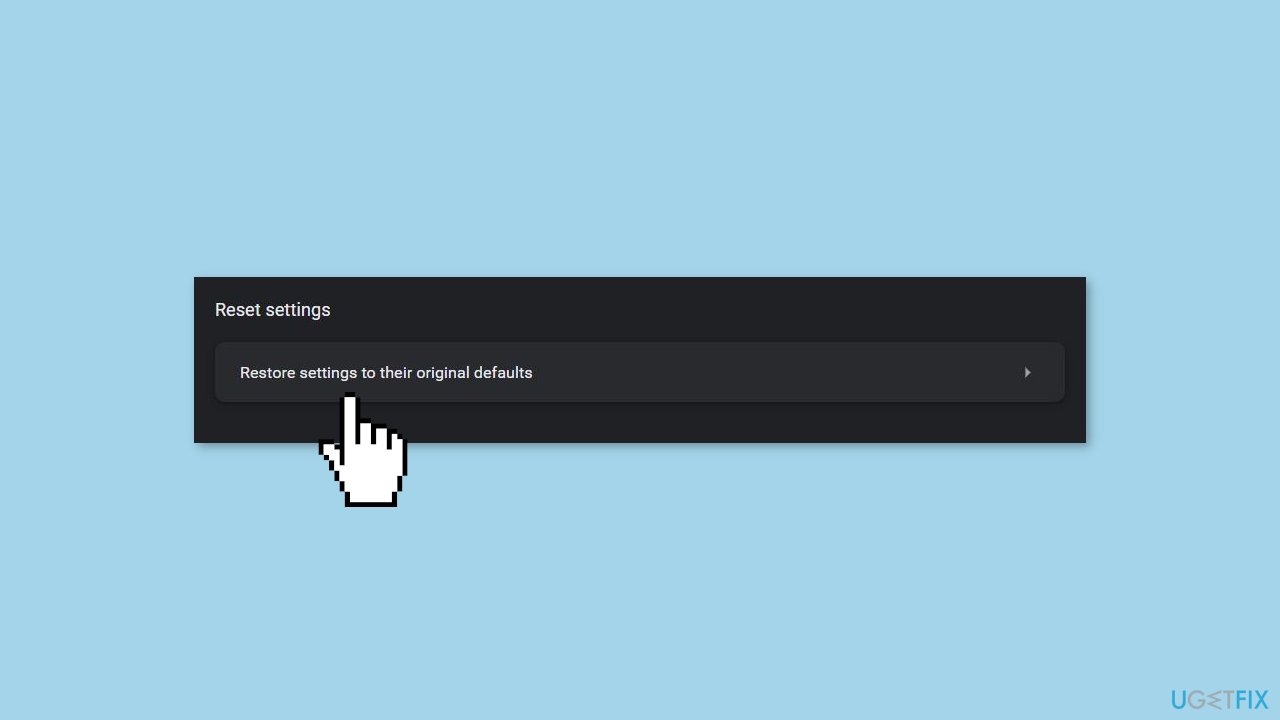
- Click on the Restore settings to their default state option.
- When prompted, click on the Reset settings button.
- Wait for a while for the process to complete.
- Relaunch Chrome.
Solution 4. Update Chrome
- Inside Chrome, click on the three dots in the top-right corner.
- Click on the Settings option.
- In the left sidebar, click on About Chrome.
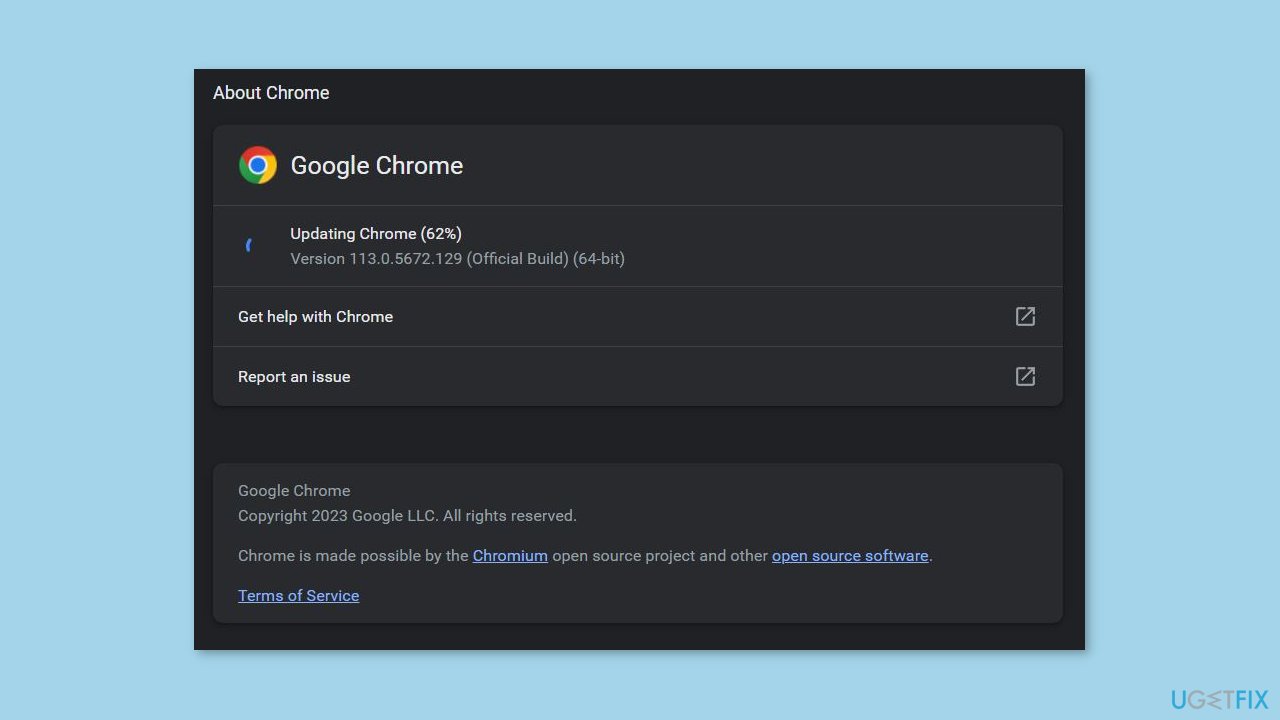
- Chrome will automatically start updating once you're on this page.
- Once the update is complete, restart the browser.
Solution 5. Reinstall Chrome
- Open the Control Panel on your computer.
- Click on Programs or Programs and Features, depending on your operating system.
- Locate Google Chrome in the list of installed programs.
- Right-click on Google Chrome and select Uninstall.
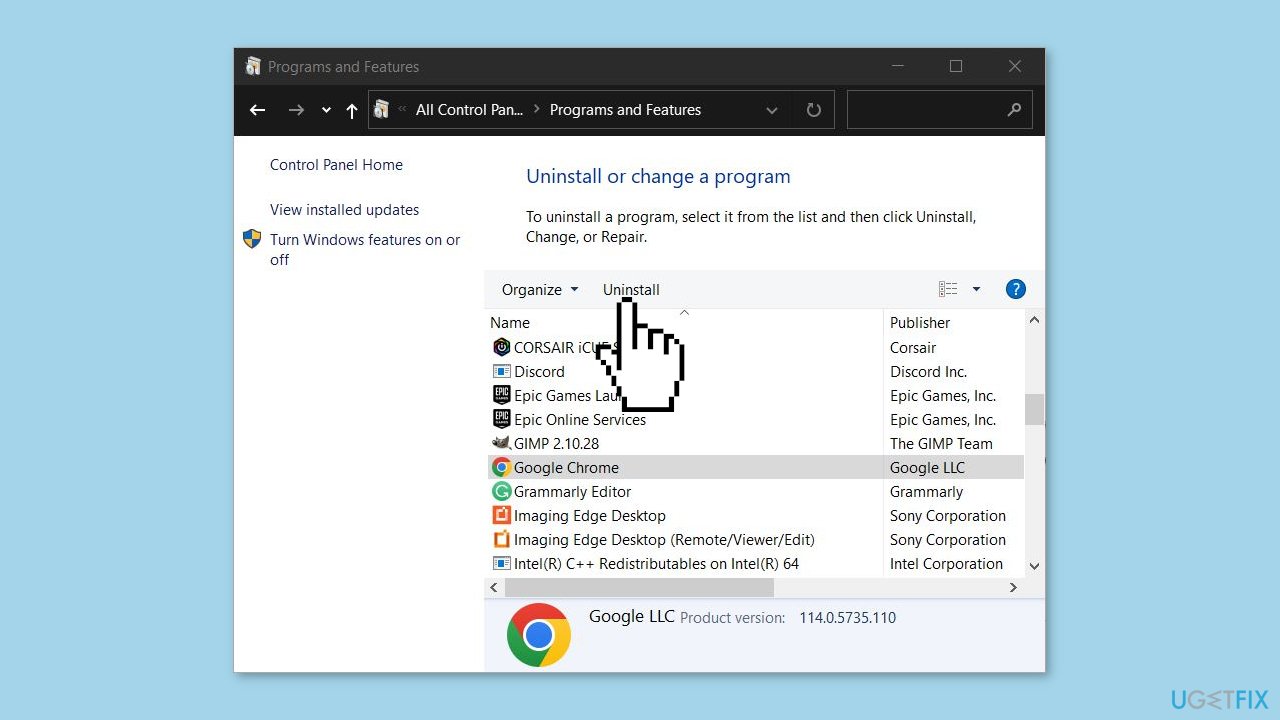
- Follow the on-screen instructions to complete the uninstallation process.
- Download the latest version of Google Chrome from the official website.
- Install Chrome by following the prompts provided during the installation process.
Bottom line
To fix the File://tmp/error.html error in Google Chrome, you can clear the browsing cache, disable extensions, check for updates, and adjust security settings. If these solutions do not resolve the issue, consider using a maintenance tool to address system errors.
Frequently asked questions
This error typically occurs due to corrupted cache files or issues with the Chrome installation on your Windows system.
You can clear the cache by going to Chrome's settings, selecting 'Privacy and security', and then clicking on 'Clear browsing data' to remove cached files.
Yes, incorrect proxy settings or firewall configurations in Windows can interfere with Chrome, leading to this error, so it's advisable to check those settings.




Report an issue
What's wrong with this guide? We review every report and update or remove content.
Report received — thank you. We'll review and fix it.
You need a free account to submit a report.
Be the first to comment