How to fix
MoUSO Core Worker Process high CPU and memory usage
on Windows
Resolve MoUSO Core Worker Process high CPU and memory issues on Windows 10/11 easily. Get expert-tested solutions for smooth performance. Fixed in minutes!

What causes How to fix MoUSO Core Worker Process high CPU and memory usage in Windows?
- High CPU and memory usage due to prolonged activity of the MoUSO Core Worker Process
- Excessive resource consumption leading to system lag and unresponsiveness
- Increased processing demands causing overheating issues
- Power drain on laptop batteries due to high resource usage
- Interference from third-party applications affecting the MoUSO Core Worker Process
Repairs Windows system files, removes malware, and restores a clean OS state — without reinstalling.
Hello. I noticed that MoUSO Core Worker Process is using high amounts of CPU and memory. It causes my Windows PC to lag. Is there anything I can do to fix this?
The MoUSO Core Worker Process is a Windows built-in component of Microsoft's Unified Update Platform (UUP). "USO" stands for Update Session Orchestrator. It is critical in controlling the order in which updates are downloaded and installed on the operating system. This process essentially determines which updates are prioritized and installed first.
While the MoUSO Core Worker Process is intended to begin its tasks when Windows searches for updates, it occasionally remains active for an extended period of time for no apparent reason. This can result in excessive CPU[ref en-1] or RAM consumption, causing performance issues and strain on system resources.
The consequences for users can be severe. High CPU and memory usage can slow down the system, resulting in lagging, freezing, and unresponsiveness. This may hinder productivity and frustrate users who rely on computers for work or recreation.
Furthermore, increased processing demands can generate more heat, potentially leading to overheating problems, particularly in laptops. Overheating can jeopardize system stability and even cause hardware components to fail. Furthermore, because the processor consumes more power during these periods of high resource usage, laptop batteries may drain faster.
Several potential solutions can be considered to address the issue of MoUSO Core Worker Process high CPU and memory usage. Restarting the computer can resolve temporary issues and give the process a fresh start. Installing available updates, which may include patches related to the MoUSO Core Worker Process, can help optimize the operating system's behavior.
Changing Windows Update settings like active hours or update notifications may give you more control over when the process runs. A clean boot can assist in determining whether any third-party applications are interfering with the MoUSO Core Worker Process.
In this guide, you will find 7 steps that should help you fix MoUSO Core Worker Process high CPU and memory usage in Windows. You can also try a maintenance tool like [d1] that can fix most system errors, BSODs,[ref en-2] corrupted files, and registry[ref en-3] issues. Otherwise, follow the step-by-step instructions below.
Solution 1. Verify the Process
- Right-click the Windows Start button.
- Select Task Manager from the context menu.
- Right-click on MoUSO Core Worker Process in the Task Manager.
- Select Properties from the context menu.
- In the Properties window, go to the General tab.
- Copy the path next to Location.
- Open File Explorer.
- Paste the copied path into the address bar of File Explorer.
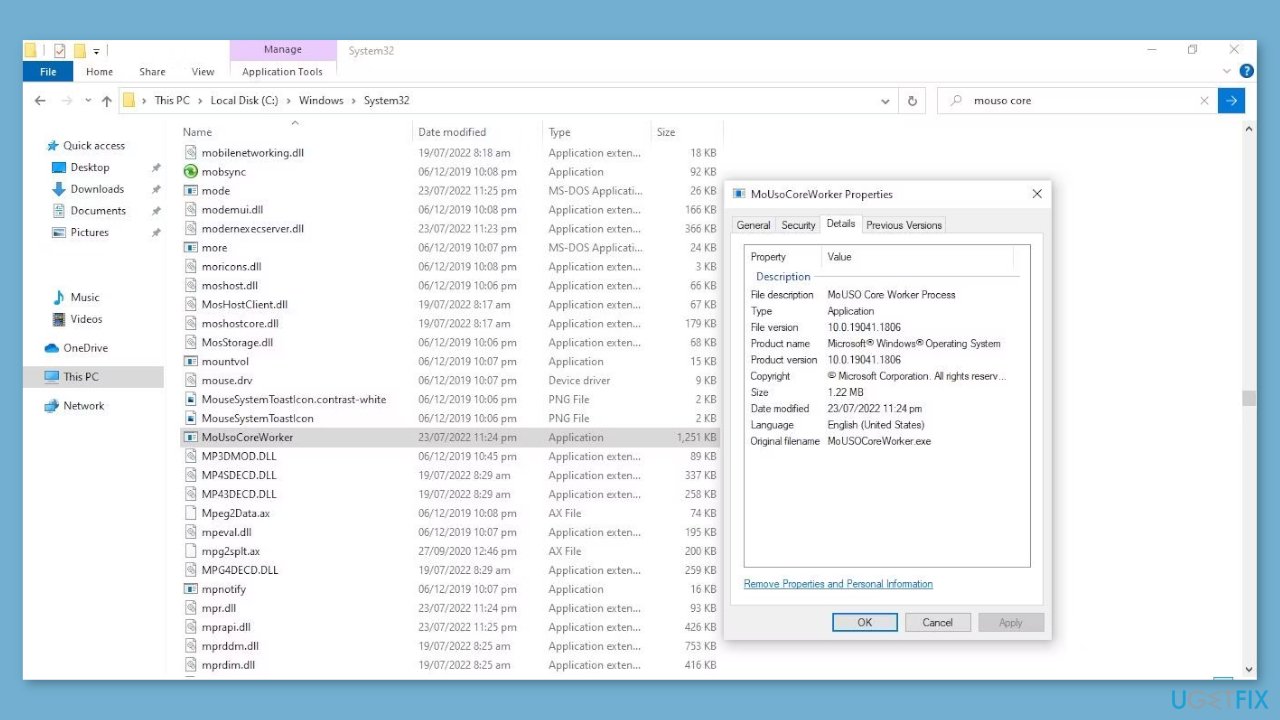
- Find the executable file for the process.
- Right-click the executable file.
- Select Properties from the context menu.
- In the Properties window, navigate to the Details tab.
- Verify that Microsoft Corporation. All rights reserved is written next to Copyright.
Solution 2. Restart the MoUSO Process
- Right-click on the Windows Start button.
- Select Task Manager from the context menu.
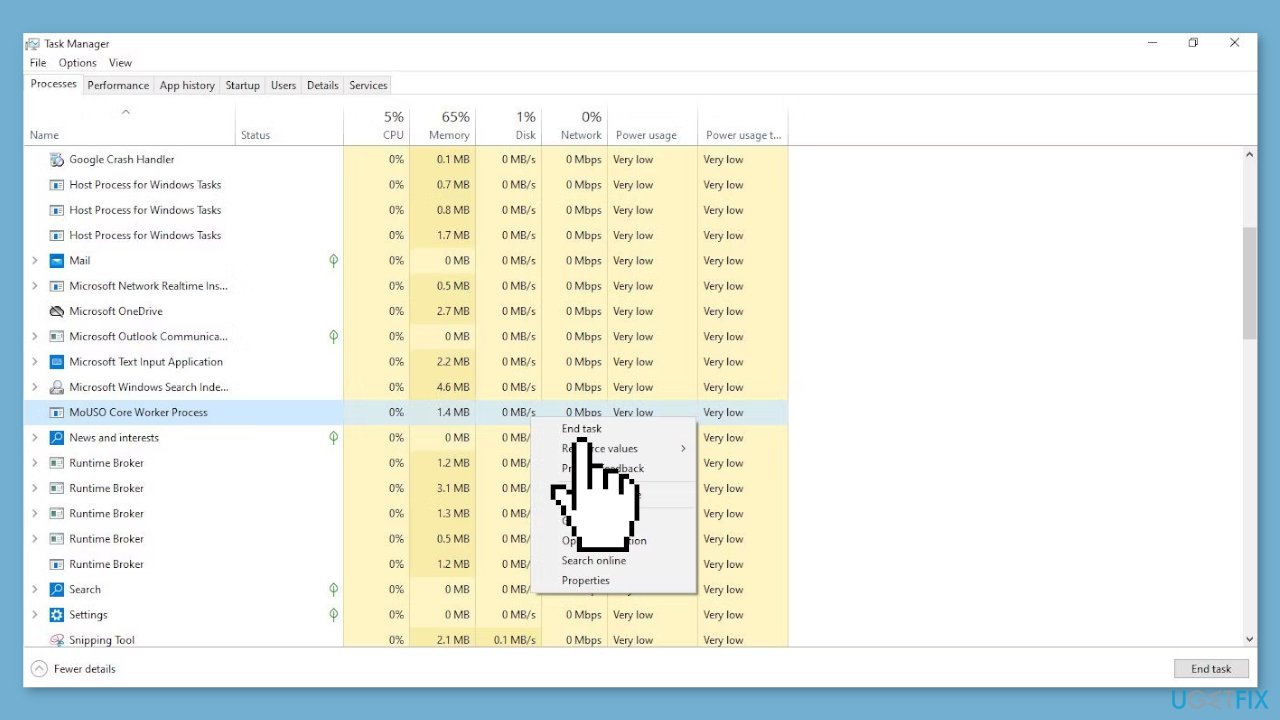
- In the Task Manager, right-click on MoUSO Core Worker Process.
- Click on End task to terminate the process.
- Restart your computer to ensure a fresh start.
Solution 3. Install Windows Updates
- Press the Windows key + R to open the Run box.
- Type ms-settings:windowsupdate in the text box and press Enter.
- Click the Check for updates button.
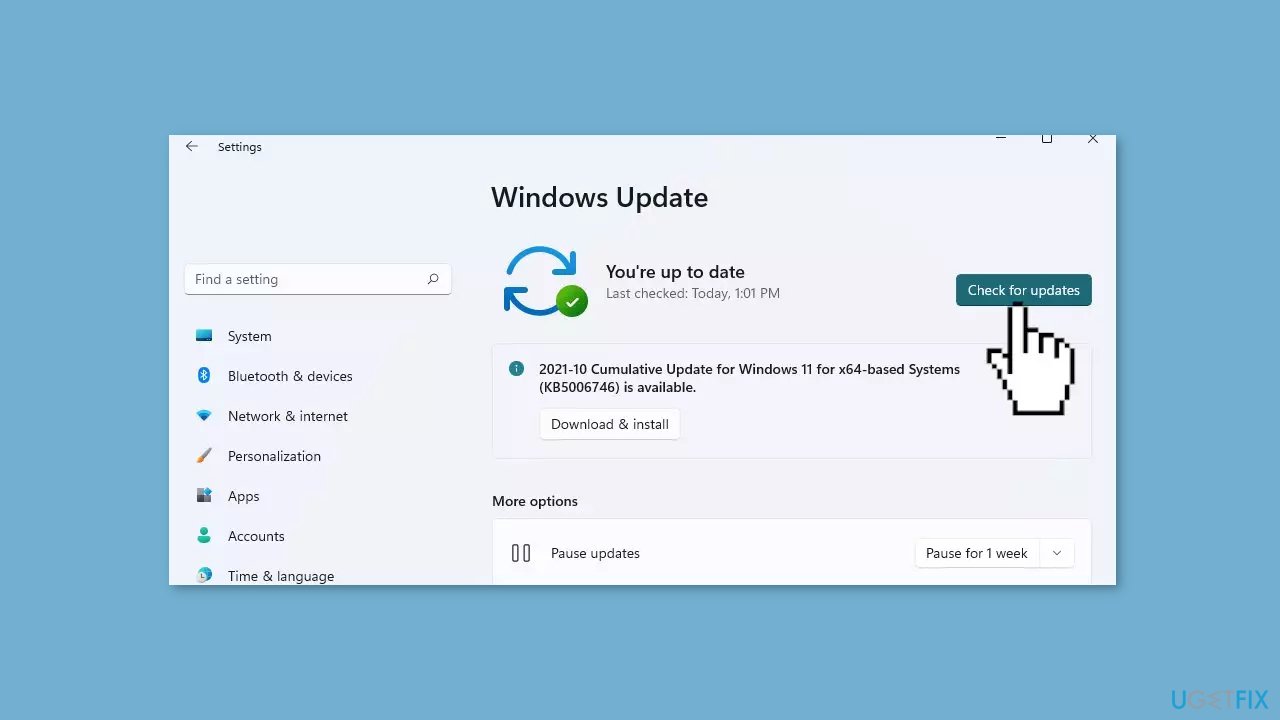
- If a new update is available, click the Download & Install all button.
- Restart your computer after the process is finished and check to see if the problem is fixed.
Solution 4. Run the Windows Update Troubleshooter
- Right-click the Windows Start button.
- Select Settings from the context menu.
- Go to Update & Security.
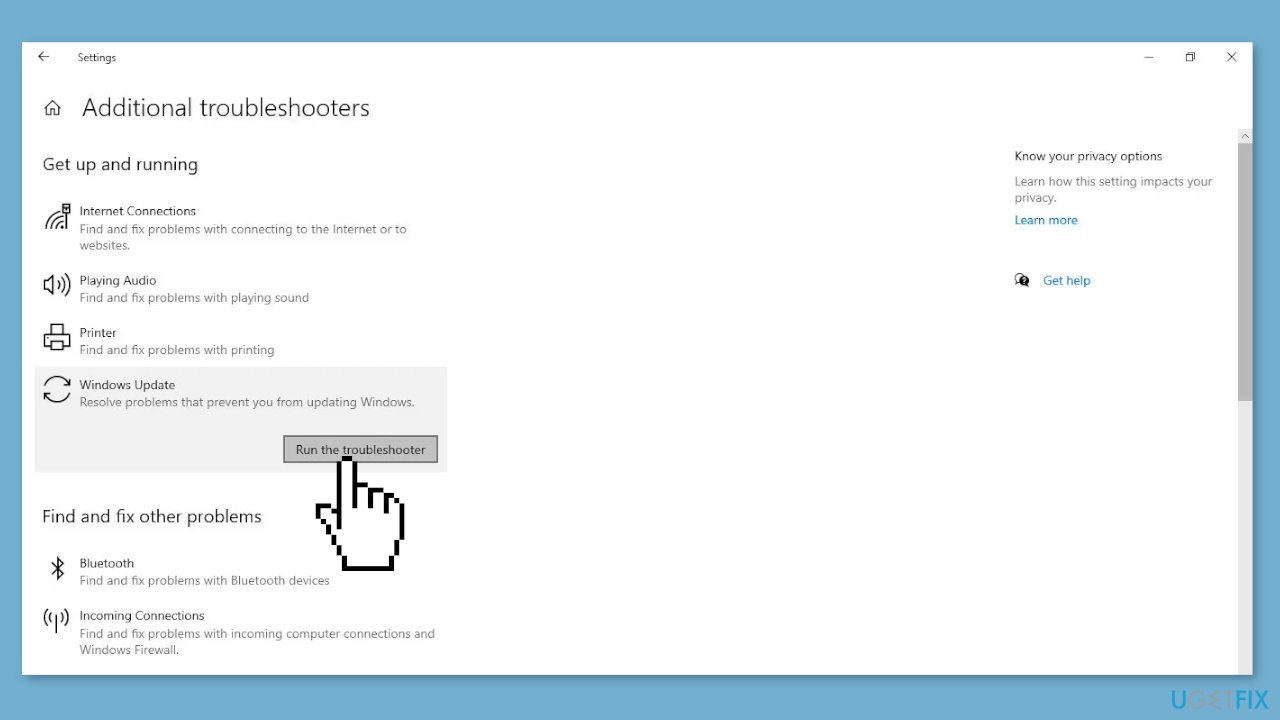
- In the left sidebar, select the Troubleshoot tab.
- In the right-hand pane, click on Additional troubleshooters.
- Under Get up and running, select Windows Update.
- Click on Run the troubleshooter.
Solution 5. Disable Delivery Optimization
- Open the Windows Settings app.
- Navigate to Update & Security.
- Select Advanced Options.
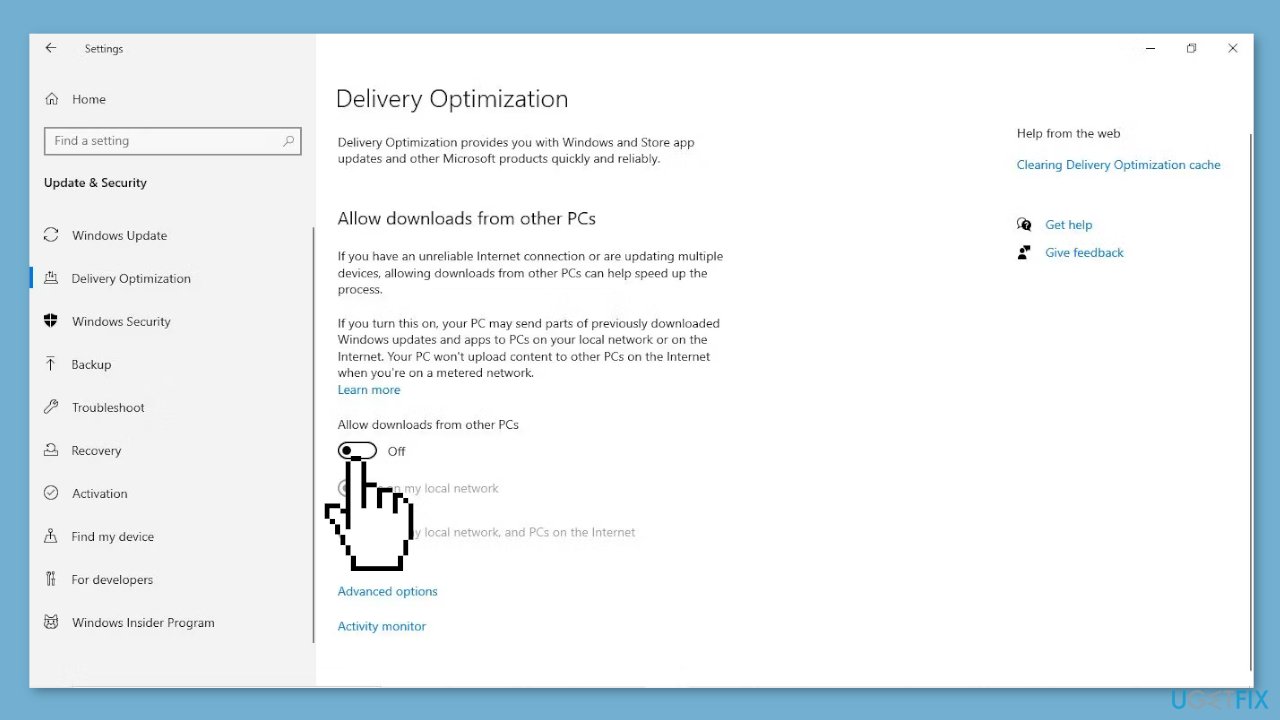
- Choose Delivery Optimization.
- If the Allow downloads from other PCs toggle is turned on, click on it to turn it off. Move the toggle to the left to disable it.
Solution 6. Restart Windows Update Services
- Open the Services app by searching for Services in the Windows search bar.
- In the right-hand pane, locate the Windows Update service.
- Right-click on the Windows Update service.
- Select Restart from the context menu to restart the service.
- In the Services app, locate the Update Orchestrator Service.
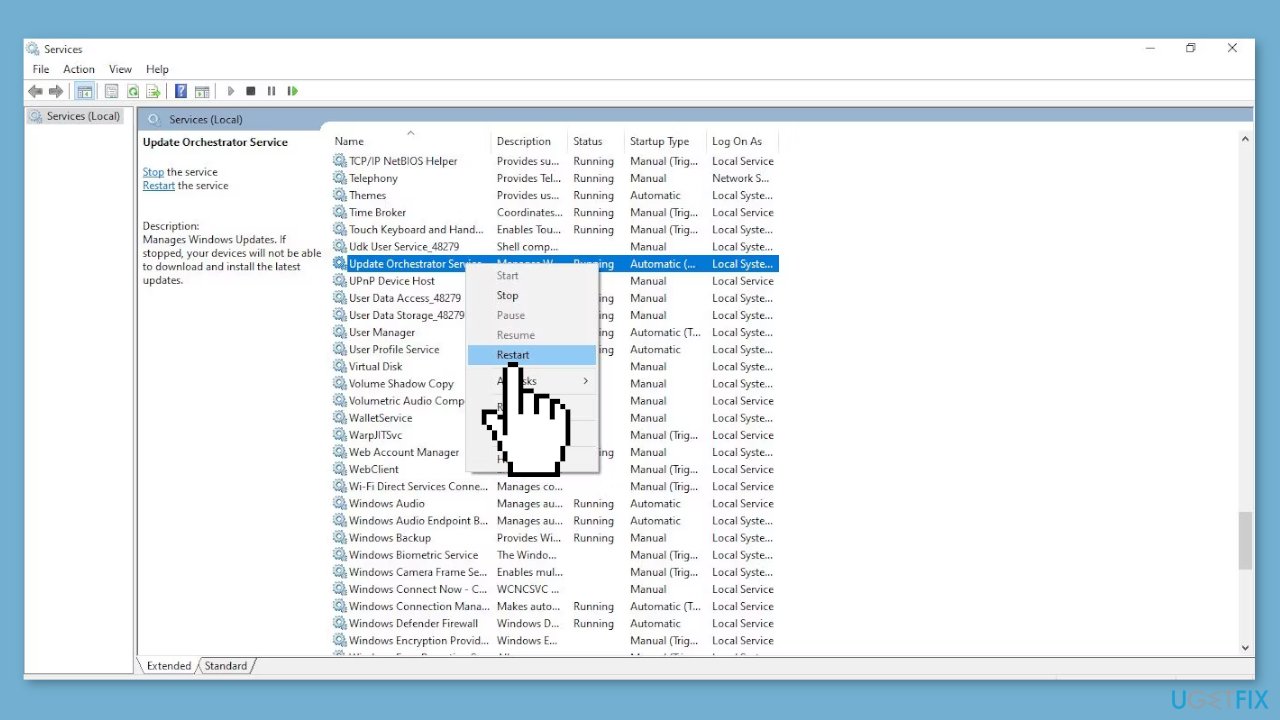
- Right-click on the Update Orchestrator Service.
- Select Restart from the context menu to restart the service.
Solution 7. Disable the Update Orchestrator Service
- Open the Services app.
- Within the Services app, locate the Update Orchestrator Service.
- Right-click on the Update Orchestrator Service.
- Select Properties from the context menu.
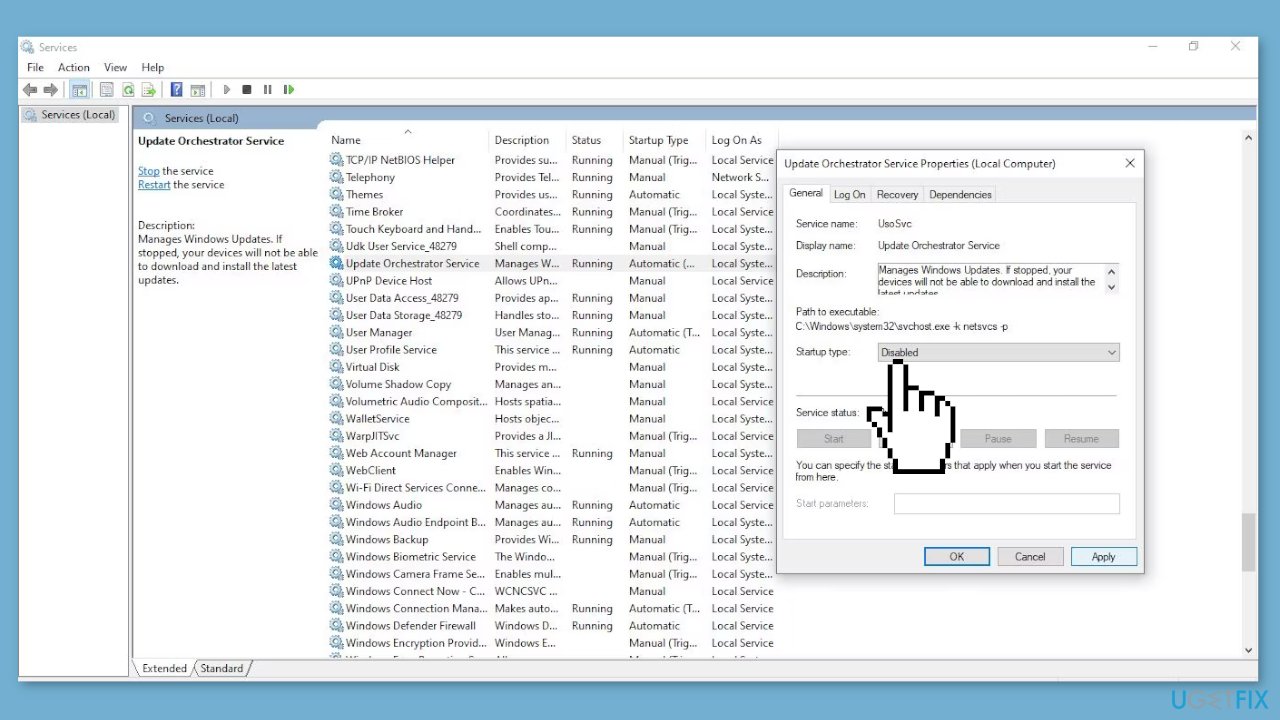
- On the General tab, select Disabled from the dropdown next to Startup type.
- Click on Apply and then OK to save the changes.
Bottom line
To fix the high CPU and memory usage of the MoUSO Core Worker Process, you can restart your computer, install available updates, change Windows Update settings, or perform a clean boot. If these solutions do not resolve the issue, consider using a maintenance tool to fix system errors.
Frequently asked questions
MoUSO Core Worker Process is a Windows service associated with Windows Update and can cause high CPU usage when it is stuck or encountering issues. This is often observed in Windows 10 due to pending updates or corrupted update components.
To reduce memory usage, try resetting Windows Update components by running the Command Prompt as an administrator and executing the relevant commands. Additionally, ensuring your Windows 11 is fully updated can resolve underlying issues causing high resource consumption.
Yes, you can troubleshoot by stopping the Windows Update service, deleting temporary files in the SoftwareDistribution folder, and then restarting the service. If the issue persists, consider running the Windows Update Troubleshooter.




Report an issue
What's wrong with this guide? We review every report and update or remove content.
Report received — thank you. We'll review and fix it.
You need a free account to submit a report.
Be the first to comment