How to fix
“The tag present in the reparse point buffer is invalid” error in OneDrive
on Windows
Resolve the "The tag present in the reparse point buffer is invalid" error in OneDrive on Windows 10 and 11 effortlessly. Expert-tested solutions await!


What causes How to fix “The tag present in the reparse point buffer is invalid” error in OneDrive?
- Problem with OneDrive sync
- Corrupted file system
- Damaged Windows files
- Issues with file or folder settings
- Reparse point buffer error
Repairs Windows system files, removes malware, and restores a clean OS state — without reinstalling.
I have a problem with OneDrive. Whenever I attempt to delete a folder or a file there, I receive an error "The tag present in the reparse point buffer is invalid." How do I fix this?
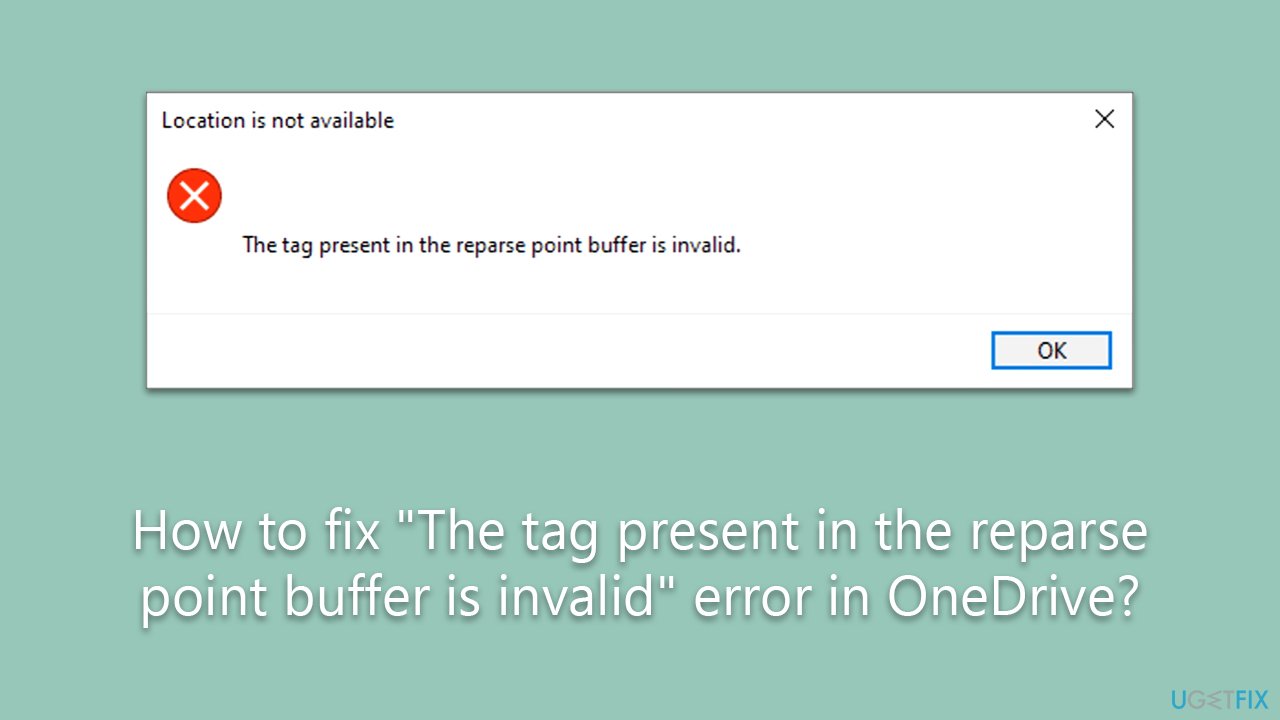
OneDrive is Microsoft's cloud-based storage service that allows users to store files online, sync files across all of their devices, and even collaborate with others in real time. By integrating with Windows File Explorer, it offers seamless file access and management. But, like all software, it's not without its challenges. One error that users may encounter is "The tag present in the reparse point buffer is invalid."
This error generally crops up when users try to alter file or folder settings, delete or copy files, or during other routine actions. It often comes with additional information in the error message, which might include an error code like 0x80071129 or a "Location not found" message. This issue, albeit uncommon, is caused by a problem with the OneDrive sync.
As daunting as it may seem, "The tag present in the reparse point buffer is invalid" error can be resolved, and the remediation steps vary from person to person. A popular fix that has proved effective for most users is running a Check Disk command via Command Prompt.
This involves checking the integrity of file systems and fixing logical file system errors. However, in some cases, the system may need to be booted into Safe Mode and the Check Disk command run multiple times to fully resolve the issue.
Beyond the Check Disk command, there are several other potential solutions that could prove useful when trying to fix "The tag present in the reparse point buffer is invalid" error. Repairing damaged Windows files is one such method. This process can be done using the System File Checker tool, which scans and restores corrupted Windows system files.
In other cases, resetting or reinstalling OneDrive can help alleviate the problem. This involves uninstalling OneDrive from your computer and then reinstalling it to ensure a clean slate.
It's important to note that every situation is unique, and what works for one person may not work for another. Always make sure to back up your files before attempting any significant changes to avoid the risk of data loss. Detailed instructions for each of these potential solutions are provided below.
Quick solutions
Before proceeding with more advanced troubleshooting, please try out the following:
- Reboot your system if you haven't done so yet.
- Log out of OneDrive and log back in.
- Scan your system for malware.
- Temporarily pause the sync and then unpause it.
- Run an automatic PC repair tool [d1].
1. Run Check Disk in Command Prompt
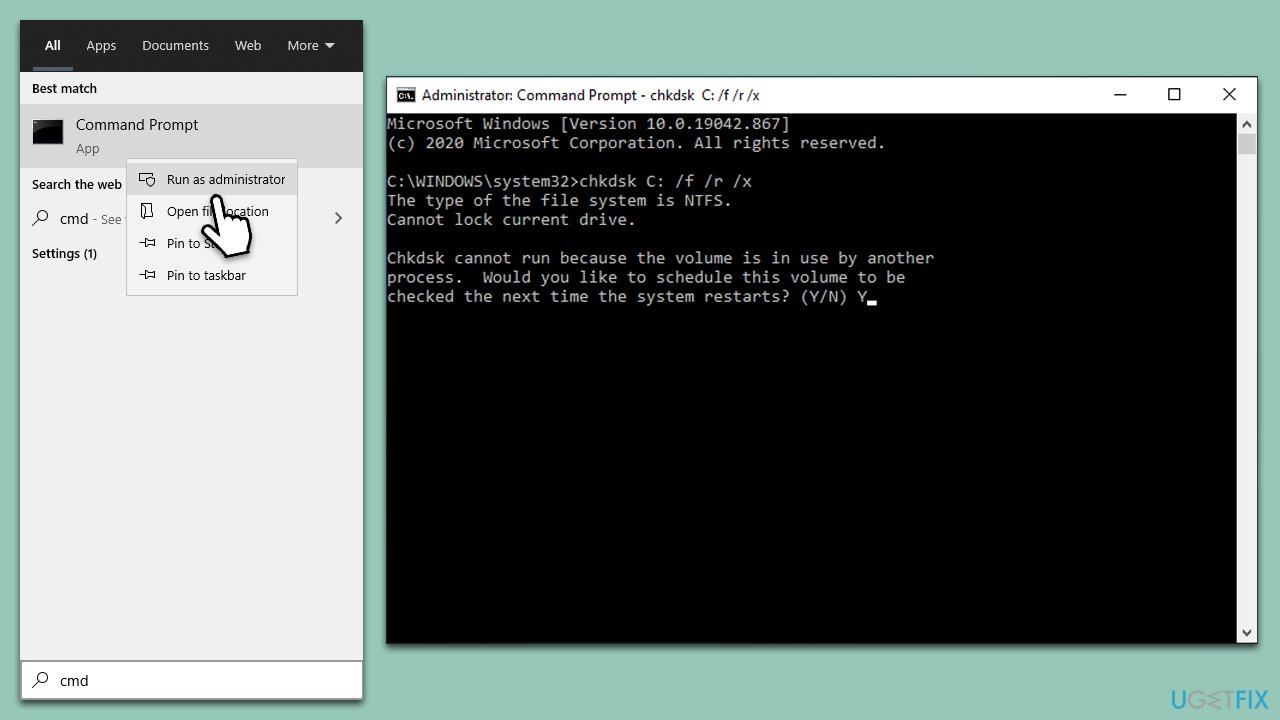
Running a Check Disk command is an efficient method to fix system errors. It analyzes the integrity of your file systems and corrects any logical issues it might find.
- Type cmd in Windows search.
- Right-click on Command Prompt and select Run as administrator.
- When UAC shows up, click Yes.
- In the new window, type in the following command and press Enter after:
chkdsk c: /f
(Note: use chkdsk c: /f /r /x command if you are using SSD as your primary partition. Also, replace c: with another drive letter if you are not using default) - If you receive an error, type in Y, close down Command Prompt, and restart your computer.
- Wait till the scan is finished.
2. Run Check Disk in Safe Mode
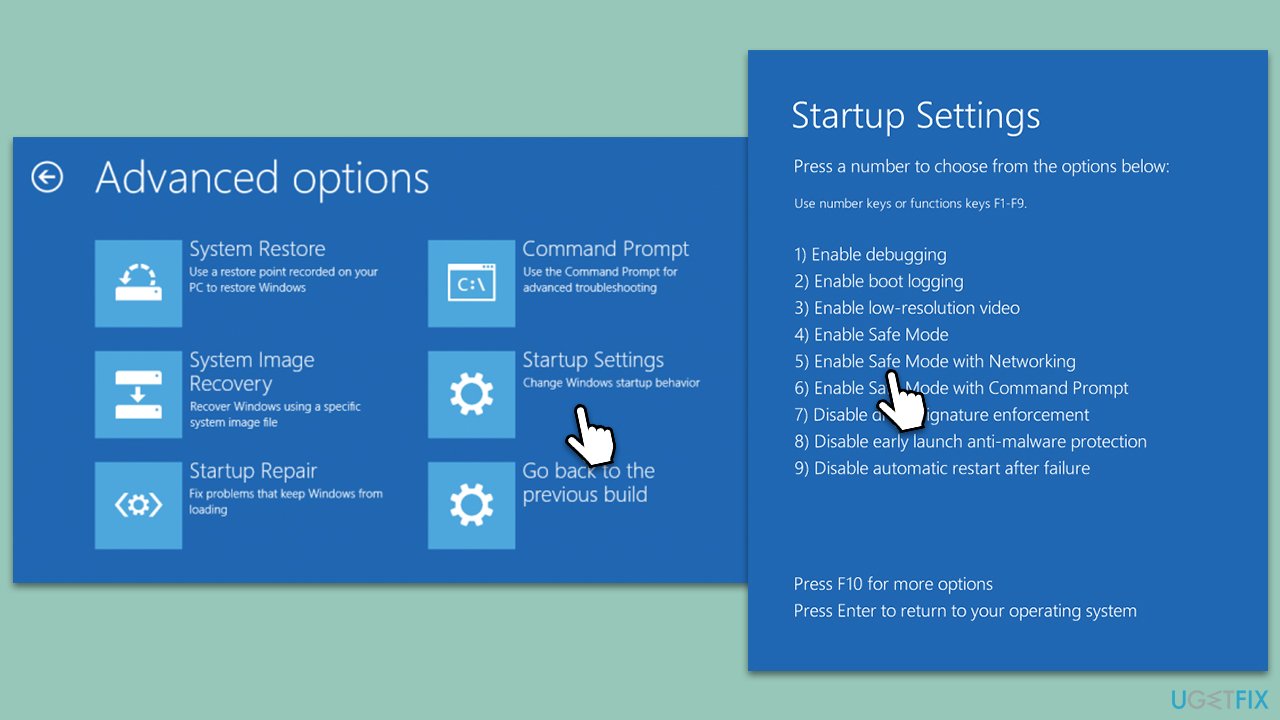
In some cases, the Check Disk needs to be run in Safe Mode to fully address the issue. Safe Mode starts Windows with a limited set of files and drivers, which helps in troubleshooting problems.
- In the Windows sign-in screen, press and hold the Shift key, then click Power > Restart.
- After a reboot, you will be presented with several options - pick Troubleshoot.
- Go to Advanced options > Startup Settings and then pick Restart.
- After a reboot, pick either 4/F4 for Safe Mode or 5/F5 for Safe Mode with Networking.
- Once the PC boots in Safe Mode, open Command Prompt again and run check disk commands as explained in the previous solution.
3. Reset OneDrive sync
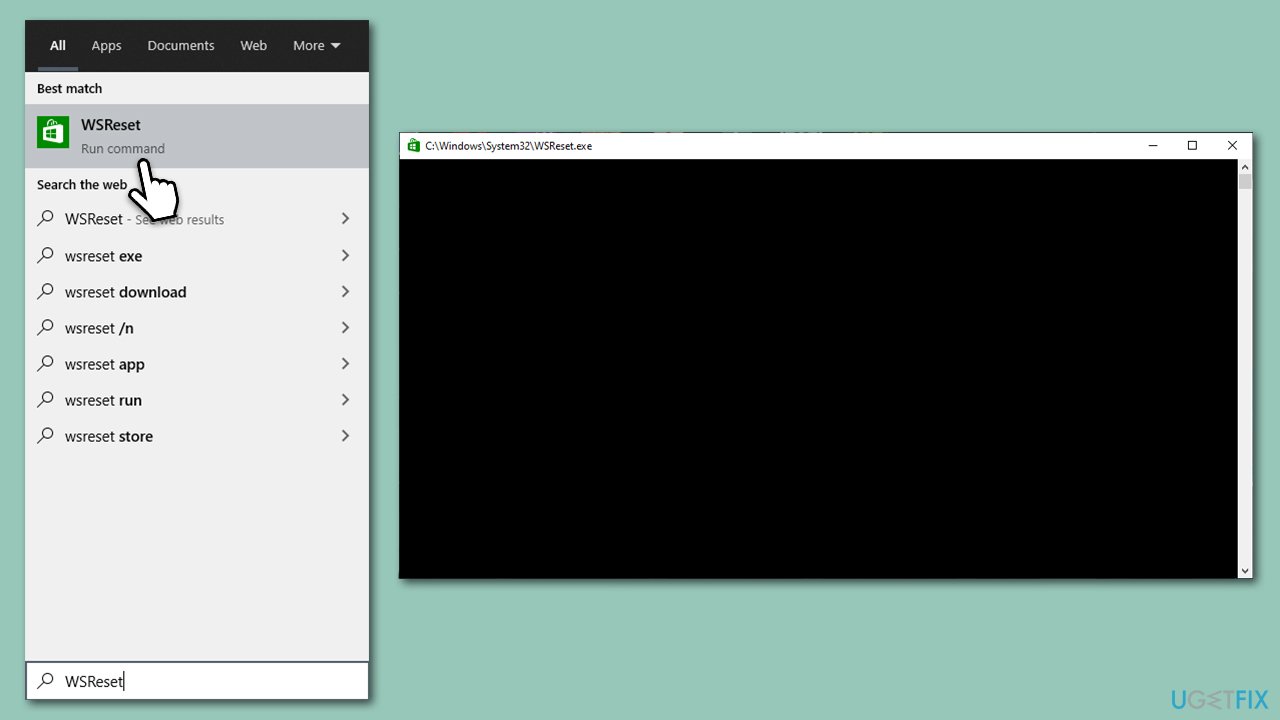
Resetting the Microsoft Store cache can solve various issues with the store, including error codes, downloads, updates, and other glitches. It’s a simple process and doesn’t affect your apps or data.
- In Windows search, type wsreset and press Enter.
- Wait till a black window shows up - do not close it.
- As soon as it closes, Windows Store will open. You can close it.
- Try using OneDrive again.
4. Reset OneDrive
Resetting OneDrive can fix a host of issues, including sync problems.
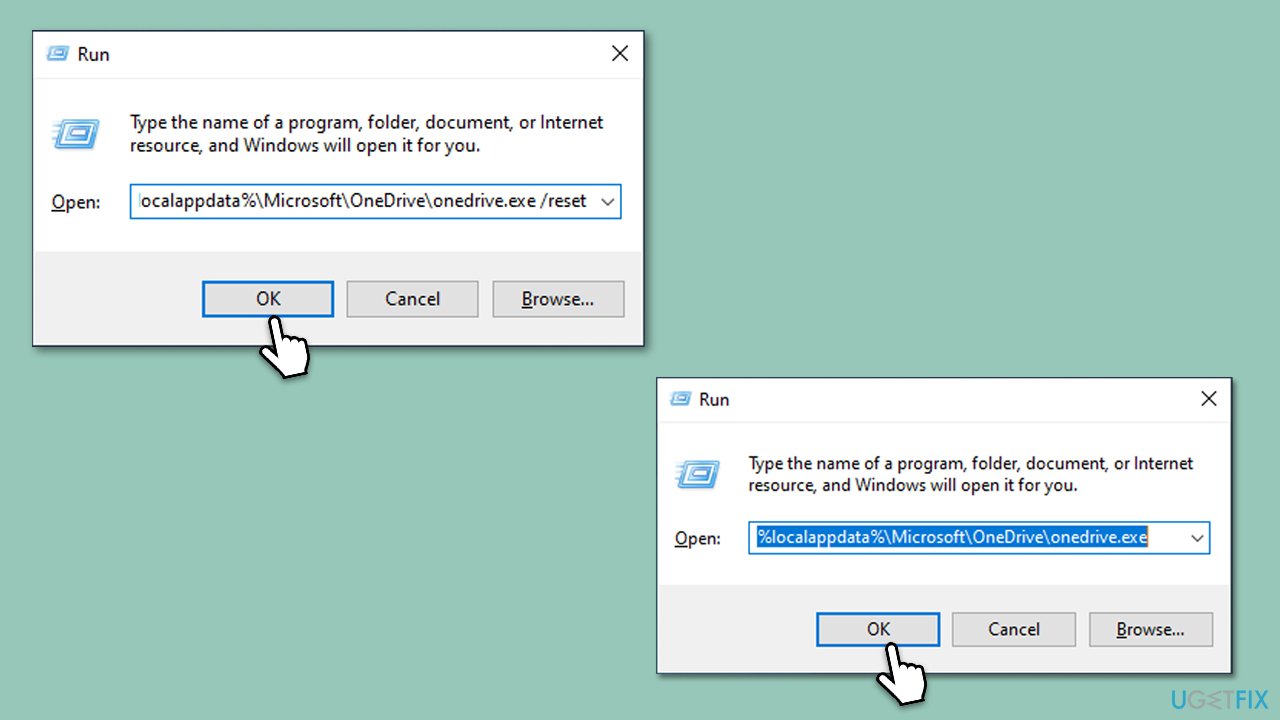
- Press Win + R on your keyboard.
- When the Run window opens, copy and paste the following text into it:
%localappdata%\Microsoft\OneDrive\onedrive.exe /reset
(Note: you might get an error here. In that case, use %programfiles(x86)%\Microsoft OneDrive\onedrive.exe /reset or C:\Program Files (x86)\Microsoft OneDrive\onedrive.exe /reset instead) - Press Enter or click OK.
- After this command is executed, the app should be reset, and OneDrive should open.
- If it doesn't, wait a few minutes, then open the Run window again and use the following command:
%localappdata%\Microsoft\OneDrive\onedrive.exe - Press Enter.
5. Check for file corruption
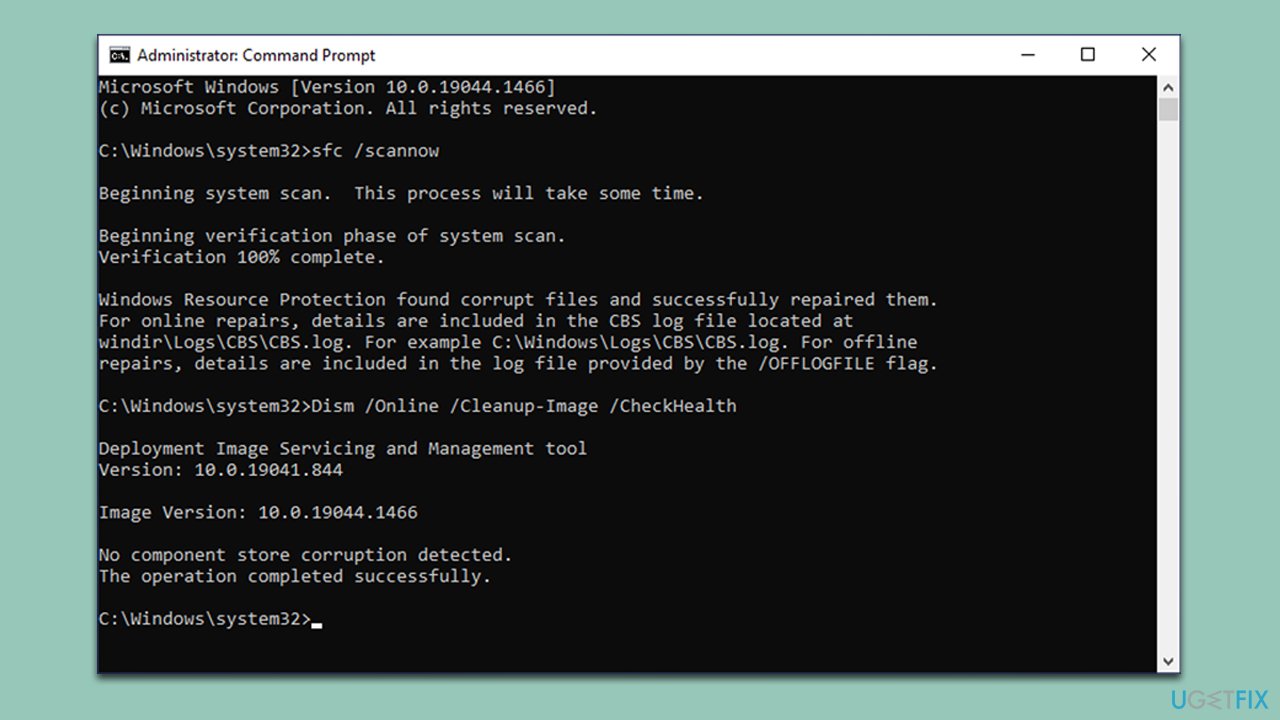
File corruption could be another cause of the error. Windows has a built-in System File Checker tool that can scan and restore corrupted system files. DISM can address Windows image issues.
- Open Command Prompt as administrator again.
- Copy and paste the following commands, pressing Enter after each:
- sfc /scannow
DISM /Online /Cleanup-Image /CheckHealth
DISM /Online /Cleanup-Image /ScanHealth
DISM /Online /Cleanup-Image /RestoreHealth
(Note: if you get an error executing the last command, add /Source:C:\RepairSource\Windows /LimitAccess to it and try again.) - Restart your device.
6. Reinstall OneDrive
If the above solutions don't work, reinstalling OneDrive could be your final resort.
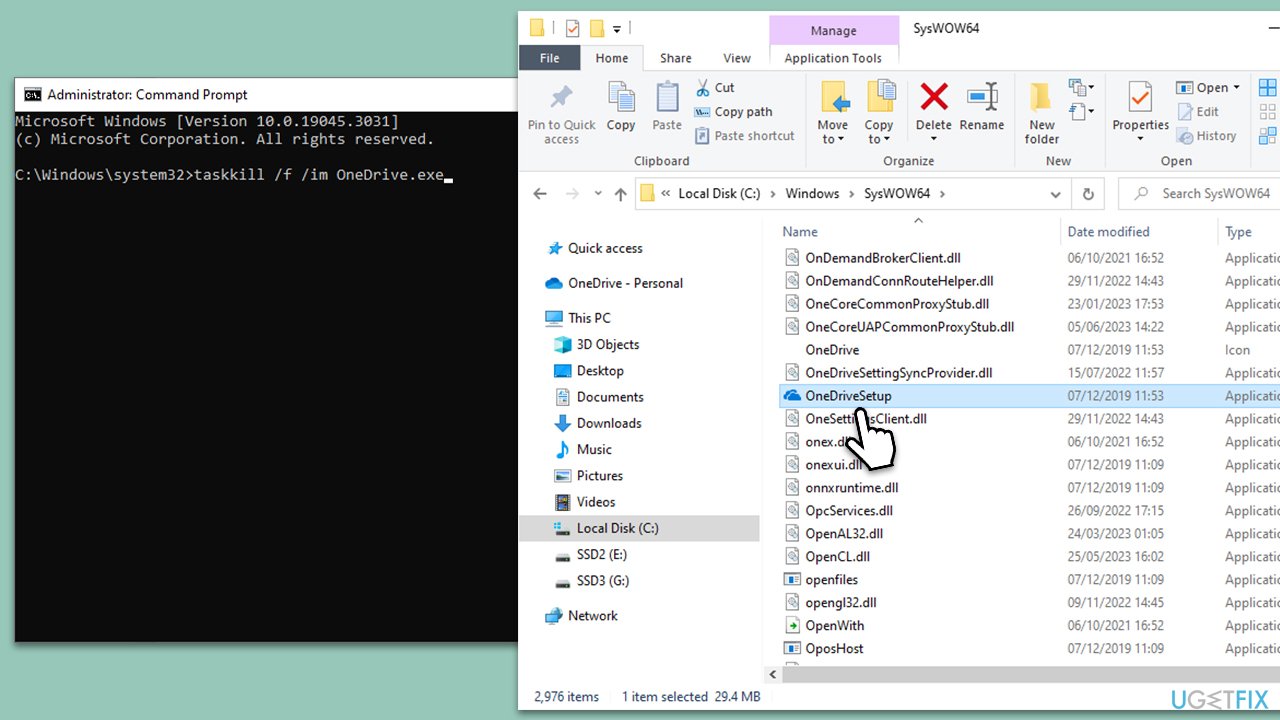
- Open Command Prompt as administrator.
- In the new window, copy and paste the following command and press Enter:
taskkill /f /im OneDrive.exe - Next, copy and paste the following command, pressing Enter again:
%SystemRoot%\SysWOW64\OneDriveSetup.exe /uninstall - Close down Command Prompt.
- Press Win + E to open File Explorer.
- At the top, click the View tab and make sure the Hidden Files checkbox is ticked.
- Navigate to the following location:
C:\Windows\SysWOW64 - Scroll all the way till you find OneDriveSetup.exe.
- Double-click the file and follow the on-screen instructions to install OneDrive.
Bottom line
To fix the 'The tag present in the reparse point buffer is invalid' error, you can run a Check Disk command via Command Prompt, use the System File Checker tool to repair damaged Windows files, or reset and reinstall OneDrive. If these solutions do not resolve the issue, consider seeking further assistance or exploring additional troubleshooting methods.
Frequently asked questions
This error typically occurs due to corrupted files in OneDrive or issues with the NTFS file system on your Windows 10 system.
To fix this error on Windows 11, you can try unlinking and relinking your OneDrive account or using the Command Prompt to repair the OneDrive installation.
Yes, you can open Settings, go to Apps, find OneDrive, and select 'Repair' to attempt to fix the error on both Windows 10 and Windows 11.




Report an issue
What's wrong with this guide? We review every report and update or remove content.
Report received — thank you. We'll review and fix it.
You need a free account to submit a report.
Be the first to comment