How to fix
Stop Steam from opening at startup
on Windows
Prevent Steam from launching at startup on Windows 10 or 11 with our quick, expert-tested guide. Fix it in minutes and enjoy a smoother experience!

What causes How to stop Steam from opening at startup?
- Slow booting process due to Steam launching automatically
- User preference for manual control over system resources
- Inconvenience for infrequent users of Steam
- Background processes consuming bandwidth during startup
- Potential interference with other online activities
Repairs Windows system files, removes malware, and restores a clean OS state — without reinstalling.
Hello. Is there a way to prevent Steam from opening at startup on Windows? Any tips would be appreciated.
Steam is a popular digital distribution platform created by Valve Corporation that is best known for its extensive video game collection. It acts as a central location for gamers to buy, download, and manage their game libraries. Steam, in addition to games, provides a variety of other features, such as community forums, game streaming, and social networking aspects, which allow players to connect with friends, join groups, and participate in discussions.
While Steam provides a convenient and centralized platform for gamers, some users may prefer not to have it open automatically during system startup. This preference could be due to a variety of factors. For starters, having Steam launch on startup can slow down the booting process, especially if the user has a large game library or a slower system. Some users may prefer to have more control over their system's resources and will launch Steam manually when they want to play games or use its features.
Furthermore, automatic Steam startup may be inconvenient for users who do not use it frequently or have limited bandwidth. When Steam starts up, it can start background processes such as game updates or downloads, consuming bandwidth and potentially interfering with other online activities or increasing data usage.
Fortunately, there are ways to prevent Steam from opening at startup. Users can configure startup preferences by adjusting settings within the Steam client, modifying system startup settings through the Windows operating system, or uninstalling and reinstalling Steam.
Customizing Steam's startup behavior allows you to improve system performance, have more control over resource allocation, and ensure that gaming activities match your preferences and needs. This guide will walk you through four steps that should help you stop Steam from opening at startup.
If you experience any other operating system issues, you should try a maintenance tool like [d1] that can fix most system errors, BSODs,[ref en-1] corrupted files, registry[ref en-2] issues, or clear cookies and cache.[ref en-3] Otherwise, follow the step-by-step instructions below.
Method 1. Modify Steam Settings
- Press the Windows key.
- Type Steam in the search box.
- Click on the first result to open the app.
- Click on Steam in the top-left corner of the window.
- Go to Settings.
- Navigate to the Interface tab from the left window pane.
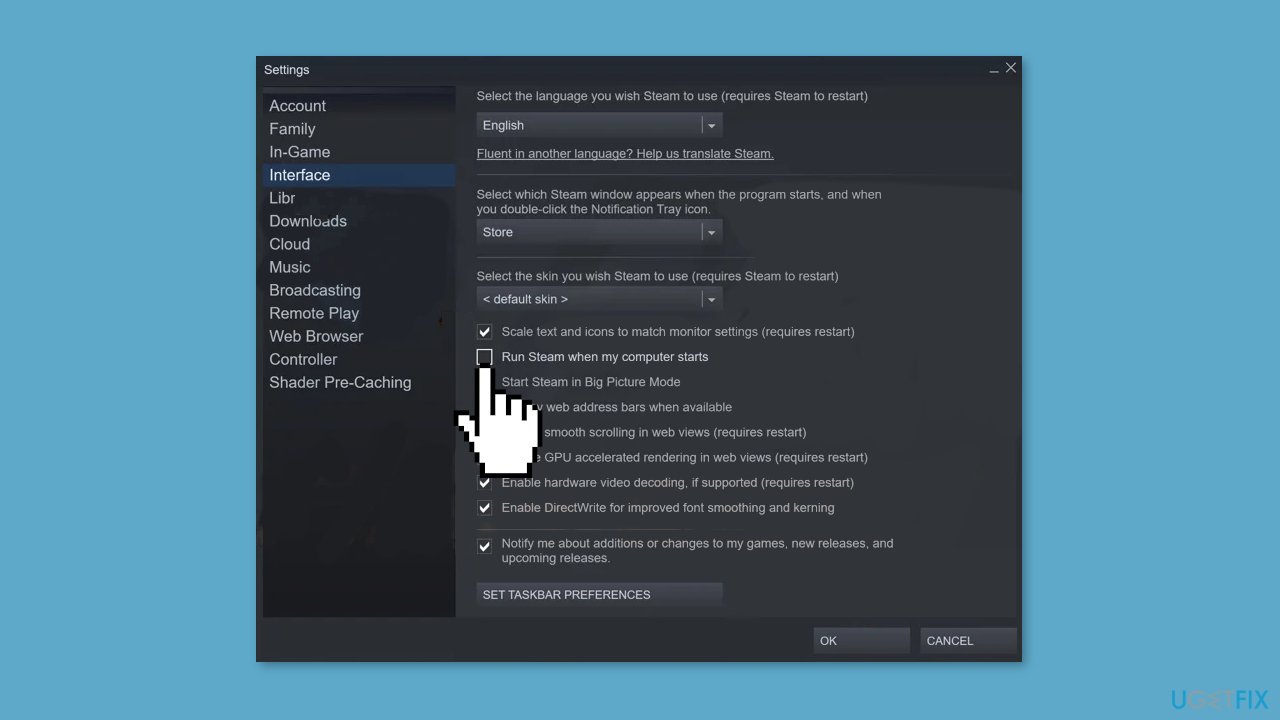
- Uncheck the box that says Run Steam when my computer starts.
- Click on OK to save the changes.
Method 2. Change Task Manager Settings
- Use the keyboard shortcut Ctrl + Alt + Del to open Task Manager.
- Select Task Manager from the options.
- Go to the Startup tab.
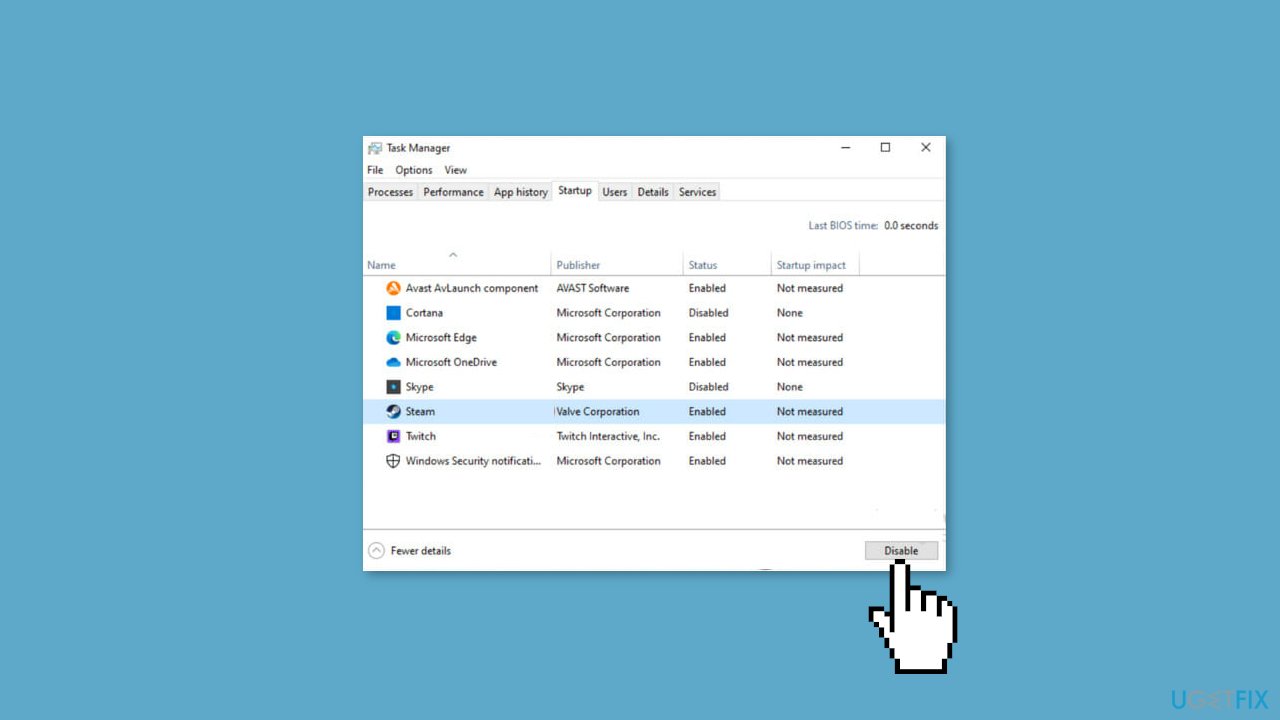
- Locate the Steam client in the list.
- Click on the Steam client.
- Select Disable to prevent it from starting up automatically.
Method 3. Remove from Startup Apps
- Right-click the Start menu button.
- Select Settings from the options.
- In the Settings window, select Apps in the left pane.
- Choose Startup from the list of options.
- In the Startup Apps section, find Steam.
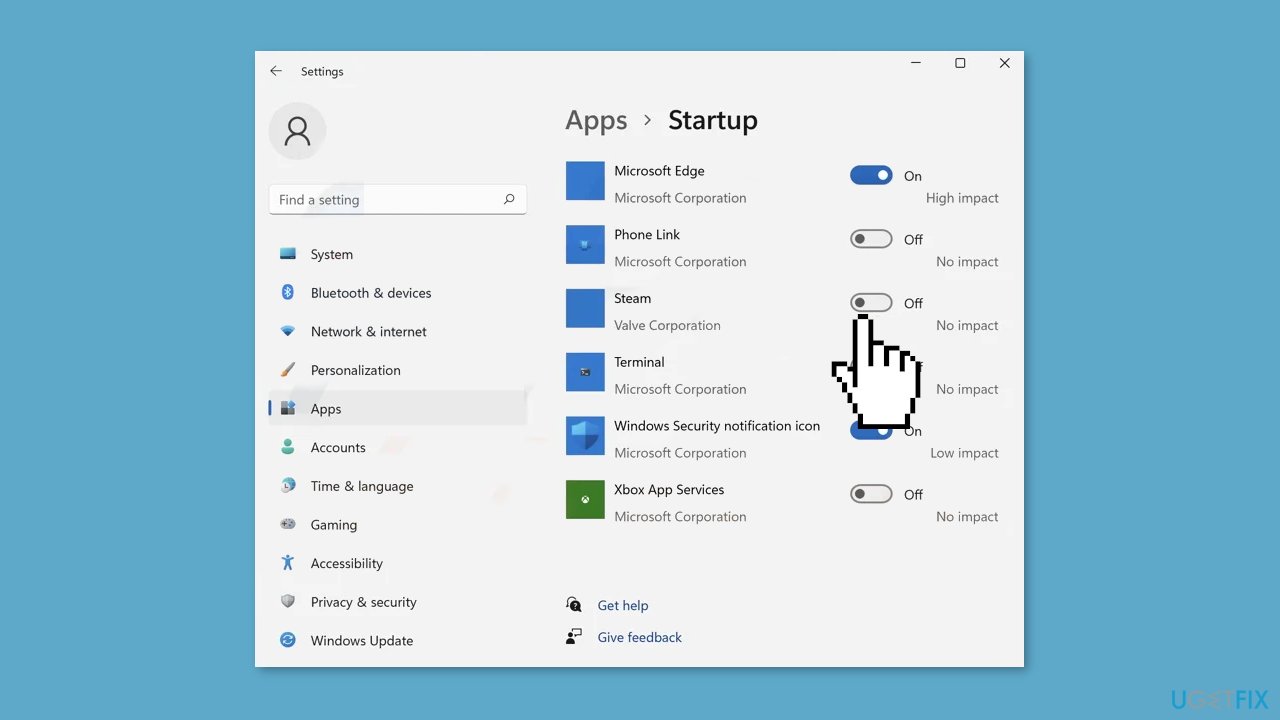
- Toggle off the slider next to Steam to disable automatic startup.
- Steam will no longer open on system startup.
Method 4. Reinstall Steam
- Use the keyboard shortcut Ctrl + R.
- Type in control.exe in the box and press Enter.
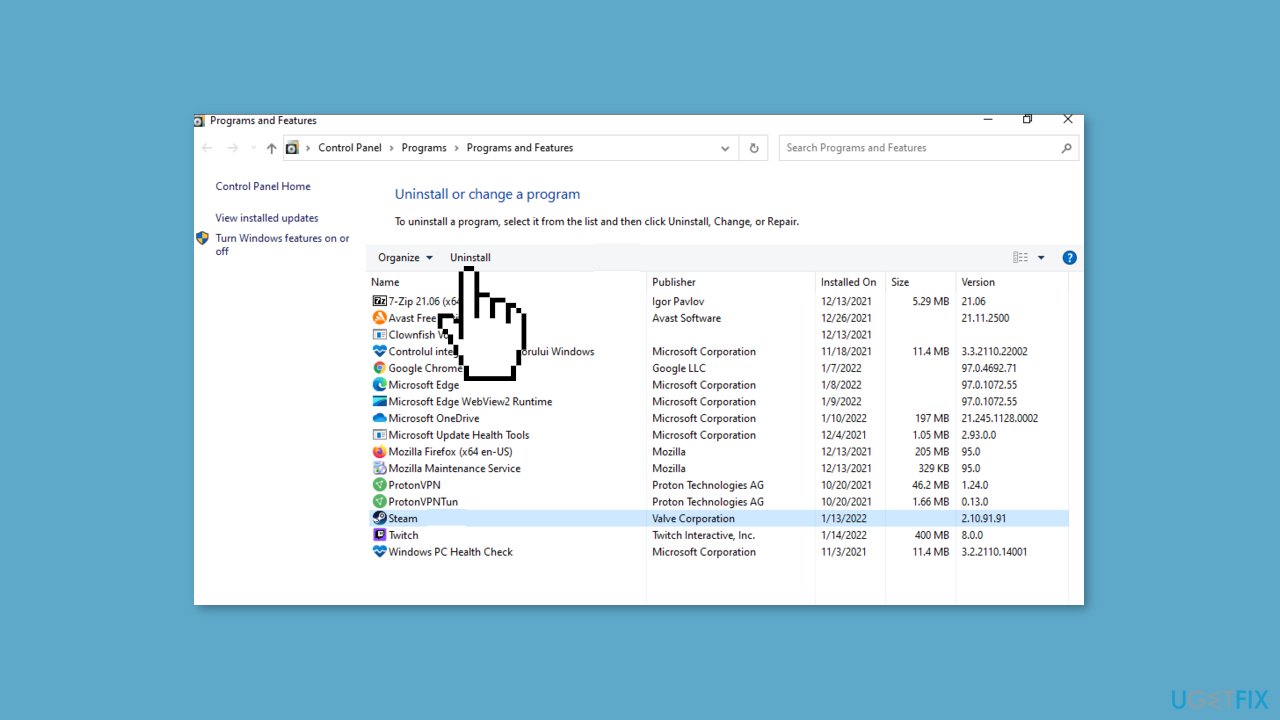
- Select Uninstall a program.
- In the list shown, locate Steam.
- Click on Steam, then select Uninstall to remove it.
- Go to the Steam download page.
- From the top-right corner of the window, click on Install Steam.
- Follow the on-screen instructions to reinstall Steam.
Bottom line
To stop Steam from opening at startup, you can adjust settings within the Steam client, modify system startup settings in Windows, or consider uninstalling and reinstalling Steam. These steps can help improve system performance and align gaming activities with your preferences. If these solutions do not work, consider using a maintenance tool to address other operating system issues.
Frequently asked questions
To stop Steam from opening at startup on Windows 10, open the Steam client, go to 'Settings', select the 'Interface' tab, and uncheck 'Run Steam when my computer starts'.
Yes, in Windows 11, you can disable Steam from starting up by right-clicking the taskbar, selecting 'Task Manager', navigating to the 'Startup' tab, and disabling Steam from the list.
If Steam continues to open at startup, ensure there are no other programs set to launch it, and check for any scheduled tasks in Windows Task Scheduler that might be triggering it.




Report an issue
What's wrong with this guide? We review every report and update or remove content.
Report received — thank you. We'll review and fix it.
You need a free account to submit a report.
Be the first to comment