How to fix
“The Microsoft Edge Webview2 runtime installer failed to start” error
on Windows
Fix the "Microsoft Edge Webview2 runtime installer failed to start" error on Windows 10/11 quickly and easily. Expert-tested solutions await!


What causes How to fix “The Microsoft Edge Webview2 runtime installer failed to start” error in Windows?
- Corrupt installation files
- Incompatible software
- Insufficient permissions
- Conflicting antivirus programs
- Outdated Windows version
Repairs Windows system files, removes malware, and restores a clean OS state — without reinstalling.
Hello. When I try to run the Microsoft Edge Webview2 runtime installer I get the "The Microsoft Edge Webview2 runtime installer failed to start" error on my Windows PC. How do I fix this?
When attempting to install or update the Microsoft Edge WebView2 runtime, Windows users may encounter the "The Microsoft Edge WebView2 runtime installer failed to start" error. The WebView2 runtime is a component that allows developers to embed web content into their applications, such as HTML, CSS, and JavaScript. Within the application, it provides a secure and up-to-date web browsing experience.
This error message typically indicates that there was a problem initiating the WebView2 runtime installation process. It can happen for a variety of reasons, including corrupt installation files, incompatible software, or insufficient permissions. Users are unable to continue with the installation or update of the WebView2 runtime when this error occurs.
The severity of this problem varies depending on the application or software that uses the WebView2 runtime. Users may encounter problems or limitations when using the application if it requires an updated or compatible version of the runtime to function properly. This can lead to decreased functionality, errors, or even the inability to launch the application at all.
Several potential solutions can be tried to resolve the "The Microsoft Edge WebView2 runtime installer failed to start" error. These may include ensuring proper system permissions, updating Windows, temporarily disabling conflicting software or antivirus programs, or reinstalling the WebView2 runtime using alternative methods. The specific solution, however, would be determined by the underlying cause of the problem.
In this guide, you will find 5 steps that should help you fix "The Microsoft Edge Webview2 runtime installer failed to start" error in Windows. You can also try a maintenance tool like [d1] that can fix most system errors, BSODs,[ref en-1] corrupted files, registry[ref en-2] issues, or clear cookies and cache[ref en-3] automatically. Otherwise, follow the step-by-step instructions below.
Solution 1. Run the Installer as an Administrator
- Locate the installer file on your computer.
- Right-click on the installer file.
- In the context menu that appears, select Run as administrator.
- If prompted by User Account Control (UAC), click Yes or enter the administrator password.
- The installer will now run with elevated privileges, allowing it to make changes to the system.
- Follow the prompts and instructions provided by the installer to complete the installation process.
Solution 2. Uninstall old Versions of the WebView2 Runtime Installer
- Go to the Control Panel.
- Select either Programs and Features or Add or Remove Programs.
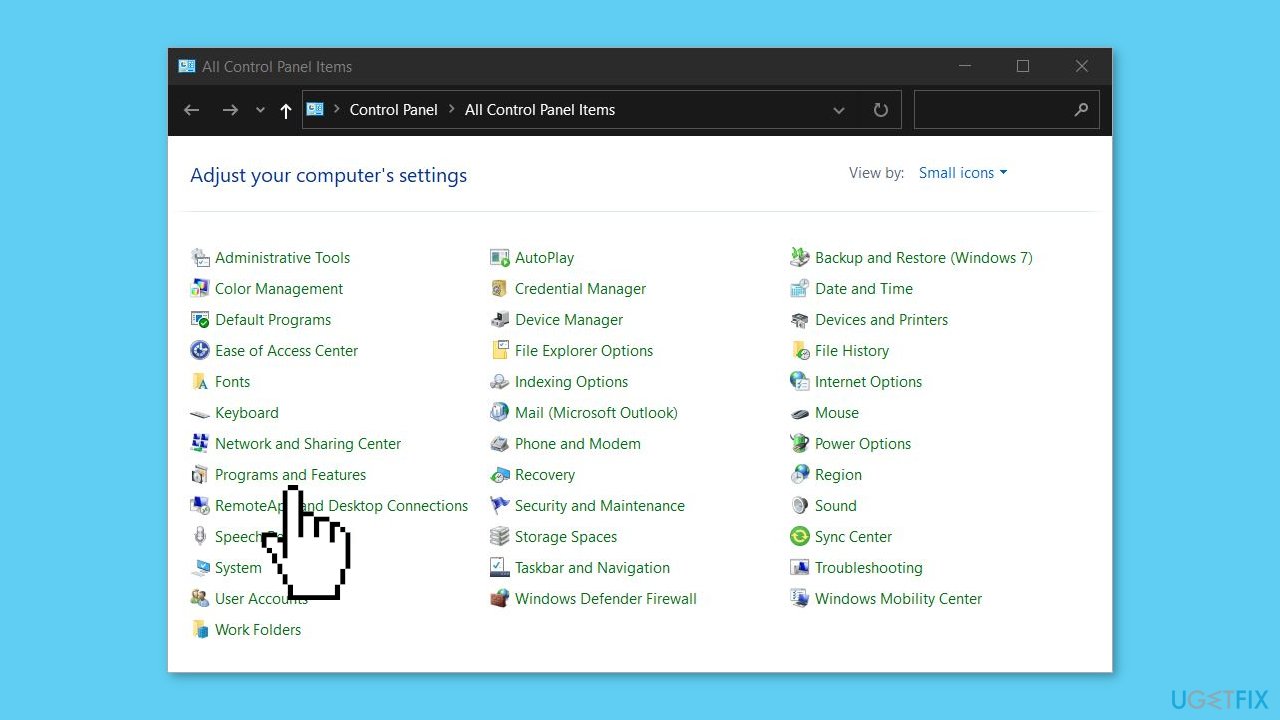
- Look for the WebView2 runtime in the list of installed programs.
- Select the WebView2 runtime.
- Choose the Uninstall option to remove it.
Solution 3. Install WebView2 Runtime in Safe Mode
- Restart your computer.
- Press F8 repeatedly until the Advanced Boot Options menu appears.
- Select Safe Mode from the menu and press Enter.
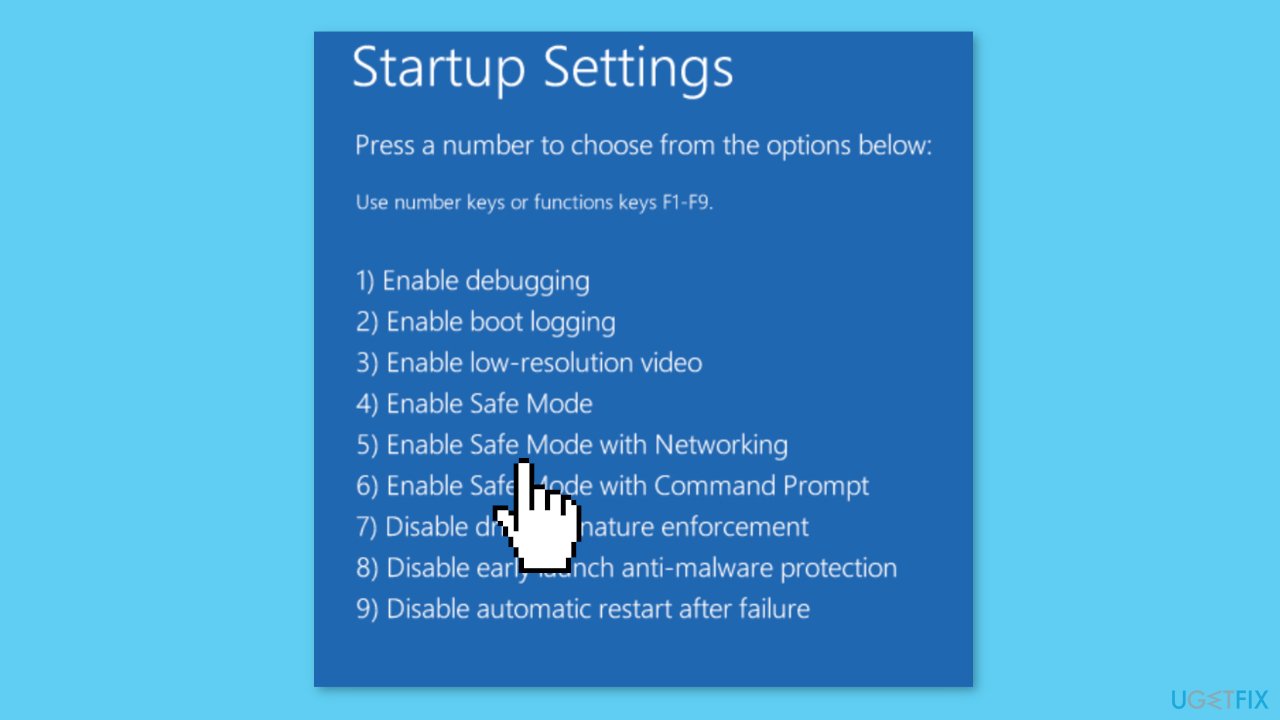
- Once your computer has booted into Safe Mode, locate the WebView2 runtime installer.
- Right-click on the WebView2 runtime installer and select Run as administrator.
- Follow the prompts to complete the installation of the WebView2 runtime.
Solution 4. Disable Third-party Antivirus Software
Disabling third-party software can be a potential solution to fix the "The Microsoft Edge WebView2 runtime installer failed to start" error because it helps identify and eliminate any conflicts that may be occurring between the WebView2 installer and other installed applications or services on the system.
In some cases, certain third-party software, such as antivirus programs or system utilities, can interfere with the installation process of the WebView2 runtime. These programs might have strict security measures or background processes that restrict or block certain installation procedures. As a result, the WebView2 installer may fail to start or encounter errors.
Solution 5. Clear Windows Temporary Files
- Press the Windows key + R to open the Run dialog box.
- In the Run dialog box, type temp and press Enter.
- The Windows temporary files window will open.
- Press Ctrl + A to select all the files.
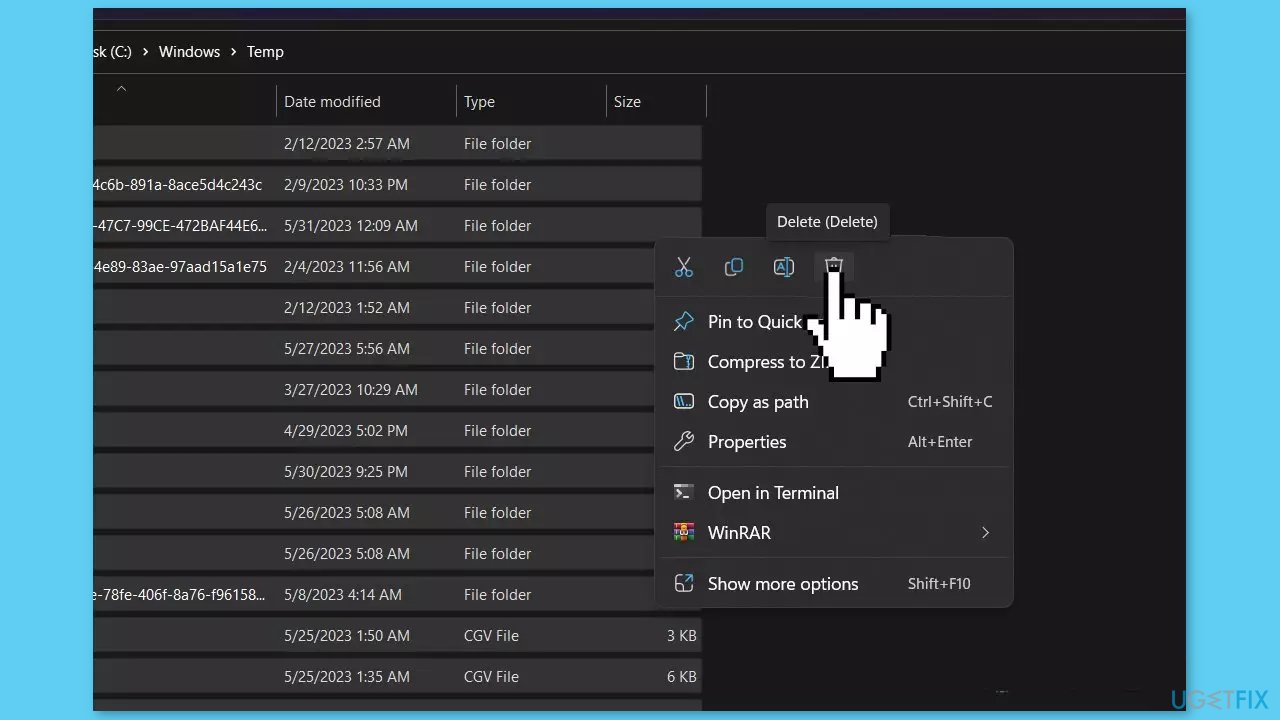
- Press the Delete key to remove all the selected files.
- Open Run again.
- This time, type %temp% and press Enter.
- The Local temporary files window, containing application-specific temporary files, will open.
- Press Ctrl + A to select all the files.
- Press the Delete key on your keyboard to remove the selected temporary files.
Bottom line
To resolve the 'The Microsoft Edge Webview2 runtime installer failed to start' error, you can try running the installer as an administrator, updating Windows, temporarily disabling conflicting software or antivirus programs, or reinstalling the WebView2 runtime. If these solutions do not work, consider using a maintenance tool to fix system errors.
Frequently asked questions
First, ensure that your Windows 10 is updated to the latest version. Then, try running the installer as an administrator by right-clicking the setup file and selecting 'Run as administrator.'
Yes, you can fix the error by resetting or repairing the Microsoft Edge application through the Settings app under Apps > Apps & features.
Absolutely, you can download the WebView2 runtime directly from the Microsoft website and install it manually to bypass the installer error.




Report an issue
What's wrong with this guide? We review every report and update or remove content.
Report received — thank you. We'll review and fix it.
You need a free account to submit a report.
Be the first to comment