How to fix
Microsoft Store and Xbox app error 0x803F8003
on Windows
Resolve Microsoft Store and Xbox app error 0x803F8003 on Windows 10 or 11 effortlessly. Quick fixes and expert-tested solutions await you!

What causes How to fix Microsoft Store and Xbox app error 0x803F8003?
- Temporary server issues
- Incorrect account settings
- Insufficient storage on the device
- Licensing issues
- Internet connection errors
Repairs Windows system files, removes malware, and restores a clean OS state — without reinstalling.
Hello, I ran into issues with Microsoft Store. To be more precise, every time I attempt to download or update any of the apps, I get an error 0x803F8003. How do I fix this error?
Microsoft Store and Xbox app error 0x803F8003 is a common issue that Windows users often encounter, typically when attempting to update or download apps from the Microsoft Store. It is a software bug that signals a discrepancy between the user's device and the Microsoft server.
The causes of this error can range from temporary server issues to incorrect account settings. Certain background processes might interfere with the Microsoft Store's functionality, leading to this error. It could also occur due to insufficient storage on the device, leading to the system failing to accommodate updates or new downloads.
In some instances, users might face the same 0x803F8003 error while trying to launch a game via the Xbox app or Game Pass. This problem is not just confined to a single game; it can happen with any game, regardless of whether it's a newly downloaded one or an already installed one.
The error can occur due to a variety of reasons, such as licensing issues, internet connection errors, or a discrepancy between the game's local files and the Microsoft servers' files. Miscommunication between your Xbox app and the server may prevent the validation of your game licenses, causing the 0x803F8003 error to appear.
In some cases, the error might be due to a temporary glitch on Microsoft's end. When servers are down or undergoing maintenance, you may be temporarily unable to launch games via the Xbox app or Game Pass. Also, if your internet connection is unstable, the Xbox app may struggle to verify the legitimacy of your game licenses, leading to the error.
While there are several manual solutions to address the 0x803F8003 error, they can be time-consuming and require a certain level of technical know-how. For instance, solutions could involve resetting the Microsoft Store cache, checking for updates, or troubleshooting the Xbox app.
For a more straightforward solution, we recommend trying the [d1] PC repair tool, an advanced software designed to automatically address the most common Windows issues. This tool can potentially save you time by diagnosing and fixing problems efficiently, making it a useful addition to any user's toolbox. All detailed manual solutions can be found below for those who prefer a hands-on approach to troubleshooting.
Fix 1. Run Windows Store Apps troubleshooter
Windows includes a built-in troubleshooter that can identify and fix issues with the Microsoft Store.
- Type troubleshoot in Windows search and hit Enter.
- Click Additional troubleshooters/Other troubleshooters.
- Find Windows Store Apps.
- Click on it, and select Run the troubleshooter/Run.
- Wait for the scan to be completed and apply the suggested fixes.
- You can also try running the Windows update troubleshooter.
Fix 2. Reset Microsoft Store cache
Over time, the Microsoft Store accumulates a cache of temporary files that help it operate more efficiently. However, if these files become outdated or corrupted, they can cause issues like the 0x803F8003 error. Resetting the Microsoft Store cache can clear these problematic files and solve the issue.
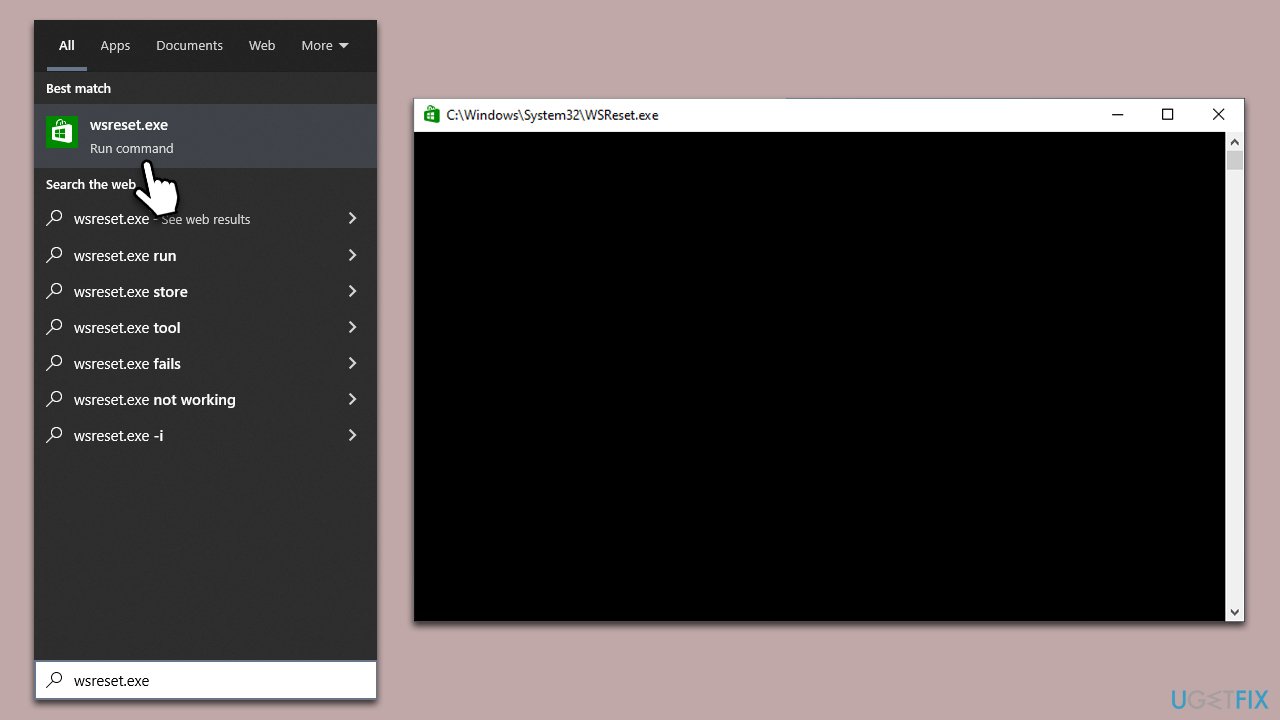
- Type WSReset.exe in the Windows search bar and press Enter.
- Wait till a black pop-up window shows up – do not close it.
- The pop-up window will close soon, and the Windows Store should reopen.
Fix 3. Sign out and in again
If your account is having sync issues with the Microsoft Store, signing out and then signing back in can help refresh the connection and resolve the error.
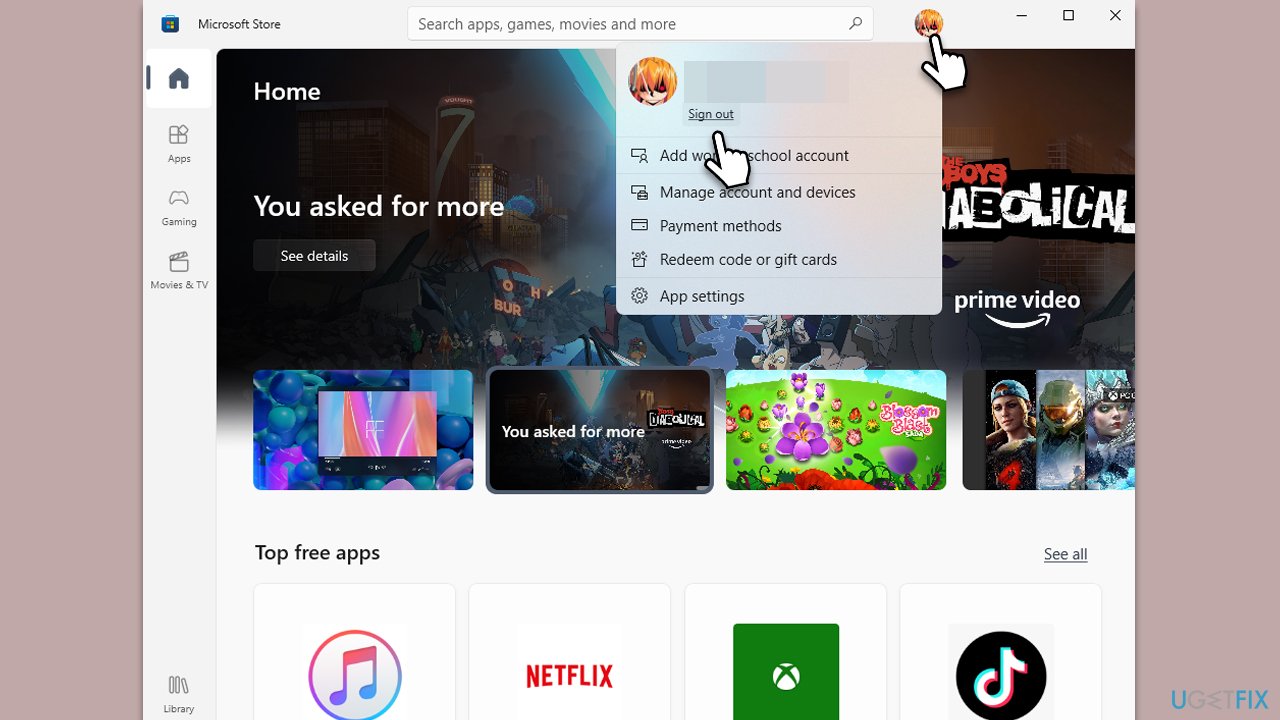
- Launch Microsoft Store.
- Click on your Profile picture and click Sign out.
- Restart your computer.
- Once back, open the Store again.
- Click on the user icon and select Sign in.
- Enter your username and password and see if that solves the problem.
If you are having issues with the Xbox app, then sign out and in again as well.
Fix 4. Reset Microsoft Store and Xbox app
If the app is experiencing significant issues, resetting it can clear its data and return it to its original state, often resolving any errors.
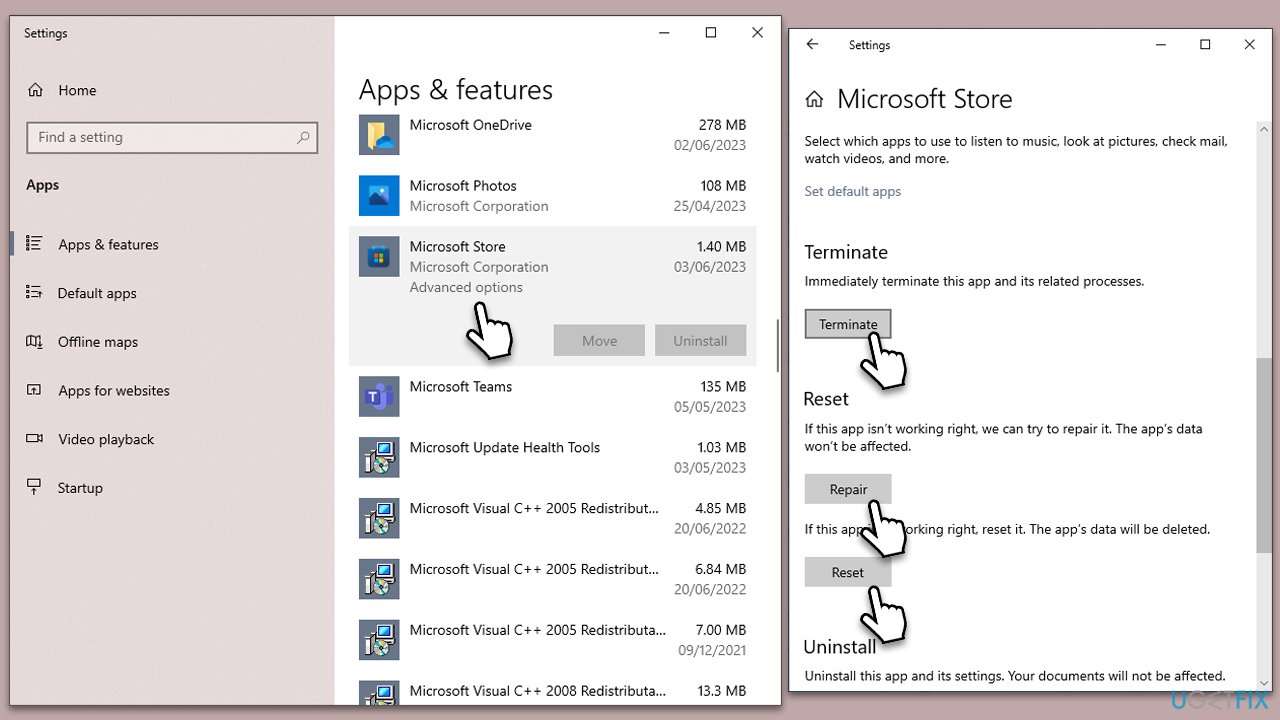
- Right-click on Start and select Apps & Features.
- Scroll down to find Microsoft Store and click Advanced options.
- Scroll down again and click Terminate and Repair.
- If that does not work, try using Reset.
- Repeat this process with the Xbox app if necessary.
Fix 5. Reinstall Microsoft Sore or Xbox app
Xbox app
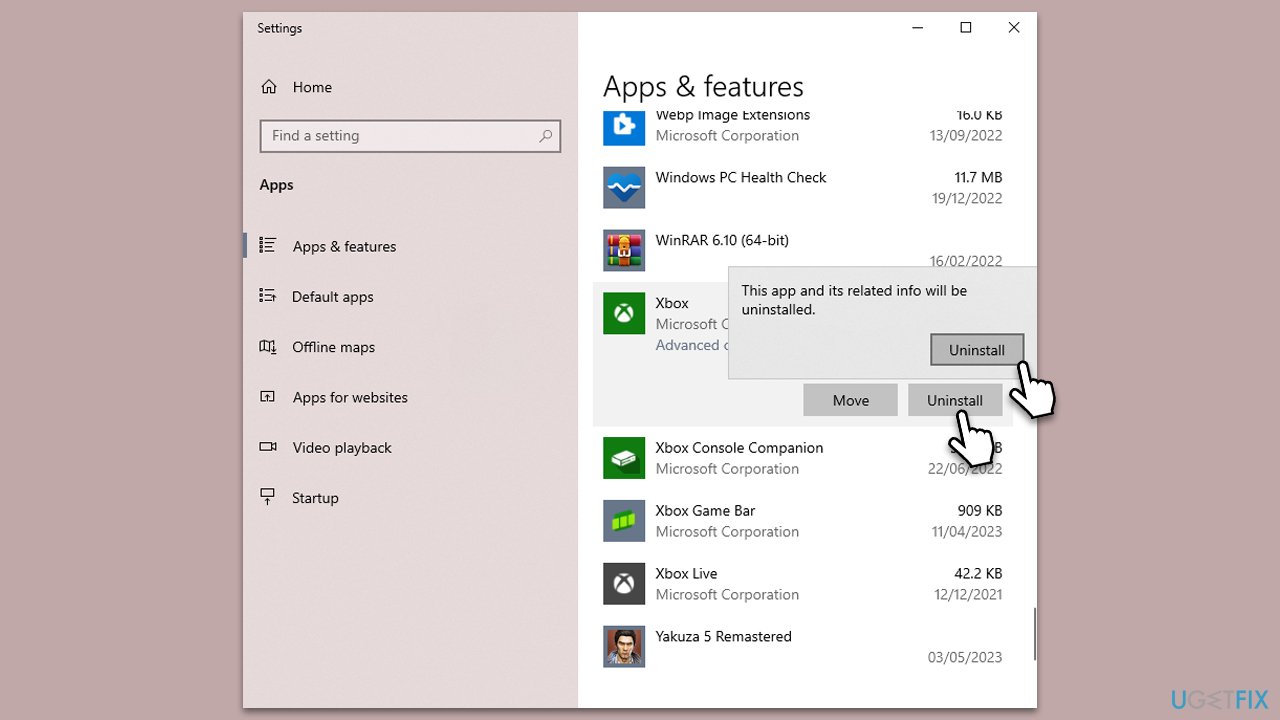
- Right-click on Start and pick Apps and Features.
- Scroll down and find the Xbox app.
- Select it and pick Uninstall > Uninstall.
- Follow the prompts to remove the app.
- Restart your computer and reinstall the app.
Microsoft Store
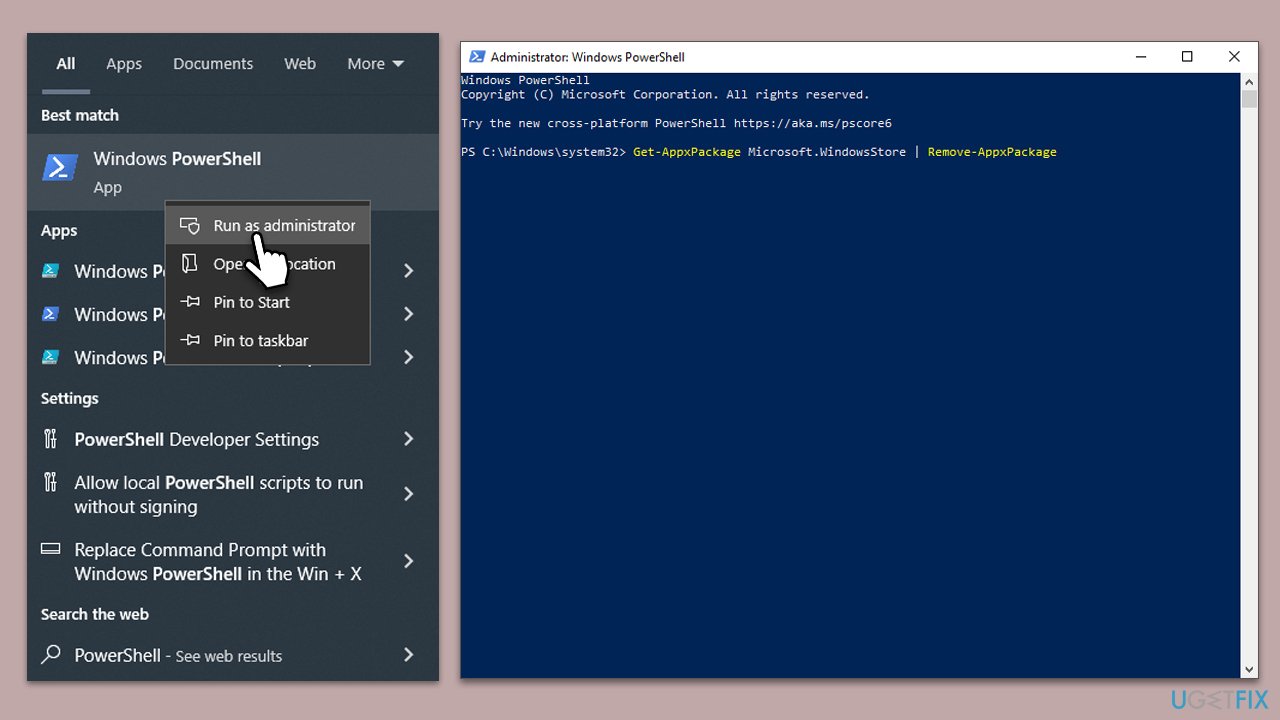
- Type PowerShell in Windows search.
- Right-click on PowerShell and select Run as administrator.
- In the new window, copy and paste the following command, pressing Enter after:
Get-AppxPackage Microsoft.WindowsStore | Remove-AppxPackage - With the next command, you will install the Store:
Add-AppxPackage -register "C:\Program Files\WindowsApps\Microsoft.WindowsStore*\AppxManifest.xml" -DisableDevelopmentMode - Press Enter and close down PowerShell.
Fix 6. Run SFC and DISM
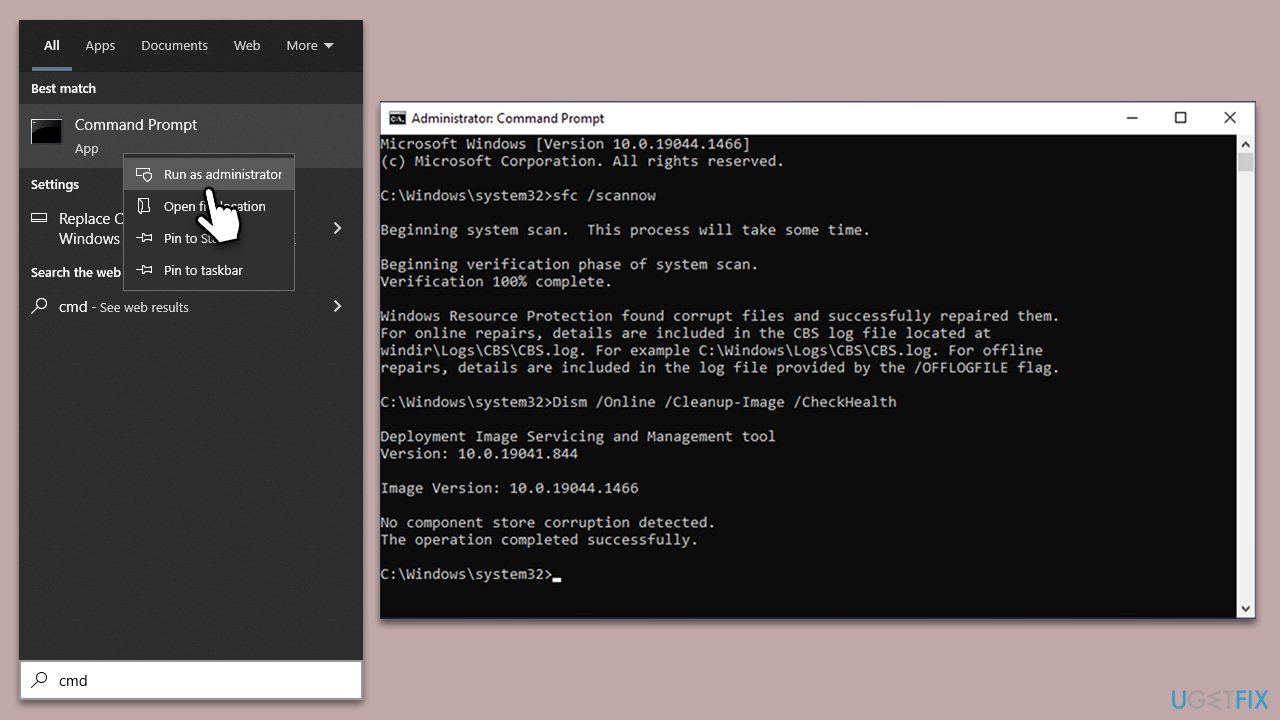
- Type cmd in Windows search.
- Right-click on Command Prompt and select Run as administrator.
- When the User Account Control window pops up, click Yes.
- Use the following command and press Enter:
sfc /scannow - After the SFC scan is complete, use the following commands, pressing Enter after each:
DISM /Online /Cleanup-Image /CheckHealth
DISM /Online /Cleanup-Image /ScanHealth
DISM /Online /Cleanup-Image /RestoreHealth - Restart your system.
Bottom line
To fix the 0x803F8003 error, you can try resetting the Microsoft Store cache, checking for updates, or troubleshooting the Xbox app. If these solutions do not resolve the issue, consider seeking further assistance or checking Microsoft's support resources.




Report an issue
What's wrong with this guide? We review every report and update or remove content.
Report received — thank you. We'll review and fix it.
You need a free account to submit a report.
Be the first to comment