How to fix
Netadaptercx.sys BSOD error
on Windows
Resolve the Netadaptercx.sys BSOD error on Windows 10 and 11 effortlessly. Follow our expert-tested solutions for quick fixes, updated 2025.

What causes How to fix Netadaptercx.sys BSOD error in Windows?
- Outdated network adapter drivers
- Corrupted system files
- Incompatible Windows updates
- Issues with the Windows Driver Framework (WDF)
- Conflicts with other system drivers
Repairs Windows system files, removes malware, and restores a clean OS state — without reinstalling.
Hello, I am experiencing quite an annoying issue where, in some cases, my computer blue screens after waking up from sleep. It doesn't happen consistently, so I am not sure that precisely is causing it. I've been struggling with this for several months, and I am not sure what to do. The stop code is system_thread_exception_not_handled. What failed: netadaptercx.sys.
The term Blue Screen of Death can be frustrating for any Windows user, and unfortunately, this is the predicament some have found themselves in with crashes involving the Netadaptercx.sys file. With BSOD stop codes varying, it is a challenge to pinpoint and fix the problem. But before we delve into potential solutions, it's worth understanding BSOD's critical role in the Windows ecosystem.
Blue Screens of Death are actually a blessing in disguise. They play an indispensable role in the Windows ecosystem, effectively acting as a defense mechanism. These dreaded screens occur when Windows encounters a 'stop error' - a critical failure severe enough that the operating system cannot recover on its own. It halts all operations to prevent any potential system damage or data loss. So, while a BSOD might seem like an issue, it's actually Windows trying to protect your system.
A number of users have reported crashes linked to the Netadaptercx.sys file. Stop codes can vary, and these differences can provide vital clues to the nature of the error. Netadaptercx.sys is the Network Adapter Class Extension for the Windows Driver Framework (WDF). It's essentially a system file driver that plays a key role in enabling your device to connect to the internet. Without it functioning correctly, your online experience could be significantly hindered.
There are several strategies you could adopt to troubleshoot this issue. They include updating your network adapter drivers, checking for Windows updates, or even running a system file checker scan. These can often help resolve conflicts or corruption issues related to system files like Netadaptercx.sys. Full instructions for these procedures can be found below. It's always worth remembering to back up your data before attempting any fixes to prevent further loss.
Finally, it is worth noting that there are dedicated PC repair tools available that can help resolve BSODs. For example, [d1] is an efficient tool that not only detects the problems leading to BSODs but also rectifies them. Such software can provide a simpler and more user-friendly solution, especially for those who are less tech-savvy.
1. Update your network adapter drivers
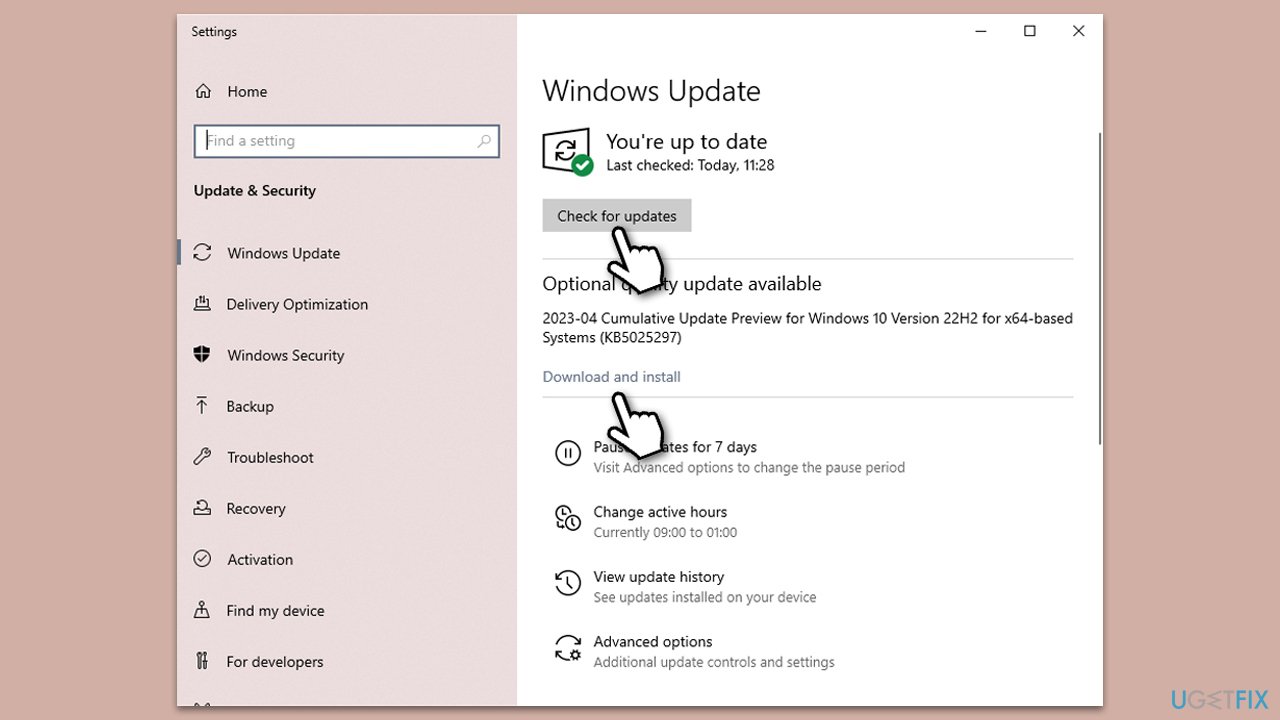
This solution works by ensuring your system uses the most recent and compatible drivers for your network adapter. Outdated or corrupt drivers can cause system instability, including BSODs. The easiest way to install the latest drivers is by using an automatic updater such as [rev id="DriverFix"]. You can also download them manually via the manufacturer's website or employ the Windows update feature (which might not always be reliable):
- Type Updates in Windows search and press Enter.
- In the new window, click Check for updates.
- If optional updates are available, install them too.
- When done, restart your device.
2. Roll-back drivers
If the BSODs started appearing after a recent driver update, it's possible that the new version is causing some form of conflict within your system. Rolling back your drivers to a previous version that was working fine can help to eliminate this conflict, restoring your system's stability.
- Right-click on Start and pick Device manager.
- Expand the Network adapters section.
- Right-click on the network adapter and select Properties.
- Go to the Driver tab.
- Click Roll Back Driver, provide the reason, and click Yes.
- Restart your PC when done.
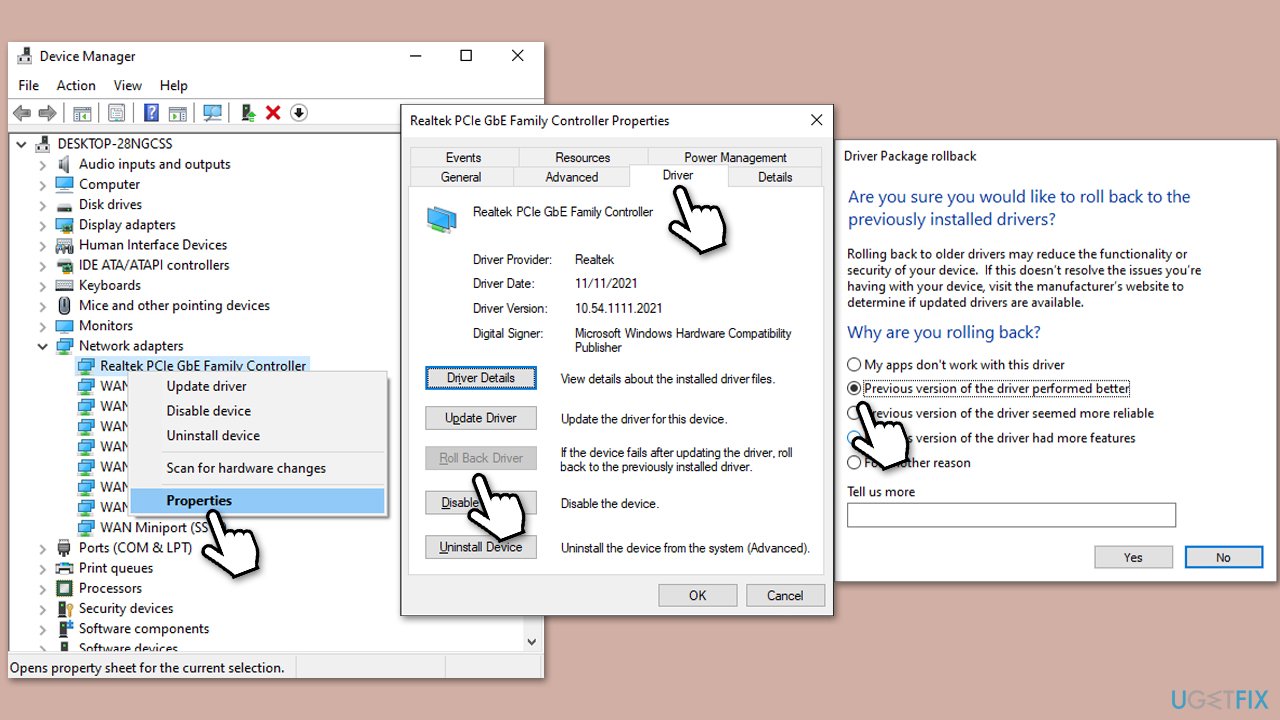
Note that Roll back driver option might not be available to you. In such a case, you need to check the driver version, find the previous one online, and install it manually.
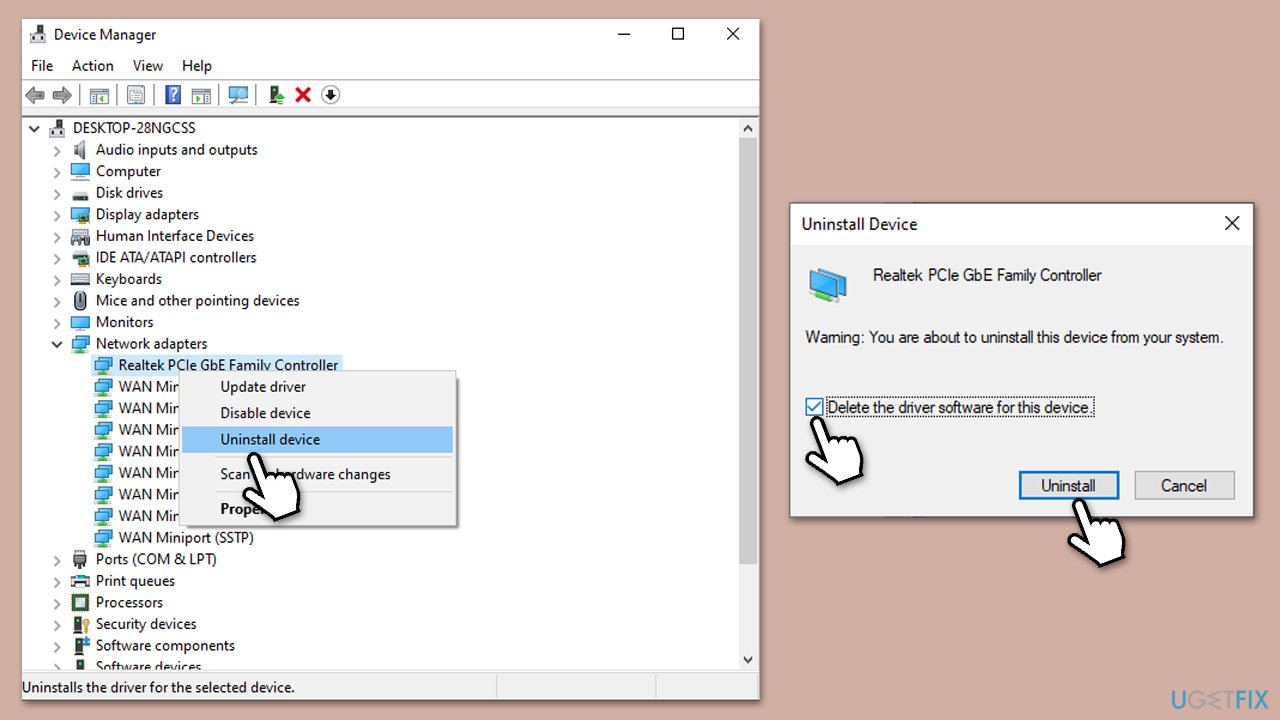
3. Reinstall drivers
Similar to updating drivers, reinstalling them ensures that your system is using a clean, uncorrupted version of the driver. Any corruption or errors in the current driver could lead to BSODs. Reinstallation wipes out the old driver and replaces it with a fresh version, potentially resolving any problems.
- Open Device Manager and expand the Network adapters section.
- Right-click on your network adapter and select Uninstall device.
- Follow the prompts to finalize the process.
- Reboot your system, and generic drivers should be installed by Windows.
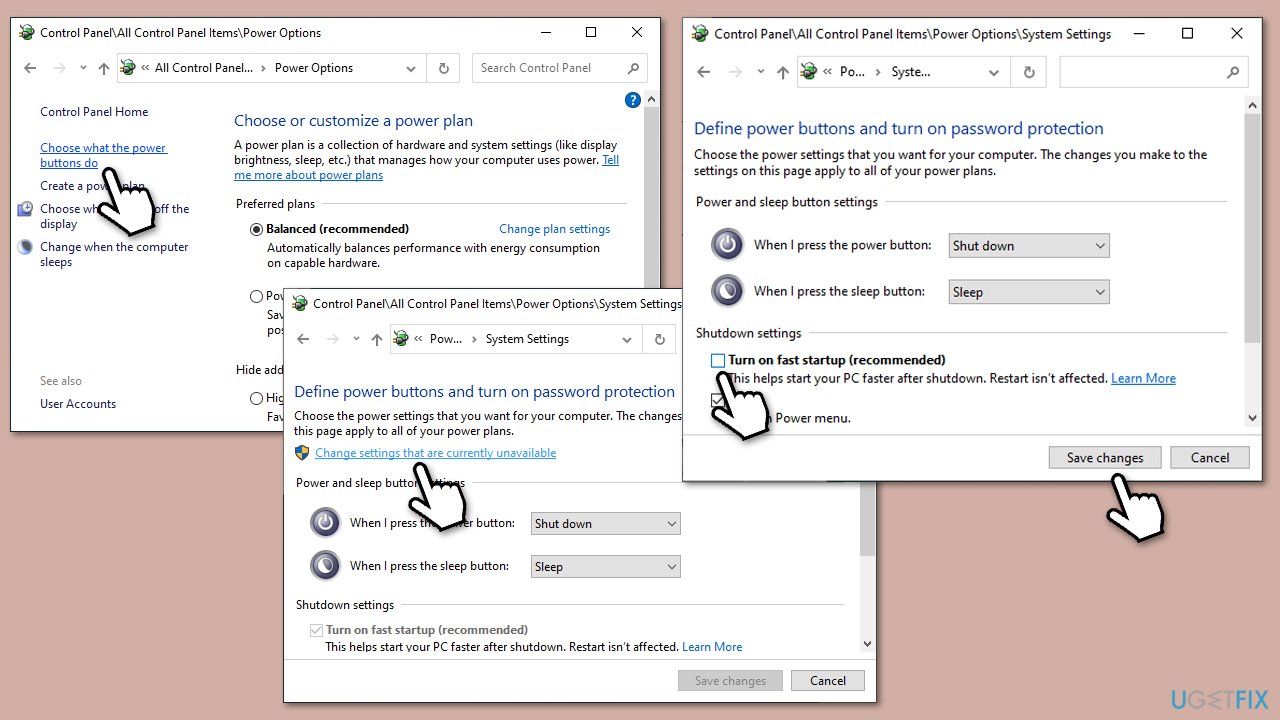
4. Disable Fast Startup
Fast Startup is a feature in Windows that allows your computer to boot up quicker after shutting down. However, it has been known to cause issues like BSODs due to the way it changes the way components are powered down and restored. Disabling it could potentially alleviate these issues, albeit at the cost of slightly slower boot times.
- Type Control Panel in Windows search and hit Enter.
- Select Small icons view and pick Power options.
- On the left side of the window, select Choose what the power buttons do
- Pick the Change settings that are currently unavailable option at the top
- Remove the tick from the Turn on fast startup (recommended) option and select Save changes.
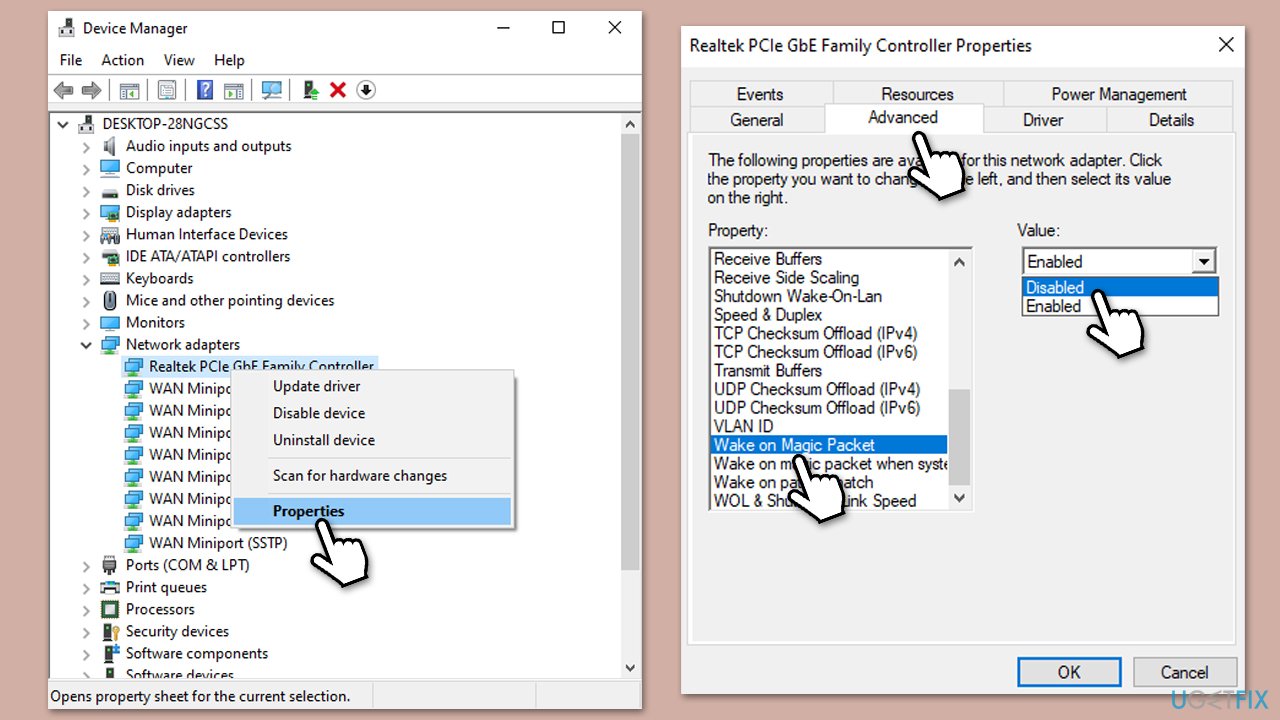
5. Disable Magic Packets for your Network adapter
Magic Packets are network messages used for "Wake-on-LAN" functions, waking up a sleeping computer over a network. However, they can cause compatibility issues, resulting in system instability and BSODs. Disabling Magic Packets could therefore prevent such problems.
- Open Device Manager and expand the Network adapters section.
- Right-click on your device and select Properties.
- Go to the Advanced tab.
- In the Property section, scroll down and find Wake on Magic Packet option - select it.
- Under Value, pick Disabled from the drop-down menu.
- Click OK and restart your PC.
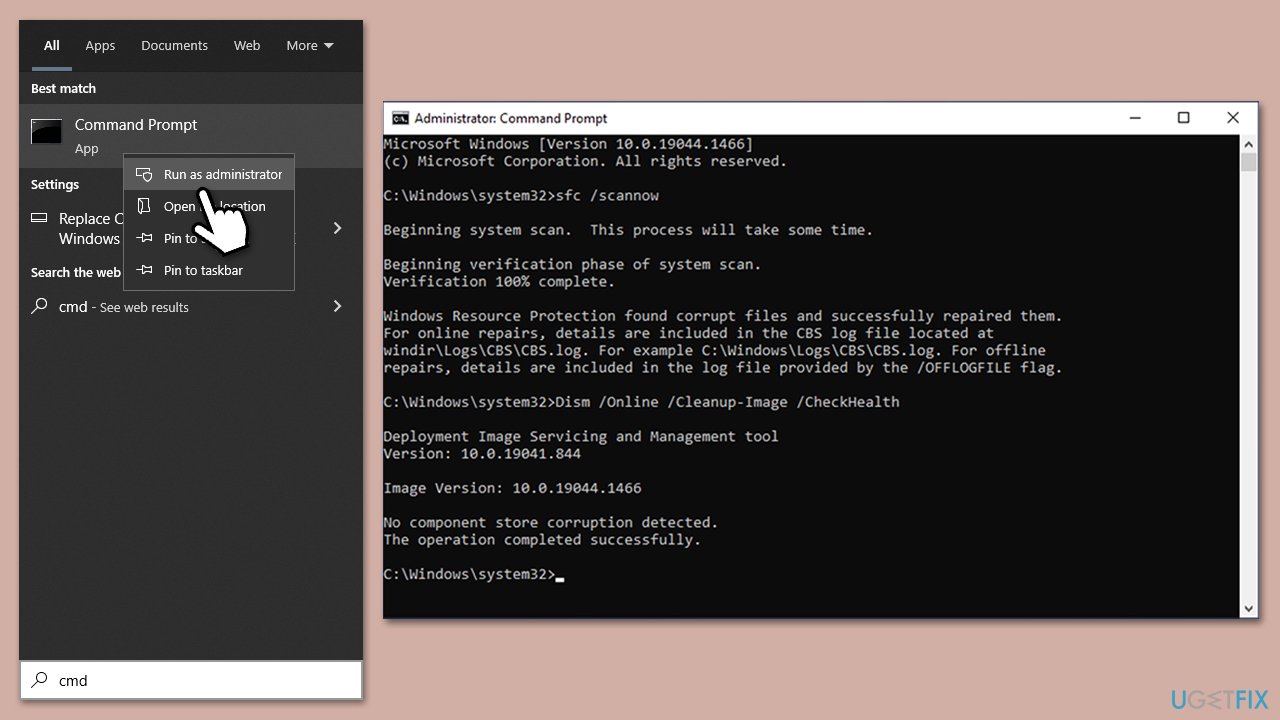
6. Run SFC and DISM
System File Checker (SFC) and Deployment Image Servicing and Management (DISM) are built-in Windows utilities that can identify and repair corrupted or damaged system files, which could be causing BSODs. Running these tools can help restore the integrity of your system and solve issues related to corrupted system files, like the Netadaptercx.sys error.
- Type cmd in Windows search.
- Right-click on Command Prompt and pick Run as administrator.
- When User Account Control shows up, click Yes.
- Use the following command lines, pressing Enter after each:
sfc /scannow - The System File Checker will now scan your system for any corrupted or missing files and try to repair them.
- After the scan is done, copy the following commands and press Enter:
DISM /Online /Cleanup-Image /CheckHealth
DISM /Online /Cleanup-Image /ScanHealth
DISM /Online /Cleanup-Image /RestoreHealth - When completed, restart your PC.
Bottom line
To fix the Netadaptercx.sys BSOD error, you can update your network adapter drivers, check for Windows updates, or run a system file checker scan. If these solutions do not resolve the issue, consider backing up your data and seeking further technical assistance.
Frequently asked questions
The Netadaptercx.sys BSOD error is typically caused by faulty network drivers or issues with the network adapter settings in Windows 10 and Windows 11.
You can update your network drivers by going to Device Manager, locating your network adapter, right-clicking it, and selecting 'Update driver' to search automatically for updates.
Yes, you can uninstall the network adapter by going to Device Manager, right-clicking the adapter, selecting 'Uninstall device,' and then restarting your computer to allow Windows 10 or Windows 11 to reinstall it automatically.




Report an issue
What's wrong with this guide? We review every report and update or remove content.
Report received — thank you. We'll review and fix it.
You need a free account to submit a report.
Be the first to comment