How to fix
Windows Defender exclusions not working
on Windows
Resolve issues with Windows Defender exclusions not working on Windows 10 or 11 quickly and effectively. Expert-tested solutions included.

What causes How to fix Windows Defender exclusions not working?
- Incorrect exclusion paths
- Conflicts with other antivirus software
- Corrupted system files
- Corrupted registries
- False positive detection
Repairs Windows system files, removes malware, and restores a clean OS state — without reinstalling.
Hi. I've excluded two folders I have on my PC, which Windows Defender mistakenly marks as malicious. Every time it runs, it keeps quarantining these folders, despite trying to exclude them several times. Please advise on how to resolve this.
Windows Defender, Microsoft's built-in antivirus program for the Windows operating system, serves as a first line of defense against malware and other security threats. By actively scanning your system for harmful files and applications, it ensures that your computer remains safe from a wide range of potential attacks. This integral security software operates in real-time, alerting users about suspicious activity and eliminating threats as they arise.
However, there are circumstances when users need to create exclusions within Windows Defender. In cases where a certain file, folder, or program is mistakenly identified as harmful - a situation known as a "false positive" - users may wish to exclude them from the antivirus scanning process. This is especially common in software development or gaming, where unusual or unique coding patterns might trigger false alarms.
Despite the usefulness of this feature, some users have reported issues with the exclusions not working in Windows Defender. Despite having added files or folders to the exclusion list, the program continues to flag them as potential threats. This could be due to several reasons, such as incorrect exclusion paths, conflicts with other antivirus software, or system-level errors, such as corrupted system files or registries.
While this issue can be frustrating, it's usually resolvable with some troubleshooting steps. Instructions detailing potential solutions can be found below. However, be aware that making exclusions should be done with caution, as it opens a potential gateway for malware if misused.
If you're struggling with exclusions not working in Windows Defender or suspect your system might be suffering from more severe issues like corrupted files, it might be worth trying [d1] PC repair tool. This software can help resolve a multitude of problems, such as cleaning junk files, repairing damage caused by malware, fixing corrupted system files, and rectifying registry issues, among others.
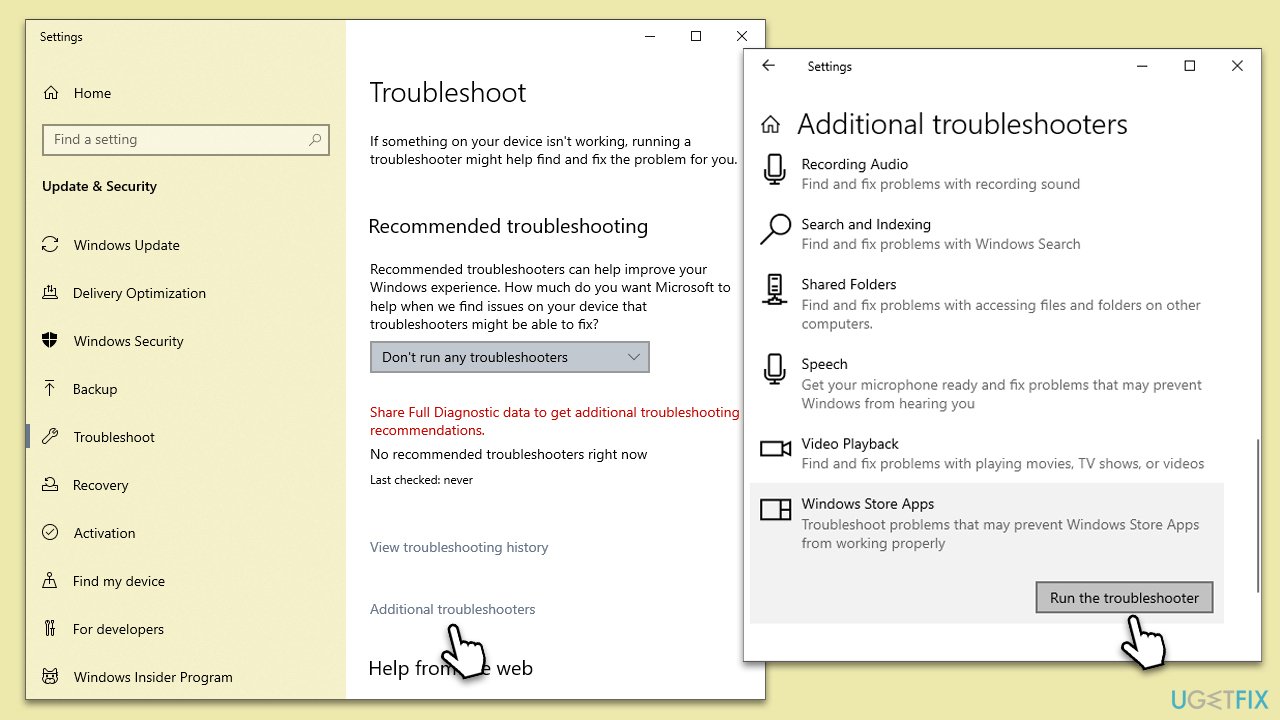
Fix 1. Run Windows apps troubleshooter
First, let's run the troubleshooter and see if it manages to find something wrong with Windows Defender:
- Type in Troubleshoot in Windows search and hit Enter.
- Pick Additional Troubleshooters/Other troubleshooters option.
- Scroll down to find Windows Store Apps section.
- Click Run the troubleshooter/Run and wait for the troubleshooter to finish scanning the system.
- Follow the on-screen instructions to fix any issues that the troubleshooter has found.
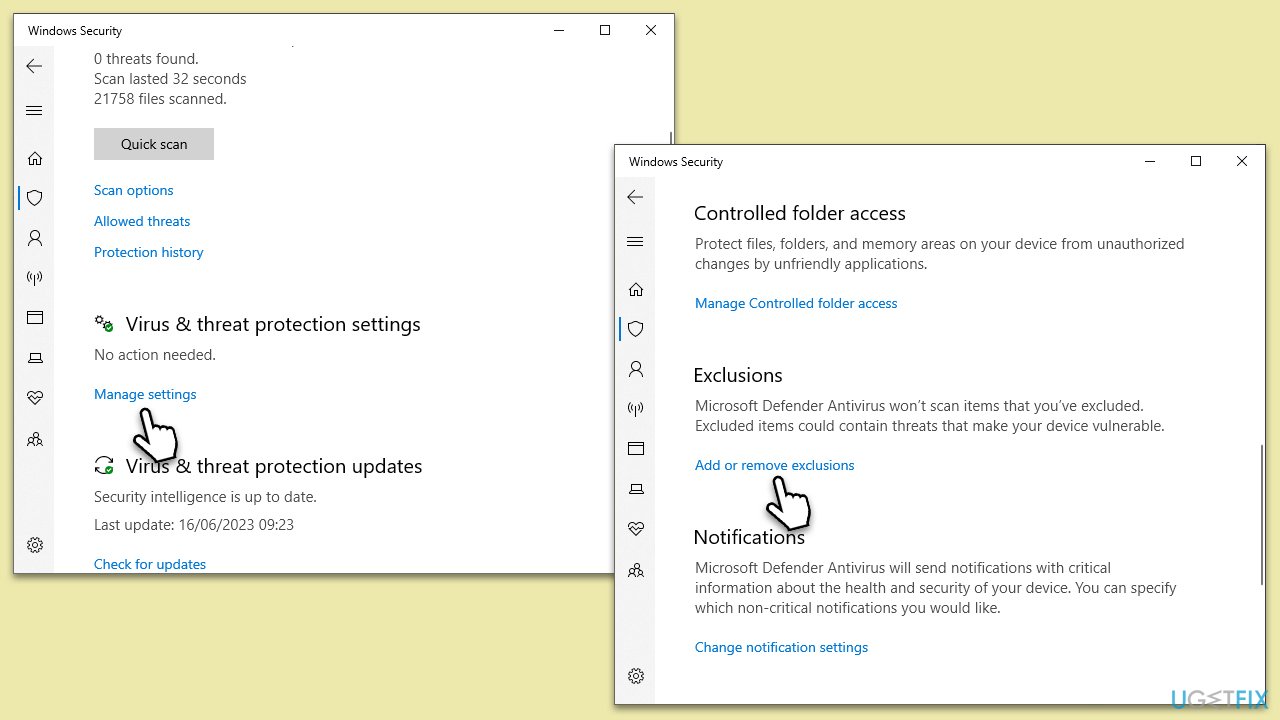
Fix 2. Re-add exclusions
Sometimes, re-adding the exclusions might solve the issue, so try this fix is you haven't done so yet:
- Press the Windows key and click on the gear icon to open the settings app.
- From there, navigate to Update & Security, and on the left-hand menu, click on Windows Security.
- In the Windows Security section, click on Virus & threat protection.
- Under the Virus & threat protection settings section, click on Manage settings.
- Scroll down to the Exclusions section and click Add or remove exclusions.
- Here you can remove the old exclusions by clicking on the Remove button.
- To add a new exclusion, click on the plus sign next to Add an exclusion, then select the type of exclusion you want to add - either File, Folder, File Type, or Process.
- Navigate to the location of the file, folder, or process that you want to exclude and click on Add to finalize the exclusion.
Fix 3. Restart Windows Defender services
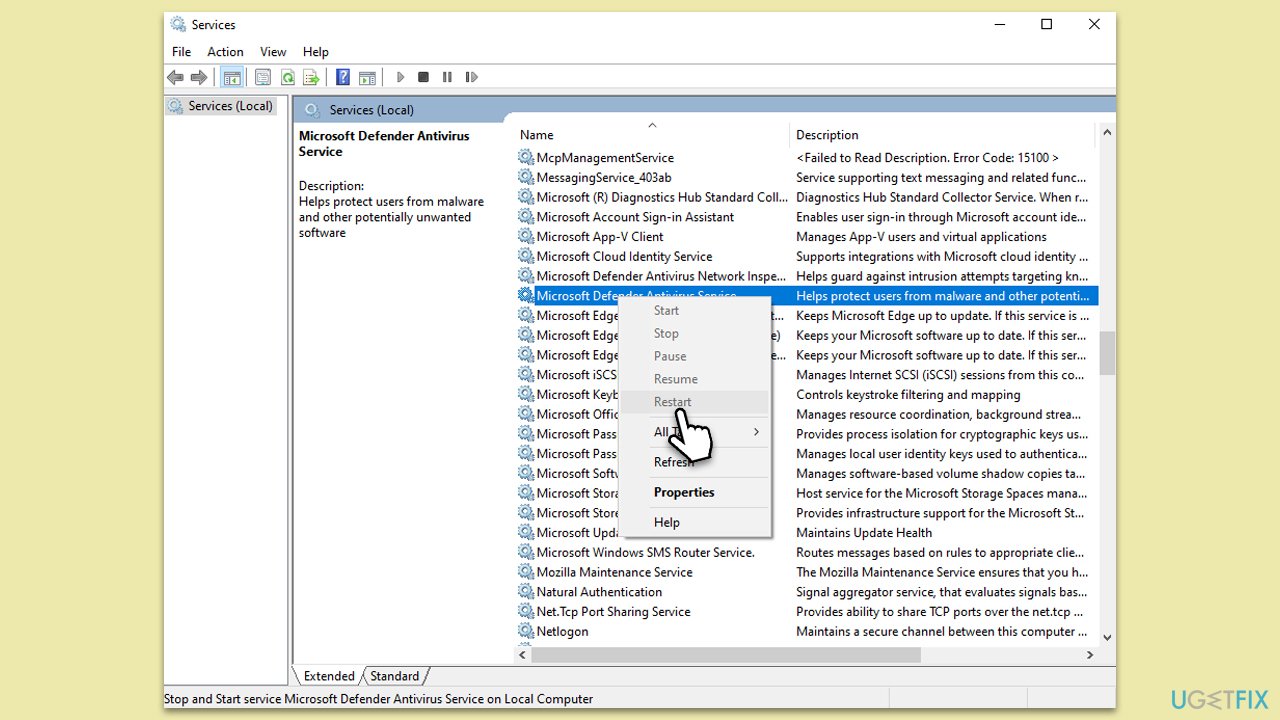
Restarting the Microsoft Defender service might solve some of the issues you're facing with it. Here's how you can do it:
- Press the Windows key + R to open the Run dialog box.
- In the text box, type "services.msc" without the quotes and hit Enter. This will open the Services window.
- Scroll down the list of services until you find the Microsoft Defender Antivirus Service.
- Right-click on it and select Restart from the dropdown menu. If the Restart/Stop/Start option is greyed out, you don't need to do anything as the service is running.
Fix 4. Install all Windows updates
Installing Windows updates can potentially fix issues with Windows Defender exclusions not working. These updates often include bug fixes, security patches, and system improvements that resolve known issues and improve compatibility between Windows Defender and other system components.
- Type Updates in Windows search and press Enter.
- In the new window, click Check for updates and wait till all the files are downloaded.
- In some cases, optional updates can be available as well, so make sure you install them as well.
- Once done, reboot your system to implement the changes.

Fix 5. Check the registry
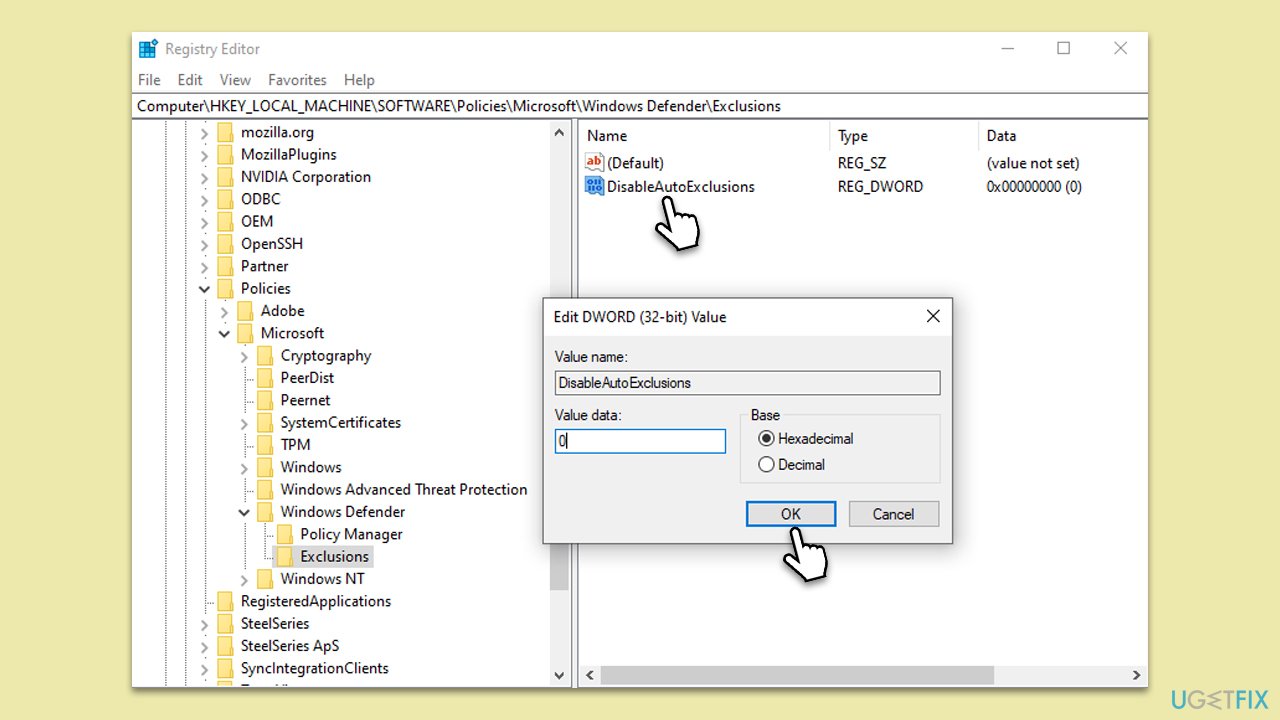
If the value related to exclusions in Windows Defender is not set correctly, it may result in exclusions not working. Confirm the following configuration settings (note that you should back up your registry before making any modifications to it):
- Type regedit in Windows search and hit Enter.
- When User Account Control asks whether you want to make changes, click Yes.
- In the new window, navigate to the following location:
Computer\HKEY_LOCAL_MACHINE\SOFTWARE\Policies\Microsoft\Windows Defender\Exclusions - On the right side of the window, double-click the DisableAutoExplosions entry.
- Make sure that the Value is set to 0.
Bottom line
To resolve the issue of Windows Defender exclusions not working, consider checking the exclusion paths, ensuring no conflicts with other antivirus programs, and using a PC repair tool to fix corrupted files and registries. If these steps do not resolve the issue, further investigation into system-level errors may be necessary.
Frequently asked questions
If your exclusions aren't functioning, it may be due to a corrupted configuration or updates that reset your settings. Try re-adding the exclusions or running the Windows Update troubleshooter.
Ensure that you have administrative privileges when setting exclusions, as lack of permissions can prevent them from being applied. Additionally, check for any conflicting security software that might override Windows Defender settings.
First, verify that the exclusions are correctly listed in the settings, then restart your PC to apply changes. If the issue persists, consider resetting Windows Defender settings to default.




Report an issue
What's wrong with this guide? We review every report and update or remove content.
Report received — thank you. We'll review and fix it.
You need a free account to submit a report.
Be the first to comment