How to fix
“Failed to Initialize SmartAudio.The Application will Now Exit“ error
on Windows
Resolve the “Failed to Initialize SmartAudio” error on Windows 10 and 11 effortlessly. Quick fixes and expert-tested solutions await you!


What causes How To Fix “Failed to Initialize SmartAudio.The Application will Now Exit“ error on Windows?
- Error associated with Conexant Audio Filter Agent
- Recent sound driver updates
- Installation of additional sound drivers
- Mismatched functioning drivers
- High CPU usage by cafedebug.exe
Repairs Windows system files, removes malware, and restores a clean OS state — without reinstalling.
The same error "Failed to initialize SmartAudio.The application will now exit“ pops up every time I launch the computer. And sometimes my sound disappears, do you know I can fix it?
“Failed to initialize SmartAudio.The application will now exit” error is associated with Conexant Audio Filter Agent, which is an integral part of Conexant High Definition Audio. It is preinstalled on the computers of certain brands. The error message might appear if users have updated their sound drivers recently or installed additional ones. Therefore, it may result in a certain mismatch between functioning drivers. Users may also notice that cafedebug.txt or cafedebug.exe file is running in Task Manager at startup. In case, the latter file encompasses a large amount of CPU memory resources, end its command in Task Manager. If you enter System Configuration settings, they grant you the option to choose what files to launch at startup. Note that these files are legitimate ones. In addition, make sure that your computer is clean from threats and malignant files. Check your system with [d1]. In order to solve SmartAudio initialization issue, try several methods.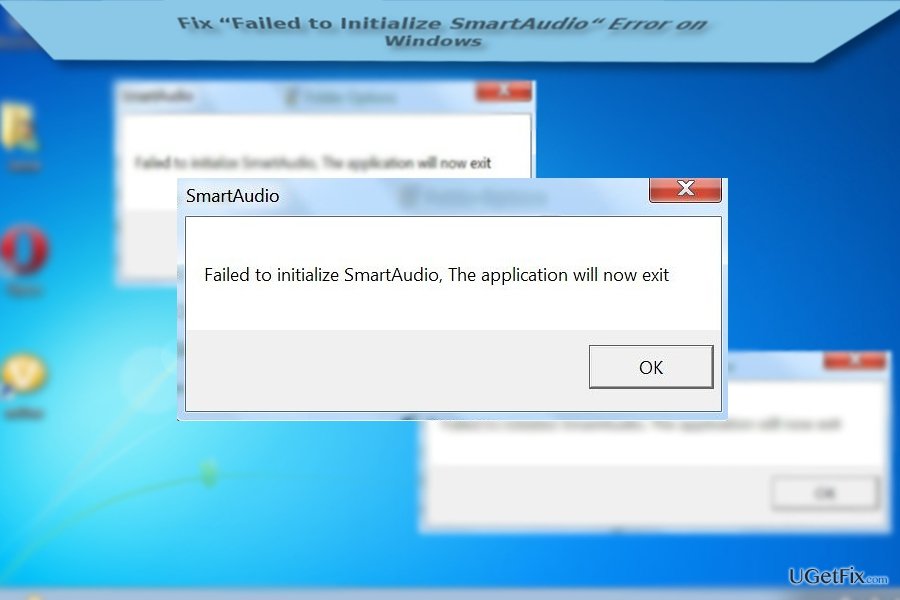
Option 1. Enable Conexant SmartAudio
Thanks to Andreas Socratous, who developed this method, some users might find this method effective.
- Click on Start button and type Device Manager. If you use Windows 7, type the entry in the search box.
- Enter Sound, video and game controllers.
- Once you see several options, right-click on each entry, except Conexant SmartAudio HD, and choose Disable.
- Reboot the system.
Option 2. Reinstall SmartAudio
You can uninstall this sound software the same way as all other system applications.
1. Enter the Control Panel or Apps and Features and locate Conexant SmartAudio.
2. Choose Remove or Uninstall option.
3. Install it from the official manufacturer web page.
Option 3. Make Conexant SmartAudio as default sound driver
- Right click on speakers icon in the toolbars and choose Playback devices.
- Depending on the type of sound device, click on the default sound device: speakers or headphones. You might also notice the name of default sound driver.
- Click Properties on it.
- Besides Conexant SmartAudio controller information, click on Properties again.
- Click Change settings.
- Choose Driver tab.
- Here you can choose either to disable, uninstall or enable it.
- Locate SmartAudio Controller application on the device and configure it to function as Multi-Stream rather than in classic mode.
Bottom line
To fix the 'Failed to initialize SmartAudio' error, you can enable Conexant SmartAudio, reinstall the software, or set it as the default sound driver. If these methods do not resolve the issue, consider checking for threats or malignant files on your system.
Frequently asked questions
This error typically occurs due to outdated or corrupted audio drivers, especially for Realtek audio devices. Ensuring your audio drivers are updated can often resolve this issue.
To fix the SmartAudio error in Windows 11, try reinstalling the SmartAudio application or updating your audio drivers through Device Manager. Restart your computer after making changes to ensure they take effect.
Yes, you can reset the audio settings by going to Control Panel > Sound, right-clicking on your audio device, and selecting 'Properties.' From there, navigate to the 'Advanced' tab and click 'Restore Defaults' to reset settings.




Report an issue
What's wrong with this guide? We review every report and update or remove content.
Report received — thank you. We'll review and fix it.
You need a free account to submit a report.
Be the first to comment