How to fix
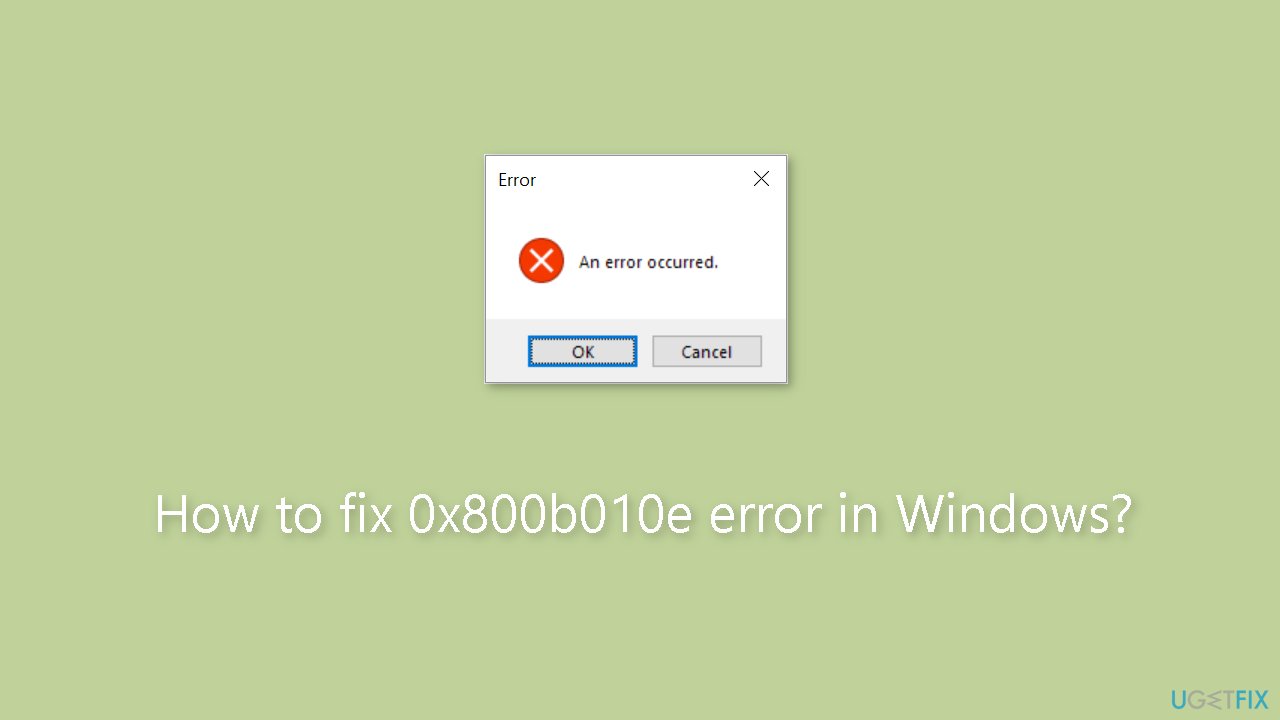
0x800b010e error
on Windows
Resolve the 0x800b010e error in Windows 10 and 11 effortlessly. Get expert-tested solutions that work fast, ensuring a smooth system experience. Fixed i…


What causes How to fix 0x800b010e error in Windows?
- Corrupt system files
- Registry issues
- Inability to install or update software
- Access issues to websites or online services
- Malfunctions in system components
- Increased vulnerability to security threats
Repairs Windows system files, removes malware, and restores a clean OS state — without reinstalling.
Hello. I keep getting the 0x800b010e error randomly on my Windows PC. Is there a way to get rid of it?
The 0x800b010e error is a common problem for Windows users. It can be caused by a variety of factors, but it is frequently associated with corrupt system files or registry[ref en-1] issues. This error can have a number of negative consequences for users and their systems.
For starters, users may encounter difficulties installing or updating specific software or applications. The error can prevent programs from being properly installed or updated, causing a disruption in workflow or the inability to access new features and security patches.
Second, the 0x800b010e error may prevent you from accessing certain websites or online services. It can disrupt connections to secure websites or cause authentication issues, making it difficult for users to browse the internet, access important online resources, or conduct online transactions.
This error can also cause malfunctions or instability in specific system components or features. Users may experience unexpected application or system utility crashes, freezes, or performance issues. These interruptions can reduce productivity and frustrate users who rely on computers for a variety of tasks.
Furthermore, the 0x800b010e error can make the system more vulnerable to security threats. Corrupt system files or registry issues can weaken the system's overall security posture, making it more vulnerable to malware, viruses, and other malicious attacks.
In this guide, you will find 5 steps that should help you fix x800b010e error in Windows. You can also try using a maintenance tool like [d1] that can fix most system errors, BSODs,[ref en-2] corrupted files, and registry issues. Otherwise, follow the step-by-step instructions below.
Method 1. Fix Corrupted System Files
Use Command Prompt commands to repair system file corruption:
- Open Command Prompt as administrator
- Use the following command and press Enter:
sfc /scannow
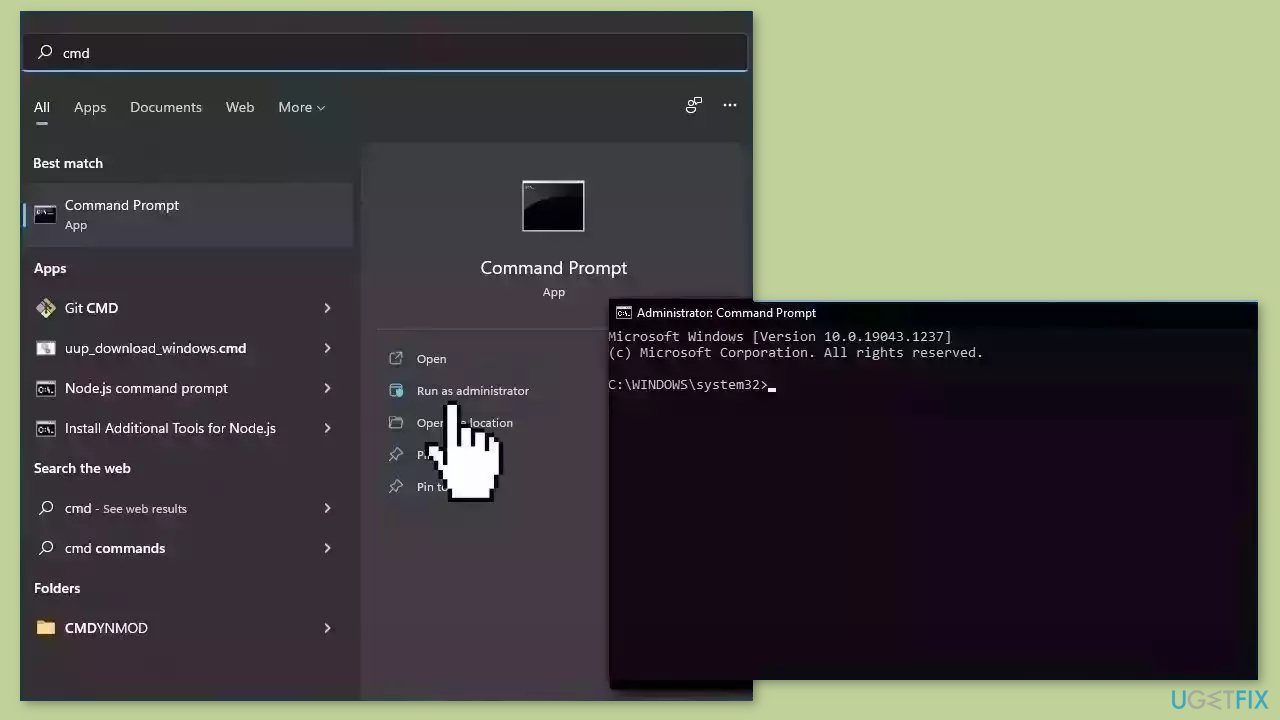
- Reboot your system
- If SFC returned an error, then use the following command lines, pressing Enter after each:
DISM /Online /Cleanup-Image /CheckHealth
DISM /Online /Cleanup-Image /ScanHealth
DISM /Online /Cleanup-Image /RestoreHealth
Method 2. Check Disk
Ensure that your disk is not damaged. You can perform checks using Administrative Command Prompt:
- If you are using an HDD as your main driver (where your operating system is installed – C: by default), use the following command and press Enter:
chkdsk c: /f - If you are using SSD, use this command:
chkdsk c: /f /r /x

- If you receive an error, type in Y and hit Enter.
- Restart your device to perform the check.
Method 3. Turn off Firewall
- Press the Windows key + I to open the Settings app.
- Click on Privacy and Security and select Windows Security.
- In the Windows Security app, click on Firewall & Network Protection.
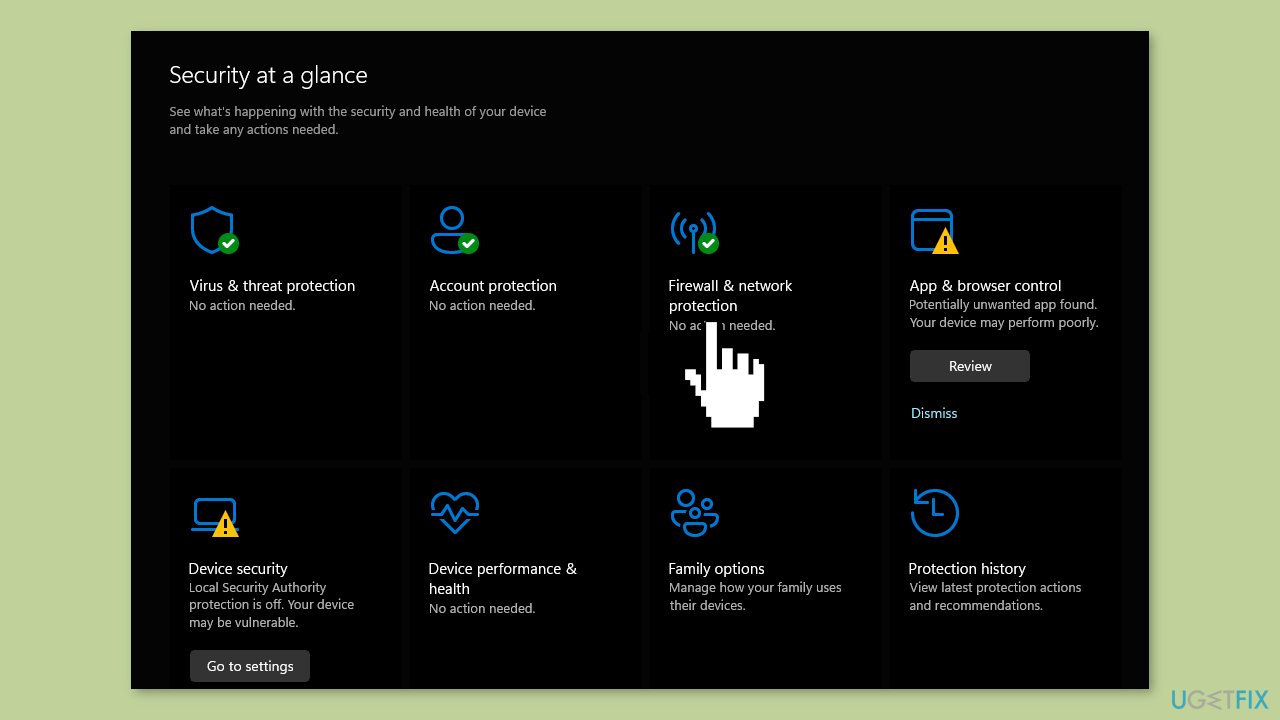
- Select one of the following network profiles - Domain, Private, or Public.
- Under Microsoft Defender Firewall, click the toggle button to turn it on or off.
Method 4. Try Clean Boot
- Open the Search menu, type in system configuration, and press Enter.
- Under the Services tab, tick the Hide all Microsoft services box.
- Click on Disable all button.
- Head over to the Startup tab and click on Open Task Manager.
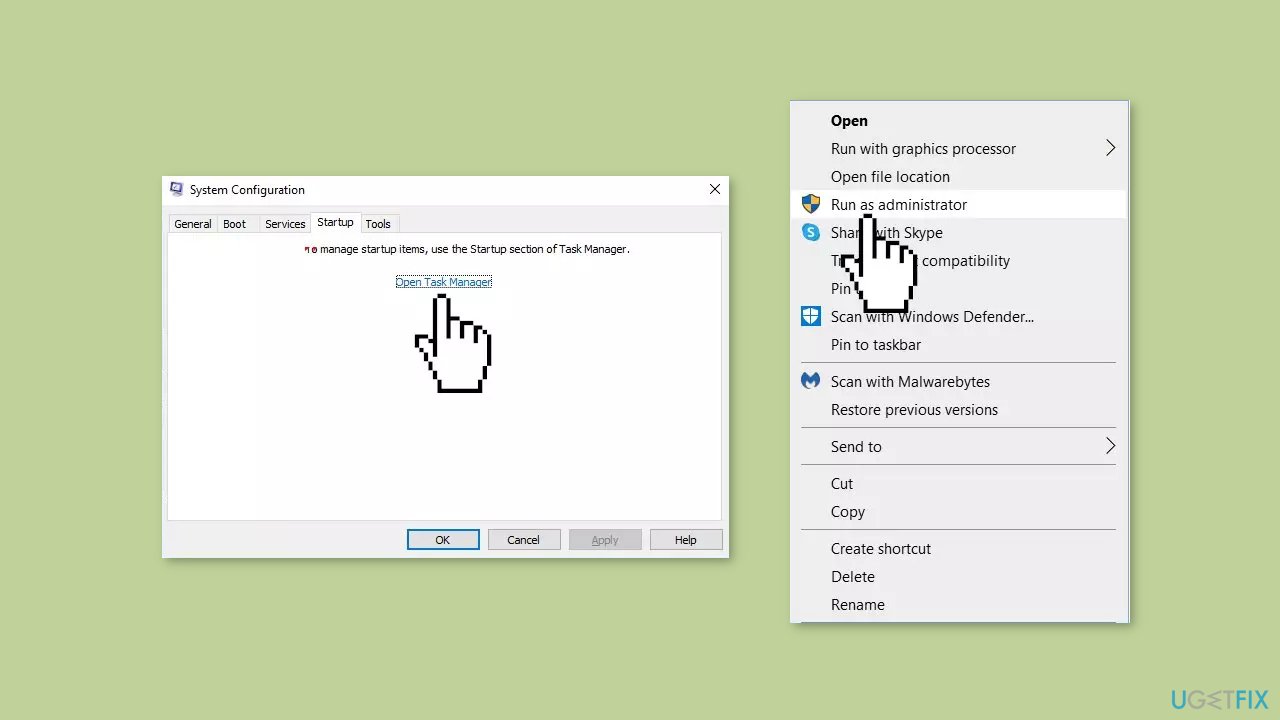
- Select a third-party program and click on Disable at the top.
- Repeat this step to disable all third-party apps and programs.
- Restart your PC to enter the clean boot state and see if the issue persists.
- If the issue disappeared in the clean boot state, then you can be certain that a third-party app is causing it.
- Go through all recently installed apps or programs and remove them one by one.
Method 5. Use System Restore
System Restore is a feature in Microsoft Windows that allows users to revert their computer's state to a previous point in time. This can be helpful if you have made changes to your system that are causing problems.
- Press the Windows key + R on your keyboard to open the Run box.
- Type SystemPropertiesProtection and press Enter.
- Go to the System Protection tab.
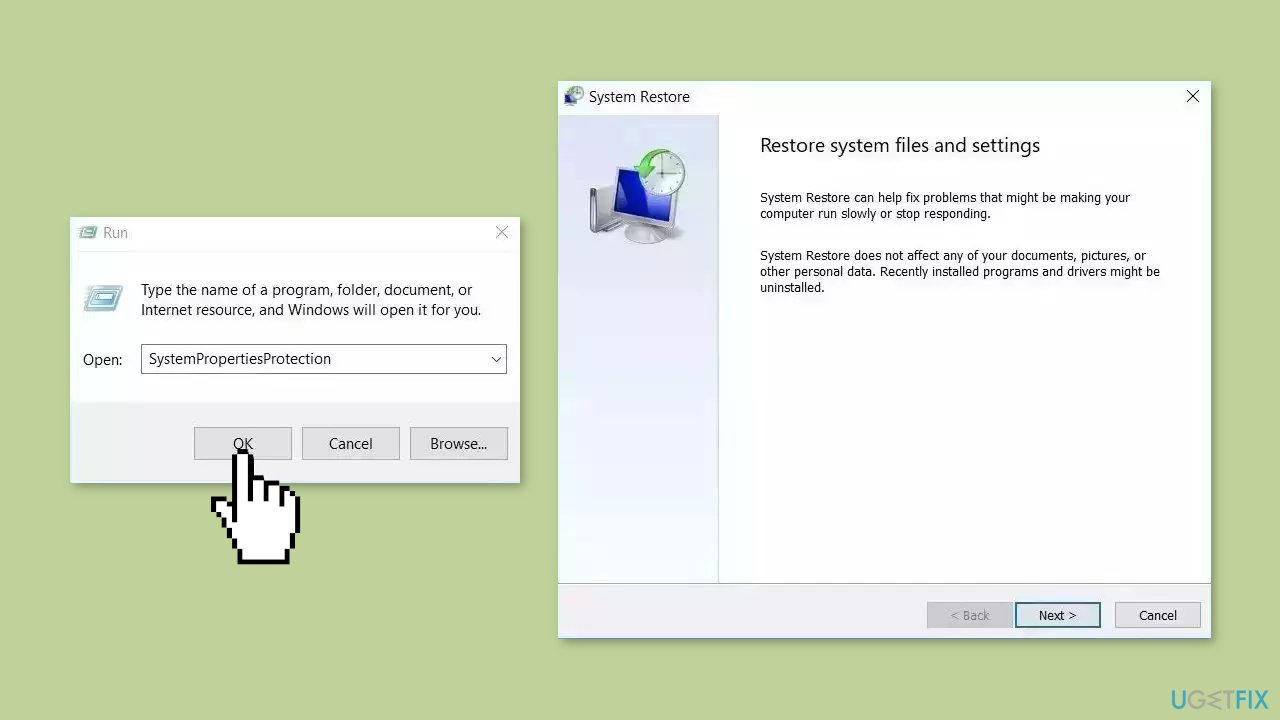
- You will see the System Restore… button. Click it to run System Restore.
- Follow the prompts until you can select a restore point.
- Select the one you want (ideally before the issue started occurring) and go ahead with the process.
Bottom line
To fix the 0x800b010e error, you can repair corrupted system files using Command Prompt commands, check your disk for errors, and consider using a maintenance tool. If these methods do not resolve the issue, further troubleshooting may be necessary.
Frequently asked questions
The 0x800b010e error typically indicates that there is a problem with the Windows Update files or the system's digital signature verification. This can prevent updates from being installed correctly.
To fix the 0x800b010e error in Windows 11, you can try running the System File Checker tool or the DISM command to repair any corrupted files. Additionally, ensuring that your system is fully updated can help resolve the issue.
To prevent the 0x800b010e error in Windows, regularly check for and install updates, and maintain your system with tools like Disk Cleanup and System File Checker. Keeping your drivers and software up to date can also reduce the risk of encountering this error.




Report an issue
What's wrong with this guide? We review every report and update or remove content.
Report received — thank you. We'll review and fix it.
You need a free account to submit a report.
Be the first to comment