How to fix
Roblox not opening
on Windows
Resolve Roblox not opening on Windows 10 or 11 effortlessly with our expert-tested solutions. Get back to gaming in minutes!

What causes How to fix Roblox not opening in Windows?
- Minor software incompatibilities
- Outdated system drivers
- Temporary files interfering with Roblox
- Corrupted system files
- Errors in the Windows registry
- Network inconsistencies
Repairs Windows system files, removes malware, and restores a clean OS state — without reinstalling.
Whenever I try to open Roblox via the Xbox app or Microsoft Store, it simply doesn't work. I see a transparent window for a few seconds, and then all of it vanishes. How do I fix this?
Roblox is a wildly popular online gaming platform and game creation system that allows players to program and play games created by other users. As of 2023, the platform had over 210 million active users and continues to grow, pushing the boundaries of user-generated play and imagination.
From social interactions in different virtual worlds to developing and coding unique gaming experiences, Roblox thrives on the creativity of its community. However, like any software with such widespread use, it is not without its technical glitches, and users occasionally encounter issues.
One prevalent problem that some users have reported is the inability to open Roblox on their Windows operating system. They frequently encounter this issue when attempting to launch the game via the Microsoft Store or Xbox app, resulting in frustration and impediments to their gaming experiences.
The root cause of this problem could range from minor software incompatibilities, outdated system drivers, and temporary files interfering with Roblox to more significant issues, such as corrupted system files or errors in the Windows registry. Network inconsistencies might also play a role, making the problem multifaceted and not always straightforward to resolve.
While it is feasible for users to delve into each of these potential issues individually, manually rectifying these issues can be a daunting and time-consuming task, especially for those who are not technically adept. Moreover, each potential problem requires a different solution which further complicates the troubleshooting process.
Given the broad spectrum of possible problems, it is recommended to employ a system repair tool like [d1] to automatically handle such issues. This tool is particularly efficient as it can not only repair corrupted files but also fix DLL errors, resolve registry issues, and address the notorious Blue Screen of Death (BSOD).
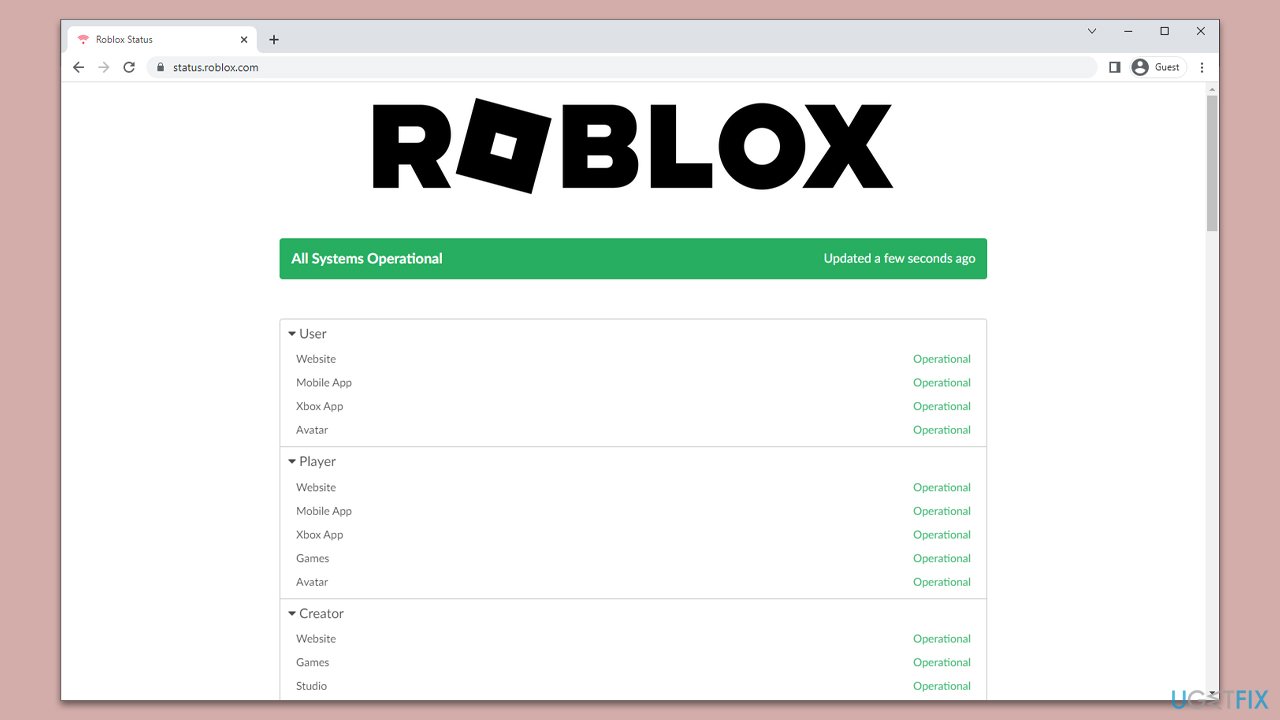
Fix 1. Check for server status
Sometimes, the problem isn't on your side but rather with Roblox's servers. When the servers are down, you might face issues launching the game.
- Visit any online server status-checking website or Roblox's official social media channels.
- Look for any updates or announcements regarding server downtime.
Fix 2. Delete Temporary Internet files and cookies
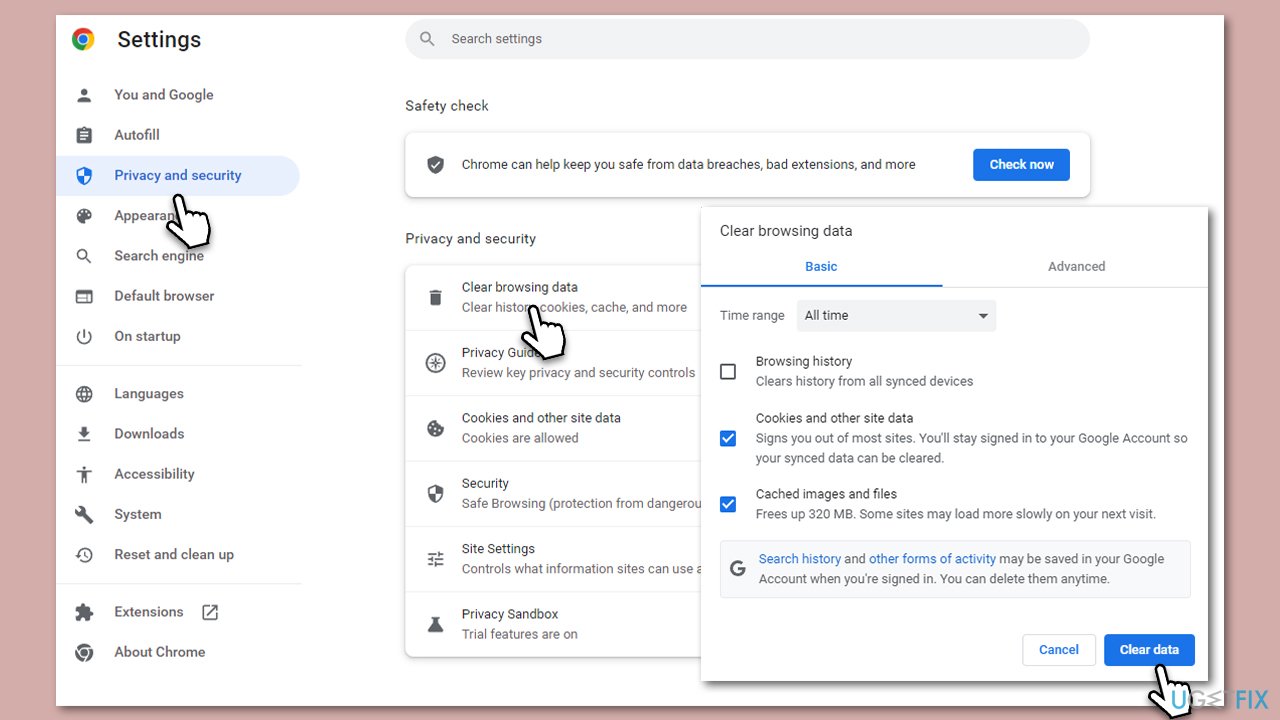
Similar to local temporary files, internet temporary files, and cookies can interfere with the operation of certain applications like Roblox.
- Open any web browser you have used to play Roblox.
- Find the browser's settings or options, usually represented with a gear icon.
- Look for a section called Privacy & Security.
- Select the options to clear browsing data, ensuring that cookies and cache files are selected.
- Follow the prompts to complete the process.
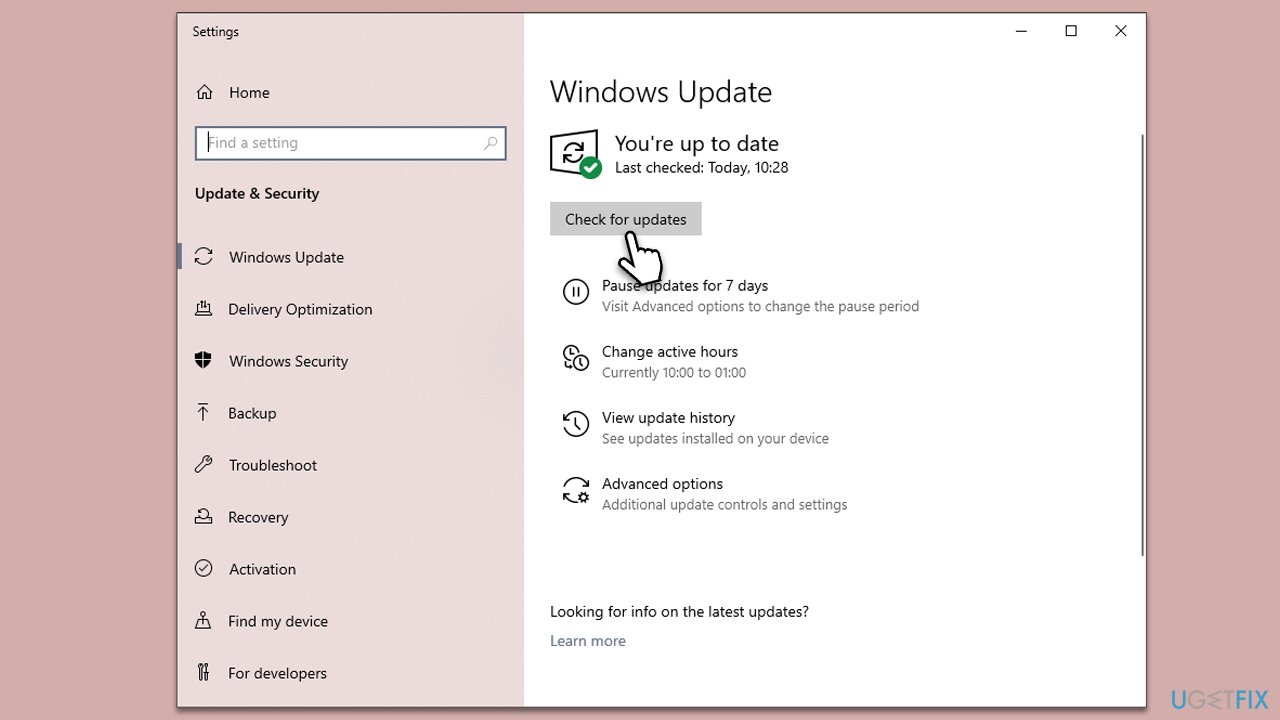
Fix 3. Install all available Windows updates
Making sure your Windows operating system is up-to-date can help prevent compatibility issues with applications like Roblox.
- Type Updates in Windows search and hit Enter.
- In the new window, click Check for updates and wait.
- If optional updates are available, install them as well.
- When everything is installed, don't forget to restart your system to implement the changes.
Fix 4. Update drivers
Keeping your system drivers updated, particularly your graphics drivers, can help maintain optimal game performance.
- Open Device Manager by searching it in the start menu.
- Expand the Display adapters category.
- Right-click on your graphics driver and select Update driver.
- Follow the prompts to complete the update.
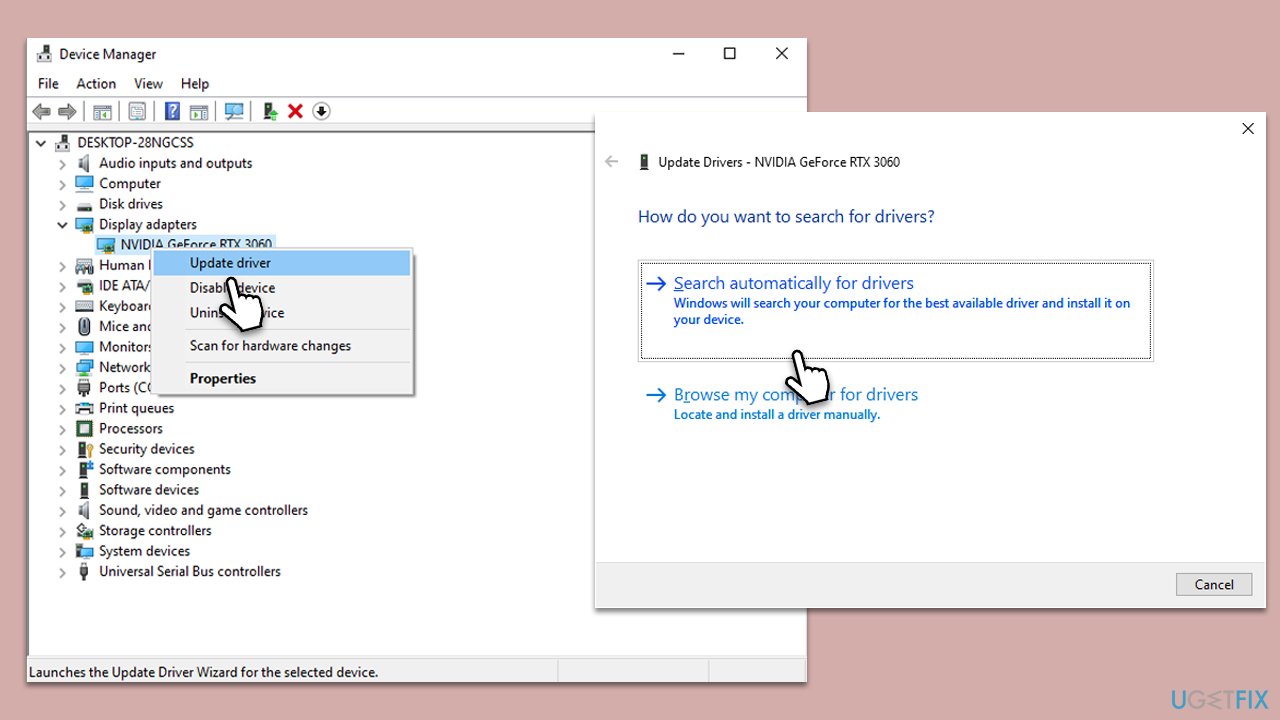
Note that Windows might not find the latest driver for your graphics card automatically. That's why we recommend downloading the latest driver from the manufacturer's website or employing an automatic updater such as [rev id="DriverFix"].
Fix 5. Delete Roblox AppData folder
Deleting Roblox's AppData folder can help remove any corrupted or problematic files that could be causing the game to not launch.
- Press Windows key + R to open the Run dialog.
- Type %appdata% and press Enter.
- Go back one step and enter the following location:
C:\users\USERNAME\appdata\local\ - Find the Roblox folder and delete it (press Shift + Del).
Fix 6. Reset your Internet Options
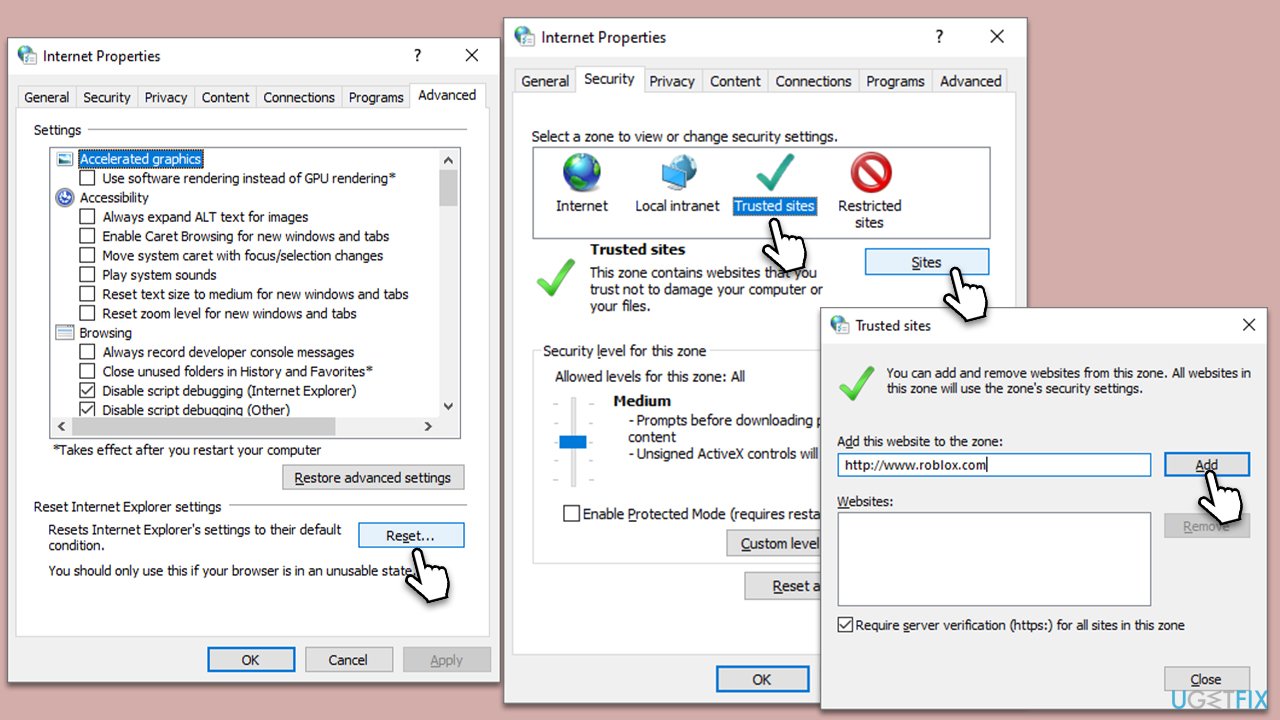
Roblox utilizes Internet Explorer's settings for its web features. If these are misconfigured, it might cause Roblox to fail to launch.
- Type Internet Options in Windows search and press Enter.
- Go to the Advanced tab at the top.
- Click the Reset button at the bottom.
- Next, navigate to the Security tab.
- Select the Trusted sites option and click Sites.
- Enter https://www.roblox.com/ into the field and, click Add, then close down the window.
- Restart your computer and try launching Roblox again.
Fix 7. Reinstall Roblox
- Right-click on Start and pick Apps and Features.
- Scroll down to find Roblox from the list.
- Click Uninstall and then confirm with Uninstall.
- Follow the prompts to remove the app.
- Next, press Win + E on your keyboard to open File Explorer.
- Navigate to the following location (make sure Hidden files are visible):
C:\Users\USERNAME\AppData\Local - Access the Roblox folder, press Ctrl + A to mark everything, and then Shift + Del to delete it all.
- Restart your computer.
- Launch Microsoft Store and install the game again.
Bottom line
To fix Roblox not opening on Windows, users can check for server status, employ a system repair tool to handle corrupted files, and ensure their system drivers are up to date. If these solutions do not resolve the issue, further troubleshooting may be necessary.
Frequently asked questions
Try running Roblox as an administrator by right-clicking the shortcut and selecting 'Run as administrator.' If that doesn't work, check for any Windows updates that might be pending.
Ensure that your graphics drivers are up to date, as outdated drivers can prevent Roblox from launching. Additionally, check your firewall settings to ensure that Roblox is not being blocked.
Yes, make sure that your Windows security settings or antivirus software are not interfering with Roblox. You may need to add Roblox to the list of allowed applications in Windows Security.




Report an issue
What's wrong with this guide? We review every report and update or remove content.
Report received — thank you. We'll review and fix it.
You need a free account to submit a report.
Be the first to comment