How to fix
Windows Update Error Code 0x80246017
on Windows
Resolve Windows Update error code 0x80246017 quickly and effortlessly. Get expert-tested solutions that ensure smooth Windows 10 and Windows 11 updates.


What causes How to Fix Windows Update Error Code 0x80246017?
- Windows 10 build 9926 leftovers in the Windows Registry
- Interference from old Windows installation files
- Problems with the Windows Update service
- Inaccurate modifications on Windows Registry
- Failed installation of the KB4020102 update
Repairs Windows system files, removes malware, and restores a clean OS state — without reinstalling.
Windows Update fails with the error code 0x80246017. How should I work around it, so that all pending updates could be successfully installed?
Microsoft releases updates for Windows 10 OS regularly. However, Windows Update is a problematic service, which often brings system errors. Recently, Microsoft released the KB4020102 update and people who opt for keeping their PCs fully optimized attempted to install it manually. However, the process ends up with an Error Code 0x80246017. A deeper investigation of the bug revealed that the above-mentioned update is also not installed for many Windows 10 users automatically. If the PC owner checks the Windows Update history, he/she finds the KB4020102 update downloaded, but did not install successfully.
The same issue may not necessarily happen with the latest Windows 10 update, which is KB4020102. According to Windows 10 Fast Ring users, the 0x80246017 error happens with the other updates as well. The installation of the update or the next build starts, but the freezes at some point and, ultimately, fails with an error message, which says:
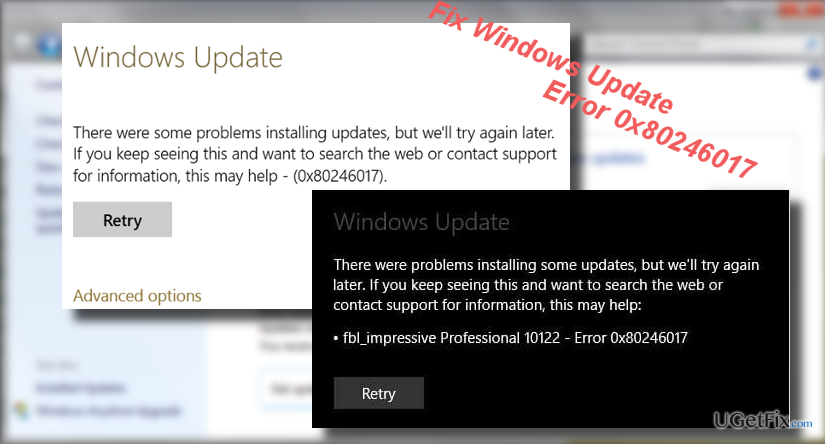
There were some problems installing updates, but we’ll try again later. If you keep seeing this and want to search the web or contact support for information, this may help – (0x80246017).
According to Microsoft, the causes of the 0x80246017 error are related to theWindows 10 build 9926, which has been released in January 2015. Although a long time passed after the roll out of this build, it has been found that its leftovers in the Windows Registry may be interfering the installation of the current updates. Therefore, to fix the 0x80246017 error, you should remove some old Windows installation files.
IMPORTANT: Any inaccurate modifications on Windows Registry may cause system’s malfunctions or even crash. Therefore, the creation of Windows Registry backup is crucial. For this purpose, perform these simple steps:
- Press "Windows key + R," type "regedit," and press "Enter."
- Click "Yes" on the UAC window.
- Click on the Registry Keys that you want to backup, select "File" and "Export."
- When the Export Registry File dialog box opens, select the location to which the backup should be saved.
- Type the name for the backup and press "Save."
Step 1. Delete previous Windows installation files
- Right-click on "Windows key" and select "Comand Prompt (Admin)."
- Type rundll32.exe pnpclean.dll,RunDLL_PnpClean /DRIVERS /MAXCLEAN command and press "Enter."
- Close Command Prompt and then open Search.
- Type disk cleanup and open the Disk Cleanup tool.
- Remove "Temporary files" and "Previous Windows Installations."
- Finally, reboot the system.
Step 2. Reset several registry keys
- Press "Windows key + R," type "regedit," and click "Enter."
- Navigate to the HKEY_LOCAL_MACHINE\SOFTWARE\Microsoft\WindowsSelfHost\Applicability patch.
- Locate the BranchName key on it and check if it shows the FBL_AWESOME1501 value. If it doesn’t show it, change it.
- After that, find the TresholdRiskLevel key and change its value to low.
- Locate the TresholdInternal and TresholdOptedIn keys. Remove them both.
- Close Registry Editor and reboot your PC.
PRO TIP: to ensure full Windows optimization, we would recommend scanning the system with [d1] after all.
Bottom line
To fix the 0x80246017 error, you should remove old Windows installation files and create a backup of the Windows Registry. If these steps do not resolve the issue, consider searching the web for more solutions or contacting support.
Frequently asked questions
This error typically occurs due to issues with the Windows Update service or problems with the Background Intelligent Transfer Service (BITS). It can also be triggered by corrupted system files.
You can fix this error by running the Windows Update Troubleshooter and resetting the Windows Update components. Additionally, ensure that the BITS service is running properly.
Yes, you can manually reset the Windows Update components by stopping services, deleting temporary files, and then restarting the services. This process can often clear up persistent update errors.




Report an issue
What's wrong with this guide? We review every report and update or remove content.
Report received — thank you. We'll review and fix it.
You need a free account to submit a report.
Be the first to comment