How to fix
Windows update error 0x8007041D
on Windows
Fix the Windows update error 0x8007041D effortlessly with expert-tested solutions. Get your system running smoothly again, updated 2025!

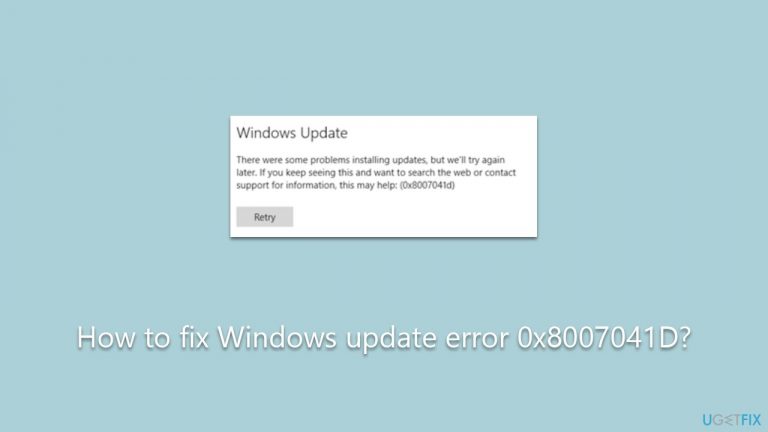
What causes How to fix Windows update error 0x8007041D?
- Temporary glitches in the system
- Corrupted system files
- Malfunctions in Windows update components
- Incorrect configuration of system services
Repairs Windows system files, removes malware, and restores a clean OS state — without reinstalling.
I'm trying to update Windows 10 to the latest version, but I just can't get rid of the 0x8007041D error. It shows up every time I try, and it's been over a week it's been going on. Please advise.
Windows updates are an integral part of maintaining the security, performance, and functionality of your Microsoft operating system. However, there are instances when users may encounter errors during the update process, a common one being the 0x8007041D error. This error can disrupt the smooth execution of system updates, leaving the user with a partially updated or even potentially vulnerable system.
These errors might show up due to various reasons ranging from temporary glitches in the system to more serious problems like corrupted system files or malfunctions in Windows update components. Issues might also arise due to incorrect configuration of certain system services that are essential for the update process.
To fix the 0x8007041D error, several solutions can be explored. First, the Windows Update Troubleshooter, a built-in tool designed to automatically diagnose and resolve problems related to Windows Updates, can be run. Second, certain system services that are vital for Windows Updates, like the Windows Update service or the Background Intelligent Transfer Service (BITS), may need to be restarted, as they may have encountered issues during their operation.
Sometimes, corrupted system files can also cause the 0x8007041D error. In this case, the System File Checker or the Deployment Image Servicing and Management tool can be employed to scan and repair these files. Alternatively, resetting the Windows Update components manually can also be beneficial as it reinstalls the update service and resolves any possible issues.
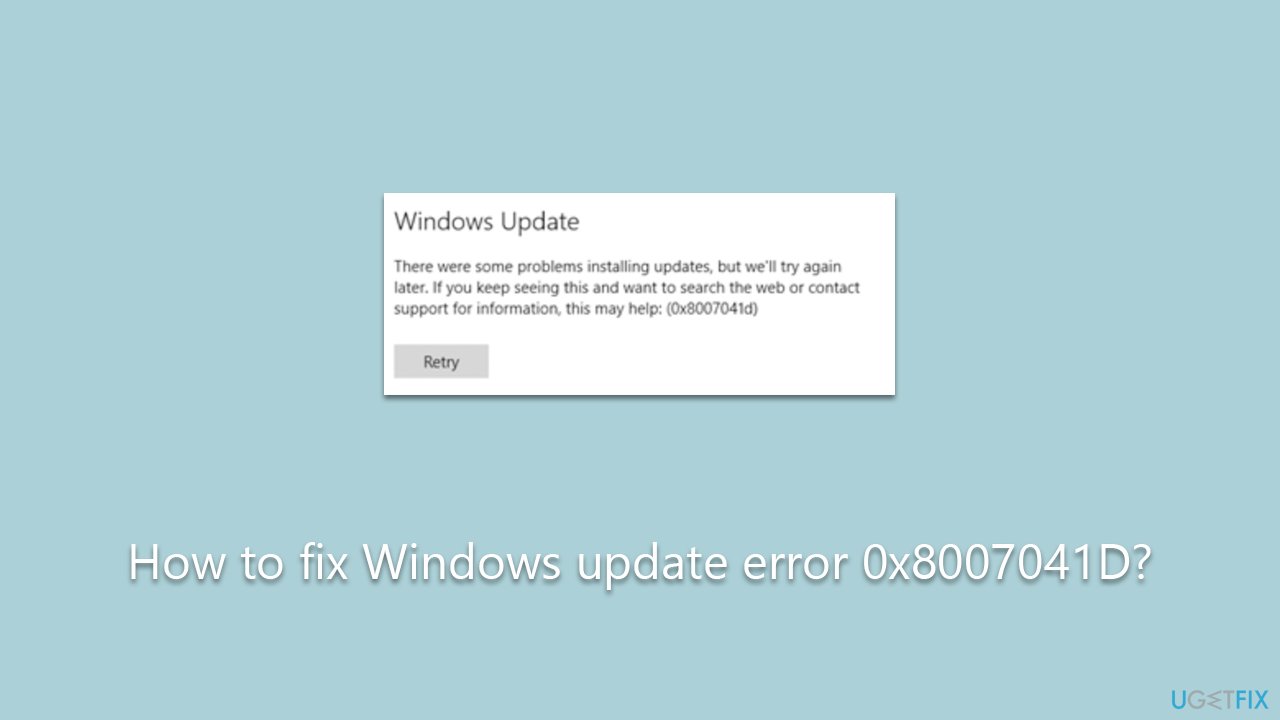
To help you navigate through these methods, detailed step-by-step instructions will be provided below. They will guide you through the process of each method, making it easier for you to resolve the 0x8007041D error.
However, if these methods seem complex, or you would like a more streamlined solution, consider using a PC repair tool like [d1]. This app can automatically address several of the solutions provided below, such as repairing damaged system files, thereby simplifying the repair process.
General checks to make
- Restart your PC. This may sound simplistic, but many minor glitches can be resolved just by a simple system reboot. Restarting your computer can clear out any temporary software conflicts that might be causing the update error.
- Ensure enough disk space. Windows updates often require significant disk space. If your hard drive is nearly full, it can hinder the update process. Check to make sure you have sufficient disk space for the update. You may need to clear some space by deleting unnecessary files or programs.
- Check the system's date and time. Incorrect system date and time settings can sometimes cause issues with Windows Update. Ensure your system's date and time settings are correct.
- Disable third-party security software temporarily. Sometimes, antivirus software or firewall settings may interfere with the update process. Try disabling these (ensure your computer is not at risk when you do this) and see if the update goes through. Remember to enable them again as soon as you're done.
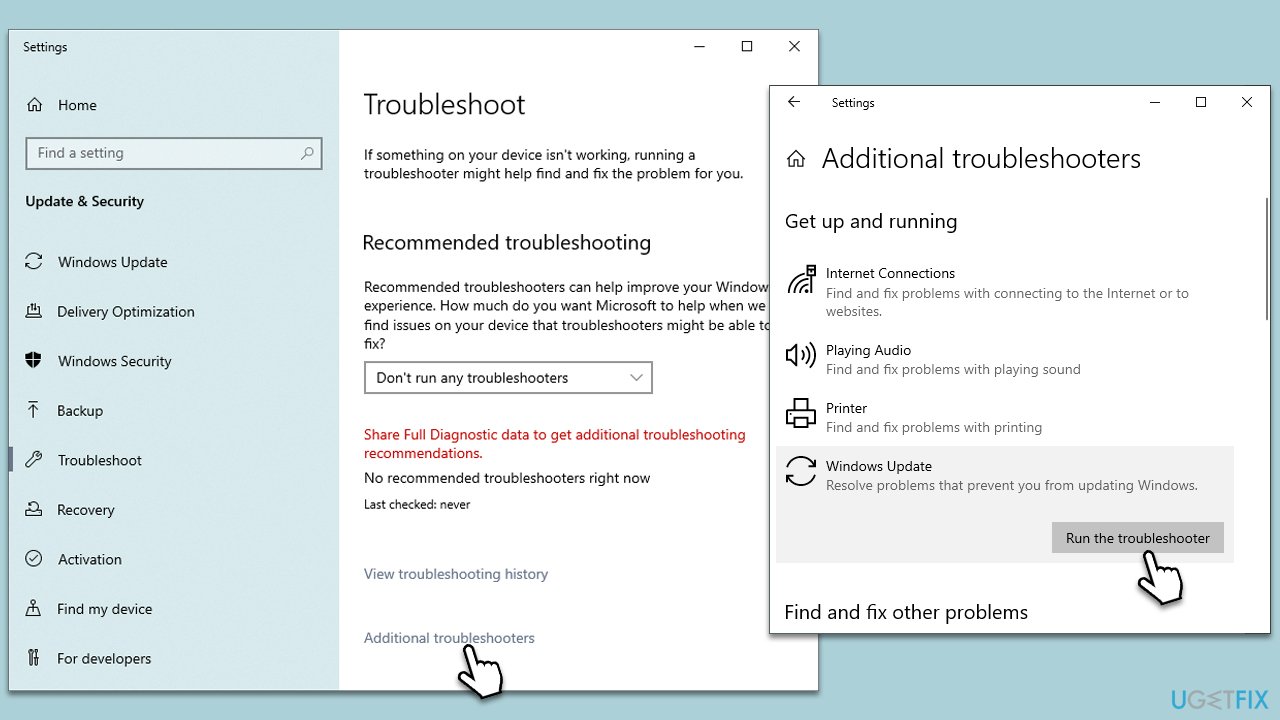
1. Run the troubleshooter
This integral feature of Windows automatically identifies and resolves prevalent problems related to Windows Update. It scrutinizes the system, promptly rectifying any discovered discrepancies or obstacles that may be obstructing the update procedure.
- Type in Troubleshoot in Windows search and hit Enter.
- Go to Additional Troubleshooters/Other troubleshooters.
- Select Windows update and click Run the troubleshooter/Run.
- Wait till the scan is finished, and then apply the recommendations.
- Restart your device.
2. Check relevant services
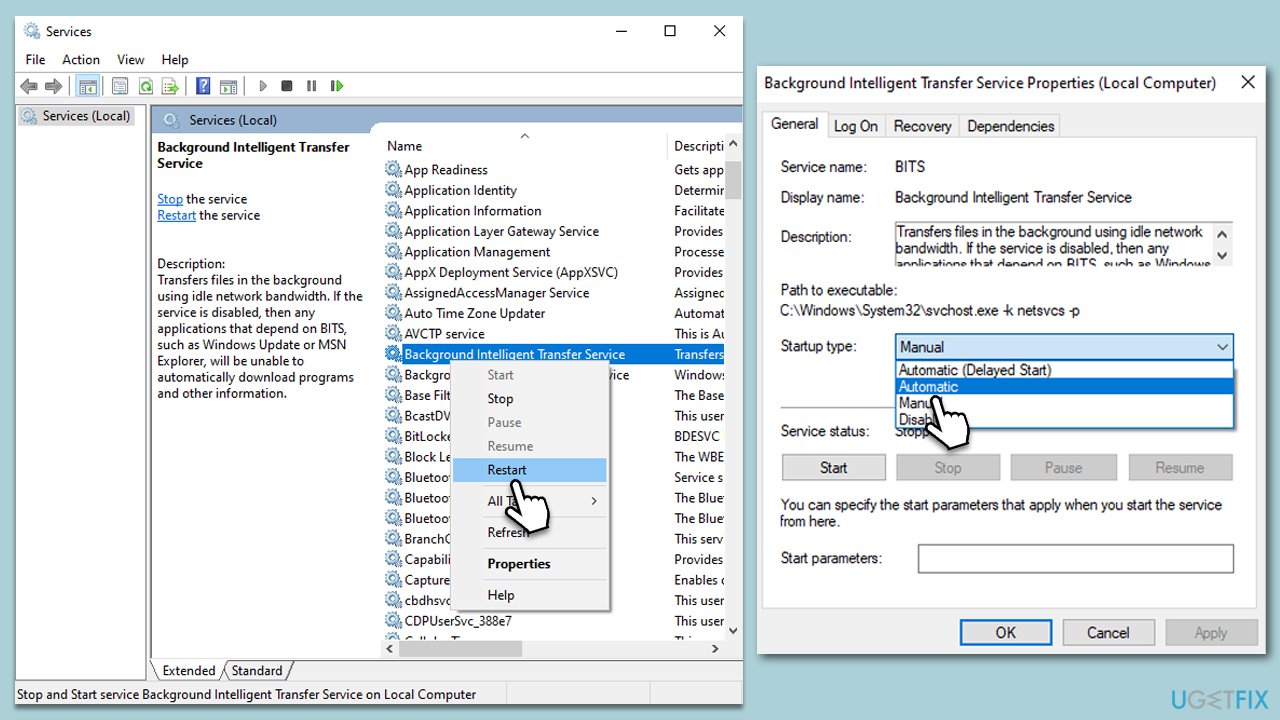
You can restart Windows update-related services when facing a 0x8007041D error. Alternatively, you should set the startup type to automatic:
- Type in Services in Windows search and press Enter.
- Locate Background Intelligent Transfer Service (BITS).
- If it is already running, right-click and select Restart.
- If the service is not running, double-click it, select Automatic under the Startup type from the drop-down menu.
- Click Start, Apply, and OK.
- Repeat this process with Windows Update, Cryptographic, and Workstation Services.
3. Reset Windows update components
- Type cmd into Windows search.
- Right-click on Command Prompt and select Run as administrator.
- When User Account Control (UAC) window shows up, click Yes.
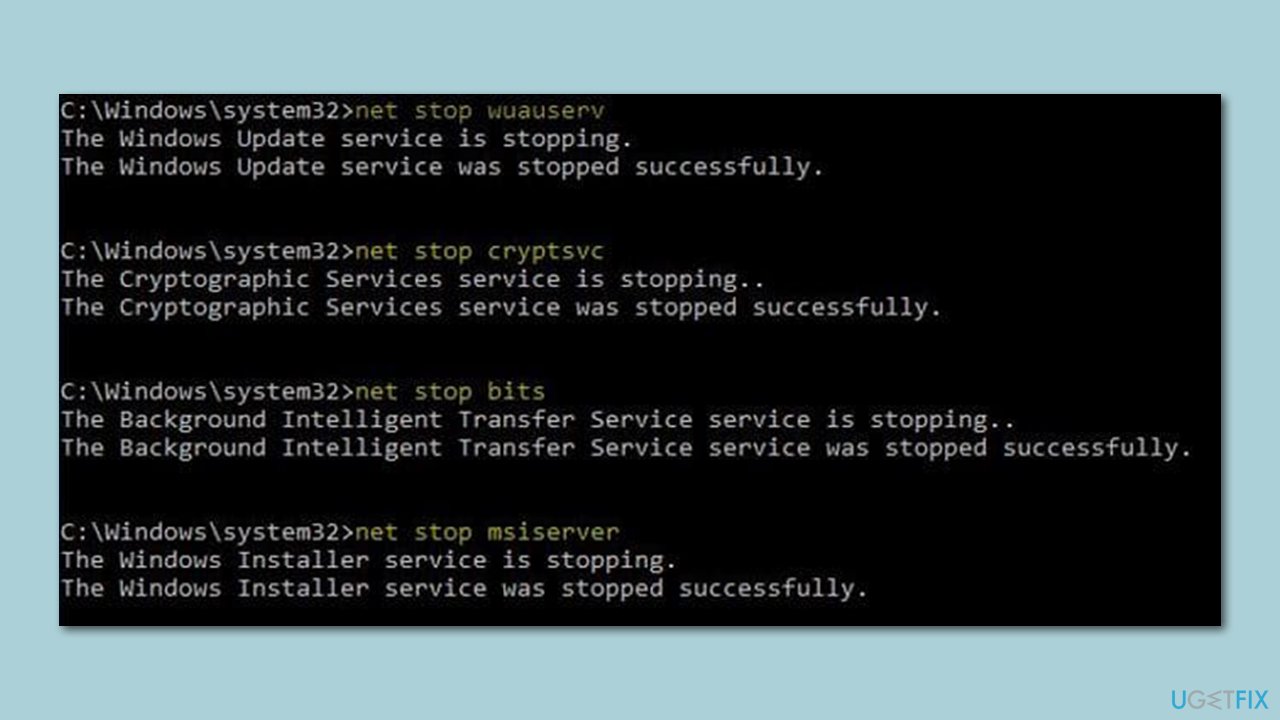
- Paste in each of these commands, pressing Enter every time:
net stop bits
net stop wuauserv
net stop appidsvc
net stop cryptsvc
Del “%ALLUSERSPROFILE%\Application Data\Microsoft\Network\Downloader\*.*”
rmdir %systemroot%\SoftwareDistribution /S /Q
rmdir %systemroot%\system32\catroot2 /S /Q
regsvr32.exe /s atl.dll
regsvr32.exe /s urlmon.dll
regsvr32.exe /s mshtml.dll
netsh winsock reset
netsh winsock reset proxy
net start bits
net start wuauserv
net start appidsvc
net start cryptsvc - Restart your device.
4. Run SFC and DISM
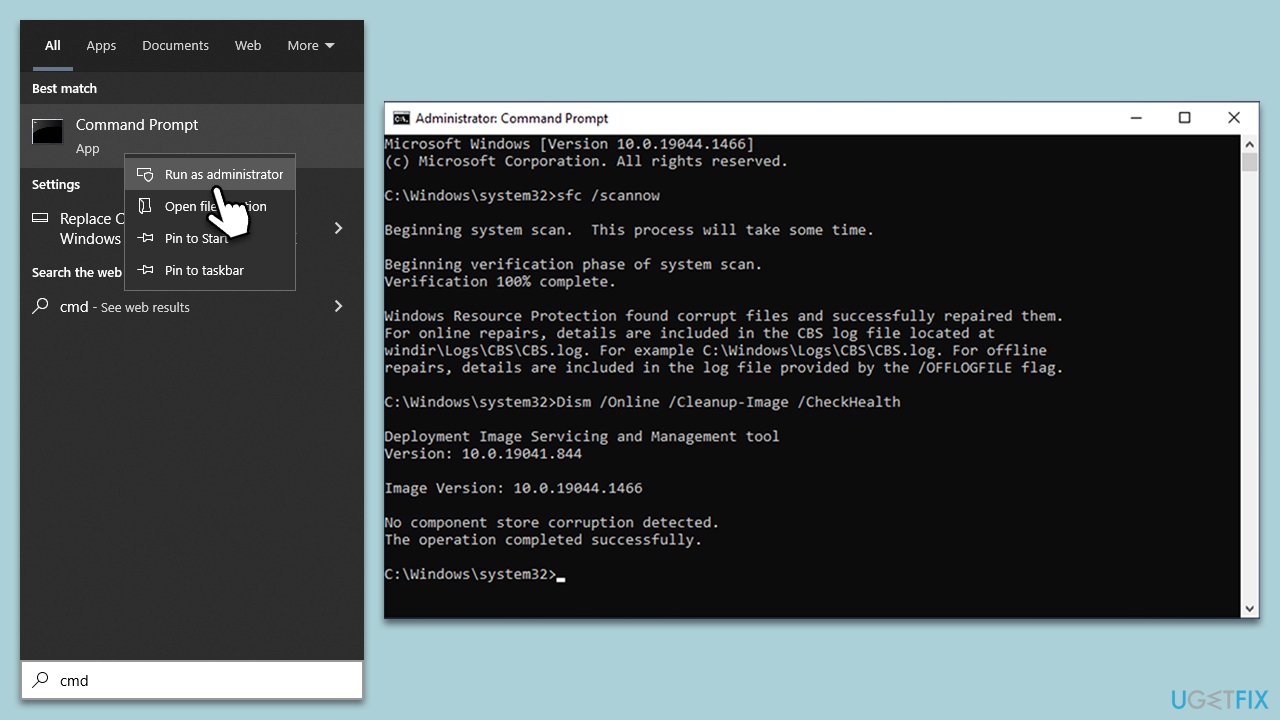
To repair corrupted system files, you should run commands via the elevated Command Prompt:
- Open Command Prompt as administrator.
- Type in the following command and press Enter:
sfc /scannow - When done, run the following commands as well:
dism /online /cleanup-image /scanhealth
dism /online /cleanup-image /checkhealth
dism /online /cleanup-image /restorehealth
(Note: if you get an error executing this last command, add /Source:C:\RepairSource\Windows /LimitAccess to it and try again). - Restart your device.
5. Try Clean Boot
A clean boot is a troubleshooting technique that allows you to start Windows with a minimal set of drivers and startup programs. This helps eliminate software conflicts that occur when you install a program or an update or when you run a program in Windows. Try updating when in this state:
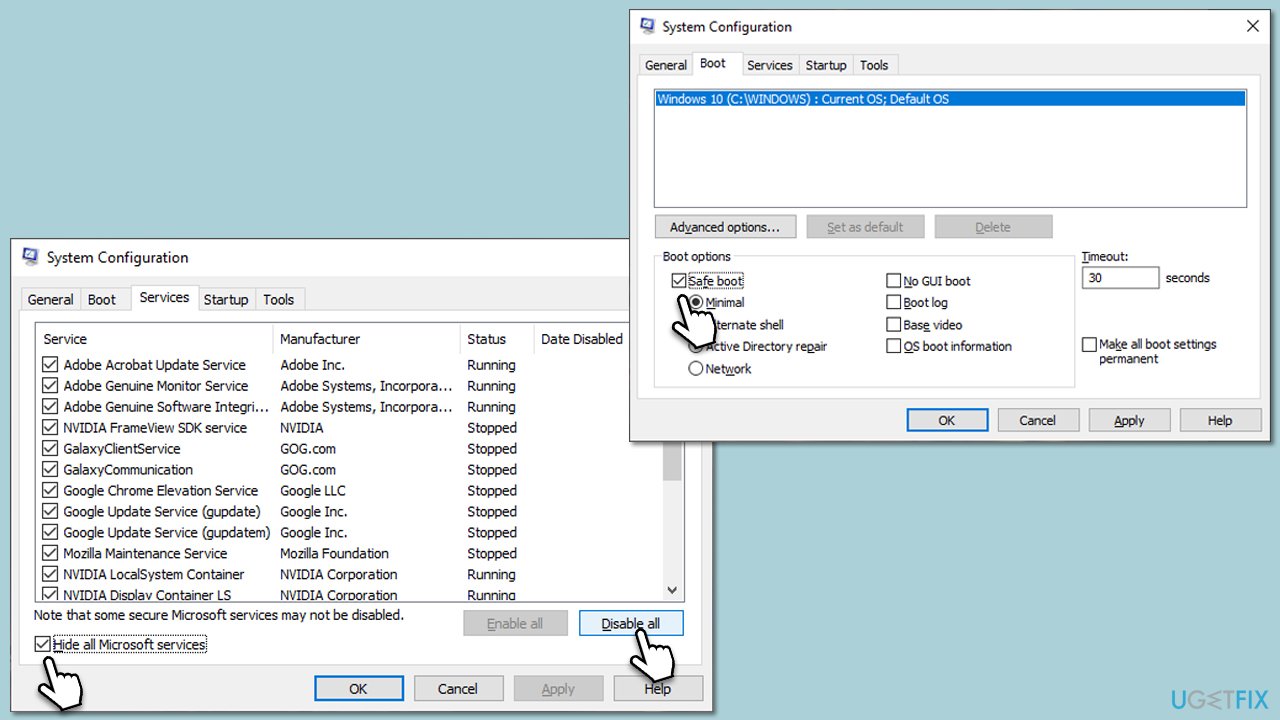
- Press Win + R, type msconfig, then press Enter.
- Select the Services tab and tick the Hide all Microsoft services checkbox.
- Pick Disable all.
- Go to the Startup tab and click Open Task Manager.
- Here, right-click on each of the non-Windows entries and select Disable.
- Close down the Task Manager.
- Go to the Boot tab and tick the Safe boot option
- Reboot your system.
6. Use Media Creation Tool
Media Creation Tool is a utility provided by Microsoft to create installation media (like a USB flash drive or DVD) for a fresh installation of Windows or for upgrading your current system. This tool can also be instrumental in fixing update errors such as the 0x8007041D.
During the upgrade process, the tool will download and install the most recent version of Windows, essentially performing a "repair upgrade." This will fix any potential issues with the update components, including replacing corrupted system files, resolving service issues, and repairing the overall update mechanism. Before proceeding, make sure you uninstall third-party anti-malware.
- Visit the official Microsoft website and download Windows 10 installation media (Windows 11 version).
- Double-click the installer and select Yes when UAC shows up.
- Agree to terms.
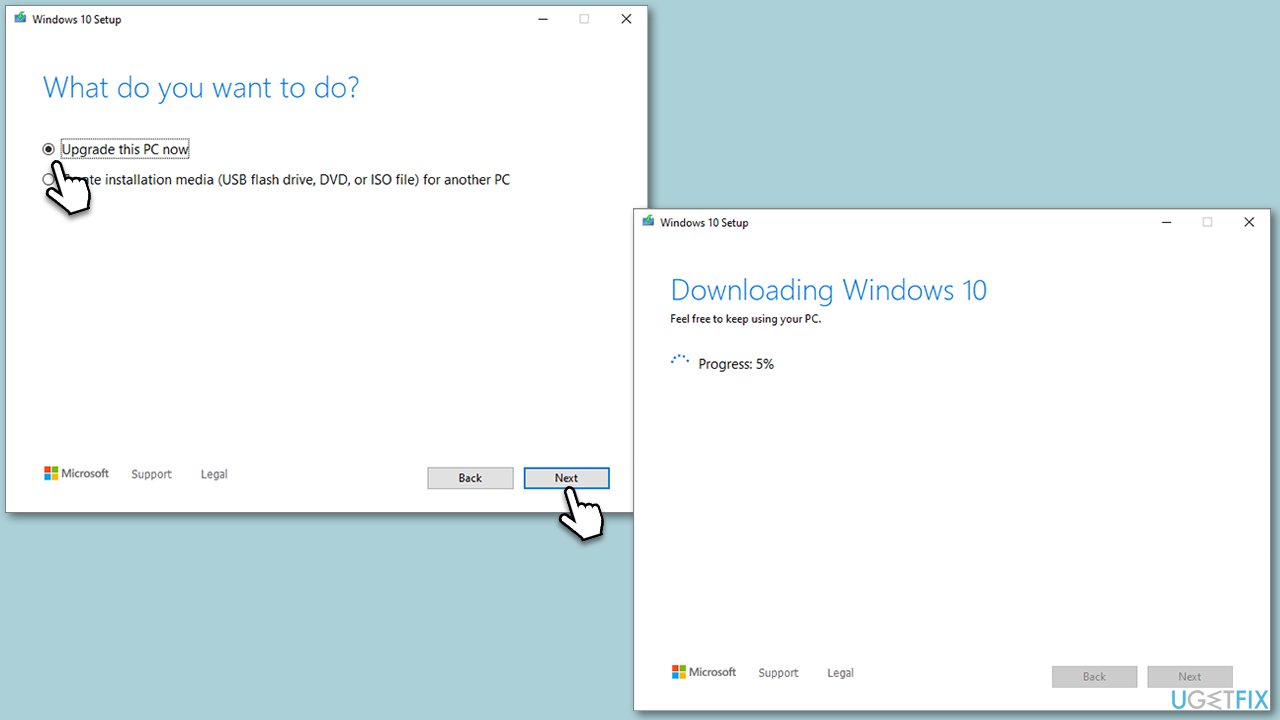
- Select Upgrade this PC now and select Next.
- Windows will now download all the necessary files – it might take a while.
- Agree to the terms once again and click Next.
- Before installing, ensure you are happy with your choices (otherwise, you can click the Change what to keep option).
- Click Install to begin the upgrade process.
Bottom line
To fix the 0x8007041D error, you can run the Windows Update Troubleshooter, restart essential system services like the Windows Update service and BITS, or use the System File Checker and Deployment Image Servicing and Management tool to repair corrupted files. If these methods seem complex or do not resolve the issue, consider using a PC repair tool for a more streamlined solution.
Frequently asked questions
This error typically indicates that the Windows Update service has timed out or encountered issues, often due to conflicts with other processes or services in Windows 10 or Windows 11.
You can try restarting the Windows Update service, running the Windows Update Troubleshooter, or performing a clean boot to eliminate software conflicts in Windows 10 or Windows 11.
Yes, you can use the Command Prompt to reset Windows Update components by executing specific commands, which can help resolve the error in both Windows 10 and Windows 11.




Report an issue
What's wrong with this guide? We review every report and update or remove content.
Report received — thank you. We'll review and fix it.
You need a free account to submit a report.
Be the first to comment