How to fix
Windows upgrade error 0xC1900101 – 0x30018
on Windows
Resolve Windows upgrade error 0xC1900101 - 0x30018 swiftly with our expert-tested solutions. Enjoy a hassle-free upgrade experience on Windows 10 or 11!


What causes How to fix Windows upgrade error 0xC1900101 – 0x30018?
- Outdated drivers
- Corrupted drivers
- Incompatible drivers
- Antivirus software interference
- Third-party application conflicts
- Peripheral devices connected during upgrade
Repairs Windows system files, removes malware, and restores a clean OS state — without reinstalling.
Hi, I have been trying to upgrade Windows from 21H2 to 22H2 but to no avail - I keep receiving the 0xC1900101 - 0x30018 error. How do I fix this? Thanks in advance.
Users upgrade Windows to optimize their systems, avail of new features, improve security, and generally enjoy a smoother, more streamlined user experience. Windows, being one of the most widely used operating systems worldwide, regularly provides these upgrades to users of both Windows 10 and Windows 11. However, the process is not always smooth sailing.
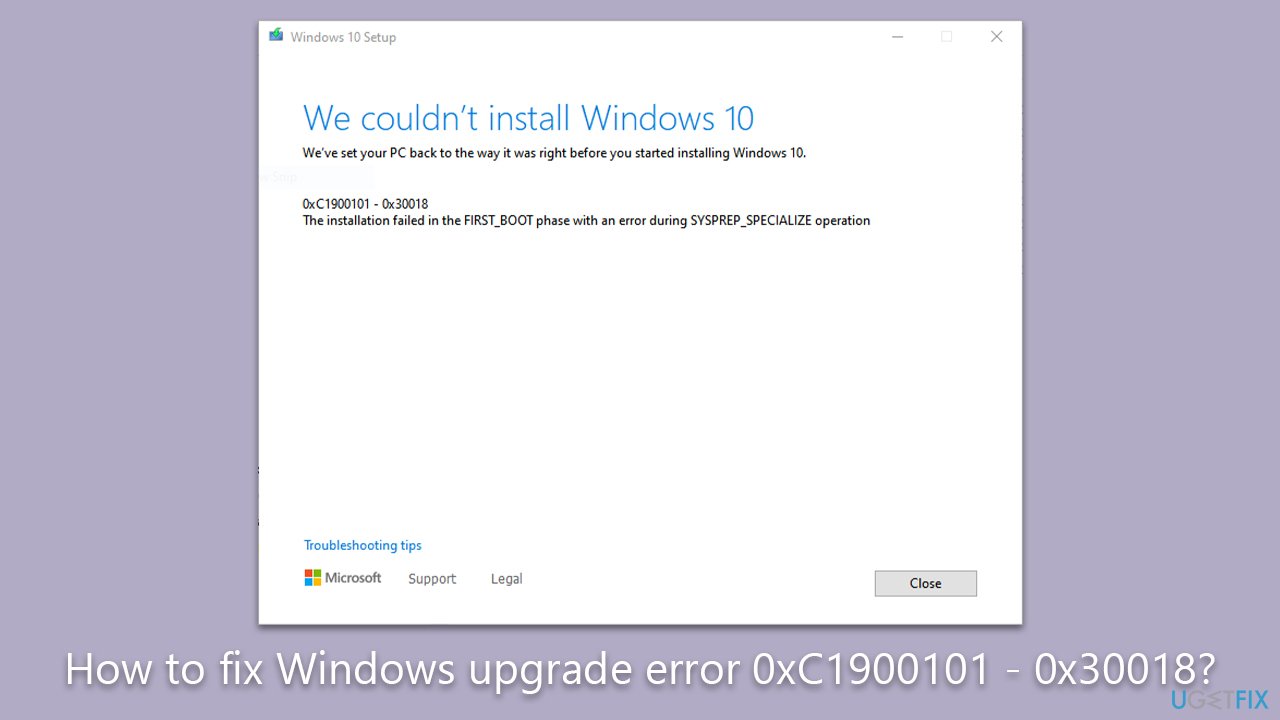
A common hurdle that users encounter when attempting to upgrade their Windows 10 or 11 system is the error message 0xC1900101 - 0x30018. This issue can arise when performing a version upgrade, for instance, from 21H2 to 22H2, or when transitioning from a prior Windows version to Windows 10 or 11. This error often appears during the "FIRST_BOOT" phase of the upgrade process, where the system tries to go back to its previous version after failing to apply the upgrade.
This upgrade error is typically associated with drivers or applications that aren't compatible with the new version of Windows. The error code "0xC1900101" is a generic rollback code, indicating that the upgrade was unsuccessful and the system has reverted to the previous version. The "-0x30018" suffix specifies that the issue occurred during the setup phase, specifically during the Sysprep, specialize, or system cleanup actions.
Problems could arise from outdated, corrupted, or incompatible drivers, antivirus software, or other third-party applications. In some cases, peripheral devices connected during the upgrade process could interfere, leading to this error.
However, as daunting as this error message might seem, it's not an insurmountable issue. There are solutions available to navigate and correct these upgrade challenges. Instructions detailing the step-by-step resolution of the error 0xC1900101 - 0x30018 can be found below this article.
These will guide users through the process of identifying and addressing the underlying issues, thus enabling a successful upgrade. If you want this process to be automated, we recommend running a scan with [d1] repair tool - it can fix corrupted system files, address any registry issues, fix broken DLLs, and more - all automatically.
Fix 1. Disable third-party security software/firewall
Third-party security software or firewalls can sometimes interfere with the Windows upgrade process. They might misinterpret the upgrade as a threat, causing an abrupt halt.
- Navigate to your security software's settings.
- Temporarily disable the firewall and other real-time scanning features.
- Try to perform the upgrade again.
Fix 2. Disconnect all unnecessary peripherals before upgrading
Extra peripherals connected to your computer could conflict with the upgrade. It's recommended to disconnect all unnecessary peripherals to minimize potential issues.
- Disconnect all non-essential devices (e.g., external hard drives, printers, secondary monitors).
- Leave only the essentials: mouse, keyboard, and monitor.
- Attempt the upgrade again.
Fix 3. Install all Windows updates
Ensure your current Windows version is fully updated before trying an upgrade. This helps to eliminate bugs that might be hindering the upgrade.
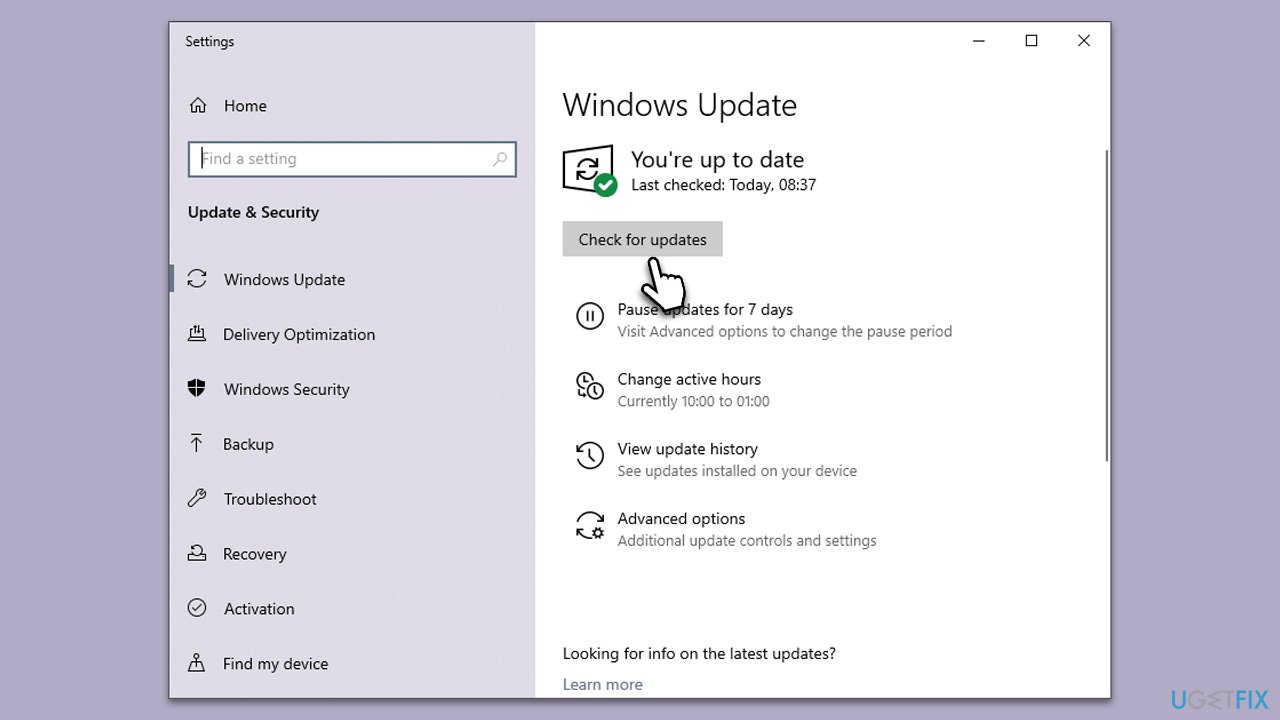
- Click Start and select Settings.
- Go to the Windows Update section.
- Click Check for updates and wait.
- Go to the Advanced options and install optional updates.
- Reboot your system.
Fix 4. If using WiFi, switch to a wired connection
A stable internet connection is vital during the upgrade. WiFi connections may be inconsistent, causing interruptions. A wired connection is often more stable.
- Connect your computer directly to the router using an Ethernet cable.
- Attempt the upgrade again.
Fix 5. Run SFC and DISM
System File Checker (SFC) and Deployment Image Servicing and Management (DISM) are built-in Windows tools that can fix potential errors in system files.
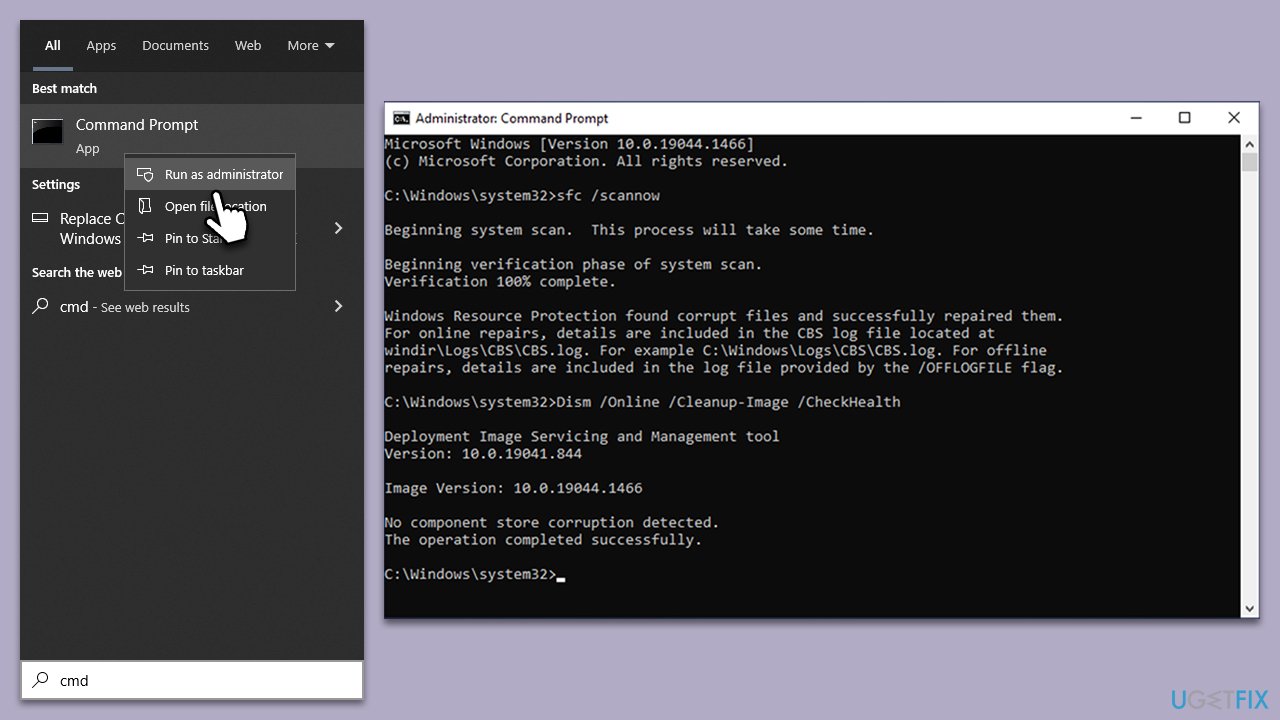
- Type cmd in Windows search.
- Right-click on Command Prompt and pick Run as administrator.
- User Account Control will ask whether you want to make changes - click Yes.
- Use the following command lines, pressing Enter after each:
sfc /scannow - The System File Checker will now scan your system for any corrupted or missing files and try to repair them.
- After the scan is done, copy the following commands and press Enter:
DISM /Online /Cleanup-Image /CheckHealth
DISM /Online /Cleanup-Image /ScanHealth
DISM /Online /Cleanup-Image /RestoreHealth - When completed, restart your device.
Fix 6. Try a Clean Boot
A clean boot starts Windows with a minimal set of drivers and services. This can help to identify any software conflicts that could be causing the error.
- Press the Windows key + R to open the Run dialog.
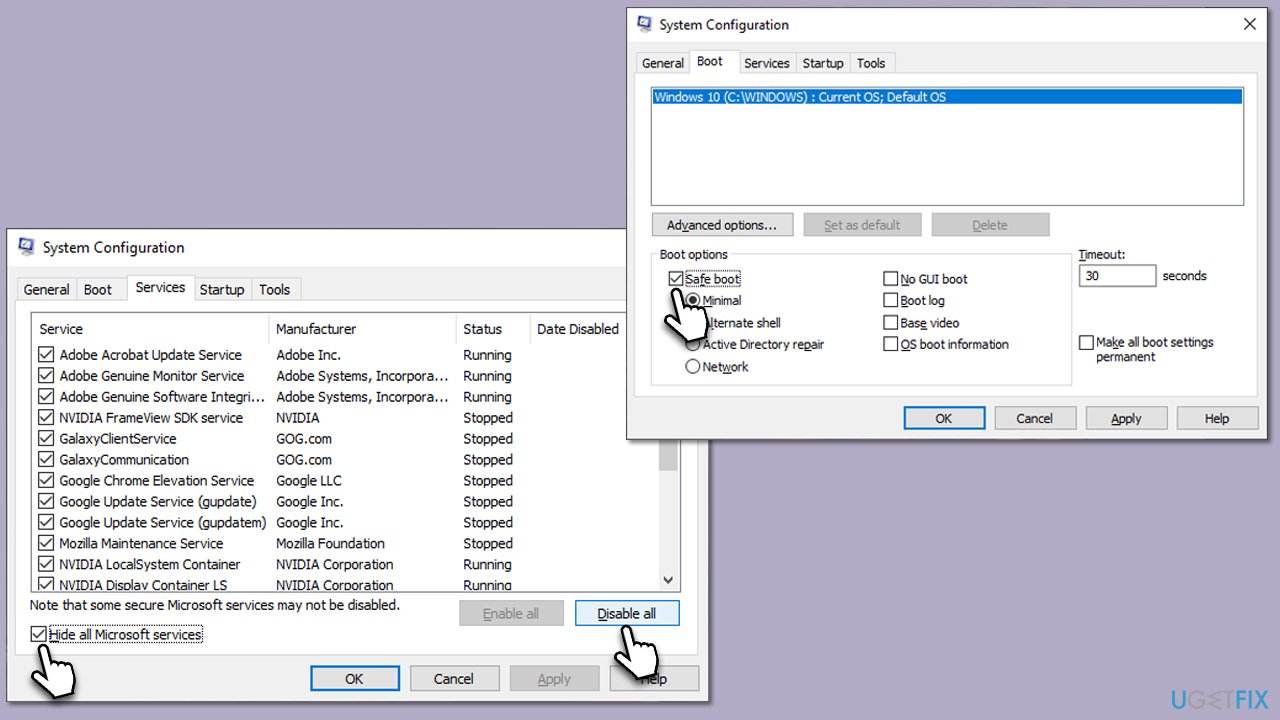
- Type msconfig and press Enter to open the System Configuration window.
- Click on the Services tab and check the Hide all Microsoft Services box.
- Click Disable all to disable non-Microsoft services, then click the Startup tab.
- Open the Task Manager, disable all startup items, and close the Task Manager.
- Go to the Boot tab and mark the Safe boot option.
- Click OK on the System Configuration window and reboot your device.
Fix 7. Update all your drivers
Outdated or incompatible drivers can cause upgrade errors. Make sure all your drivers are up to date. There are several ways you could do this - one of them includes using the Windows update feature, which we explained before, but it is important to keep in mind that Windows might not always find the latest drivers for your hardware.
You can instead visit the official websites of each of your hardware manufacturers and download/install drivers manually. This might be not only tedious but also confusing, so we highly recommend using an automatic driver updater, such as [rev id="DriverFix"]. It can make a backup for you just in case and install the latest driver updates within just a few minutes, hassle-free.
Fix 8. Update BIOS
An outdated BIOS can also cause Windows upgrade issues. Be cautious, as an incorrect BIOS update can cause significant problems.
- Before proceeding, backup your data as a precaution.
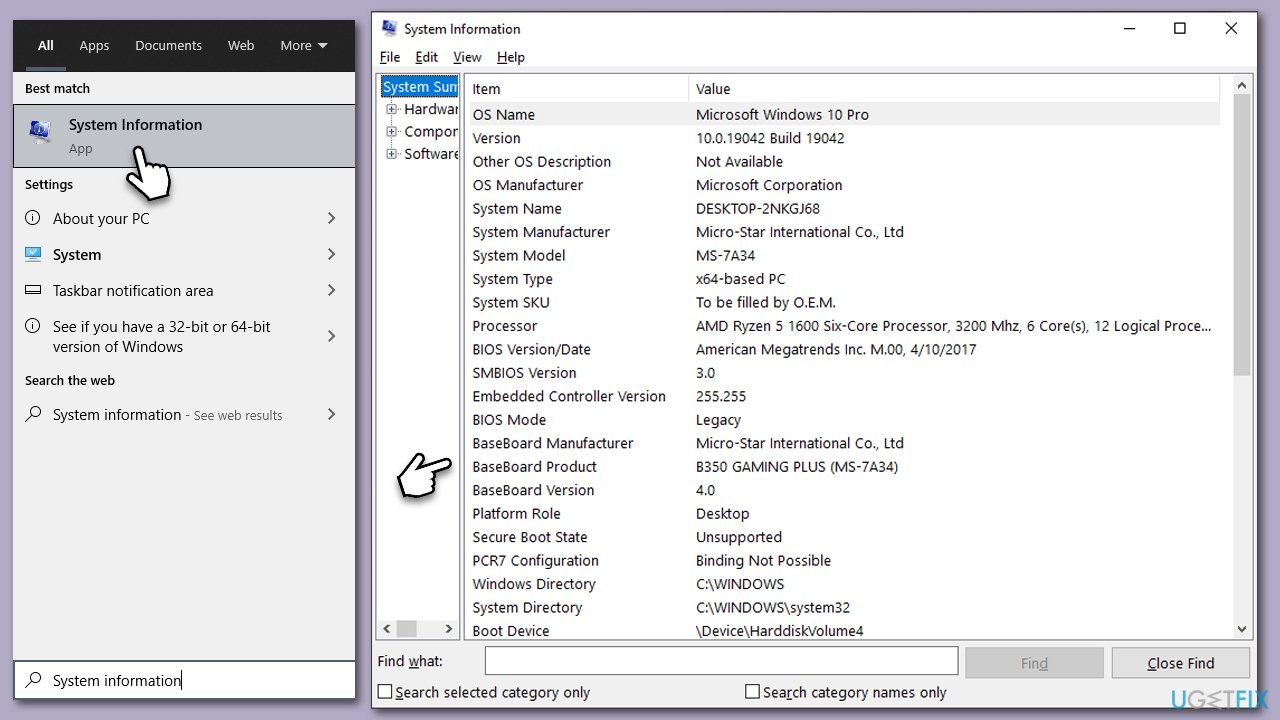
- Visit the manufacturer's website and download your specific model's latest BIOS update file (you can check which BIOS you are using by typing System information in Windows search and checking the BIOS Version/Date and BaseBoard Product entries there).
- Extract the BIOS update files and read any provided instructions or documentation.
- Create a bootable USB drive with the BIOS update files, if required.
- Update the BIOS using the manufacturer's recommended method, which may be through a built-in utility or booting from a USB drive.
- Restart your system to complete the process.
Bottom line
To fix the Windows upgrade error 0xC1900101 - 0x30018, users should update or uninstall incompatible drivers, disable antivirus software, and disconnect unnecessary peripheral devices. If these solutions do not resolve the issue, consider running a repair tool for further assistance.
Frequently asked questions
This error typically indicates a driver issue that is preventing the upgrade process from completing successfully on Windows 10 or Windows 11.
To fix this error, ensure all drivers are updated, especially for hardware components like graphics and network adapters, before attempting the upgrade again.
Yes, you can use Device Manager in Windows 10 or Windows 11 to check for any flagged devices and update their drivers to help resolve potential conflicts.




Report an issue
What's wrong with this guide? We review every report and update or remove content.
Report received — thank you. We'll review and fix it.
You need a free account to submit a report.
Be the first to comment