How to fix
Print Spooler Service not running
on Windows
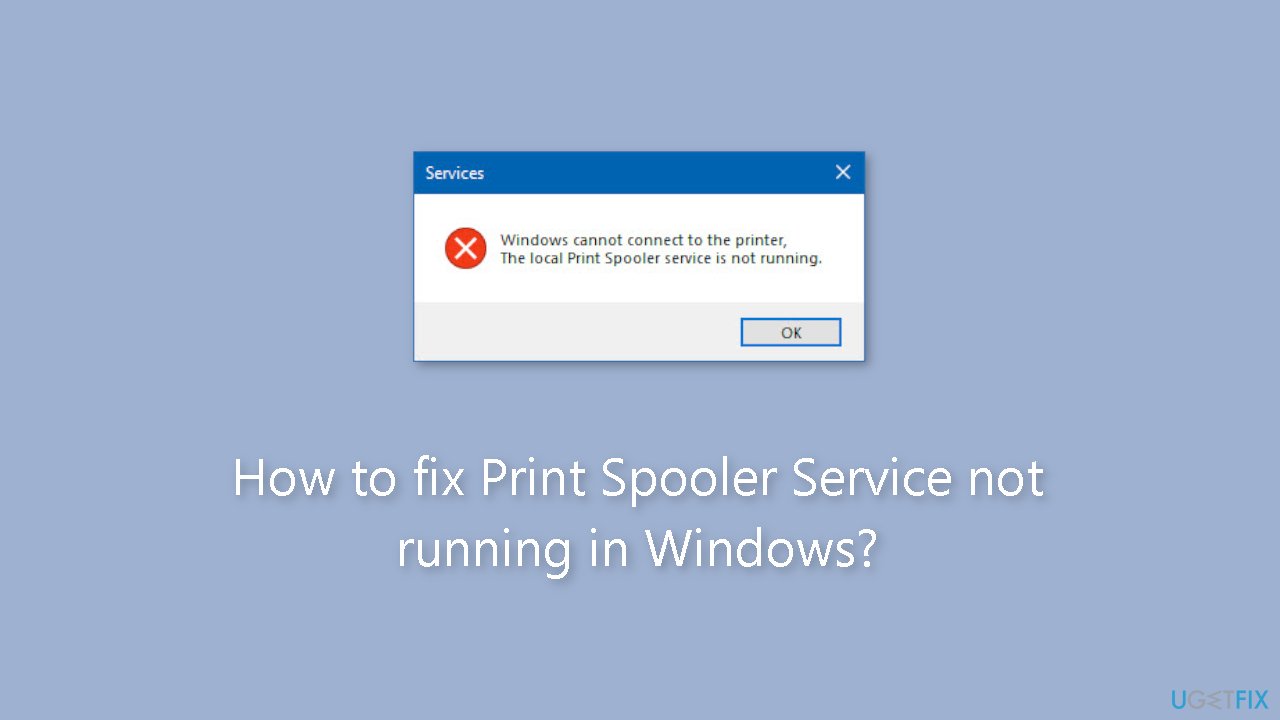
Resolve the Print Spooler Service issue in Windows 10 or 11 effortlessly. Get expert-tested solutions and start printing again in minutes.


What causes How to fix Print Spooler Service not running in Windows?
- Print Spooler Service is not running
- Print queue errors
- Clogged print jobs in the queue
- Printer connectivity issues
- Service not set to start automatically
Repairs Windows system files, removes malware, and restores a clean OS state — without reinstalling.
Hello. I can't print using my Windows PC because the Print Spooler Service stopped running. Is there a way to fix this?
The Print Spooler Service not running problem in Windows is a common issue that can occur on different versions of the operating system. The Print Spooler Service is an important part of the Windows printing system that manages print jobs sent to the printer. Its primary function is to manage the print queue efficiently, ensuring that documents are processed and printed in the correct order.
When the Print Spooler Service is not running, users may encounter a variety of printing issues. One of the most significant consequences is the inability to print. Users will be unable to send print jobs to their printers, effectively ending printing functionality. This can be aggravating and disruptive, particularly in environments where printing is an essential part of daily operations.
Another issue that may arise is print queue errors. Print jobs may become clogged in the print queue, resulting in a backlog of pending print jobs. This can cause delays and difficulties in effectively managing print jobs. Users may find it difficult to clear the print queue and resolve pending print jobs, exacerbating the problem.
In addition, if the Print Spooler Service is not running, printer connectivity issues may occur. Users may experience difficulties connecting to and communicating with their printers, preventing them from using them at all. This can impede productivity and disrupt workflow, especially in situations where printing is required.
Troubleshooting steps to restart or reset the service, clearing the print queue, updating printer drivers,[ref en-1] or ensuring that the service is set to start automatically are typically used to resolve the Print Spooler Service not running issue. This guide will walk you through 6 steps to resolve Print Spooler Service not running.
You can also deploy a maintenance tool like [d1] that can fix most system errors, BSODs,[ref en-2] corrupted files, and registry[ref en-3] issues. Otherwise, follow the step-by-step instructions below.
Method 1. Run the Printer Troubleshooter
- Press the Windows key + I to open Settings.
- Open the System tab in the left pane.
- In the right pane, scroll down and click on Troubleshoot.
- Click on Other troubleshooters.
- Click the Run button for the Printer option.
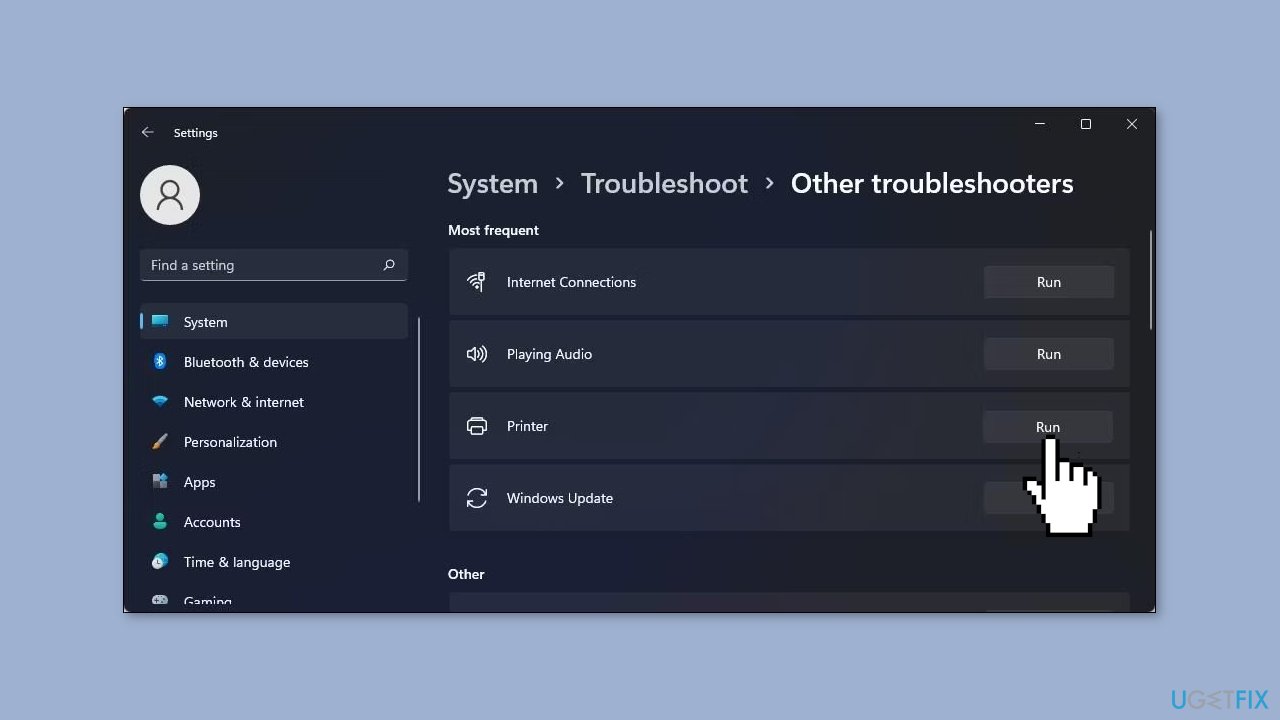
- The troubleshooter will scan the system and try to detect any issues.
- Select the printer you want to troubleshoot and click Next.
- Wait for the scan to complete.
- Check if the troubleshooter finds any problems.
- Apply the recommended fixes if available.
Method 2. Restart Print Spooler Service
- Press the Windows key and type services.
- Click on Services to open the app.
- Locate the Print Spooler service from the list of services.
- Right-click on the service and select Restart.
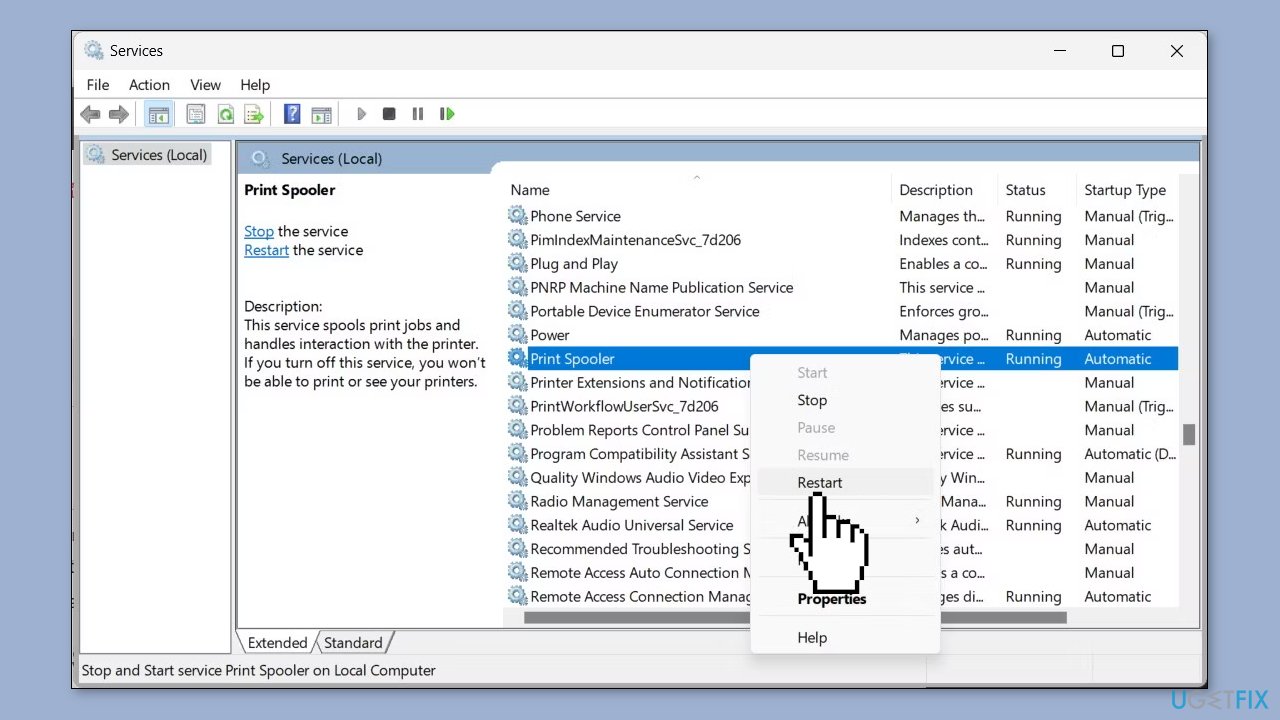
- Wait for the process to complete.
- Check if the error is resolved.
Method 3. Set the Startup Type to Automatic
- Press the Windows key + R to open the Run dialog box.
- Type services.msc and click OK to open the Services snap-in.
- Locate the Print Spooler service.
- Right-click on Print Spooler and select Properties.
- In the pop-up dialog, click the drop-down for Startup type and select Automatic.
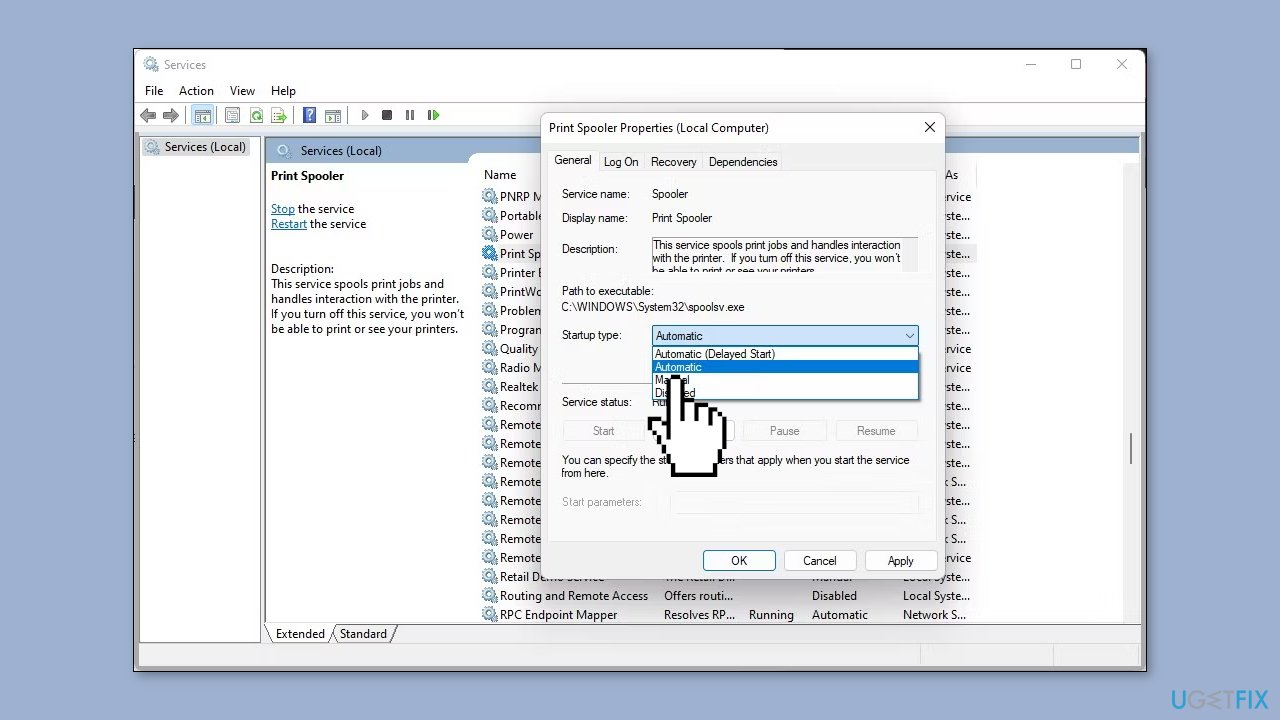
- Click Apply and OK to save the changes.
- If it is already set to Automatic, select Disabled.
- Click Apply and OK to save the changes.
- Open the Print Spooler service Properties again.
- Set the Startup type to Automatic.
- Click OK and Apply to save the changes.
- Close the Services snap-in.
- Restart your PC.
- Check if the error "printer spooler service is not running" is resolved.
Method 4. Clear Print Spooler Files
- Press the Windows key + R to open the Run dialog box.
- Type services.msc and click OK.
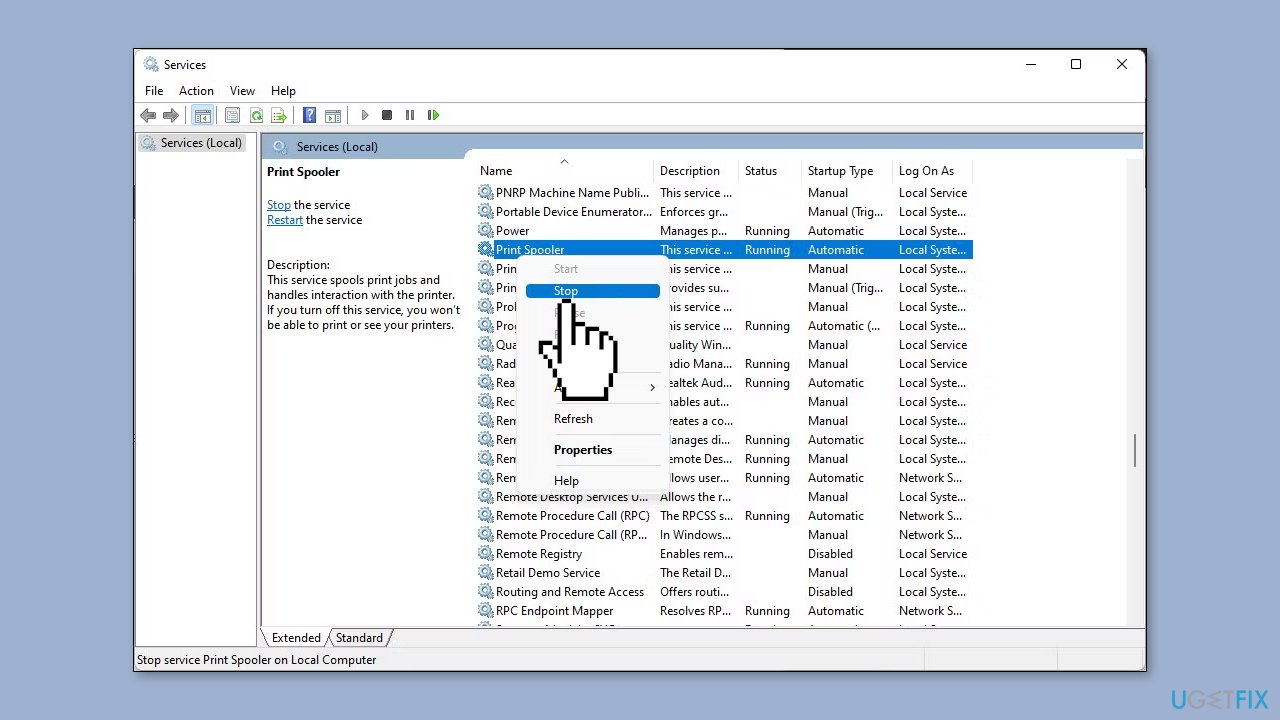
- Locate and select the Print Spooler service in the Services window.
- Right-click on Print Spooler and select Stop.
- Press the Windows key + E to open File Explorer.
- Navigate to the following location:
C:\Windows\System32\spool\PRINTERS
- Clear all the files inside the Printers folder. (Click Yes if prompted by User Account Control (UAC). Do not delete the PRINTERS folder, only the files inside.)
- Close File Explorer and go back to the Services window.
- Select and right-click on the Print Spooler service and select Start.
Method 5. Update Printer Driver
- Press the Windows key + I to open Run.
- Type devmgmt.msc and click OK to open Device Manager.
- In Device Manager, expand the Print queues section.
- Right-click on your printer and select Update driver.
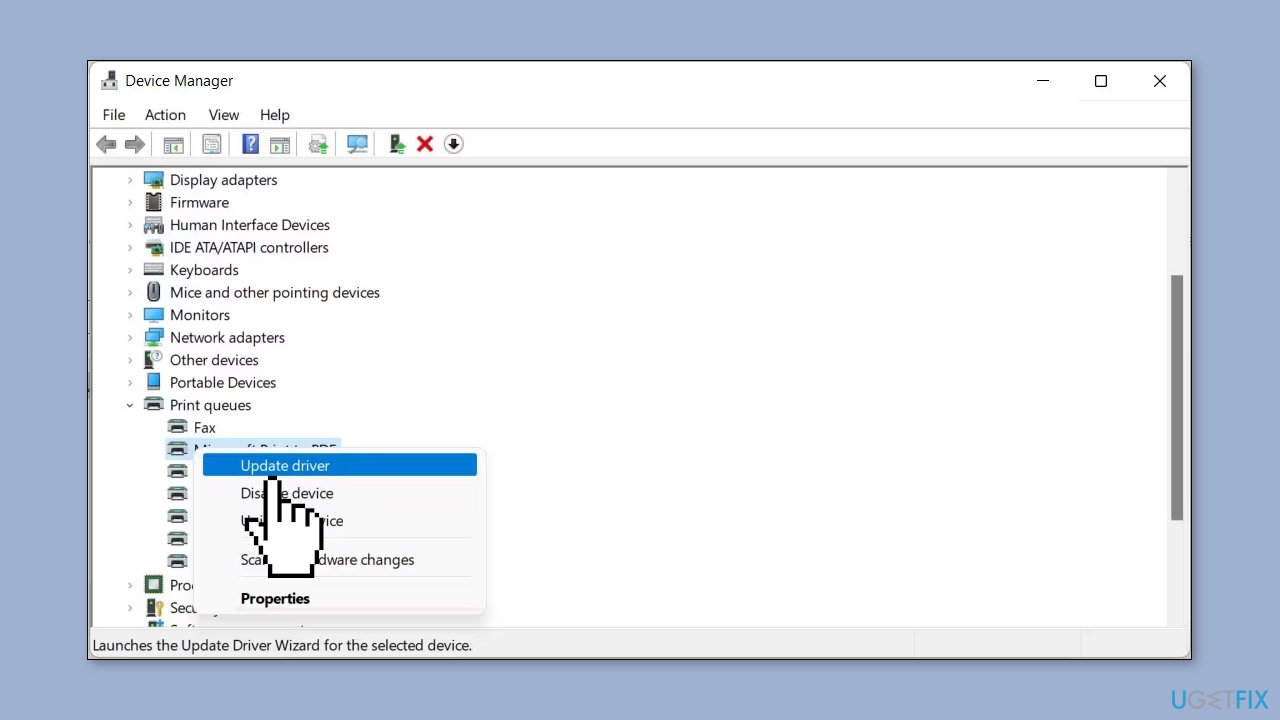
- Select Search automatically for drivers.
- Windows will scan for a new driver update.
- If a new driver is found, it will be downloaded and installed automatically if available.
You can also use a dedicated utility like [rev id="DriverFix"] that can find the best drivers for your device and install them automatically.
Method 6. Reinstall Printer Driver
- Press the Windows key + I to open Settings.
- In the left pane, click on Bluetooth & devices.
- Click on Printers & scanners.
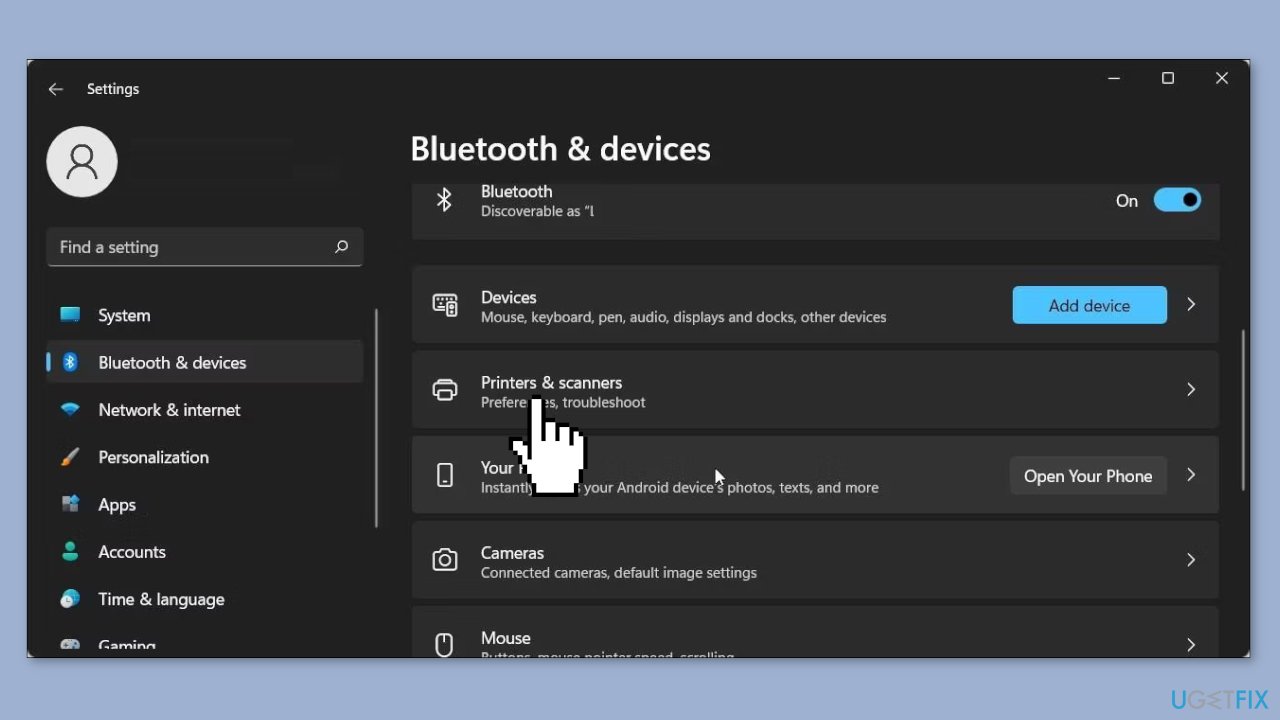
- Locate and click on your printer.
- Click the Remove button in the top right corner.
- Click Yes to confirm the action.
Bottom line
To fix the Print Spooler Service not running issue, you can run the Printer Troubleshooter, clear the print queue, update printer drivers, or ensure the service is set to start automatically. If these steps do not resolve the problem, consider using a maintenance tool to fix system errors.
Frequently asked questions
You can try restarting the Print Spooler Service from the Services app and ensure that it's set to start automatically. Additionally, check for any pending print jobs in the queue that might be causing the issue.
To manually start the Print Spooler Service in Windows 11, open the Services app, locate 'Print Spooler', right-click it, and select 'Start'. You can also set it to run automatically at startup.
If the Print Spooler Service is not responding on Windows, ensure that the necessary printer drivers are installed and up to date. Additionally, check for corrupt files in the spool directory located at C:\Windows\System32\spool\PRINTERS.




Report an issue
What's wrong with this guide? We review every report and update or remove content.
Report received — thank you. We'll review and fix it.
You need a free account to submit a report.
Be the first to comment