How to fix
ERR_FILE_NOT_FOUND error in Google Chrome
on Windows
Resolve the ERR_FILE_NOT_FOUND error on Windows 10 and 11 with our comprehensive guide. Expert-tested solutions for quick fixes!


What causes How to fix ERR_FILE_NOT_FOUND error in Google Chrome?
- Incorrect file paths in an extension's code
- Accidental deletion of files
- URL typing errors
- Conflict with other extensions
- Corrupted system files
Repairs Windows system files, removes malware, and restores a clean OS state — without reinstalling.
Hello, I was developing and testing my own extension when I received an error ERR_FILE_NOT_FOUND (Your file couldn’t be accessed. It may have been moved, edited, or deleted.) Any idea how to deal with this?
Google Chrome, developed by Google, is a widely used browser with millions of users globally. Since its introduction in 2008, it has become popular for its speed, user-friendly design, and support for various add-ons and extensions. Despite its advantages, users may occasionally face issues, one of which is the ERR_FILE_NOT_FOUND error.
This error is most commonly encountered by individuals developing their extensions or by users while browsing the web. The ERR_FILE_NOT_FOUND error indicates that Chrome can't locate a necessary file to load a web page or an extension. This could be due to incorrect file paths in an extension's code, accidental deletion of files, or even URL typing errors.
Addressing the ERR_FILE_NOT_FOUND error can often be resolved with a few straightforward steps. In many cases, the error is caused by a conflict with other extensions installed on your Chrome browser. Carefully checking the list of extensions and reinstalling any that may be causing the issue can often solve the problem.
This process may involve removing the extension and installing it again, ensuring that it's done correctly to avoid any conflicts. If the error persists despite these steps, resetting Chrome to its default settings can sometimes be an effective solution. Detailed instructions on how to carry out these steps can be found in the comprehensive guide below this article.
Remember, it's crucial to maintain a clean and well-functioning system environment, and tools like the [d1] PC repair tool can play an instrumental role in achieving this. While it won't directly resolve the ERR_FILE_NOT_FOUND error, it excels at repairing corrupted system files, resolving registry issues, and cleaning up junk files, providing an optimally performing system for your browser to operate in.
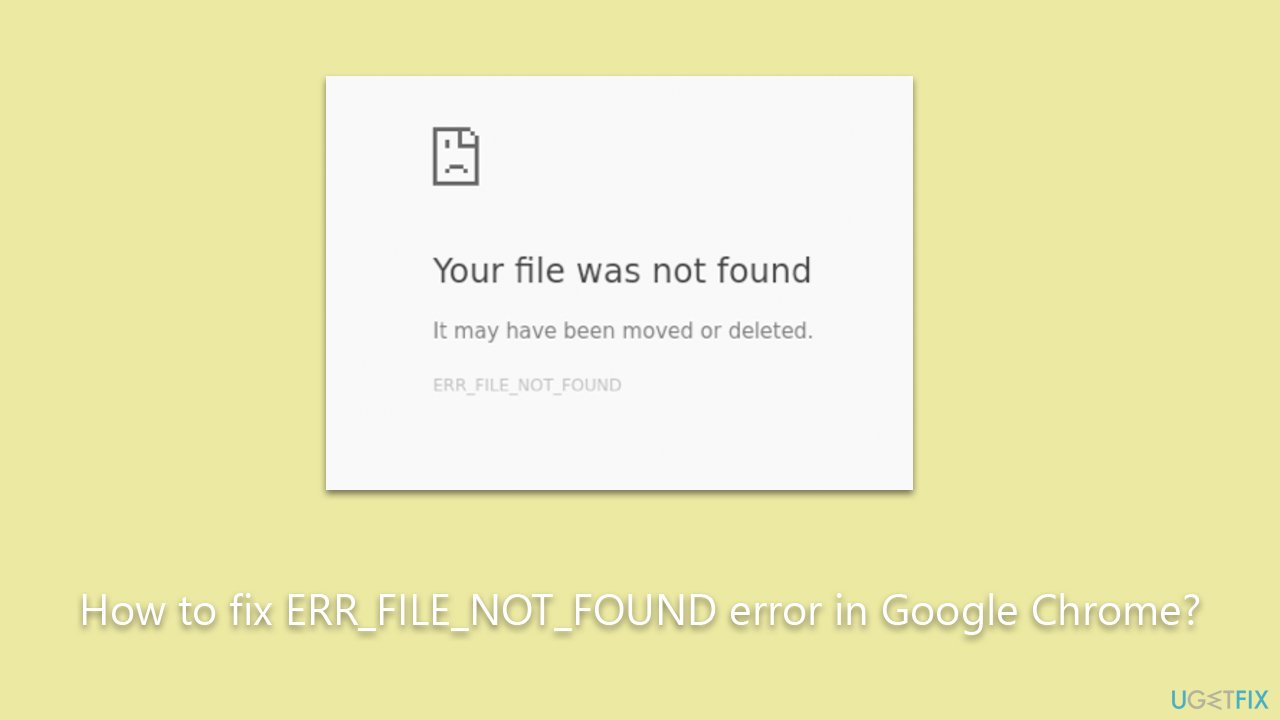
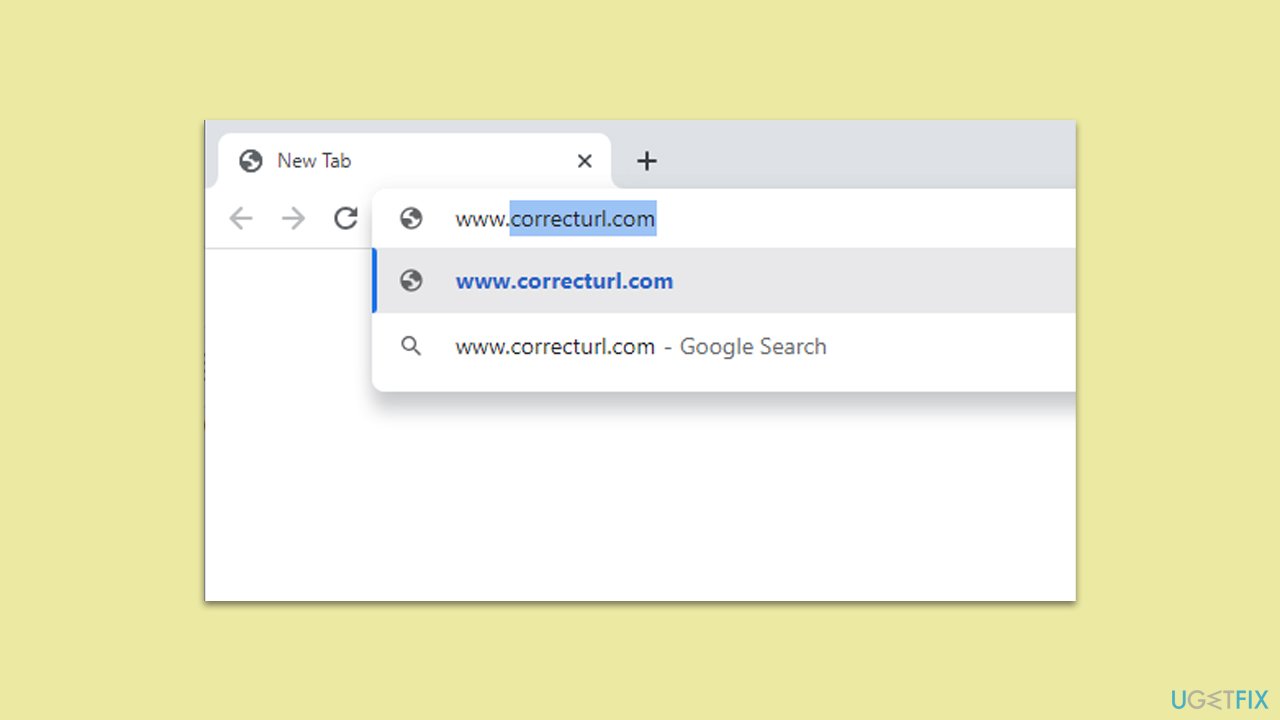
Fix 1. Check the URL path
The ERR_FILE_NOT_FOUND error can sometimes occur due to a simple typing error in the URL. If Chrome cannot find the file at the specified URL, it will display this error. This can be solved by confirming that the URL is accurate.
Instructions:
- Double-check the URL you are trying to access.
- Look for any typing errors or misplaced characters.
- Correct the URL, if necessary, and try to reload the page.
Fix 2. Disable problematic extensions
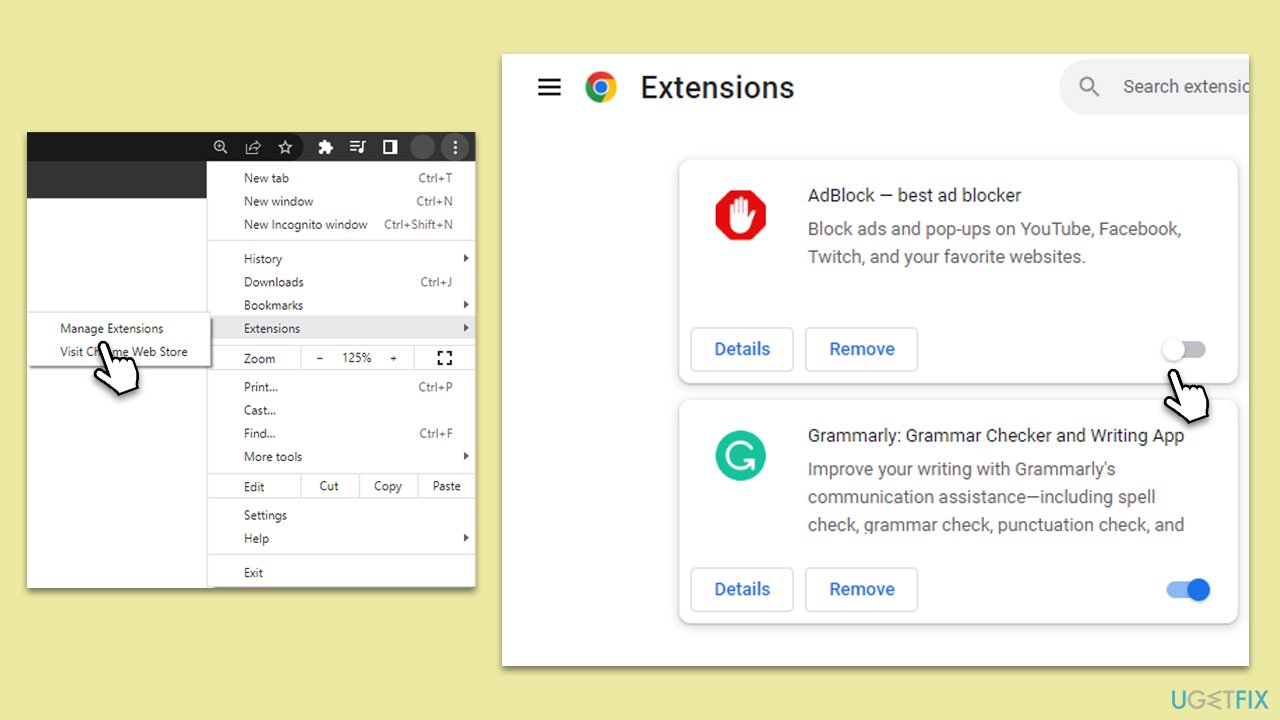
Extensions can enhance the functionality of Chrome, but they can also cause conflicts or errors. If an extension is coded incorrectly or conflicts with another extension, it can cause the ERR_FILE_NOT_FOUND error. Disabling the problematic extension can resolve this issue.
To make it easy, simply disable each of the extensions at the time. To do so, follow these steps:
- Open Chrome and go to the extensions menu (three vertical dots in the top right corner, then Extensions > Manage extensions).
- Look through the list of installed extensions.
- Disable each extension one by one, each time checking if the error persists.
- If the error disappears after disabling a certain extension, uninstall that extension.
Fix 3. Uninstall problematic extensions
In certain instances, a standard uninstallation of a Chrome extension may not be sufficient if the extension has left residual files on your system. These leftover files can sometimes cause continued issues, like the ERR_FILE_NOT_FOUND error. A more thorough removal process can be performed by directly accessing and clearing the extension files from Chrome's directory in the Windows file system.
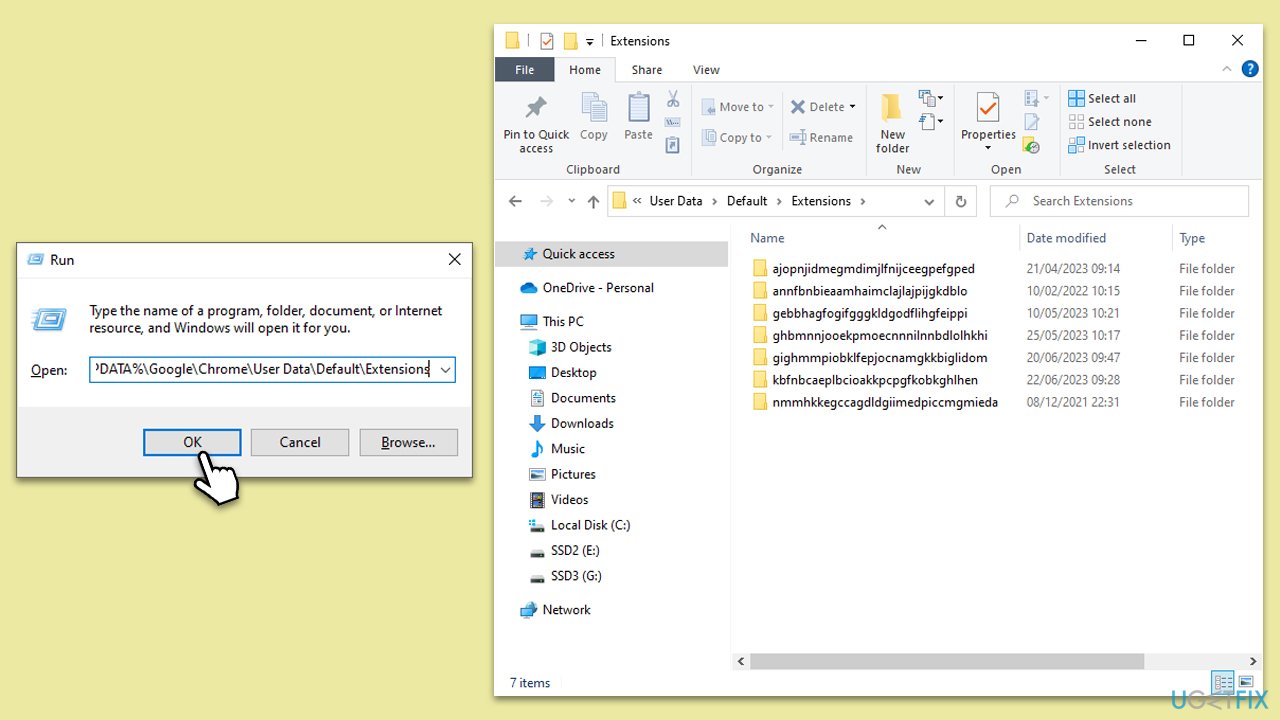
- Press the Windows + R keys simultaneously to open the Run window.
- Copy and paste the following path:
%LOCALAPPDATA%\Google\Chrome\User Data\Default\Extensions - Press Enter. This will take you directly to the Extensions directory, where Chrome stores extension files.
- Here, you will see various folders named with what appear to be random strings of characters. Each of these corresponds to an extension installed in Chrome.
- To identify which folder corresponds to the problematic extension, you can cross-reference the folder names with the ID of the extension on the Chrome extensions page (found at chrome://extensions in your Chrome browser).
- Once you have identified the folder corresponding to the problematic extension, delete it. Be sure only to delete the identified folder to avoid affecting other extensions.
Please remember to take caution while handling system directories, as wrong deletions can lead to further issues. Always cross-check before deleting any files or folders.
Fix 4. Reset Chrome
If the issue continues, resetting Chrome to its default settings may resolve the problem. This action will clear temporary data and revert any changes that might have caused the ERR_FILE_NOT_FOUND error.
Instructions:
- Open Chrome and go to Settings (three vertical dots in the top right corner > Settings).
- On the left menu, click Reset settings.
- On the right side, you should see the Reset settings section.
- Click Restore settings to their original defaults and confirm the action by clicking Reset settings.

Bottom line
To fix the ERR_FILE_NOT_FOUND error, check the URL path for typing errors, review installed extensions for conflicts, and consider resetting Chrome to its default settings. If the issue persists, using a PC repair tool may help resolve underlying system problems.
Frequently asked questions
The ERR_FILE_NOT_FOUND error typically occurs when the file path you are trying to access is incorrect or the file has been moved or deleted on your Windows 10 system.
To fix the ERR_FILE_NOT_FOUND error in Windows 11, ensure that the file location is correct and try clearing your browser cache or resetting Chrome settings.
Yes, disabling extensions in Chrome can help resolve the ERR_FILE_NOT_FOUND error, as sometimes extensions may interfere with file access on your Windows operating system.




Report an issue
What's wrong with this guide? We review every report and update or remove content.
Report received — thank you. We'll review and fix it.
You need a free account to submit a report.
Be the first to comment