How to fix
“Unable to install printer” 0x000003eb error
on Windows
Resolve the "Unable to install printer" 0x000003eb error in Windows 10 and 11 quickly and easily. Follow our expert-tested solutions for a seamless expe…


What causes How to fix “Unable to install printer” 0x000003eb error in Windows?
- Incompatible printer drivers
- Corrupt printer drivers
- Outdated printer drivers
- Faulty connections
- Problematic Windows services
Repairs Windows system files, removes malware, and restores a clean OS state — without reinstalling.
Hello. I am using a Dell Latitude 3540 Laptop and had an old Canon printer that I wanted to replace for a very long time. I finally did with the HP Tango printer, and I was excited to use it. Unfortunately, I can't connect it due to the 0x000003eb error - it says, "Unable to install printer." Any advice would be appreciated.
Printers remain one of the most integral pieces of technology, proving their worth in both professional and personal settings across the globe. From generating tangible hardcopies of important documents to making memorable photographs a reality, they facilitate an array of functions that digital screens alone can't offer. Despite the growing shift towards a paperless era, printers persist as indispensable tools in businesses of all sizes, universities, and households alike, reinforcing the bridge between the digital and physical world.
However, as with any technology, there can be certain hiccups that disrupt the seamless operation of printers, hindering their ability to meet user demands. Among such issues, one relatively common yet perplexing error that Windows users frequently encounter is the 0x000003eb error during printer installation. This error is not limited to any specific brand of printers, laptops, or desktop computers, but is a widespread problem, troubling a vast array of users trying to connect their printers to their systems.
The primary culprit behind the 0x000003eb error is typically the presence of incompatible or corrupt printer drivers. Your computer uses drivers to communicate with the hardware, and if these drivers are outdated, incompatible, or corrupt, it can lead to various issues, including the inability to install a printer. Nevertheless, other underlying factors could also trigger this error, ranging from faulty connections to problematic Windows services.
To guide our readers through the troubleshooting process, we have curated a detailed set of instructions to address the 0x000003eb error, which you will find further in the article. While the steps are designed to be comprehensive, it is important to remember that troubleshooting requires patience and attention to detail, as the right solution often depends on the specific circumstances of the problem at hand.
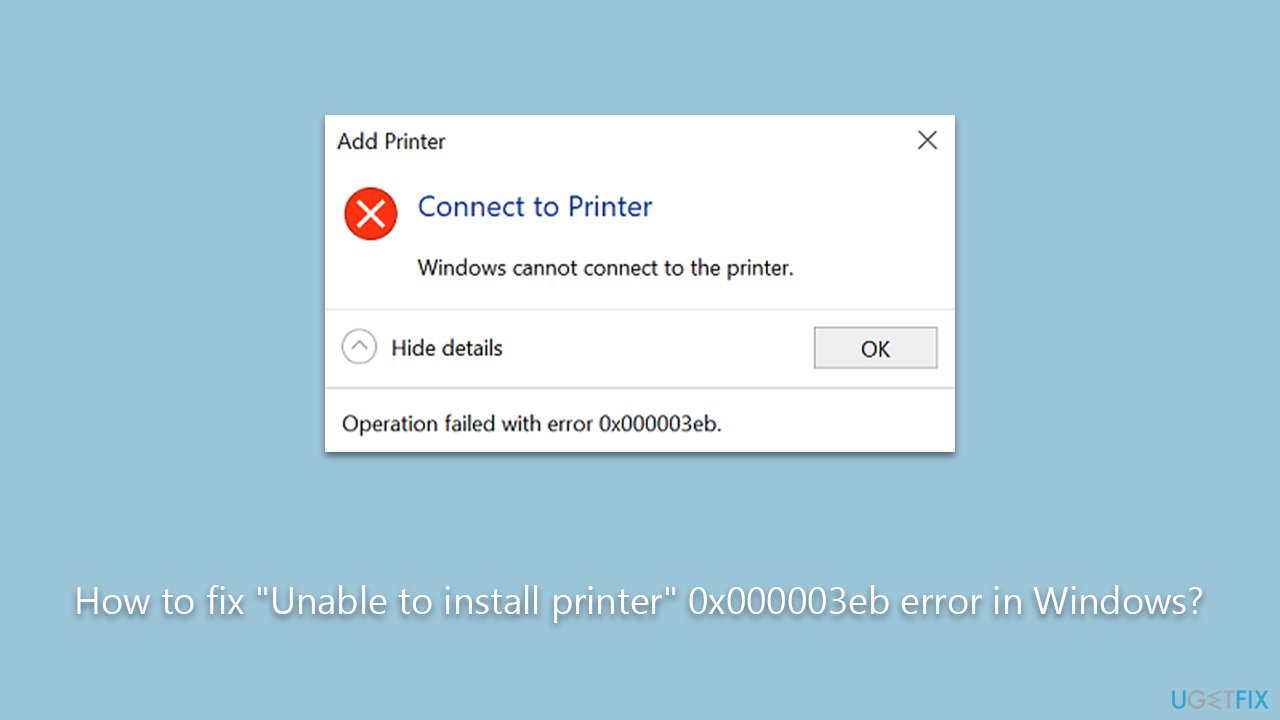
As an additional note, incorporating tools such as the [d1] PC repair tool in your system management routine can be beneficial. Although it may not directly fix the 0x000003eb error, its comprehensive system optimization features can enhance overall system performance, contributing to a smoother and more efficient computing experience.
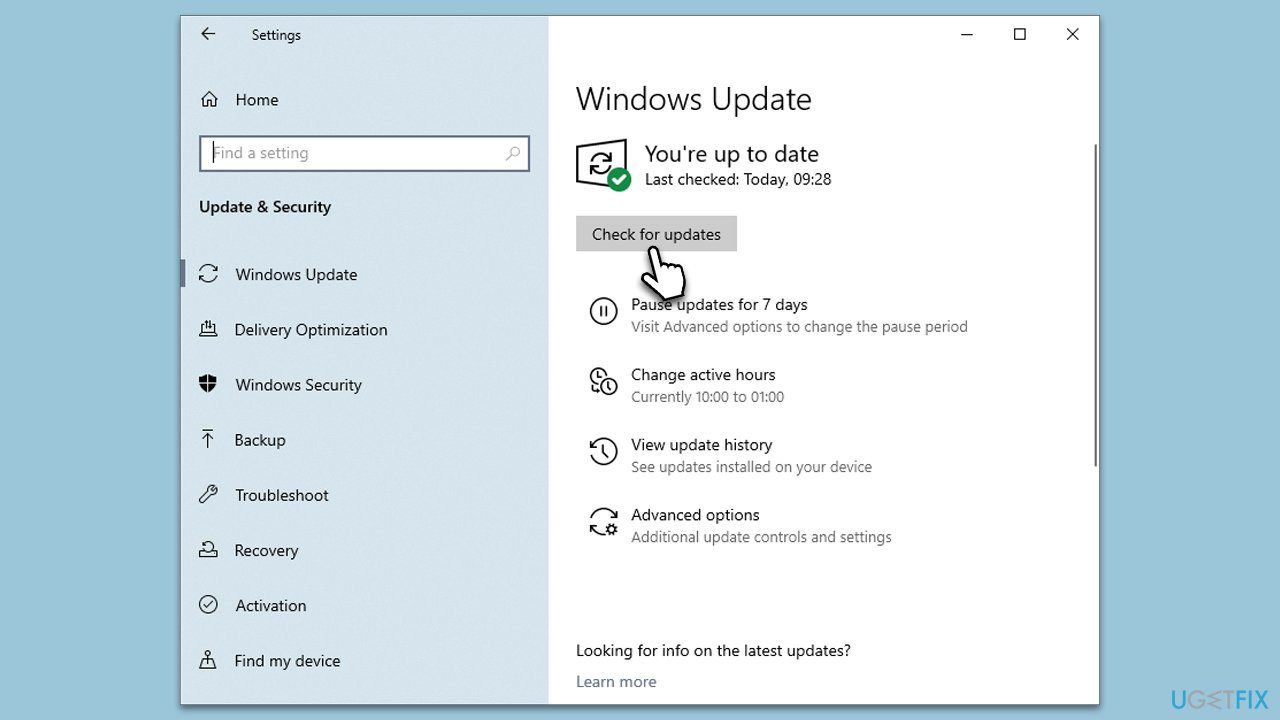
1. Install all Windows updates
Some users said that they managed to fix the 0x000003eb error after installing the latest Windows updates. This is not surprising, as Microsoft often ships patches to existing bugs.
- Type updates in Windows search and press Enter.
- In the new window, click Check for updates and wait till all the necessary files are downloaded.
- At this point, you might be suggested to install optional updates - install them too.
- When everything is installed, restart your system.
2. Check Windows Installer Service
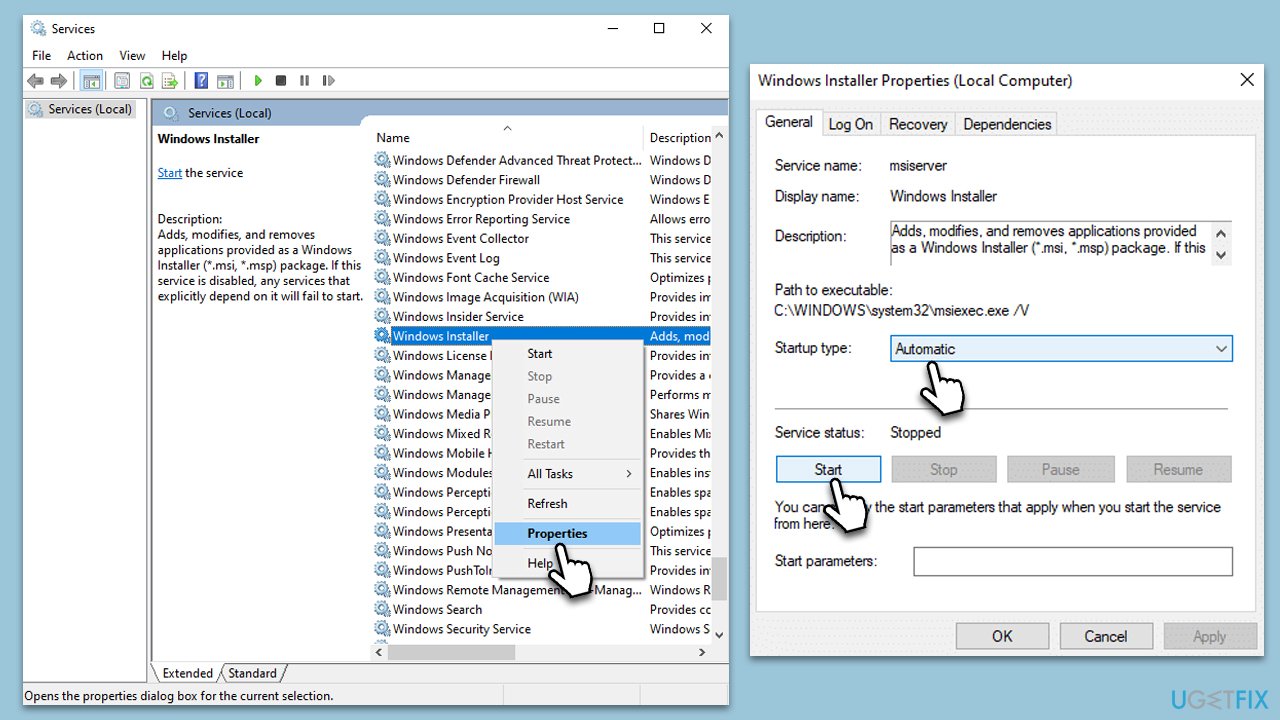
The Windows Installer Service is a crucial component that facilitates the installation of software, and it could be responsible for the 0x000003eb error if it's not running correctly.
- Type Services in Windows search and hit Enter.
- Scroll down to find Windows Installer Service.
- If this service is running, right-click and select Restart.
- If this service is not running, double-click to open Properties.
- Under Startup type, select Automatic.
- Click Start, Apply, and OK.
3. Manually install the driver
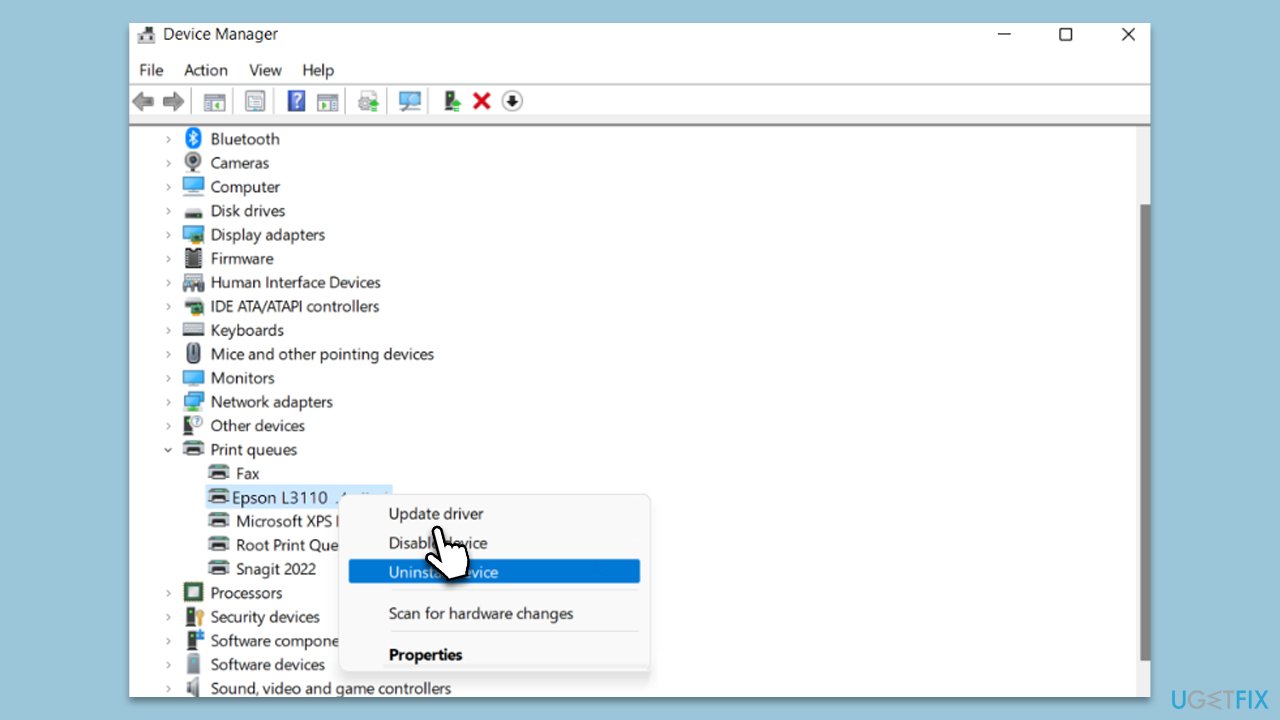
- Right-click on Start and pick Device Manager.
- Expand the Printers or Print queues section.
- Right-click on your printer and select Update driver.
- Pick Browse my computer for drivers.
- Follow by selecting the Let me pick from a list of available drivers on my computer option.
- Select the correct manufacturer on the left and printer type on the right, and then click Next.
- Follow the on-screen instructions to complete the process and then restart your PC.
4. Reset driver configuration
If the printer driver is corrupted or improperly configured, resetting it might help. This involves removing the existing driver from your system and reinstalling it.
- Open the Services window once again.
- Scroll down to locate the Print Spooler service.
- Right-click on it and select Stop.
Now you should access the registry:
- Next, in Windows search, type regedit and press Enter.
- When UAC shows up, click Yes.
- Go to the following location:
32bit system:
HKEY_LOCAL_MACHINE\SYSTEM\CurrentControlSet\Control\Print\Environments\Windows NT x86\Drivers\Version-3
64-bit system:
HKEY_LOCAL_MACHINE\SYSTEM\CurrentControlSet\Control\Print\Environments\Windows x64\Drivers\Version-3 - Delete all keys under version-3 (right-click > Delete).
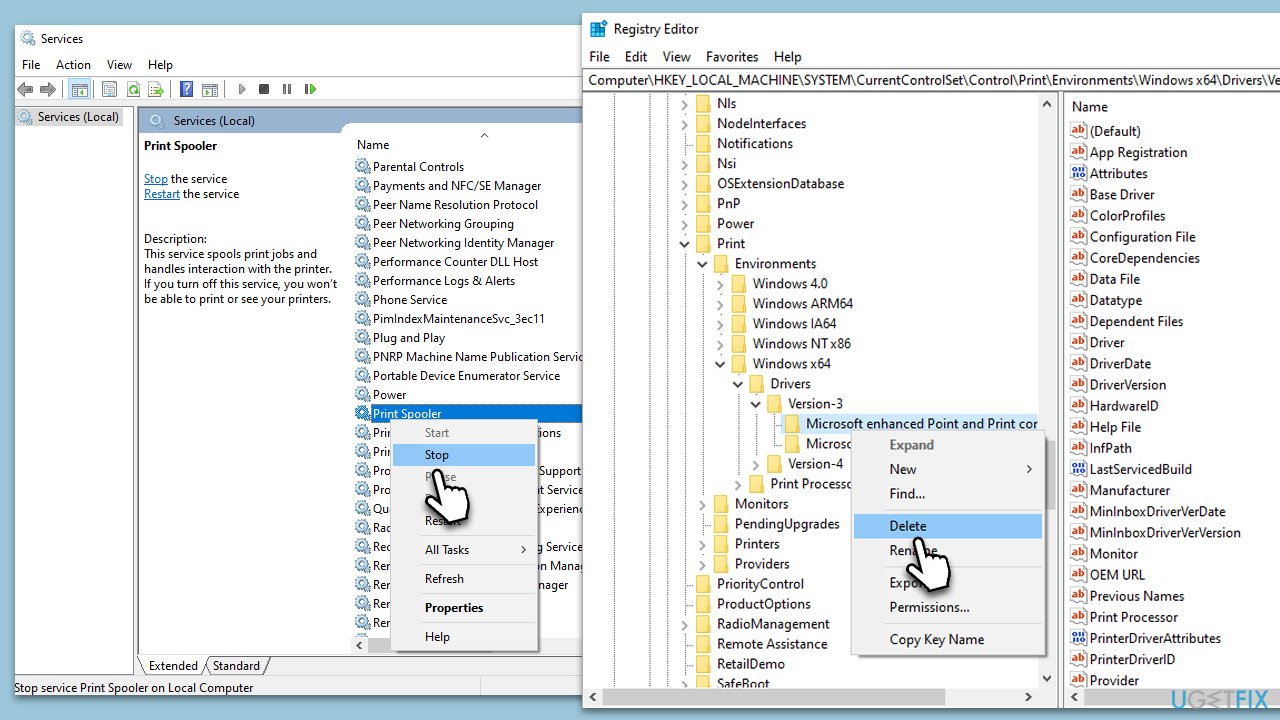
Finally, rename the driver folder:
- Press Win + E to open File Explorer (ensure hidden items are visible).
- Navigate to the following location:
C:\Windows\System32\spool\drivers\W32X86 - Rename the "3" folder to "3.old."
- Start Print Spooler Service again and see if that helped.
5. Try Clean boot
A clean boot ensures that your computer starts with a minimal set of drivers and startup programs, which can help identify if any background software is causing the 0x000003eb error.
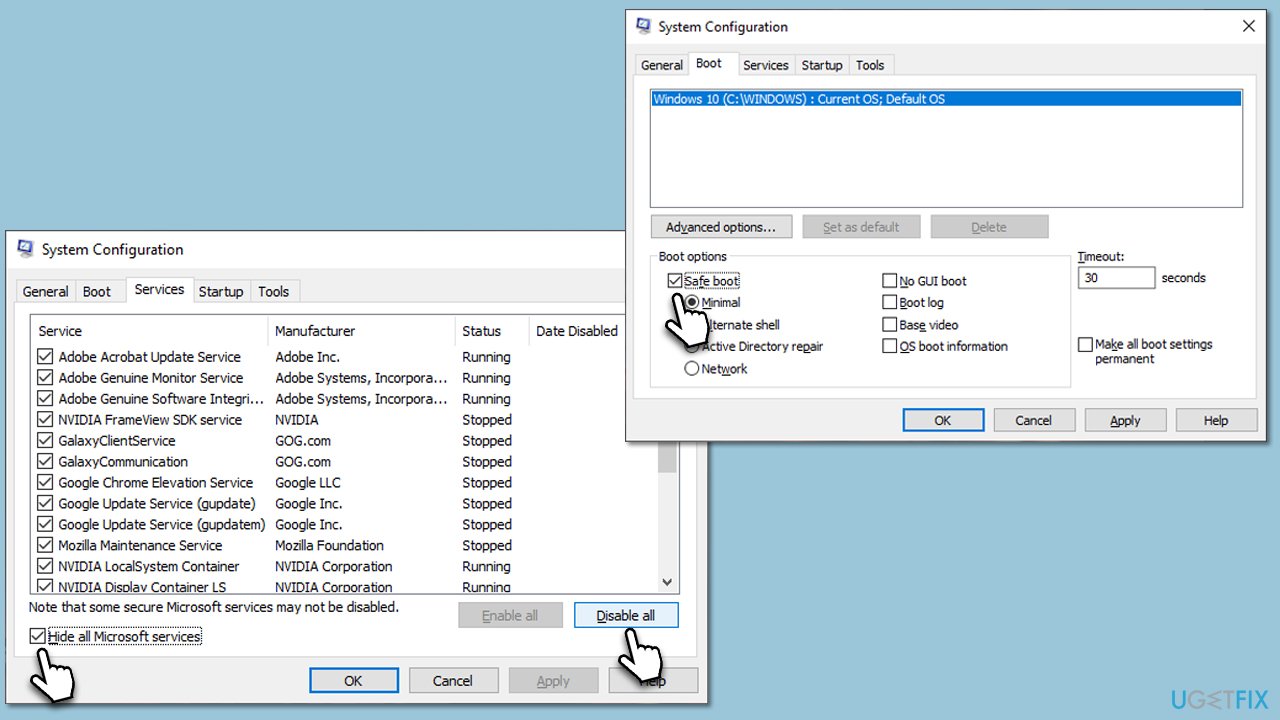
- Press Win + R, type msconfig, and hit Enter.
- Go to the Services tab and tick the Hide all Microsoft services checkbox.
- Select Disable all.
- Go to the Startup tab and click Open Task Manager.
- Here, right-click on each of the non-Windows entries and select Disable.
- Close down the Task Manager.
- Go to the Boot tab and tick the Safe boot option.
- Restart your device.
Bottom line
To resolve the 0x000003eb error, users should update or reinstall printer drivers, check connections, and ensure relevant Windows services are functioning properly. If these steps do not resolve the issue, further troubleshooting may be necessary.
Frequently asked questions
The 0x000003eb error typically occurs due to issues with printer drivers or misconfigured printer settings in Windows 10.
To fix the 0x000003eb error on Windows 11, try updating the printer driver through Device Manager or reinstalling the printer software.
Yes, checking for Windows updates can help resolve the 0x000003eb error, as Microsoft frequently releases patches that improve printer compatibility and functionality.




Report an issue
What's wrong with this guide? We review every report and update or remove content.
Report received — thank you. We'll review and fix it.
You need a free account to submit a report.
Be the first to comment